 NL
 English
 Deutsch
 Español
 Français
 Italiano
 Português
 Polski
 Bahasa Indonesia
 Русский
 Українська
 العربية
 עברית
 日本語
 한국어
Public company page
Add your company name, short description, website, Microsoft programs and expertise. The page links to the existing company profile in the community; the directory does not create a second company record.
Create a public company profile connected to Microsoft topics, expertise and community events. You choose whether each location appears in the directory.
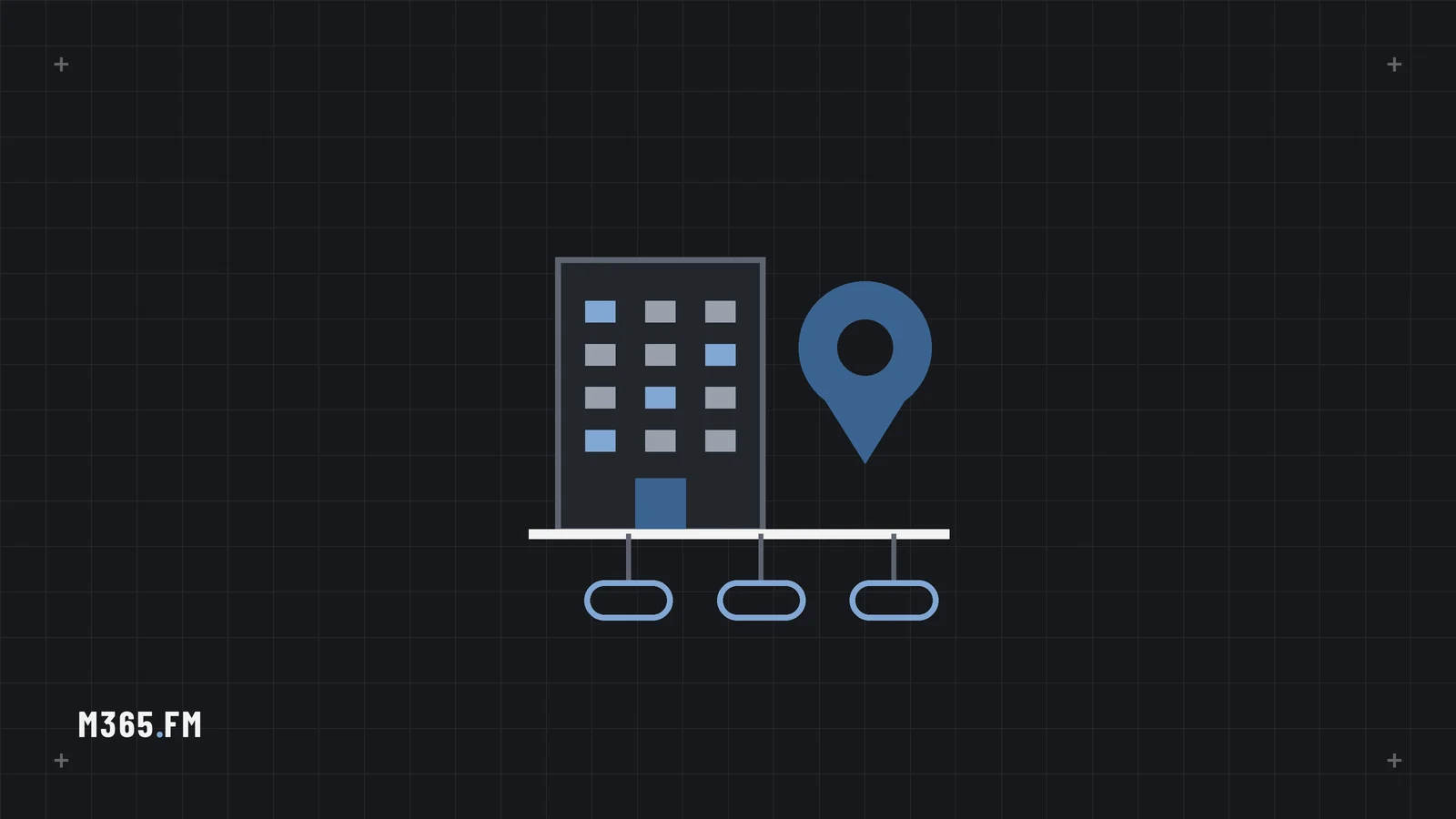
Microsoft 365 professionals often look for a company through a specific problem: governing SharePoint, moving to Teams Phone, securing identities or adopting Copilot. A general company page may explain the business, but it does not always show which Microsoft topics the team works on or which community evidence supports that expertise.
M365.FM connects company profiles to topic entities, public expert profiles and community events. Visitors can follow those links to learn more instead of relying on an isolated directory listing. The same profile can describe a company, its Microsoft programs and several locations without creating duplicate company pages for each office.
The directory is designed around the information a company chooses to publish. A profile can be public without publishing any address. Each location has its own visibility setting, so a headquarters, branch office or training venue can be listed separately or kept private.
Add your company name, short description, website, Microsoft programs and expertise. The page links to the existing company profile in the community; the directory does not create a second company record.
Choose the Microsoft product and concept topics that describe your work. Visitors can discover the company from a topic page and compare related experts and events.
Add several offices or venues. Each location is private by default and appears in directory searches and on the map only when explicitly made public by an authorized company editor.
Profiles can connect to public team members, verified program badges, sessions and events already present on M365.FM. Those links help visitors assess context without publishing contact lists.
Use the community area to create or edit the company profile you manage. An editor must have the appropriate company role.
Add a concise company description and select the Microsoft topics, programs and public channels that accurately represent the company.
Enter each location separately. Review the address and visibility option before saving; private locations are not returned by the public directory API.
Open the company profile and directory listing to confirm the published details and links.
Companies that work with Microsoft 365 products, services or community learning:
A consultancy can publish its expertise in Purview and SharePoint, then list a public office in Berlin and another in Hamburg. A location that is not intended for visitors can remain private without hiding the company profile.
A product company can connect its public profile to the topics covered by its team and to an upcoming community event. People comparing options can move from the event page to the existing company profile and the related topic pages.
These scenarios illustrate how the options can be combined. They are examples, not existing customers.
Yes. Creating a public company profile and using the directory listing are free.
No. A company can have a public profile without a public location. Each location is shown only when its editor explicitly enables public visibility.
Yes. Add each office or venue as a separate location and choose its visibility independently.
No. Directory entries link to the existing company profile in the community. Additional offices are locations on that profile, not duplicate companies.
The directory is a public listing of company profiles and explicitly published locations. It does not provide a bulk export of contact details.
A public expert profile linked to topics, sessions and episodes.
For: MVPs, MCTs, consultants and community speakers

Event pages with sessions, speakers, registration and calendar files.
For: User groups, meetups and community conferences

Podcast and video sponsorship plus banner advertising, with clear labelling and monthly reporting.
For: Microsoft partners, software vendors and service providers
Create a public company profile connected to Microsoft topics, expertise and community events. You choose whether each location appears in the directory.