 EN
EN Deutsch
 Español
 Français
 Italiano
 Português
 Nederlands
 Polski
 Bahasa Indonesia
 Русский
 Українська
 العربية
 עברית
עברית हिन्दी
 日本語
日本語 한국어
한국어2026-07-13 · Season 3
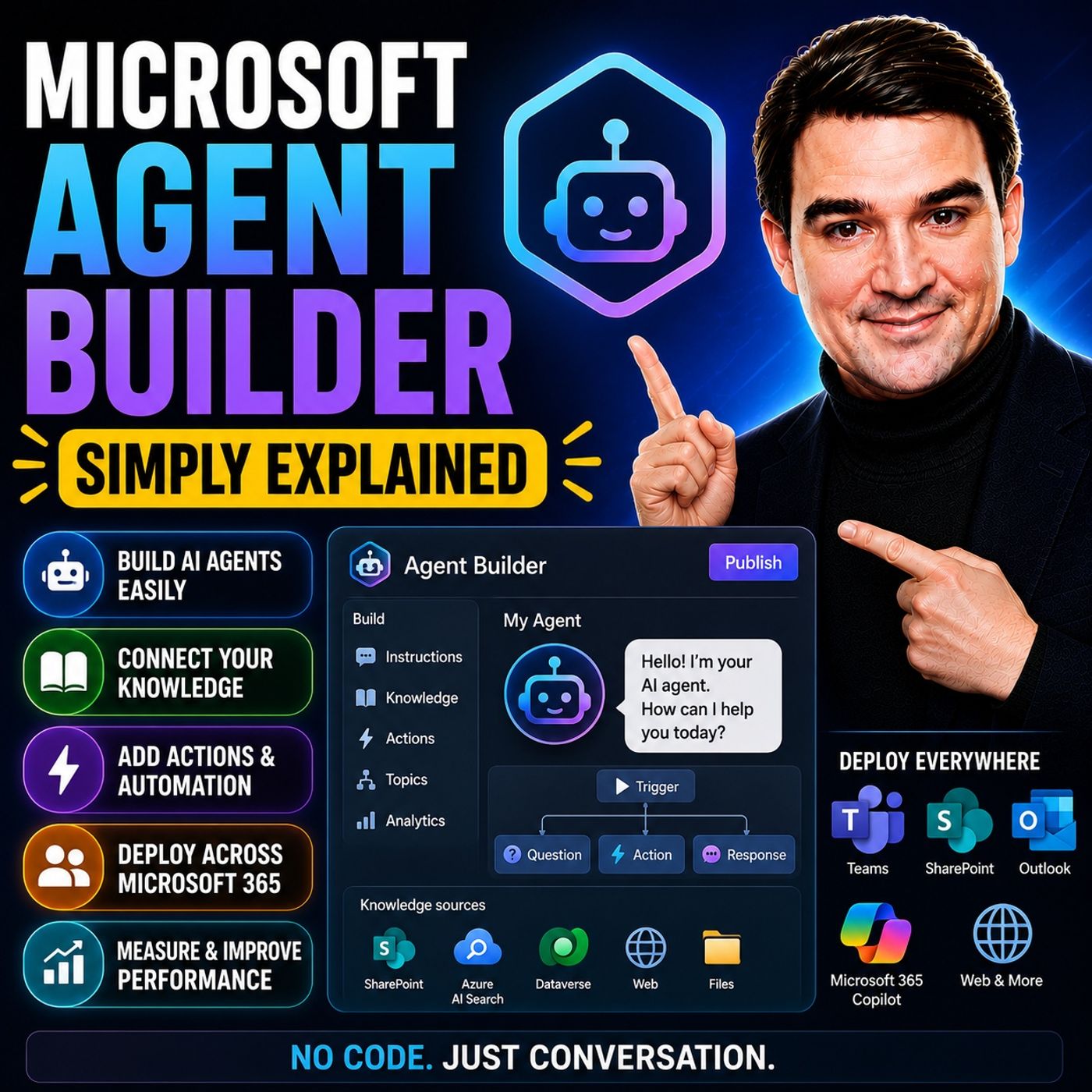
Microsoft Agent Builder — Simply Explained
Show notes
Building AI agents used to require developers, code, and complex AI platforms. Microsoft Agent Builder changes that completely. Built directly into Microsoft 365 Copilot, Agent Builder allows anyone to create an AI assistant simply by describing what they want in plain English. Instead of writing code, you describe the purpose of the agent, connect your company knowledge, and let Copilot generate everything else. In just a few minutes, you can build an internal AI assistant that helps answer questions, find information, and support everyday business processes. NO-CODE AI AGENTS Agent Builder lives directly inside the Microsoft 365 Copilot interface. Creating an agent starts with two simple tabs: Describe and Configure. In the Describe tab, you explain what the agent should do, such as helping employees onboard new hires or answering HR questions. Copilot automatically generates the agent's name, description, instructions, and suggested prompts. The Configure tab allows you to refine everything manually, including the agent's behavior, appearance, instructions, and connected knowledge sources. KNOWLEDGE MAKES THE AGENT SMART An agent is only as good as the information it can access. Agent Builder allows you to connect SharePoint sites, OneDrive documents, uploaded files, public websites, Teams conversations, and Outlook emails. These become the knowledge base the agent uses when answering questions. For organizations concerned about accuracy, the "Only use specified sources" option limits responses exclusively to approved content, helping reduce hallucinations while ensuring answers remain grounded in company documentation. BUILDING YOUR FIRST AGENT Creating an agent requires only a few simple steps. Start by describing the business problem you want to solve. Copilot generates the initial agent automatically. Next, connect the appropriate knowledge sources, customize the instructions if needed, add suggested prompts, and publish the agent. Within minutes, your AI assistant appears alongside Microsoft 365 Copilot, ready to answer questions based on your organization's knowledge. START FASTER WITH TEMPLATES Microsoft provides several ready-made templates to accelerate development. Templates such as Career Coach, Researcher, and Analyst provide prebuilt structures for common business scenarios. Rather than starting with a blank page, users simply customize the template by replacing the knowledge sources and adjusting the instructions to match their organization's requirements. Templates significantly reduce setup time while providing proven conversational structures. AGENT BUILDER VS. COPILOT STUDIO Microsoft offers multiple ways to build AI agents, each targeting different audiences. Agent Builder is designed for business users who need internal knowledge assistants without writing code. Copilot Studio adds low-code workflows, external connectors, automation, and multi-step business processes suitable for enterprise solutions. AI Foundry sits at the highest level, giving developers full control over models, orchestration, and advanced AI applications. For most organizations beginning their AI journey, Agent Builder provides the fastest path to delivering business value. UNDERSTANDING THE LIMITATIONS Agent Builder is intentionally designed to remain simple. It creates internal Microsoft 365 agents only. It cannot publish chatbots to public websites, connect directly to external systems like Salesforce or ServiceNow, execute complex workflows, or automate business processes. Organizations needing external-facing agents, advanced automation, or enterprise integrations should move to Copilot Studio instead. SECURITY AND GOVERNANCE Security is built into Agent Builder from the beginning. Agents automatically inherit existing Microsoft 365 permissions, meaning users can only receive information they already have permission to access. SharePoint permissions, Teams access, and document security continue to apply without requiring additional configuration. Combined with grounded knowledge sources and Microsoft's existing security model, Agent Builder allows organizations to introduce AI safely without creating new permission risks. WHY MICROSOFT AGENT BUILDER MATTERS Microsoft Agent Builder dramatically lowers the barrier to creating useful AI assistants. Business users no longer need developers or AI specialists to build internal knowledge assistants. Instead, they can describe their requirements, connect company information, and deploy an intelligent assistant within minutes. For organizations beginning their AI adoption journey, Agent Builder offers one of the fastest and simplest ways to bring conversational AI into everyday work while providing a clear upgrade path to Copilot Studio and AI Foundry as business requirements grow. Become a supporter of this podcast: https://www.spreaker.com/podcast/m365-fm-microsoft-365-azure-cloud-power-platform-ai--6704921/support.
Apple Podcasts · Spotify · YouTube · YouTube Music · Deezer
Host: Mirko Peters
Guests
Related articles
Transcript
Read the full transcript
Hello everyone and welcome to another episode of Microsoft Knowledge Nuggets here on M365. FM, I'm your host, Mirko Peters. Today's topic is one that almost everyone has heard of, but few people truly understand AI agents. What exactly is an AI agent and do you really need to be a developer to build one? Those are fair questions, especially when you hear terms like declarative agent and orchestration thrown around. Here's the short answer, no, you don't need to code. By the end of this episode, you'll understand what Microsoft agent builder is, how it works, and exactly when to use it versus co-pilot studio or AI Foundry. Grab your coffee and let's dive in. What agent builder actually is, Microsoft agent builder is a no-code tool that lives inside Microsoft 365 co-pilot. It lets you create what Microsoft calls declarative agents. In plain English, that means you design a personal AI assistant just by describing what you want, you don't write code, you write sentences. So how does it actually work? Open co-pilot in your browser, look at the sidebar on the left and you'll see a section called agents. Click New Agent and you get two tabs at the top. Describe and configure. The Describe tab is the magic one. You type something like "I need an agent that helps onboard new team members" and co-pilot builds the agent for you, generating a name, description, instructions and even suggested prompts. You talk, it builds. The configure tab is for tweaking things manually. Change the name, upload an icon, rewrite the instructions, add knowledge sources. Most people start with describe, then switch to configure to polish things up. Think of describe as the fast lane. You just tell it what you need and the agent appears in seconds. The user is for fine tuning, like adjusting the furniture after the room is built. But here's the thing, agent builder is not a separate website. You don't go to co-pilot studio, Microsoft.com or some other portal. It lives right inside the co-pilot sidebar in the same place you chat with co-pilot every day and that's by design. Microsoft wants this to feel like a natural extension of your workflow, not a separate tool you have to learn. Most users never notice the complexity behind the scenes, but that's the beauty of it. Think of it like an office building. Imagine you work in a big building with rooms for different things. Building rooms, storage rooms, break rooms. In the old days, if you needed a new room, you'd have to hire an architect, draw up plans, get permits and wait weeks for construction. That's what building an AI agent used to feel like. Agent builder is the opposite. It's like walking up to the building manager and saying, "I need a small room on the third floor with a whiteboard and good lighting." The manager says, "Got it, and it's ready in minutes. You don't design the plumbing or the wiring. You just describe the room you need and the building handles the rest." That's the core idea. Agent builder takes your description and turns it into a working agent, handling all the technical stuff behind the scenes, the AI model, the grounding, the permissions. You just tell it what you want. The creation flow. Step by step. What does this actually look like in practice? Let's walk through it. You start from the co-pilot sidebar. Click New Agent and you see two tabs. Describe and configure. Most people land on Describe first. That's where the magic happens. In the Describe tab, you type what you need. Like, "I need an agent that helps onboard new team members." Hit Send and co-pilot starts working. It thinks for a few seconds, then comes back with a complete agent, including a name, description, instructions, and suggested prompts users can click when they start chatting. It's all generated from that one sentence you typed. You can accept it as is or switch to configure and tweak things manually. The configure tab is where you get hands-on. You can change the agent's name, upload a custom icon, or rewrite the description. The instructions field is the most important part. This is where you tell the agent how to behave. And something like "You are an HR assistant." Only answer questions using the provided documents. If you don't know the answer, tell the user to contact HR directly. That's your instruction and the agent follows it. Then there's the Knowledge section. This is where you connect the agent to actual data. Without knowledge sources, the agent is just a chatbot with a personality. It doesn't know anything about your company. So you add sources, SharePoint sites, specific files from one drive, upload a document from your computer, public URLs, Teams chats, or Outlook emails. The agent reads those sources and answers questions based on what it finds. Below that, there's a capabilities section with toggles. You can let the agent generate documents, write code, or create images. Flip those on if you want the agent to produce word docs or PowerPoint slides. They're off by default, but easy to enable. Then there are suggested prompts. Pre-written questions that show up when someone opens the agent. Things like "What are the steps for new hire paperwork?" or find the travel policy document. You can write your own or let co-pilot generate them based on your description. And everything looks good, click "Create". The agent appears in your co-pilot sidebar alongside any other agents you've built or installed, and you can start chatting with it immediately. If you need to change something later, just click the three dots next to the agent and choose "Edit". It opens the "Configure" tab again, and you can tweak anything. Instructions, knowledge sources, prompts, update it, and the changes take effect right away. Where the smarts come from? Knowledge sources. Now you've got a working agent, but where does its intelligence actually come from? Here's the thing. A agent doesn't know anything by default. It's like a new employee on their first day. They might be smart, but they don't know your company's policies, your products, or your customers. They need training materials and for an agent, those training materials are called "knowledge sources". Without grounding data, your agent is just a generic chatbot with a personality. It can hold a conversation, but won't know anything specific about your business. That's why the knowledge section is the most important part of building an agent. You have several types of sources you can connect. SharePoint sites are the most common. Think of them as your company's document libraries. One drive files work too if you have a specific document stored in your personal cloud. You can upload files directly from your computer. PDFs, Word documents, PowerPoints, Excel spreadsheets, public URLs or another option so you can point the agent to your company website or a public knowledge base. And if you have a copilot license, you can also connect Teams chats and Outlook emails. Now there's a toggle that matters a lot. Only use specified sources. Flip this on, and the agent will only answer from the documents and sites you've provided. But don't use the general knowledge of the AI model to make things up. This is your best defense against hallucinations. If you're building an HR agent that answers from your employee handbook, you want this turned on like you don't want the agent inventing a policy that doesn't exist. There are limits to keep in mind. Microsoft says individual files can be up to 512 megabytes for most document types. With Excel files kept at 30 megabytes. In practical terms, you're looking at about 100 SharePoint files per agent and around 50 one drive files. Those aren't hard limits written in stone, but they're good guidelines for planning. Here's the part that surprises most people. The agent respects your existing Microsoft 365 permissions. It doesn't get special access. If you add a SharePoint site as a knowledge source, the agent can only return information that the person asking the question is already allowed to see. So if a user can't normally view a specific document in SharePoint, the agent won't show it to them either. This is built in security, and it works automatically. The template shortcut. Welcome back to Microsoft Knowledge Nuggets. I'm Mirko Peters. But what if you want to build something faster than starting from scratch? That's where templates come in. Microsoft now pushes template first creation pretty heavily. Instead of staring at a blank described tab, you pick from pre-configured agents designed for common scenarios. Career coach helps people navigate professional development. Researcher digs deep across multiple sources. Analyst focuses on data and spreadsheets. And there are industry-specific ones too, depending on your organization. Microsoft keeps adding more over time. The workflow is simple. Pick a template close to what you need. Then customize it. Swap in your own knowledge sources. Tweak the instructions. Adjust the suggested prompts. The template gives you a solid starting structure, but the real value comes from the data you connect. Think of it like cooking. Starting from a recipe is way easier than inventing a dish from scratch. The recipe gives you the proportions, the techniques, the order of operations. You still need to add your own ingredients, and that's your company's data. But you don't have to figure out the structure yourself. Templates are great for business users who want speed without complexity. If you're not a developer and don't want to learn prompt engineering, a template gets you a working agent in minutes. You just need to know what you want the agent to do and where the relevant information lives. Just remember, a template is a starting point, not a finished product. The agent is only as useful as the knowledge sources you connect to it. A career coach template with no company data attached is just a generic career advice board, connected to your internal training documents and job postings, and suddenly it becomes a tool that actually helps your employees. The spectrum. Agent Builda versus Copilot Studio versus AI Foundry. Now here's the question everyone asks. When should you use Agent Builda versus the other tools Microsoft offers? Because Microsoft gives you three ways to build agents and they're not the same thing. Think of it as a spectrum. On one end, you have Agent Builda, the simplest, fastest, most accessible option in the middle, Copilot Studio with more power, more complexity, more control, and on the far end, AI Foundry, the full developer platform where you can do almost anything, but you'd better know what you're doing. Start with Agent Builda. This is for quick internal Q&A assistance grounded in Microsoft 365 content. No code required. You describe what you want, connect some knowledge sources, and you're done. But there are trade-offs. Agent Builda agents stay inside your organization. You can't put them on a public website. You can't connect them to Salesforce or Service now. They answer questions from your SharePoint sites and documents, and that's about it. If that's all you need, Agent Builda is perfect. Copilot Studio is the next step up. This is a low-code platform for enterprise-grade agents. It supports workflows, real multi-step processes with branching and conditional logic. It has connectors to external systems like Salesforce, Dataverse, and hundreds of other services. You can publish agents to websites, teams, Slack, even custom apps. But with that power comes complexity. You need licensing. You need governance. Your IT department needs to be involved. It's not something a business user sets up in five minutes. AI Foundry is the far end of the spectrum. This is Microsoft's professional AI development platform. Pro developers only. You can choose from thousands of AI models, not just Microsoft's, but Claude, Grog, even specialized healthcare models. You can fine tune them, customize them, build entirely custom solutions. But for most business users, AI Foundry is overkill. If you're asking, should I use Agent Builda or AI Foundry? The answer is Agent Builda. So when do you move from Agent Builda to Copilot Studio? Three main reasons. Reason one, you need an external facing agent. Agent Builda agents only work inside your organization. If you want a customer service bot on your public website, you need Copilot Studio. Reason two, you need exotic data sources. Agent Builda connects to SharePoint, OneDrive, WebContent, and Microsoft 365 data. But if you need to pull data from a SQL database, Salesforce, or an MCP server, you need Copilot Studio. Reason three, you need agentic actions. This means the agent doesn't just answer questions, it does things, it creates tickets, sends emails, updates records, triggers workflows. Agent Builda can't do that. Copilot Studio can. Here's a real world way to think about it. An HR FAQ bot that answers questions from your employee handbook is Agent Builda territory. A helpdesk agent that reads a support request creates a ticket in service now, roots it to the right team, and sends a confirmation email is Copilot Studio. A medical diagnosis assistant that uses specialized healthcare models and needs to comply with strict regulations is AI Foundry. The bottom line is simple, start with Agent Builda. It's free with your Copilot license, it takes minutes to set up, and it handles a surprising number of use cases. Only level up when you hit a wall, when you need external access, different data sources or actual actions. Most people never need to leave Agent Builda. The hard limits, what Agent Builda can't do, but Agent Builda does have limits. Let's talk about where it stops, because knowing when a tool isn't right for the job is just as important as knowing when it is. One important limit, these agents stay inside Copilot. You open Copilot in your browser, see your agent in the sidebar and chat with it there, but you cannot pull it into a team's conversation or add it to a channel. If you need an agent that lives inside teams, you have outgrown Agent Builda. The limit, no external facing agents. Everything you build in Agent Builda stays internal to your organization. You can share agents with co-workers, but you cannot put one on your public website, embedded in a customer portal, or let anyone outside your company use it. If your goal is a customer service bot on your homepage, you need Copilot Studio. Then there's complexity, Agent Builda is designed for Q&A, not automation. There is no branching logic, no conditional steps, no if this then that sequences. You cannot connect it to Power Automate to trigger actions when someone asks the question. The agent answers questions and that is it. If you need a multi-step process, like an agent that reads a request, checks inventory, creates an order, and sends a confirmation. Agent Builda will not do it. External connections are also off the table. You cannot connect Agent Builda to Salesforce, ServiceNow, or any other third-party system. It works with Microsoft 365 content, SharePoint, OneDrive, Teams, Email, and Public Web content. That is the full list. If your agent needs to pull data from a CRM or update a record in an external database, you need a different tool. Compliance features are missing too. Agent Builda does not support lockbox or customer managed keys. Those controls that let organizations manage encryption keys or require explicit approval before Microsoft engineers can access data. If you work in a highly regulated industry where those are mandatory, Agent Builda is not the right choice. Here is a licensing gotcha that catches people during testing. SharePoint grounding requires a proper Microsoft 365 Copilot license. You cannot build an agent that reads from SharePoint in a developer-only tenant or a trial account. The agent will work, but it won't be able to access your SharePoint data. And finally, practical source limits. Per agent you are looking at roughly 100 SharePoint files, 51 Drive files, 20 uploaded documents, full public URLs, and five Teams chats. Those aren't hard Microsoft limits written in stone, but they're what the community consistently reports. If your agent needs to search across hundreds of documents, you will hit a ceiling. So here is the honest truth. If you need any of these things, you have outgrown Agent Builda. That is not a failure. Agent Builda is made for a specific job and it does that job well. But when your needs get more complex, it is time to look at Copilot Studio. Security and governance, the simple version. So how does security work with Agent Builda? Here is the simple version. Agent Builda respects your existing Microsoft 365 permissions. That is the key point. When you add a SharePoint site as a knowledge source, the agent does not get special access. They can only return information that the person asking the question is already allowed to see. Other user cannot view a specific document in SharePoint. The agent will not show it to them either. The permissions are inherited automatically. This is built in and works without any extra configuration. You do not need to set up separate access rules for your agents. They follow the same rules your organization already has in place. The only use specified sources toggle is very useful. Turn it on. And the agent only answers from the documents and sites you explicitly provide. It ignores the general knowledge of the AI model. This is your primary defense against hallucinations. The agent cannot make up a policy if it is forced to use only your employee handbook. Simple, effective, and we always recommend it. One thing to watch for. Tenant level policies can override what you see in the UI. If your IT admin has disabled web search and copilot through a tenant policy, the web content toggle in Agent Builda might still appear enabled, but it won't actually work. The policy wins. So if you are building an agent and wondering why web content isn't working, check with your admin first. You do not need to become a security expert to use Agent Builda. You will understand that the agent inherits your organization's rules. It does not create new permissions or bypass existing ones. If your data is secure and share point, it is secure in your agent. For organizations that need more, monitoring, lifecycle management, identity controls, there is a tool called Agent365. It is Microsoft's governance layer for AI agents. But that is a separate topic for a future episode. For most people using Agent Builda, the built-in security is enough. So that's Microsoft Agent Builda in plain English and the easiest way to create a helpful AI assistant for your team without writing any code. Here is your one task this week. Open Copilot, click New Agent, start with the Described tab, pick a template or describe what you need, connect a SharePoint site and test it. You'll have a working agent in under 10 minutes. If this helped, subscribe on your favorite podcast platform and share it with someone starting their AI journey. I'm Mirko Peters and I'll catch you on the next episode.