 EN
EN Deutsch
 Español
 Français
 Italiano
 Português
 Nederlands
 Polski
 Bahasa Indonesia
 Русский
 Українська
 العربية
 עברית
עברית हिन्दी
 日本語
日本語 한국어
한국어2026-07-21 · Season 3
Microsoft Defender for Cloud Apps - Simply Explained
Show notes
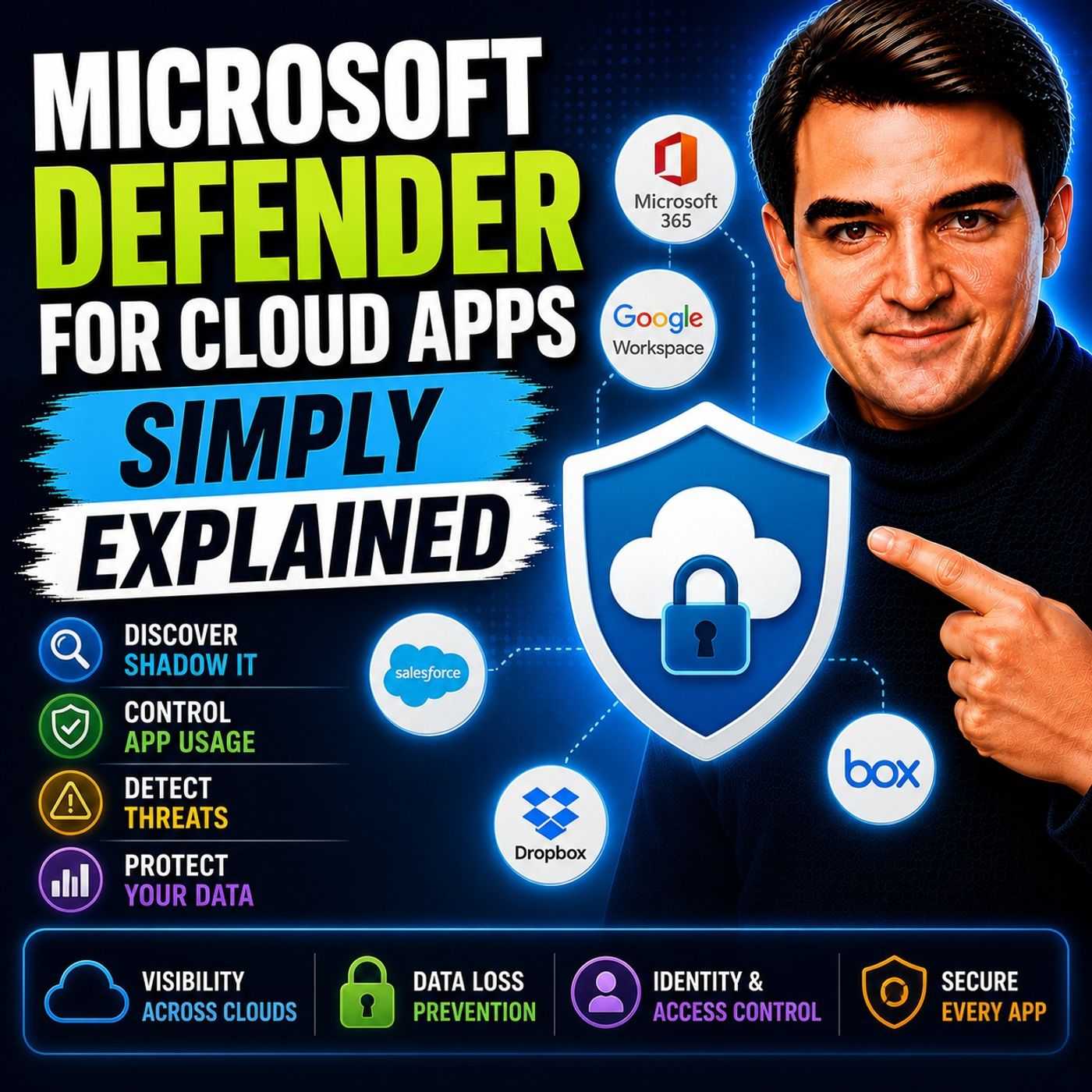
Welcome to another episode of Knowledge Nuggets with Mirko Peters. In this episode, we're exploring Microsoft Defender for Cloud Apps—Microsoft's Cloud Access Security Broker (CASB) that helps organizations discover, monitor, and protect the cloud applications employees use every day. Modern organizations rely on hundreds of cloud services, but many of them are never approved by IT. Employees sign up for AI tools, file-sharing platforms, collaboration services, and productivity apps to solve business problems quickly. While these services improve productivity, they can also introduce significant security, compliance, and data protection risks. Microsoft Defender for Cloud Apps helps organizations regain visibility, understand risk, and protect business data without preventing innovation. THE PROBLEM: SHADOW IT One of the biggest challenges facing modern IT departments is Shadow IT. Shadow IT refers to cloud applications employees use without official approval from the IT department. Examples include:
- File-sharing websites
- AI writing assistants
- Project management tools
- Online collaboration platforms
- Personal cloud storage
Employees often adopt these services because they're convenient, but organizations lose visibility into where sensitive business information is being stored and shared. Without visibility, companies cannot adequately manage:
- Data leakage
- Compliance requirements
- Insider threats
- Third-party security risks
Microsoft Defender for Cloud Apps was designed specifically to eliminate these blind spots. WHAT IS MICROSOFT DEFENDER FOR CLOUD APPS? Microsoft Defender for Cloud Apps acts as a security layer between users and cloud services. Rather than replacing cloud applications, it continuously monitors how they're being used. Its primary responsibilities include:
- Discovering cloud applications
- Assessing application risk
- Detecting suspicious behavior
- Protecting sensitive information
- Enforcing security policies
As part of the broader Microsoft Defender ecosystem, it integrates closely with Microsoft Entra ID, Microsoft Defender for Endpoint, Microsoft Sentinel, and Microsoft Defender XDR to provide enterprise-wide cloud security. CLOUD DISCOVERY The platform's first major capability is Cloud Discovery. Cloud Discovery identifies every cloud application employees access across the organization, including services that IT never approved. Organizations using Microsoft Defender for Endpoint receive continuous automated monitoring, while Microsoft 365 Business Premium customers can upload firewall or proxy logs for periodic analysis. The Cloud Discovery dashboard provides insights into:
- Applications in use
- Number of users
- Network traffic
- Data uploads
- Geographic locations
- Risk ratings
Instead of guessing which cloud services employees use, administrators gain complete visibility into their cloud environment. THE APP CATALOG Finding cloud applications is only the beginning. Microsoft maintains an App Catalog containing more than 31,000 cloud applications, each evaluated against over 90 security and compliance factors. Applications receive risk scores based on criteria including:
- Encryption
- Multi-Factor Authentication
- Compliance certifications
- Privacy policies
- Data ownership
- Audit capabilities
Organizations can classify applications as:
- Sanctioned
- Unsanctioned
- Monitored
This allows IT departments to quickly identify trusted services while blocking or closely monitoring applications that introduce unnecessary business risk. THREAT DETECTION Microsoft Defender for Cloud Apps continuously monitors user behavior for suspicious activity. Built-in policies automatically detect scenarios such as:
- Impossible travel
- Mass downloads
- Mass deletions
- Logins from risky IP addresses
- Suspicious email forwarding
- Unusual account behavior
Using User and Entity Behavior Analytics (UEBA), the platform learns normal user activity over time and identifies anomalies that could indicate compromised accounts or insider threats. Organizations can respond automatically by:
- Sending alerts
- Blocking sessions
- Suspending accounts
- Triggering security workflows
This allows security teams to react quickly before attackers cause significant damage. DATA PROTECTION Beyond detecting threats, Defender for Cloud Apps actively protects sensitive information. Integration with Microsoft Information Protection enables automatic application of sensitivity labels based on document content. The platform can also enforce:
- Download restrictions
- Copy and paste controls
- Printing restrictions
- Session monitoring
- Conditional Access policies
Support extends beyond Microsoft services to third-party platforms including:
- Google Workspace
- Salesforce
- Box
- AWS
- Dropbox
This consistent protection helps organizations secure data regardless of where employees choose to work. OAUTH APP GOVERNANCE Many cloud applications request access through OAuth permissions. While convenient, some applications request far more permissions than necessary. Defender for Cloud Apps monitors OAuth applications and identifies services requesting excessive access to:
- Files
- Calendars
- Contacts
- OneDrive
- Microsoft 365 data
Administrators can review, approve, or revoke permissions before sensitive business information becomes exposed through third-party applications. This provides another critical layer of protection against data leakage and account compromise. Become a supporter of this podcast: https://www.spreaker.com/podcast/m365-fm-microsoft-365-azure-cloud-power-platform-ai--6704921/support.
Apple Podcasts · Spotify · YouTube · YouTube Music · Deezer
Host: Mirko Peters
Guests
Related articles
Transcript
Read the full transcript
Welcome to another episode of Microsoft Knowledge Nuggets on M365. FM, I'm your host, Mirko Peters. Today's topic is one that almost everyone is heard of, but very few people actually understand. Microsoft Defender for Cloud Apps. It sounds like another security product you're supposed to buy, configure, and then forget about. But here's the thing, most businesses have no idea which Cloud Apps their employees are actually using, and I mean no idea. You probably know about the official ones. The Microsoft 365 subscription, maybe Salesforce or Dropbox if IT gave the green light. But what about the other ones, the free file sharing side, someone in Accounting Found last week, the AI writing tool, the marketing team started using without telling anyone, the project management app that just showed up on someone's browser one day, those are the apps you don't know about. And they're the ones that cause real problems. By the end of this episode, you'll understand what Defender for Cloud Apps actually is, why it matters for your business, and how it works. Without needing to touch a single setting. This is a plain English overview, no technical deep dives, no admin console walkthroughs, just the big picture explained clearly. So grab your coffee and let's dive in. The blind spot in your cloud, here's what actually happens every single day. Employees in your organization sign up for cloud services without telling anyone, they do it because it's faster. They need to send a large file, so they use a free file sharing app. They want to collaborate on a document, so they create an account on some online whiteboard tool. They hear about a new AI assistant, so they sign up and start feeding it company data. Let me give you a concrete example. Imagine someone in marketing needs to send a large presentation to a client. The file is too big for email, so they search for free file transfer and pick the first result. They upload the presentation, which contains next quarter's pricing strategy and share the link done. Problem solved, right? Not quite. That free file sharing app might not have any security controls, no encryption, no audit trail, no data retention policy. The company behind it might be based in a country with weak data protection laws. And once that file is uploaded, you have no idea who accesses it, where it gets downloaded, or whether it gets forwarded to someone else. This is what security experts call shadow IT. In plain English, shadow IT means using software or services at work without the IT department knowing about it. And it's more common than you think. So why should you care? Three big reasons. First, data leakage, your sensitive information ends up on service you don't control. Second, compliance violations. If you're subject to regulations like GDPR or HIPAA, using an app that doesn't meet those standards puts you in violation. Third, unknown risk. Every unapproved app is a potential entry point for an attacker because you can't protect what you can't see. The old way of solving this was impossible. You couldn't see what you couldn't control. You might block certain websites at the firewall, but employees working from home on their phones were just bypass those restrictions. You might ask people to only use approved apps, but that relied on everyone following the rules, which they didn't. And even if they did, new apps appeared every day that you never knew about. So what do you do? You need a tool that actually sees what's happening, a tool designed to shine a light on the shadows that's exactly what Defender for Cloud Apps is built to do. What is Defender for Cloud Apps? What exactly is Defender for Cloud Apps? Here's the simplest definition. It's a security guard that watches every connection between your users and the Cloud Apps they use. Checks who's using what flags anything suspicious. The technical name is Cloud Access Security Broker or CSB. But we're sticking with plain English. Think of it this way. Your business is a building with lots of doors. Each Cloud app is one of those doors. Some are safe. They lead to well-lit rooms with security cameras. Others lead to dark alleys. Defender for Cloud Apps stands at each door, checks who's coming in, what they're carrying, and whether they should be there at all. So what does it actually do? It finds every Cloud app being used in your company, whether you approved it or not, tells you how risky each app is based on security features, compliance certifications and legal policies, watches how people use those apps and flags on usual activity. And if something's dangerous, it can block it. Defender for Cloud Apps doesn't work alone. It's part of the Microsoft Defender suite, a collection of security tools, shares information with Defender for Endpoint for Device Protection, connects to Microsoft Enter ID for user identity management. Integrates with Microsoft Sentinel for enterprise security, but for now, just know it's one piece of a bigger system protecting your entire environment. That's the big picture, but how does it actually find those hidden apps? That's where Cloud Discovery comes in. Cloud Discovery, seeing the invisible. So how does Defender for Cloud Apps find those hidden apps? Through a feature called Cloud Discovery. It does exactly what it sounds like. Discovers every Cloud app in use across your organization, whether IT approved it or not. There are two ways this works and it depends on your license. The full version integrates directly with Microsoft Defender for Endpoint on your company devices. One setup, Cloud Discovery runs continuously and automatically. Reports everything it finds. Every app someone accesses, every login, every file upload, constant monitoring. The business premium version is different, less seamless. Instead of automatic integration, you upload log files from your firewall or network proxy, export traffic logs, upload them to Defender and it analyzes them. It gives you a snapshot of what apps were accessed during that period. Not a live feed, but it still works. For many small businesses, it's the only option. Once Cloud Discovery is running, you get a dashboard. Shows total apps used across your organization. How many users accessed them, which IP addresses? How much traffic they generated? You can filter by risk level, category, location or user. See exactly what's happening. Here's a real scenario. You discover 10 people in your company are using a file sharing app hosted in a country with weak data protection laws. You didn't approve it, nobody asked. But now you know, before Cloud Discovery, that app was invisible. Now you see it clearly. That visibility changes everything. You stop guessing and start knowing. And once you know, you can do something about it. The app catalog, risk scoring made simple. So you found all those apps. Now you need to know which ones are safe. That's where the app catalog steps in. Microsoft has already checked over 31,000 cloud apps against more than 90 risk factors. That's a lot of homework. Each app gets a risk score from 0 to 10. 10 is the safest. 0 means stay far away. What exactly are they checking? Three things. First, security features. Does the app support encryption? Does it offer multi factor authentication? Does it keep an audit trail? Second, compliance certifications. Is it certified for ISO 27001, SOC2 or GDPR? Third, legal policies. Who owns the data you store there? What happens if you stop paying? What privacy protections exist? Think of it like a restaurant health inspection school. You wouldn't eat at a place with a score of 2 out of 10. Same logic here. You want to know the kitchen is clean before your employees eat there. Once you know an app's score, you have three choices. You can sanction it. That means you approve it for use. You can un-sanction it and that blocks it completely. Or you can monitor it. Let people keep using it. But watch it closely and maybe show a warning that says this app hasn't been reviewed for security. The catalog updates continuously. New apps get added all the time. And as Microsoft learns more, maybe the app gets a new security certification or a data breach reveals a vulnerability. The risk score updates automatically. So you never work with stale information. Discovery gives you visibility. The catalog gives you context. Together they tell you what's out there and how risky it is. But knowing isn't the same as doing. The real power comes next. Automated protection. Policies and threat detection. So you've discovered the apps. You've checked their risk scores. Now what? Defender for Cloud Apps comes with built-in policies that watch for suspicious behavior automatically. You don't need to configure much. The system already knows what to look for. Let me give you some examples of what it detects. Impossible travel. This one is straightforward. Imagine a user logs in from New York at 9 a.m. Then 10 minutes later, the same user logs in from Tokyo. That's impossible. You can't get from New York to Tokyo in 10 minutes. So something is wrong. Either someone stole that user's password or they're using a VPN that makes it look like they're somewhere they're not. Either way, Defender flags it. Mass downloads or deletions. If someone suddenly downloads hundreds of files from SharePoint or OneDrive, that's unusual. If they delete a bunch of data all at once, that's also unusual. These could be signs of a disgruntled employee about to leave or an attacker trying to steal or destroy data before they get caught. Logins from risky IP addresses. Some IP addresses are known to be dangerous. They might belong to countries under sanctions. They might be associated with known hacking groups. When a login comes from one of these addresses, Defender raises an alert. Suspicious email forwarding rules. This is a common hacker tactic. They compromise an email account and set up a rule that forwards all incoming messages to an external address. That way they can read every email that person receives without logging into their account again. Defender can spot when a new forwarding rule is created and flag it immediately. How does it know what's normal and what's not? It uses something called user and entity behavior analytics, UEBA for short. The system learns what normal looks like for each person in your organization. It watches their patterns over time. Where they log in from, what time of day they work, how many files they typically access. Once it understands the baseline, it can spot deviations. And when it does, it takes action. The system can automatically respond in several ways. It can send an alert to the IT team. It can suspend the user's account. It can block the suspicious activity entirely. You decide how aggressive you want to be. You can also create custom policies for your specific needs. Maybe you want to be alerted any time someone from the finance team accesses files after midnight. Maybe you want to block all downloads from a particular app. You can build those rules yourself. Here's a real world scenario. A busy executive gets an email that looks legitimate. They click a link, their credentials get stolen. Within minutes, the attacker logs in from a different country. Defender spots the impossible travel checks the IP address against known threat databases and automatically disables the account. The IT team gets an alert. The executive gets a notification. The attacker stopped before any real damage happens. Policies cover threats, but what about protecting the data itself? Data protection and access control. So policies catch suspicious behavior, but Defender also protects the data itself. The files and documents your employees work with every day. Defender monitors file sharing to stop sensitive data from leaving your organization and it hooks into Microsoft Information Protection. The system behind those sensitivity labels you've seen. Confidential, internal only, highly confidential. Based on what a file contains, Defender can apply those labels automatically. Here's an example. Someone tries to share a confidential document to their personal email. They're working from home and want to finish something on their personal laptop. Defender spots the attempt and blocks the share entirely or applies a label that makes the file unreadable outside the company. Either way, that document stays protected. You also get conditional access app control, which gives you real time controls inside apps. You can block, cut, copy, paste, downloads, even printing. So if someone accesses a sensitive app from an unmanaged device, like their personal phone, you can restrict what they're allowed to do without cutting off access completely. And it works with both Microsoft apps and non-Microsoft apps. Google workspace, Salesforce, Box AWS, Defender Connects to all of them through API connectors. So whether your team is an outlook or Gmail, one drive or Google drive, you get the same protection. One more thing, OAuth app management. OAuth is the tech that lets third party apps request permission to your data. You know when you sign into a site with your Google or Microsoft account and it asks for permission to read your email or access your files, that's OAuth? Defender can detect when an app asks for too many permissions, maybe a simple note-taking app wants access to your entire one drive. That's suspicious. Defender flags it and lets you revoke those permissions. So you've got discovery, risk assessment, thread detection and data protection. But none of this works alone. Defender for cloud apps fits into a bigger picture. And understanding how it connects to everything else is where the real power lies. How it connects to everything else, you might wonder, can Defender for cloud apps work on its own? Yes, it can, but the real power comes from how it connects to the rest of the Microsoft security world. Defender for cloud apps is part of the Microsoft Defender XDR suite. XDR stands for Extended Detection and Response, basically a set of security tools that share information. Defender for endpoint protects devices, Defender for Office 365 protects email, Defender for Identity protects user accounts, and Defender for Cloud Apps protects cloud apps. Together they form a unified system where each tool feeds data to the others. Defender for cloud apps shares data with Microsoft Sentinel, Microsoft's enterprise level seam, security information and event management. Sentinel collects logs from across your entire organization, servers, firewalls, applications, everything. When Defender spots something suspicious, it sends that info to Sentinel. Sentinel then correlates it with other events. The same IP that accessed a risky cloud app also tried to log into a server, Sentinel connects those dots. Integration with Microsoft, EntraID is just as important. EntraID manages who your users are and what they can access. Defender uses that identity info to understand who's doing what. When it detects a compromised account, it can tell EntraID to block that user's access immediately, no waiting for a human to respond. It also connects to Defender for Endpoint, which runs on company devices. That's how cloud discovery works in the full version. Defender for Endpoints sees every website and app a user visits on their work computer and sends that data to Defender for cloud apps, which builds your discovery dashboard. Without this connection, you're stuck manually uploading firewall logs and there's integration with Power Automate, Microsoft's automation platform. You can create playbooks, automated response workflows. When Defender detects a threat, it triggers a Power Automate flow that sends a notification to a Teams channel, creates a helpdesk ticket and suspends the user's account all without anyone lifting a finger. So once a suspicious event can trigger actions across multiple tools, an impossible travel detection in Defender for cloud apps can block the user in EntraID, alert the security team and Teams and log the incident in Sentinel. Everything works together. Now, licenses matter. With Microsoft 365 Business Premium, you get a limited version. You can upload firewall logs for cloud discovery and use the app catalog to check risk scores, but you don't get automatic integration with Defender for Endpoint and some advanced features are missing. For the full version, you need Microsoft 365 e5 or an EMS e5 add-on. That's where continuous monitoring, real-time session controls and full automation come in. That's how everything connects. So what does it take to get started? Getting started in plain terms. You don't need to be a security expert to start using Defender for cloud apps. You can begin without configuring a single policy. The best approach is to start small. Learn what you're dealing with, then gradually add controls. Phase one is visibility, just turn on cloud discovery and see what's out there. If you have Business Premium, upload your firewall logs and get a snapshot. If you have e5, enable the Defender for Endpoint integration and watch the data flow in. Don't block anything yet, don't sanction anything yet. Just look, you'll probably be surprised by what you find. Phase two is policy definition. Now that you know which apps are in use, decide what to do. Use the app catalog to check risk scores, sanction the safe ones, un-sanction the dangerous ones, set the rest to monitored, then create a few alert policies for the most obvious threats. Impossible travel, logins from risky countries, mass downloads. Phase three is enforcement. This is where you start actively blocking things, implement session policies that restrict what users can do on unmanaged devices. Set up automated responses that suspend compromised accounts. Connect Defender to Power Automate so Alerts Trigger Real Actions. Phase four is optimization. Security isn't something you set once and forget. Review your alerts regularly. Tune your policies based on what you see. Get feedback from users who get blocked. Sometimes legitimate work gets caught by mistake. Adjust and improve over time. If you're not sure where to start, just look at the cloud discovery dashboard. Even a single snapshot from your firewall logs will show you apps you didn't know existed. That alone is worth the effort. The biggest risk isn't the apps you know about. It's the ones you don't. Defender for Cloud Apps turns those blind spots into something you can actually see and manage. So here's what Defender for Cloud Apps gives you. Four things. Visibility into every cloud app your employees use. Risk assessment to tell you which ones are safe. Threat detection that spots suspicious behavior automatically and data protection that keeps your sensitive files from leaking out. The real value isn't any single feature. It's that the tool turns blind spots into manageable risks. You go from not knowing what's happening to having a complete picture you can actually act on. Here's your challenge. If you have access to Microsoft 365, open the Defender portal and check your own cloud discovery report. Even if it's empty, you'll understand what's possible. And if you find something unexpected, you'll see exactly why this tool matters. In our next episode, we'll look at how to create your first security policy, the practical steps to start protecting your environment. Subscribe on your favorite podcast platform and share this with someone who's trying to make sense of cloud security.