 EN
EN Deutsch
 Español
 Français
 Italiano
 Português
 Nederlands
 Polski
 Bahasa Indonesia
 Русский
 Українська
 العربية
 עברית
עברית हिन्दी
 日本語
日本語 한국어
한국어2025-11-03
Microsoft 365 Copilot Prompts That Deliver Better Results

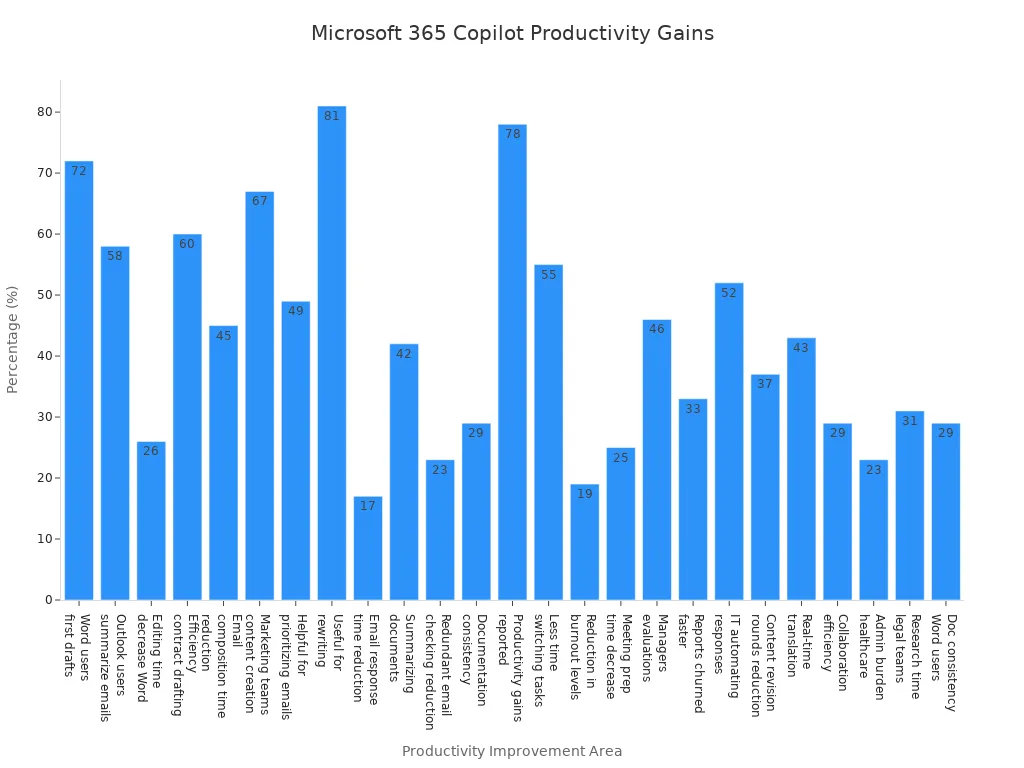
You can boost your productivity with Microsoft 365 Copilot when you use the right prompts. Clear instructions help Copilot understand what you need, so you get results that save time and effort. Thanks to deep integration with Microsoft apps, Copilot learns from your work habits and gives you smart, context-aware suggestions. Take a look at how much time users save:
| Statistic Description | Percentage/Time Saved |
|---|---|
| Word users relying on Copilot for first drafts | 72% |
| Reduction in email composition time (Outlook) | 45% |
| Organizations reporting noticeable productivity gains | 78% |
| Time saved per user per month | 9 hours |
With Top Copilot Prompts, you can get more done and feel less stressed.
Key Takeaways
- Use specific prompts to guide Microsoft 365 Copilot. Clear instructions lead to better results.
- Incorporate context in your prompts. This helps Copilot tailor its responses to your needs.
- Avoid vague language. Specific details improve the accuracy and relevance of the output.
- Leverage templates for recurring tasks. This saves time and ensures consistency in your work.
- Review and refine Copilot's suggestions. Always check the output for quality and accuracy.
- Make Copilot a part of your daily routine. Use it for drafting, summarizing, and organizing tasks.
- Experiment with different prompts. Discover new ways to enhance your productivity.
- Set clear goals for each task. This helps Copilot understand what you want and deliver effectively.
9 Surprising Facts About Microsoft Copilot Prompting
- Microsoft Copilot prompts can be grounded in your organization’s data: Copilot uses Microsoft Graph, SharePoint, OneDrive and other connected sources so prompts can return answers based on private enterprise content, not just public web knowledge.
- Prompts can be multimodal: besides plain text, Copilot workflows accept attachments, documents and images as part of the prompt context so you can ask questions about files or combine text with uploaded content.
- There’s a dedicated authoring experience: Copilot Studio (and related tools) let teams design, test and iterate prompt templates and “prompt flows” rather than relying on ad-hoc text prompts alone.
- Reusable prompt templates are supported: you can save, share and version common prompts or templates so teams standardize outputs and reduce repetitive prompt engineering work.
- Prompts can trigger actions across Microsoft 365: well-crafted prompts can instruct Copilot to create, edit or move content across apps (Outlook, Word, Excel, Teams) rather than only returning static answers.
- Context preservation is smarter than you expect: Copilot maintains document and conversational context across steps, enabling multi-turn prompting that behaves like a continuous assistant inside files and chats.
- There are practical context and token limits: long documents or multi-file prompts can hit model context windows, so Copilot uses retrieval and summarization strategies to prioritize relevant content when prompts exceed limits.
- System-level and custom instructions are supported: admins and prompt authors can bake constraints, styles or safety instructions into prompts so outputs adhere to corporate tone, compliance or domain-specific rules.
- Enterprise governance and privacy shape prompting capabilities: prompts and their results are subject to Microsoft’s compliance, data residency and auditing controls, meaning prompt design must often account for legal and security requirements.
Keyword: microsoft copilot prompts
Why Prompt Quality Matters
When you use microsoft copilot prompts, you unlock the real power of Microsoft 365 Copilot. The way you write your prompts shapes the results you get. Copilot learns from your work habits and the context of your tasks. This means it can give you tailored suggestions that fit your needs. If you want to boost productivity, you need to focus on prompt quality.
Impact of Clear Prompts
Specific Instructions
You get the best results when you give copilot specific instructions. Instead of saying, “Write an email about the project,” try something like, “Draft a short, urgent update to the Marketing team about Project Titan’s delay. Explain the cause in one sentence, outline a revised schedule, propose two mitigation actions, and close with a call to action for the team to review updated collateral by Friday.” This approach gives copilot everything it needs—context, audience, tone, and structure.
Tip: The more details you include in your microsoft copilot prompts, the more accurate and useful the output will be.
Avoiding Ambiguity
Ambiguous prompts can lead to generic or off-target results. If you leave out key details, copilot might not understand your intent. Always aim for clarity. Use task-oriented language and specify what you want. For example, mention the length, format, or tone you expect. This helps copilot focus on what matters most to you.
- Microsoft copilot prompts work best when you:
- Provide context to avoid general answers.
- Specify constraints like length and format.
- Establish tone to match your communication goals.
- Define the desired structure for better readability.
Common Prompt Mistakes
Even experienced users sometimes make mistakes with microsoft copilot prompts. Here are some common pitfalls:
- Expecting full automation—copilot assists you but doesn’t do everything on its own.
- Not setting clear objectives for tasks—vague goals lead to irrelevant outputs.
- Overlooking privacy and security controls—always check your settings.
- Taking generated suggestions at face value—review and refine the results.
- Using vague prompts—specific instructions are key for better outputs.
- Skipping customization options—these can make your results more relevant.
- Failing to update preferences and feedback—regular updates help copilot learn your style.
Remember: Well-crafted microsoft copilot prompts save you time and help you create high-quality work. Users often report that clear prompts give them a strong starting point and make it easier to finish tasks.
If you want to get the most out of microsoft 365 copilot, start with these tips. Use specific instructions, avoid ambiguity, and review your prompts before you hit enter. You’ll see a big difference in your productivity and the quality of your results.
Principles for Top Copilot Prompts
You want better results from Microsoft 365 Copilot. You need to master the art of writing top copilot prompts. Let’s break down the principles that help you get the most out of copilot prompts and boost your productivity.
Specificity in Microsoft Copilot Prompts
Clear Goals
You should always start with a clear goal. When you tell Copilot exactly what you want, you get better results. For example, if you ask Copilot to “draft email,” you might get a generic message. If you say, “Draft a follow-up email to Sarah about the project proposal, highlighting the next steps and requesting feedback by Friday,” you get content that fits your needs.
Here’s a quick table showing how clear goals shape results:
| Principle | Description |
|---|---|
| Goal | Clearly defining the goal helps Copilot understand the exact nature of the information you're seeking. |
| Context | Providing context ensures that Copilot tailors its response to your specific situation. |
| Expectations | Setting clear expectations helps Copilot deliver information in the most useful format. |
| Source | Specifying sources ensures that Copilot uses the most relevant and accurate data. |
Tip: Always state your goal in your instructions. This helps Copilot focus on what matters most.
Relevant Details
You get good copilot prompts when you include relevant details. If you want Copilot to analyze data, mention which columns or time periods matter. For example, “Explain what’s happening in columns B through F over the last six months and highlight unusual trends.” This prompt gives Copilot everything it needs for better results.
Here are some best microsoft copilot prompt examples:
- “Compare performance between our top 3 products and bottom 3 products for Q2.”
- “Create a chart that shows the relationship between marketing spend and lead generation.”
- “Identify duplicate entries in this customer list and explain how to remove them safely.”
You see how specific instructions lead to focused content creation and actionable results.
Context and Format
Task-Based Prompts
You get effective prompts when you provide context. Copilot works best when you tell it who the audience is, what the task is, and what format you want. If you want to recap teams meetings, say, “Summarize this 12-email thread into 3 bullet points focusing on what I need to do next.” This helps Copilot generate meeting notes that are easy to follow.
Note: Task-based prompts help Copilot understand boundaries and deliver results that fit your workflow.
Using Templates
Templates make content development easier. You can use templates to keep your instructions consistent. For example, you might say, “Draft a project update email using this outline: introduction, progress, challenges, next steps.” Templates help you get better results and save time.
Here’s a quick tip for getting the most out of copilot prompts:
Tip: Use templates for recurring tasks like meeting recaps, project updates, or content creation. This keeps your results organized and professional.
Tone and Style
Adjusting Formality
Tone matters in communication. You want Copilot to match your style. If you need a friendly message, say, “Write a welcoming note for the new team member.” If you need a formal report, specify, “Draft a formal summary of the quarterly sales meeting for senior management.” Adjusting tone and style in your prompts leads to good copilot prompt results and keeps your brand consistent.
- Tone influences communication effectiveness and brand consistency.
- Adjustments can include friendly, formal, assertive tones, and more.
- Real-world examples show improved response rates when tone is tuned to match the team's style.
Tip: Always mention the tone you want in your instructions. This helps Copilot deliver content that fits your audience.
Putting It All Together
You can combine these principles to create top copilot prompts. Here’s a quick checklist:
- Set a clear goal.
- Add relevant details.
- Provide context and format.
- Use templates for recurring tasks.
- Adjust tone and style.
You get better results when you follow these tips. You make content creation faster and easier. You improve content development and communication. You unlock advanced prompting tips for personalizing microsoft 365 copilot. You see how good copilot prompts help you generate meeting notes, draft email messages, and recap teams meetings with ease.
If you want to boost productivity, start using these principles today. You’ll notice better results and more efficient workflows.
Microsoft 365 Copilot in Word

You want to make your writing tasks easier and faster. Microsoft 365 Copilot in Word helps you do just that. You can use prompts to guide Copilot and get the results you need. Copilot understands your instructions and turns them into content that fits your goals. Let’s look at how you can use Copilot for drafting, summarizing, and editing.
Drafting with Copilot
Copilot makes drafting documents simple. You can ask Copilot to create outlines or summarize text. When you give clear instructions, Copilot knows exactly what you want.
Summarizing Text
You might have a long report or notes from meetings. Copilot can summarize them for you. Just tell Copilot, “Summarize this report in three bullet points for my team.” You get a quick overview without reading every word. If you need to generate meeting notes, Copilot can pull out the main ideas and action items.
Opeoluwa Burnett, a Microsoft employee, uses prompts like:
“Create a detailed product plan for a new feature. It’s a small, AI-powered desktop companion that helps workers manage distractions, track focus time, and suggest breaks.”
This shows how specific instructions help Copilot draft documents that match your needs.
Creating Outlines
You can ask Copilot to build an outline for your next project. Try prompts like, “Make an outline for a marketing strategy proposal focused on social media campaigns for a B2B audience.” Copilot organizes your ideas so you can start writing right away. You save time and get a clear structure.
Editing and Proofing
Copilot doesn’t just help you draft. You can use it to edit and proof your documents. Copilot follows your instructions and improves your writing.
Clarity Checks
You want your writing to be clear and easy to read. Copilot can check for clarity. Use prompts like, “Make this paragraph more conversational without losing the main points,” or “Find and fix awkward phrasing in this section, but keep my original tone.” Copilot helps you polish your content and make it sound natural.
Grammar Review
Copilot can review grammar and fix mistakes. You might say, “Break this wall of text into 3–4 shorter paragraphs with clear topic sentences.” Copilot revises your document and makes it easier to read. You can also ask Copilot to uplift the language to a professional standard.
-
At the University of Hong Kong, faculty members use Copilot to analyze performance data and personalize course content. Copilot streamlines administrative tasks and reduces workload. The First-Year UG Copilot helps new students with academic inquiries and improves onboarding.
-
Copilot can revise and enhance documents based on your preferences. You can request edits that match your style.
You get the best results when you use detailed instructions. Instead of vague prompts, try, “Write a 500-word introduction to a marketing strategy proposal, focusing on social media campaigns for a B2B audience.” Copilot follows your instructions and delivers content that fits your needs.
You can use Copilot to draft email messages, generate meeting notes, and organize your writing. Copilot automates repetitive tasks so you can focus on your ideas. You get more done with less effort.
Microsoft 365 Copilot in Excel
You want to make sense of your data and save time in Excel. Microsoft 365 Copilot helps you do just that. With the right prompts, you can turn raw numbers into clear insights, automate repetitive tasks, and troubleshoot issues without breaking a sweat.
Data Analysis Prompts
Copilot shines when you need to analyze data. You can ask it to spot trends, compare results, or even explain what’s happening in your spreadsheet. The best part? You don’t need to be an Excel expert.
Chart Generation
You can quickly visualize your data with Copilot. Just give clear instructions like, “Create a line chart showing monthly sales from January to June using columns B and C.” Copilot knows how to pick the right chart type for your needs. It can even suggest which visualizations will help you understand your data better.
- Excel AI lets you deploy statistical models and visualizations right from your worksheet. You don’t have to switch to another tool.
- Copilot helps you identify outliers and patterns, making it easy to spot what matters most.
- Sales teams use Copilot to generate sales projections and visualize trends, all with a simple prompt.
Tip: When you want a chart, always specify the columns and time frame. This helps Copilot deliver exactly what you need.
Formula Creation
Formulas can get tricky, but Copilot makes them simple. You can say, “Write a formula to calculate the average order value in column D, but ignore blank cells.” Copilot writes the formula and explains how it works if you ask for a beginner-friendly answer.
- Enterprises have seen productivity gains of up to 70% by using Excel AI for formula creation and data analysis.
- Copilot suggests the best formulas for your task and helps you compare different data segments for deeper insights.
Automation and Troubleshooting
You can automate tasks and fix errors with Copilot. It takes care of the heavy lifting so you can focus on what matters.
Macro Suggestions
If you want to automate a repetitive task, just ask Copilot to draft a macro. For example, “Create a macro that formats all cells in column E as currency and highlights values above $1,000.” Copilot writes the code and tells you how to use it.
| Feature | Description | Performance Metric |
|---|---|---|
| Agent Mode | Automates complex tasks in Excel, Word, and PowerPoint using AI. | 57.2% accuracy on SpreadsheetBench |
| User Feedback | 83% adoption, 85% value addition, 63% job satisfaction reported. | N/A |
Error Fixes
When you run into errors, Copilot can help you troubleshoot. Try prompts like, “Find and fix errors in my SUM formulas in column F,” or “Explain why my VLOOKUP isn’t returning results.” Copilot checks your content, finds the issue, and gives you step-by-step instructions to fix it.
- 85% of users say Copilot adds value to their work, and 63% feel more satisfied with their jobs.
- Automated processes in Excel streamline data cleaning and boost accuracy.
You get the most out of Copilot when you use specific instructions. Always mention the columns, time frames, or trends you care about. If you want to compare data, tell Copilot exactly what to look for. These prompts help you unlock the full power of Copilot in Excel—no advanced training needed.
Microsoft 365 Copilot in Outlook
You want to stay on top of your emails and tasks. Copilot in Outlook helps you do just that. You can use smart instructions to organize your inbox, draft replies, and manage your schedule. Copilot understands your needs and turns your instructions into helpful content.
Email Drafting Prompts
You often need to reply to emails quickly. Copilot makes this easy. You can ask Copilot to write professional replies or summarize long threads.
Professional Replies
You get busy and need to respond fast. Copilot can draft a reply for you. Try instructions like, “Write a polite response to a client asking for a project update. Thank them for their patience and share the latest progress.” Copilot uses your instructions to create a message that sounds professional and friendly. You can review the content and send it right away.
Tip: Always mention the tone and purpose in your instructions. Copilot will match your style and help you communicate clearly.
Thread Summaries
Sometimes, you face a long email thread. Copilot can summarize it for you. Use instructions such as, “Summarize this email thread in three bullet points. Focus on key decisions and next steps.” Copilot reads the conversation and gives you a clear summary. You save time and never miss important details.
| Prompt Example | Result |
|---|---|
| Summarize this thread for my manager | Clear bullet points with main actions |
| Draft a reply confirming attendance | Polite, concise response |
Scheduling and Task Management
You need to keep your calendar organized. Copilot helps you schedule meetings and manage your to-do lists.
Meeting Invites
You can ask Copilot to create meeting invites. Try instructions like, “Send a meeting invite to the team for Friday at 2 PM. Include an agenda about project milestones.” Copilot fills in the details and sends the invite. You spend less time on scheduling and more time preparing for meetings.
Note: Copilot can add attachments or links to your invites if you include them in your instructions.
To-Do Lists
You want to track your tasks. Copilot can make a to-do list from your emails. Use instructions like, “Create a to-do list from this week’s emails. List tasks by priority.” Copilot scans your inbox and builds a list. You stay organized and never forget important tasks.
- Copilot automates email triage and task management.
- You get reminders, summaries, and updates without extra effort.
- Microsoft 365 copilot keeps your communication organized and efficient.
You can rely on Copilot to handle routine tasks. You give clear instructions, and Copilot delivers content that fits your workflow. You spend less time sorting emails and more time focusing on what matters.
Microsoft 365 Copilot in Teams
You want your team to work together smoothly. Microsoft 365 Copilot in Teams helps you do just that. With the right instructions, you can turn busy conversations into clear action steps and keep everyone on the same page.
Communication Prompts
Conversation Summaries
Ever open Teams and see a long chat thread? You don’t have to scroll through every message. Copilot can summarize the conversation for you. Just use instructions like, “Summarize this channel’s discussion from today in three bullet points.” Copilot highlights the main ideas, so you catch up fast.
Tip: Ask Copilot to focus on decisions or next steps. For example, “Summarize key decisions and action items from this project chat.”
Meeting Notes
Meetings can get busy, and it’s easy to miss details. Copilot helps by turning your meeting content into organized notes. Try instructions such as, “Create meeting notes with action items and deadlines from today’s call.” Copilot listens for important points and lists them clearly.
| Prompt Example | What Copilot Delivers |
|---|---|
| Summarize today’s meeting | Main topics, decisions, and next steps |
| List action items from this call | Clear, assigned tasks with deadlines |
Project managers use Copilot to analyze project discussions, spot risks, and draft plans to fix them. You can rely on Copilot to keep your team focused and informed.
Collaboration Prompts
Task Assignment
Assigning tasks can take time, but Copilot makes it simple. Give instructions like, “Assign action items from this meeting to the right team members.” Copilot reads the notes, matches tasks to people, and updates everyone. You spend less time organizing and more time getting things done.
- Kevin, a change management consultant, uses Copilot to review employee surveys and create custom communication plans for each group.
- Microsoft employees say Copilot helps them work faster and align teams quickly, thanks to its deep integration with Teams and other Microsoft tools.
Resource Sharing
Sharing files and links is easy with Copilot. Use instructions such as, “Share the latest project plan and budget spreadsheet with the team.” Copilot finds the right files and sends them where they need to go. You don’t have to dig through folders or emails.
- Employees use Copilot Studio to build AI agents that automate complex tasks in Teams. This boosts teamwork across departments.
- Project managers keep projects on track by letting Copilot turn meeting notes into assigned tasks and updates for stakeholders.
You can see how Copilot streamlines collaboration. It takes your instructions, organizes your content, and helps your team stay connected. With Copilot, you spend less time on busywork and more time moving your projects forward.
Microsoft 365 Copilot in PowerPoint
You want to make your presentations stand out and save time. Microsoft 365 copilot helps you do both. You can use smart instructions to create slides, add speaker notes, and enhance visuals. Copilot understands your needs and turns your ideas into polished content.
Presentation Prompts
Slide Design
You can start with a simple outline and let copilot build your slides. Try instructions like, “Generate a five-slide presentation summarizing our sustainability initiative, including one chart and one slide on next steps.” Copilot creates slides that match your goals and audience. You can also ask copilot to adjust the tone for different groups. For example, “Adjust the tone of this presentation to appeal to a more professional audience.” Copilot makes sure your slides look sharp and fit your brand.
Here’s a table with prompt examples for quick slide creation:
| Prompt Type | Example Prompt |
|---|---|
| Sustainability Initiative | Generate a five-slide presentation summarizing our sustainability initiative, including one chart and one slide on next steps. |
| Investor Presentation | Adjust the tone of this presentation to appeal to a more professional audience. |
| Sales Presentation | Create a sales presentation for [product] targeting [audience]. Focus on ROI and competitive advantages with specific use cases and objection handling. |
| Training Materials | Create a training deck teaching [skill/process]. Include step-by-step instructions, practice exercises, and common mistakes to avoid. |
| Investor Pitch Deck | Create an investor pitch deck for [company/idea]. Include problem with market evidence, solution with differentiation, market size with TAM/SAM/SOM, business model with unit economics, traction with key metrics, and ask with use of funds. |
| Internal Updates | Create a monthly team update covering project status with red/yellow/green indicators, wins with specific metrics, challenges requiring leadership support, and priorities for next month. |
Speaker Notes
You can ask copilot to add speaker notes that help you deliver your message. Try instructions like, “Add speaker notes explaining each slide’s main point and include tips for engaging the audience.” Copilot writes notes that guide you through your presentation and keep you confident.
Visual Enhancement Prompts
Layout Suggestions
Copilot helps you improve your slide layouts. You can use instructions such as, “Suggest a layout for this slide that highlights the main chart and keeps text minimal.” Copilot learns from well-structured templates and creates visually consistent presentations. It analyzes layouts and objects to make sure your slides look professional and on-brand.
- Copilot synthesizes information from different sources to keep your content brand-consistent.
- Agent Mode in PowerPoint generates slides that look like they were created by your organization.
Graphic Additions
You can ask copilot to add graphics, images, or icons to make your slides more engaging. Try instructions like, “Add relevant images and icons to illustrate key points on each slide.” Copilot finds visuals that match your topic and style. It can also translate content, summarize lengthy presentations, and add new slides efficiently.
Tip: Use clear instructions for visual enhancements. Copilot will deliver slides that grab attention and communicate your message.
You get more from Microsoft 365 copilot when you use specific instructions. Copilot turns your ideas into content that looks great and fits your brand. You spend less time designing and more time presenting.
Advanced Copilot Prompt Strategies

Personalization
You want Copilot to fit your workflow. Personalization makes your experience smoother and more effective. When you tailor your instructions, Copilot adapts to your needs and delivers content that matches your goals. Custom workflow prompts help you get results that feel unique to your style.
Custom Workflow Prompts
You can create prompts that match your daily tasks. Start by defining your goal. Give Copilot context about your project or audience. Set clear expectations for the format and style. If you want Copilot to represent a certain persona, include those details in your instructions. You can even specify sources for Copilot to use.
Here’s a table showing strategies for personalizing your prompts:
| Strategy | Description |
|---|---|
| Goal | Define your goal so Copilot knows what information you need. |
| Context | Provide context to help Copilot tailor its response to your situation. |
| Expectations | Set expectations for the format and style of the information Copilot delivers. |
| Source | Specify sources to ensure Copilot uses relevant and accurate data. |
| Detailed Persona | Give instructions about the persona Copilot should represent, which affects its response style. |
| Memory | Use Copilot Memory to pull details from past conversations for more relevant responses. |
| Custom Instructions | Add background on your role and preferred communication style for better results. |
Tip: The more details you include in your instructions, the more Copilot can personalize its output for you.
Copilot Memory Use
You can boost your productivity by using Copilot’s memory feature. Copilot remembers past conversations and tasks. This helps it deliver responses that fit your history and needs.
Contextual Prompts
When you use contextual prompts, Copilot draws from previous interactions. You get answers that feel more relevant and accurate. For example, if you ask Copilot to summarize a customer’s history, it can pull details from earlier chats. This saves you time and keeps your workflow consistent.
- Teams have cut brief creation time from three hours to less than an hour by using Copilot’s memory. This lets you focus on strategic tasks instead of repetitive work.
- Customer service teams see fewer interruptions. Copilot handles inquiries with less human intervention, making your job easier.
- Copilot’s memory feature lets you personalize interactions. It can summarize customer history and spot recurring issues, which improves service quality.
Note: Contextual prompts help Copilot remember your preferences and deliver content that fits your workflow.
Verifying Results
You want to trust the information Copilot gives you. Verifying results ensures accuracy and reliability. You can use simple methods to check Copilot’s outputs.
Reviewing Outputs
Always review the content Copilot creates. You can ask Copilot to validate its answers. Try prompts like, “Are you sure?” or “Please validate further.” Copilot will double-check and refine its response.
- Validate information before you use it. Don’t copy content without understanding it.
- Check citations Copilot provides. Read through the sources to confirm accuracy.
- Use prompts that encourage Copilot to review and improve its answers.
Tip: If you work with sensitive data, make sure Copilot’s outputs meet privacy and compliance standards. You can consult experts to confirm the information is correct.
You get the best results when you personalize your instructions, use Copilot’s memory, and review outputs. These strategies help you unlock the full power of Microsoft 365 Copilot and make your workflow smarter.
Overcoming Limitations
Combining Prompts
You might notice that Copilot sometimes faces challenges. These can include data security concerns, compliance risks, technical issues, or even inaccurate outputs. Sometimes, you may feel that Copilot relies too much on AI and misses the human touch. You can overcome these limitations by combining prompts and refining your instructions.
When you combine prompts, you guide Copilot to deliver more accurate and useful content. You break complex tasks into smaller steps. You give clear instructions for each part. This helps Copilot understand your needs and reduces mistakes.
Here’s how you can tackle common limitations:
- Data security and privacy concerns: Always review your instructions and make sure you don’t share sensitive information. Copilot works best when you keep your requests clear and safe.
- Compliance and legal risks: You can ask Copilot to follow specific guidelines. For example, “Draft a report that follows company compliance rules.” This keeps your content aligned with microsoft standards.
- Technical infrastructure issues: If Copilot struggles with large files or slow connections, split your instructions into smaller tasks. For example, “Summarize section one of this document,” then “Summarize section two.”
- Inaccurate outputs: Combine prompts to double-check results. You can say, “Summarize this meeting, then review the summary for accuracy.” Copilot will refine its answers based on your feedback.
- Over-dependence on AI: Use Copilot as a partner, not a replacement. Always review the content and add your own insights.
Tip: Training in prompt engineering helps you unlock the full power of microsoft 365 copilot. You learn how to ask questions and give instructions that maximize Copilot’s effectiveness.
Combining prompts lets you build a workflow that fits your style. You can create a series of instructions for Copilot to follow. For example, start with “Draft a project update,” then “Add a summary of key challenges,” and finally, “Suggest solutions for each challenge.” Copilot handles each step and delivers content that matches your goals.
You can foster a culture of reviewing AI outputs. Encourage your team to check Copilot’s work and provide feedback. This makes your results more reliable and helps everyone get better at using Copilot.
You don’t have to settle for basic answers. By combining prompts and refining your instructions, you turn Copilot into a smart assistant that adapts to your needs. You get content that is accurate, relevant, and ready to use.
Practical Summary and Next Steps
Key Takeaways
You’ve seen how Microsoft 365 can transform your workday. When you use clear instructions, you unlock the full power of Copilot. You don’t need to be a tech expert to get results. You just need to know what to ask and how to ask it.
Here’s what you should remember:
- Make Copilot part of your daily routine. Ask for help with everyday tasks in Microsoft 365.
- Use specific instructions for each app. In Word, draft documents and summarize long files. In Excel, build charts, clean up data, and highlight trends. In PowerPoint, create presentations from text and auto-generate speaker notes. In Outlook, organize emails and manage your schedule.
- Let Copilot handle content creation, data analysis, and task management. This gives you more time to focus on what matters.
- Try new prompts and features often. You’ll discover new ways to boost your productivity.
Tip: The more you use Microsoft 365 Copilot, the better it gets at understanding your style and needs.
Immediate Application
You can start seeing results right away. Here’s a simple plan to put these ideas into action:
- Define your goal. Decide what you want Copilot to do—draft, summarize, analyze, or organize.
- Add context. Tell Copilot who the audience is and what tone you want. This helps shape the output.
- Set expectations. Be clear about the format and any limits, like word count or slide number.
- Specify the source. Point Copilot to the right document, email, or data set in Microsoft 365.
- Iterate. Review the first draft, give feedback, and ask Copilot to refine the results.
If you avoid vague instructions, missing context, or skipping the review step, you’ll get better results every time.
| Step | What to Do | Why It Matters |
|---|---|---|
| Define the goal | State your task clearly | Copilot knows what to deliver |
| Add context | Give details about audience and tone | Output matches your needs |
| Set expectations | Specify format and constraints | Results fit your workflow |
| Specify the source | Point to the right file or email | Copilot uses the right content |
| Iterate | Review and refine the output | Quality improves each time |
You’re ready to make Microsoft 365 your productivity partner. Start with one prompt today. Watch how your workflow changes. You’ll soon wonder how you ever worked without it.
You can unlock new levels of productivity with microsoft 365 copilot. When you give clear instructions, copilot turns your ideas into content that fits your needs. Try different instructions and see how copilot adapts to your workflow. Microsoft champions often share tips and host fun competitions to help you get creative with prompts:
| Strategy | Description |
|---|---|
| Identify Champions | Champions promote copilot and share effective instructions. |
| Community Support | Teams use prompt galleries to share and learn from each other's content. |
| Gamification | Friendly competitions spark creativity and engagement with copilot prompts. |
- Create a Star Wars character dossier based on your work style and share it with your team.
- Save and share your favorite instructions to inspire others.
- Join a master class or live demo to see copilot in action.
Jump in and experiment with copilot today. Share your best prompts and help your team work smarter.
Microsoft Copilot Prompts Checklistcopilot prompt examples for microsoft 365 apps
What are Microsoft Copilot prompts and how do they work?
Microsoft Copilot prompts are concise instructions or requests you give to Copilot in Microsoft 365 apps or Copilot chat to tell Copilot what you want. Copilot is built upon large language models (LLMs) and interprets your prompts to generate text, draft an email, create a table, summarize content, or help with other functionality across M365. The responses you get depend on the clarity, detail, and order of your instructions.
How do I get started with prompts for Microsoft Copilot in Microsoft 365 apps?
To get started, open Copilot in Microsoft 365 apps like Word, Excel, or Outlook and type a clear task such as "draft an email introducing our Q2 plan" or "create a table of sales by region." Crafting detailed prompts helps Copilot produce more accurate copilot responses; include specific information like tone, audience, and required fields to refine output. If something is off, you can regenerate or ask Copilot to edit the draft.
What are best practices for crafting detailed prompts for Copilot?
Start by stating the goal, provide context, include constraints (length, format, tone), and specify the order of your instructions. For example: "Draft an email to the sales team summarizing this report, use bullet points, include three action items, and set a friendly professional tone." Review and verify Copilot responses for accuracy and sensitive content before sharing.
Can I use Copilot in Microsoft Teams to help with meetings and meeting notes?
Yes. Copilot in Microsoft Teams and teams meetings can generate agendas, summarize discussions, and draft follow-ups. Tell Copilot what you want—ask it to capture action items, assign owners, or summarize key decisions. Integrations with Microsoft 365 apps allow exporting notes to OneNote, Word, or Planner for next steps.
How do I ask Copilot to edit content or revise drafts?
Use prompts like "copilot to edit" or "revise this paragraph to be more concise and formal." Specify what to change and why—e.g., "shorten to 100 words and use active voice." You can request multiple iterations by asking Copilot to regenerate or provide alternate versions until the output meets your needs.
Is Copilot safe to use with confidential or sensitive information?
Copilot in Microsoft follows Microsoft support and enterprise policies, but you should still review and verify before sharing sensitive data. Avoid giving Copilot highly confidential information unless your organization’s settings and compliance policies explicitly permit it. Microsoft 365 applications include governance controls to help manage data privacy and security.
How can Copilot help me with Microsoft 365 apps like Excel and OneNote?
In Excel, Copilot can create formulas, analyze data, and create a table with specified columns, summaries, and charts. In OneNote, Copilot can summarize notes, organize content, and help capture meeting highlights. Use prompts for Microsoft 365 Copilot such as "create a table showing monthly revenue and growth rate" or "summarize today's notes into action items."
What should I do if Copilot responses are incorrect or incomplete?
If copilot responses are inaccurate, provide corrective feedback in a new prompt, clarify the missing specifics, or ask it to regenerate the response. Be explicit about the errors and provide the correct facts or constraints so Copilot can produce a corrected output. Always review and verify any factual claims it makes.
How do prompts for Microsoft differ from prompts for other LLMS?
Prompts for Microsoft Copilot are optimized for integration with Microsoft 365 applications and enterprise data sources, so they often reference app-specific actions (like "format as table in Excel" or "insert into OneNote"). Because Copilot is built upon large language models but tied into M365 context, you can ask for functionality that leverages documents, calendars, and Teams conversations directly.
Can Copilot draft emails and improve productivity in Outlook?
Yes. Ask Copilot to draft an email with details such as recipient, subject, purpose, and tone (e.g., "draft an email to the client summarizing our proposal and next steps, professional tone"). You can then request edits such as shortening, adding a call to action, or translating the message. Copilot helps speed up email composition and consistency across communications.
How does the order of your instructions affect Copilot’s output?
The order of your instructions matters: prioritize the most important requirements first (purpose, format, audience), then add constraints (length, tone) and optional details. Clear sequencing reduces ambiguity and improves the likelihood that the responses you get align with your expectations.
Can I use Copilot to help with Microsoft Teams meeting preparation and follow-up?
Yes. Use prompts like "create an agenda for a 30-minute project update" or "summarize action items from this meeting transcript." Copilot in Microsoft Teams can generate pre-meeting briefs, suggested questions, and post-meeting notes that you can export to Word or OneNote for distribution.
How do I craft prompts for Microsoft support scenarios using Copilot?
When seeking Microsoft support guidance, describe the problem clearly, include environment details (M365 version, app), and the steps you've taken. For example: "Troubleshoot Excel crashing when opening file with macros; I've tried safe mode and updated Office." This helps Copilot provide more relevant troubleshooting steps or point to applicable Microsoft support resources.
Does Copilot integrate with Microsoft 365 applications like Word, Excel, and PowerPoint?
Yes. Copilot in Microsoft 365 apps is designed to work across Word, Excel, PowerPoint, Outlook, and Teams. You can ask it to draft content, analyze data, generate presentation slides, or reformat documents. Using app-specific prompts ensures functionality is applied correctly within the target application.
What are tips for getting more accurate copilot responses?
Be specific and include required outputs, context, and constraints. Use examples or templates if you have a preferred format ("create a table with columns: Name, Role, Due Date"). If the first output isn't right, refine your prompt, change the order of your instructions, or ask Copilot to regenerate with explicit corrections.
Can Copilot help non-technical users with tasks like creating spreadsheets or reports?
Absolutely. Prompts for Microsoft Copilot can ask it to build formulas, generate pivot tables, or create charts without requiring deep Excel expertise. Ask for step-by-step explanations if you want to learn how a formula or analysis was created so you can reproduce it later.
How do I use Copilot chat effectively within Microsoft 365?
Use Copilot chat to have conversational interactions: ask follow-up questions, request clarifications, and iterate on outputs. Provide specific information and context, reference documents or calendar items when needed, and use the chat to refine Copilot responses until they match your requirements.
What is the role of LLMs in Copilot and should I worry about hallucinations?
Copilot is built upon large language models (LLMs) that generate human-like text. While powerful, LLMs can sometimes produce incorrect or fabricated information (hallucinations). Always review and verify outputs, especially when using Copilot for decisions that require specific information or accuracy.
How can I request Copilot to create structured outputs like tables or lists?
Be explicit: say "create a table with columns X, Y, Z" or "list five action items with owners and due dates." Copilot in Microsoft 365 apps can format results as tables, bullet lists, or numbered lists suitable for Word or Excel. If the format is important, mention it in the prompt.
Does Copilot support customization and organization-specific knowledge?
Copilot can leverage organizational data within Microsoft 365 when permissions and configurations allow. This enables more context-aware responses using files, internal docs, and calendar events. Check your organization’s admin settings and Microsoft support documentation to understand how data access and customization are managed.
How can I teach colleagues to create better prompts for Copilot?
Share examples of good prompts, emphasize clarity, context, and the order of your instructions, and demonstrate use cases like drafting emails, analyzing data, or preparing meeting agendas. Encourage testing, iterating, and reviewing Copilot responses together so teams learn to craft prompts for Microsoft tools effectively.
What should I do if I need to regenerate a Copilot response with different constraints?
Ask Copilot to regenerate with new parameters: specify what changed (length, tone, format) and any additional constraints. For instance, "Regenerate the summary but limit to 150 words and include three key metrics." Iterative prompts help converge on the desired output.
Where can I find more examples of Copilot prompts and templates?
Look for copilot prompt examples within Microsoft documentation, community forums, and internal knowledge bases. Microsoft 365 apps and Microsoft Teams often include starter prompts and templates that show how to tell Copilot what you want for common tasks like drafting an email, preparing meeting notes, or building a report.
Apple Podcasts · Spotify · YouTube · YouTube Music
Host: Mirko Peters