 EN
EN Deutsch
 Español
 Français
 Italiano
 Português
 Nederlands
 Polski
 Bahasa Indonesia
 Русский
 Українська
 العربية
 עברית
עברית हिन्दी
 日本語
日本語 한국어
한국어2025-12-08
Use Managed Identity with PowerShell for Microsoft Graph

As businesses increasingly rely on Microsoft 365, automating management tasks becomes essential. You can enhance efficiency and save valuable time by integrating PowerShell + Graph API. This powerful combination unlocks robust management capabilities that streamline operations.
However, many users encounter challenges. For instance, some key functionalities lack documented endpoints, complicating automation efforts. Additionally, legacy APIs may lead to silent failures, hindering your scripts' maintainability. Don't worry! This post will break down these complex concepts into easy, actionable steps, guiding you through the process with clear solutions.
Key Takeaways
- Integrate PowerShell with Graph API to automate Microsoft 365 tasks and enhance efficiency.
- Ensure your system meets prerequisites like PowerShell 7 or higher and the latest Microsoft Graph module for smooth execution.
- Understand permissions and scopes to control what your scripts can access in Microsoft 365, following the principle of least privilege.
- Register your app in Azure AD to create a secure identity for your scripts, allowing safe access to Microsoft Graph.
- Choose the right authentication flow, such as Device Code Flow or Managed Identity Flow, to secure your access tokens effectively.
- Construct well-formed HTTP requests using PowerShell to interact with Microsoft Graph API and retrieve data.
- Handle errors and API limits carefully to ensure your scripts run smoothly and avoid disruptions.
- Optimize your scripts by using selective property retrieval and batching requests to improve performance and reduce resource consumption.
Prerequisites for PowerShell + Graph API
Before you start automating Microsoft 365 tasks using PowerShell + Graph API, you need to prepare your system and environment properly. This preparation ensures smooth execution and secure access to Microsoft Graph resources.
Installing PowerShell Modules
You must install the right PowerShell modules to interact with Microsoft Graph API. The Microsoft Graph PowerShell SDK provides all the necessary cmdlets for this integration. To avoid errors, check your system meets these minimum requirements:
| Requirement | Description |
|---|---|
| PowerShell Version | PowerShell version 7 or higher is required. |
| .NET Framework | .NET Framework 4.7.2 or later is necessary on macOS. |
| PowerShellGet | Update PowerShellGet to the latest version. |
| Execution Policy | Set the execution policy to remote signed or less restrictive. |
You can update PowerShellGet by running Install-Module PowerShellGet -Force and set the execution policy with Set-ExecutionPolicy RemoteSigned. After that, install the Microsoft Graph module using:
Install-Module Microsoft.Graph -Scope CurrentUser
This command downloads the latest stable version of the module, enabling you to call Microsoft Graph endpoints easily.
Setting Up Microsoft 365 Environment
Configuring your Microsoft 365 environment correctly is crucial for automation. Follow these steps to get started:
- Confirm your system meets the requirements: PowerShell 7.2 or later, .NET Framework 4.7.2 or newer, and the latest PowerShellGet module.
- Install the Microsoft Graph PowerShell module as shown above.
- Connect to your Microsoft 365 tenant by importing the module and authenticating with the necessary scopes. For example:
Connect-MgGraph -Scopes "User.ReadWrite.All","Directory.ReadWrite.All"
This command prompts you to sign in and grants your session permissions to read and write user and directory data. You can adjust scopes depending on your automation needs.
Understanding Permissions and Scopes
Permissions and scopes define what your scripts can access or modify in Microsoft 365. Microsoft Graph API uses two main permission types:
- Delegated permissions: These apply when you run scripts as a signed-in user. They limit access to data the user owns or can access.
- Application permissions: These allow your app or script to access data across the organization without a signed-in user.
Common permissions include *.Read.All for read-only access and *.ReadWrite.All for full read and write capabilities. For example, SecurityActions.Read.All lets you view security actions, while SecurityActions.ReadWrite.All allows you to modify them.
Application permissions require admin consent. A tenant administrator must approve these permissions to ensure security. Also, users need appropriate Microsoft Entra roles, like Security Reader, to access sensitive data. This role-based access adds an extra security layer.
When you connect using the Microsoft Graph PowerShell SDK, specify only the scopes your script needs. This practice follows the principle of least privilege, reducing security risks. Keep in mind that permissions granted to your app apply to all users of that app, so review and manage them regularly.
By understanding and configuring permissions carefully, you protect your environment while enabling powerful automation with PowerShell + Graph API.
App Identity in Azure AD
Registering a New App
To automate Microsoft 365 tasks with PowerShell and Graph API, you first need to register an application in Azure Active Directory (Azure AD). This app acts as an identity that your scripts use to access Microsoft Graph securely. Follow these steps to register your app:
- Open the Azure portal and navigate to Azure Active Directory > App registrations > New registration.
- Give your app a meaningful name, such as "My Graph App".
- Choose the supported account types:
- Single tenant: Only users in your Azure AD tenant can sign in.
- Multi-tenant: Users from any Azure AD tenant can sign in.
- Multi-tenant and personal accounts: Includes Azure AD users and personal Microsoft accounts.
- Set the Redirect URI based on your app type:
- For web apps, use a URL like
https://yourapp.com/auth/callback. - For single-page apps, use
https://yourapp.com. - For mobile or desktop apps, use
https://login.microsoftonline.com/common/oauth2/nativeclient.
- For web apps, use a URL like
- Click Register to create your app.
This process creates a unique application identity in your tenant. You will use this identity to request tokens and call Microsoft Graph API.
Configuring API Permissions
After registering your app, you must configure the API permissions it needs. These permissions control what your app can access or modify in Microsoft 365. To set permissions:
- In your app registration, go to API permissions > Add a permission > Microsoft Graph.
- Choose Delegated permissions if your app runs with a signed-in user’s context. This limits access to data the user can access.
- Select the specific permissions your app requires, such as
User.ReadorMail.Read. - Click Add permissions to apply them.
⚠️ Always apply the principle of least privilege. Assign only the permissions your app needs to reduce security risks.
Some permissions require admin consent before your app can use them. You can grant this consent by clicking Grant admin consent for [tenant name] in the Azure portal. Regularly review permissions to avoid over-privileging your app.
Generating Client Secret or Certificate
Your app needs credentials to authenticate securely with Azure AD. You can use either a client secret or a certificate. Both methods prove your app’s identity when requesting tokens.
| Method | Advantages | Disadvantages |
|---|---|---|
| Client Secret | Easy to create and use; works with many authentication flows. | Acts like a password; can leak if not stored securely; no automatic alert if compromised. |
| Certificate | More secure; does not send the actual certificate during authentication; supports immediate revocation via CRL. | More complex to manage; Azure AD does not automatically check certificate revocation lists. |
To create a client secret, go to Certificates & secrets in your app registration, select New client secret, add a description, and set an expiration period. For certificates, upload a valid certificate file under the same section.
Choosing between a client secret and a certificate depends on your security needs and environment. Certificates provide stronger security but require more management effort. Client secrets offer simplicity but demand careful handling to avoid leaks.
By registering your app properly, configuring precise permissions, and securing credentials, you establish a strong foundation for automating Microsoft 365 with PowerShell and Microsoft Graph API.
Acquiring Access Tokens
Understanding OAuth 2.0
OAuth 2.0 plays a vital role in securing your access to Microsoft Graph API when using PowerShell + Graph API. It acts as a trusted gatekeeper that lets your applications authenticate safely and obtain access tokens. These tokens serve as digital keys, granting your scripts permission to call Microsoft Graph endpoints without exposing your credentials directly.
To use OAuth 2.0, you must first register your application in Azure Active Directory (Azure AD). This registration provides client credentials, such as an application ID and secret or certificate. When your script requests an access token, it presents these credentials to Azure AD. Azure AD then verifies your identity and issues a short-lived token. Your script includes this token in API requests to prove it has the right to access the requested resources.
This process ensures secure, controlled access to Microsoft 365 data. It also supports fine-grained permissions, so your scripts only get the access they need. By following OAuth 2.0 standards, you protect your environment from unauthorized access while enabling powerful automation with PowerShell + Graph API.
Using PowerShell for Token Requests
You can acquire access tokens using several authentication flows tailored to different scenarios. Each flow balances security and usability differently. Microsoft Graph API supports these common flows:
- Device Code Flow: Ideal for devices or scripts without a browser or input capabilities. You authenticate on a separate device, making it secure and user-friendly.
- Certificate-Based Flow: Designed for headless automation, this flow uses certificates instead of passwords, enhancing security for unattended scripts.
- Managed Identity Flow: Best for cloud-native environments like Azure Functions or virtual machines, this flow leverages Azure's managed identities to obtain tokens without storing secrets.
Below, you will find detailed explanations and PowerShell examples for each flow.
Device Code Flow
Device Code Flow works well when you run scripts locally or on devices without easy input options. It lets you authenticate interactively on another device, such as your phone or PC browser.
Here is how you can use Device Code Flow with PowerShell:
-
Run the following command to start the device code authentication:
Connect-MgGraph -Scopes "User.Read.All" -DeviceCode -
PowerShell displays a code and a URL. Open the URL in your browser on any device.
-
Enter the code shown in PowerShell and sign in with your Microsoft 365 account.
-
After successful authentication, PowerShell obtains an access token and connects your session.
💡 Device Code Flow balances security and usability. It avoids embedding credentials in scripts and works well for manual or semi-automated tasks.
Certificate-Based Flow
Certificate-Based Flow suits automated scripts running without user interaction. Instead of a client secret, you use a certificate to prove your app’s identity. This method reduces risks related to leaked secrets.
To use this flow, follow these steps:
- Register your app in Azure AD and upload a certificate under Certificates & secrets.
- Store the certificate securely on the machine running your script.
- Use PowerShell to request a token by specifying the certificate thumbprint, client ID, and tenant ID.
Here is a simplified example of how to get a token using a certificate in PowerShell:
$tenantId = "YOUR_TENANT_ID"
$clientId = "YOUR_CLIENT_ID"
$certThumbprint = "YOUR_CERT_THUMBPRINT"

$cert = Get-Item Cert:\CurrentUser\My\$certThumbprint

$body = @{
    grant_type = "client_credentials"
    client_id = $clientId
    scope = "https://graph.microsoft.com/.default"
    client_assertion_type = "urn:ietf:params:oauth:client-assertion-type:jwt-bearer"
    client_assertion = New-JwtToken -Certificate $cert -TenantId $tenantId -ClientId $clientId
}

$tokenResponse = Invoke-RestMethod -Method Post -Uri "https://login.microsoftonline.com/$tenantId/oauth2/v2.0/token" -Body $body
$accessToken = $tokenResponse.access_token
⚠️ Managing certificates requires care. Protect private keys and rotate certificates regularly to maintain security.
Managed Identity Flow
Managed Identity Flow works best when you run PowerShell + Graph API scripts inside Azure services like Azure Virtual Machines, Azure Functions, or Azure Automation. Azure automatically assigns an identity to your resource, so you do not need to manage credentials manually.
To get an access token using Managed Identity, follow these steps:
- Enable Managed Identity on your Azure resource.
- Assign the necessary Microsoft Graph API permissions to this identity in Azure AD.
- Use PowerShell to request a token from the local Azure Instance Metadata Service (IMDS).
Example PowerShell snippet to get a token via Managed Identity:
$resource = "https://graph.microsoft.com"
$tokenAuthUri = "http://169.254.169.254/metadata/identity/oauth2/token?api-version=2018-02-01&resource=$resource"

$headers = @{ Metadata = "true" }
$response = Invoke-RestMethod -Method Get -Uri $tokenAuthUri -Headers $headers
$accessToken = $response.access_token
🔐 Managed Identity Flow eliminates the need to store secrets in your scripts. It provides secure, seamless authentication within Azure environments.
By choosing the right authentication flow, you ensure your PowerShell + Graph API scripts run securely and efficiently. Whether you prefer interactive sign-in, certificate-based automation, or cloud-native managed identities, OAuth 2.0 supports your needs with robust token management.
Summary of Token Acquisition Steps
Here is a quick overview of the general steps you follow to acquire access tokens in PowerShell:
- Register your app in Azure AD and configure permissions.
- Choose the authentication flow that fits your scenario.
- Use PowerShell commands or REST calls to request an access token.
- Include the token in your Microsoft Graph API requests to authenticate.
Following these steps helps you build secure, scalable automation scripts that leverage the full power of Microsoft Graph API.
Making API Calls with PowerShell + Graph API

Making API calls with PowerShell + Graph API allows you to interact with Microsoft 365 services effectively. Understanding how to construct HTTP requests is essential for successful communication with the API.
Constructing HTTP Requests
When you interact with Microsoft Graph API, you need to construct HTTP requests correctly. Here are the key components of an HTTP request:
- Access Token Retrieval: Use
Invoke-WebRequestto obtain an access token. - Headers Setup: Set necessary headers, including
Content-TypeandAuthorization. - GET Request: Make a GET request to the desired Microsoft Graph API endpoint.
By following these components, you ensure your requests are well-formed and ready for execution.
Using Invoke-RestMethod
The Invoke-RestMethod cmdlet simplifies communication with Microsoft Graph API. It allows you to send HTTP requests and receive responses in a straightforward manner. Here’s a quick overview of its features and limitations:
| Limitation | Description |
|---|---|
| Maximum results per call | Microsoft recommends requesting fewer than 120 results per call to avoid errors. |
| Error handling | The cmdlet can return a 400 Bad Request error if the request exceeds limits. |
| Performance | Retrieving sign-in activity data can be resource-intensive, hence the limit on results. |
Using Invoke-RestMethod, you can easily retrieve data from Microsoft Graph API and handle responses effectively.
Common API Endpoints
Several Microsoft Graph API endpoints are frequently used for Microsoft 365 management tasks. Here are some of the most common ones:
| Endpoint | Use Case |
|---|---|
| Get Office 365 Groups Activity Counts | Run a report on Microsoft 365 groups and identify the group with the most communication. |
| List Plans for a Group | Find the plans associated with a Microsoft 365 group. |
| Post Conversations | Start a new conversation within a Microsoft 365 group. |
| Get Default Notebook | Retrieve the default notebook for a group. |
These endpoints cover a range of functionalities, from retrieving group activity to managing conversations and notebooks.
User Information Retrieval
You can retrieve user profiles and photos using the Microsoft Graph API. This capability allows you to access essential information about users in your organization. For example, you can use the following command to get user details:
Invoke-RestMethod -Uri "https://graph.microsoft.com/v1.0/users/{user-id}" -Method Get -Headers $headers
Managing Groups and Teams
Managing groups and teams is another common use case. You can create, update, or delete groups using the API. For instance, to list all groups, you can execute:
Invoke-RestMethod -Uri "https://graph.microsoft.com/v1.0/groups" -Method Get -Headers $headers
Accessing Mail and Calendar Data
Accessing mail and calendar data is crucial for many automation scenarios. You can retrieve calendar events or send emails through the API. For example, to get calendar events for a user, use:
Invoke-RestMethod -Uri "https://graph.microsoft.com/v1.0/users/{user-id}/events" -Method Get -Headers $headers
By utilizing these common API endpoints, you can automate various tasks within Microsoft 365, enhancing your productivity and efficiency.
Managing API Output
Understanding JSON Responses
When you interact with Microsoft Graph API, it returns data in JSON format. JSON (JavaScript Object Notation) is lightweight and easy to read. Understanding JSON responses is crucial for effective data manipulation. A typical JSON response looks like this:
{
  "id": "1",
  "name": "John Doe",
  "email": "[email protected]"
}
In this example, you see key-value pairs. The keys are strings, while the values can be strings, numbers, arrays, or even nested objects. Familiarizing yourself with this structure helps you extract the information you need.
Converting JSON to PowerShell Objects
To work with JSON data in PowerShell, you need to convert it into PowerShell objects. This conversion allows you to manipulate the data easily. You can use the ConvertFrom-Json cmdlet for this purpose. Here’s how it works:
$jsonData = '{"id": "1", "name": "John Doe", "email": "[email protected]"}'
$powerShellObject = $jsonData | ConvertFrom-Json
Now, $powerShellObject contains properties you can access directly, like $powerShellObject.name.
You can customize the conversion process using parameters. Here’s a summary of useful parameters:
| Parameter | Description |
|---|---|
| -AsHashtable | Converts the JSON to a hash table object, preserving the order of keys in PowerShell 7.3 and later. |
| -DateKind | Specifies how date time values are parsed, with options like Default, Local, Utc, Offset, and String. |
| -Depth | Sets the maximum depth for JSON input, defaulting to 1024. |
| -InputObject | Allows piping a JSON string to the cmdlet for conversion. |
Using these parameters helps you tailor the conversion to your specific needs.
Filtering and Formatting Data
Once you have your data in PowerShell objects, you can filter and format it to suit your requirements. PowerShell provides various techniques to refine your data output. For instance, you can use query parameters when making API calls to filter results directly from Microsoft Graph API.
Here are some useful query parameters:
| Query Parameter | Description | Example |
|---|---|---|
| $expand | Returns related resources. | /groups?$expand=members |
| $filter | Filters results (rows). | /users?$filter=startswith(givenName,'J') |
| $format | Returns results in the specified media format. | /users?$format=json |
| $orderby | Orders results. | /users?$orderby=displayName desc |
| $search | Returns results based on search criteria. | /me/messages?$search=pizza |
| $select | Filters properties (columns). | /users?$select=givenName,surname |
| $skip | Skips items in a result set. | /me/messages?$skip=11 |
| $top | Sets the page size of results. | /users?$top=2 |
By applying these parameters, you can retrieve only the data you need, making your scripts more efficient. For example, if you want to get users whose names start with "J," you can use the $filter parameter effectively.
Exporting Results
Exporting results from your PowerShell scripts is essential for effective data management. You can save your output in various formats, such as CSV, JSON, or XML. Each format serves different purposes, so choose the one that best fits your needs.
Here are some recommended approaches for exporting results:
-
CSV Files: This format is ideal for tabular data. You can easily open CSV files in Excel or other spreadsheet applications. Use the
Export-Csvcmdlet to save your data. For example, if you fetch user details from Microsoft Graph, you can export them like this:$users = Get-MgUser -All $users | Select-Object DisplayName, Mail | Export-Csv -Path "Users.csv" -NoTypeInformation -
JSON Files: If you need to maintain the structure of complex data, JSON is a great choice. You can use
ConvertTo-Jsonto convert your PowerShell objects into JSON format. Here’s how you can do it:$data = Get-MgUser -All $data | ConvertTo-Json | Out-File -FilePath "Users.json" -
XML Files: For applications that require XML, you can use
ConvertTo-Xml. This format is less common but useful in specific scenarios.
When exporting data, consider the size of your output. Large datasets can slow down your script. Instead of printing each item to the console, manage your output effectively. Use verbose or debug streams for debugging purposes. This approach helps control output and can significantly improve script performance, especially when dealing with multiple API requests.
For those less comfortable with PowerShell, the Microsoft Graph Explorer tool can be a helpful alternative. You can test API calls directly in your browser. To retrieve user information, you would run one query for users and another for their managers. This method allows you to see the results immediately without writing any code.
Additionally, the Entra ID Admin Center offers reporting features. You can add a 'manager' column to your reports and export the list. However, this method may be slow and unreliable for large directories.
Best Practices and Troubleshooting
Handling Errors and API Limits
When you work with Microsoft Graph API, errors often arise from tenant-specific settings or permission issues. Many users run scripts downloaded from the internet without adjusting them for their environment. This mismatch causes failures. To avoid this, always customize scripts to fit your tenant’s configuration and verify that your Azure AD app registration has the correct permissions.
Pagination also causes confusion. Microsoft Graph API returns data in pages, usually 100 items per page. Your scripts must handle paging to collect all data. Ignoring this leads to incomplete results. Privacy settings in Microsoft 365 can also cause unexpected or obfuscated data in reports. Keep these settings in mind when analyzing output.
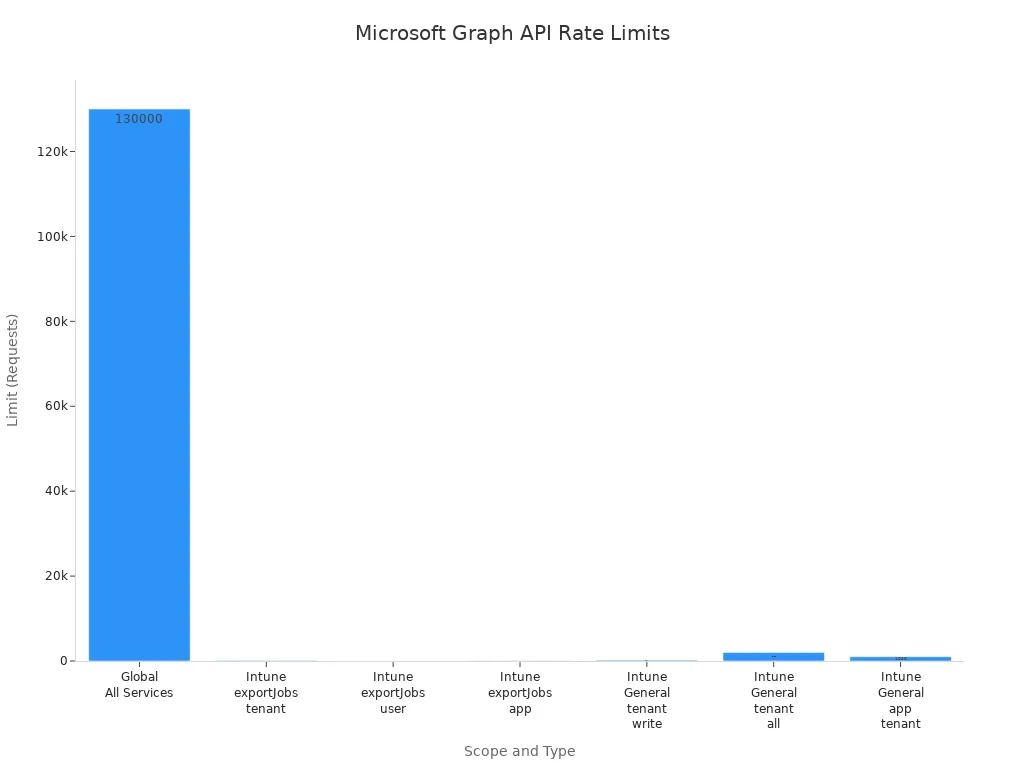
Microsoft Graph enforces rate limits to protect its services. If your script sends too many requests too quickly, the API returns a 429 status code. You should respect the Retry-After header and wait the suggested time before retrying. If the header is missing, use exponential backoff: start with a short delay and double it after each retry until the request succeeds or reaches a maximum wait time.
| Scope | Type | Limit | Notes |
|---|---|---|---|
| Global (All Services) | Any | 130,000 per 10 seconds per app | Absolute ceiling across all Graph services |
| Intune exportJobs | Any | 100 per tenant per minute | Documented in export API docs |
| Intune exportJobs | Any | 8 per user per minute | Sub-limit within tenant quota |
| Intune exportJobs | Any | 48 per app per minute | Sub-limit within tenant quota |
| Intune (General) | Any | 200 per tenant per 20 seconds | Tenant-wide write limit |
| Intune (General) | Any | 2,000 per tenant per 20 seconds | Tenant-wide limit for all operations |
| Intune (General) | Any | 1,000 per app per tenant per 20 seconds | Your app’s limit for all operations |
Securing Credentials
Protecting your credentials is critical when automating Microsoft 365 tasks. Use app registrations to create a unique identity for your application. Avoid storing client secrets in plain text inside your scripts. Instead, keep secrets in secure vaults or encrypted files.
Set short lifetimes for client secrets, ideally six months, to reduce risk if a secret leaks. Name and document your secrets clearly to avoid confusion during renewal. Consider using self-signed certificates for authentication instead of client secrets. Certificates offer stronger security and reduce the chance of accidental exposure.
Here is a recommended approach to secure credentials:
- Create a self-signed certificate using PowerShell.
- Export the public and private keys to
.cerand.pfxfiles. - Store the client secret securely as a secure string in a file.
- Use the stored secret or certificate to authenticate your app to Microsoft Graph API.
By following these steps, you reduce the risk of credential compromise and improve your automation’s security posture.
Optimizing Scripts
Efficient scripts save time and reduce resource consumption. Use selective property retrieval by applying the $select query parameter to request only the data you need. This approach reduces payload size and speeds up responses.
Use the Prefer header to request minimal representation responses when supported. This feature returns only essential data, further improving performance.
Consider using webhooks to get notifications about data changes instead of polling the API repeatedly. Webhooks reduce unnecessary API calls and improve responsiveness.
Batch multiple requests into a single JSON batch call. This technique lowers network latency and conserves resources, especially when working with large datasets.
| Strategy | Description |
|---|---|
| Selective Property Retrieval | Use $select to retrieve only needed properties, improving speed. |
| Minimal Response Requests | Use Prefer header to get minimal data representation. |
| Webhooks | Receive notifications for data changes instead of polling. |
| JSON Batching | Combine multiple requests into one batch to reduce network overhead. |
You can expect performance improvements of 30-50% for small datasets, 40-60% for medium datasets, and up to 62% for large datasets by applying these strategies.
By handling errors carefully, securing your credentials, and optimizing your scripts, you build reliable and efficient automation solutions. This approach ensures your scripts run smoothly and securely in any environment.
Combining PowerShell with Graph API significantly enhances your ability to manage Microsoft 365. This integration simplifies automation tasks and boosts productivity. You can access Azure AD and Office 365 through a single REST API endpoint, streamlining your administrative processes.
Following the step-by-step approach in this blog makes the learning process approachable and effective. I encourage you to experiment with the examples provided and explore additional capabilities of the Graph API.
To stay updated with the latest changes and features, check out resources like What's new in Microsoft Graph and the Microsoft Graph API changelog. Continuous learning will ensure your success in leveraging these powerful tools.
FAQ
What is PowerShell?
PowerShell is a task automation framework from Microsoft. It combines a command-line shell with a scripting language. You can use it to automate system management tasks and manage Microsoft 365 services.
What is Microsoft Graph API?
Microsoft Graph API is a unified endpoint for accessing data across Microsoft 365 services. It allows you to interact with resources like users, groups, and files using RESTful API calls.
How do I install the Microsoft Graph PowerShell module?
You can install the Microsoft Graph PowerShell module using the following command:
Install-Module Microsoft.Graph -Scope CurrentUser
This command downloads the latest version of the module for your user account.
What are delegated and application permissions?
Delegated permissions allow your app to act on behalf of a signed-in user. Application permissions enable your app to access data across the organization without user context. Choose permissions based on your automation needs.
How do I handle API rate limits?
Respect the Retry-After header when you receive a 429 status code. Implement exponential backoff in your scripts to manage retries effectively. This approach helps prevent overwhelming the API.
What is OAuth 2.0?
OAuth 2.0 is an authorization framework that allows applications to obtain limited access to user accounts. It uses access tokens to grant permissions without exposing user credentials.
Can I use PowerShell on Linux?
Yes, PowerShell is cross-platform. You can run PowerShell on Windows, macOS, and Linux. This flexibility allows you to automate tasks in various environments seamlessly.
How do I export data from PowerShell?
You can export data using the Export-Csv cmdlet for CSV files or ConvertTo-Json for JSON files. Choose the format that best suits your needs for data management.
Apple Podcasts · Spotify · YouTube · YouTube Music
Host: Mirko Peters