Apple Podcasts
 Spotify
 Youtube Music
 Spreaker
 Podchaser
 Amazon Music
 Use Power Automate to Increase Microsoft Copilot ROI

Most companies think Copilot = instant productivity.
Wrong.
Copilot isn’t the ROI engine — Power Automate is.
Copilot only “suggests.” Power Automate does the work.
In this episode we expose the 5 hacks that turn Copilot from a chatty intern into a revenue-generating automation machine — including Custom Connectors that unlock your hidden data, Adaptive Cards that turn AI suggestions into one-click actions in Teams, and telemetry that finally proves AI impact in real numbers — not hype.
If you want actual business outcomes, not AI vibes — this is the episode.
Power Automate significantly boosts the value and ROI of Microsoft 365 Copilot by automating repetitive tasks and streamlining workflows. This synergy between Copilot's AI capabilities and Power Automate's workflow automation enhances your productivity. By implementing these power automate hacks, you can unlock greater efficiency in your daily tasks. Consider how automation could free up your time, allowing you to focus on higher-value work and drive revenue-generating automation in your organization.
Key Takeaways
- Automate data collection to enhance Microsoft 365 Copilot's insights. Integrate various data sources for better decision-making.
- Streamline document generation with dynamic workflows. Use templates linked to data sources to reduce manual errors.
- Automate approval processes to speed up document management. This reduces bottlenecks and improves accountability.
- Set up automated alerts to manage tasks effectively. Timely notifications help you stay on track and meet deadlines.
- Leverage AI Builder for smarter data processing. Automate workflows to minimize human error and enhance decision-making.
- Build custom connectors to access niche systems. This flexibility allows for better data integration and insights.
- Automate meeting summaries to keep teams aligned. Capture key decisions and action items without manual effort.
- Monitor automation performance with automated reporting. Regularly review metrics to identify areas for improvement.
Automate Data Collection for Copilot
Gather Data from Multiple Sources
Automating data collection significantly enhances the insights generated by Microsoft 365 Copilot. By integrating data from various sources, you can enrich Copilot's capabilities and improve the quality of your deliverables. Here are some common data sources you might consider automating for Copilot integration:
- Customer Records
- Financial Data
- Official Documents
| Data Source Type | Description |
|---|---|
| Customer Records | System that owns customer records |
| Financial Data | Platform that contains financial truth |
| Official Documents | Repository that holds official documents |
Integrating these data sources allows Copilot to provide real-time suggestions based on the project context. This capability helps you create efficient workflows by leveraging a variety of connectors to pull data securely. The Model Context Protocol (MCP) enhances this integration, ensuring security and seamless connections with various services.
Integrate Data Flows with Copilot
Power Automate allows you to automate the flow of data between systems, which is crucial for maximizing Copilot's performance. By setting up automated data flows, you can ensure that Copilot has access to the most accurate and up-to-date information. This integration leads to several benefits:
- Copilot assists in automating complex workflows, improving decision-making.
- The integration of AI-powered suggestions reduces the learning curve for new users, making the tools more accessible.
- You can track productivity and efficiency metrics continuously, allowing for ongoing improvements.
By automating data collection and integrating it with Copilot, you can unlock valuable insights that drive productivity and enhance your ROI. This approach not only saves time but also ensures that your decisions are based on reliable data.
Streamline Document Generation
Create Dynamic Document Workflows
You can significantly improve your document workflows by automating the generation of documents with Power Automate. This automation allows you to create dynamic workflows that respond to specific triggers, such as new entries in your CRM. By using document templates, you can link these templates directly to your data sources. This approach minimizes manual data entry and reduces errors, ensuring that documents are generated quickly and accurately.
To create effective dynamic document workflows, consider these best practices:
- Start with process mapping to outline the workflow.
- Analyze data volume and flow frequency to optimize performance.
- Use environment separation (Dev, Test, Prod) for better governance.
- Always use Solutions to group related components for easier management.
- Integrate with Microsoft 365 apps and third-party connectors for enhanced functionality.
- Manage approvals effectively to streamline processes.
- Apply coding standards such as trigger optimization and avoiding nested conditions to maintain efficiency.
By following these tips, you can enhance the efficiency of your document workflows and ensure that your team spends less time on repetitive tasks.
Automate Approval Processes
Automating approval processes with Power Automate can drastically reduce bottlenecks in document management. When you implement automated workflows for approvals, you streamline and accelerate the entire process. This leads to several measurable benefits:
- Improved efficiency: Reduces time and effort for document approvals.
- Increased accountability: Provides a clear audit trail.
- Error reduction: Minimizes human error in the approval process.
- Enhanced visibility: Offers real-time tracking of document approval status.
- Scalability: Easily accommodates growing volumes of documents.
These features collectively reduce delays caused by manual follow-ups, unclear responsibilities, and scattered communication. As a result, you achieve faster turnaround times and smoother document flow.
Incorporating automation into your document generation and approval processes not only saves time but also enhances the overall productivity of your team. By leveraging Power Automate, you can ensure that your workflows are efficient, accurate, and aligned with your business goals.
Enhance Task Management with Automation
Set Up Automated Alerts
Automated alerts play a crucial role in effective task management. They help you stay informed about important updates and deadlines. By setting up these alerts in Power Automate, you can reduce missed deadlines and errors in your workflow. Here are some key benefits of using automated notifications:
- Timely Communication: Alerts ensure that you receive critical updates immediately, minimizing the risk of missing important deadlines.
- Customizable Notifications: You can tailor notifications to your preferences. This customization helps filter out unnecessary alerts, allowing you to focus on what matters most.
- Structured Communication Trail: Automated alerts maintain a clear record of communications. This transparency fosters accountability and helps you track progress effectively.
- Contextual Data-Rich Alerts: Notifications based on real-time data enhance visibility. You receive relevant information promptly, improving decision-making and reducing delays.
- Compliance Maintenance: In regulated industries, alerts can flag discrepancies or deadlines. This feature helps organizations stay compliant and audit-ready, avoiding costly errors.
For example, automated notifications can be sent through various channels like email or Microsoft Teams. This flexibility promotes engagement and quick responses, which are essential for effective task management. By allowing you to specify how and when you receive alerts, Power Automate reduces email fatigue and notification overload. This targeted approach ensures you receive only meaningful updates, enhancing overall responsiveness.
Use Conditional Flows for Prioritization
Conditional flows in Power Automate help you prioritize tasks based on urgency or importance. By using trigger conditions, you can filter out events that do not meet specific criteria. This filtering ensures that only relevant tasks are processed, enhancing efficiency and reducing unnecessary actions. Here’s how you can leverage conditional flows:
- Fine-Tune Workflows: Trigger conditions allow you to set specific circumstances under which automations run. This fine-tuning saves resources and prevents unnecessary actions.
- Automate Task Management: You can automate task creation across Microsoft 365 applications. For instance, Power Automate integrates with Planner and Teams to create tasks based on specific triggers, such as approaching deadlines or completed milestones.
- Efficient Assignment Logic: Set up rules that assign tasks based on workload, expertise, or availability. This logic ensures that tasks are distributed efficiently among team members.
By implementing these power automate hacks, you can enhance your task management processes. Automation not only saves time but also improves productivity and reduces stress. With the right alerts and prioritization strategies, you can focus on high-value work and drive better outcomes for your organization.
Leverage AI Builder for Enhanced Insights

Automate AI-Driven Data Processing
You can enhance your decision-making accuracy by automating AI-driven data processing with Power Automate. This integration allows you to streamline workflows and reduce human error. Here are some key benefits of incorporating AI into your processes:
- Smart Workflows: AI makes workflows more efficient, which enhances decision-making accuracy.
- Data Processing: Machine learning algorithms excel at handling vast amounts of data, improving both accuracy and efficiency.
- Error Reduction: Automating processes minimizes human error, leading to more reliable data processing.
- Focus on Value: Power Automate streamlines repetitive tasks, allowing you to concentrate on higher-value work.
- Historical Optimization: AI capabilities enable you to optimize processes based on historical data, further improving decision-making accuracy.
For example, companies like JPMorgan Chase have improved delivery timelines by 30% by deploying autonomous data products that monitor and validate data. Similarly, Vodafone detected and resolved 95% of anomalies in their billing systems, resulting in a 50% drop in billing errors and a 20% increase in customer satisfaction. These scenarios illustrate how automating data processing can lead to significant operational improvements.
Extract Insights for Copilot
AI Builder complements Microsoft 365 Copilot by enhancing the insights it provides. By integrating with M-Files content, AI Builder improves the accuracy and relevancy of the data Copilot uses. This integration strengthens reasoning capabilities that align with actual business processes. Here’s how you can extract valuable insights for Copilot:
- Real-Time Data Access: Automate the flow of data to ensure Copilot has access to the most current information.
- Enhanced Decision-Making: With accurate data, Copilot can offer better suggestions, leading to improved outcomes.
- Contextual Insights: AI Builder helps Copilot provide insights that are relevant to your specific business context, making the suggestions more actionable.
By leveraging AI Builder, you can unlock the full potential of Microsoft 365 Copilot. This combination allows you to transform data into actionable insights, driving better decisions and maximizing your ROI.
Build Custom Connectors for Data Access
Connect to Niche Systems
Custom connectors play a vital role in enhancing your data access capabilities within Power Automate. They allow you to connect to niche systems that may not have prebuilt connectors. This flexibility is crucial for organizations that rely on specialized software or legacy systems. Here are some key benefits of building custom connectors:
| Benefit | Description |
|---|---|
| Integration with APIs | Custom connectors enable seamless integration with both third-party and internal APIs. |
| Custom triggers and actions | Users can define their own triggers and actions, providing full control over automation processes. |
| Secure authentication methods | Support for various authentication methods like OAuth 2.0, API Key, and Basic Authentication. |
| Streamlined operations | Automates tasks involving custom applications, enhancing productivity and efficiency. |
By connecting to niche systems, you can ensure that Microsoft 365 Copilot has access to the data it needs to generate relevant insights. This capability improves the context of the responses Copilot provides, making them more actionable for your specific scenarios.
Enable Broader Data Access
Building custom connectors also enables broader data access, which significantly impacts Copilot's ability to generate insights. With these connectors, you can integrate data from various external systems like Salesforce, ServiceNow, and Jira into Microsoft Graph. This integration allows you to pull in a wider variety of data, enhancing the relevance of Copilot's suggestions.
To create a custom connector, follow these steps:
- Define a schema for the custom connector.
- Register the connection in Microsoft Entra ID.
- Write code to pull and push data.
This process allows you to connect to both internal and external data sources that may not have prebuilt connectors. As a result, you can access a wealth of information that enriches Copilot's functionality.
For example, consider the impact of specific connectors on Copilot's insight generation:
| Connector Name | Publisher | Impact on Copilot's Insight Generation |
|---|---|---|
| Git | RheinInsights | Enables indexing of Git repositories, providing Copilot with rich metadata for enhanced processing. |
| ServiceNow | Accenture | Crawls ServiceNow content, expanding Copilot's access to enterprise service management data. |
| Microsoft OneDrive | ServiceNow | Retrieves files and metadata from OneDrive, making content searchable and accessible to Copilot. |
By leveraging custom connectors, you can unlock the full potential of Microsoft 365 Copilot. This approach not only enhances your data access but also drives better decision-making and maximizes your ROI.
Optimize Collaboration with Automation
Automation can significantly enhance teamwork by streamlining communication and ensuring everyone stays aligned. When you automate routine tasks, you free up time for your team to focus on strategic objectives. This shift leads to improved collaboration and productivity.
Automate Meeting Summaries
Automated meeting summaries play a crucial role in keeping teams informed and accountable. By generating meeting notes, you capture key decisions and action items without manual effort. This process clarifies what was discussed and ensures that everyone is on the same page. Here are some benefits of using automated meeting summaries:
- Clarification of Key Decisions: Automated summaries help clarify the main points discussed during meetings.
- Accountability: They document tasks assigned and follow-ups required, ensuring that everyone knows their responsibilities.
- Project Tracking: Summaries aid in tracking updates and progress on initiatives, making it easier to monitor project outcomes.
- Content Creation: Automated summaries generate outlines based on discussions, simplifying the content creation process.
Research shows that self-managed teams, which communicate frequently and effectively, perform better than hierarchical teams. This finding underscores the importance of clear communication in enhancing collaboration. When you automate meeting notes, you ensure that critical details are captured, which helps maintain context and momentum in projects.
Sync Outputs Across Teams
Syncing outputs across teams is another powerful way to optimize collaboration. By using Power Automate, you can connect various applications and ensure that everyone has access to the same information. This integration helps eliminate silos and fosters a more collaborative environment. Here are some strategies to consider:
- Automate Task Assignments: Use Power Automate to assign tasks automatically based on meeting outcomes. This ensures that everyone knows their responsibilities right away.
- Share Updates Seamlessly: Set up workflows that share updates across platforms like Microsoft Teams and Outlook. This keeps everyone informed without the need for long email threads.
- Utilize AI-Generated Summaries: Implement AI-generated meeting summaries that compile key topics, decisions, and next steps into clear notes. This feature helps team members catch up on long email threads and stay aligned.
By automating these processes, you can enhance team collaboration and drive better project outcomes. Automated meeting notes are essential for keeping global and hybrid teams aligned, especially in distributed organizations. They convert conversations into concrete actions, which is vital for driving project success.
Monitor Automation Performance
Set Up Automated Reporting
Tracking performance metrics is essential for maximizing the effectiveness of your automation initiatives. Automated reporting provides you with valuable insights into how your workflows perform. By setting up reports, you can monitor key metrics that reveal the health of your automation processes. Here are some important metrics to consider:
| Metric Type | Description |
|---|---|
| Run History | Tracks the number of successful and failed runs over a selected time period. |
| Usage and Performance Metrics | Analyzes data on how frequently flows run, identifying patterns in peak usage times. |
| Error Analysis | Monitors failure rates and identifies specific steps where errors frequently occur. |
| Environment-Level Insights | Provides metrics at an environment level for monitoring flows across different departments. |
| Resource Usage | Monitors API requests, flow executions, and data usage to optimize resource consumption. |
By regularly reviewing these metrics, you can identify trends and areas for improvement. For instance, if you notice a high failure rate in a specific workflow, you can investigate the underlying causes and make necessary adjustments. This proactive approach helps you enhance the overall performance of your automation initiatives.
Use Feedback Loops for Refinement
Incorporating feedback loops into your automation strategy is crucial for continuous improvement. Regularly assessing the performance of your workflows allows you to identify potential risks early. This practice creates opportunities for optimization and expansion. Here are some benefits of establishing feedback loops:
- Monitoring creates transparency in AI operations.
- Feedback accelerates the improvement of AI systems.
- Governance enables the scaling of AI initiatives effectively.
Organizations that invest in training see faster adoption and better business outcomes. By fostering a culture of feedback, you empower your team to share insights and suggestions. This collaborative approach leads to more effective automation solutions tailored to your specific scenarios.
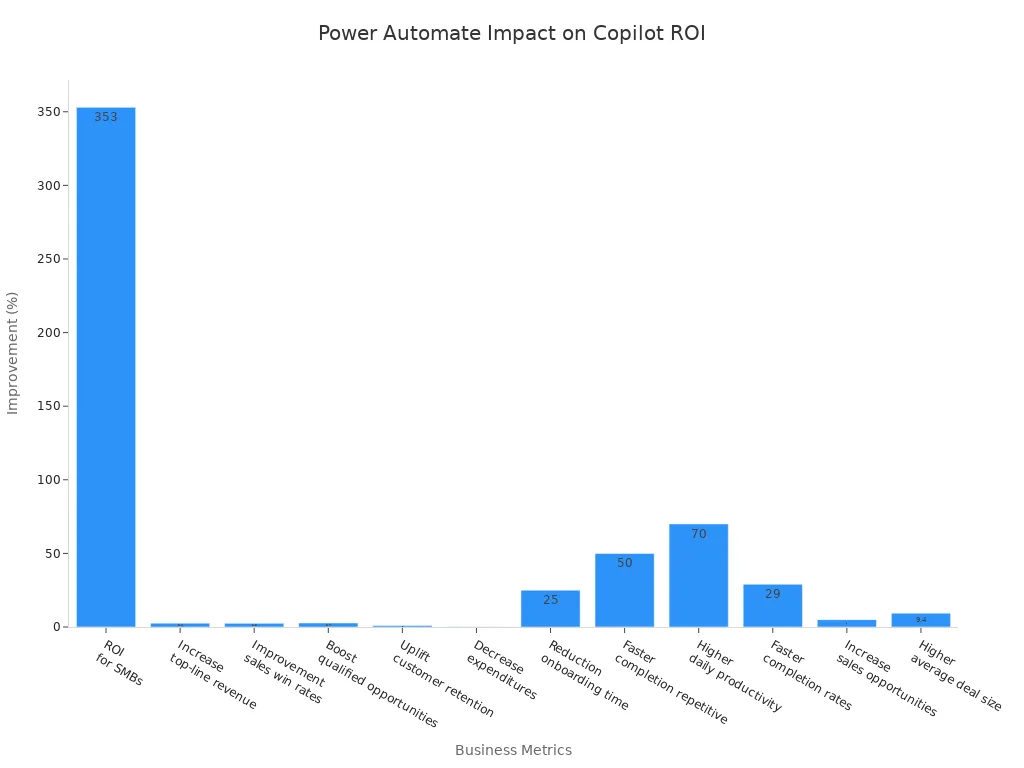
These seven Power Automate hacks help you unlock copilot roi by saving time, reducing errors, and boosting productivity. Automated workflows eliminate manual mistakes and can increase productivity by up to 66%. Immediate gains include faster approvals that cut waiting times from days to hours.
| Key Metrics | Description |
|---|---|
| Revenue Impact | Measures AI’s effect on overall revenue generation |
| Efficiency Gains | Tracks improvements in operational efficiency |
| Workforce Capacity | Assesses how AI tools expand workforce productivity |
Start small by applying one or two hacks in your daily scenarios. Over time, build more complex automations. Use these tools to summarize your week and boost your brainstorms. Treat automation as a continuous process that grows alongside Copilot’s evolving capabilities.
FAQ
What is Power Automate?
Power Automate is a Microsoft tool that automates workflows between applications. It helps you streamline repetitive tasks, saving time and increasing productivity.
How does Power Automate enhance Microsoft 365 Copilot?
Power Automate integrates with Copilot to automate tasks and workflows. This synergy allows you to leverage AI insights effectively, improving decision-making and operational efficiency.
Can I use Power Automate without coding skills?
Yes! Power Automate offers a user-friendly interface with templates and drag-and-drop features. You can create workflows without any coding experience.
What types of tasks can I automate with Power Automate?
You can automate various tasks, such as data collection, document generation, approvals, notifications, and reporting. The possibilities are vast and customizable.
How do I get started with Power Automate?
To start, sign in to Power Automate with your Microsoft account. Explore templates, create flows, and connect your apps to begin automating tasks.
Is Power Automate secure for business use?
Yes, Power Automate includes robust security features, such as Data Loss Prevention (DLP) policies and secure authentication methods. These measures protect your data and ensure compliance.
Can I integrate Power Automate with third-party applications?
Absolutely! Power Automate supports numerous third-party applications through connectors. You can easily integrate tools like Salesforce, Slack, and Google Drive into your workflows.
How can I measure the success of my automation efforts?
You can track performance metrics using automated reporting features in Power Automate. Monitor key indicators like run history, error rates, and resource usage to assess effectiveness.
🚀 Want to be part of m365.fm?
Then stop just listening… and start showing up.
👉 Connect with me on LinkedIn and let’s make something happen:
- 🎙️ Be a podcast guest and share your story
- 🎧 Host your own episode (yes, seriously)
- 💡 Pitch topics the community actually wants to hear
- 🌍 Build your personal brand in the Microsoft 365 space
This isn’t just a podcast — it’s a platform for people who take action.
🔥 Most people wait. The best ones don’t.
👉 Connect with me on LinkedIn and send me a message:
"I want in"
Let’s build something awesome 👊
Opening – Hook + Teaching PromiseYou think Copilot does the work by itself? Fascinating. You deploy an AI assistant and then leave it unsupervised like a toddler near a power socket. And then you complain that it doesn’t deliver ROI. Of course it doesn’t. You handed it a keyboard and no arms.Here’s the inconvenient truth: Copilot saves moments, not money. It can summarize a meeting, draft a reply, or suggest a next step, but those micro‑wins live and die in isolation. Without automation, each one is just a scattered spark—warm for a second, useless at scale. Organizations install AI thinking they bought productivity. What they bought was potential, wrapped in marketing.Now enter Power Automate: the hidden accelerator Microsoft built for people who understand that potential only matters when it’s executed. Copilot talks; Power Automate moves. Together, they create systems where a suggestion instantly becomes an action—documented, auditable, and repeatable. That’s the difference between “it helped me” and “it changed my quarterly numbers.”So here’s what we’ll dissect. Five Power Automate hacks that weaponize Copilot:Custom Connectors—so AI sees past its sandbox.Adaptive Cards—to act instantly where users already are.DLP Enforcement—to keep the brilliant chaos from leaking data.Parallelism—for the scale Copilot predicts but can’t handle alone.And Telemetry Integration—because executives adore metrics more than hypotheses.By the end, you’ll know how to convert chat into measurable automation—governed, scalable, and tracked down to the millisecond. Think of it as teaching your AI intern to actually do the job, ethically and efficiently. Now, let’s start by giving it eyesight.1. Custom Connectors – Giving Copilot Real ContextCopilot’s biggest limitation isn’t intelligence; it’s blindness. It can only automate what it can see. And the out‑of‑box connectors—SharePoint, Outlook, Teams—are a comfortable cage. Useful, predictable, but completely unaware of your ERP, your legacy CRM, or that beautifully ugly database written by an intern in 2012.Without context, Copilot guesses. Ask for a client credit check and it rummages through Excel like a confused raccoon. Enter Custom Connectors—the prosthetic vision you attach to your AI so it stops guessing and starts knowing.Let’s clarify what they are. A Custom Connector is a secure bridge between Power Automate and anything that speaks REST. You describe the endpoints—using an OpenAPI specification or even a Postman collection—and Power Automate treats that external service as if it were native. The elegance is boringly technical: define authentication, map actions, publish into your environment. The impact is enormous: Copilot can now reach data it was forbidden to touch before.The usual workflow looks like this. You document your service endpoints—getClientCreditScore, updateInvoiceStatus, fetchInventoryLevels. Then you define security through Azure Active Directory so every call respects tenant authentication. Once registered, the connector appears inside Power Automate like any of the standard ones. Copilot, working through Copilot Studio or through a prompt in Teams, can now trigger flows using those endpoints. It transforms from a sentence generator into a workflow conductor.Picture this configuration in practice. Copilot receives a prompt in Teams: “Check if Contoso’s account is eligible for extended credit.” Instead of reading a stale spreadsheet, it triggers your flow built on the Custom Connector. That flow queries an internal SQL database, applies your actual business rules, and posts the verified status back into Teams—instantly. No manual lookups, no “hold on while I find that.” The AI didn’t just talk. It acted, with authority.Why it matters is stunningly simple. Every business complains that Copilot can’t access “our real data.” That’s by design—security before functionality. Custom Connectors flip that equation safely. You expose exactly what’s needed—no more, no less—sealed behind tenant-level authentication. Suddenly Copilot’s suggestions are grounded in truth, not hallucination.Here’s the takeaway principle: automation without awareness is randomization. Custom Connectors make aware automation possible.Now, the trap most admins fall into—hardcoding credentials. They create a proof of concept using a personal service account token, then accidentally ship it into production. Congratulations, you just built a time bomb that expires quietly and takes half your flows down at midnight. Always rely on Azure AD OAuth flows or managed identity authentication. Policies first, convenience later.Another overlooked detail: API definitions. Document them properly. Outdated schema or response parameters cause silent failures that look like Copilot indecision but are actually malformed contracts. Validation isn’t optional; it’s governance disguised as sanity.Let’s run through a miniature build to demystify it. Start in Power Automate. Under Data, choose Custom Connectors, then “New from OpenAPI file.” Import your specification. Define authentication as Azure AD and specify resource URLs. Next, run the test operation—if “200 OK” appears, you’ve just taught Power Automate a new vocabulary word. Save, publish, and now that connector becomes available inside flow designer and Copilot Studio.From Copilot’s perspective, it’s now fluent in your internal language. When a user in Copilot Studio crafts a skill like “get customer risk level,” it calls the connector transparently. The AI doesn’t care that data lived behind a firewall; you engineered the tunnel.This is where ROI begins. You’ve eliminated a manual query that might take a financial analyst five minutes each time. Multiply that across hundreds of requests per week, and you’ve translated Copilot’s ideas into measurable time reduction. Automation scales the insight. That’s ROI with receipts.One small refinement: always register these connectors at the environment or solution level, not per user. Otherwise you create a nightmare of duplicated connectors, inconsistent authentication, and no centralized management. Environment registration ensures compliance, versioning, and shared governance—all required if you plan to connect this into DLP later.For extra finesse, document connector capabilities in Dataverse tables so Copilot can self-describe its options. When someone asks, “What can you automate for procurement?” the AI can query those metadata entries and answer intelligently: “I can access inventory levels, purchase orders, and vendor risk data.” Congratulations, your AI now reads its own documentation.The reason this method delivers ROI isn’t mystical—it’s mechanical. Every second Copilot saves must survive transfer into workflow. Out‑of‑box connectors plateau fast. Custom Connectors punch through that ceiling by bridging the blind spots of your enterprise.Now that Copilot can see—securely and contextually—let’s make it act where people actually live: inside the apps they stare at all day.2. Adaptive Cards – Turning Suggestions into Instant ActionsCopilot’s words are smart; your users, less so when they copy‑paste them into other apps to actually do something. The typical pattern is tragicomic: Copilot summarizes a project risk, the team nods, then opens five different tools just to fix one item. That’s not automation. That’s a relay race with extra paperwork.Adaptive Cards repair that human bottleneck by planting the “Act” button directly where people already are—Teams, Outlook, or even Loop. They convert ideas into executable objects. Instead of saying “you should approve this,” Copilot can post a card that is the approval form. You press a button; Power Automate does the rest.Here’s why this matters: attention span. Every time a user switches context, they incur friction—those few seconds of mental reboot that destroy your supposed AI productivity gains. Adaptive Cards eliminate the jump. They let Copilot hand users an action inline, maintaining thread continuity and measurable velocity.So what are they, technically? Structured JSON wrapped in elegance. Each card defines containers, text blocks, inputs, and actions. Power Automate uses the “Post Adaptive Card and Wait for a Response” or the modern “Send Adaptive Card to Teams” action to push them into chat. When a recipient clicks a button—Approve, Escalate, Comment—the response event triggers your next flow stage. No tab‑hopping, no missing links, no “I’ll do it later.”Implementation sounds scarier than it is. Start inside Power Automate. Build your Copilot prompt logic—say, after Copilot drafts a meeting summary identifying overdue tasks. Add the Post Adaptive Card action. Design the card JSON: a title (“Overdue Tasks”), a descriptive text block listing items, and buttons bound to dynamic fields derived from Copilot’s output. When someone selects “Mark Complete,” it triggers another flow that updates Planner or your internal ticket system.Now, you’ve transformed a suggestion into a closed feedback loop. Copilot reads conversation context, surfaces an action card, users respond in‑place, and the workflow executes—all without leaving the chat thread. That seamlessness is what converts novelty into ROI.A proper design principle here: the card shouldn’t require explanation. If you have to post instructions next to it, you’ve failed the design review. Use icons, concise labels, and dynamic previews—Copilot can populate summaries like “Task: Update client pitch deck – Due in 2 days.” People click; Power Automate handles the rest. You measure completion time, not comprehension time.And yes, they work beyond Teams. In Outlook, Adaptive Cards appear inline in email—perfect for scenarios like approval requests, time‑off confirmation, or budget sign‑off. The same card schema carries across hosts, meaning you design once, reuse anywhere. It’s UI unification without the overhead of a full app.Typical pitfall? Schema sloppiness. Cards with missing version headers or malformed bi
Become a supporter of this podcast: https://www.spreaker.com/podcast/m365-show-podcast--6704921/support.
Follow us on:
LInkedIn
Substack

Founder of m365.fm, m365.show and m365con.net
Mirko Peters is a Microsoft 365 expert, content creator, and founder of m365.fm, a platform dedicated to sharing practical insights on modern workplace technologies. His work focuses on Microsoft 365 governance, security, collaboration, and real-world implementation strategies.
Through his podcast and written content, Mirko provides hands-on guidance for IT professionals, architects, and business leaders navigating the complexities of Microsoft 365. He is known for translating complex topics into clear, actionable advice, often highlighting common mistakes and overlooked risks in real-world environments.
With a strong emphasis on community contribution and knowledge sharing, Mirko is actively building a platform that connects experts, shares experiences, and helps organizations get the most out of their Microsoft 365 investments.