 EN
EN Deutsch
 Español
 Français
 Italiano
 Português
 Nederlands
 Polski
 Bahasa Indonesia
 Русский
 Українська
 العربية
 עברית
עברית हिन्दी
 日本語
日本語 한국어
한국어2026-07-18 · Season 3
Azure Storage Accounts - Simply Explained
Show notes
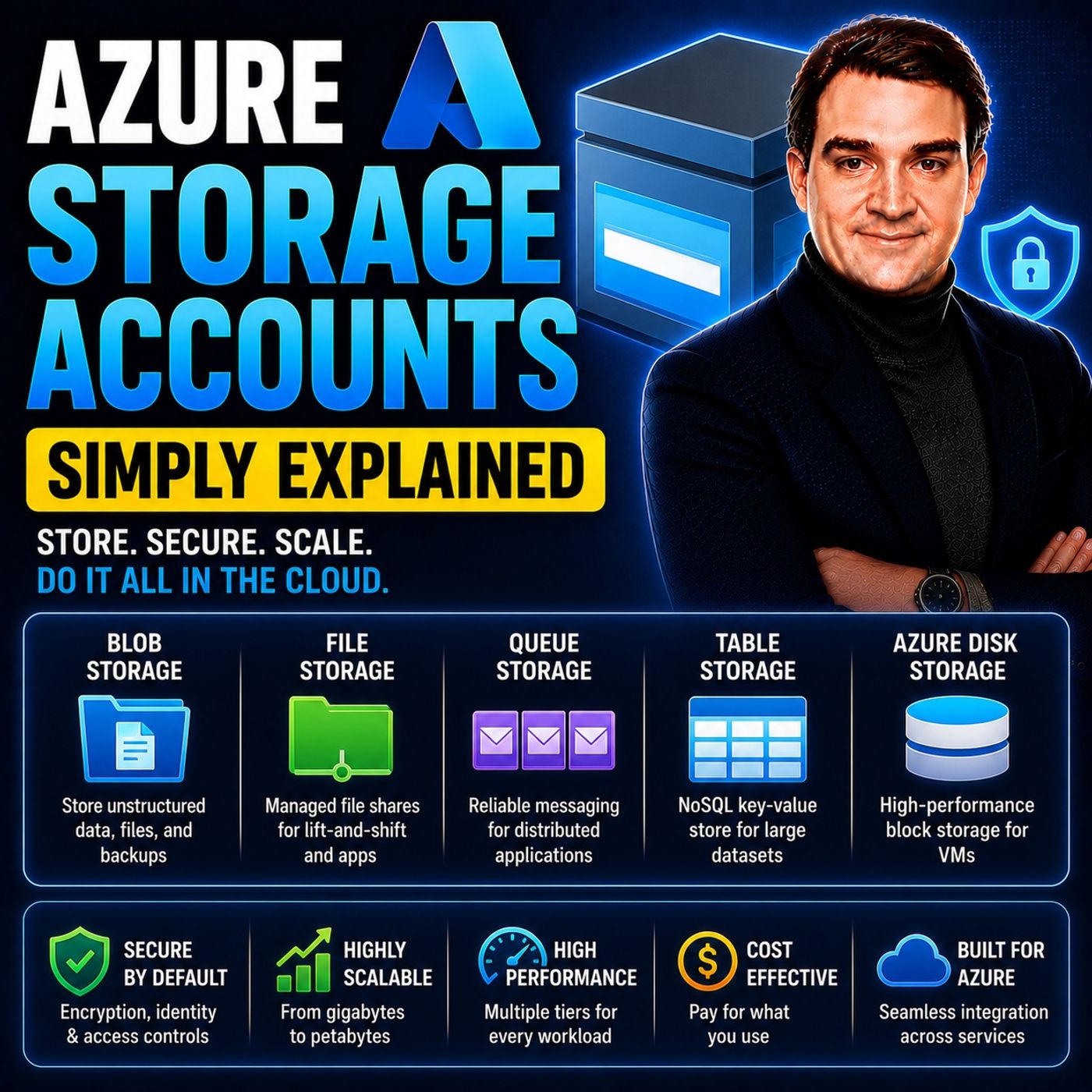
An Azure Storage Account is the foundation of Microsoft's cloud storage platform and acts as a single container that brings together multiple storage services under one roof. Rather than creating separate systems for files, messages, and application data, a Storage Account provides one secure, scalable location where different storage technologies work together seamlessly. Every Storage Account has a globally unique name, is deployed in a specific Azure region, and belongs to a resource group. It also allows you to choose performance tiers and redundancy options that determine how your data is stored, protected, and replicated across Microsoft's global infrastructure. UNDERSTANDING THE FOUR STORAGE SERVICES Inside every Azure Storage Account are four core storage services, each designed for a different purpose. Blob Storage stores unstructured data such as documents, images, videos, backups, and log files. Azure Files provides fully managed cloud-based file shares that behave like traditional network drives and can be mounted by Windows, Linux, and macOS systems. Queue Storage enables reliable messaging between applications, allowing background processes to communicate asynchronously without slowing down user-facing applications. Table Storage is a highly scalable NoSQL key-value database for storing structured data without requiring the complexity of a traditional relational database. Together, these services allow developers to solve a wide range of storage scenarios using a single platform. PERFORMANCE, REDUNDANCY, AND STORAGE TIERS Azure Storage Accounts can be customized to meet different performance and availability requirements. Standard storage is suitable for most workloads, including documents, backups, application files, and general-purpose storage, while Premium storage delivers lower latency and higher performance for demanding workloads such as virtual machine disks. Azure also provides multiple redundancy options, including Locally Redundant Storage (LRS), Zone-Redundant Storage (ZRS), Geo-Redundant Storage (GRS), and Geo-Zone-Redundant Storage (GZRS). These options determine how many copies of your data Azure maintains and whether those copies remain within a single data center, across multiple availability zones, or even in a secondary Azure region for disaster recovery. HOW THE STORAGE SERVICES WORK TOGETHER The real power of Azure Storage Accounts comes from combining multiple storage services within a single application. For example, a photo-sharing application might store uploaded images in Blob Storage, keep photo metadata inside Table Storage, place image-processing jobs into Queue Storage, and store shared configuration files using Azure Files. Because all four services exist within the same Storage Account, organizations benefit from centralized billing, unified security, shared networking, encryption, access control, and monitoring. This integrated architecture reduces complexity while allowing each storage service to focus on the workload it handles best. SECURITY, SCALABILITY, AND MANAGEMENT Azure Storage Accounts include enterprise-grade security features out of the box. All stored data is encrypted automatically using Microsoft-managed encryption keys, while Microsoft Entra ID integration enables identity-based authentication and role-based access control. Storage firewalls, Shared Access Signatures (SAS), Private Endpoints, Azure Defender for Storage, and immutable storage policies provide additional layers of protection for sensitive business data. Whether you're storing a few gigabytes or multiple petabytes, Azure automatically scales capacity and performance without requiring administrators to manage storage hardware or infrastructure, making it suitable for organizations of every size. CHOOSING THE RIGHT STORAGE OPTION Selecting the right Azure storage service depends entirely on the type of data you're working with. Blob Storage is ideal for large files, media, backups, and data lakes. Azure Files replaces traditional file servers with cloud-hosted network shares. Queue Storage enables reliable communication between distributed applications and background services. Table Storage offers a lightweight, cost-effective solution for structured NoSQL data with simple lookup requirements. By understanding the strengths of each storage service and combining them within a single Storage Account, organizations can build scalable, secure, and highly efficient cloud applications while simplifying storage management across their Azure environment. Become a supporter of this podcast: https://www.spreaker.com/podcast/m365-fm-microsoft-365-azure-cloud-power-platform-ai--6704921/support.
Apple Podcasts · Spotify · YouTube · YouTube Music · Deezer
Host: Mirko Peters
Related articles
- Demystifying Azure Storage Accounts: A Beginner's Guide
- Choosing the Right Azure Disk Type: Standard vs. Premium vs. Ultra
Transcript
Read the full transcript
Welcome to another episode of Microsoft Knowledge Nuggets here on M365, FFM, I'm your host, Mirko Peters. Today's topic is one that almost everyone has heard of, but few people can actually explain. Azure Storage Accounts. What exactly is it? Is it just a place to dump files or is it something much bigger? By the end of this episode, you'll understand the four main storage types inside a storage account. Blob, file, queue and table, like the different rooms in a modern office building. Grab your coffee and let's dive in. Foundation, what is a storage account? Let's start with the simplest definition. An Azure Storage Account is a container. That's all. A container that holds all your Azure Storage services together. Think of it like the entire office building. The building itself is the storage account. And the rooms inside are Blob, File, queue and table. You don't walk into a building and say, "I'm in the electrical room that you say I'm in the building." Same idea. Now, every storage account comes with a few key characteristics. First, across all of Azure, it needs a globally unique name. No two storage accounts in the world can share the same name. It also lives in a specific Azure region where you choose where your data sits, whether that's East, US, West, Europe or Southeast Asia. And like most Azure resources, it belongs to a resource group, which is just a logical folder for organizing your stuff. You also get to pick a performance tier. Standard handles most everyday workloads like documents, backups and general file storage, while premium delivers faster performance with low latency but costs more. You'd use premium for tasks like databases running on virtual machines where every millisecond matters. Then there's redundancy. How Azure keeps multiple copies of your data so you don't lose it. The simplest option is LRS, locally redundant storage, which keeps three copies inside the same data center and works fine for non-critical stuff. ZRS spreads those copies across different availability zones in the same region, protecting you if an entire building fails. GRS and GZRS go further by replicating your data to a paired region hundreds of miles away. More protection, higher cost. You pick what fits your uptime needs. Here's the key thing to remember. Once you create a storage account, you can use any or all of the four storage services inside it. You're not locked into one. You can store videos in blob, share files with your team in files, queue up background tasks in queue, and log sensor data in table, all from the same storage account, one container, four tools. Now let's open the door to the first room. Blob storage. Blob storage. Now let's talk about blob storage. The name stands for binary large object, which is just a fancy way of saying any file that isn't structured data. So we're talking images, videos, backups, log files, where anything you just dump into a folder and forget about, here's the best way to picture it. Imagine a giant warehouse with endless shelves. You walk in, grab a box, put it on a shelf and walk away. There's no strict filing system. Just row after row of shelves holding whatever you need. That's blob storage. By default, it's a flat name space. The folders you see in the portal, those are virtual, just part of the file name, not real directories. Now there are three types of blobs each built for a different job. Block blobs are the most common. Therefore, files and media like documents, images, and video files. When you upload a photo, it gets split into blocks, stored across Azure's infrastructure, and served back to you as one complete file. You'll use these about 90% of the time. Append blobs are designed for one thing, adding data to the end, which is perfect for logging. Imagine a server writing log entries every few seconds with an append blob, new data just gets tacked on at the end. No rewriting the whole file, no performance hit. Page blobs are different. They're built for random read and write access in 512 byte chunks. You've probably used them without knowing it because Azure Virtual Machine disks run on page blobs. When your VM writes data to its C drive, that's a page blob working behind the scenes. Azure also gives you access tiers to control costs. The hot tier is for data you access frequently like images on a website or active project files. The cool tier is for data you access less often, but want available quickly, like last quarter's reports. The cold tier is for data you rarely touch, but need immediately when you do. And the archive tier is offline storage. You're cheap, but you have to wait hours to access it. Think compliance data you're keeping for legal reasons, but never actually look at. Here's a real example, picture a streaming service like Netflix or Spotify. The database stores metadata like movie titles, descriptions and user ratings, but the actual video files live in blob storage. Millions of hours of content all sitting in a blob container served directly to your browser when you hit play. Now, blob storage is accessed over the web using HTTP or HTTPS. But what if you need something that works like a network drive on your office network? That's where file storage comes in, file storage. Azure files is Microsoft's fully managed file share in the cloud. It works exactly like a traditional network drive the kind you'd map to the Z-drive on your work computer. But instead of running on a file server in your office, it runs on Azure infrastructure. You don't manage the hardware, you don't patch the OS. You just create a share and start using it. Think of it as a shared filing cabinet that everyone in the office can access from any desk. You put a document in the cabinet and anyone with permission can open it, whether they're in New York, London, or working from home. Azure file supports two main protocols. SMB or server message block is the standard for Windows. You map a drive, enter the UNC path, and you're in. NFS or network file system is the Linux equivalent. Both work the same way underneath, and there's a REST API too, so applications can read and write files programmatically without mounting a drive. One of the most useful features here is Azure file sync. This lets you keep a cache of your cloud files on a local Windows server, so your users get fast local access while the authoritative copy lives in Azure. If a file server goes down, you don't lose anything. And if a branch office needs better performance, you put a local server there and let Azure file sync handle the synchronization. You get cloud reliability with on-premises speed. Here's a real scenario. Imagine a company with five branch offices, each needing access to the same set of shared documents. Proposals, templates, client files. 20 years ago, you'd buy a file server for each location, set up replication, and pray at all state and sync. With Azure files, you create one file share in the cloud, each office mounted over the internet or a VPN and Azure handles the rest. No hardware to buy, no replication to manage, one share, five offices, everyone has the same files. Now, what about passing messages between applications? That's not a file. It's a small piece of data moving between systems. That's where queue storage fits in. Queue storage. Now, what about passing messages between applications? That's not a file. It's a small piece of data moving from one system to another. That's where queue storage fits in. Here's how it works. Queue storage is a simple message queue. Think of a take a number ticket dispenser at a daily counter. One person takes a number and another person calls that number when it's time to serve them. The two people never talk directly to each other. The ticket system decouples them. That's exactly what queue storage does. One part of your application writes a message to the queue. A different part, maybe a background worker running on another server picks that message up and processes it. They don't need to know about each other or be running at the same time. The queue is the middle man. Each message can be up to 64 kilobytes. Small stuff like a Jason payload, a URL, or an order ID, not video files, just enough data to tell the worker what to do. The delivery model is called at least once. That means as you're guaranteed, your message would be delivered at least one time. It might be delivered twice in rare cases. So your worker code should handle duplicates gracefully, but you won't lose a message. Now Azure actually has two queue services. Queue storage is the simpler one. Built directly into the storage account. Then there's service bus, a separate service with more advanced features like transactions, sessions, larger messages up to 100 megabytes, and guaranteed first and first out ordering. Queue storage doesn't do any of that, but it's cheaper, simpler, and perfectly fine for most background processing scenarios. Here's a concrete example, picture and e-commerce website, a customer places an order. The web app doesn't process the payment, check inventory, and send the shipping notification right there in the browser request. That would take too long. Instead, the web app puts a message in the queue like order 4521, customer ID 893, product ID 204, quantity one. A background worker picks that message up and processes it, charges the credit card, updates, inventory, sends the confirmation email. The customer gets a faster response and the system stays responsive even under heavy load. Queue storage is great for passing messages, but what if you need to store structured data without the overhead of a full database? That brings us to table storage. Table storage. Table storage is Azure's no SQL key value store. It's schemalous, meaning every row in the table can have different columns. You don't define the columns ahead of time like you would in SQL. You just start adding data and table storage figures it out. Think of it as a filing cabinet, where each folder can have different contents. One folder might have a name and email and a phone number. The next folder might have a name, a temperature reading and a timestamp. No schema police telling you what belongs where. The key to table storage is how you design your lookups. Every entity has two keys, a partition key and a row key. The partition key groups related data together. The row key identifies the specific item within that partition. Queery by both keys and you get fast results. Queery without them and you're scanning the whole table much slower. Table storage is cost effective for large amounts of structured data way cheaper than Cosmos DB, Azure's premium no-school database. But you get what you pay for. Table storage doesn't support complex queries, indexing or stored procedures. It's built for simple key value lookups at massive scale. Here's a real example. Imagine a weather app that collects sensor readings from thousands of devices. Each reading might have different fields, temperature, humidity, wind speed, air pressure, and a timestamp. Some devices send all five fields, some send only three. With a traditional SQL database, you'd need to define every possible column ahead of time or use nullable fields everywhere. With table storage, you just write the data as it comes in. Each row has exactly the fields it needs, no wasted space, no schema headaches, so we've covered the four rooms, blob for big files, files for network shares, queue for passing messages, table for structured data without a database. But the real power of Azure storage isn't any single service. It's how they work together inside the same storage account. How it all connects. Here's the thing most people get wrong. They think of blob, file, queue, and table as four separate services that just happen to live in the same Azure menu. Actually, they're different doorways into the same building. As you design them to work together naturally, let me show you what that looks like. Imagine you're building a photo sharing app, uses upload pictures and you need to store those files. That's blob storage, the actual image files go into a blob container. But users also tag photos, add descriptions, and set privacy settings. That metadata doesn't belong in blob. It's structured data, but you don't need a full SQL database for it. Table storage handles it perfectly. One row per photo with whatever fields that photo needs. Now when a user uploads a photo, you don't want to process it right there in the browser request, resizing images, generating thumbnails, running facial recognition, that takes time. So your web app drops a message into queue storage. Something simple. New photo uploaded, ID 7-823, needs thumbnail. A background worker picks up that message, processes the image, and writes the result back to blob. The user gets a fast response and the heavy lifting happens behind the scenes. And what about configuration files? Your app needs settings that all servers can read, connection strings, feature flags, default values. That's a perfect job for file storage, mounted as a network share, and every instance of your app reads from the same source. All four services, one storage account, one application. Here's what makes this powerful, unified management. One billing statement, one set of security policies, configure a firewall once, and it protects all four services, enable encryption at the storage account level, and every blob file, queue message, and table entity is encrypted automatically. Set up private endpoints, and your data never traverses the public internet. One configuration covers everything. This is the aha moment most people miss. You don't need to learn four separate systems and stitch them together with custom glue code. Azure already did that work. The storage account is the glue. You just decide which services you need and turn them on. So now you know the parts. Let's turn that into practical advice you can use today. Actionable takeaways. Start by figuring out what kind of data you're working with. Unstructured files like images and videos go blob. Shared network drives that multiple people access, go files, background tasks, and async processing, go queue. Structured data with simple lookups and no complex queries. Go table, not sure. Start with blob. It's the most flexible and covers the widest range of scenarios. From there, choose the right performance here. Standard is fine for the vast majority of workloads. Your company documents backup files, application logs, standard handles all of that without breaking a sweat. Premium only makes sense when you need low latency or high IOPS. Think database is running on virtual machines or real-time analytics where every millisecond counts. For everything else, save your money and stick with standard. Then plan your redundancy based on how much downtime you can tolerate. LRS is the cheapest option. Protects against a single drive failure. Great for dev and test environments or data you can easily recreate. ZRS protects against an entire data center going down. Good for production workloads in a single region. GRS replicates to a second region hundreds of miles away. Essential for disaster recovery and compliance. Don't over by redundancy for data that doesn't need it. But don't under buy for data that would cost you the business if you lost it. Finally, don't overthink this. You can mix all four services inside one storage account. Start with what you need today. Add more later as your requirements grow. The only wrong move is not starting at all. That's the system. Four storage types, one container, infinite possibilities. So there you have it. Azure storage accounts in plain English. Inside one container you'll find four storage types. Blob for files, file for shares, queue for messages and table for key value data. They all share billing security and management. Pick the type that fits your current problem and starts more. You can add the others later without changing anything you already built. If this helped, share it with someone just starting their Azure journey and subscribe for more plain English breakdowns. I'm Mucopitas from M365.fm.