 EN
EN Deutsch
 Español
 Français
 Italiano
 Português
 Nederlands
 Polski
 Bahasa Indonesia
 Русский
 Українська
 العربية
 עברית
עברית हिन्दी
 日本語
日本語 한국어
한국어2026-08-07 · Season 3
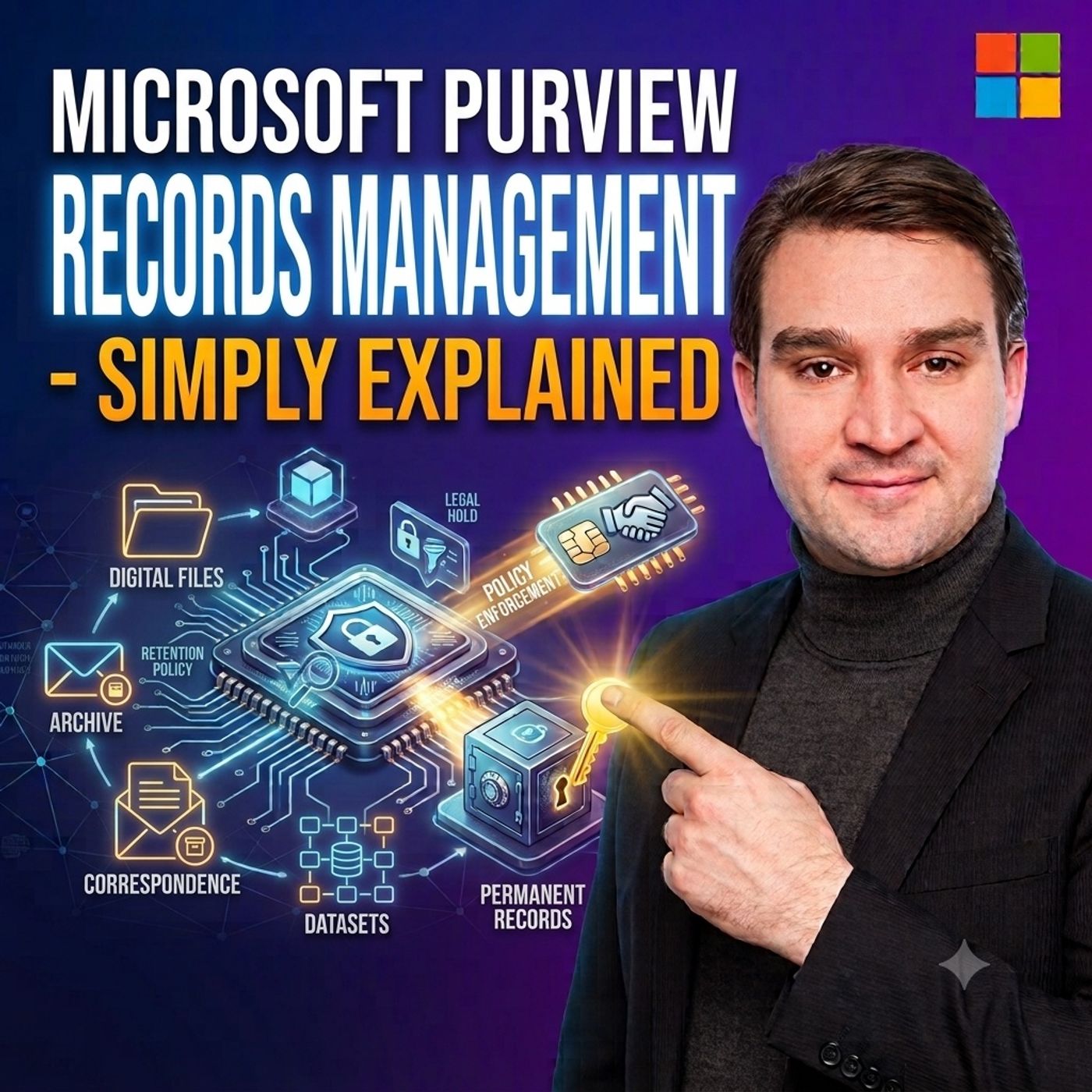
Microsoft Purview Records Management - Simply Explained
Show notes
Every organization creates contracts, financial reports, employee records, policies, and countless business documents that must be retained for legal, regulatory, and operational reasons. While modern work happens across SharePoint Online, OneDrive, Microsoft Teams, and Exchange Online, organizations still need clear rules defining which documents become official records, how long they must be preserved, and when they can safely be deleted. In this Microsoft Knowledge Nuggets episode, Mirko Peters explains Microsoft Purview Records Management in plain English, showing how Microsoft 365 helps organizations manage the complete lifecycle of business records while supporting governance, compliance, and legal defensibility.UNDERSTANDING WHAT QUALIFIES AS AN OFFICIAL RECORDNot every file stored in Microsoft 365 is a business record. Drafts, working documents, temporary notes, and collaborative discussions often support business processes without becoming official evidence. Microsoft Purview Records Management focuses on documents that prove business decisions, contractual agreements, financial reporting, employee activities, or organizational policies. Organizations first determine which content represents official evidence before defining retention triggers, required retention periods, and approved disposition actions. Establishing this distinction prevents unnecessary retention while ensuring important business records remain protected throughout their required lifecycle.RETENTION LABELS AND RETENTION POLICIES EXPLAINEDMicrosoft Purview uses Retention Labels to attach lifecycle rules directly to individual documents, emails, and other business records. Each label defines when retention begins, how long content must remain protected, and what should happen once the retention period expires. Unlike broad Retention Policies that apply baseline rules across SharePoint sites, Exchange mailboxes, Teams messages, or OneDrive accounts, Retention Labels provide precise item-level control for official records that require unique business rules. Labels may be applied manually by users or automatically using Microsoft Purview's intelligent classification capabilities, helping organizations consistently enforce retention schedules across Microsoft 365.RECORD DECLARATION PROTECTS BUSINESS EVIDENCEWhen important documents become official business records, Microsoft Purview can declare them as records and apply additional protections that preserve their integrity throughout the retention period. Record Declaration helps prevent unauthorized deletion or modification while ensuring approved versions remain available for audits, legal proceedings, regulatory inspections, and internal investigations. The episode also explains how Records Management complements other Microsoft Purview capabilities such as Sensitivity Labels, which protect document access through encryption, and Data Loss Prevention (DLP), which monitors the movement of sensitive information. Together these technologies secure business information throughout its entire lifecycle.DISPOSITION REVIEW AND AUDIT HISTORYKeeping records is only part of effective governance. Organizations also need controlled processes for disposing of records once retention requirements have been satisfied. Microsoft Purview Disposition Review introduces structured approval workflows that require designated reviewers to evaluate records before permanent deletion. This ensures records involved in ongoing legal matters, audits, or business disputes remain protected even after their scheduled retention period ends. Microsoft Purview Audit complements this process by maintaining activity history showing when retention labels were applied, record declarations occurred, disposition approvals were completed, and other lifecycle events took place. These audit records provide the evidence organizations need to demonstrate regulatory compliance and defend records management decisions.BUILDING A COMPLETE MICROSOFT PURVIEW RECORDS MANAGEMENT STRATEGYSuccessful Records Management begins with business requirements rather than technology. Organizations should first identify critical record categories, define business retention rules, assign record owners, establish disposition reviewers, and document governance processes before configuring Microsoft Purview. By combining Retention Labels, Record Declaration, Disposition Review, Microsoft Purview Audit, SharePoint Online, OneDrive, Microsoft Teams, Exchange Online, and broader Microsoft Purview compliance capabilities, businesses create a consistent digital records lifecycle that protects valuable business evidence while reducing unnecessary data retention. The result is stronger governance, improved compliance, reduced legal risk, and a defensible records management strategy across the entire Microsoft 365 platform. Become a supporter of this podcast: https://www.spreaker.com/podcast/m365-fm-microsoft-365-azure-cloud-power-platform-ai--6704921/support.
Apple Podcasts · Spotify · YouTube · Deezer
Host: Mirko Peters
Guests
Related articles
Transcript
Read the full transcript
A signed contract disappears from a shared folder. Nobody knows who removed it, whether it should still exist or whether a copy lives somewhere else. With paper records, the process was more straightforward. You had a filing cabinet, a locked drawer, and a retention schedule that told you exactly how long to keep each box. Then, on a planned date, someone approved it for shredding. Work doesn't happen that way anymore. A contract might sit in SharePoint, the approval email in Exchange Online, and the discussion in Teams, while someone also has a copy in one drive, so what exactly keeps all of that under control? Microsoft Per View Records Management is the part of Microsoft Per View that helps your organization keep official records protected for the required time, then dispose of them in a controlled way when that time ends. That sounds simple, but the risk of getting it wrong is serious. If someone asks why you kept a document, changed it, or deleted it, we think that's what happened, isn't a good answer. You need a clear rule, a clear process, and a history of what people did. Think of Microsoft 365 like a modern office building. SharePoint, OneDrive, Exchange Online, and Teams are the rooms where work happens. Per View Records Management works behind the scenes. That isn't another app where most employees spend their day. It's more like the records office in the basement, setting rules for which paperwork becomes official, how long it stays, and when it can leave the building. In this knowledge nugget, we'll first separate an ordinary file from an official record, then look at the rule attached to that record, the controls that protected, the review before deletion, and the audit history that helps you show what happened. First, we need to answer the question behind every record rule, what actually counts as a record. A record is more than a file. A record is official evidence that your organization did something, decided something, approved something, or agreed to something. That could be assigned contract, a final financial report, an employee record, or an approved company policy. The word official matters here. Your team might create 10 drafts of a policy before leadership approves the final version. Those drafts are part of the work, but they don't all carry the same weight as the approved policy that tells people what they must do. Think about a contract. While people negotiate, you have word documents with tracked changes, comments, and names like contract final V3, or contract final V3 really final. Those are working files that people expect to change. Then the agreement gets signed, and that signed copy becomes evidence of what both sides agreed to. The email that confirms final approval may matter too, and those items need more care because they may answer a question years later, what did we agree to? Who approved it, when did the agreement end? That's why not every file should get the same treatment. If you treat every draft, chat, note, and download like a formal record, you create a huge pile of content that becomes hard to manage. You also keep more information than you need, but if you fail to protect the official items, you can lose the evidence your organization relies on. Records management helps you draw that line. For each type of record, your organization needs a plain rule with three parts. First, the retention trigger. What starts the clock? Sometimes it's simple. You might retain a final report for a set number of years after the file is created. Other records follow a business event instead. A contract may need to stay for a number of years after the contract ends, and employee file may need to stay for a period after the employee leaves. In both cases, the file's creation date isn't the main date that matters. The business event is. Second, the retention period, how long you keep it? Your organization decides this based on its own business, legal, and compliance needs. Per view doesn't decide whether a contract belongs for five years or seven years. The people who own the business process, along with legal or compliance teams, decide that rule. Third, what happens when the time ends? Maybe the record can be deleted, maybe someone needs to review it first, or maybe another business process needs to happen before disposal. The key is that the end action should be planned from the start, not guessed years later, when folders are already full. Let's go back to that signed contract. The rule could read like this. Keep the signed agreement for seven years after the contract expires, then send it for review before deletion. That one sentence gives you the trigger, the period, and the end action. This is how a paper retention schedule becomes something Microsoft 365 can follow. The business team knows what the record means, and when the contract ends, compliance teams help define the required rule, and Microsoft 365 admins turn that approved rule into a control that works across the places where content lives. So you don't start with technology. You start by deciding which files count as official evidence when their clock should start, how long they need to remain, and what should happen at the end. Once you have that answer, purview can attach the right rule directly to the item. Retention labels are the rule book. So once you know an item needs a rule, purview uses a retention label to attach that rule to the item. Think of a retention label as a digital rule card attached to a document, an email, or any piece of content. The label tells Microsoft 365 when to start counting, how long to keep the item, and what should happen when that time runs out. And that matters because a contract doesn't always stay in one neat folder. Someone might move it, a team might reorganize a sharepoint side, or the business might work with the file through teams, and the underlying file still lives in sharepoint. The label stays focused on the item, so the retention rule stays connected to the content that needs it. For a formal record, that control at the item level gives you much more precision than a broad rule over an entire location. Let's use a simple example. You create a retention label called contract seven years after expiry, then disposition review. Even without seeing the admin screen, you can understand the intent. The clock doesn't start when someone first saves the contract. It starts when the contract expires, and then purview keeps the record for seven years. When those seven years are complete, purview doesn't just treat the item like an old download in a folder, but instead sends the record into the review process defined by your organization. That is the rule book. A retention label has three questions built right in. When does the clock start? How long does the records stay? What happens at the end? The first question is more important than it sounds. For a simple document, the clock might start when the item is created, last changed, or when the label was applied. But many business records follow an event outside the file itself, like a contract ending, an employee leaving, or a project closing. In those cases, the record needs a rule that follows the business event, not just the day someone uploaded a PDF. This is where beginners often mix up retention labels and retention policies. They sound similar because both can tell Microsoft 365 to keep or delete content over time, but they work at different levels. A retention policy is like applying one house rule to a whole area. For example, you could apply a broad policy to an exchange online mailbox, a SharePoint site, or Teams messages. That makes sense for general content where one consistent rule covers a lot of information. Maybe your organization keeps general Teams messages for a set time, or maybe all content in a broad business site needs a baseline retention period. A retention label is more focused. It tells purview. This particular item belongs to this record category, so give it this specific rule. That makes labels a better fit for official documents that need their own retention path, especially when the clock starts from a business event or the item will need a control decision at the end. You can use both approaches in the same connected platform, but they solve different problems. Policies handle broad coverage, while labels handle the records that need individual treatment. The next question is, who puts the label on the item? In some cases, a person applies it manually, which works when someone has the business knowledge to recognize an official record at the right moment, like when a final agreement arrives or a policy receives approval. But relying on people to remember every label every time can be difficult. Per view can also apply labels automatically when your organization defines clear conditions for matching the right content, using known signals, set properties, or other conditions that identify the type of item. Instead of following users around and asking them to choose from a long list, the organization creates the rule and purview applies it in the background. The smart approach depends on the record type. If a person must make a judgment call, manual labeling may fit. But if a record follows a clear pattern, automatic labeling brings more consistency, either way the label turns a written retention schedule into something Microsoft 365 can act on. For you, the practical step is simple. Take one written rule and make sure it answers those three questions clearly. What starts the clock? How long does the item stay? What happens when the time ends? A label can tell per view to keep an item, but the next building block adds a stricter control treating that item as official evidence rather than ordinary working content. Record declaration locks the evidence. A retention label tells per view how long an item needs to stay and record declaration takes the next step by marking that item as an official record and applying stricter controls around it. Think of an ordinary working file as paperwork sitting on someone's desk where people can update it, add comments, and replace it while the work is still moving. A declared record is the final signed paperwork moved into a locked archive room. The work may continue around it, a new policy version may be written or a contract may be renewed, but the declared record preserves the official version that existed at that point in time. So why does that lock matter? Because official records can become evidence. An auditor may need to see the approved financial report from a certain year. A legal team may need to find the signed agreement that covered a dispute or an internal investigation may need to confirm which policy applied when a decision was made. In each case, the question isn't only whether we can find a file, but also whether we can trust this is the file that existed at the time. That's what record declaration is designed to support. Consider a final company policy. During the writing process, different people might edit the policy, add notes or ask for changes, but once the policy receives approval, that approved version can become the record. And declaring it as a record helps protect that version for the required time. The same idea applies to a signed agreement. You don't want the official signed copy treated like an ordinary draft that someone can quietly replace, edit, or remove because they were cleaning up a folder. A completed employee record can work the same way. Once it becomes the official business evidence, the organization can apply a record label to keep it protected through its retention period. There's an important point for beginners here. Records management controls retention across time, making sure an official item remains available for as long as the rule requires, even if someone tries to delete it before that period ends. And it also adds record controls that help preserve the item's evidence. But records management doesn't do every form of protection in Microsoft Perview. It doesn't encrypt a document, decide who can open a document, or stop someone from sending sensitive information to the wrong place. Those are different jobs. A sensitivity label protects access and sharing, and you might use it to apply encryption or limit who can open a file. Data loss prevention or DLP watches for risky movement of sensitive information and can help detect or block actions like sharing protected information in ways your organization doesn't allow. Records management answers a different question. How long must this official evidence stay? And what controls should apply while it stays? Picture a signed contract that contains confidential terms. A sensitivity label can control who has access to it. DLP can watch for risky sharing, and a retention label that declares it as a record controls its life as evidence. Keeping the contract from disappearing before it's required retention period ends. These tools can work together, but they shouldn't be confused. One protects the document while people use it and the other protects the business obligation across time. That difference helps you avoid a common mistake. Treating a record label like a general security setting, it isn't. A record label is the rule that tells Microsoft 365 this item is official evidence. Keep it according to this schedule and apply the stricter record controls we've chosen. That also means you need to be thoughtful before declaring something as a record. Once you lock every rough draft, duplicate, and informal note, you make normal work much harder because the goal is to protect the final official evidence, not freeze every piece of content the moment it appears. Keeping a record is only half the job, though. Every retention rule eventually reaches a harder question. When the required time ends, who decides that the record can finally go? Disposition review is the gate before deletion. Keeping a record for the right amount of time is only half the story. The other half is what happens when that time runs out. That decision is called disposition and it needs care. Delete a record too early and your organization could lose evidence it still needs for a legal case and audit or a business dispute. Keep every expired record forever and you end up with a growing pile of old content, more information to protect and more material that could be requested in a lawsuit. Per view records management gives you a gate between those two risks. It's called disposition review. Think about the old paper process for a second. A box reaches its planned destruction date but nobody should feed it straight into the shredder without checking it first. Someone responsible for the records looks at the box, confirms nothing has changed and then approves what happens next. Disposition review brings that same decision into Microsoft 365. When a record reaches the end of its retention period, per view can send it to designated reviewers instead of deleting it right away. The reviewer opens the item in the purview portal and decides whether the record can be permanently deleted. That review gives your organization one final chance to ask a practical question. Is there any reason we still need this? Take our contract example. The contract ended and its seven year retention period has now finished. At that point, the contract reaches the disposition review Q. The reviewer checks whether there is an ongoing dispute, a legal request or another business reason to keep it. If nothing requires the contract to remain, the reviewer can approve disposal. If the contract is still relevant, the reviewer can pause the process instead of letting it disappear just because a date arrived. That is a much safer process than a calendar reminder that somebody may miss. A simple record type might need just one review stage. For example, a records team could review routine contracts that have reached their end date. One group checks the Q, makes the decision and completes the process. Other record types may need more than one stage. A sensitive financial record might need a business owner to confirm it is no longer needed, followed by a compliance or records team review before the final action. Per view can support that kind of multistage review where the record passes through more than one approval step. More stages bring more control, but they also create more work. So you should match the process to the risk of the record. Don't build a longer approval chain for every ordinary item. At the same time, don't give one person the final decision on records that need legal, finance, or compliance input. There's one practical setup choice that saves trouble later. Assign reviewers through a maintained group when you can instead of naming one person. People change jobs, they take leave, they leave the company. A group can continue to own the review work as its members change, which means records don't sit in a queue waiting for somebody who no longer works there. You also need to plan permissions. Being a general Microsoft 365 admin doesn't automatically mean someone can review records waiting for this position. The people who need to see an act on these items require the right records management permissions. That's worth checking before you switch on a label that sends large amounts of content into review. For you, the starting point is not the purview screen. Write down who owns the final decision for each record type. Ask who can confirm that the record is no longer needed, who needs to approve disposal, and what should happen if a reviewer finds an active legal or business reason to keep it. Once those answers are clear, purview can root the record through a repeatable process. After a record has been kept reviewed and disposed of, one more question remains. Can you show what happened? Audit history provides the proof. Records management is not only about setting a rule, it's also about being able to show that people followed it. That is where audit history comes in. Microsoft purview audit keeps a centralized history of activities across Microsoft 365. Depending on the activity and your audit setup, it can help you investigate who acted, what they did, and when they did it. For records work, that matters when someone asks questions after the fact. Imagine an auditor asks why a signed contract no longer exists. You need more than an empty folder and somebody's memory. Your organization should be able to connect the dots. The contract had a retention label. The retention period reached its end. The correct reviewer approved the disposition decision and the activity was recorded. That creates a trail you can examine. Maybe the question is different. Who applied the label to this item? Did someone try to delete it before the retention period ended? When did the reviewer approve its disposal? Audit history can help answer those questions by providing recorded activity from across the Microsoft 365 platform. There is one distinction that often surprises beginners. The audit history does not live inside the document itself. You won't open a word file and find its complete audit trail stored in the file. Purview stores that activity in the unified audit log, which is a central place for audit records across services such as SharePoint, OneDrive, Exchange Online, Teams, and EntraID. Think of it as the building's visitor and activity register, not a note-clipped inside each piece of paper. That means you need to think about audit retention separately from record retention. A record might need to stay for many years. The audit information available to you depends on how your organization has set up, purview audit, and what licensing it has. If you need a long history of record-related activity, confirm that your audit set up keeps that history for the period your organization requires. Otherwise, you could still have the record, but lose access to older activity details that would help explain its journey. This is why record decisions cannot sit with one team alone. Business owners understand the records their teams create. Compliance and legal teams define the rules and the proof they need. Microsoft 365 Admins configure the labels, review permissions, and audit settings that make those rules work. Each group holds part of the answer. The retention label defines the rule. Record declaration protects the official evidence. Disposition review controls the decision at the end. Audit history documents the trail around those actions. For you, the practical question is simple. If someone challenged a deletion years from now, could your organization show the rule, the approval, and the recorded activity that led to it? If not, the record may be protected, but the process still has a gaps in the digital records life cycle. So put the pieces together and Perview Records Management gives official content a controlled path through its working life. First, your organization identifies what counts as evidence. Then the right retention label attaches the approved rule. If the item meets formal record controls, it gets declared as a record. Perview keeps it for the required time, sends it for review when that time ends, and audit keeps the history that explains the result. That's the big picture. Think of it like a digital filing cabinet with a built-in timer. Now Perview doesn't sort every file into neat folders for you. It applies a defined life cycle to the records that matter most. In the old approach, teams relied on folders, spreadsheets, calendar reminders, and memory. In Microsoft 365, the record might live in SharePoint, OneDrive, Exchange Online, or Teams. Perview manages its rule in the background. Before anyone creates a label, start with the business decision behind it. Start with one record type, like signed contracts, employee records, or final financial reports. Write its rule in plain English. What starts the clock? How long does it stay? And what happens when the period ends? Then name the business owner and the disposition reviewers before you configure anything in Perview. That gives you a working records process, not just a setting in a portal. Subscribe on your favorite podcast platform for more knowledge nuggets and share this with someone sorting out Microsoft 365 compliance.