

 Apple Podcasts
 Spotify
 Youtube Music
 Spreaker
 Podchaser
 Amazon Music
 Migrate Azure File Sync to Managed Identity

Azure File Sync still “works” for many orgs—but on 2010s-era auth: local X.509 certs and SAS tokens. Those are possession-based secrets: whoever holds them is “you.” They sprawl into scripts, backups, repos, and logs; they expire silently; and one leak grants silent exfiltration via valid creds. That isn’t identity—it’s superstition.
The modern fix is Managed Identity (MI). Each Storage Sync Service and registered server authenticates through Entra ID with short-lived tokens; no static keys, no cert renewals, no whitelisting of cert endpoints. RBAC replaces secret distribution; revocation is instant; every call is auditable.
Migration is housekeeping, not heart surgery: update the File Sync agent, enable system-assigned MI on Azure VMs (or Azure Arc + MI for on-prem/other-cloud servers), flip the Storage Sync Service to MI, and let Azure apply least-privilege roles to the storage account and shares. Outcome: fewer open URLs, zero secrets to rotate, uniform logging, and governance that actually scales. Stop paying “security interest”; settle the debt and move on.
Hidden risks lurk in your Azure File Sync deployments. These risks can lead to catastrophic outcomes, including data loss, sync failures, and security vulnerabilities. You must recognize that these issues often remain invisible until they cause major disruptions in your operations. Proactive monitoring and timely security upgrades are essential to safeguard your data. Don’t wait for a crisis to strike; take action now to protect your organization.
Key Takeaways
- Azure File Sync can face hidden risks like data loss, sync failures, and security threats that may disrupt your business unexpectedly.
- Maintaining data integrity is vital; common issues include storage failovers, permission errors, and corrupted files that can cause sync failures.
- Sync problems such as latency, service failures, and file conflicts affect performance and user experience but can be reduced with proper scheduling and guidelines.
- Legacy authentication methods like certificates and SAS tokens pose serious security risks; switching to Managed Identity improves protection and simplifies management.
- Unexpected costs from bandwidth, storage, and transactions can add up; regular monitoring and budgeting help control your Azure File Sync expenses.
- Regular backups and data validation protect against data loss and corruption, ensuring quick recovery when problems occur.
- Optimizing sync by managing file counts, using filters, and scheduling during off-peak hours enhances performance and reduces errors.
- Proactive auditing, monitoring, and adopting modern security practices build a strong defense to keep your Azure File Sync environment safe and reliable.
Azure File Sync Data Risks
Data Integrity Overview
Importance of Data Accuracy
Data integrity refers to the accuracy and consistency of your data over its lifecycle. In Azure File Sync, maintaining data integrity is crucial. You rely on accurate data for decision-making, collaboration, and operational efficiency. When data becomes corrupted or lost, it can lead to significant issues.
Common Data Issues
Several factors can compromise data integrity in Azure File Sync environments. Here are some common causes of data loss or corruption:
| Cause of Data Loss/Corruption | Description |
|---|---|
| Storage account failover | Sync fails when the storage account has failed over to another region, which Azure File Sync does not support. |
| Transient sync database issues | Sync may fail due to internal problems with the sync database, which can auto-resolve upon retries. |
| Firewall and virtual network misconfiguration | Sync fails if firewall settings are enabled without allowing trusted Microsoft services access. |
| Access denied due to security settings | Sync can fail if Azure File Sync lacks permissions on the storage account or NTFS permissions on the server. |
| Orphaned tiered files | Sync fails if a file is tiered and becomes orphaned, leading to invalid file errors. |
| Corrupted files | Sync fails if a file or directory is corrupted and unreadable, necessitating a check disk operation. |
Consequences of Data Loss
Business Disruption
Data loss can disrupt your business operations significantly. Imagine losing critical documents or files that your team relies on for collaboration. This disruption can lead to delays in projects, loss of productivity, and even financial losses. Azure File Sync environments can face data loss during failover if not managed properly. If you fail to accompany the failover of the storage account with the failover of the Storage Sync Service, you risk sync failures and potential data loss.
Recovery Challenges
Recovering lost data can be a daunting task. You may find that restoring from backups is not as straightforward as it seems. The complexity of your data environment can complicate recovery efforts. For instance, customer-managed planned or unplanned failover is not supported by Azure File Sync. Failing over storage accounts used as cloud endpoints can disrupt file sync and lead to unexpected data loss of newly tiered files. Therefore, understanding these risks and implementing best practices is essential for effective data management.
Sync Challenges

Common Sync Issues
Latency and Delays
Latency and delays can significantly hinder your Azure File Sync experience. When you initiate a sync, you expect quick updates and seamless access to your files. However, various factors can introduce latency, causing frustration among users. For instance, network congestion or bandwidth limitations can slow down the sync process.
Here are some prevalent synchronization issues reported by Azure File Sync users:
| Synchronization Issue | Description |
|---|---|
| Service failures | The Storage Sync Agent service (FileSyncSvc) fails to start. |
| High memory usage | Users report high memory usage on the server during sync operations. |
| Errors during sync sessions | Various errors can occur during sync sessions, requiring specific troubleshooting steps. |
Conflict Resolution
Conflicts arise when multiple users attempt to modify the same file simultaneously. Azure File Sync must resolve these conflicts to maintain data integrity. You may encounter scenarios where the system cannot determine which version of a file to keep. This situation can lead to confusion and potential data loss if not handled properly.
To mitigate conflicts, establish clear guidelines for file access and modification. Encourage your team to communicate effectively when working on shared files. This proactive approach can help minimize conflicts and ensure smoother sync operations.
Impact on Performance
User Experience
The performance of Azure File Sync directly affects user experience. Slow sync times can lead to frustration, especially when users need immediate access to files. If sync operations take too long, users may resort to alternative methods, such as emailing files or using other cloud services. This behavior can create data silos and complicate collaboration.
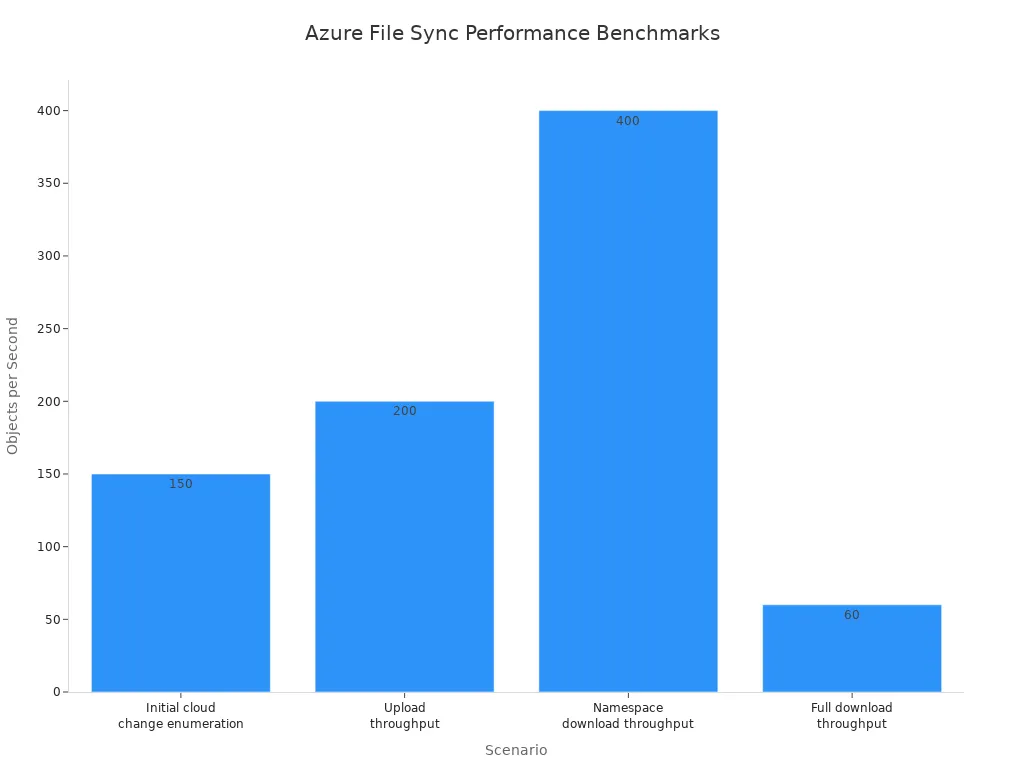
Performance benchmarks indicate that Azure File Sync can handle a significant volume of data. For example, the initial cloud change enumeration can process 150 objects per second per sync group. However, if your environment experiences high latency, these numbers may not reflect your actual experience.
System Slowdowns
System slowdowns can occur during intensive sync operations. High memory usage or service failures can lead to decreased performance across your network. When the Storage Sync Agent consumes excessive resources, it can impact other applications running on the same server.
To address these issues, monitor your system's performance regularly. Identify any bottlenecks and optimize your environment for better sync efficiency. Implementing best practices for Azure File Sync can help you maintain a smooth and responsive system.
Security Risks and Protection
Legacy Authentication Risks
X.509 Certificates and SAS Tokens
Many organizations still rely on legacy authentication methods, such as X.509 certificates and Shared Access Signatures (SAS) tokens. These possession-based secrets pose significant security concerns. If an attacker gains access to these credentials, they can easily manipulate your data or gain unauthorized access to your Azure File Sync environment.
X.509 certificates require careful management. You must regularly update and rotate these certificates to maintain security. However, this process can be cumbersome and prone to human error. Similarly, SAS tokens can grant extensive access to your resources. If these tokens are not properly secured, they can lead to data breaches.
Silent Data Exfiltration
Silent data exfiltration is another critical risk associated with legacy authentication. Attackers can exploit vulnerabilities in your authentication methods to extract sensitive data without detection. This type of attack can occur without any visible signs, making it particularly dangerous. You may not realize that your data has been compromised until it is too late.
To combat these risks, you must adopt modern security practices. Transitioning to more secure authentication methods can significantly reduce your exposure to silent data exfiltration.
Protection Strategies
Transition to Managed Identity
One of the most effective protection strategies is transitioning to Managed Identity (MI). This modern authentication method eliminates the need for static keys and certificates. Instead, each Storage Sync Service and registered server authenticates through Azure Active Directory using short-lived tokens. This approach enhances security by ensuring that access is granted based on identity rather than possession.
By adopting Managed Identity, you simplify your authentication process. You no longer need to manage certificates or worry about their expiration. Additionally, MI provides instant revocation capabilities, allowing you to quickly remove access if a security threat arises.
Benefits of Modern Authentication
Modern authentication methods offer several advantages over legacy systems. Here are some key benefits:
- Enhanced Security: Modern authentication reduces the attack surface by eliminating possession-based secrets. This change minimizes the risk of unauthorized access to your data.
- Simplified Management: With Managed Identity, you streamline your authentication processes. You can focus on your core business operations instead of managing complex security credentials.
- Granular Access Control: You can implement Role-Based Access Control (RBAC) to manage access to your Azure resources. This feature allows you to define specific permissions for users and applications, ensuring that only authorized individuals can access sensitive data.
In addition to these benefits, Azure Files provides redundancy options to protect your data from various events, including hardware failures and natural disasters. Geographic redundancy can be achieved by syncing between Azure file shares and on-premises servers. You can also utilize features like soft delete to protect against accidental deletion of files and share snapshots for point-in-time recovery.
By embracing modern authentication and implementing these protection strategies, you can significantly enhance the security of your Azure File Sync environment.
Authentication Risks and Managed Identity
Risks of Legacy Authentication
Security Vulnerabilities
Legacy authentication methods expose your Azure File Sync environment to significant security risks. Using X.509 certificates and SAS tokens can lead to credential theft. If an attacker gains access to these credentials, they can manipulate your data or gain unauthorized access. The reliance on hard-coded credentials increases the chances of exposure, making your data vulnerable.
Management Burdens
Managing legacy authentication can be cumbersome. You must regularly update and rotate certificates to maintain security. This process often involves manual intervention, which can lead to human error. Additionally, the complexity of managing multiple credentials can overwhelm your IT team. These burdens can divert resources from more critical tasks, hindering your organization’s efficiency.
Managed Identity Benefits
Enhanced Security
Transitioning to Managed Identity significantly enhances security. This modern authentication method provides Azure resources with automatically managed identities for authenticating to services that support Microsoft Entra ID authentication. By eliminating the need for hard-coded credentials, you reduce the risk of credential exposure and theft. Managed Identity simplifies secret management and ensures that credentials are fully rotated and protected, which is a major improvement over legacy authentication methods.
Simplified Management
Managed Identity streamlines your authentication processes. You no longer need to manage certificates or worry about their expiration. This simplification allows your IT team to focus on core business operations rather than complex security credentials. With Managed Identity, you can implement Role-Based Access Control (RBAC) to manage access to your Azure resources effectively. This feature ensures that only authorized individuals can access sensitive data.
Migration Steps
Migrating from legacy authentication to Managed Identity involves several key steps:
- Clone the AD FS app configuration and set up a test instance.
- Configure claims and identifiers to validate and troubleshoot access.
- Prepare the production instance for migration based on test results.
- Switch the production instance to use Microsoft Entra ID.
- Migrate the first app, run migration tests, and address issues.
- Migrate applications and users in phases.
- Remove the federation and confirm that AD FS is no longer used.
Additionally, consider implementing best practices such as password hash synchronization with Microsoft Entra ID and exploring passwordless authentication methods. These strategies can further enhance your security posture during the migration process.
By adopting Managed Identity, you not only improve security but also simplify management. This transition positions your organization to better handle the evolving landscape of data security.
Cost Risks
Hidden Costs
Bandwidth Consumption
When using Azure File Sync, you may encounter hidden costs related to bandwidth consumption. Every time you sync files, you utilize network resources. This usage can lead to increased charges, especially if your organization frequently transfers large amounts of data. Be aware that unexpected spikes in data transfer can inflate your monthly bill.
Storage Fees
Storage fees can also catch you off guard. Azure Files charges based on the amount of data stored in your file shares. As you sync and cache more files, your storage costs will rise. Additionally, Microsoft Defender for Storage adds extra transaction costs on top of Azure Files transactions. These costs can significantly impact your overall IT budget, especially for transaction-heavy file shares.
| Hidden Cost Category | Description and Impact on IT Budgets |
|---|---|
| Capital and Operational Costs | Costs for on-premises Windows File Servers, including hardware, labor, electricity, and system resources needed to run Azure File Sync. These are not part of Azure billing but add to total cost of ownership. |
| Per-Server Licensing Fees | Monthly fees for each Windows File Server registered with Azure File Sync, adding ongoing licensing expenses. Discounts available with Software Assurance and Azure Arc. |
| Azure Files Storage Utilization | Charges based on the amount of data stored in Azure file shares, which grows as files are synced and cached. Requires monitoring and provisioning adjustments. |
| Snapshot Utilization | Costs from share and file-level snapshots taken regularly by Azure File Sync, which consume storage and add to the bill. |
| IOPS and Throughput Consumption | Charges or provisioning requirements based on input/output operations and data throughput, influenced by file changes and cloud tiering. |
| Transaction Costs from Data Churn and Enumeration | Variable costs from frequent file changes and daily cloud share scans, which generate billable transactions. |
| Additional Transaction Costs from Value-Added Services | Extra transaction fees from services like Microsoft Defender for Storage and Azure Backup, increasing overall expenses. |
| Egress Costs | Unexpected charges from data movement out of Azure, especially during disaster recovery or cross-region replication, which can significantly inflate budgets if unplanned. |
Cost Management
Budgeting Tips
To manage costs effectively, you should establish a clear budget for your Azure File Sync usage. Consider the following tips:
- Monitor Usage Regularly: Keep an eye on your data transfer and storage consumption. Regular monitoring helps you identify trends and adjust your budget accordingly.
- Plan for Egress Costs: Be aware that disaster recovery drills can trigger large one-time egress charges. For example, restoring 15 TB of data can cost around $1,200. Include these potential costs in your budget.
- Optimize Storage: Regularly review your stored data. Remove unnecessary files to reduce storage fees. This practice can help you avoid high SharePoint storage consumption.
Monitoring Tools
Utilizing monitoring tools can help you keep track of your Azure File Sync costs. Tools like Azure Cost Management and Azure Monitor provide insights into your spending patterns. They allow you to set alerts for unexpected charges, helping you stay within budget. By leveraging these tools, you can avoid falling into a cost trap and ensure that your Azure File Sync environment remains cost-effective.
Mitigation Strategies
Data Protection Best Practices
Regular Backups
You should always keep regular backups of your data. Backups act as a safety net when unexpected issues arise. They allow you to restore lost or corrupted files quickly. Make sure your backup schedule fits your business needs. For example, daily or weekly backups can protect critical data without overwhelming your system. Also, test your backups regularly to confirm they work correctly. This practice ensures you can rely on them when disaster strikes.
Data Validation
Validating your data helps maintain its accuracy and consistency. You can use automated tools to check for file corruption or sync errors. Validation also helps detect orphaned or corrupted files early. By catching these problems quickly, you reduce the risk of data loss. Implementing a strong data protection policy that includes validation steps will improve your overall data health. This approach supports your business continuity and protects your valuable information.
Sync Optimization
Optimizing your sync process improves performance and reduces errors. Consider these proven techniques:
| Technique | Description |
|---|---|
| Manage number of items synced | Reducing the number of files and folders can improve sync performance. |
| Use cloud tiering carefully | Avoid NTFS compression on tiered files to prevent performance degradation. |
| Structure sync groups properly | Map on-premises folders to Azure file shares correctly to enhance sync efficiency. |
| Avoid conflicting solutions | Ensure Azure File Sync does not overlap with other replication tools like DFS-R. |
| Optimize AzCopy settings | Reduce log verbosity and tune concurrency to boost performance. |
Additionally, the initial scan of cloud content completes faster, reducing wait times for namespace appearance. Cloud-side restores from snapshots happen more quickly. Direct changes in Azure file shares get detected and synced faster. These improvements help you maintain a smooth sync experience.
Scheduling Syncs
Plan your sync schedules to avoid peak business hours. Syncing during off-hours reduces network congestion and improves performance. You can also stagger sync times for different servers or shares. This approach prevents resource bottlenecks and keeps your system responsive. Scheduling syncs thoughtfully supports better user experience and lowers the chance of sync conflicts.
Filters and Exclusions
Use filters and exclusions to limit the files and folders you sync. Exclude temporary files, logs, or other non-essential data. This practice reduces bandwidth use and storage costs. It also speeds up sync operations by focusing only on important data. For example, you can exclude SharePoint cache folders or large media files that do not require syncing. Applying filters helps you control your environment and optimize resource use.
Security Enhancements
Enable Managed Identity
Enable Managed Identity for your Azure File Sync environment to strengthen security. This solution removes the need for managing certificates or SAS tokens. Managed Identity uses Azure Active Directory to authenticate your resources securely. It reduces the risk of credential theft and simplifies access control. By adopting this solution, you protect your data and improve compliance with security standards.
Audit and Monitoring
Regularly audit and monitor your Azure File Sync environment. Monitoring helps you detect unusual activities or sync failures early. Use Azure Monitor and other tools to track performance, errors, and security events. Set alerts for critical issues so you can respond quickly. Auditing supports your data protection policy by ensuring transparency and accountability. This proactive approach helps you maintain a secure and reliable sync solution.
Tip: Combine these mitigation strategies to build a robust defense against data loss, sync problems, and security threats. A well-rounded solution protects your data and keeps your operations running smoothly.
Real-World Cases
Data Loss Incident
Incident Overview
Consider a mid-sized company that relied heavily on Azure File Sync for managing its documents. One day, the company experienced a significant data loss incident. A storage account failover occurred without proper management of the Storage Sync Service. As a result, the sync process failed, leading to the loss of critical documents. Employees could not access essential files, causing delays in ongoing projects and frustration among team members.
Key Lessons
This incident highlights several key lessons:
- Plan for Failovers: Always ensure that your Storage Sync Service is ready for failover. You must accompany any storage account failover with the appropriate adjustments to the sync service.
- Regular Backups: Implement a robust backup strategy. Regular backups can save you from significant data loss and allow for quick recovery.
- Monitor Sync Health: Keep an eye on the health of your sync operations. Regular monitoring can help you catch issues before they escalate.
Successful Protection
Strategies Used
In another case, a large organization faced similar risks but took proactive measures to protect its data. They transitioned to Managed Identity for authentication. This change eliminated the need for legacy authentication methods, reducing the risk of credential theft. The organization also implemented regular audits and monitoring of their Azure File Sync environment. They scheduled sync operations during off-peak hours to minimize latency and improve performance.
Outcomes
The results were impressive:
- Enhanced Security: By adopting Managed Identity, the organization significantly reduced its attack surface. They experienced fewer security incidents and improved compliance with industry standards.
- Improved Performance: Scheduling syncs during off-peak hours led to faster sync times. Employees reported a smoother experience when accessing documents.
- Increased Productivity: With reliable access to their documents, teams could collaborate more effectively. The organization saw a boost in productivity and morale.
These real-world cases illustrate the importance of understanding the risks associated with Azure File Sync. By learning from incidents and implementing effective strategies, you can protect your data and ensure smooth operations.
In summary, Azure File Sync presents critical risks related to data integrity, sync failures, and security vulnerabilities. You must prioritize migrating to Managed Identity to enhance protection and compliance. Proactive monitoring and effective cost management are essential for maintaining a secure environment. Implementing these strategies will help you mitigate risks and ensure smooth operations.
Take action now to secure your Azure File Sync environment before the time bomb explodes. Your data's safety depends on it!
FAQ
What is Azure File Sync?
Azure File Sync allows you to centralize your file shares in Azure while keeping the flexibility of local access. It syncs files between on-premises servers and Azure file shares, enabling seamless collaboration.
How does Azure File Sync handle data conflicts?
Azure File Sync resolves data conflicts by keeping the latest version of a file. If two users modify the same file, the system retains the most recent change, ensuring data integrity.
Can I use Azure File Sync with SharePoint?
Yes, you can integrate Azure File Sync with SharePoint. This integration allows you to sync files stored in SharePoint document libraries to your local servers, enhancing accessibility and collaboration.
What are the benefits of using Managed Identity?
Managed Identity enhances security by eliminating the need for static credentials. It simplifies authentication and reduces the risk of credential theft, making your Azure File Sync environment more secure.
How can I optimize my sync performance?
To optimize sync performance, schedule syncs during off-peak hours. You can also limit the number of items synced and use filters to exclude unnecessary files, improving efficiency.
What should I do if I experience sync failures?
If you encounter sync failures, check your network connection and firewall settings. Ensure that your Storage Sync Service has the necessary permissions and that your configuration is correct.
How often should I back up my data?
You should back up your data regularly, ideally daily or weekly. Regular backups ensure you can quickly restore lost or corrupted files, minimizing downtime and data loss.
What monitoring tools can I use for Azure File Sync?
You can use Azure Monitor and Azure Cost Management to track your Azure File Sync performance and costs. These tools provide insights into usage patterns and help you manage your budget effectively.
🚀 Want to be part of m365.fm?
Then stop just listening… and start showing up.
👉 Connect with me on LinkedIn and let’s make something happen:
- 🎙️ Be a podcast guest and share your story
- 🎧 Host your own episode (yes, seriously)
- 💡 Pitch topics the community actually wants to hear
- 🌍 Build your personal brand in the Microsoft 365 space
This isn’t just a podcast — it’s a platform for people who take action.
🔥 Most people wait. The best ones don’t.
👉 Connect with me on LinkedIn and send me a message:
"I want in"
Let’s build something awesome 👊
Opening: The Hidden Time Bomb in Your Azure File Sync
Most Azure File Sync environments today are quietly rotting under the surface—still running on expired security models and nobody’s talking about it. The reason? It still syncs. The files move, the dashboards stay green, and the admins congratulate themselves for maintaining “stability.” Meanwhile, the authentication layer holding that whole operation together is held together by string and nostalgia.
Here’s the thing: Azure File Sync was secure enough—ten years ago. Back then, Azure didn’t have managed identities, and certificates and shared access keys were about the only trick in the book for proving who’s who. But we’re no longer in that era, and the bad guys have noticed that your neatly organized file synchronization setup can be hijacked by anyone with the right piece of leaked data.
A shared key or expired certificate doesn’t care who’s holding it; it just opens when presented. That’s not identity. That’s superstition. Yet administrators cling to it, lulled by the fact their dashboards haven’t exploded—yet.
Yes, by all means, let’s secure a hybrid cloud link using 199s authentication practices. Let’s pretend that static keys are a modern concept, that renewal scripts equal automation, and that the cloud magically forgives bad habits. It doesn’t. Every certificate you babysit and every SAS key you rotate is an unguarded door someone else can walk through if you’re unlucky.
So here’s what we’re going to do: dissect this antique authentication setup, expose how it sabotages your security posture, show why managed identities solve it permanently, and then walk through the migration path before your audit—or attacker—forces your hand.
By the end, you’ll know exactly how to dismantle your ticking sync bomb and replace it with authentication that belongs in this century.
Section 1: Why the Legacy Azure File Sync Model Is a Trap
Let’s start with what you’ve actually built. Azure File Sync has three main actors: the Storage Sync Service sitting in Azure, a cloud endpoint that’s your Azure file share, and multiple server endpoints—Windows Servers scattered across your data centers or clouds—that keep local copies of files in sync. It’s elegant architecture built on a tragically outdated handshake.
Each time those components talk, they use two primitive authentication types. The server endpoints prove themselves to the sync service using certificates—yes, actual X.509 files generated and stored locally. Then, the sync service and servers talk to the Azure file share using shared access signatures, or SAS tokens, which are basically glorified passwords embedded in URLs.
Back when Azure was young, this made sense. There was no Entra ID integration for backend services, no way to assign a dynamic identity to a process. Certificates and SAS tokens were necessary evils—a temporary patch to make cross-cloud communication possible. But “temporary” became “permanent” the moment administrators accepted certificate renewal as a routine life process instead of a design flaw.
The problem is not just that these secrets expire; it’s that they exist as transferable objects. Nothing binds them to a particular machine or application. Anyone—or anything—with possession of that file or token can impersonate your legitimate server. Think of a SAS key as the master key to your office building. It doesn’t check fingerprints. Whoever has it can stroll straight into the CEO’s office and start photocopying documents.
And when administrators copy those keys into scripts, store them in “secured” shares, or accidentally log them in plaintext backups, they become artifacts scattered across the network like breadcrumbs for attackers.
Operationally, this model is exhausting. Six separate URLs must be allowed through firewalls just for certificate handling. Certificates must be renewed, rotated, and traced across servers that sometimes no longer exist. There are scripts for renewals, alerts for expirations, and endless validation steps. It’s a small bureaucracy of fragile tasks, all maintaining a system pretending to be secure through ritual rather than reality.
The astonishing part? Many admins defend it. They treat certificate renewal ceremonies as “best practice,” blissfully unaware they’re propping up a sandcastle against a digital tide. The logic goes: if it hasn’t been hacked yet, it must be fine. No, it’s not fine—it’s merely untested. Each synced file is another vote of confidence in an authentication model designed before zero trust was even a phrase.
This legacy approach is a trap precisely because it hides instability behind apparent functionality. Everything works, until the day one SAS token leaks—or one certificate renewal fails—and the whole synchronized world grinds to a compromised halt. You’re not maintaining best practice; you’re maintaining a liability disguised as uptime.
Section 2: The Security Fallout — “But It Still Works” Syndrome
There’s a fascinating psychological flaw in IT administration known as security inertia. It’s the quiet refusal to fix something because, from the outside, nothing appears broken. The sync is up, the jobs succeed, and the last ticket about certificate renewal was three months ago. So why change anything? Every lazy configuration in history has been justified by those three words—“it still works.”
This is the logic that turns temporary workarounds into permanent infrastructure. You tell yourself you’ll migrate later, after the quarter ends, after the budget cycle, after you retire—whenever “later” arrives with no immediate risk. Congratulations, you just created a time bomb with quarterly reporting. Every key, every certificate, every unattended secret renewal job—each one is a countdown timer quietly ticking toward failure or exposure.
Security debt behaves exactly like financial debt: small, invisible interest that multiplies while you sleep. The older your system, the higher the interest rate. And with certificates and SAS tokens, the interest compounds every time someone copies a key into a PowerShell script, or stores a certificate backup in an “admin tools” folder with Everyone:Read access. File Sync doesn’t need to break outright. All it takes is one stale export to cross the wrong boundary.
Consider a real-world scenario. A company keeps its Azure File Sync untouched for years. The SAS token that authenticates to their file share is periodically printed in backup logs by a verbose script. Nobody notices because the logs are “internal.” Then, one day, an intern clones that Git repo to test something—and the logs travel with it. A curious tester discovers a line that looks like gibberish but validates beautifully as a SAS token. Ten minutes later, that token is placed into an Azure Storage Explorer, and the entire cloud share starts silently replicating to a rogue endpoint. No alarms, no noise, just unauthorized access through perfectly valid credentials. Because to the system, the gate opened with the right key—it never asked who held it.
And that’s the absurdity: the old model doesn’t know “who.” It only knows “that.” That you presented a valid certificate. That you included a proper key. There’s no notion of identity, no policy enforcement, no conditional access logic that can say, “this server isn’t supposed to be here.” Modern Azure security principles—passwordless authentication, managed tokens, just-in-time access—are built on dynamic trust evaluation. The legacy sync model is built on blind acceptance. It assumes all secrets are equal and forever trustworthy once provisioned.
Attack vectors blossom in that assumption. Shared access signatures can be reused across tenants or subscriptions if not isolated correctly. They survive backups, they cross environments, they don’t expire unless explicitly rotated. Certificates have man-in-the-middle potential during renewal or misconfiguration. Even the validation URLs—those six endpoints you opened through the firewall—represent potential surfaces to probe.
And when the inevitable breach occurs, the impact isn’t abstract. A stolen SAS token isn’t a hypothetical risk—it’s a compliance nightmare. You’ve effectively enabled cross-tenant data exfiltration using your own credentials. Legal departments get involved. Regulatory reporting eats weeks of productivity. Financial penalties follow. The downtime, the forensic auditing, the reputational cleanup—none of that is cheap. Your operational continuity may temporarily survive, but your organization’s credibility does not.
The tragic comedy? Half the time, during post-incident reviews, someone mutters, “Well, it still worked fine yesterday.” Exactly. That’s the problem. Legacy authentication doesn’t fail loudly—it fails invisibly, and it keeps failing right up until enforcement catches you. The “but it still works” defense translates to “we haven’t been caught yet,” and that’s not strategy; it’s gambling.
The solution isn’t to rotate faster or monitor harder. It’s to stop carrying the debt. Enter Managed Identities—the adult supervision your File Sync has been missing.
Section 3: Enter Managed Identities — The Grown-Up Way to Authenticate
A Managed Identity, or MI if you prefer acronyms over common sense, is what happens when Azure learns to vouch for its own resources. Instead of you babysitting secrets, Azure assigns an automatically generated Entra ID identity to the resource itself. The resource becomes a recognized citizen of your directory—authenticated, auditable, and, crucially, temporary in its credentials. In normal people’s terms, each server gets its own passport, issued and verified by Azure, impossible to counterfeit, impossible to lend to a friend.
There are two flavors of managed identity. A system-assigned identity is born with its host—it lives and dies with that virtual machine or Arc-connected server. A user-assigned identity floats independently, reusable across multiple resources if you prefer to manage access centrally. Both behave like proper users in Entra ID, except they never forget their passwords, never share them, and never leave them in script comments.
Managed Identity replaces both legs of the old sync authentication dance. First, the relationship between your server endpoint and the Storage Sync Service—previously handled by local certificates—is now governed by Entra-issued tokens. Second, the link from Storage Sync Service and endpoints to the Azure File Share itself—once guarded by fragile SAS tokens—is also handled through MI-based, dynamically issued credentials. The servers stop pretending with certificates; they start talking like authenticated peers inside Azure’s control plane. Tokens last minutes, not years. They renew automatically and revoke effortlessly. If you remove a server or disable its identity, it stops existing to the ecosystem instantly. No manual cleanup, no legacy thumbprints floating around.
Picture every authentication event as a short-lived conversation instead of an eternal handshake. Each side verifies the other using live, cryptographically issued trust—no stored objects, no “shared anything.” That’s the dream Zero Trust model: authorization based on proof of identity, not possession of artifacts.
Now observe the housekeeping benefits. You don’t have to whitelist any certificate-handling URLs just to make synchronization work. You don’t have to store private keys in PFX files or worry about expiration schedules. Everything you hated about the old model—those hand-maintained scripts, the alerts, the renewals—evaporates. Managed Identity is Azure’s way of saying, “Stop holding the flashlight; we’ve installed streetlights.”
From a security architecture standpoint, the shift is rational and overdue. Tokens issued by Entra are scoped, auditable, and time-limited. Revoking access is a policy change, not a data hunt. When a system-assigned identity requests a token, it does so through Azure Resource Manager, which validates its existence, its resource ID, and its right to act. That process happens within the cloud control plane itself—it never trusts local storage. So even if someone cloned the VM, they’d clone a resource without a valid identity. The keys, quite literally, don’t transfer.
And yes, you can apply your favorite paranoia layers—conditional access, logging, and role-based access control. Managed Identity sits comfortably within Entra ID, meaning you can chart access events in the same console that audits users and admins. Uniform visibility, finally.
Operationally, Managed Identity also kills the ancient ritual of “manual credential rotation.” Need to replace something? Delete the identity, recreate it, reassign permissions. Done. Azure handles expiration windows automatically, issuing fresh tokens on demand. This is what competent automation looks like: simplification through immutability.
Compare that to your current method—patchwork scripts, timestamped backups of certificates, SNS alerts for renewal reminders, and manual firewall validation. It’s the difference between a self-driving car and a wagon requiring monthly wheel reattachment. The MI route doesn’t just improve security; it restores sanity.
And, because I know you’re thinking it, no—there’s no functional downgrade. File Sync operates exactly as before; only the authentication model changes. In fact, new Storage Sync Services are created with Managed Identity by default. The holdouts are legacy deployments built before MI integration existed. Azure’s basically saying, “If you’re still using certificates in 2025, you’re telling on yourself.”
The real appeal is policy unification. Once every File Sync component—a Storage Sync Service and its registered servers—uses MI, the entire chain falls inside Entra ID governance. RBAC becomes consistent. Conditional access rules apply uniformly. You get event logging, lifecycle control, and instant revocation without sifting through thumbprints.
So what do you lose besides insomnia? Static credentials, manual patches, and long weekends spent testing renewal scripts. What you gain is integrity by design. Each component proves itself with fresh, trusted, verifiable credentials. No possession-based guessing, no “please trust this blob.” Azure enforces who can talk to what through living tokens rather than dusty certificates.
That’s the “what.” Next comes the part everyone fears—the “how.” Because if certs and SAS keys are your lingering security debt, the migration path is your debt consolidation plan. The good news? It’s not nearly as painful as you think. The bad news? You’ll have no excuse left to postpone it once you see how straightforward it is.
Section 4: The Migration Playbook — Turning Off the Time Bomb
Here’s where theory meets reality. You’ve decided you’re done babysitting certificates like a digital nanny. Good. Now let’s disarm this thing before it explodes. Migrating Azure File Sync to Managed Identities isn’t heroic work; it’s housekeeping. And yet, most admins treat it like a heart transplant. It’s not. It’s more like replacing the batteries in a smoke detector before the fire starts.
Step one: know your version. If your Azure File Sync agent isn’t at least version 20..., stop here. Updating the agent is non‑negotiable—older builds simply don’t speak the Managed Identity language. Think of 20... as the border checkpoint where the old certificate passport gets confiscated and the new biometric one issued. Updating every registered server ensures the environment is fluent in token‑based trust before you flip the switch.
Now divide your servers into two tribes. Tribe one: Azure VMs. Tribe two: everyone else—servers on‑premises or stranded in other clouds. Tribe one gets the easy route. For any Azure VM, you just enable a system‑assigned managed identity directly from the VM’s identity blade. Click “On,” save, and that VM instantly receives its own Entra identity—no downloads, no scripts, no messy key stores. You’ve just given that machine a birth certificate issued by Azure itself.
Tribe two, the non‑Azure servers, need a bridge into Azure’s control plane. Enter Azure Arc. If you’ve never touched Arc, it’s Microsoft’s quiet masterpiece: a way to extend Azure Resource Manager down into foreign territory. In practical terms, Arc lets you take a crusty on‑prem Windows Server and make it behave like a first‑class Azure citizen. By connecting a server through Azure Arc, you grant it visibility, governance, and—you guessed it—the ability to receive a managed identity.
So your homework for non‑Azure machines looks like this sequence: deploy the Azure Arc agent, register the server in Azure, enable the system‑assigned managed identity, and optionally install the File Sync extension through Arc while you’re there. That extension isn’t mandatory if the agent’s already running, but it streamlines lifecycle control later. Congratulations—you’ve now stretched Azure’s identity fabric around hardware that was born outside it.
Once every server is identity‑enabled, the real magic happens inside the Storage Sync Service. You’ll open its configuration and toggle the switch for Managed Identity authentication. That simple action triggers an audit behind the scenes. Azure inspects every registered server, checks which ones have valid managed identities, and flags any laggards. Mixed mode technically works—some servers on certs, others on MI—but mixed mode is like dieting while eating cake. It defeats the purpose. Finish enabling identities before you continue.
When you confirm the switch, Azure automatically provisions the required permissions through Role‑Based Access Control. The Storage Sync Service’s own system‑assigned identity gains Storage Account Contributor, while every registered server’s identity gains Storage File Data SMB Share Contributor. Translation: the service can manage, the servers can synchronize. You no longer assign keys or distribute roles by hand; Azure does the delegation through policy, not pity. Each identity receives the exact privileges needed—nothing more. That’s least privilege by default, not by wishful documentation.
Now, there are potential bumps, because Microsoft assumes someone will inevitably move things they shouldn’t. If you migrate the Storage Sync Service or file share to a different subscription or resource group, expect your RBAC bindings to vanish. They’re scoped per container, so you’ll need to re‑establish them. Azure’s engineers kindly provided PowerShell cmdlets for this—Set‑AzStorageSyncCloudEndpointPermission for cloud endpoints, and Set‑AzStorageSyncServerEndpointPermission for server endpoints. Run them in verbose mode; they’ll narrate every reassignment so you can confirm nothing silently failed. It’s the difference between knowing the surgery succeeded and hoping the patient’s still breathing.
Other contingencies fall under “user error cleanup.” Delete an identity? Re‑enable it and reapply its role. Break an Entra app link? Recreate it and rerun the permission cmdlets. You can’t brick the system by experimenting; worst case, you re‑issue tokens. That’s the beauty of dynamic authentication—it forgives reversible stupidity.
Once all the pieces lock in, the transformation is dramatic. The nightmare choreography of certificates, SAS tokens, and whitelisted URLs simply… disappears. Server registration becomes self‑validating. Secrets regenerate internally. Firewalls relax because you’ve eliminated six redundant endpoints used only for certificate validation. Your entire sync operation transitions from a fragile web of human maintenance to a self‑healing identity mesh under Azure’s governance.
Operationally, the first thing you’ll notice is silence. No more rotation reminders, no expiring cert emails, no panicked tickets during renewal week. Synchronization just works, and every transaction leaves an auditable Entra ID footprint. That’s not magic—it’s mathematics enforced by architecture.
So yes, the process takes an afternoon, maybe a day if your fleet is large, but afterward, you’ve effectively defused the bomb. The wires are clipped, the ticking stops, and the system now regenerates its own defenses on schedule without you lifting a finger. What used to be an administrative soap opera becomes a self‑contained organism: servers prove their existence through live identity, Azure validates instantly, and everything that follows is cryptographically verified.
That’s what modern security looks like—less maintenance, more certainty. You didn’t patch the old design; you replaced it with one that can’t decay. And once you witness that simplicity, you’ll never tolerate keys and certificates again. The time bomb isn’t just neutralized—it’s turned into a metronome, keeping rhythm for an environment finally running on time.
Section 5: After the Switch — Security that Actually Scales
Once the managed identity lights flick on across your deployment, the first thing you’ll feel is the absence of noise. The sync still runs, but the usual chaos—the certificates queued for renewal, the SAS tokens buried in scripts—has vanished. It’s eerie at first, like walking into a server room after moving all the racks to the cloud. The hum is gone because the headaches are gone.
This is security that scales because it ceases to depend on individual diligence. Managed identities don’t need you to remember, schedule, or rotate anything. Tokens are issued on demand by Entra ID, scoped to seconds, expired by the time you refill your coffee. Every access interaction now leaves a standardized, queryable footprint in your audit logs. Until now, you had to piece together a trail of thumbprints, certificates, and tokens with expiration dates like lottery numbers. Now you can open Microsoft Entra’s audit blade and see every operation attributed to an identity that actually belongs to something real—your defined servers, not phantom scripts.
Key-based authentication was always flat. It granted access everywhere equally and forever until someone manually revoked it. Managed Identity makes permission vertical—narrow, temporary, verifiable. The result is reduced attack surface without reducing speed. You’re no longer handing out skeleton keys; you’re issuing single-use hotel keycards. In security terms, that’s not just progress; that’s evolution.
For your compliance teams, this change is borderline intoxicating. No more explaining why static keys exist. No more spreadsheets listing certificates and their locations. You can prove least privilege simply by exporting the role assignments. Proof of governance moves from PDF to platform. Audit weeks shrink into hours.
Operationally, you’ll realize you’ve stopped micromanaging the plumbing. Network whitelists are cleaner; those six certificate-validation endpoints can finally be retired. Fewer open URLs mean fewer attack vectors. And because authorization now happens entirely through Entra ID’s control plane, policies like Conditional Access or MFA enforcement—even for service operations—work natively. Your security model becomes consistent, finally living under a single authority instead of stitched between legacy systems and human mythology.
Think of the old setup as a series of bandages layered over the same wound. Each renewal just added another adhesive. Managed Identity heals the tissue beneath. Credentials aren’t stored, rotated, or trusted blindly—they’re generated, validated, and disposed of. It’s regenerative security: self-repairing, self-verifying, self-limiting.
Even your operational dashboards will simplify. Instead of sifting logs across Azure Storage, Event Hub, and local server registries, every event eligible for compliance inspection now flows through a single observable pipeline. You gain centralized visibility. And the side effect? Faster troubleshooting. If a sync fails, you check identity permissions, not certificate thumbprints buried in some registry hive.
Organizations resisting this shift usually cite inertia—“we already automated certificate renewal.” Congratulations, you automated a bad idea. Automation doesn’t convert an obsolete model into a secure one. Keeping SAS tokens because “it’s easier” is like insisting on carrying cash because you memorized your wallet layout. Modernization means embracing structural solutions, not polishing vintage problems.
So after the switch, your posture isn’t just safer—it’s scalable. Every new server onboarded through Azure Arc automatically receives a managed identity, inherits RBAC via policy, and starts syncing without any secret distribution. It’s deployment by design, not deployment by ritual. Each component authenticates dynamically, and when someone decommissions it, Azure retracts its identity instantly. The circle closes neatly; no forgotten keys jingle in the background.
If before you were juggling plates, now the table rotates itself. That’s the level of automation security professionals aim for—nothing more to babysit, nothing left to leak. And because audits, compliance, and access control now come from the same identity source, scaling means multiplying trust, not complexity. When people say “security that scales,” this is what they should mean: the more you add, the stronger the system gets.
Conclusion: The Only Sensible Move
Continuing to run Azure File Sync on certificates and SAS tokens is the technology equivalent of driving with expired brakes. You’ll still stop—eventually—but probably against something expensive. The illusion of control relies on the fact that bad decisions take time to punish you. Managed Identity removes that waiting period by embedding accountability into the system itself. It’s not optional modernization; it’s overdue maintenance.
Every moment you stay on the legacy model, you’re accruing risk interest. Each certificate renewal is another payment toward a debt that never decreases. Migration, by contrast, is a one-time settlement: update the sync agent, enable managed identity, Arc-enable the on-prem servers, validate permissions, and close the ledger for good. The whole procedure costs less effort than your last patch cycle and ends with infinite payoff—no more manual credential babysitting, no creeping exposure.
And yes, resistance persists. Some will argue they’ve “hardened” their certificate storage or “secured” their token files. That’s like padlocking a shoebox inside a bank vault while leaving the bank doors open. Managed Identity doesn’t secure secrets; it erases them. There’s nothing to steal because there’s nothing static to find.
So here’s the final reality check: migration to Managed Identity isn’t merely compliance brownie points—it’s survival. As Azure evolves, identity becomes the only currency it accepts. You can upgrade by choice now, or you can upgrade later under audit pressure or after an incident report forces your hand. Either way, the move is inevitable.
Do it deliberately. Modernize, document, and walk away knowing your synchronization layer finally authenticates with adult credentials.Entropy wins unless you choose structure. Subscribing is structure. Press Follow and convert curiosity into a reliable signal.
This is a public episode. If you'd like to discuss this with other subscribers or get access to bonus episodes, visit m365.show/subscribe

Founder of m365.fm, m365.show and m365con.net
Mirko Peters is a Microsoft 365 expert, content creator, and founder of m365.fm, a platform dedicated to sharing practical insights on modern workplace technologies. His work focuses on Microsoft 365 governance, security, collaboration, and real-world implementation strategies.
Through his podcast and written content, Mirko provides hands-on guidance for IT professionals, architects, and business leaders navigating the complexities of Microsoft 365. He is known for translating complex topics into clear, actionable advice, often highlighting common mistakes and overlooked risks in real-world environments.
With a strong emphasis on community contribution and knowledge sharing, Mirko is actively building a platform that connects experts, shares experiences, and helps organizations get the most out of their Microsoft 365 investments.




