 EN
 Deutsch
 Español
 Français
 Italiano
 Português
 Nederlands
 Polski
 Bahasa Indonesia
 Русский
 Українська
 العربية
 עברית
 日本語
 한국어
Copilot Makes Excel Freeze: Causes and Fixes You Can Verify
By Mirko Peters ·
Excel frozen while Copilot works? Microsoft documents no Copilot-specific freeze fix, so this follows its Excel hang guide, the Copilot in Excel file-state checks and labeled forum reports.

If Excel stops responding while Copilot is working, the cause is often not Copilot itself. Check three things in this order: whether Excel is busy or truly stuck, whether the file or its settings block Copilot, and whether an add-in or the workbook's own contents cause the hang.
Key points
- The Microsoft pages I read do not describe a Copilot-caused Excel freeze or give a size limit. The steps here combine Microsoft's general Excel hang guide with Copilot file-state checks.
- First tell a busy Excel from a stuck one. Microsoft says to check the status bar and let a running task finish. The Copilot pane has a Stop button beside the chat input.
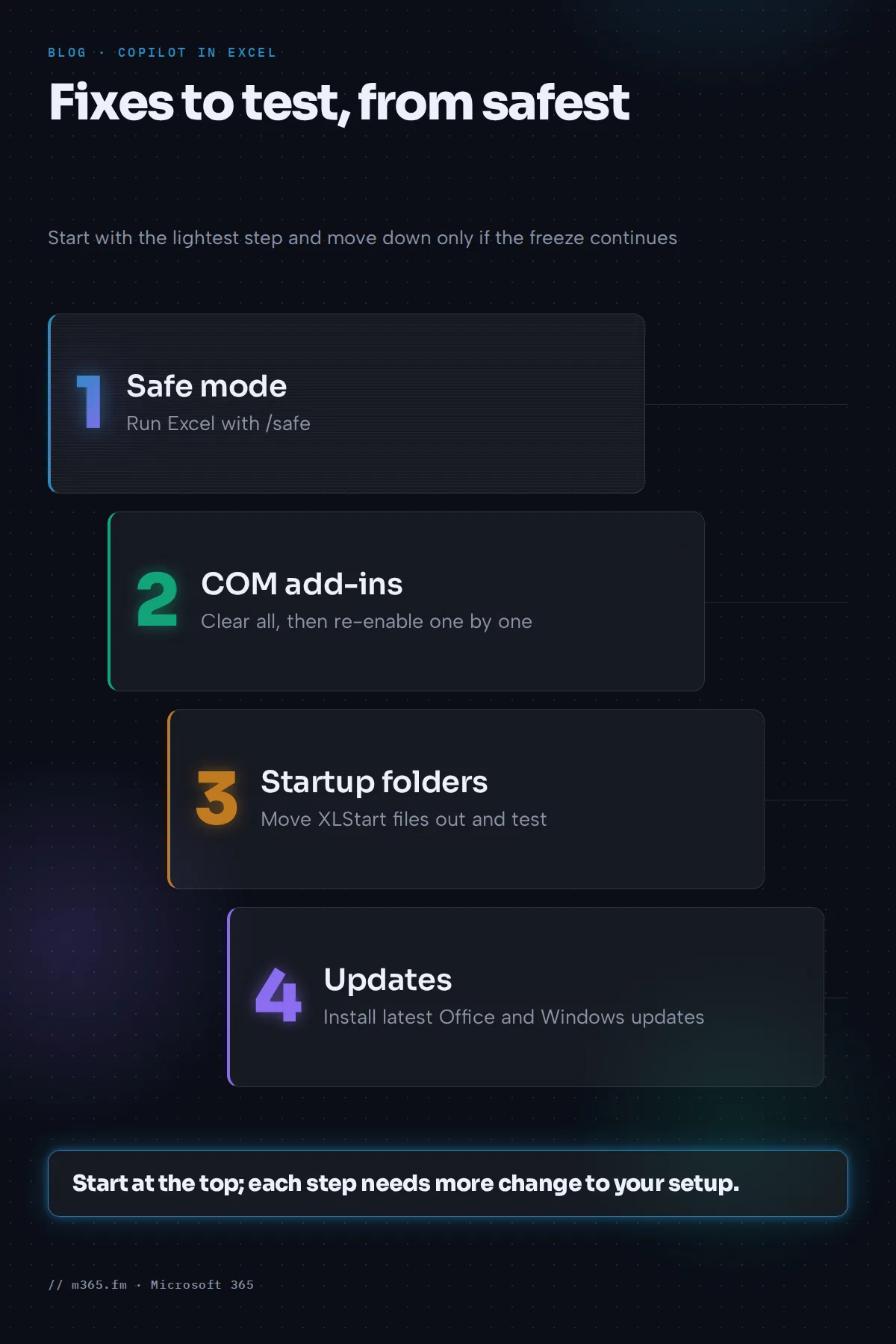
- Microsoft's hang guide has you start Excel in safe mode with Excel /safe, then disable COM add-ins and check startup folders one at a time.
- Copilot editing works only when Calculation Options is Automatic. Manual calculation is a hang remedy in Microsoft's guide, so the two advice items conflict.
- Copilot can fail on files checked out in SharePoint or saved in an unsupported format. Excel for the web still works for those files.
A limit on this article: the Microsoft pages I read do not describe a Copilot-caused freeze. There is no official fix to quote. What follows uses Microsoft's general Excel hang guide, the Copilot in Excel FAQ and, clearly labeled, community threads.
Step 1: Busy or stuck?
Microsoft Support describes Copilot in Excel as handling multi-step tasks such as reshaping data or merging sheets. A long multi-step task can look like a freeze while it runs.
- Look at the status bar at the bottom of the Excel window. Microsoft's hang guide says that if a task is running, let it finish.
- Watch the workbook. If cells or sheets keep changing, Copilot is working.
- Use the Stop button beside the chat input to halt or pause the task.
If the window shows "Not Responding" and nothing changes, move on.

Step 2: Rule out file-state problems
The Copilot in Excel FAQ describes an "unsupported file state" error. These causes can look like failures:
- File checked out in SharePoint. Check it in, close and reopen it in Excel. If you cannot check it in, open it in Excel for the web.
- Check-out required by the site. Copilot in Excel on Windows or Mac will not work for files from that site. Excel for the web does.
- Unsupported format, such as Strict Open XML Spreadsheet. Save as Excel Workbook (.xlsx).
- Calculation not Automatic. The FAQ says Copilot editing works only when Calculation Options is set to Automatic. Microsoft's hang guide places Calculation Options under the Formulas tab. The FAQ itself does not name the tab.
Step 3: Follow Microsoft's Excel hang guide
Microsoft's article "Excel not responding, hangs, freezes or stops working" gives an ordered list. The first steps are:
- Safe mode. Select Start > All apps > Windows System > Run, type
Excel /safeand select OK. Microsoft also offers an automated crash troubleshooter that needs Windows 10 or later. - COM add-ins. Go to File > Options > Add-ins, choose COM Add-ins > Go, clear all boxes and restart Excel. Re-enable them one at a time.
- Excel add-ins and startup folders. Check the XLStart folder under File > Options > Trust Center > Trust Center Settings > Trusted Locations, and the alternate startup folder under File > Options > Advanced. Move their files out and test.
- Updates. Install the latest Office and Windows updates. The article says versions 2503 and later include fixes for PivotTable refresh, freeze panes and shape loading.
Further steps in the same article:
- Inspect the workbook for whole-column formula references, array formulas with mismatched argument sizes, many hidden or zero-size objects, excess styles, invalid defined names and a very large number of shapes.
- Test the features in a new file created in Excel. The article frames this as a check for files generated by a third-party app: if it works in a new file, report the issue to the vendor.
- Save the file locally instead of on a network, web server, SharePoint or a remote session, to test whether the location matters.
- Repair Microsoft 365 and confirm the PC has enough RAM.
- Make sure antivirus is up to date. The article says disabling antivirus integration can expose the PC and does not recommend it.
Remember the conflict: the guide lists Manual calculation as an advanced check, while Copilot edits need Automatic. Use Manual only as a test, then switch back.
Step 4: Check the license and network if the pane hangs
If Excel itself stays responsive but the Copilot pane never answers, the cause may be connectivity or licensing, though the pages I read do not say so for this exact case. Microsoft's Copilot requirements page names blocked WebSocket Secure traffic, TLS inspection and aggressive proxy timeouts as causes of failing Copilot integrations. A June 2026 Q&A thread describes Copilot in Excel working on a corporate network while Word and Copilot Chat failed, so Excel can behave differently from other apps. The moderator there pointed to network configuration for WebSocket connections but said a moderator cannot officially confirm backend endpoint requirements, and the root cause was not confirmed.
What community threads report
These are not Microsoft statements.
- No change to the workbook. A user on Windows saw "Failed to fetch document context due to an internal error" while Copilot reported tasks as complete. Restarting, signing out and waiting did not help. The only reply was from an MVP and suggested a modern file format in OneDrive or SharePoint with AutoSave on. No Microsoft staff answered. Microsoft's FAQ does not mention AutoSave.
- Workbook later unopenable. A user said Excel reported a workbook as corrupt after Copilot summarized it, twice, for some files. The single reply advised preserving both files, restoring a previous version from SharePoint or OneDrive, updating Office, using Open and Repair on a copy, and collecting the build, time and file location for a support case. The replier's profile shows a Microsoft Certified Trainer badge, not a Microsoft staff role.
The practical lesson is the reply's last point: work on a copy of important workbooks before asking Copilot to analyze them.
Reduce risk next time
- Keep a copy or version history before large Copilot edits.
- Use Plan mode for multi-step changes. Microsoft says Plan waits for your confirmation before acting. Use Chat only if you do not want changes.
- Name the columns and ranges in your prompt. Microsoft's tip is that specific prompts give better results.
- Keep the workbook lean: remove unused styles, objects and whole-column references, as Microsoft's hang guide suggests.
What to send to support
Collect the exact message, the time, the Office build and update channel, the file location and format, the add-ins installed and whether safe mode behaves the same. Then open a request in the Microsoft 365 admin center under Support.
Related
Sources
- Microsoft Support: Excel not responding, hangs, freezes or stops working
- Microsoft Support: Frequently asked questions about Copilot in Excel
- Microsoft Support: Get started with Copilot in Excel
- Microsoft Learn: Microsoft Copilot requirements
- Microsoft Q&A: Copilot Chat and Word Copilot do not respond from the corporate network
- Microsoft Tech Community: Copilot Excel error, failed to fetch document context
- Microsoft Tech Community: Excel workbooks corrupt after using Copilot to summarize data
FAQ
Is there a known bug where Copilot freezes Excel?
The Microsoft pages I read do not describe one. The Copilot in Excel FAQ lists no freeze or performance guidance, and Microsoft's Excel hang article does not mention Copilot. Forum threads report related problems, such as an error with no change to the workbook and one case of a workbook that later opened as corrupt, but Microsoft staff did not confirm a cause in those threads.
How do I stop a Copilot task in Excel?
Microsoft Support says to use the Stop button beside the chat input in the Copilot pane to halt or pause a task. Check whether cells or sheets are still changing before you force-close Excel.
Should I switch Excel to manual calculation to stop the hanging?
Microsoft's Excel hang guide lists Manual calculation under advanced checks. But the Copilot in Excel FAQ says Copilot editing works only when Calculation Options is set to Automatic. If you rely on Copilot edits, use manual calculation only to test whether calculation is the cause, then switch back.
Can Copilot damage my workbook?
Copilot in Excel makes direct changes in Edit mode, and Microsoft says you can undo changes or view previous versions. One community thread reports a workbook that Excel called corrupt after Copilot summarized it. The thread has no confirmed cause. Work on a copy of important files and keep version history on.
Why does Copilot say a task is done but my workbook did not change?
A Tech Community thread reports this with the error 'Failed to fetch document context due to an internal error'. The only reply, from an MVP, suggested a modern format stored in OneDrive or SharePoint with AutoSave on. Microsoft's FAQ does not mention AutoSave, so test the file state items from the FAQ first.