 EN
 Deutsch
 Español
 Français
 Italiano
 Português
 Nederlands
 Polski
 Bahasa Indonesia
 Русский
 Українська
 العربية
 עברית
 日本語
 한국어
Entra Connect Sync vs Cloud Sync: Differences, Staging Mode and Soft and Hard Match
By Mirko Peters ·
Cloud Sync vs Connect Sync compared using Microsoft Learn: architecture, feature gaps, limits, staging mode on Connect Sync, and how soft and hard match work.
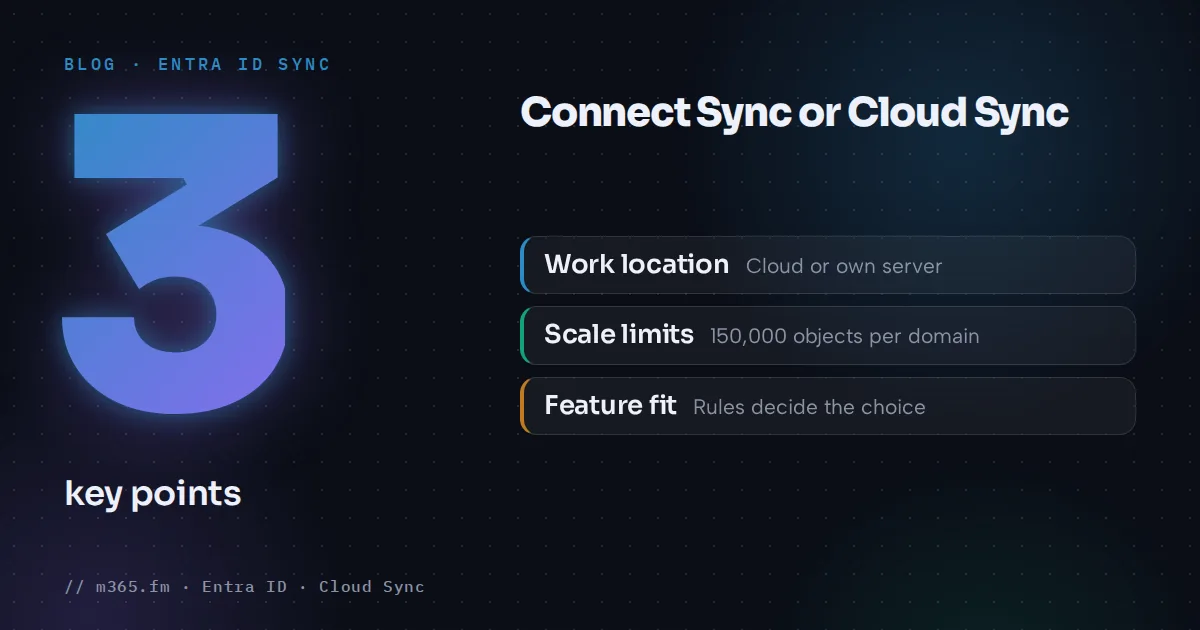
Cloud Sync and Connect Sync both synchronize Active Directory identities to Microsoft Entra ID. The core difference is where the work happens. Cloud Sync orchestrates provisioning in the cloud and uses a lightweight agent on premises. Connect Sync runs the sync engine on a server the organization operates. The right choice depends on features, scale and topology. This article compares them using Microsoft Learn, then covers staging mode and soft and hard match.
Key points
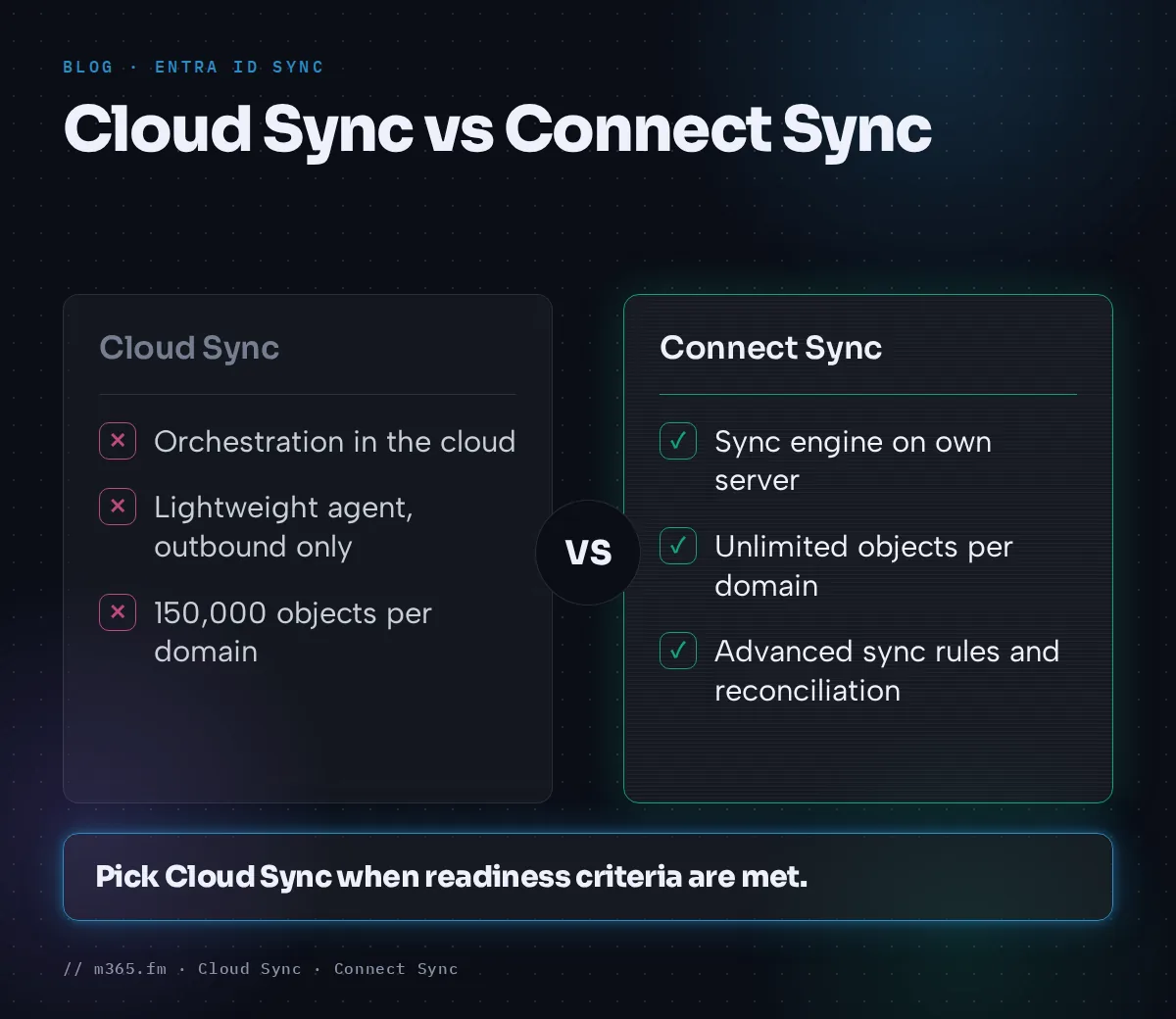
- Cloud Sync runs provisioning orchestration in the cloud with a lightweight agent. Connect Sync runs the sync engine on a server you manage.
- Cloud Sync supports disconnected forests and multiple active agents. Connect Sync supports advanced sync rules and larger scale.
- Documented Cloud Sync limits: 150,000 objects per domain and 50,000 members per group.
- Staging mode on Connect Sync imports and synchronizes but doesn't export, and doesn't run password sync or writeback.
- Soft match uses userPrincipalName or primary SMTP address. Hard match uses sourceAnchor (immutableId).
How each one works
Cloud Sync. Microsoft describes it as cloud-managed synchronization of users, groups and contacts between Active Directory and Entra ID. It uses the Microsoft Entra provisioning agent, which needs only outbound connections and receives automatic updates. The cloud provisioning service runs on a scheduler with synchronization every two minutes. Configuration lives in Entra ID and is managed in the Microsoft Entra admin center. With device sync enabled, Cloud Sync can sync computer objects so devices can become Microsoft Entra hybrid joined.
Connect Sync. A sync engine with its own SQL database runs on a server. The Learn pages read for this article describe it mainly through its staging mode and matching behavior, covered below.
Feature comparison
The table below is condensed from Microsoft's decision guide. It lists capabilities, not what the guided migration tool can transfer.
| Capability | Connect Sync | Cloud Sync | |---|---|---| | Single or multiple connected forests | Yes | Yes | | Disconnected forests | No | Yes | | Multiple active sync instances | No | Yes | | Objects per domain | Unlimited | 150,000 | | Group size | 250,000 members | 50,000 members | | Password hash sync and password writeback | Yes | Yes | | Pass-through authentication setup | Yes | No (managed separately) | | AD FS integration setup | Yes | No (separate tools) | | Advanced sync rules | Yes | No (expression builder) | | Attribute-based filtering | Yes | Limited | | OU-based filtering | Yes | Yes | | Cross-forest references | Yes | No | | Merge attributes from multiple domains | Yes | No | | Reconciliation (out-of-band correction) | Yes | No | | Device writeback | Yes | No | | Group provisioning to AD | No | Yes | | User provisioning to AD | No | No | | On-demand provisioning | No | Yes |
The guide notes that PTA and Seamless SSO remain functional after a migration. It also notes that device synchronization is listed as a blocker for the current guided migration tool, so review it separately.
How to decide
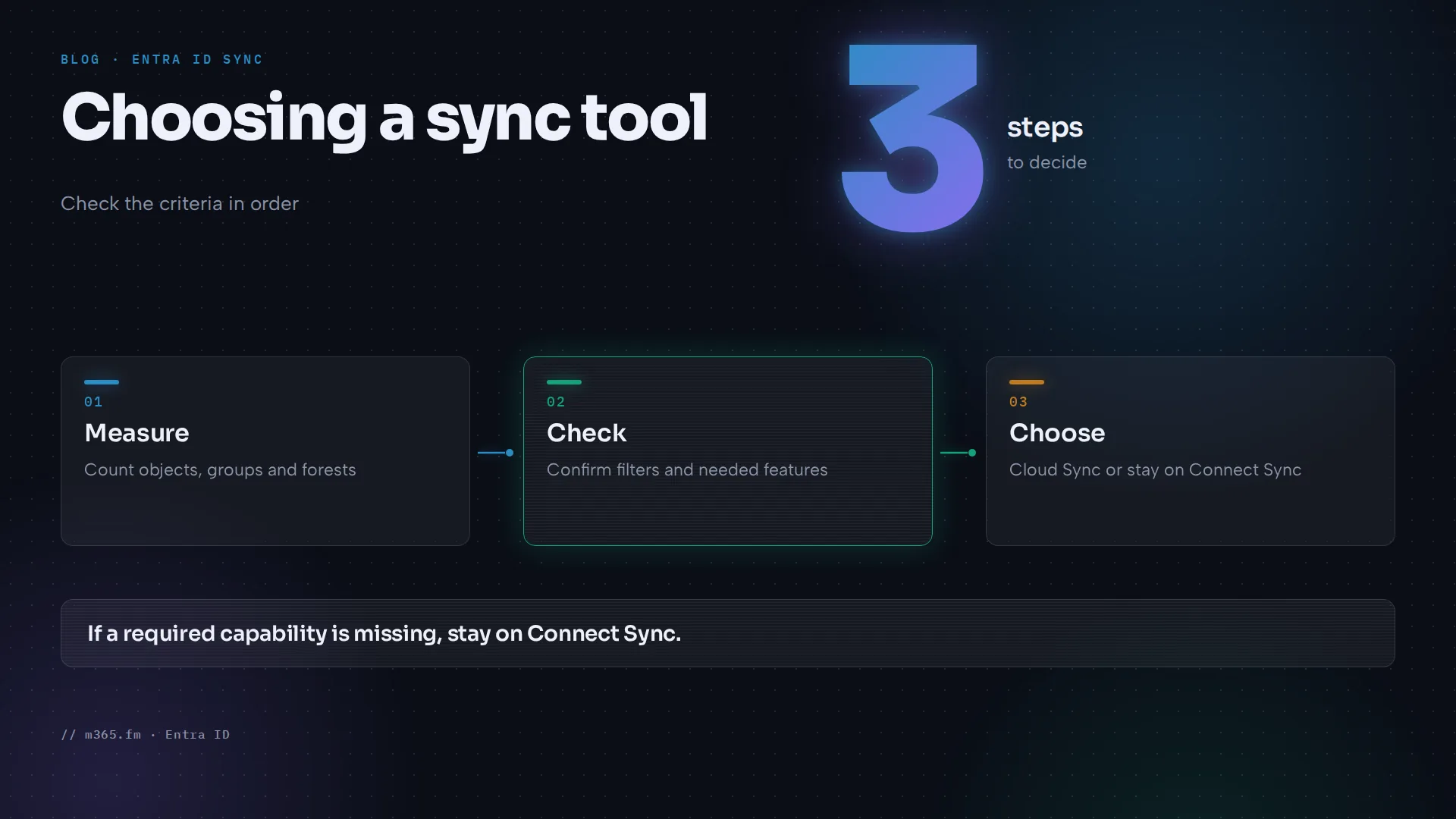
Microsoft's readiness criteria for Cloud Sync are:
- Fewer than 150,000 objects per AD domain.
- Groups with fewer than 50,000 members.
- Single or connected forests (the guide words this as "no disconnected forest requirements", while its capability table separately lists disconnected forests as a Cloud Sync capability).
- OU-based filtering instead of complex attribute rules.
- Password hash sync, or PTA and ADFS managed separately.
- A plan for device sync if Microsoft Entra hybrid join is in use.
Characteristics that point to staying on Connect Sync, as listed under "Evaluate for future migration":
- More than 150,000 objects per domain or groups above 50,000 members.
- Extensive custom synchronization rules.
- Complex cross-forest dependencies.
- A critical need for reconciliation.
If a required capability or documented migration path isn't available, the guide's outcome is to continue using Connect Sync. It also mentions a way to request more time when a confirmed blocker prevents meeting a notified migration deadline. Cloud Sync's own page points to cases such as mergers and acquisitions with disconnected forests and to automatic failover with multiple active agents. For the procedure, Microsoft points to its migration article and a pilot migration tutorial.
Staging mode in Connect Sync
Microsoft Learn describes staging mode as a way to preview configuration changes before making a server active. Use cases are fault tolerance, testing and deploying configuration changes, replacing an old server, and disaster recovery with a standby server.
What a server in staging mode does:
- It keeps importing from Active Directory and Entra ID and runs synchronization.
- It runs no exports. A forced export through the Synchronization Service Manager is still possible.
- It doesn't run password sync or password writeback, even if selected during installation.
To enable it on an existing server, open the Microsoft Entra Connect wizard, select Configure staging mode, sign in with Hybrid Identity Administrator credentials and tick Staging Mode. Verify with Get-ADSyncScheduler and check that StagingModeEnabled is True.
Before going live, run full import and synchronization, export the pending changes with csexport, and analyze them with CSExportAnalyzer.
To switch servers, put the active server into staging mode first, then clear staging mode on the standby. Microsoft states that only one server may be active. Active-active isn't supported. After a long time in staging mode, password sync resumes from the last watermark. A long time in staging mode means a long catch-up, and during catch-up new passwords don't work in Entra ID until the backlog is processed.
The pages read for this article don't describe a staging mode for Cloud Sync. Cloud Sync's answer to availability is multiple active agents.
Soft match and hard match
When Connect Sync provisions an on-premises user that may already exist in Entra ID, Microsoft documents three attributes: userPrincipalName, proxyAddresses and sourceAnchor (immutableId).
- Hard match. The sourceAnchor value matches an existing object's ImmutableId. Entra Connect takes over the source of authority for that object.
- Soft match. The incoming userPrincipalName or the primary SMTP address (the value with SMTP:) matches an existing object. The sourceAnchor is then stamped on the cloud object so later syncs can hard match.
- No match. A new object is provisioned.
Rules and risks from the same page:
- Matching is evaluated only for new objects coming from on-premises AD.
- Attributes with an on-premises value overwrite the cloud values. With password hash sync, the cloud hash is overwritten too.
- A soft match on SMTP address with a different sourceAnchor usually causes an
AttributeValueMustBeUniqueexport error. - Entra ID won't match on-premises users to cloud users with an admin role by default, and Microsoft recommends against syncing onto preexisting admin accounts.
- From July 1, 2026, a hard match can be blocked when the target cloud account has
onPremisesObjectIdentifierset or holds or is eligible for a privileged Entra role. Soft match behavior is unchanged. - Tenant settings
BlockCloudObjectTakeoverThroughHardMatchEnabledandBlockSoftMatchEnabledblock hard match and soft match respectively. Microsoft encourages allowing matching only during the period when a matching procedure is required and setting the flag to True again afterwards.
Related
Sources
- What is Microsoft Entra Cloud Sync, Microsoft Learn
- Migrate from Entra Connect to Cloud Sync: decision guide, Microsoft Learn
- Microsoft Entra Connect Sync: staging mode, Microsoft Learn
- Install Entra Connect with an existing tenant: soft and hard match, Microsoft Learn
FAQ
What is the main difference between Cloud Sync and Connect Sync?
Per Microsoft Learn, with Cloud Sync provisioning orchestration occurs in Microsoft Online Services and a lightweight provisioning agent connects Active Directory to Entra ID. Connect Sync uses an on-premises sync server. Cloud Sync also supports disconnected forests, which Connect Sync does not.
What are the Cloud Sync limits?
The Microsoft decision guide lists up to 150,000 objects per domain and up to 50,000 members per group for Cloud Sync. For Connect Sync it lists unlimited objects per domain and groups of up to 250,000 members.
What does staging mode do in Entra Connect Sync?
According to Microsoft Learn, a server in staging mode imports and synchronizes but doesn't run exports. It also doesn't run password sync or password writeback. Disabling staging mode starts exporting and enables those features.
What is the difference between soft match and hard match?
Microsoft Learn says a match on userPrincipalName or the primary SMTP address in proxyAddresses is a soft match. A match on sourceAnchor, which is stored as the ImmutableId in Entra ID, is a hard match. Microsoft Learn describes both as ways an incoming on-premises object can be matched to an existing cloud object.