 EN
 Deutsch
 Español
 Français
 Italiano
 Português
 Nederlands
 Polski
 Bahasa Indonesia
 Русский
 Українська
 العربية
 עברית
 日本語
 한국어
Entra Administrative Units: What They Are and How to Create and Use Them
By Mirko Peters ·
Microsoft Entra administrative units explained: what they contain, licenses, steps to create one, add members and scope roles, restricted management AUs, and limits.
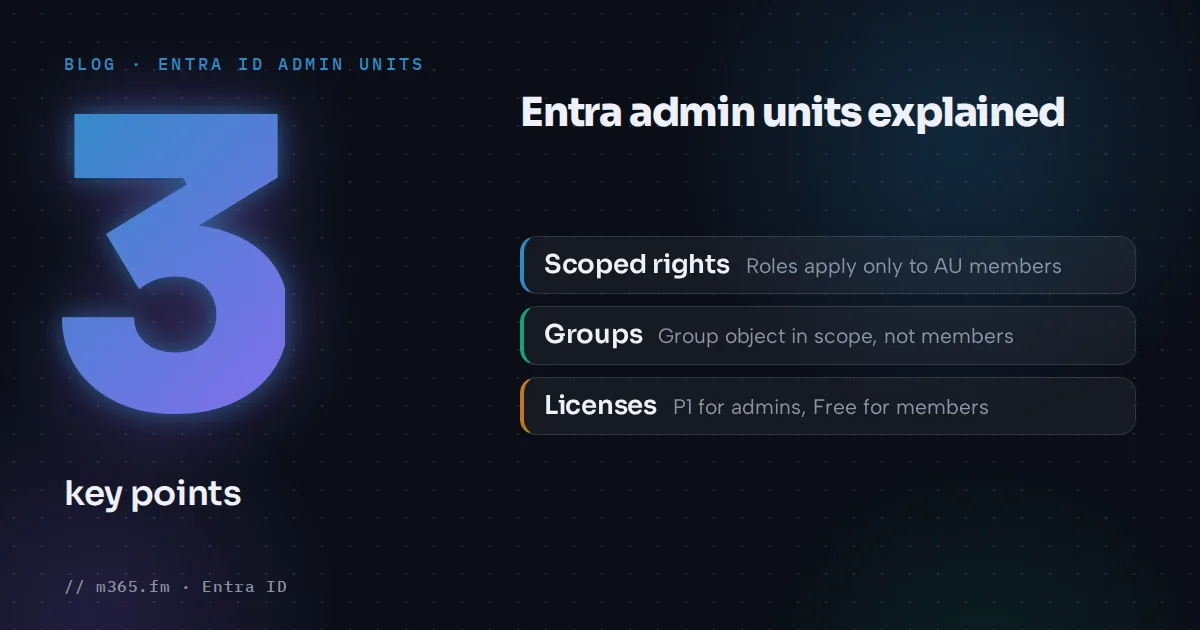
An administrative unit (AU) lets an organization delegate admin rights to part of the directory instead of the whole tenant. A help desk team can reset passwords only for users in its region, for example. Microsoft Learn defines an AU as a Microsoft Entra resource that can contain only users, groups or devices. A role assigned at AU scope applies only to the members of that AU.
Key points
- An administrative unit is a container for users, groups or devices that limits the scope of a role to part of the organization. AUs can't be nested.
- Creating AUs works with a Microsoft Entra ID Free license. Each AU administrator needs P1, and members need Free.
- Adding a group to an AU brings the group into scope but not its members. Add users directly for user-level permissions.
- Restricted management AUs block even tenant-level administrators from changing member objects. The setting can't be changed after creation.
- AUs don't hide objects. Members and administrators can still browse other objects with default user permissions.
How scoping works
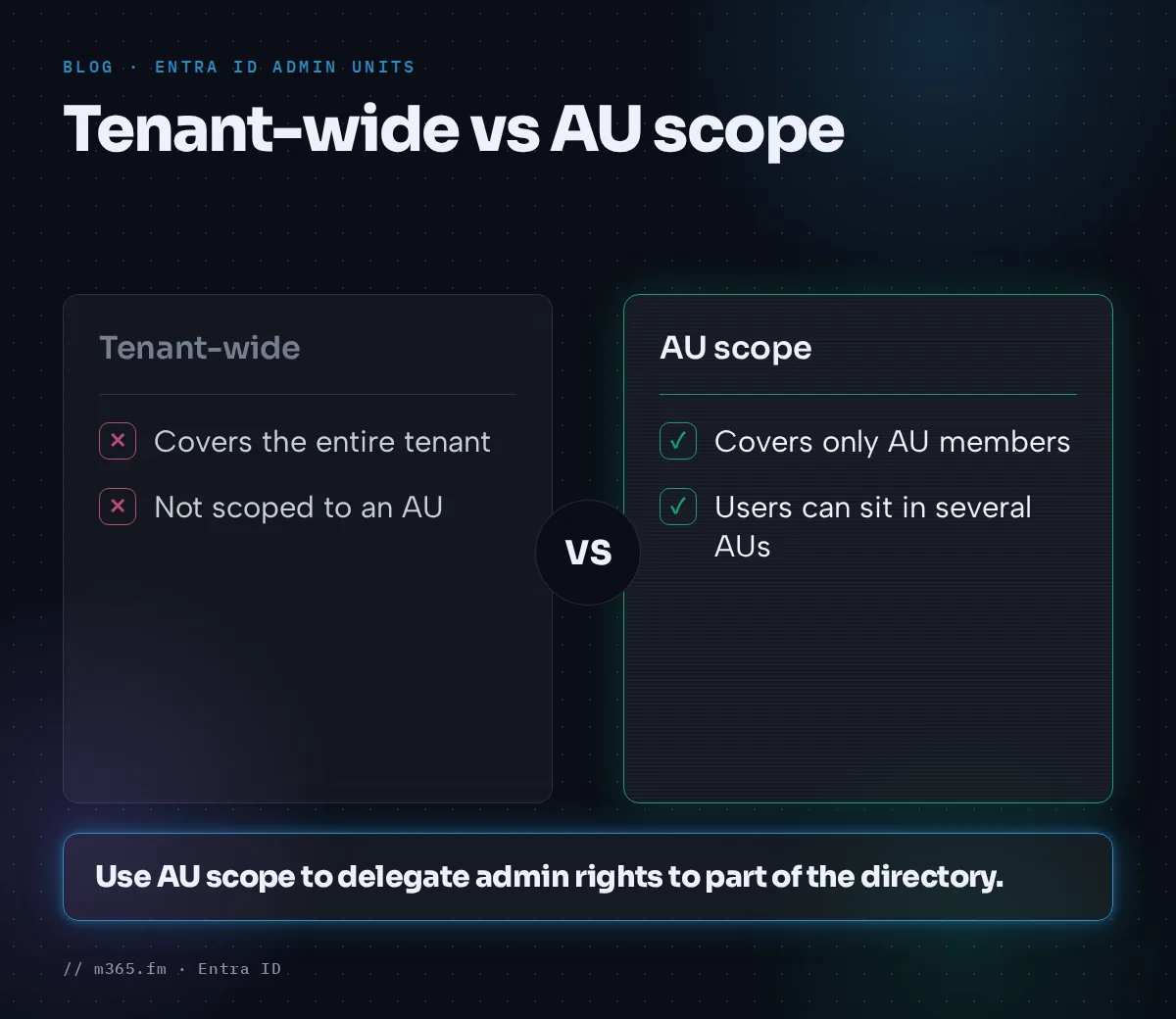
If a role is assigned to a person who isn't scoped to an AU, the role covers the entire tenant. If the same role is assigned at AU scope, it covers only the AU's members. A user can be in several AUs. AUs can't be nested.
Groups need attention. Adding a group to an AU brings the group object into scope but not its members. A User Administrator scoped to an AU with a group can manage the group's name and membership. That administrator can't manage the properties, authentication methods or passwords of the individual members, unless those users are added to the AU directly.
Licenses
Microsoft Learn states:
- Each AU administrator who is assigned directory roles over the AU needs a Microsoft Entra ID P1 license.
- Each AU member needs a Microsoft Entra ID Free license.
- Creating AUs is available with a Free license.
- If AUs use dynamic membership rules, each AU member requires P1.
Create an administrative unit
You need at least the Privileged Role Administrator role.
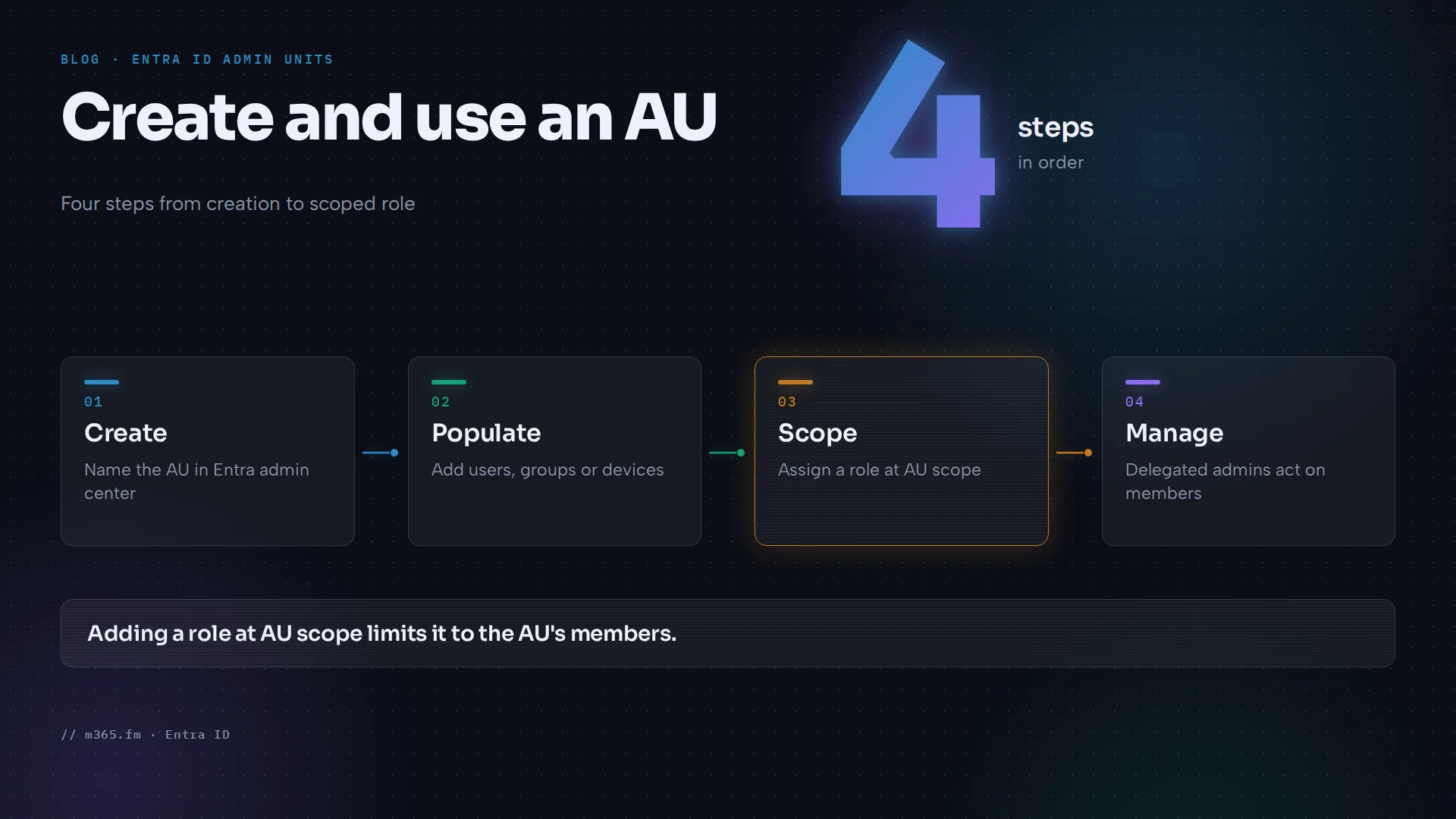
- Sign in to the Microsoft Entra admin center at https://entra.microsoft.com.
- Browse to Entra ID > Roles & admins > Admin units.
- Select Add.
- Enter a name and optionally a description.
- Decide on the Restricted management administrative unit toggle. Set it to Yes only if tenant-level administrators must not access the AU. It can't be changed later.
- Optionally, on the Assign roles tab, select a role and the users who get it with this AU scope.
- Review the settings on Review + create and select Create.
Add members
The same role is needed to add existing objects.
One object to several AUs. Browse to Entra ID, then Users > All users, Groups > All groups or Devices > All devices. Select the object, select Administrative units, then Assign to administrative unit and pick the AUs.
Several objects to one AU. Browse to Entra ID > Roles & admins > Admin units, select the AU, select Users, Groups or Devices, and then Add member, Add or Add device.
Users in bulk. In the AU, select Users > Bulk operations > Bulk add members. Download the CSV template, add one user principal name per row and don't remove the first two rows. Upload the file and select Submit.
New groups in an AU. A Groups Administrator can select Groups > New group inside the AU.
Dynamic rules. Users or devices can be added with rules through Microsoft Graph, PowerShell or the Entra admin center. Groups can't be added dynamically in any of the three. The rule steps are in a separate Microsoft article that isn't covered here.
Assign a scoped role
- In the Entra admin center, browse to Entra ID > Roles & admins > Admin units.
- Select the AU.
- Select Roles and administrators to see the roles available over an AU.
- Select the role, then Add assignments, choose users or groups, and select Add.
Roles that Microsoft lists as assignable at AU scope include Authentication Administrator, Cloud Device Administrator, Groups Administrator, Helpdesk Administrator, License Administrator, Password Administrator, Printer Administrator, Privileged Authentication Administrator, SharePoint Administrator, Teams Administrator, Teams Devices Administrator and User Administrator. Custom roles can be assigned at AU scope when they include at least one permission relevant to users, groups or devices. Note two details: the SharePoint Administrator and Teams Administrator roles at AU scope manage Microsoft 365 groups and can't use the SharePoint admin center or Teams admin center.
What an AU admin can manage
For users: properties and passwords, licenses, and blocking or unblocking sign-ins. MFA credential management is available in Graph, PowerShell and the Entra admin center, but not in the Microsoft 365 admin center. For devices, enabling, disabling and deleting devices and reading BitLocker recovery keys work in Graph, PowerShell and the Entra admin center. Microsoft states that managing devices in Intune isn't supported at this time.
Restricted management administrative units
A restricted management AU protects objects "from modification by anyone other than a specific set of people that you designate." Per Microsoft Learn:
- Supported objects are users, devices and security groups. Microsoft 365 groups, mail-enabled security groups and distribution groups aren't supported.
- Only administrators with an explicit assignment at that AU's scope can change the Entra properties of its objects. Global Administrators and Privileged Role Administrators at tenant scope can't, but they can manage the AU itself, including members and role assignments.
- Blocked actions include editing properties, deleting the object, updating a user's password and changing group owners or members. Allowed actions include assigning licenses, Exchange mailbox settings, Intune device policies and adding objects to other groups.
- Maximum 100 restricted management AUs per tenant.
- After deleting one, it can take up to 30 minutes to remove protections.
- Applications can't modify these objects by default. They need a role assigned at that AU scope.
- Objects in them can't be managed with ID Governance features such as Privileged Identity Management, entitlement management, lifecycle workflows and access reviews.
Limits and common mistakes
- AUs aren't a visibility boundary. Members and administrators can still browse users, groups and resources outside the AU with default user permissions. The Microsoft 365 admin center filters out users outside the admin's AUs. The Entra admin center and PowerShell don't.
- AUs aren't available in Microsoft Entra ID Governance.
- Expecting group-scoped admins to reset members' passwords. Add the users themselves.
- Forgetting that the restricted setting can't be changed later. Create a new AU instead.
- Deleting an AU before removing the role assignments scoped to it. Microsoft lists that removal as a step before delete.
The AU overview doesn't state limits on the number of regular AUs or members per AU. It links to a separate limits article, so check that for current values.
Related
Sources
- Administrative units in Microsoft Entra ID, Microsoft Learn
- Create, update, or delete administrative units, Microsoft Learn
- Add users, groups, or devices to an administrative unit, Microsoft Learn
- Assign Microsoft Entra roles with administrative unit scope, Microsoft Learn
- Restricted management administrative units, Microsoft Learn
FAQ
What is an administrative unit in Microsoft Entra ID?
Microsoft Learn defines it as a Microsoft Entra resource that can be a container for other Entra resources, and it can contain only users, groups or devices. It restricts the permissions of a role to the portion of the organization you define.
Which license do administrative units need?
Per Microsoft Learn, each AU administrator with directory roles over the AU needs a Microsoft Entra ID P1 license, and each AU member needs a Free license. Creating AUs is available with Free. Dynamic membership rules require P1 for each member.
Can administrative units be nested?
No. Microsoft Learn states that administrative units can't be nested. A user can however be a member of multiple administrative units.
What is a restricted management administrative unit?
It protects specific users, devices and security groups from modification by anyone other than the administrators explicitly assigned at its scope. Microsoft Learn says Global Administrators and Privileged Role Administrators at tenant scope can manage the AU itself but can't modify its objects.