 EN
 Deutsch
 Español
 Français
 Italiano
 Português
 Nederlands
 Polski
 Bahasa Indonesia
 Русский
 Українська
 العربية
 עברית
 日本語
 한국어
How to Use Multiple OneDrive Accounts on One PC: Work, School and Personal
By Mirko Peters ·
How to add and manage several OneDrive accounts on one Windows PC or Mac: the one personal account rule, adding accounts, choosing folders per account, unlinking and fixing the different account error.
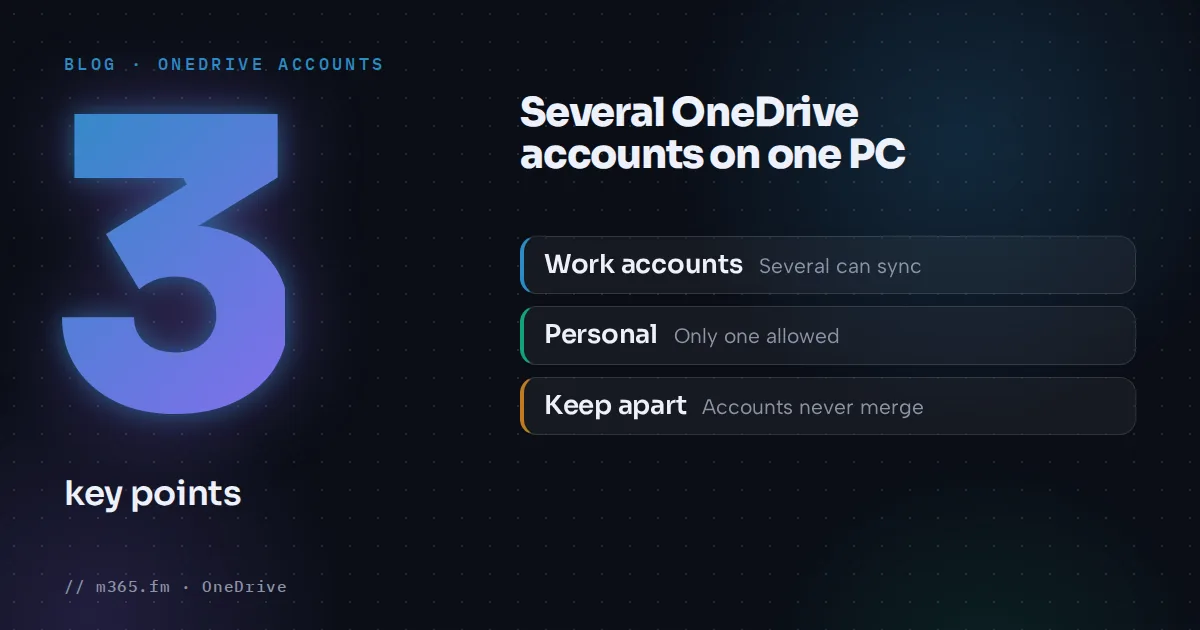
OneDrive on one computer can hold several accounts at once, with one limit. Microsoft Support says you can sync multiple work or school accounts, but only one personal account. Add each account in the OneDrive app.
Key points
- You can sync several work or school accounts in the OneDrive app, but only one personal OneDrive account on the same computer.
- Add an account in OneDrive Settings > Account tab > Add an account, then sign in with the email address of the account.
- Microsoft says personal and work or school OneDrive cannot be merged. Use them side by side and copy files between them.
- Folder choices made with Choose folders are unique to each account and each computer.
- The You're syncing a different account error usually comes from stale saved credentials. Microsoft's fix deletes a cached sign-in file or keychain entry.
This guide shows how to add accounts, how to keep their files apart and what to do when sign-in goes wrong.
What is allowed
| Account type | How many on one PC | |---|---| | Work or school | Several | | Personal (OneDrive for home) | One |
If you need a different personal account, unlink the current one first. Microsoft's pages describe this as one personal account syncing at a time.
Microsoft's articles do not describe how the sync folders are named, so do not rely on a naming pattern in scripts. Open File Explorer or Finder after you add an account and check the folder that was created.
Add another account
The steps are the same for personal and work or school accounts.
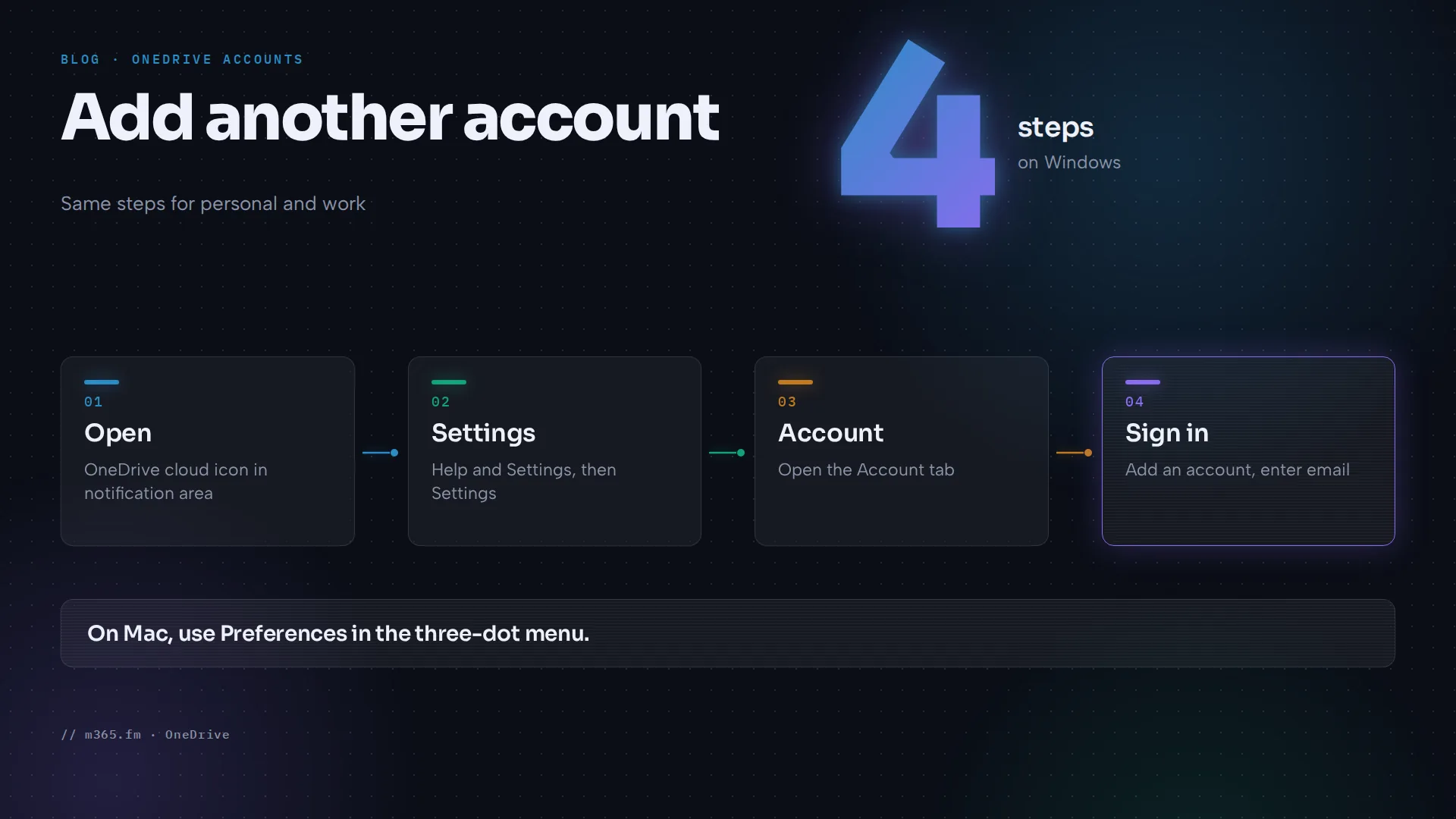
Windows
- Select the OneDrive cloud icon in the notification area.
- Select the Help and Settings icon, then Settings.
- Open the Account tab.
- Select Add an account.
- Enter the email address of the account and sign in.
Mac
- Select the OneDrive cloud icon in the menu bar.
- Open the three-dot menu and select Preferences.
- Open the Account tab.
- Select Add an account.
- Enter the email address and sign in.
Repeat the steps for each additional work or school account. Microsoft says you can only have one personal account.
Keep the accounts separate
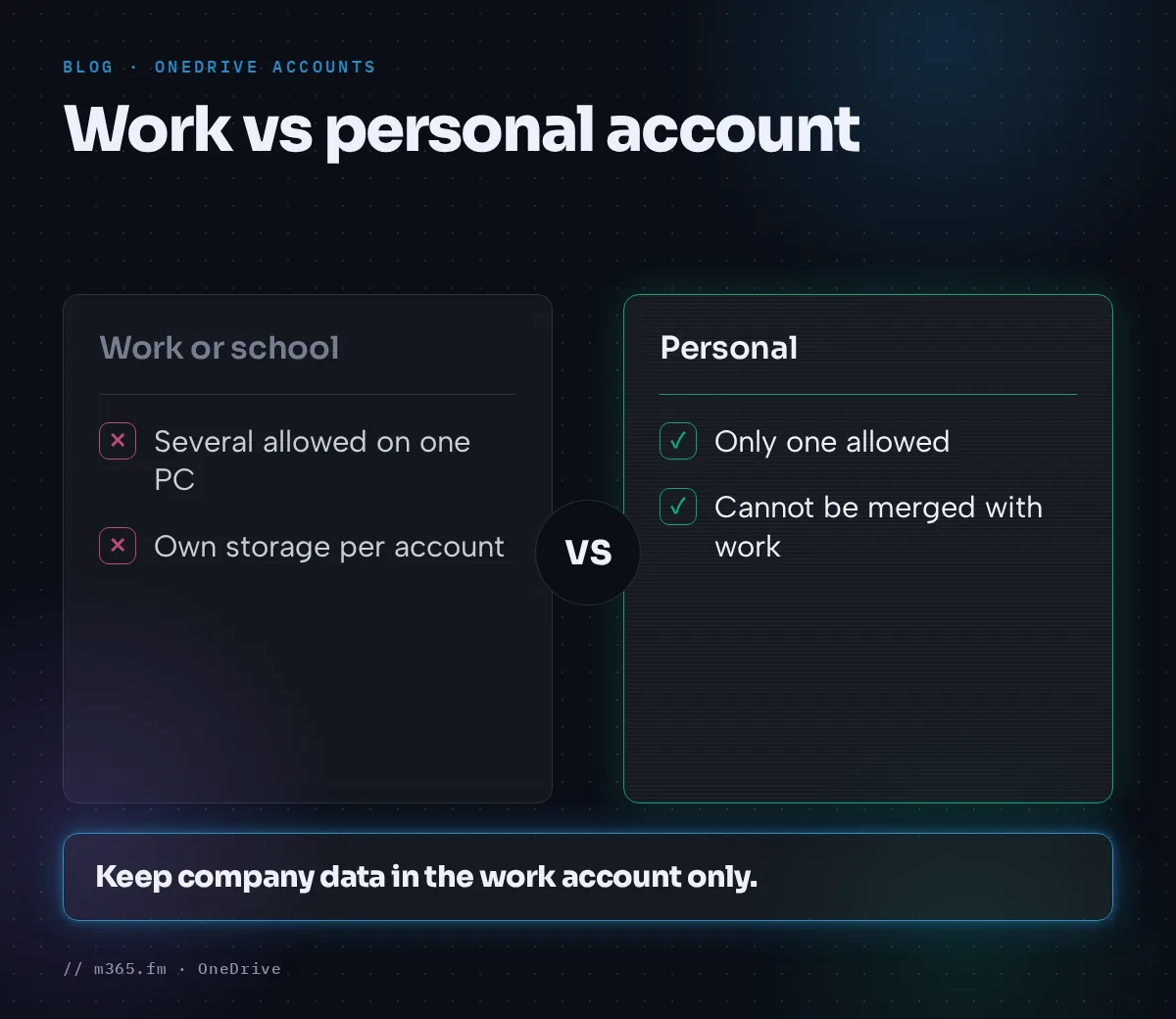
Microsoft states that a personal OneDrive and a work or school OneDrive cannot be merged. They can be used side by side, and each keeps its own storage.
In practice:
- Copy or drag files between the two folders when you need to move something across.
- Do not expect to sync or share work folders into personal folders. Microsoft says you cannot.
- Microsoft says a work or school email address cannot be added as an alias to an Outlook.com account, because it is already tied to a work or school account.
A practical rule is to keep company data in the work or school account only. The pages used here do not cover company policy, so check yours.
Choose folders per account
To save disk space on a PC that carries several accounts, choose which folders to sync.
- Open OneDrive settings and go to the Account tab.
- Select Choose folders.
- Clear the checkboxes for folders you do not want on the computer and confirm.
Microsoft says these settings are unique to each computer and each account, so you set them again for every account. You can only select or clear folders that already exist in your OneDrive. Documents, Desktop, Pictures and Personal Vault cannot be cleared. Clearing a synced folder removes it from the computer but leaves it available online.
Unlink an account you no longer need
- Select the OneDrive cloud icon in the taskbar or menu bar.
- Select the gear icon, then Settings on Windows or Preferences on Mac.
- Open the Account tab.
- Select Unlink this PC for the account.
Microsoft says you can always reach your files by signing in to OneDrive.com. The page does not say whether local copies remain on the PC after unlinking, so look at the folder before you unlink. Its "you don't lose files or data" statement sits in the uninstall section, not in these steps.
Fix the "You're syncing a different account" error
Microsoft Support says this error usually means OneDrive holds stale saved credentials. It may also happen after you change your Microsoft account password.
On Windows:
- Press Windows key + R.
- Enter
%localappdata%\Microsoft\OneDrive\settingsand select OK. - Delete the file
PreSignInSettingsConfig.json.
On Mac, the article says to open Keychain Access, search for "OneDrive" and delete the entry called "OneDrive Cached Credential", then open OneDrive. For the related "You're already syncing this account" message on Mac, the article adds deleting two plist files in the Group Containers folder and restarting OneDrive.
If these steps do not help, Microsoft says to uninstall and reinstall OneDrive. The article says you will not lose files or data by uninstalling OneDrive, and you can still reach them at OneDrive.com.
Checklist for a new setup
- Decide which accounts belong on this PC. Count one personal account at most.
- Add the accounts one at a time through Settings > Account > Add an account.
- Open File Explorer or Finder and confirm that each account has its own folder.
- Use Choose folders for each account if disk space is tight.
- Test with one small file per account before you move real data.
- Note which account holds which files, because Microsoft does not merge them for you.
Common mistakes
- Trying to add a second personal account. Only one is allowed.
- Expecting to merge a personal and a work OneDrive.
- Setting Choose folders once and assuming it applies to every account. It does not.
- Unlinking without checking the local folder first.
- Treating a sign-in error as a lost account. Cached credentials are the usual cause.
Related
Sources
- Sync with multiple accounts (Microsoft Support)
- How to add an account in OneDrive (Microsoft Support)
- How do I merge my OneDrive for home with my OneDrive for work or school? (Microsoft Support)
- Choose which OneDrive folders you want to sync (Microsoft Support)
- How to cancel or stop sync in OneDrive (Microsoft Support)
- OneDrive shows "You're syncing a different account" error (Microsoft Support)
FAQ
How many OneDrive accounts can I add on one PC?
According to Microsoft Support you can sync multiple work or school accounts, but you can only have one personal account. To sync a different personal account you must unlink the current one first.
How do I add a second OneDrive account on Windows?
Select the OneDrive cloud icon in the notification area, then the Help and Settings icon, then Settings. Open the Account tab, select Add an account, enter the email address and sign in. The steps come from Microsoft Support's article on syncing with multiple accounts.
Can I merge my personal OneDrive with my work OneDrive?
No. Microsoft Support says the two cannot be merged but can be used side by side. Each keeps its own storage. You can copy or drag files between them, but you cannot sync or share work folders into personal folders.
Will unlinking an account delete my files?
The Microsoft Support page on stopping sync says you can always reach your files by signing in to OneDrive.com. Its statement that you do not lose files or data by removing OneDrive from your computer appears in the uninstall section, not in the unlink steps, and the page does not say whether local copies stay on the PC after you unlink. Check your OneDrive folder before you do it.
What does the You're syncing a different account error mean?
Microsoft Support says it usually means OneDrive is holding stale saved credentials, and it may also appear after a Microsoft account password change. On Windows the documented fix is to delete PreSignInSettingsConfig.json in the OneDrive settings folder. If that fails, Microsoft says to uninstall and reinstall OneDrive and says this does not lose files or data.