 EN
 Deutsch
 Español
 Français
 Italiano
 Português
 Nederlands
 Polski
 Bahasa Indonesia
 Русский
 Українська
 العربية
 עברית
 日本語
 한국어
OneDrive for Business Sign In Problems: Fixes for Work or School Accounts
By Mirko Peters ·
Fix OneDrive for Business sign-in problems: check the account, firewall, unlink and relink, reset the app, and verify licenses for errors like 0x8004de85, using Microsoft documentation.
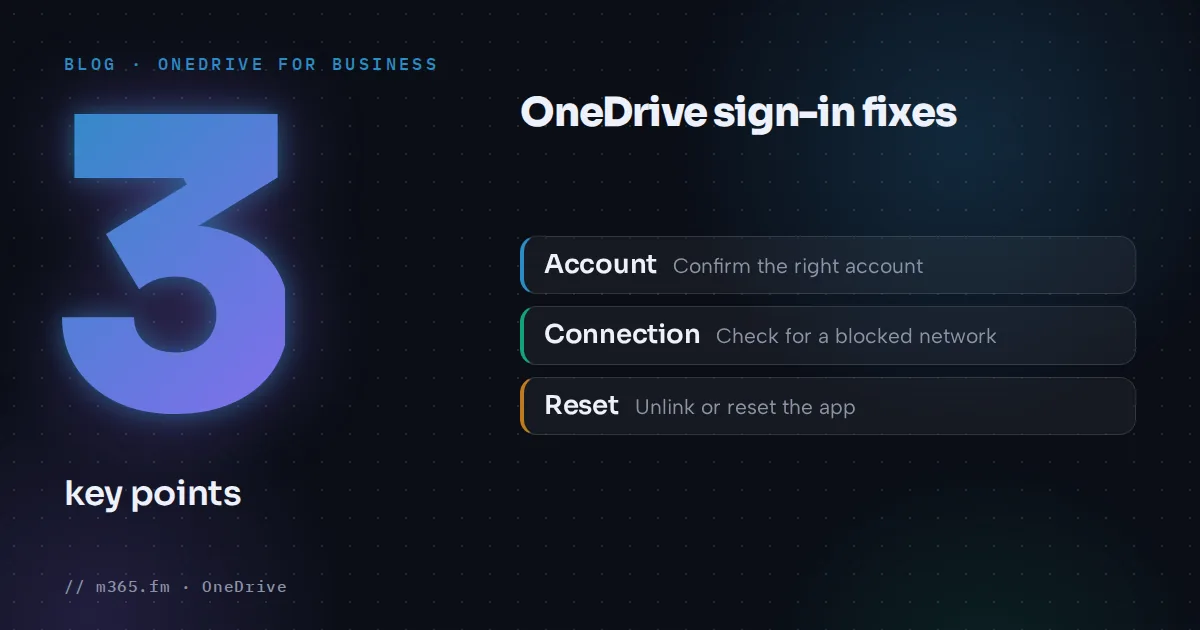
When OneDrive for Business won't sign in, the cause is usually the wrong account, a blocked connection, damaged local sign-in data or a missing license. Work through the checks in order, from least to most disruptive. The steps below come from Microsoft Support and Microsoft Learn and apply to the Windows sync app unless noted.
Key points
- A grayed-out OneDrive icon with a line through it means the account is signed out. Select it and sign in again.
- Errors 0x8004de85 and 0x8004de8a point to a missing account or a personal and work account mismatch.
- Unlink the PC, delete PreSignInSettingsConfig.json and sign in again if a normal sign-in fails.
- If unlinking doesn't help, the Microsoft Learn error page documents a reset with onedrive.exe /reset, run as administrator after quitting OneDrive.
- Admins should confirm a OneDrive license is assigned in the Microsoft 365 admin center under Users, Active users.
First check: the icon and the account
A grayed-out OneDrive icon with a line through it means the account is signed out. Select the icon. On the Set up OneDrive screen, enter the email address and password.
- Work or school account: if the password is forgotten, reset it or contact the organization's IT admin.
- Personal account: Only one personal Microsoft account can be added.
Then confirm which account the app is using:
- Select the OneDrive icon in the taskbar notification area. If it is missing, select the Show hidden icons arrow. If it still isn't there, OneDrive might not be running. Select Start, type OneDrive and open it.
- Select Help & Settings, then Settings.
- On the Account tab, check that the expected account is shown. Otherwise sign in with the correct one.
The Learn error page also suggests signing in to the Microsoft 365 account first to verify there are no authentication issues. Microsoft's work sync article suggests selecting View online from the OneDrive icon and says to contact the network administrator if the account isn't reachable online.
Error 0x8004de85 or 0x8004de8a
Microsoft Learn documents these two codes together. The issue might occur when a problem affects the OneDrive account, such as a missing account, or when the credentials belong to the wrong kind of account, for example work credentials entered for a personal Microsoft account. The documented fixes are, in order:
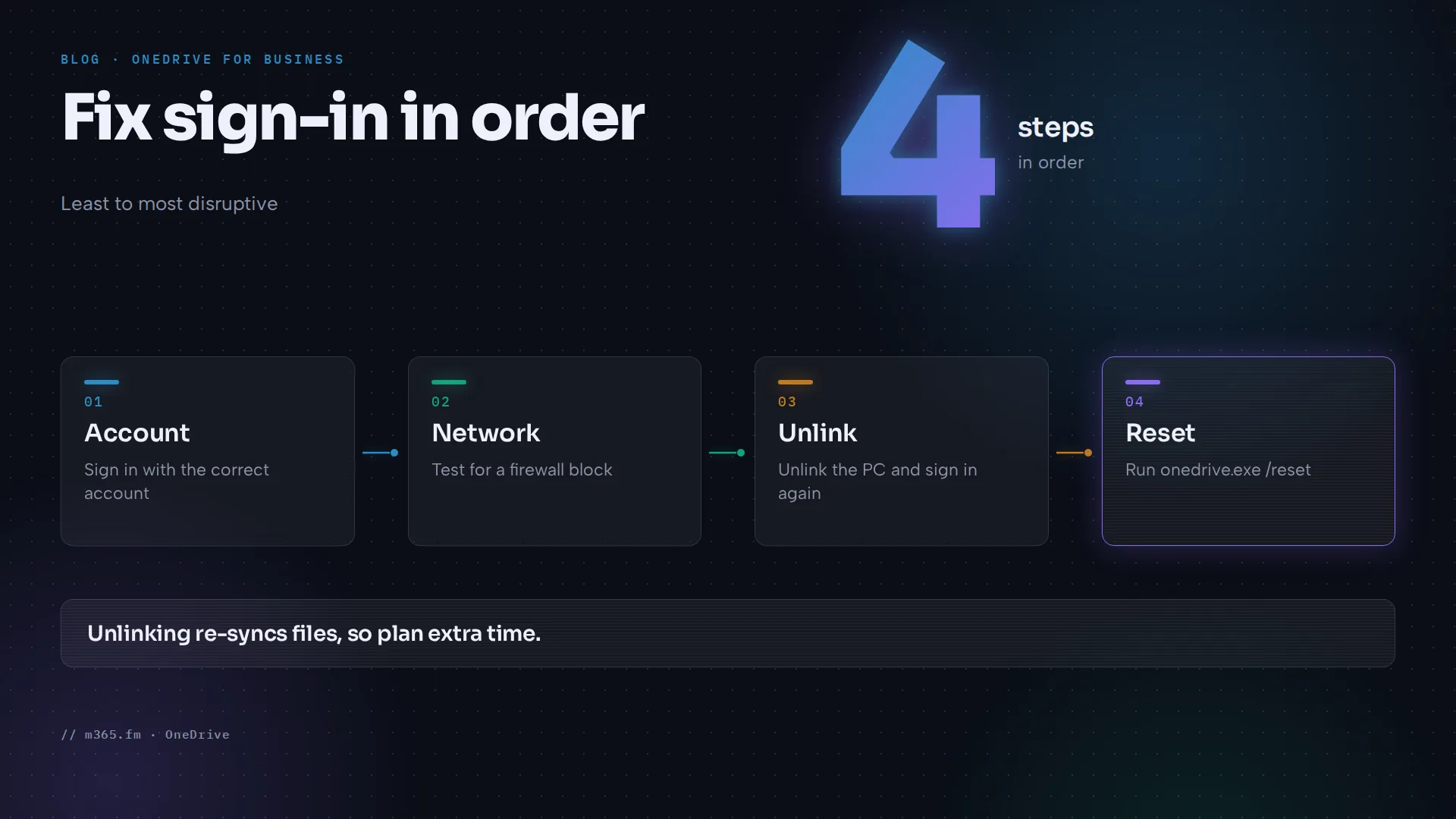
- Make sure the correct account is used, as above.
- Reset OneDrive.
- Ask an administrator to check the license.
Check for a blocked connection
If sign-in works but OneDrive still can't connect, the internet provider's firewall might be blocking it. Microsoft suggests testing with a phone as a hotspot or asking the provider whether it supports Microsoft 365 access. If the app reports that OneDrive isn't connected, restart OneDrive. On Windows, search for OneDrive in the Start menu. On a Mac, search in Finder. If it isn't installed, download the latest version.
Unlink the PC and clear sign-in data
This sequence is from Microsoft Support's work sync article (Windows):
- Select the OneDrive cloud icon, then the Help and Settings gear, then Settings.
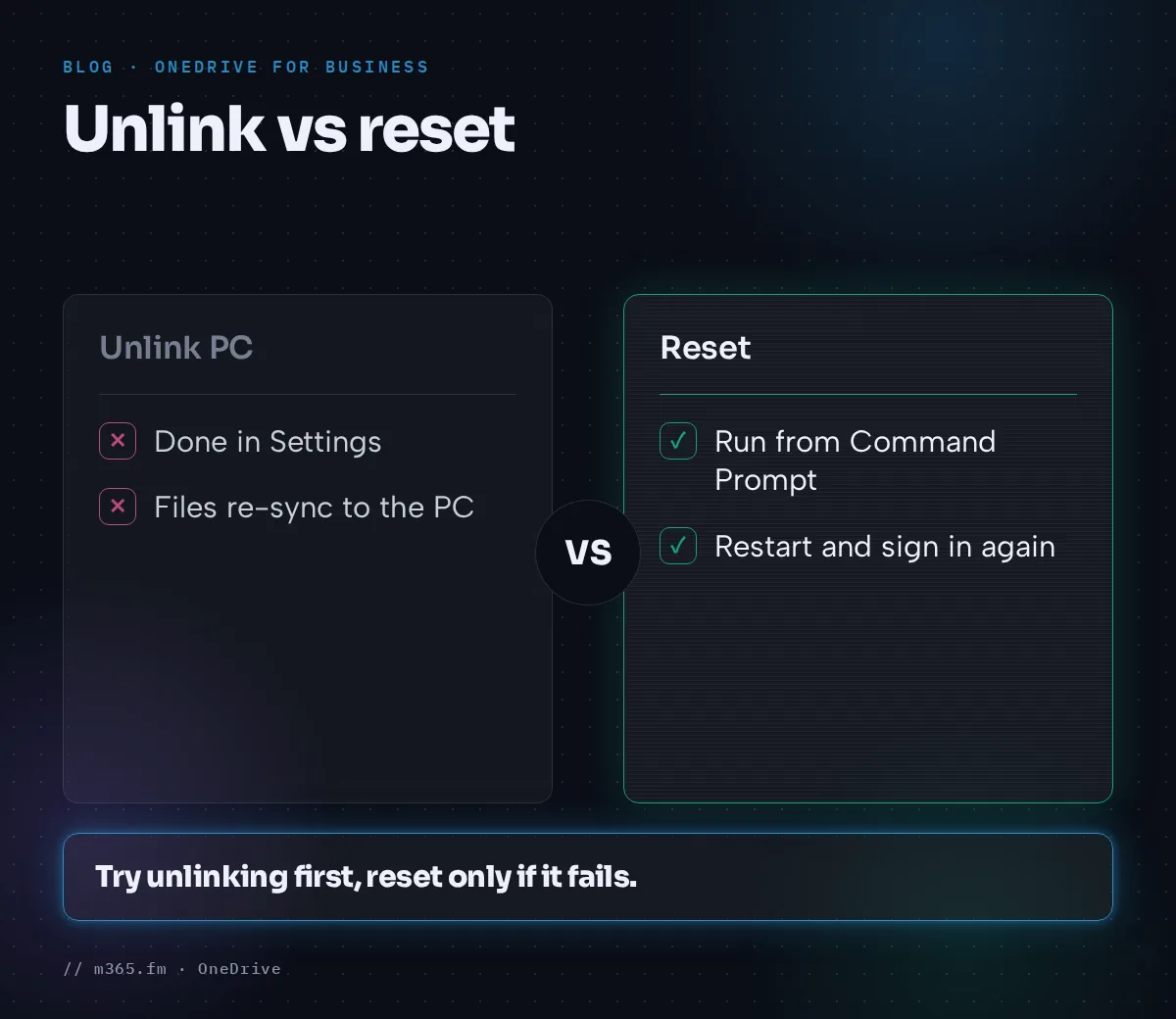
- On the Account tab, select Unlink this PC, then Unlink account.
- Press Windows key + R, enter
%localappdata%\Microsoft\OneDrive\settingsand select OK. - Delete the file PreSignInSettingsConfig.json.
- Open OneDrive from the Start menu and sign in.
- When asked about an existing folder, select Use this folder, or Choose new folder to move it.
- Wait for the files to sync back. Initially only placeholders download.
- After the re-sync, choose which folders to sync on the PC.
Plan time for step 7, since a large library takes a while to come back.
Reset OneDrive
If unlinking doesn't help, Microsoft Learn documents a reset:
- Right-click the OneDrive icon in the notification area, select Help & Settings, then Quit OneDrive.
- Select Start, enter cmd, right-click Command Prompt and select Run as administrator.
- Run
%localappdata%\Microsoft\OneDrive\onedrive.exe /reset - Restart OneDrive and sign in with the work or school account.
The pages read don't state what a reset does to existing sync connections or local files. Treat it as a step that may need re-setup, and check Microsoft's dedicated reset documentation if unsynced changes exist.
Check the license (admin task)
A missing license can block sign-in. The steps for the Microsoft 365 admin center are:
- Select Users, then Active users.
- Select the affected user.
- Open Licenses and apps.
- Expand Licenses and make sure a OneDrive for Business license is assigned.
If many users have the problem, the subscription might have expired. Check Billing, then Your products.
Browser sign-in to onedrive.cloud.microsoft
Microsoft Support says the message "Selected user account does not exist in tenant 'Microsoft Services'" at onedrive.cloud.microsoft means you're likely using a personal account.
The fix from Microsoft is to switch to the work or school Microsoft Entra ID account. If that still fails, contact the helpdesk or admin.
Suggested order of work
- Check the icon state and the account shown under Settings.
- Confirm the account works online, and that it is the right type of account.
- Rule out a blocked connection with a different network.
- Unlink the PC, remove the pre-sign-in file and sign in again.
- Reset the app if the unlink didn't help.
- Escalate to the administrator for the license and subscription checks.
Each step is more disruptive than the one before it, so stop as soon as sign-in works.
Common mistakes
- Using a personal Microsoft account where a work or school account is required, or the reverse.
- Resetting before checking the account and license.
- Deleting local sign-in files without unlinking first. Microsoft lists unlinking before the file removal.
- Treating a license gap as a client problem when several users are affected.
What these pages don't cover
The pages read for this article don't explain conditional access blocks, multifactor prompts or tenant restrictions as sign-in causes. If sign-in fails only on certain devices or networks, ask the administrator to review the Entra sign-in logs. That is a general admin step and isn't described in the pages used here.
Related
Sources
- Can't sign in to OneDrive, Microsoft Support
- Fix OneDrive sync problems (work or school), Microsoft Support
- Error 0x8004de85 or 0x8004de8a when signing in to OneDrive, Microsoft Learn
FAQ
Why can't I sign in to OneDrive for Business?
The Microsoft pages read cover several causes: a missing account or a mismatch between a personal Microsoft account and work or school credentials (Microsoft Learn), an internet provider's firewall blocking OneDrive (Microsoft Support), and a missing license (a Learn resolution step). Start by checking which account the app shows under Help and Settings, Settings, Account.
What do errors 0x8004de85 and 0x8004de8a mean?
Microsoft Learn says these errors might occur when a problem affects the OneDrive account, such as a missing account, or when someone signs in to a personal Microsoft account with work or school credentials or the other way round.
Does resetting OneDrive delete my files?
The pages read for this article don't say what a reset does to local files or to sync connections, so don't assume it is harmless. They only give the command and say to restart OneDrive and sign in again afterwards. Check Microsoft's dedicated reset documentation before running it on a PC with unsynced changes.
Who can fix a license problem?
A Microsoft 365 administrator. Microsoft Learn says to open the Microsoft 365 admin center, go to Users, Active users, select the user, open Licenses and apps and confirm that a OneDrive for Business license is assigned.