 EN
EN Deutsch
 Español
 Français
 Italiano
 Português
 Nederlands
 Polski
 Bahasa Indonesia
 Русский
 Українська
 العربية
 עברית
עברית हिन्दी
 日本語
日本語 한국어
한국어2026-07-17 · Season 3
Azure Virtual Desktop - Simply Explained
Show notes
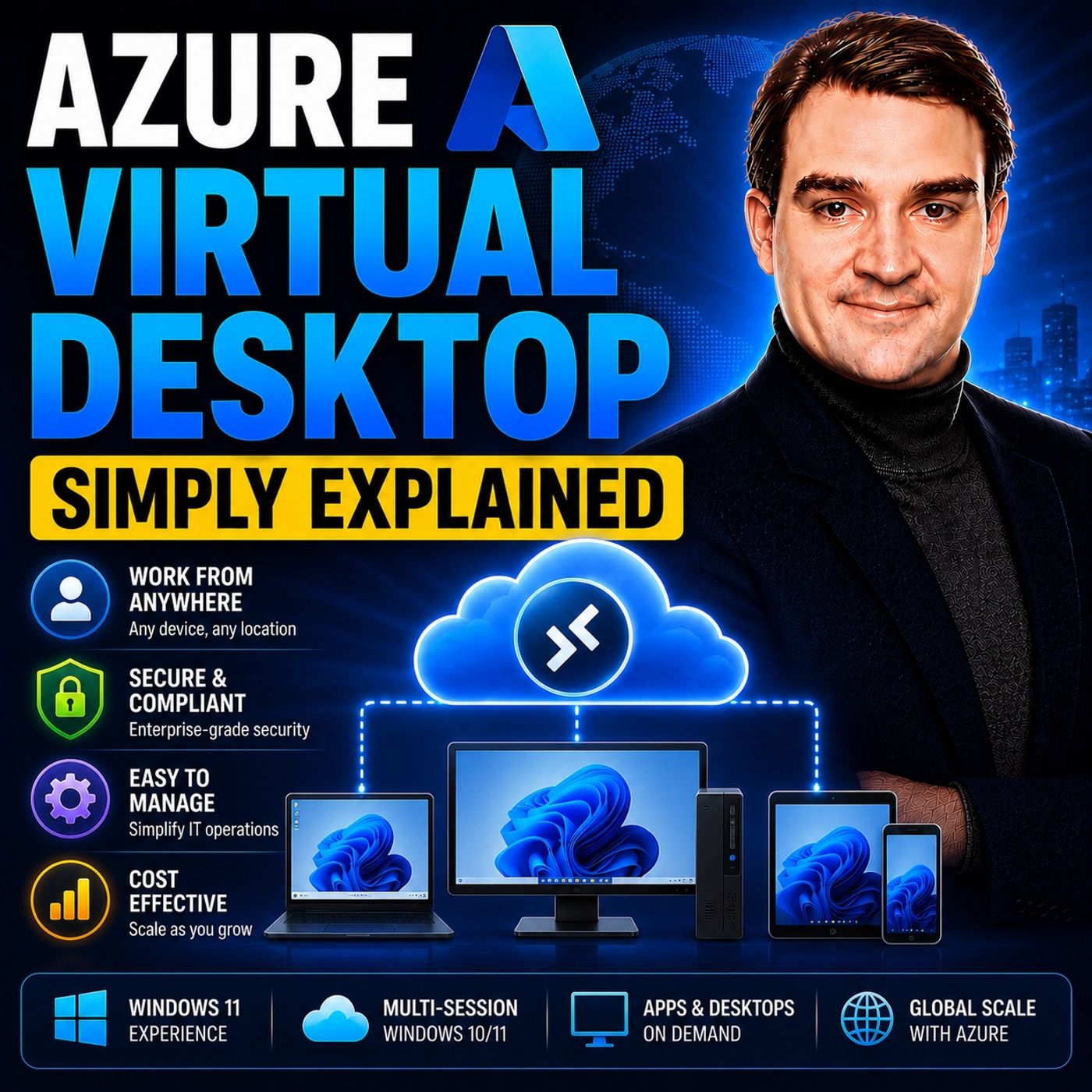
Azure Virtual Desktop (AVD) is Microsoft's cloud-based desktop virtualization platform that delivers a complete Windows desktop and business applications securely from Azure to virtually any device. Instead of relying on powerful local computers, the desktop experience runs inside Microsoft's cloud while users access it through the Windows App on Windows, macOS, iPad, Android, Linux, or even a web browser. Whether employees work from the office, home, or anywhere in the world, Azure Virtual Desktop provides the same familiar Windows experience while keeping applications and company data securely inside Azure. WHY BUSINESSES ARE MOVING TO CLOUD DESKTOPS Traditional desktop management requires purchasing laptops, deploying software, maintaining operating systems, replacing hardware every few years, and securing every endpoint individually. Azure Virtual Desktop completely changes this model by moving the desktop into the cloud. Users simply connect to their virtual desktop from any device while all applications, files, and processing remain inside Azure. If a laptop is lost or stolen, no business data leaves the Microsoft cloud. This significantly improves security while reducing IT administration, simplifying remote work, and allowing organizations to scale desktop environments as business needs change. HOW AZURE VIRTUAL DESKTOP WORKS Azure Virtual Desktop is built around Host Pools, which contain one or more Azure Virtual Machines known as Session Hosts. Users connect through the Windows App and authenticate using Microsoft Entra ID before being assigned to an available session. Organizations can deploy pooled desktops, where multiple users securely share the same Windows 11 Enterprise multi-session virtual machine, or personal desktops that provide dedicated virtual machines for individual users. Application Groups determine which desktops or applications users can access, while Workspaces organize those resources into a simple interface that appears automatically when users sign in. Microsoft manages the connection broker, gateways, load balancing, and much of the underlying infrastructure, allowing IT teams to focus on managing desktops rather than building remote desktop infrastructure. FSLOGIX MAKES THE USER EXPERIENCE FEEL LOCAL One of Azure Virtual Desktop's biggest strengths is its integration with FSLogix, Microsoft's profile management technology. Instead of copying user profiles between virtual machines during every login, FSLogix stores the entire profile inside a virtual disk that attaches instantly when users connect. Personal settings, Outlook caches, OneDrive synchronization, browser bookmarks, and application preferences follow users automatically regardless of which session host they use. The result is dramatically faster sign-in times, consistent user experiences, and seamless support for Microsoft 365 applications in shared multi-session environments. SECURITY, SCALABILITY, AND COST SAVINGS Azure Virtual Desktop combines enterprise-grade security with flexible cloud economics. Organizations can protect desktops using Microsoft Defender, Conditional Access, Multi-Factor Authentication, and Microsoft Entra ID while ensuring sensitive company data never resides on personal devices. Autoscaling automatically powers virtual machines on or off based on demand, significantly reducing Azure compute costs outside business hours. Because multiple users can share a single multi-session Windows host, businesses often require fewer virtual machines than traditional virtual desktop infrastructure, improving resource utilization and lowering operational expenses without sacrificing user performance. WHEN SHOULD YOU USE AZURE VIRTUAL DESKTOP? Azure Virtual Desktop is an excellent solution for remote work, hybrid workforces, contractors, call centers, education, healthcare, seasonal employees, software developers, and organizations that need secure access to Windows applications from any location. It also enables legacy Windows applications to run on non-Windows devices without local installation. Companies looking to improve security, simplify desktop management, support Bring Your Own Device (BYOD), or reduce hardware refresh cycles can benefit significantly from Azure Virtual Desktop. By centralizing desktops inside Azure while delivering a consistent user experience anywhere in the world, AVD has become one of Microsoft's most powerful modern workplace solutions. Become a supporter of this podcast: https://www.spreaker.com/podcast/m365-fm-microsoft-365-azure-cloud-power-platform-ai--6704921/support.
Apple Podcasts · Spotify · YouTube · YouTube Music · Deezer
Host: Mirko Peters
Guests
Related articles
Transcript
Read the full transcript
Welcome to another episode of Microsoft Knowledge Nuggets here on M365 FM. I'm your host, Mirko Peters. Today's topic is one that almost everyone has heard of, but few truly understand. A Zua Virtual Desktop. What exactly is it? Is it just a remote PC in the cloud or is it something much bigger? A lot of people hear the name and think it's just a VPN replacement, or maybe a way to rent a virtual machine in Azure. Some even confuse it with the remote desktop tool you've used to connect to a work computer from home. Actually, it's none of those things. It's way more than that. It's a complete desktop experience delivered securely from the cloud. By the end of this episode, you'll understand what AVD actually is, how the pieces fit together and why companies are moving to it. We're going to break it down into the core building blocks in plain English so you can see the big picture, not just the marketing fluff. What is Azure Virtual Desktop? The big picture. Here's the simplest definition. Azure Virtual Desktop is Windows and Windows applications delivered from the cloud to any device. Think of it like a streaming service, but instead of streaming movies and TV shows, you're streaming your work desktop and business applications. Just like Netflix handles all the heavy lifting on their servers, AVD handles the computing on Azure servers. You know how Netflix works? You open the app on your TV, phone or laptop, and you get the same experience on every device. The actual heavy lifting, the processing, the storage, the rendering, all happens on Netflix's servers. Your device is just a window into that content. And just like with Netflix, you don't need a powerful device to use AVD. The work happens in the cloud. AVD works the same way. Your users get a full Windows desktop with all their apps. But the actual computing happens on virtual machines running in Azure. The local device is just displaying what's happening on that remote machine. It could be a Windows laptop, a Mac, an iPad, a Chromebook, or even an old PC that can barely run its own operating system. As long as it can run the Windows app, it works. The Windows app is a lightweight client that you install on any device and it connects to the AVD service to display the remote desktop. That's all you need. Now here's the key distinction. You're not renting a whole PC for each person. Instead, you're connecting to a shared managed environment. And here's the thing, something called multi-session, makes it possible for multiple users to be on a single Windows machine at the same time. Regular Windows is designed for one user at a time. AVD changes that. On a normal Windows laptop, only one person can be logged in at a time. That's just how Windows works. But with AVD, you can have multiple users on a single Windows machine simultaneously. Each person gets their own isolated session, their own applications, their own files. They're all sharing the same underlying virtual machine. That's something you simply cannot do with a regular laptop. And it's one of the main reasons AVD can save companies so much money. Under the hood, AVD is powered by virtual machines running in Azure. But Microsoft manages all the complicated parts behind the scenes. The broker that roots users to the right session host, the gateway that handles the connection and the load balancing that spreads users across available machines. You don't have to build any of that yourself. All you do is create your host pools, configure your applications, and assign your users. For IT teams, this simplifies management and reduces hardware costs. So why does this matter for you? It means your users get a full Windows experience from any device anywhere. A graphic designer on a Mac can run Windows-only design software. A field worker on a tablet can access the same line of business applications they'd use at their desk. And a contractor on a personal laptop can log in and work securely without installing anything on their own machine. And because the data never leaves the Azure data center, it's more secure than having data on a laptop that could be lost or stolen. It's a win for both users and IT. But to understand why AVD exists in the first place, we need to look at the problem it solves. We'll cover that in the next segment. The old way versus the new way. The old way was simple. You bought a powerful laptop for every employee, installed every application they needed, and managed each device one at a time. Then every three or four years, you replaced all that hardware and started over. But here's the thing, the hidden costs were enormous. IT teams spent hours on deployment, security patches, and troubleshooting. When a laptop got lost or broken, you had to replace it, reinstall everything, and hope the user had backed up their files. And if someone got a virus, you had to wipe the machine and start from scratch, then remote work hit and the old way broke completely. VPNs were slow and clunky, home computers weren't secure, and company data was living on devices that could be lost, stolen, or compromised. It had no control over the endpoint, but they were still responsible for protecting the data on it. The new way with Azure Virtual Desktop Elite or AVD for short is completely different. The heavy lifting happens in Azure, not on the local device. Your laptop, your tablet, your phone, are just windows into that cloud environment. The actual work, the applications, the files, the processing, all stays in the data center. That's a big shift. Lose your laptop, no data lost. You just grab any other device, log back into AVD and your right where you left off. Your files are still there, your applications are still configured, and your settings are intact. The device itself became disposable. It also changes how you pay for things. Instead of a big capital expense every few years, buying hundreds of laptops upfront, you shift to an operational expense. You pay for what you use. If you have 50 people working today and a hundred tomorrow, you scale up. If you need fewer next month, you scale down. You're not stuck with hardware you overpaid for, or scrambling to buy more when you need it. Now let's look at the actual pieces that make this work, starting with the most important one. Building block one, host pools and session hosts. The first building block is called a host pool. And it's exactly what it sounds like, a collection of virtual machines that host Windows, desktops, and applications. The think of it as a group of identical computers, all set up the same way, ready for people to connect to. The individual machines inside that pool are called session hosts. They're actual virtual machines, running Windows 11 Enterprise, usually the multi-session version. That means multiple people can be logged into the same machine at the same time, each in their own private session. Now, there are two types of host pools, and the difference matters for cost and flexibility. A pooled host pool is like a hotel. Multiple guests stay there, but no one has a permanent room. When you check in, you get whichever room is available, and when you check out, someone else gets that room next time. With pooled host pools, users are assigned to whatever session host has capacity at that moment. They might be on machine A today and machine B tomorrow. It works great for most knowledge workers, because it lets you pack more users onto fewer machines. A personal host pool is like your own apartment. It's yours, no one else uses it, and your stuff is there. Your settings, your files. You get the same machine every time you log in. This is useful for power users who need consistent performance, or for scenarios where you need to install specialized software that doesn't work well in a shared environment. But it costs more because each user needs their own dedicated VM. Now, here's where things get interesting. How does AVD decide which session host a user lands on? That's load balancing, and there are two approaches. Breadth first means the system spreads users evenly across all available session hosts. So if you have 10 machines and 100 users, each machine gets roughly 10 users, this gives consistent performance because no single host gets overloaded, and it's the default setting for most deployments. Depth first is the opposite. It fills up one session host completely before moving to the next. User 1 through 10 or land on machine A, user 11 through 20 go to machine B and so on. Why would you do this? Because it lets you power down the empty machines. Once machine A is full and machine B is full, machine C through Zed can be shut down to save money. Depth first works really well with auto scaling, and that's the next piece. Scaling. You can configure AVD to automatically add or remove session hosts based on how many people are logged in. During peak hours, you might have 20 machines running. At night, you might have just 2. The system handles this automatically based on schedules you define. This is where the real cost savings kick in. You're not paying for machines that aren't being used. So why does this matter for you? Pooled host pools with Depth first load balancing and auto scaling can dramatically reduce your costs. Instead of buying a VM for every single user, you buy just enough to cover your peak concurrent usage and even those machines only run when people are actually working. So you've got your host pool with your VMs. Now how do users actually get their apps? Building block 2 application groups. So application groups are the logical containers that decide what a user can access. Think of them as permission sets. You either get the full desktop or just specific applications. There are 2 types. With a desktop application group, users get the full Windows desktop experience. They log in and see the start menu, the taskbar file explorer, everything. It looks and feels like a normal Windows computer because it basically is. Most companies start here. A remote app application group is different. Instead of giving users a full desktop, it gives them individual applications. And here's the magic part. Those applications look like they're running locally on the user's device. You open Word and it appears in its own window on your Mac or your tablet right alongside your local apps. No desktop background, no virtual machine interface, just the application running seamlessly. Imagine a user who only needs three applications. Word, Excel and a custom line of business tool. With remote app, you publish just those three apps. The user opens the Windows app, sees three icons, clicks one, and the application opens in its own window. They never see the desktop and they never need to. It's a much cleaner experience for task workers. Now here's an important detail. Remote app is only available with pooled host pools. If you're using personal host pools, you're limited to the full desktop experience. That's just how the technology works. But here's where it gets powerful. Users can be assigned to multiple application groups across different host pools. So one user might have a desktop application group from one host pool and a remote app application group from another. That same user logs into the Windows app and sees both a full desktop icon and individual app icons. They can choose whichever they need. How does this work in practice? I'd create the application group, assigns it to a user or a group in Entry ID, and those resources appear automatically the next time the user opens the Windows app. No manual setup, no configuration files, no sending links, it just shows up. But users need a way to find these resources. That's where workspaces come in. Building block three workspaces. So you've got your host pools and your application groups. But users need a way to actually find and access all these resources. That's where workspaces come in. Now, workspaces are logical grouping of application groups. It's what users see when they open the Windows app. Think of it like a folder on your phone that organizes your apps. You don't open your phone and see every single app you own scattered across the screen. They're grouped into folders, games in one folder, productivity tools in another. Workspaces do the same thing for AVD resources. Every application group must be associated with a workspace. There's no way around it. If you create an application group and don't connect it to a workspace, users simply won't see it. It exists in the background, but nobody can access it. The workspace is what makes it visible. Here's how it works from the user's perspective. Someone opens the Windows app on their device, signs in with their work account, and right there, they see all the resources they've been assigned, desktops, applications, everything, organized by workspace. No manual setup, no configuration files, no IT sending them links to click. It just appears. Now you can have multiple workspaces for different scenarios. Maybe you create one workspace for the finance department with all their accounting applications, another workspace for the engineering team with their design tools, and the third workspace for contractors with limited access. Users only see the workspaces they're assigned to, so a finance person never sees the engineering tools, and a contractor never sees internal applications. The user experience is dead simple. Open the Windows app, sign in, and everything you need is right there. Click a desktop icon and you're in a full window session. Click an app icon, and it opens like a local program. No VPN required, no complicated setup, just a clean list of what you can access. Now we have all the pieces in place. But how does a user actually log in and get to their desktop? How users connect, the identity, and access layer. So everything starts with Microsoft Entra ID. You might still know it as Azure Active Directory. Microsoft rebranded it a while back, but it's the same system underneath. Think of Entra ID as the reception desk of your digital office. It knows who you are and what you're allowed to access. It handles your login to Microsoft 365, Teams, SharePoint, and yes, it also controls access to AVD. Now how does a user actually connect? Let me walk you through the flow. Open the Windows app on their device, sign in with their work email and password. And if multi-factor authentication is set up, they do that too. The Windows app sends the authentication request to Entra ID, which verifies their identity. Then AVD checks, which application groups they belong to. Finally, the session host itself authenticates the user. That last step is important. Even though the user logged into the Windows app, they still need permission to actually sign into the virtual machine. That's controlled by a specific Azure role called virtual machine user login. Without this role assigned, a user can authenticate to AVD and see their resources in the Windows app. But when they try to connect, it fails. They don't have the right to log into the session host. Here's where best practices come in. Never assigned permissions to individual users. Always use groups, create a group in Entra ID, name it something like AVD users at all your users, then assign that group to the application group and the virtual machine user login role. When a new person joins, add them to the group, when someone leaves, remove them. You never have to touch the AVD configuration again. The Windows app itself, formally called the remote desktop client, is available on Windows, Mac, iOS, Android and even through a web browser. Users don't need a special device. They can use whatever they already have. And because it's all built on Entra ID, your existing security policies apply automatically. Multi-factor authentication works the same way as for Microsoft 365. Conditional access policies like requiring a compliant device or blocking access from certain locations. Apply to AVD just like they do to SharePoint or Exchange. Once security policy across all your services, there's also a single sign-on, users authenticate once in the Windows app and don't get prompted again when launching their desktop or applications. It's seamless, sign-in once and everything just works. But there's one more piece that makes AVD a truly smooth experience and it's something every user cares about. The user profile challenge, why FS Logics matters? Here's something you might not have thought about. In a pooled host pool, a user might land on a different virtual machine every time they log in. Today, machine A, tomorrow, machine B, the day after machine C. Without any profile management, every single login feels like using a brand new computer. No bookmarks, no desktop files, no saved passwords, no outlook signature, nothing. It's like checking into a hotel room that gets completely stripped and reset every time you leave. Your settings, preferences, files, all gone. The old solution was roaming profiles. Windows would copy your entire profile from a central server to whatever machine you logged into. Sounds reasonable, right? In practice, it was slow, unreliable, and prone to corruption. Logons could take 30 seconds or more. If the copy got interrupted, your profile could break completely. IT teams spent countless hours fixing corrupted profiles. Not a good experience. Microsoft recognized this was a serious problem, so they bought a company called FS Logics and integrated their technology directly into AVD. FS Logics solves the profile problem completely and it does it in an elegant way. Here's how it works. Instead of copying a profile back and forth, FS Logics stores each user's profile as a single virtual hard disk file in a central location, typically as your files. When a user logs into AVD, FS Logics mounts that disk directly to their session. It's attached instantly, like plugging in a USB drive, all their settings, files, bookmarks, and preferences appear immediately. The results are dramatic. Logon times drop from 30 plus seconds to about 7 or 8 seconds. And because the profile is stored centrally, it doesn't matter which session hosts the user hands on. The profile follows them automatically. FS Logics also solves a big problem with Microsoft 365 apps. In a traditional pooled environment, Outlook, Cache mode and OneDrive sync were practically unusable. Performance was terrible. With FS Logics both work perfectly. Users get full outlook with offline access, OneDrive syncs their files and teams caches properly. Everything just works. This is why FS Logics is considered the standard non-negotiable solution for user profiles in AVD. Don't try to manage profiles without it. You'll end up with slow logons, broken profiles, and unhappy users. Use FS Logics from day one. So now you understand the pieces. Let's talk about why businesses are actually making the move. Why businesses choose AVD? Security and cost benefits. Why do businesses choose AVD over traditional laptops? It really comes down to security and cost. Let's break it down. First, the security model. With AVD data never leaves the Azure Data Center. The user's device is just displaying what's happening on the remote machine. The actual files, applications, and sensitive information all stay inside Microsoft's data centers behind their security controls. If someone loses their laptop, there's nothing on it to steal because the data was never there in the first place. You don't need to worry about encrypting every endpoint or wiping stolen devices. Microsoft also integrates Defender for endpoint directly into AVD session hosts. So your virtual machines are monitored and protected, just like any other managed device. Malware detection, threat hunting, and automated response all apply to your AVD environment. IT gets a single security view across both physical devices and virtual desktops. Now let's talk about centralized management. This is a huge win for IT teams. Instead of managing hundreds of individual laptops, deploying updates, troubleshooting issues, replacing broken hardware, you manage one environment. Update the golden image once and all session hosts get the update. Push a policy change once and it applies to every user. The operational overhead drops. You save time and effort, then there's the cost side. Autoscaling is where AVD really saves money. Session hosts only run when users are logged in. During peak hours, you might have 50 machines running. At night and on weekends, you might have two. You can cut your compute hours by 40 to 60%. You're not paying for machines that are sitting idle. Right sizing is another cost lever. In the old model, you had to buy laptops powerful enough for your most demanding users, even if most people only needed basic tools. With AVD, you match VM sizes to actual workload requirements. Give power users bigger machines. Give task workers smaller, cheaper ones. No more overpaying for hardware, nobody needs. And there's a licensing advantage you might already have. If your organization uses Windows 10 or 11 enterprise or Microsoft 365 e3 or e5, you can use AVD without any additional licensing costs for the Windows desktop. Your existing license covers it, that removes a major barrier, and then there's deployment speed. In the old model, onboarding a new employee meant ordering a laptop, waiting for it to arrive, imaging it, installing applications and configuring settings. That could take days or weeks. With AVD, you can set up a new user in minutes, create their account, assign them to the right group, and they're ready to go from any device they already have. Here's what you should take away from all of this. So here's what Azure Virtual Desktop actually is. It's a managed service that delivers Windows desktop and applications from Azure to any device. Under the hood, you have a host pool of virtual machines, organized into application groups, and presented through workspaces. Users connect using the Windows app, authenticate with EntryD, and get a full Windows experience from a Mac tablet Chromebook or an old PC. Here's the one line summary. AVD separates the computing experience from the physical device. The work happens in the cloud. The device is just the window. If you're evaluating AVD, here's what I recommend. Start with a pooled host pool. That's where you get the best cost efficiency from multi-session and auto-scaling. Use FS Logics from day one. Don't even consider managing profiles without it. It's the difference between a smooth experience and a frustrating one. And assign permissions through groups, not individual users. Create an AVD users group, add people to it, and manage access from there. If you want to test AVD, start small, one host pool, a few users, see how it feels. The barrier to Entry is low, and you can learn a lot from a pilot before you scale. That's Azure Virtual Desktop, simply explained. Subscribe for more plain English breakdowns of Microsoft technologies and share this with someone who's trying to understand what AVD actually is.