 EN
EN Deutsch
 Español
 Français
 Italiano
 Português
 Nederlands
 Polski
 Bahasa Indonesia
 Русский
 Українська
 العربية
 עברית
עברית हिन्दी
 日本語
日本語 한국어
한국어2026-08-21 · Season 3
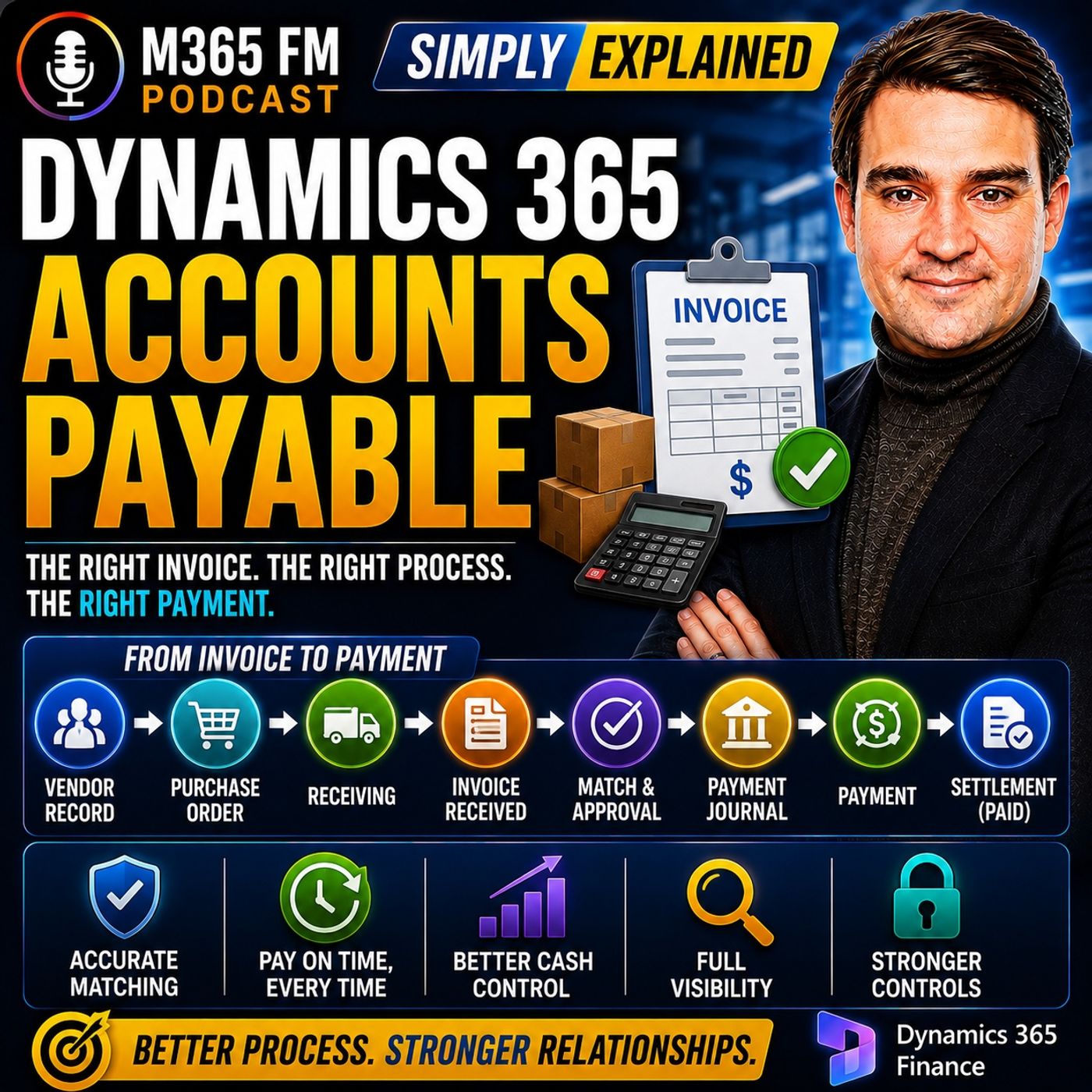
Dynamics 365 Accounts Payable - Simply Explained
Show notes
A supplier invoice arrives. The goods may already be sitting in your warehouse or the service may already be complete—but what actually needs to happen before money leaves the company? https://www.m365.fm/categories/dynamics-talk/ Accounts Payable connects vendor records, invoices, purchase orders, receiving, invoice matching, approvals, payment runs, bank accounts, and settlement into one controlled financial process. In https://www.m365.fm/dynamics-365-accounts-payable-simply-explained/ of M365 FM, Mirko Peters explains how https://www.m365.fm/dynamics-365-finance/ manages the complete journey from receiving a vendor bill to recording the final payment. WHAT IS DYNAMICS 365 ACCOUNTS PAYABLE? Accounts Payable tracks money your company owes vendors for goods and services it has already purchased. Think of it as the payment office inside a large company. Bills arrive, somebody verifies them, the appropriate people approve them, finance determines when they should be paid, and finally the payment is sent to the supplier. Dynamics 365 keeps these individual activities connected so finance can follow the complete history of each vendor invoice. WHY ACCOUNTS PAYABLE MATTERS Most businesses don't pay suppliers immediately when they place an order. A supplier delivers goods or completes a service and then sends an invoice. The company now owes that amount, but the money hasn't left the bank account yet. That unpaid amount becomes a liability. A business can therefore have significant cash in its bank account while simultaneously owing substantial amounts to suppliers. Accounts Payable gives finance visibility into both what has already been paid and what will need to be paid in the future. ACCOUNTS PAYABLE VS ACCOUNTS RECEIVABLE The names sound similar, but they represent opposite sides of company cash flow. Accounts Payable = Money your company owes vendors. Accounts Receivable = Money customers owe your company. If your company buys printers from a supplier, the supplier invoice belongs in Accounts Payable. If your company sells desks to a customer and sends them an invoice, that customer invoice belongs in Accounts Receivable. One tracks money leaving the business. The other tracks money expected to enter it. THE GOAL OF ACCOUNTS PAYABLE The objective is straightforward: Pay the right vendor, the right amount, on the agreed date. Paying too early reduces available cash sooner than necessary. Paying too late can create supplier problems, reminders, disputes, or less favorable payment terms. Paying the wrong amount creates additional administrative work. Dynamics 365 provides the records and controls finance teams need to manage these decisions consistently. THE VENDOR RECORD Before Dynamics 365 can process an invoice, it needs to know who should receive the money. The vendor record acts as the supplier's file inside Dynamics 365. It can contain the vendor's name, address, contact information, currency, payment terms, payment method, and other financial settings. These settings don't simply describe the supplier. They influence what happens later when invoices and payments are processed. PAYMENT TERMS Payment terms determine when an invoice becomes due. One supplier might require payment within 14 days. Another might allow 30 days. Some vendors may offer discounts for early payment. Dynamics 365 uses the configured payment terms to calculate invoice due dates. That means employees processing invoices for the same vendor don't need to remember individual agreements or search old emails to determine when payment is required. PAYMENT METHODS Payment terms answer when the supplier should be paid. Payment methods answer how the money should reach them. Depending on the organization's processes, vendor payments can use methods such as electronic payments, cheques, or promissory notes. Dynamics 365 allows organizations to configure payment methods according to the financial processes they actually use. VENDOR GROUPS Large organizations can have hundreds or thousands of vendors. Creating every financial setting independently for every supplier would create unnecessary work and increase the risk of inconsistent configuration. Vendor groups allow organizations to group suppliers sharing common finance rules. The individual vendor still maintains its own identity and transaction history, while the group provides a common starting point for shared financial configuration. VENDOR POSTING PROFILES Posting profiles tell Dynamics 365 where vendor transactions belong in the General Ledger. When an invoice is posted, Dynamics 365 needs to record what the organization owes while also connecting the transaction with the appropriate financial accounts. The posting profile provides the accounting map behind this process. Finance employees therefore don't need to manually determine the relevant vendor ledger account every time they process an invoice. HOW VENDOR INVOICES ENTER DYNAMICS 365 Invoices can enter the Accounts Payable process in several ways. A finance employee can manually enter information from an invoice received through email, paper, or another channel. The invoice record can contain the vendor, invoice number, invoice date, currency, amounts, lines, tax information, purchase order references, and supporting documents. For higher invoice volumes, invoice information can also enter electronically through data entities and connected invoice-processing solutions. INVOICE NUMBERS AND DUPLICATE DETECTION The vendor's invoice number is particularly important. Suppose Northwind Office Supplies sends invoice NWO148. If the same invoice enters the system again, Dynamics 365 can use the combination of vendor and invoice number to identify a potential duplicate. This matters because suppliers sometimes resend invoices when they aren't sure the first copy arrived. Employees can also accidentally process the same document twice. Duplicate detection helps prevent the same bill from being paid twice. INVOICE ATTACHMENTS Supporting documents can remain connected with the transaction. A PDF invoice, scanned document, or other supporting paperwork can be attached to the invoice record. The finance employee reviewing the transaction can therefore compare the information entered into Dynamics 365 with the original document without searching through shared mailboxes or filing cabinets. This also creates a clearer record when somebody needs to review the transaction later. AUTOMATED INVOICE IMPORT Organizations processing large numbers of invoices don't necessarily need employees to manually type every invoice. External invoice capture systems can send invoice information into Dynamics 365 using data entities. The invoice header contains information such as the vendor, invoice number, dates, currency, total amount, and purchase order reference. Invoice lines explain exactly what the supplier is charging for. Supporting documents can travel alongside the structured invoice information. VENDOR INVOICE POLICIES Before an invoice proceeds, Dynamics 365 can check whether it follows the organization's configured rules. Missing vendors, invalid dates, duplicate invoice numbers, incorrect totals, or imported data problems can prevent an invoice from proceeding normally. The objective isn't to automate every decision. Automation handles routine checks while finance employees investigate exceptions requiring human judgment. INVOICE APPROVAL WORKFLOWS Workflow determines who needs to approve an invoice. Instead of emailing a PDF to a manager and waiting for somebody to respond, Dynamics 365 can route the invoice according to predefined organizational rules. A small invoice might require a simple approval. A large invoice might require a senior manager. An invoice associated with a particular department can be routed toward the manager responsible for that department. The approval route follows configured rules instead of relying on somebody remembering who should receive the invoice. AUTOMATION AND EXCEPTIONS Invoices that satisfy established rules can move through routine parts of the process more efficiently. Invoices containing problems become exceptions. Perhaps the vendor is missing, an invoice number already exists, or imported information contains an error. Finance employees can investigate those exceptions rather than spending the same amount of time manually checking every invoice. The system handles repetition. People handle situations requiring judgment. INVOICE MATCHING Approval answers: Has the appropriate person approved this invoice? Invoice matching answers another question: Does the supplier's invoice agree with what the company actually ordered and received? When a purchase originates from a purchase order, Dynamics 365 already has information describing the agreed vendor, products, quantities, prices, and terms. That gives finance something concrete against which the vendor invoice can be checked. PURCHASE ORDERS A purchase order records what the organization agreed to purchase before the invoice arrives. Suppose the company orders ten office chairs at an agreed price. The purchase order establishes that agreement. When the supplier invoice eventually arrives, finance can compare the bill against the original purchase order instead of reviewing the invoice without any purchasing context. PRODUCT RECEIPTS For physical goods, another important record exists: the product receipt. When goods arrive, warehouse employees record what was actually received. If ten chairs were ordered but only eight arrive because two are backordered, the product receipt can Become a supporter of this podcast: https://www.spreaker.com/podcast/m365-fm-microsoft-365-azure-cloud-power-platform-ai--6704921/support.
Apple Podcasts · Spotify · YouTube · Deezer
Host: Mirko Peters
Guests
Related articles
Transcript
Read the full transcript
a supplier's invoice lands on your desk. The goods might already be in the warehouse or the service already complete, but the payment clock starts ticking right away. So what actually happens before the money leaves the company? Welcome to another knowledge nugget from M365, FMI Mercopedas, and today we're looking at Dynamics 365 Accounts Payable in plain English. This isn't just a place where someone types bills into a screen. It's the finance office of the business, checking each bill, who's centred, what the company agreed to buy, and whether it should be paid. Here's the simplest definition. Accounts Payable is the money your company or those vendors for goods or services you've already bought. Think of it like the payment office inside a large building. Bills arrive at the front desk, get checked against the company's records, move through approval, and only then reach the person who releases payment. We'll follow that path from the vendor record all the way to the final paid stamp. Dynamics 365 calls that settlement. Why Accounts Payable exists? Imagine you run a small company that sells office furniture. You need desks before you can sell them, and you also need packing boxes, cleaning services, internet access, replacement parts, and maybe a delivery company. If you had to pay every supplier the second you ordered something, buying anything would become very difficult very quickly. Most businesses buy first and pay later under agreed terms. A supplier delivers the goods or finishes the work then sends an invoice their bill. Your company now owes that amount, but it doesn't send the money without checking the details first. That unpaid amount sits on the company's books as a liability. Liability can sound like a scary finance word, but the meaning is simple, oh, it's an amount the company owes somebody else. If your business receives a bill for office supplies and hasn't paid it yet, that bill belongs in accounts payable until payment clears it. The company still has the cash for now, but it also has a promise to keep. This matters because a business can look healthy in its bank account while still carrying a pile of unpaid bills. Finance teams need to see both sides, how much cash sits in the bank, and how much of that cash will soon need to leave. Before connected finance systems, this job often turned into a paper chase, an invoice might arrive by post, sit on someone's desk, then travel through internal mail for approval, while another invoice sits in an email inbox. Someone could type the same bill into a spreadsheet, while another person entered it into an accounting system. That creates familiar problems. A manager misses an approval email, a bill gets paid late, or a supplier sends the same invoice again, and nobody notices it already reached the finance team. Verse it might get paid twice because the paper copy and email copy looked like separate bills. Dynamics 365 gives the company one place to track this work. It records what the company owes, helps people check invoices, and keeps it clear path from the bill arriving to the bill being paid. That doesn't mean every invoice moves without human review. A finance team still decides when something looks wrong, but the system gives them the records and rules to make that decision without chasing paper around the building. You might also hear accounts receivable in the same conversation. The names sound almost identical, but they face opposite directions. Accounts payable tracks. Money leaving your company because you owe vendors. Accounts receivable tracks money arriving at your company because customers owe you. If your company buys printers from a supplier, that bill enters accounts payable. If your company sells desks to a customer and sends them an invoice, that customer bill enters accounts receivable, so payable tracks what you must pay, while receivable tracks what others must pay you. Accounts payable aims for a very practical result. Pay the right vendor, the right amount, on the agreed date. Pay too soon and the company loses cash earlier than it needs to. Pay too late and a supplier may chase the payment or stop giving favorable terms. Pay the wrong amount and someone has to untangle the mistake later, often with emails, credit notes and a lot of frustration. So before any invoice can travel through this process, Dynamics 365 needs to know exactly who the vendor is and what rules apply to that relationship. Building the vendor foundation. So before Dynamics 365 can process a single bill, it first needs to know exactly who sent it. That's where the vendor record comes in. Without one, the system doesn't know who to pay or what rules to follow. A vendor could supply something physical, like paper, laptops or spare parts. They might also provide a service, like accounting or software support. The product changes but the role stays the same. This is the part your company may need to pay. Think of the vendor record as the supplier's file inside Dynamics 365. It stores the basic details your finance team needs but it also sets rules that control what happens later. You fill in the vendor's name, address and contact info so the company knows exactly who it's dealing with. You can also record the currency used for invoices and payments which makes a big difference when you buy from suppliers in different countries. Now for the payment details. A vendor record can include payment terms and a payment method. These might look like small fields on a screen but they answer very practical questions. When should this supplier get paid and how should the company send the money? Payment terms set the due date rule. Some suppliers let you pay 30 days after the invoice date. Others want payment within 14 days. A few even offer a discount if you pay early. Dynamics 365 uses the terms you've recorded to automatically calculate when each invoice becomes due. Nobody has to remember the agreement. This creates consistency. If five different people process invoices for the same vendor they all follow the same payment rule. No one needs to dig through old emails or call the purchasing team just to ask when a bill should be paid. The payment method describes how the money gets there. Your company might pay one vendor by electronic transfer another by check. In some cases, a business can also use promissory notes. Dynamics 365 lets you define your own payment methods while linking them to system types where needed. Now, companies usually deal with more than one vendor. A growing business could have dozens, hundreds, or even thousands. Creating every setting from scratch for each one would waste time and invite mistakes. That's why Dynamics 365 uses vendor groups. A vendor group collects vendors that share the same broad finance rules. For example, you might put local office supply vendors in one group and overseas stock suppliers in another. The group carries shared settings for how transactions post, how payments and settlements work, and how the company reports on those vendor balances. You still keep a separate vendor record for each supplier. That's important because each supplier needs its own name, address, payment details, and history. The vendor group just provides a common starting point, so finance doesn't have to rebuild the same rules again and again. Behind the scenes, there's another piece called the vendor posting profile. The name sounds technical, so let's put it in plain English. A posting profile is a map that tells Dynamics 365 where vendor transactions belong in the general ledger. The general ledger is the company's main book of financial accounts. When an invoice posts, Dynamics 365 needs to record both what the company owes and where the related cost belongs. The posting profile guides the vendor side of that accounting entry using the rules you've set for the vendor or vendor group. Finance staff don't need to choose those ledger accounts from memory every time. Instead, the system follows the map. That reduces inconsistent entries and gives the finance team a much cleaner view of vendor debt. The company also prepares the payment side before invoices arrive. In cash and bank management, you set up the bank accounts that will fund vendor payments. Payment journals give finance staff a working area to prepare and record those payments using approved methods. So to recap, the vendor record identifies who receives money, the payment terms decide when it's due and the payment method and bank account shape how it leaves the company. With those rules ready, an invoice can enter the finance office and begin its journey. From invoice arrival to approval. With the vendor record in place, Dynamics 365 now knows who to pay and under what rules. So what happens when an actual invoice arrives? Sometimes the finance clerk enters it by hand. This works when an invoice comes via email, paper, or a vendor portal and someone needs to type the details into the system. The clerk selects the vendor, enters the invoice number and date, then adds the lines, amounts, tax, and any purchase order reference that belongs with the bill. The invoice number deserves attention. It comes from the vendor, not your company, and it helps identify that specific bill. If an invoice for $1,200 arrives from Northwind Office supplies with number NW-148, Dynamics 365 can use that number with the vendor record to catch a duplicate entry. Attachments belong with the record too. The PDF invoice, a scanned document, or supporting paperwork can sit alongside the invoice in Dynamics 365. That means the person reviewing the record can see the document behind the numbers without rummaging through a shared mailbox or filing cabinet. For larger volumes, invoices can enter electronically. Dynamics 365 supports importing invoice data through data entities. Think of a data entity as a standard form that another system can fill in before sending the information into Dynamics 365. An outside invoice capture service, for example, can send the invoice header, lines, and document attachment all in one data package. The header holds the main bill details, a/vender, invoice number, dates, currency, total amount, and purchase order reference. The lines explain what you are charged for. One line might cover printer paper, another toner, and another delivery. Keeping those details separate helps finance staff see exactly what they're approving. Tax information travels with the invoice too. Dynamics 365 needs the tax amount and related details, so the company records the bill correctly. A few things can stop an invoice from moving forward without review, a missing vendor, an invalid date, a repeated invoice number, or a total that doesn't match. That pause protects the company. A vendor invoice policy checks whether the invoice follows the rules your company has chosen. Duplicate checks look for a bill that seems familiar like the same vendor and invoice number already recorded. The goal isn't to accuse the vendor of doing something wrong. Vendors may resend because they're not sure it arrived. A clerk might enter the same PDF twice by mistake. Either way, paying the same bill twice creates work nobody wants. Once Dynamics 365 accepts the invoice, the next question is simple, who's allowed to approve it. That's where workflow comes in. Workflow is the approval route inside the system. Instead of a clerk emailing a PDF to a manager and hoping it comes back, Dynamics 365 sends the invoice to the person or role your company rules specify. Each organization decides those rules based on how they want money decisions handled. A small routine invoice might follow a short route and invoice above a certain amount might need a senior manager. A bill tied to a specific department can go to that department's manager. You can even create different approval paths for different vendor types like stock suppliers, service vendors or contractors. The route follows the rule, not someone's memory. This makes approvals much easier to track. Finance can see whether an invoice is waiting for review, has been approved or needs more information. The person approving can check the bill and decide if it belongs to their department and if the charge looks right. Some invoices meet every rule and move ahead automatically. The vendor is known, the imported details are complete and the invoice passes the policy checks. Those invoices don't need someone to repeat the same basic checks each time. Other invoices become exceptions. Maybe the vendor account is missing. Maybe the invoice number already exists. Maybe an imported line has an error. Dynamics 365 keeps those invoices in an import failures list where finance staff can see the error message and fix the problem before creating a pending invoice. The document still matters during review. Dynamics 365 includes an attachment viewer on invoice pages so the finance person can look at the invoice image right beside the record they're fixing. No need to switch between screens just to confirm whether a vendor typed 6,000 or 8,000 on the original bill. Automation handles the routine movement. People handle the questions. Approval confirms that the right person agreed to move the invoice forward but it doesn't yet prove the vendor bill for exactly what was ordered or received. For that, Dynamics 365 compares the paperwork. Invoice matching. Checking what the company ordered approval confirms the right person has looked at the invoice. But matching answers a different question. Does the invoice agree with what the company actually agreed to buy? When a purchase starts with a purchase order, Dynamics 365 has a record to check against. Think of a purchase order as the company's order slip O. It records the vendor, what was requested, the quantity, the price and the terms. Someone in purchasing creates that order before any bill arrives. Why does this matter? The purchase order captures the agreement before the invoice shows up. Without it, a finance person sees just a bill in a vendor name. With it, they can compare the supplier's charge against the original request. For physical goods, there's another record that matters. When a delivery arrives, the warehouse team records a product receipt which is proof inside Dynamics 365 that the goods reached the company, including the quantity. It doesn't mean every item was perfect, but it records what was received against that order. Imagine a company ordering 10 office chairs that the purchase order lists 10 chairs at an agreed price. But when the truck arrives, the warehouse counts only eight because two are on back order. The receiving team posts a product receipt for eight, then the supplier sends an invoice for 10 chairs, which may be correct from their perspective if they build a full order before the last two ship. But now your company has a difference. Order 10 received eight, build for 10. Dynamics 365 can catch that difference through invoice matching. Two-way matching compares the purchase order with the vendor invoice, checking whether the bill lines up with the order on price and quantity. This works for purchases where checking the original order gives enough control. It catches a vendor billing a higher price or more units than ordered. But it doesn't check whether the goods actually arrived because it only compares two records, the purchase order and the invoice. Three-way matching adds the product receipt. So Dynamics 365 now compares the purchase order, the product receipt and the invoice together. In our chair example, the system sees the order for 10, the receipt for eight and the invoice for 10. And that difference becomes a reason to pause the invoice rather than let it move through. For companies buying stock, equipment, or large quantities of physical goods, this check gives finance stronger control by helping avoid paying for items that never arrived or paying for more than received. Purchasing confirms the agreement, receiving confirms what came through the door and the vendor invoice asks for payment, oh, all three records need to tell the same story. Small differences happen in real business. A price might differ because of rounding or a supplier might include a minor allowed change in quantity. If every small difference stopped an invoice, finance teams would spend too much time clearing harmless issues. So Dynamics 365 lets a company set matching policies and tolerance limits. A tolerance is an allowed difference and the company decides what amount or percentage it can accept for price, quantity, total, or related charge. Anything inside that limit moves forward under the company's rules, while anything above gets flagged for review, the company decides those limits. A business might allow a small difference on low cost office supplies, but set much tighter limits for expensive machinery. The system doesn't decide what feels reasonable AU finance and purchasing set the rule and Dynamics 365 applies it consistently. This changes how the finance team spends its time. Instead of checking every clean invoice line by line, they can focus on exceptions are investigating the invoice where the price changed, the receipt is missing, or the quantity doesn't line up. Clean invoices still follow the rules, but people spend their attention where a decision is needed. That's the real value of matching. It lets the system handle routine checks while humans handle the questions that need judgment. That's not the system replacing judgment. It's sorting routine checks from real questions. One point can cause confusion. Standard Dynamics 365 matching supports two-way and three-way matching. If a company needs four-way matching, perhaps adding another check like an inspection record that takes extra work through customization or another solution. So matching has a clear job AU. It compares the supplier's bill with the company's own buying and receiving records then points out gaps before payment. Once an invoice passes its review and matching checks, it becomes an amount the company owes and can plan to pay, paying vendors and setting the books. After an invoice passes the checks your company requires Dynamics 365 can post it. Posting means the invoice becomes an official finance record, and the company now records an amount it owes to that vendor with the bill appearing as unpaid until a payment clears it. The invoice is ready, but that doesn't mean money leaves immediately. Finance teams need to decide which invoices to pay in a payment run. Dynamics 365 helps with a payment proposal which looks at invoices that are due and suggests which ones belong in the run based on the rules the company chose. A payment proposal is a starting list that someone still reviews AU perhaps a vendor invoice falls due this week while another can wait until later in the month under its agreed terms. The finance team checks the proposed invoices, removes or adds items where needed, then prepares the payment journal. This way, payments are grouped and controlled rather than sent out in a scattered way. Think of the payment journal as the company's payment worksheet. It lists the vendor payments the company plans to send, the amounts and the payment details. Finance staff use it to prepare a controlled batch of payments rather than sending money one invoice at a time with no shared record. How does the money leave? That depends on the payment method set up for the vendor and the company. Dynamics 365 lets the company create its own payment methods and connect them with payment types such as checks, electronic payments or promissory notes. A check is familiar, an electronic payment sends money through the company's bank process. A promissory note records a formal promise to pay under agreed conditions. Not every business uses every method, but Dynamics 365 gives the company a way to record the route it uses. Each payment method also needs to point to the right company bank account. That connection matters because a business may hold separate accounts for different legal entities, currencies or payment purposes. When finance prepares a payment, the system needs to know which bank account funds it, otherwise staff could create a correct payment against the wrong account. Payment timing needs care too. Paying after the due date can lead to reminders, disputes or a damaged relationship with a vendor. Paying too early sends cash out before the company needs to release it. Dynamics 365 keeps the invoice due date visible so finance can plan payments around the terms it agreed with each vendor, giving the company more control over cash leaving the business. Once the payment goes out, Dynamics 365 needs to answer a simple question, which invoice did that payment cover? The answer is settlement are you. Settlement links the payment to the specific vendor invoice or invoices it pays. Think of it as matching a receipt to the bill it clears. Without settlement, a company might see an invoice and a payment on the same vendor account but still have no clear record that they belong together. A full payment settles the full invoice, but business isn't always that neat. A company may pay only part of an invoice now and the rest later. Settlement records the partial payment and leaves the remaining balance open, so finance can see exactly what the vendor is still owed. This visibility is crucial for accurate vendor balances. One payment can also cover several invoices. Perhaps a company pays five due invoices from the same vendor in a single electronic payment. Settlement connects that one outgoing amount to each invoice it clears. If the payment doesn't cover every invoice in full, the open balance remains clear rather than disappearing into a confusing total. This creates a traceable record all you can follow the invoice through its approval and matching result, see the payment prepared in the journal and see how that payment settled the vendor's balance. When someone asks why money left the company, finance doesn't need to reconstruct the story from emails and bank statements. The process may appear across separate pages in Dynamics 365, but each record connects to the next as one controlled flow. The connected accounts payable picture. Imagine you receive one invoice for office supplies. The vendor record holds the payment rules and the imported invoice brings in the bill details plus the document itself. Purchasing provides the purchase order, receiving provides the receipt, so the matching process has real records to compare. Now behind the scenes, the posting profile puts the debt and expense into the correct GL accounts. Cash and bank management controls, which payment method you use and which bank account sends the money. The attachment stays with the transaction, so you can always pull up the original invoice later for verification. Automation doesn't replace the finance team's judgment, oh, it just removes the repeated checks on invoices that already follow the rules. People still handle the exceptions that need a human eye. You can extend this with power automate as your AI, SharePoint and Power BI to bring in documents, store them, send notices or build reports. But Dynamics 365 accounts payable is where the vendor, debt, invoice, payment and settlement are actually recorded. Keep the simple picture in mind. The vendor record is the supplier folder. The invoice is the bill, matching is the proof check, workflow is the approval route, and settlement is the paid stamp. That's how accounts payable protects the company before payment and keeps the books accurate afterward. Conclusion, one bill, one clear trail. So Dynamics 365 accounts payable turns every vendor bill into a tracked path-au from invoice arrival through checking, approval, payment and settlement. Subscribe for more knowledge nuggets with me, Mirko Peters on M365, FM, then watch the accounts receivable episode to see the other side of company cash flow. The money customers still owe you.