 EN
EN Deutsch
 Español
 Français
 Italiano
 Português
 Nederlands
 Polski
 Bahasa Indonesia
 Русский
 Українська
 العربية
 עברית
עברית हिन्दी
 日本語
日本語 한국어
한국어2026-08-18 · Season 3
Dynamics 365 Remote Assist - Simply Explained
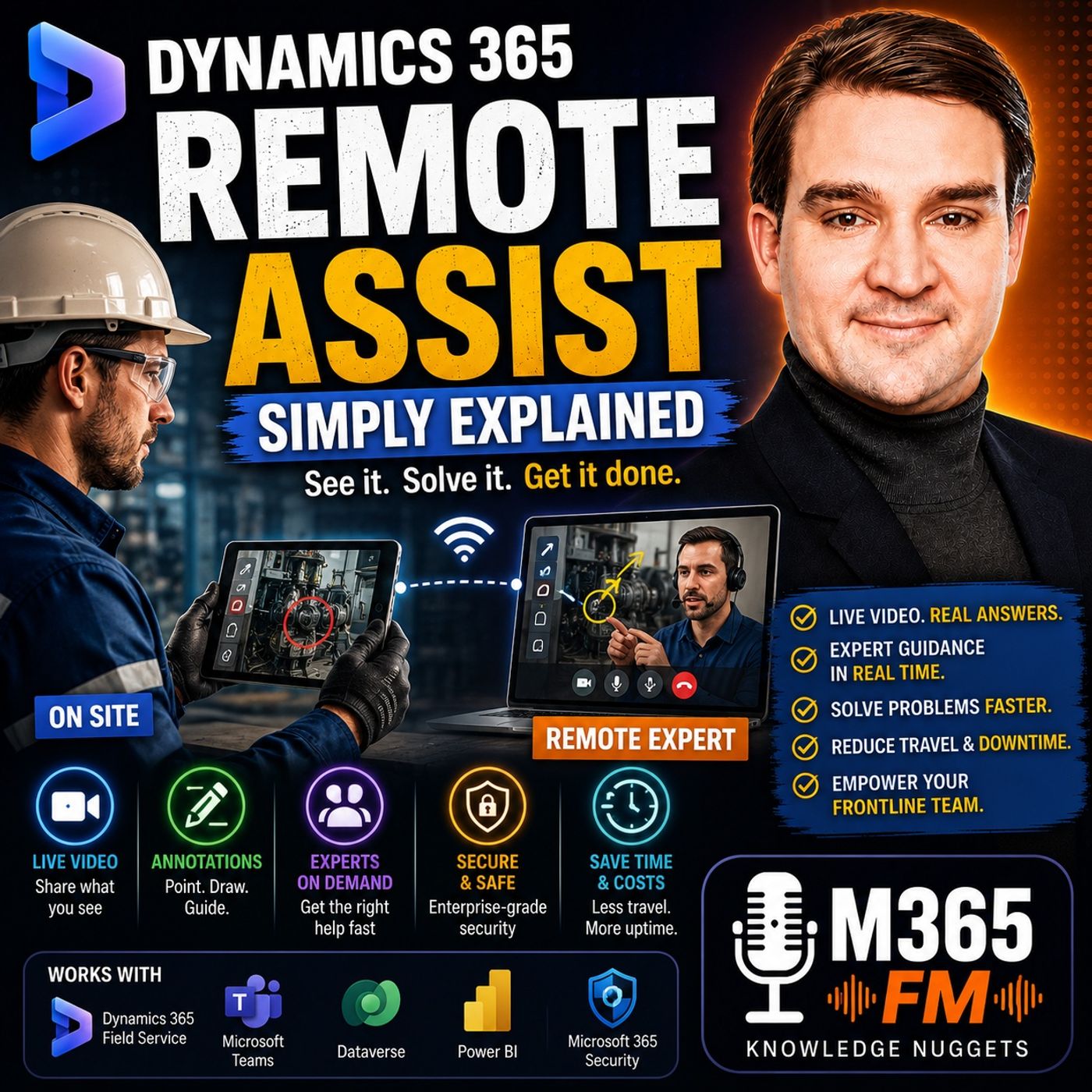
Show notes
A machine stops in the middle of a shift. The technician standing beside it can see the problem, but the person with the deepest knowledge of that machine may be hundreds or thousands of kilometers away. Traditionally, solving that problem could involve telephone calls, photographs, emails, unclear descriptions, repeated questions, or eventually sending a specialist to the site. The challenge is not necessarily that expertise does not exist. The challenge is getting that expertise to the place where the work is happening. In this episode of Microsoft Knowledge Nuggets on M365 FM, Mirko Peters explains Microsoft Dynamics 365 Remote Assist in plain English and explores how frontline workers can connect with remote experts through live video, visual guidance, Microsoft Teams, mobile devices, mixed reality, and connected Dynamics 365 processes. We look at how Remote Assist supports field service, manufacturing, maintenance, inspections, troubleshooting, training, remote collaboration, Microsoft Teams, Dynamics 365 Field Service, Microsoft 365 identity and security, and mixed reality scenarios. The central idea is simple: instead of trying to describe a physical problem to someone who cannot see it, let the expert see what the frontline worker sees. THE PROBLEM WITH REMOTE TECHNICAL SUPPORT Many frontline jobs happen far away from a desk. Maintenance employees work beside production equipment. Field technicians visit customer locations. Inspectors examine physical components. Engineers install machinery. Service teams troubleshoot equipment in warehouses, factories, offices, hospitals, or other facilities. When something unexpected happens, the employee on site can see the problem directly. They might hear an unusual sound. They might notice a loose cable. A warning light might appear. A component may not fit correctly. The difficulty begins when the employee needs help from someone who is somewhere else. The remote expert cannot initially see any of those details. The technician has to translate a physical situation into words. That translation creates opportunities for misunderstanding. WHY PHONE SUPPORT HAS LIMITATIONS Imagine calling an expert and saying: "There's something wrong with the connector at the back." The sentence makes perfect sense to the technician standing beside the machine. But the remote expert immediately has several questions. Which connector? Which side of the machine? What is connected to it? What does the surrounding equipment look like? Is there visible damage? Is another component positioned incorrectly? The technician describes the situation. The expert tries to reconstruct the machine mentally. Both people may eventually understand each other, but valuable time can disappear simply establishing which physical object they are discussing. Dynamics 365 Remote Assist was designed to reduce that gap by creating a shared visual context. PHOTOS ARE USEFUL BUT STATIC Photographs improve remote support because the expert can finally see something. But a photograph represents one moment from one angle. The expert might reply: "Can you send another picture from the side?" The technician takes another photograph. Then the expert needs a close-up. Another photograph. Then they need to understand where that component sits relative to another part. Another photograph. Meanwhile, the technician may have moved, removed another panel, or discovered a different problem. Live video changes this interaction because the expert can ask the technician to move the camera immediately. Instead of exchanging snapshots of the problem, both people can explore the physical environment together. WHAT IS DYNAMICS 365 REMOTE ASSIST? Dynamics 365 Remote Assist is a Microsoft application designed to connect a frontline worker with a remote expert while keeping the conversation focused on the physical work being performed. The worker can share live video of the equipment, environment, or problem. The remote expert sees the same physical scene and can provide guidance while the technician remains beside the equipment. The worker might use a supported smartphone or tablet. For appropriate hands-free scenarios, supported mixed reality headsets can provide another experience. The objective is not to make the remote expert physically present. It is to give that expert enough visual context to provide more useful assistance without immediately traveling to the location. ㅤ LIVE VIDEO CHANGES THE SUPPORT CONVERSATION Imagine an expert sitting in a central support office. Without Remote Assist, they might receive a service ticket containing several sentences and a photograph. They need to interpret the problem from that limited information. With Remote Assist, the worker's camera becomes a window into the work environment. The technician can show the complete machine. Then the control panel. Then the component producing the problem. The expert can ask the technician to move closer, change the viewing angle, show a label, follow a cable, or inspect another component. The conversation becomes interactive. The expert no longer needs to imagine the physical environment entirely from a written description. USING REMOTE ASSIST ON MOBILE DEVICES Not every remote support scenario requires mixed reality hardware. Supported smartphones and tablets can provide a practical option for many everyday service situations. A field technician can take out a device, contact an expert, show the equipment, receive guidance, and continue working. This makes Remote Assist relevant to organizations that want visual remote support without deploying specialized headsets to every employee. For quick inspections, customer-site troubleshooting, equipment identification, or occasional expert assistance, familiar mobile devices can be sufficient. The important element is not the device. It is the shared visual context. MIXED REALITY AND HANDS-FREE SUPPORT Mixed reality becomes particularly interesting when employees need both hands available. Imagine a technician working inside a machine while holding tools. Repeatedly putting down the tools to pick up a smartphone interrupts the process. With an appropriate mixed reality headset, the worker can continue looking at the equipment while the remote expert sees the worker's perspective. The technician's hands remain available for the task. Guidance can remain connected to the physical work environment. This makes hands-free remote assistance potentially useful for complicated maintenance, manufacturing, inspection, and service processes. MICROSOFT TEAMS AND REMOTE ASSIST Microsoft Teams plays an important role in the Remote Assist experience. Teams provides familiar communication capabilities including calls, meetings, chat, and contacts. Remote Assist uses that communication foundation while focusing the interaction on frontline work. A technician can connect with an expert already working within the organization's Microsoft environment. Another specialist can potentially join when additional expertise becomes necessary. The organization does not necessarily need to build a completely separate communication network specifically for remote support. The people employees already collaborate with through Teams can become part of the support process. REMOTE ASSIST VS A NORMAL TEAMS CALL At first glance, Remote Assist may sound like a Microsoft Teams video call. There is an important difference. A traditional Teams meeting primarily connects people. Remote Assist focuses that connection on the physical work environment. The remote expert is not simply watching another person's face through a webcam. They are looking at the machine, equipment, installation, component, or physical environment the frontline worker is trying to understand. Visual guidance can then help both people focus on the same physical object. That makes the conversation considerably more useful for hands-on technical work. VISUAL ANNOTATIONS One of the most useful concepts behind Remote Assist is visual annotation. Imagine an electrical cabinet containing several rows of nearly identical connectors. The remote expert says: "Check the connector beside the blue cable." There may still be several possible components. Instead, the expert can visually indicate the relevant area. They might circle a connector, place an arrow near a switch, or mark another part of the scene. The technician can then see exactly which area the expert is discussing. A small visual mark can eliminate several minutes of verbal explanation. This becomes particularly valuable when machinery contains many visually similar components Become a supporter of this podcast: https://www.spreaker.com/podcast/m365-fm-microsoft-365-azure-cloud-power-platform-ai--6704921/support.
Apple Podcasts · Spotify · YouTube · Deezer
Host: Mirko Peters
Guests
Related articles
Transcript
Read the full transcript
A machine stops in the middle of a shift. The person standing right next to it can see the problem, but the person who knows that machine best could be in a different city or even a different country. For years, the next step meant phone calls, photos, unclear descriptions, and sometimes a long trip for a question that could have taken five minutes to answer in person. Yautimim Mirko Peters from Microsoft Knowledge Nuggets on M365 FM. In plain English, we would TML look at what Dynamics 365 remote assist does, who it helps and how the parts fit together. Here's the thing, the problem starts before anyone even opens an app, thus says, "The problem, remote, help, without shared context." Think about the jobs people do away from a desk, a maintenance worker repairing equipment on a factory floor, a field technician visiting a customer site, an inspector checking apart for damage, or someone installing new equipment who runs into a step that just doesn't look right. These jobs involve real objects, real places, and often real pressure. Someone on site can see the problem directly, oh. They can hear an odd sound from the machine, notice a loose wire, spot a warning light, or see that a part doesn't fit the way it should. But here's the thing, the expert helping from a fast sees none of that at first. What they hear is something like, the panel is showing an error, or there's a connector near the back that looks wrong. That might sound clear to the person standing there, but it leaves a lot open to guesswork for the person on the other end, which panel and which connector how close is it to the other parts, and is there any damage around it? A phone call helps, but only up to a point. The worker tries to describe what they see while the expert tries to build a picture in their head. Sometimes they understand each other right away, but often they spend several minutes just trying to find the same part. Photos improve the situation, but they freeze one moment in time. The expert might ask for another photo from the side, then one closer in, then one that includes the label, though. But by the time those arrive, the worker may have already moved to another spot, put a cover back on, or found a new question. Chat messages create the same gap. You can send a part number, write down an arrow code or attach a photo, but the expert still can't look around the work area and respond to what changes in front of them. A normal video meeting gets closer because both people can see live video. But a general video call wasn't built around someone doing hands-on work with equipment, tools, safety gear, and limited time. The person on-site may need both hands free, and they may need the expert to point to a specific switch, screw or cable instead of saying, "No, the other one, a little to the left." And if the machine has stopped, every minute can affect the people waiting to use it. There's a cost question, too. Many companies have a small number of people who know the hardest equipment or the rarest faults, and sending one of those people to every site takes time, costs money, and pulls them away from the next urgent job. But sometimes the trip is needed because a remote expert can't physically replace a part or carry out a safety check. Still, plenty of calls begin with a smaller question. Can you see what I'm looking at? Safety adds another layer. When someone works around electrical panels, heavy machines, or customer equipment, guessing is a bad plan. The worker needs clear guidance, and the expert needs a clear view before they advise the next step. That shared view changes the conversation. Instead of trying to translate a physical problem into a string of messages, the worker can show the equipment, the room, or the task as it happens, and the expert can respond to the same scene in real time. Dynamics 365. Remote Assist turns that shared view into a working conversation, because your answer is, "What Dynamics 365 remote assist actually is so?" "What exactly is Dynamics 365 remote assist?" In plain English, it's a tool that lets a frontline worker call a remote expert and share live video from wherever the worker is happening. The expert sees the same physical scene the worker is looking at and can guide them on the spot. It puts a skilled person within reach, even when they can't be in the same room. The worker holds up a phone or tabletop or wears a supported mixed reality headset, "Oh, and the expert joins from their computer." The expert doesn't magically travel through the screen, but they can see the equipment, ask questions while they look, and give guidance based on the actual situation, and not a description typed up later. Now, many people hear the name and expect something more automatic. Remote Assist isn't a repair manual that hands you every answer. It's not a robot that diagnoses a machine on its own, and it definitely doesn't replace the trained person who has to do the work safely on site. People still do the thinking. The technician decides what they're seeing, the expert uses their knowledge to help diagnose the issue, and the person on site follows local safety rules, uses the right tools, and knows when to call for a physical visit or a different skill level. Remote Assist gives those people a better way to work together. Here's the thing, imagine an expert sitting in a support room many miles away, in the old setup that person might receive a ticket, read a few notes, open a photo, and try to picture a machine they can't see. With Remote Assist, the camera becomes their window into the work area. It's a live video call, but it lives inside the worker's real environment. The worker can point the camera at a control panel, walk around an asset, show a label, or zoom in on a small part that needs checking, that changes the kind of help the expert can give, instead of trying to explain where something is with long directions, they can look at the scene and guide the worker while the task is still right in front of them. The conversation stays connected to the physical object, not just a chat window or a written ticket. You can use Remote Assist on supported mobile devices for many everyday cases. A phone or tablet works well for a worker who needs to quickly show an issue, check something with an expert and move on. The device is already familiar, and it fits naturally into a visit, inspection, or repair job. For work where hands need to stay free, supported mixed reality headsets take a different role. The worker wears the headset and sees the work area directly. While the remote expert sees through the worker's view, guidance appears where the worker is looking, rather than forcing them to put down a tool and pick up a screen every few minutes, the device doesn't define the purpose. Whether someone uses a tablet or a headset, remote assist exists to connect a person doing hands-on work with a person who can help them make the next decision. Microsoft Teams sits close to this experience. Teams handles the usual ways of working with people or calls, chat, contacts meetings. That means Remote Assist can connect frontline workers with experts inside their company and in the right setup even with people outside it, you're not building a separate world of contacts just for one support call. The people you already work with through Teams become the people you call when a job needs another set of eyes. A worker can reach a known specialist, bring a colleague into the conversation and continue the discussion in a place that feels familiar, but Remote Assist adds something beyond a normal video meeting. A standard call lets you see a person's camera. Remote Assist focuses that connection on the real work scene so the expert can guide attention inside that scene instead of only describing what they mean with words. The expert can point out an area, draw a mark, or place a note where the worker needs to look. That sounds like a small difference on paper. But during a repair, it can remove a lot of confusion. The best way to understand it is to follow one support call from the moment a worker spots a problem to the moment they know what to do next. So let's break it down. A Remote Assist call from problem to guided fix. Picture a technician standing beside a machine that has stopped. A warning light is on, work can't continue, and they've already checked the obvious things. Instead of writing a long description and waiting for replies, they open Remote Assist and start a call with the right expert to or join a call the support team has already arranged. The call begins with the camera. The technician shows the full machine first, then the control panel, then the part that seems wrong. That wider view helps the expert understand where they are before focusing on one small detail. The expert might ask, can you move a little closer to that label? Then turn the camera slightly to the right. Or hold it there. I need to see the cable going into that port. This sounds simple, but it changes the pace of the conversation. A single photo shows only one angle, and a service ticket describes only one symptom. A live view lets the expert ask for the next detail of the moment they notice it. Maybe the panel has an error code. The code alone might point to several possible causes. Yet when the expert sees the panel, the surrounding cables, the position of a switch, and the condition of the cabinet door, they can narrow things down much faster. They're not trying to guess the room from a sentence. They're looking at the real work area as the technician moves through it. Once the expert spots the area that needs attention, they can draw on the shared view. They might circle a connector, place an arrow beside a switch, or mark the exact cover the technician needs to open. Those marks stay connected to the worker's view. That matters when a cabinet contains rows of similar parts. Instead of saying, look near the second row beside the blue cable, the expert can point to the exact place. The technician sees where to look without having to decode a long set of directions. Supported mixed reality headsets make this even more practical for certain jobs. With the headset, the technician keeps both hands on the task while the expert watches through their view and places guidance right where the technician is working. No need to balance a phone against the panel or stop every few seconds to pick up a tablet. Still, the person on-site remains in control. They follow the safe work steps for that location. They check before touching equipment. If the task needs someone physically present, they stop and arrange that support rather than treating a video call as permission to take risks. Let's use a short example. A technician opens an electrical cabinet because a unit keeps losing power. Nothing looks clearly broken at first. The expert asks to see the lower row of connectors, then asks the technician to move the camera closer to one small section near the back. There it is. One connector sits slightly loose, but it blends in with the others unless you know exactly where to look. The expert places a mark beside the right connector and the technician checks it using the site's approved steps. After securing the connection, they test the unit again. The warning clears and the machine starts normally. That doesn't mean remote assist fix the issue by itself. The technician found the physical problem and did the work. The expert helped them focus on the right place without traveling to the site. Sometimes the first expert needs another opinion. Maybe the fault touches a different system. Or the person on the call recognizes an issue outside their area of knowledge. They can bring another expert into the call, so the technician doesn't have to end one conversation and start from scratch with someone new. The second expert sees the same live scene and joins the discussion with the context already in front of them when the team needs a record they can capture a photo or add notes about what they found and what they did next. That gives everyone involved something more useful than a vague memory of a call later that day. A remote call solves the immediate question, but the work around that question doesn't disappear when the video ends. It becomes part of the bigger picture, "Oh, a better way to keep things running." The building blocks behind the call. What exactly happens when someone starts a remote assist call? The video call is the part you notice first, but their AOT man's a whole system working behind it to make that connection useful. Remote assist ties together several Microsoft tools and each one handles a different part of the job. That way, the person on site and the remote expert Donut Métis have to jump between unrelated systems or copy information from one window to another. Here are our team's the simplest definition. Remote assist sits closest to the real-world task. It gives frontline workers a place to ask for help while they are looking at equipment, a site, or a physical issue. The tool keeps the conversation connected to that work, instead of leaving the worker to describe everything later in a message or email. Now, teams handles the people side of that connection. Think of teams as the phone system inside a large office building. It holds the calls, chat, contacts, and meetings that help people find each other and talk. A technician needs an expert. The expert needs to reach the technician and teams provides that familiar line between them. Remote assist uses that line, but it brings the expert closer to the job through the worker out Tiam and camera. So imagine the technician is at a customer site and the specialist is at their desk. Teams puts them on the same call, while remote assist lets the specialist look into the work area and guide the conversation around the actual equipment. The expert hasn't travelled there, still. Through the camera, they can work alongside the person who has. Let outams add another layer. Some companies connect remote assist with Dynamics 365 Field Service. Field Service helps teams plan and manage service work. It can hold work orders. Records for jobs that need doing, like a repair, inspection, or scheduled visit. A work order gives the technician context before they arrive. It may include the customer side, the piece of equipment they need to inspect, details from earlier visits, and notes about the task. Rather than arriving with only a name and an address, the technician can see what work was planned and what happened before. But that context matters when a remote call starts. If a technician needs help with a specific asset at a customer location, the work order keeps the job details close to the support conversation. The people involved refer to the same job, rather than trying to piece it together from separate emails or an old spreadsheet. But here o-tams the thing, not every remote assist call needs field service. A factory worker might need help with equipment inside their own building with no customer visit or work order involved. Where service teams already use field service, the connection helps keep the support call tied to the job it belongs to, records matter after the call too. Photos can show the issue that someone found. Notes can record what the expert advised and what the technician checked. Call details can help the team see that remote support took place as part of the work. That creates a clearer trail. The next technician who visits the same site does not have to rely on. Oh, someone called about this last month, but I'll, Tim, I'm not sure what they found. Oh, they can start with the notes, photos, and job history left behind. There o-tams another layer that most workers never see. Microsoft 365 handles identity and security behind the scenes. Think of Entra ID as the reception desk at that office building. It checks who you are when you sign in and helps control which people can enter which digital rooms. That means the technician does no tmit simply share work information with anyone who happens to have a link. The organization controls access based on its own setup. So the right people can join the conversation and reach the information they need for their work. Teams, remote assist, and field service can then connect around the same signed in person. Each building block has a simple job. Teams connects people. Remote assist connects that conversation to physical work. Field service connects it to a planned service job and its history. And Microsoft 365 manages who can access the information behind the scenes. Once those pieces connect, the places where remote assist fits start to become much easier to see. Doll, where teams use it and what changes you can spot the best uses for remote assist anywhere people work with physical things and sometimes need a second pair of eyes. On a factory floor, a maintenance worker may face a machine fault they don't know Tim, see every day. The person who knows that machine best could support several plants. So instead of leaving one side and traveling to another, they join the worker through the camera and help narrow down the issue. The worker stays beside the machine. The specialist sees the actual parts, panels, and warning signs in front of the worker. That often leads to a faster decision than trying to interpret a short message between noisy tasks on a busy floor. Field service teams run into the same situation at customer sites. A technician might arrive to repair a heating unit, production device, or other piece of customer equipment, then find something different from what the original job notes described. Rather than pausing the job until a specialist can travel out, the technician asks that specialist to look at the equipment with them. That can keep a visit moving. The specialist does not need to travel for every question, while the technician still carries out the work at the site using their own training and the rules that apply there. Inspection and quality work also fits naturally. Imagine a worker finds a mark, crack, or part that does not look right during an inspection. A remote quality expert can look through the worker, O, TNB, and S camera, ask to see the item from another angle, and help decide whether it needs more checking. Photos can help later. But during the inspection itself, a live view lets the expert react to what they see and ask for the next view without waiting for messages to go back and forth. Training is another practical use. A new worker can learn a task while an experienced coach watches the real job from another location. The coach corrects a step when it happens, answers questions in context, and helps the new worker connect written instructions with the actual equipment in front of them. This does not mean turn training into a shortcut. The new worker still needs proper training, practice, and permission to carry out the task. Yet a remote coach can spend time helping more people across different sites instead of spending most of the day travelling between them. Across all these cases, the change comes from shared visual context. People stop spending so much time guessing which part, room, panel, or step someone means. They can look at the same situation, ask clearer questions, and decide what to do while the work remains in front of them. Some trips will still happen. A specialist needs to visit when the job calls for physical work, site access, testing, or skills the person on site does now tempty have. Remote assist does now tempty remove that need, but it can remove trips where the immediate question only needs an experienced person to see the problem. That helps companies spread specialist knowledge across more locations. One expert can support a worker at one site, then help another worker somewhere else, while the people on site keep control of the tools, equipment, and local work steps. The expert guides, the worker does the job. Safety rules still come first. No video call replaces lockout steps, protective equipment, approved work methods, or the judgment to stop when a situation is not safe. And no remote expert can enter a restricted area, lift a heavy part, or perform a required hands-on check through a screen. The name can still create a few wrong ideas, so let out them, clear those up. What remote assist is not and when it fits. Here's the thing most people get wrong. Remote assist is not just a normal team's meeting with a camera turned on, a team's meeting connects people. Remote assist focuses that conversation on the actual work in front of a frontline worker. The expert can guide attention inside the real scene instead of just talking about it. It also doesn't fix anything by itself. The people on the call still diagnose the fault. They choose the next safe step. They complete the physical work. Remote assist helps them see the same object together which removes confusion. You don't even need an expensive headset for every use. A supported phone or tablet works for many everyday jobs. Think quick visual checks during a visit, inspection, or repair. Headset's fit hands out free jobs, but they are not the starting point for most teams. The best fit involves visual, hands-on work. Ask a simple question. Would an expert make a faster decision if they could see what the worker sees? If that view can prevent a delay or avoid an unnecessary trip, remote assist may fit the job well. Some work won't benefit much. A question with a simple written answer only needs a chat message. A task that can't be checked on camera still needs the normal process. Start with one support problem that keeps happening. Maybe technicians wait endlessly for help identifying a part. Or maintenance staff call specialists about the same fault repeatedly. Test whether live video and visual marks remove that waiting time. Judge the result from the work itself. With that in mind, return to the simple definition. Conclusion. One expert view wherever the work happens. Dynamics 365. Remote assist connects frontline workers and remote experts through live video and guidance tied to the work they can both see. Subscribe to Microsoft Knowledge Nuggets on M365-FM. Then watch our Dynamics 365 and Teams explainers to see how the tools around remote assist connect to the everyday jobs people need to finish.