 EN
EN Deutsch
 Español
 Français
 Italiano
 Português
 Nederlands
 Polski
 Bahasa Indonesia
 Русский
 Українська
 العربية
 עברית
עברית हिन्दी
 日本語
日本語 한국어
한국어2026-05-19 · Season 2
Power BI DAX and Semantic Models with Bernat Agulló Roselló [MVP]
![Power BI DAX and Semantic Models with Bernat Agulló Roselló [MVP]](https://d3wo5wojvuv7l.cloudfront.net/t_rss_itunes_square_1400/images.spreaker.com/original/2efb1e72ffe98f8a3cc8d3a507928870.jpg)
You can integrate DAX with Power BI in three simple steps: prepare your data, create your calculations, and automate your analysis. The m365.fm podcast episode with Bernat Agulló Roselló inspires this approach, offering expert insights into business intelligence. DAX integration in Power BI boosts semantic modeling and automation, helping you unlock advanced analytics. As Power BI adoption grows, you should join user groups and use community tools to maximize your journey.
Key Takeaways
- Integrate DAX with Power BI by preparing your data, creating calculations, and automating analysis.
- Use Power Query Editor to clean and structure your data for accurate reporting in Power BI.
- Establish relationships between tables to enable comprehensive data analysis across different sources.
- Master DAX formulas to perform advanced calculations and create dynamic reports that adapt to user inputs.
- Utilize the formula bar in Power BI to write and edit DAX formulas efficiently, ensuring accuracy and clarity.
- Automate repetitive tasks with tools like Tabular Editor and DAX Studio to save time and reduce errors.
- Engage with the Power BI community through user groups to share knowledge and stay updated on best practices.
- Follow best practices for naming and documenting your measures to enhance collaboration and maintainability.
Getting Started with Power BI Desktop
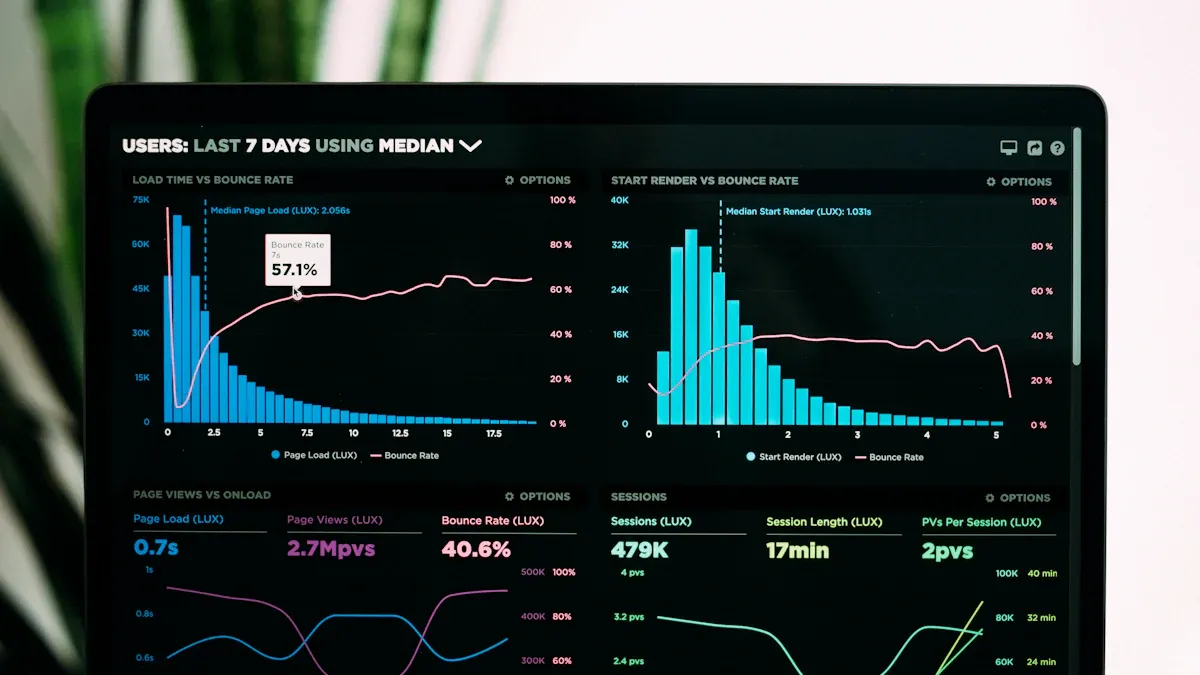
Bernat Agulló Roselló started his business intelligence journey with Excel macros in manufacturing. He soon discovered the power of Microsoft Power BI Desktop. You can follow a similar path by mastering the basics of Power BI Desktop. This section guides you through importing data, preparing it, and setting up your model for analysis.
Importing Data
Data Sources
You have many options for connecting to data in Power BI Desktop. The 'Get Data' feature lets you establish connectivity with databases, spreadsheets, web sources, and cloud services. You can use DirectQuery for real-time access or import mode for faster performance. Power BI Desktop supports a wide range of repositories, making it easy to bring in information from multiple systems.
- You can connect to SQL databases, Excel files, SharePoint lists, and more.
- You can choose DirectQuery for live connectivity or import mode for static snapshots.
- You can combine sources to create a unified dataset.
Data Preparation
Data preparation is essential for creating quality reports in Microsoft Power BI Desktop. You transform raw information into clean, structured datasets that improve your dashboards. The Power Query Editor is your main tool for this process.
Tip: Use Power Query Editor to remove unnecessary columns and filter rows. This step helps you focus on relevant data.
Follow these steps to prepare your data:
- Select 'Transform Data' to open Power Query Editor.
- Remove columns that you do not need.
- Filter rows to focus on specific values.
- Change data types to ensure fields are formatted correctly.
- Replace blank cells with null values to handle missing information.
- Use 'Fill Down' to address ragged hierarchies.
- Combine fields using 'Column from Examples' for custom columns.
- Select 'Close & Apply' to save changes and return to the main view.
You should familiarize yourself with the Queries pane in Power Query Editor. This interface helps you manage multiple datasets and transformations. Data preparation in Power BI Desktop ensures your reports are accurate and reliable.
Setting Up Your Model
Relationships
After preparing your data, you need to set up relationships in Microsoft Power BI Desktop. Relationships link tables together, allowing you to analyze data across sources. You can create one-to-many or many-to-many relationships. Power BI Desktop provides a visual interface for managing these connections.
- Drag fields between tables to define relationships.
- Use the relationship view to check for errors or missing links.
- Adjust cardinality and cross-filter direction for advanced modeling.
Formatting
Formatting your model in Power BI Desktop improves readability and usability. You can rename tables and fields, set data types, and organize your workspace. Proper formatting helps you and your team understand the structure of your model.
Note: Consistent naming and formatting make your Microsoft Power BI reports easier to maintain.
You can use color coding, descriptions, and grouping to enhance your model. Formatting is a simple step that adds clarity to your Power BI Desktop projects.
By following these steps, you build a strong foundation for your Microsoft Power BI journey. You unlock advanced analytics and automation by starting with clean data and a well-organized model.
DAX in Microsoft Power BI
What is DAX?
Formula Language
You use DAX, or Data Analysis Expressions, to unlock advanced analytics in Power BI. DAX is a formula language that helps you perform calculations and manipulate data. You can write formulas to create new fields, summarize information, and build custom logic. DAX formulas give you the power to transform raw data into meaningful insights. You can use formulas to build a semantic layer that connects your data sources and supports your business goals. DAX formulas work with tables, columns, and measures, allowing you to build a flexible semantic layer for your reports.
DAX empowers you to perform complex calculations and data analysis in Power BI. You can use a variety of formulas and operators to create measures and calculated columns. Mastering DAX lets you conduct sophisticated analysis and develop dynamic visualizations. You gain the ability to derive insights and make informed decisions.
Evaluation Context
You need to understand evaluation context to use DAX effectively. Evaluation context determines how your formulas calculate results based on filters and relationships. You can use row context and filter context to control how your formulas behave. Row context applies when you calculate values for each row in a table. Filter context applies when you use slicers, visuals, or report filters. You build a semantic layer that adapts to different contexts, ensuring your formulas return accurate results.
Many users think DAX works like Excel, but DAX formulas depend on evaluation context. You must learn how context affects your formulas to avoid mistakes. You can use the semantic layer to manage context and improve your analytics.
| Misconception | Explanation |
|---|---|
| DAX works like Excel | DAX operates within evaluation contexts that are dynamic and invisible, unlike Excel's row-by-row calculation. |
| Measures return correct values in all visuals | Measures can yield different results in different visuals due to filter context, leading to confusion. |
| ALL() function removes all filters | Using ALL() indiscriminately can lead to ignoring necessary filters, causing incorrect results in reports. |
You can avoid mistakes by understanding filter context. Writing measures without considering context can lead to incorrect results when you use slicers. Time intelligence functions may produce misleading results if you do not set up your date table correctly. Measures can yield different results based on the context in which you use them, so you must check their behavior in each visual.
DAX Functions
Measures
You create measures to perform calculations on your data. Measures use DAX formulas to summarize, aggregate, or analyze information. You can build a semantic layer that supports dynamic analytics by creating measures. Measures adapt to filter context, so you must test them in different visuals. You can use formulas like SUM, AVERAGE, COUNT, and custom logic to build powerful measures. Measures help you answer business questions and drive analysis.
Calculated Columns
You add calculated columns to enrich your data model. Calculated columns use DAX formulas to create new fields based on existing data. You can build a semantic layer that supports custom analytics by adding calculated columns. Calculated columns operate row by row, so you can use formulas to transform data for each record. You can use formulas to combine fields, extract values, or apply business rules. Calculated columns help you prepare your data for deeper analysis.
Tip: Use calculated columns for static transformations and measures for dynamic calculations. This approach helps you build a robust semantic layer and ensures your formulas return accurate results.
You can use DAX functions to streamline your analytics. You build a semantic layer that connects your data sources and supports advanced analysis. You can use formulas to create measures, calculated columns, and custom fields. DAX formulas help you unlock the full potential of Power BI.
- You can write DAX formulas to build a semantic layer that adapts to your business needs.
- You can use DAX functions to perform calculations, summarize data, and drive analytics.
- You can test your formulas in different contexts to ensure accurate results.
Creating DAX Measures and Columns
Using the Formula Bar
The formula bar in Power BI gives you a direct way to create and edit DAX formulas for your measures and calculated columns. You can use this tool to build calculations that transform your data and drive your analytics. The formula bar helps you avoid mistakes and work more efficiently.
Syntax Basics
You need to understand the basics of DAX formula syntax before you start building calculations. DAX formulas use a structure similar to Excel, but they work with tables and columns instead of just cells. You write formulas that reference your data model, and you use functions to perform calculations.
The formula bar offers several features that make writing effective DAX formulas easier:
| Feature | Explanation |
|---|---|
| Syntax Checking | The formula bar checks for syntax errors, ensuring that users create valid DAX expressions. |
| Function Suggestions | It provides suggestions for functions, aiding users in selecting the correct elements for their formulas. |
| Column and Table References | Users can reference columns and tables directly, simplifying the construction of complex formulas. |
You can use these features to build correct and efficient formulas. The formula bar highlights errors and suggests functions as you type, which helps you learn the correct DAX formula syntax.
Example Functions
You will use many different DAX functions when you create calculations. Some of the most common functions help you summarize, filter, and analyze your data. Here are a few examples you will use often:
- Iterator Functions: SUMX, AVERAGEX, and COUNTX let you perform row-level calculations across tables.
- Virtual Tables: ADDCOLUMNS and SUMMARIZE help you create temporary tables for advanced analysis.
- Filter Propagation Control: ALL, ALLEXCEPT, and KEEPFILTERS manage how filters affect your calculations.
You can also use functions like CALCULATE and KEEPFILTERS to modify filter contexts and enable dynamic calculations. These functions form the core of your DAX function reference and help you build powerful analytics models.
Tip: Use the formula bar’s function suggestions to explore new DAX formulas and speed up your workflow.
Applying DAX to Data
You apply DAX formulas to your data by creating custom fields and streamlining your calculations. This step lets you unlock deeper insights and build more flexible reports.
Custom Fields
You can create custom fields using calculated columns and measures. Calculated columns add new data to your tables, while measures perform calculations on the fly. You use DAX formulas to define both types of fields.
- Calculated columns use row context to evaluate formulas for each row in your table.
- Measures use filter context to calculate results based on your report’s filters and visuals.
You can reference columns and tables directly in your formulas, which makes it easy to build custom fields that fit your business needs. DAX formulas let you combine, extract, or transform data for more effective analysis.
Streamlining Calculations
You can streamline your calculations by following best practices for DAX in Power BI. Pattern-based measure design helps you create modular and reusable calculations. Instead of building separate measures for each key performance indicator, you design base measures that support multiple calculations. This approach reduces duplication and makes your reports easier to maintain.
Pattern-based measure design emphasizes modularity and reusability. Instead of creating separate measures for each KPI variant, you build base measures that feed multiple calculations. This approach reduces duplication and simplifies maintenance, ensuring consistency across reports.
You can also use DAX variables to make your formulas clearer and faster. Variables act as shortcuts that store values you use more than once in a formula. By using variables, you avoid repeating expressions, which improves readability and reduces calculation time.
- Optimize DAX for better performance
- Understand and utilize the CALCULATE and KEEPFILTERS functions
- Use variables to improve readability and reduce calculation time
- Optimize data types for efficiency
- Employ pattern-based measure design for modularity and reusability
- Implement proper data modeling, such as using a star schema
- Use calculation groups for scalable analytics models
To keep your calculations efficient, you should reduce the number of rows and columns in use, use cache storage, and monitor performance regularly. These steps help you build effective DAX formulas that support fast and reliable analytics.
You can use DAX formulas to transform your data, create custom fields, and streamline your calculations. By mastering the formula bar and following best practices, you build a strong foundation for advanced analysis in Power BI.
DAX Visualization in Power BI
Adding Measures to Visuals
You can bring your formulas to life by adding measures to charts and tables. This step transforms raw data into clear visuals for analysis and decision-making. When you use measures, you improve both the accuracy and efficiency of your reports.
Charts
Charts help you see trends and patterns in your data. You can drag and drop measures into chart visuals to display totals, averages, or custom calculations. Using measures in charts gives you these advantages:
- You reveal the hierarchy of measure dependencies, which makes it easier to understand how your formulas work together.
- You test changes in a safe environment, so you do not risk your live dataset.
- You troubleshoot faster because you see how each formula affects the chart.
You should use essential DAX formulas to filter by context and calculate across rows. This approach makes your charts interactive and insightful.
Tables
Tables let you display detailed data and compare values side by side. You can add measures to tables to summarize information or highlight key metrics. When you use formulas in tables, you:
- Simplify the development process, which leads to more reliable reports.
- Make insights easy to access without switching pages.
- Encourage users to explore data interactively.
You can also use calculated columns for row-by-row additions and calculated tables for advanced modeling. Mastering the use of measures, columns, and tables sets you apart as an advanced user.
Interactive Dashboards
Interactive dashboards let you explore data in real time. You can use DAX formulas to build dynamic measures that respond to user actions. This makes your analytics more engaging and useful.
Slicers
Slicers act as filters on your dashboard. You can use them to narrow the data shown in other visuals. Slicers filter data directly on the report page, which helps you focus your analysis. You can sync slicers across different pages to keep filtering consistent.
Tip: Slicers allow users to filter data instantly, making reports more focused and relevant.
Conditional Formatting
Conditional formatting uses DAX formulas to change the appearance of visuals based on values. You can highlight important trends or outliers with colors or icons. This feature improves the visual appeal of your dashboards and helps users spot key insights quickly.
You can use DAX functions like CALCULATE, SAMEPERIODLASTYEAR, or PARALLELPERIOD to create measures that adapt to slicers or other user selections. These formulas make your dashboards responsive and powerful.
By incorporating DAX Query View, you gain insight into how your formulas interact. This helps you optimize performance by removing unnecessary calculations and keeping your data model lean. Using slicers and conditional formatting together creates a seamless and interactive experience for anyone using your reports.
Automation and Optimization in Power BI
You can boost your productivity and accuracy in power bi by using automation and optimization tools. Bernat Agulló Roselló often highlights how these tools help you focus on meaningful analysis instead of repetitive tasks. When you automate your workflow, you save time and reduce errors.
Tabular Editor
Tabular Editor gives you advanced control over your data models. You can use it to automate tasks, manage metadata, and improve your dax api experience.
C# Scripting
You can write C# scripts in Tabular Editor to automate complex tasks. For example, you can update multiple measures or columns at once. This feature lets you use the dax api to create, modify, or delete objects in your model. You do not need to repeat the same steps for each object. Instead, you write a script that handles everything in seconds.
Tip: Use C# scripting to apply changes across your entire model. This approach helps you maintain consistency and saves you from manual updates.
Workflow Automation
Tabular Editor supports bulk operations and version control. You can use the dax api to change properties for many objects at the same time. This tool also helps you track changes, which is important when you work with a team. The user interface makes it easy to search for objects and manage metadata. You can even create custom hierarchies that are hard to build in power bi alone.
| Feature | Description |
|---|---|
| Advanced Scripting | Automate tasks and calculations using the dax api and Tabular Object Model. |
| Bulk Operations | Update many objects at once, saving time and effort. |
| Version Control | Track changes for better collaboration. |
| Metadata Management | Centralize and document your model for easier understanding. |
| Performance Optimization | Identify and fix slow parts of your model. |
You can automate daily data updates, which means you spend less time on technical chores. Many teams have used Tabular Editor to cut hours from their reporting process. For example, finance teams have automated accounting reports, and companies like Teleperformance have reduced report generation from six hours to a daily refresh.
DAX Studio
DAX Studio is a powerful tool for testing and tuning your dax api queries. You can use it to debug formulas and improve performance.
Testing Measures
You can use DAX Studio to test your dax api measures before adding them to your reports. The DAX Query View lets you see how your formulas run step by step. You can spot errors and fix them quickly. This process helps you avoid mistakes in your final dashboards.
Note: Testing your dax api measures in DAX Studio helps you catch problems early and ensures your results are accurate.
Performance Tuning
DAX Studio shows you how your dax api queries use resources. You can view execution plans and find out which parts of your model are slow. By tuning your dax api queries, you make your reports faster and more reliable. The tool also supports teamwork, as you can share your findings and work together to refine your dax api logic.
- Debugging: Inspect query execution and isolate issues.
- Iterative Refinement: Test different dax api variations and see instant results.
- Collaboration: Share and discuss dax api queries with your team.
When you automate repetitive tasks like daily data refreshes, you free up time for analysis and planning. Automation lets you focus on interpreting data, not just preparing it. You can use the dax api to streamline your workflow, maximize productivity, and deliver better insights.
Community and Collaboration in Power BI
You can accelerate your learning and growth by joining the Power BI community. Collaboration with others helps you solve problems faster and discover new ideas. When you participate in user groups and global forums, you build connections that support your journey.
User Groups
Power BI & Fabric Barcelona
You can join local user groups like Power BI & Fabric Barcelona to connect with other professionals. Bernat Agulló Roselló organizes this group to bring people together for networking and knowledge sharing. You can attend meetups, listen to expert talks, and share your own experiences. These events help you stay updated on the latest features and best practices.
- You can ask questions and get help from experienced users.
- You can share your own tips and solutions.
- You can create content, such as blogs or presentations, to help others.
- You can give feedback to product teams, which can shape future updates.
- You can feel valued when your contributions are recognized.
Note: Active participation in user groups increases your understanding and helps the whole community grow.
Knowledge Sharing
You can learn a lot by sharing knowledge with others. When you help someone solve a problem, you reinforce your own skills. Community members often create tutorials, answer questions, and organize workshops. This culture of sharing makes the Power BI community strong and welcoming.
Multilingual Collaboration
Global BI Community
You can connect with people from around the world in the global BI community. Many user groups and forums support multiple languages. This makes it easier for you to learn and share, no matter where you live or what language you speak. Multilingual collaboration brings fresh perspectives and new solutions to common challenges.
- You can join discussions in your native language.
- You can learn from experts in different countries.
- You can share your own insights with a global audience.
Learning Resources
You have access to many valuable resources for continuous improvement. Experts recommend using a mix of official guides, interactive lessons, and community forums. The table below lists some of the best resources you can use:
| Resource Type | Description |
|---|---|
| Microsoft Learn | A structured platform offering interactive lessons on Power BI, covering various skill levels. |
| Official Power BI Documentation | Provides in-depth explanations of features, troubleshooting, and tutorials for technical users. |
| Power BI Community Forums | A platform for users to ask questions, share insights, and learn from each other's experiences. |
| Webinars and Training Sessions | Opportunities to learn from experts and stay updated on trends and best practices in Power BI. |
| Power BI User Groups | Local or virtual meetups for users to share experiences and network, enhancing collaborative learning. |
You can use these resources to build your skills and stay current with new developments. Attending webinars and joining user groups will help you connect with experts and peers. Exploring forums and documentation will give you practical solutions to real-world problems.
Tip: The more you engage with the community, the more you learn and grow as a Power BI user.
Best Practices and Common Pitfalls
Naming and Documentation
Clear naming and thorough documentation help you manage your Power BI projects with confidence. When you create measures or columns, use descriptive names that explain what each calculation does. This makes your reports easier to understand, especially when you work with complex datasets or share your work with others. You should also add comments to your formulas and use variables to break down long expressions. These habits improve readability and make it easier to maintain your models over time.
| Best Practice | Description |
|---|---|
| Simplicity and Clarity | Keep formulas simple and easy to understand. Use comments and variables for better readability. |
| Use of Descriptive Naming | Choose names that clearly describe the logic behind each calculation. |
| Avoiding Redundant Calculations | Reuse measures and variables to improve performance and simplify maintenance. |
| Reusability | Build base measures that you can use in multiple places for consistency. |
| Transparency | Show DAX expressions with results to help others understand and agree on changes. |
Tip: Good documentation saves time when you revisit your reports or collaborate with your team.
Model Organization
A well-organized data model leads to better performance and fewer errors. You should define clear relationships between tables using primary and foreign keys. This ensures your data connects correctly. Denormalize your data when possible to reduce query complexity. Avoid bi-directional relationships, as they can make your model harder to manage and slow down your reports. Limit the number of unique values in columns, especially with date and time fields, by splitting them if needed. Prefer Import mode for faster queries, and always create your own date tables instead of using auto-generated ones. Document your model structure so others can understand it quickly.
- Define clear relationships between tables.
- Denormalize data to simplify queries.
- Use DAX efficiently and avoid overly complex formulas.
- Avoid bi-directional relationships.
- Limit column cardinality by splitting datetime columns.
- Prefer Import mode for better performance.
- Disable auto date/time tables and use custom date dimensions.
- Document your data model thoroughly.
Note: A clear and simple model helps you find and fix problems faster.
Avoiding Errors
Testing DAX
Testing your formulas is one of the most important steps in building reliable reports. Always check your syntax, as even small mistakes can cause errors. Make sure your data types match across your formulas and tables. Watch out for circular references, which happen when formulas refer back to themselves. Understand how context affects your calculations, and use the right aggregation functions for your needs. Test your formulas in different visuals and filter settings to make sure they work as expected.
- Using the wrong syntax.
- Mixing up data types.
- Creating circular references.
- Ignoring context.
- Choosing the wrong aggregation function.
- Not understanding evaluation contexts.
- Making formulas too complex.
- Using IF statements incorrectly.
- Forgetting to use CALCULATE when needed.
- Not testing formulas before using them in production.
Always test your formulas before sharing your reports. This helps you catch errors early and ensures your results are correct.
Relationship Management
Managing relationships between tables is key to accurate analysis. Use primary and foreign keys to link tables. Avoid unnecessary bi-directional relationships, as they can introduce confusion and slow down your reports. Check your relationships regularly to make sure they reflect your data structure. When you add new tables or fields, update your relationships and test your reports to confirm everything works as expected.
Careful relationship management keeps your data model accurate and your reports reliable.
You can master power bi and dax integration by following three steps: prepare your data, create calculations, and automate your analysis. Automation boosts accuracy and saves time, as seen in organizations that improved reporting and decision-making. When you join the Power BI community, you gain access to expert advice, mentorship, and a supportive environment. Explore tools like Tabular Editor and DAX Studio to optimize your workflow. Continuous learning keeps your skills sharp and helps you adapt to new features and best practices.
FAQ
What is DAX in Power BI?
DAX stands for Data Analysis Expressions. You use DAX to create formulas and calculations in Power BI. DAX helps you analyze data and build custom reports.
How do you create a measure in Power BI?
You select your table, then click "New Measure." You enter your DAX formula in the formula bar. Measures calculate values based on your data and filters.
Can you automate tasks in Power BI?
Yes! You use tools like Tabular Editor and DAX Studio to automate repetitive tasks. Automation saves you time and reduces errors in your workflow.
Why should you join Power BI user groups?
User groups help you learn from others. You share ideas, ask questions, and stay updated on new features. Community support makes your Power BI journey easier.
What is the difference between a calculated column and a measure?
| Calculated Column | Measure |
|---|---|
| Adds data to each row | Calculates values based on filters |
| Static | Dynamic |
| Used for data prep | Used for analysis |
How do you test DAX formulas?
You use DAX Studio to check your formulas. Testing helps you find errors and improve performance. Always test before using formulas in your reports.
What are best practices for naming measures?
Use clear and descriptive names. Avoid abbreviations. Add comments to explain your logic. Good naming makes your reports easier to understand.
How can you improve Power BI performance?
You optimize your data model. You use Import mode. You limit columns and relationships. You test DAX formulas for speed. Fast reports help you make better decisions.
🎧 Listen to this episode
Want a practical explanation of Power BI DAX and Semantic Models? This episode breaks down the topic in clear language and shows why it matters for Microsoft 365, Azure, Power Platform, security, AI, and modern work.
Listen to this episode if you want to:
- Understand the key concepts behind Power BI DAX and Semantic Models
- See how it fits into the wider Microsoft technology ecosystem
- Learn where it can create practical value for your organization
You may also enjoy these related M365 FM episodes:
- Build Reusable Semantic Models in Microsoft Fabric
- Data Analysis Expressions (DAX) - Simply Explained
- Small Language Models for Faster, Cheaper Enterprise AI
- Microsoft Graph API Discovery for Enterprise Semantic Search
- 5 High-Margin Microsoft 365 Business Models
Discover more practical Microsoft conversations on M365 FM.
Official Microsoft MVP profile: Bernat Agulló Roselló on Microsoft MVP
Apple Podcasts · Spotify · YouTube · YouTube Music
Host: Mirko Peters