
Best Microsoft Teams Apps for Productivity
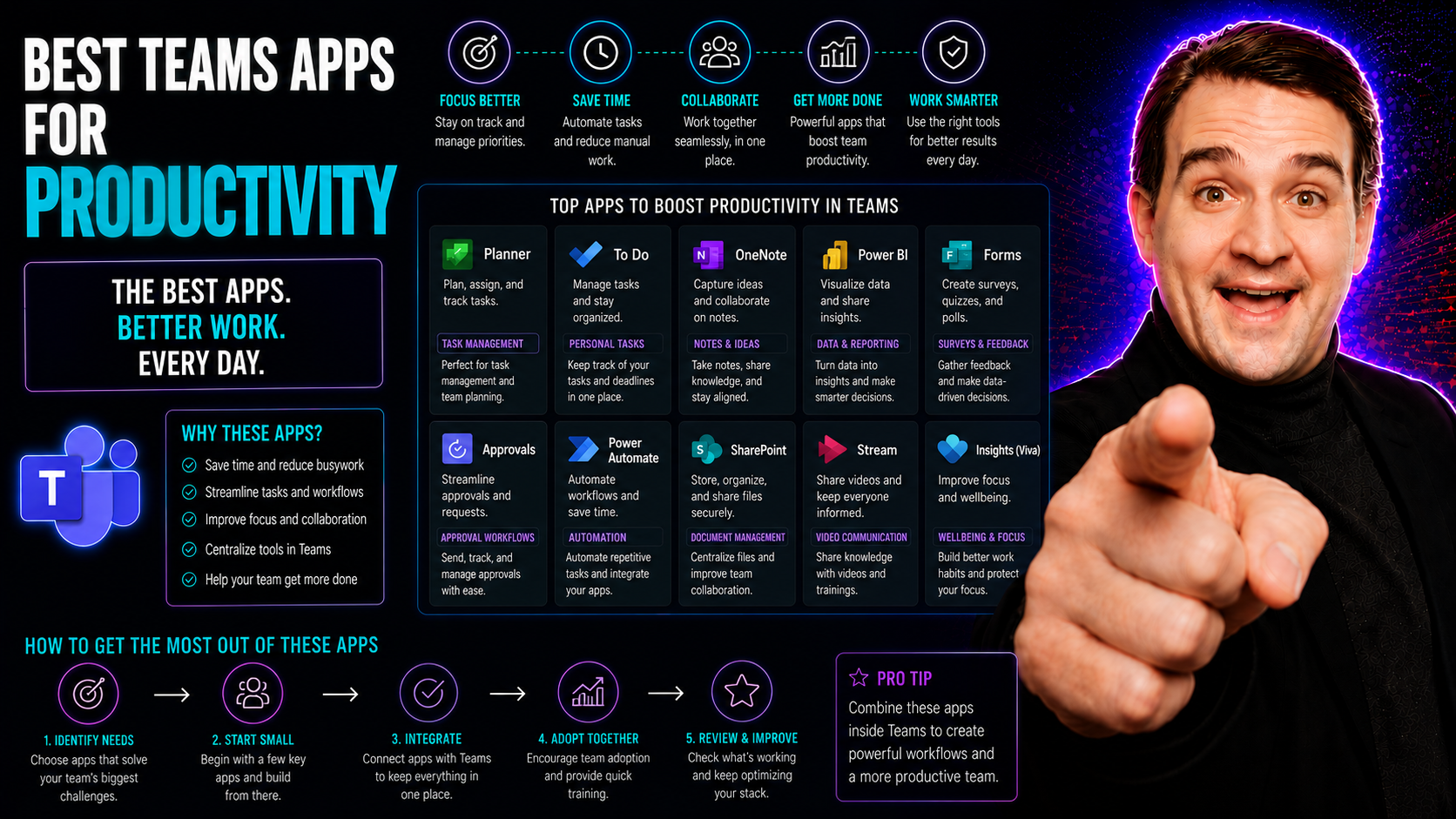
Let’s cut right to it: Microsoft Teams isn’t just about basic meetings and chat anymore. With remote and hybrid work a fact of life, decision-makers are looking for every edge to keep teams productive—and connected. If you’re trying to turn Teams into a serious productivity powerhouse, it starts with picking the right apps for your workflow.
This guide gives you a clear, no-nonsense look at the absolute best Microsoft Teams apps built for 2026's world of agile projects, distributed teams, and data-driven work. You’ll get up-to-date recommendations for tools that don’t just promise results—they deliver. We’ll highlight what makes these apps stand out, who they’re best for, and what to watch out for, so you can turn Microsoft Teams into your team’s secret productivity weapon.
Top Microsoft Teams Apps for Enhanced Team Productivity
Tapping into Microsoft Teams’ app ecosystem isn’t just about piling on features—it’s about solving everyday teamwork headaches. When you integrate third-party and Microsoft-built apps into Teams, suddenly your team has the power to move faster, stay focused, and get more meaningful work done without switching between a dozen tools.
The right apps extend Teams from a plain chat/meeting platform into a full-blown digital workspace. Picture seamless project management, live data dashboards, virtual whiteboards, and instant reporting, all spinning up right where your conversation is happening. That’s the kind of boost modern teams need to actually move the needle, whether they’re remote, hybrid, or running around a massive office.
As you read on, you’ll see how different categories of apps play together in Teams. We’ll cover project and task planners, real-time collaboration and communication add-ons, robust analytics tools, and integrations with the data and platforms your organization already depends on. You’ll also get an honest look at each app’s standout features, limitations, and the real value for your dollar, so you can build the Teams toolkit that fits your crew—not just Microsoft’s marketing pitch.
Best Microsoft Teams Apps for Project and Task Management
- Microsoft Planner:Planner comes built-in with Teams, letting you spin up shared task boards in seconds. Your team can assign tasks, set deadlines, track due dates, and visualize progress with Kanban-style boards—all right in your favorite Teams channel. Since it’s a native Microsoft tool, it plugs in tightly with Outlook, To Do, and other 365 apps, keeping things simple for users and admins alike. It’s a great starting point for teams that want structured management without the complexity overload.
- Trello:If you like sticky notes and drag-and-drop, Trello’s integration with Teams brings the iconic card-and-board experience right into your chat. Team members can add lists, track project stages, assign cards, and drop in comments or attachments. For agile teams juggling multiple projects, Trello’s colorful boards help everyone see status and what’s next at a glance. Automation bots make updates and reminders even easier. Here’s a guide on organizing projects with Teams, giving some real-life structure tips.
- Asana:For the teams who need a little more muscle, Asana offers robust task and workflow features right inside Teams. Assign tasks, track subtasks, create dependencies, and get timeline views (think Gantt charts for the visually minded). Asana’s integration automatically syncs your notifications and status updates in Teams channels, so assignments, comments, and deadlines never go missing. This is especially popular with organizations managing multiple, complex project pipelines.
- Microsoft Lists & Power Automate:Microsoft Lists lets you build custom, shareable checklists or asset trackers for any workflow. Pair it with Power Automate and you’re automating project status reports, reminders, or approvals before you can say “manual data entry.” Want a deeper dive? This practical project management guide shows how Lists, SharePoint, and Power Automate can create a true command center for project visibility and updates—no more confusion about who’s doing what.
Each app above offers a unique flavor—Planner for quick wins, Trello for agile boards, Asana for deeper workflows, and Lists/Power Automate for custom processes and automation. Pick the one that matches your team’s way of working best.
Top Communication and Collaboration Tools in Microsoft Teams
- Slack Connect for Teams:Sometimes your best collaborators are outside your company. Slack Connect brings cross-org chat into Teams, so you can vibe with partners, clients, or freelancers—all without leaving your main platform. Conversations, files, and updates come to you, not the other way around.
- Microsoft Loop:Loop is the new kid on the block, and people are already calling it a game-changer. Create interactive, living documents (think tables, notes, checklists, polls) that you can drop into any Teams chat or meeting. Notes and data sync instantly for everyone. It’s the fix for those “did you see the latest doc?” headaches. Curious about the tech behind it? Learn how Loop components sync data across different apps—no more info silos.
- Poly for Teams:Want quick feedback, run polls, or crowdsource Q&As during meetings? Poly drops interactive polling and surveys directly into Teams. Use it for meeting icebreakers, and it’s gold for managers making decisions as a group. Every response is captured inside Teams for easy historical reference.
- Microsoft Teams Adaptive Cards:If you want to up your engagement game, Adaptive Cards let teammates give feedback, fill out forms, or trigger workflows right in chat. No more chasing email links. IT pros, power users, and devs can easily shape these cards to jumpstart real automation or user input. This Adaptive Cards guide digs deeper on creating next-level interactivity inside Teams.
- Custom Meeting Extensions:Want every meeting to be productive, not just a talk-fest? Advanced users can set up meeting side panels, in-meeting bots, or context-aware apps that pull in docs, CRM info, and checklists while you collaborate. Check out this rundown on enhancing Teams meetings with apps and bots for security, compliance, and real business workflows made easy.
These tools help bridge the gap between synchronous meetings and async progress—keeping everyone in the loop and making communication frictionless, whether you’re in the office, remote, or somewhere in-between.
Best Apps for Microsoft 365 Data and Reporting Integration
- Power BI for Teams:You know all those reports the execs love? Power BI brings real-time dashboards and interactive visualizations right inside Teams. Teams channels become a one-stop shop for performance metrics, business KPIs, or sales charts—no tab-switching, no lost data. Perfect for managers needing to make fast, data-driven calls together.
- Power Platform Connectors:If you want to shape Teams into your business brain, Power Platform hooks up Teams with hundreds of data sources. Use Power Automate to trigger updates, approvals, or alerts when numbers change. Shift from “let’s check back later” to instant action, reducing lag on business decisions.
- Third-Party Analytics Apps:Apps like Tableau, Zoho Analytics, and Sisense also offer Teams connectors for more advanced, industry-specific reporting. Finance, healthcare, and operations teams can embed their complex dashboards directly in Teams for 24/7 access—no more PDF exports or clunky logins.
- Automated Lifecycle Governance:With integration tips from Power BI, Power Platform, and Graph API, IT leaders can automate team lifecycle management, reporting, and compliance. This keeps all your data tidy, secure, and instantly reportable from one place.
Bottom line, these apps don’t just show numbers—they enable smarter, faster teamwork by surfacing the insights that actually move projects forward. Now your reports are where your collaboration happens.
Comparing Key Features of Top Teams Microsoft Apps
- Automation & Workflow Integration:Power Automate, Asana, and Trello each offer built-in automations for reminders, approvals, and project updates. Power Automate provides the deepest workflow customization, letting you bridge Teams with external apps in a few clicks, while Planner and Trello stick to tried-and-true task flows.
- Deep Microsoft 365 Integration:Planner, Lists, and Loop are natively tied into Teams, Outlook, and SharePoint, so files, chats, and tasks live in one central place. Asana and Trello integrate well, but sometimes require connector setup or API tweaks for advanced scenarios.
- Visual Project Management:Trello uses Kanban boards and colorful labels. Asana mixes Kanban, lists, and Gantt charts for a flexible visual approach. Planner keeps it simple with easy buckets. Loop adds dynamic, living documents to any chat or channel for true real-time editing.
- Reporting and Data Visibility:Power BI is unrivaled for custom dashboards and company-wide KPIs in Teams. For project analytics, Asana and Trello serve up reporting widgets, but Power Platform apps let you embed interactive charts and filter data fast.
- Security and Compliance:Native apps like Planner and Lists inherit Teams’ security, including compliance features, guest access controls, and data residency policies. Third-party apps vary—some offer granular permissions and audit trails, but may require extra setup to match enterprise standards.
Choosing the right mix of these features means weighing your team’s needs—do you want easy automation or advanced analytics, deep Microsoft ties or open integration? The winner is the app that best fits your work style and governance rules.
Limitations and Drawbacks of Main Teams Productivity Apps
- Integration Gaps: Not all third-party apps integrate as tightly as native Microsoft tools, which can mean missing notifications, lag in updates, or limited search within Teams.
- Learning Curves: Advanced apps like Power BI and Asana deliver huge value, but they can feel intimidating for new users, slowing down adoption across the team.
- Performance and Scalability: Large organizations might see slower load times, random sync issues, or Teams channels bogged down when integrations stack up—especially without strong backend governance. Teams governance frameworks can help reduce confusion and speed project completion, but only if set up from the start.
- Licensing Complexity: Premium features in top apps often hide behind tiered pricing, so watch your budget as user counts rise.
Pricing and Subscription Costs Across Leading Teams Apps
- Microsoft Planner/Lists: Included with most Microsoft 365 Business and Enterprise subscriptions—no extra cost for core features.
- Trello: Offers a generous free plan with boards and cards, but advanced automations, views, and admin controls start at $5-10/user/month.
- Asana: Free for up to 15 users with basic lists and boards. Premium workflow, timeline, and reporting features are $10-24/user/month.
- Poly for Teams: Freemium model makes surveys and polls free with a cap, but advanced analytics and branding cost $2-8/user/month.
- Power BI: Basic dashboards included in some Office 365 plans, but sharing, pro capabilities, and big-data integrations require $10+/user/month or enterprise licensing.
Power BI and Power Platform Access in Teams Apps
Microsoft Teams users can embed Power BI dashboards and interactive reports directly in channels, making-critical data visible right where teams collaborate. Access rights are managed through Microsoft 365 roles, ensuring that only authorized users view or share sensitive analytics.
The Power Platform—including Power Automate and Power Apps—integrates with Teams to automate workflows, process approvals, and surface actionable data without leaving the platform. Security is enforced via Azure Active Directory and tenant-level controls, keeping compliance in check even as business intelligence becomes a daily Teams fixture.
For advanced lifecycle and reporting management, teams can turn to integrations covered in automated lifecycle governance resources, ensuring data remains organized and protected as teams grow.
Comprehensive Reviews of Top Teams Productivity Tools
Making the right choice when it comes to Teams productivity apps isn’t just about ticking off features—it’s about knowing what actually works for real teams, in real business situations. In this section, you’ll get an inside look at the experiences users have with leading productivity and collaboration tools built for Teams.
We’ll dive into recent star ratings, direct feedback from admins and employees, and how these apps stack up when put through their paces in busy work environments. Along the way, you’ll see the true business impact—whether that’s better collaboration, faster workflows, or just fewer headaches and less confusion for everyone involved.
Plus, you won’t be left guessing about costs. A value and pricing comparison will break down who’s nickeling-and-diming you versus which apps offer robust free or affordable tiers. This helps leaders and IT pros align the real value of a tool with their available resources and budget priorities—setting you up to make a defensible business case for whatever solution you choose.
Get ready for clear, candid, and practical reviews that cut through the sales fluff, so you can move forward confidently with the right productivity tools for your Teams environment.
User Ratings and Real-World Reviews for Teams Productivity Apps
- Microsoft Planner:Users routinely rate Planner 4–4.5 stars for simplicity and tight integration with Teams and Outlook. Small teams praise its ease of use. Power users wish for better reporting and cross-team task visibility, but value the “set-it-and-forget-it” approach for basic task tracking without onboarding headaches.
- Trello:Trello in Teams nets 4+ stars across user reviews for its visual boards and customizable workflows. Agile teams and project leads say it’s a game-changer for managing multiple projects and seeing progress at a glance. The only gripe? Some integrations get quirky when you connect dozens of boards or mix with non-Microsoft apps, needing occasional admin attention.
- Asana:Asana impresses with 4.5+ star ratings, especially among mid-sized to enterprise organizations. Fans rave about its Gantt charts, dependency tracking, and detailed notifications in Teams. On the flip side, the learning curve and the price of premium features occasionally get a thumbs down—especially for teams just starting out.
- Poly for Teams:Poly shines for meeting engagement, earning 4.8-star feedback among HR leaders and project managers. Users love fast polls and Q&A. Some note limited branding or export features on the free tier, but the consensus is it gets more engagement out of Teams meetings than traditional show-of-hands or emails ever did.
- Power BI:Power BI’s integration with Teams regularly lands 4 to 4.6 stars, with business analysts thrilled by how fast they can spin up visual dashboards in a channel. There are cries for simpler setup and more user-friendly permissions, but enterprise admins appreciate the serious control and compliance features for sensitive data reporting.
Value and Pricing Comparison for Popular Teams Apps
- Planner: Free with most business Microsoft 365 subscriptions, making it a strong entry-level option.
- Asana: Highly rated for task management in Teams, but costs can jump quickly as you add users or unlock advanced workflows.
- Trello: Good free plan, but automations, Power-Ups, and admin controls require paid tiers which can add up across larger teams.
- Poly: Delivers stellar engagement in meetings, offering robust free polling while certain advanced analytics cost extra.
- Power BI: Basic viewing is often included, but sharing, cross-team analytics, and big data connections demand pro licensing.
Best Features and Limitations of Leading Teams Productivity Apps
When all’s said and done, flashy marketing doesn’t mean a thing if an app doesn’t deliver in real life. That’s why having a side-by-side breakdown of the essential features—and where the most popular Teams tools fall short—gives decision-makers a true north for their selection process.
With so many productivity tools to choose from, knowing where each one stands helps you avoid wasted time, dollars, and misaligned expectations. This section digs into what matters most: seamless integration, automation, usability, and reporting, along with real pain points like governance, data silos, or learning curves.
By shining a light on both the strengths and the pitfalls, you’re able to select not just what’s popular, but what actually matches your team’s workflows and your organization’s IT reality. This transparency puts the power back in your hands—so your Teams investment results in less friction, more results, and far fewer “wish we’d known that sooner” moments after rollout.
Essential Features That Distinguish Teams Apps and Tools
- Deep Teams and Microsoft 365 Integration:Top productivity tools like Planner, Loop, and Asana mean you never have to leave Teams to check tasks, files, or updates. This cuts out app-switching, letting teams stay focused and context-rich. Apps that go the extra mile—like custom message extensions and interactive cards—let users trigger workflows or pull in data with a few clicks or taps, transforming Teams into a real command hub.
- Automation (Reminders & Workflow):Power Automate, Asana, and Trello deliver automatic task reminders, approvals, status updates, and data push/pull between apps. This wipes out repetitive busywork and ensures nothing falls through the cracks, especially for remote and agile teams.
- Multi-Channel Notifications:Tools like Asana and Trello serve up task updates and deadlines straight inside your Teams activity feed and chat mentions. This multi-channel visibility keeps everyone on top of action items—without having to slog through endless emails or extra dashboards.
- Visual and Live Collaboration:Loop components now act as embeddable, real-time docs you can edit from both Teams and other Microsoft apps—no more “which version are we on?” drama. Read about Loop’s live data power to kill off data silos for good.
- Streamlined User Experience:Simplicity is a hidden superpower. Tools that rely on Microsoft 365’s familiar look and feel get used more. When apps are easy to manage, set up, and roll out, IT teams love them, and end users avoid tool fatigue.
- Governance & Security:The best apps respect Teams’ security model—with granulated permissions, audit logs, and easy admin controls for compliance-heavy organizations. This is especially vital in regulated or enterprise-grade environments.
Common Limitations and Drawbacks of Teams Productivity Tools
- Interoperability Issues: Third-party apps sometimes lag when Microsoft updates Teams, causing broken features or duplicate data headaches.
- Integration Lags: Initial setup can be complex, requiring IT help or custom connectors, especially for advanced scenarios or analytics plug-ins.
- Governance and Security Complexity: Setting up proper permissions, audit trails, and retention policies can be daunting, as this sprawl management guide demonstrates. Insecure default settings can also lead to data leaks if not hardened (see Microsoft Teams security best practices).
- Scalability: Some tools bog down or become cost-prohibitive as your user base grows without centralized management or bulk licensing in place.
- Data Silos: Without good integration or governance, teams risk creating disconnected project boards or reports that defeat the purpose of visibility and collaboration.
Microsoft Teams App Ecosystem and Integration Guide
Picking and deploying apps inside Microsoft Teams shouldn’t feel like a guessing game. The Teams app ecosystem is massive, but making it work for your business requires more than just browsing the App Store—or hoping end users find what they need.
This section will walk you through the process of evaluating, selecting, and integrating third-party apps in a way that enhances productivity and keeps your IT department sane. It’s all about balance: you need tools that streamline actual workflows, play nicely with your governance and compliance requirements, and don’t eat up your team’s entire day learning how to use them.
Expect guidance that’s hands-on. We’ll dig into methods for analyzing your team’s size, structure, and real-world needs before you bring new tools into the fold. Plus, we’ll cover how deep integrations—think ServiceNow for support tickets, GitHub for dev work, or Trello for agile boards—can help you consolidate work and reduce context switching.
If governance keeps you up at night, don’t worry—you’ll find actionable tips and internal resources like this Teams governance guide to keep your apps useful, secure, and under control as your digital workplace grows.
How to Choose the Best Teams App for Your Workflow and Team Size
- Analyze Your Workflow Needs:Start by outlining your most common projects and tasks. Do you need basic task tracking or full-on project portfolio management? Large teams or regulated industries may need automation and approvals built-in, while small groups just want to keep work moving without drama. Check out this practical guide for shaping project management inside Teams using Planner, Lists, and automation for good structure and less confusion.
- Match the App’s Strengths to Team Size:Planner and Trello rock for small to mid-size groups, keeping things light. Asana or Jira might fit better for larger or cross-functional teams handling multiple, complex projects. Think big picture—will your tool scale up as your team grows?
- Evaluate Integration Depth:Does the app deeply connect with other Microsoft 365 tools you already depend on (Outlook, SharePoint, OneDrive), or will you have to jump through configuration hoops? The more seamless the integration, the quicker your team will get value and the fewer IT headaches later.
- Consider Compliance & Security:If your team handles sensitive info (finance, HR, healthcare), ensure your chosen app supports granular permissions, strong audit trails, and respects your organization’s security requirements. Don’t trade short-term productivity for a long-term compliance headache.
- Proof-of-Concept Before Full Rollout:Test each app in a small group first. Gather feedback, iron out confusion, then roll out broader. This staged approach accelerates adoption and prevents surprise letdowns down the road.
- Plan for Ongoing Support & Training:No matter how shiny the tool, budget some time for quick training and onboarding, so no one drowns in features or ends up ignoring it altogether.
Deep Integrations With ServiceNow, GitHub, and Trello in Teams
- ServiceNow Integration:By weaving ServiceNow’s request and incident management right into Teams, support tickets and approvals can be created, tracked, and resolved without leaving your chat. Automatic ticket updates, push notifications, and approval requests hit Teams channels instantly—reducing friction for IT, HR, and operations teams. Data changes sync both ways, so records are always accurate.
- GitHub Integration:If your business runs on code, the GitHub for Teams app puts commits, PRs, issues, and deployment notifications straight into your team channels. This centralizes all your dev chatter, lets non-devs view project status, and triggers discussions or approvals without missed emails. It also makes code reviews and release notes visible to everyone, not just technical staff.
- Trello Integration:Trello boards in Teams become live dashboards for agile sprints, marketing calendars, or cross-functional checklists. Comments, card moves, or due dates feed right into your channel activity stream for truly centralized project oversight. For big organizations, using Power Automate can drive updates and syncs across multiple boards, keeping everyone in the loop without context switching.
- Automated Data Management:With the right integrations—using tools like SysKit for ServiceNow or Power Automate connectors for Trello/GitHub—you automate reporting, ticket closing, workflow triggers, and more. This allows you to run multi-platform processes without needing to open a dozen windows, slashing manual entry and routine admin overhead.
Future of Team Productivity: Key Trends and Tools for 2026
If you think Teams is feature-rich now, just wait. The next few years are set to bring a tidal wave of innovation—AI-powered workflow assistants, smarter automation, and tools that predict what you need before you even ask for it.
We’re entering an age where productivity tools in Teams don’t just react—they anticipate, suggest, and actively drive collaboration and output. Organizations on the leading edge are already preparing for an ecosystem that’s as much about AI and data automation as it is about chat and file sharing.
This section highlights where the market is headed, the tools that experts say will dominate, and how AI and analytics upgrades will change both how teams work and what IT leaders expect from their software. With tools like Microsoft Copilot and advanced reporting plugins now at the forefront, the game is shifting from grunt work to insight-driven action.
If you’re eager to future-proof your Teams strategy—or just wondering what all the hype around “predictive analytics” and “AI agents” means for your work life—keep reading. You’ll see how real productivity gains and tight governance are coming together to set new standards for digital teamwork in 2026 and beyond.
Productivity Tools Expected to Dominate Microsoft Teams in 2026
- Microsoft Copilot Extensions: Next-gen Copilot tools promise AI-driven meeting notes, content generation, and workflow automations. With Copilot, even IT admins get a massive boost—see this Copilot admin guide for real-world value.
- Sector-Specific Bots and Agents: Compliance assistants, legal workflow bots, and healthcare scheduling agents will shoulder routine admin and manage sensitive processes within Teams.
- Advanced Analytics Plugins: Smart plugins will let teams not just visualize data but predict project bottlenecks, monitor burnout risks, and recommend resource changes before things get out of hand.
- Deep Integration Suites: Solutions that tie Teams to ERP, CRM, and vertical market platforms (think Salesforce, SAP, Epic for healthcare) will become must-haves for enterprise productivity and compliance.
AI, Automation, and Predictive Analytics in Teams Productivity Apps
- Copilot-Driven Assistance:AI agents like Microsoft Copilot can join meetings in Teams, take real-time notes, summarize action items, and even draft follow-up emails or tasks. Explore Copilot’s impact on real-world collaboration—it reduces manual admin effort and lets teams focus on work that matters.
- Workflow and Task Automation:Automations now go way beyond simple reminders. Copilot and Power Automate suggest next steps, auto-create project plans from chat context, route approvals, and nudge overdue tasks for you. See how M365 Copilot now orchestrates meetings, chats, and automation across workflows—reducing lag and human error across the board.
- Predictive Analytics and Smart Insights:With Power BI and third-party analytics plugged right into Teams, AI algorithms start to flag project risks, forecast deadlines, and highlight emerging issues before they snowball. Sales, ops, and project leads get insights that let them act faster and prevent bottlenecks, not just react when things hit the fan.
- Automated Security and Compliance:AI tools now watch for sensitive data sharing, trigger security checks, and recommend tighter permissions when the system spots potential non-compliance. Copilot also integrates with tenant security controls, as detailed in this Copilot enablement guide, so automation doesn’t mean you sacrifice control or safety.
- Data-Driven Decision Support:Teams can now use AI chat to pull real-time reports, compare previous projects, or simulate the impact of scheduling changes. See more Copilot use cases for how organizations are maximizing productivity—and doing it with governance and compliance baked in.
Industry-Specific Teams App Use Cases and Custom Workflows
Let’s be real—there’s no “one size fits all” approach to productivity in sectors like healthcare, legal, education, or construction. Every industry brings its own unique mix of regulations, workflow bottlenecks, and compliance red tape. That’s exactly why it matters to see how Microsoft Teams apps are shaped and configured to meet those sector-specific demands—even if most competitor guides barely mention it.
This section gives you the keys to custom productivity: a look at how tailored app integrations, permission controls, and data workflows help regulated industries boost teamwork without risking compliance. Whether you’re worried about HIPAA in healthcare, attorney-client privilege in legal, or audit trails in public sector, there’s a Teams app configuration ready to fit your rules and reality.
Expect practical, real-world advice—not generic “use what’s popular” lists. We’ll walk through how specialized settings and add-ons work together, so decision-makers can confidently balance productivity gains with the rock-solid security your industry mandates.
By the end of this section, you’ll have clear direction on which app features to lean on, how to deploy them for compliance, and how to get your teams collaborating faster and smarter—minus the legal headaches.
Regulated Industry Teams Use Cases: Healthcare, Legal, and More
- Healthcare (HIPAA Compliance):Teams apps can be configured for HIPAA-protected chat, strict guest access (no accidental record sharing), and audit logs for every message or document. Pairing Teams with Purview DLP and a five-layer security strategy keeps protected health information locked down—even as you boost virtual care and internal consultations.
- Legal (Confidential Document Management):Legal teams rely on secure document repositories in Teams, with sensitive conversations restricted to authorized channels. Access controls, legal hold, and automated retention ensure compliance with confidentiality regs, while audit trails provide accountability for every user action.
- Education (FERPA & Student Privacy):Schools leverage Teams Class, Assignments, and secure file-sharing apps to meet FERPA requirements. Permissions are set for student and parent access, and meeting recordings follow school policy to avoid unintentional data leaks.
- Construction & Field Operations:Teams apps with GPS check-ins, real-time photo uploads, and task boards bring remote crews and supervisors together. Custom workflows capture jobsite updates, safety reports, and progress pics—all stored securely and reportable for audits or client reviews.
- Finance & Public Sector:Teams deployments for banks and agencies rely on strong guest controls, advanced audit trails, and automations for approvals and recordkeeping, matching both compliance and reporting mandates. DLP and retention tools combine with Teams chat and apps to streamline communication—without compromising oversight.
Measuring ROI and Productivity Impact of Teams Apps
Deploying new productivity apps in Teams can feel like a leap of faith—until you start measuring what really changes. For business leaders and IT pros, hard ROI and productivity numbers aren’t just a “nice to have”; they’re essential for justifying new investments and ensuring ongoing optimization.
This section sets you up with proven approaches for tracking how Teams apps are performing in your environment. By focusing on key KPIs and outcome metrics, you’ll quickly see whether that latest tool is all hype, or if it’s actually delivering time savings, fewer meetings, or higher task completion rates.
The right measurement frameworks make post-launch assessment an objective process, not just gut feeling. That means more confident decisions on what gets expanded— and what quietly gets dropped. As your organization adopts new Teams apps (or pushes more work into AI-powered workflows), ongoing ROI analysis helps ensure you’re spending money and effort only where it counts.
For extra insight, see this piece on Copilot’s measurable efficiency gains and how Copilot can drive real ROI in Microsoft 365. Don’t leave your productivity math to chance—track it and prove it!
KPIs and Metrics to Evaluate Teams App Effectiveness
- Time Saved: Track average hours saved per user per week—ideal for showing if automation and integrated workflows are really speeding things up versus old manual methods.
- Meeting Reduction: Measure the drop in total meetings or meeting length. The right app should help cut “status update” calls, replacing them with real-time dashboards or async updates.
- Task Completion Rate: Look at the number and percent of assigned tasks actually completed—or projects closed—compared to pre-app baselines.
- User Adoption and Satisfaction: Survey users on tool effectiveness, ease of use, and engagement. High adoption signals value; low adoption means retraining or a tool switch may be needed.
- Support Ticket Volume: A drop in internal support/help desk tickets about productivity apps is a good sign that users are understanding and benefiting from the new tools.
Start with solid baselines before deploying a new app, then capture outcome data monthly or quarterly to demonstrate impact—or pivot if needed.
Onboarding and User Adoption Strategies for Teams Apps
Let’s be straight—no app, no matter how powerful, does any good if your team won’t touch it. Adopting new Teams productivity tools means getting people past that first hurdle of “one more thing to learn” and turning new habits into standard practice.
This section equips you with smart strategies for making adoption stick. We’ll review how phased rollouts, targeted training sessions, and internal champions work together to smooth out the change management bumps. Leadership buy-in isn’t just helpful—it’s essential, so expect tactics for getting managers on-board and reinforcing new tool usage every step of the way.
If you’re deploying advanced tools like Microsoft Copilot, make sure you get your ducks in a row—licensing, tenant setup, security, and stakeholder communication all need to align for smooth results. For a deeper technical prep checklist, see this Copilot deployment guide.
Finally, strong governance reduces chaos and confusion after launch. Read how Teams governance frameworks foster trust and smooth go-lives. When you put time and structure into onboarding, you make your Teams investments count—and protect your organization (and your sanity) from digital waste.
Change Management and Engagement for New Teams Productivity Tools
- Internal Advocate Programs: Recruit tech-savvy team members as champions to demo new tools, offer peer support, and create buzz. Early buy-in helps drive grassroots adoption.
- Leadership Endorsement: Get execs and managers to publicly support new apps. When leaders use (not just mandate) a tool, trust and usage go up.
- Interactive Training Resources: Offer live workshops, how-to videos, and Q&A sessions, so users learn hands-on and see real productivity wins early.
- Phased Rollouts: Deploy apps tiered by department or a select pilot group, letting you gather feedback and fix issues before expanding to everyone.
- Feedback and Recognition Loops: Regular check-ins, suggestions boxes, and public shout-outs for power users reinforce lasting change—and surface issues before frustration takes root.
By making change management as important as tech selection, you turn user engagement into sustainable productivity gains—and avoid expensive, unused tool sprawl down the line.
You Should Also Listen To
If you are researching best Microsoft Teams apps, these episodes add practical context on collaboration, architecture, and governance:
- Microsoft Teams Governance – The Illusion of Control — Learn how ownership, lifecycle, and policy choices keep collaboration manageable.
- Teams Telephony – Simply Explained — Understand the communication architecture behind reliable Teams work.
- Azure AI Foundry – Simply Explained — See how modern AI and automation solutions are built and governed.
- Microsoft Defender XDR – Simply Explained — Connect collaboration design with security visibility and response.

Microsoft MVP | Host of M365.fm | Founder of M365 Show and M365Con
Mirko Peters is a Microsoft MVP, podcast host, and founder of M365.fm, M365 Show, and M365Con. His work connects Microsoft practitioners through podcast interviews, livestreams, and community events.
At M365.fm, Mirko hosts conversations with Microsoft MVPs, product experts, architects, and community contributors. Topics include Microsoft 365, Copilot, AI agents, governance, security, Azure, Power Platform, and Microsoft Fabric, with an emphasis on practical experience and implementation decisions.
M365.fm is the podcast and learning platform. M365 Show brings experts together for livestreams, while M365Con provides an online conference setting for community learning.
Official website: Mirko Peters (https://www.mirkopeters.com/). Recognition: Mirko Peters — Microsoft MVP profile (https://mvp.microsoft.com/de-DE/mvp/profile/9b0ca797-db5a-493a-a845-8b9158046cf5). Connect on LinkedIn (https://www.linkedin.com/in/m365showpodcast/).





