 EN
 Deutsch
 Español
 Français
 Italiano
 Português
 Nederlands
 Polski
 Bahasa Indonesia
 Русский
 Українська
 العربية
 עברית
 日本語
 한국어
2026-07-21 · Season 3
Power Automate - Simply Explained
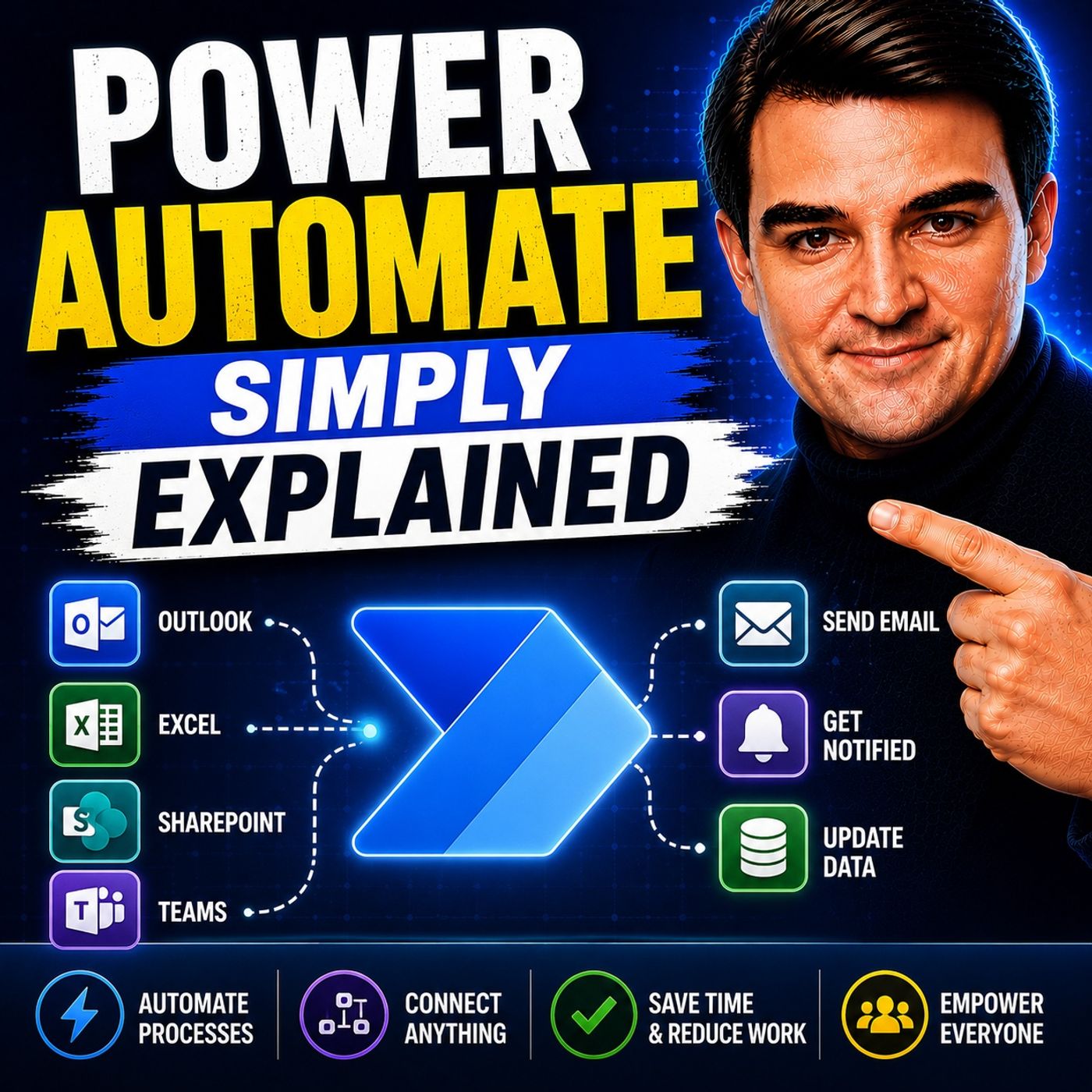
Repetitive tasks like copying data, forwarding approvals and sending the same emails eat hours every week. This beginner-friendly episode explains Power Automate in plain English for Microsoft 365 users, covering triggers, actions, connectors, cloud and desktop flows, and how to build your first flow in minutes without code.
In this episode
- What Power Automate is
- The problem Power Automate solves
- Trigger plus action
- The three types of flows
- Connectors
- Cloud flows vs. desktop flows
- Real-world examples
- Your first flow in five minutes
Key takeaways
- Every Power Automate flow is a trigger plus one or more actions, and automated, instant and scheduled flows differ only in how the trigger fires.
- Hundreds of pre-built connectors let flows link Microsoft 365 apps like SharePoint, Teams and Outlook with third-party services, and custom connectors cover any system with an API.
- Cloud flows run on Microsoft's servers for modern services, while desktop flows use RPA to drive legacy applications by mouse and keyboard.
Worth quoting
> “Most people think power automate is complicated, but strip away all the marketing and technical jargon and it's really just when this happens, do that.” > — Mirko Peters (03:14)
> “The core engine is exactly the same for all three types. The only real difference is the trigger. Automated flows use event triggers. Instant flows use manual triggers. Scheduled flows use time triggers” > — Mirko Peters (04:44)
> “Cloudflow's work for modern services that have APIs and connectors. Desktop flows handle legacy applications, old software or anything that can't connect programmatically.” > — Mirko Peters (08:11)
> “The trick is to start with one process that annoys you the most. The one you do every day where you think there has to be a better way. That's your first automation target.” > — Mirko Peters (11:22)
Explore more on M365.FM
- Episode page: the full episode with chapters, key quotes and a beginner FAQ
- Power Automate – the episode's subject, explained as a trigger plus actions across cloud and desktop flows
- Connector – the translators that let flows talk to SharePoint, Outlook, Teams and third-party services
- SharePoint – a frequent trigger and target, from saving form answers to document approval flows
- Microsoft Teams – where the example flows post alerts, approval notifications and a daily task summary
- Mirko Peters – the host who explains Power Automate in plain English and walks through a first flow
- Related episode: Power Automate Desktop - Simply Explained
Follow and rate M365.FM in your podcast app, and join the free M365 community at m365con.net.
FAQ
What is the difference between cloud flows and desktop flows in Power Automate?
Cloud flows run on Microsoft's servers and connect modern services through APIs and connectors, so your computer does not need to be on. Desktop flows use robotic process automation to control the mouse and keyboard, clicking and typing in legacy applications that have no API. Many organizations end up using both kinds.
What are the three types of flows in Power Automate?
Power Automate has automated, instant and scheduled flows, and they differ only in the trigger. Automated flows start on an event such as a new email, instant flows start when you click a button in Teams, SharePoint or on your phone, and scheduled flows run on a timer. After the trigger, everything works the same.
How do I build my first flow in Power Automate?
Go to make.powerautomate.com, sign in with your Microsoft 365 work account, click Create and choose an automated cloud flow. Use "When a new email arrives" as the trigger, then add a Teams action that posts a message to yourself as Flow bot. Save, click Test and send yourself an email.
Quotes from this episode
Most people think power automate is complicated, but strip away all the marketing and technical jargon and it's really just when this happens, do that.
The core engine is exactly the same for all three types. The only real difference is the trigger. Automated flows use event triggers. Instant flows use manual triggers. Scheduled flows use time triggers
Cloudflow's work for modern services that have APIs and connectors. Desktop flows handle legacy applications, old software or anything that can't connect programmatically.
The trick is to start with one process that annoys you the most. The one you do every day where you think there has to be a better way. That's your first automation target.
Apple Podcasts · Spotify · YouTube · YouTube Music · Deezer
Host: Mirko Peters
Guests
Also available in other languages
- Power Automate einfach erklärt: Auslöser, Aktionen, Connectors und Ihr erster Flow ohne Code (KI-Synchronfassung) (de)
- Power Automate explicado: desencadenadores, acciones, conectores y tu primer flujo sin código (Doblaje IA) (es)
- Power Automate expliqué simplement : déclencheurs, actions, connecteurs et votre premier flux sans code (Doublage IA) (fr)
- Power Automate בהסבר פשוט: טריגרים, פעולות, מחברים והזרימה הראשונה שלכם בלי קוד (דיבוב AI) (he)
- Power Automate dijelaskan: pemicu, tindakan, konektor, dan alur pertama Anda tanpa kode (Sulih Suara AI) (id)
- Power Automate spiegato in modo semplice: trigger, azioni, connettori e il tuo primo flusso senza codice (Doppiaggio IA) (it)
- Power Automate入門:トリガー、アクション、コネクタとノーコードで作る最初のフロー(AI吹き替え) (ja)
- Power Automate 쉽게 이해하기: 트리거, 작업, 커넥터와 코드 없이 만드는 첫 번째 흐름 (AI 더빙) (ko)
- Power Automate eenvoudig uitgelegd: triggers, acties, connectors en je eerste flow zonder code (AI-nasynchronisatie) (nl)
- Power Automate w prostych słowach: wyzwalacze, akcje, łączniki i Twój pierwszy przepływ bez kodu (Dubbing AI) (pl)
- Power Automate explicado: gatilhos, ações, conectores e seu primeiro fluxo sem código (Dublagem IA) (pt)
- Power Automate простыми словами: триггеры, действия, соединители и ваш первый поток без кода (ИИ-дубляж) (ru)
- Power Automate простими словами: тригери, дії, з’єднувачі та ваш перший потік без коду (ШІ-дубляж) (uk)
Related articles
- Getting Started with Power Automate: Triggers and Actions Explained
- Power Automate formatDateTime: Syntax, Format Strings and Examples
- How to Use Power Automate: Build, Test and Fix Your First Flow
- How to Schedule an Email in Outlook: Every Version Explained
- Getting alerts when SharePoint permissions change: options and limits
- Power Automate Desktop vs Cloud Flows: Which One Do You Actually Need?
- Microsoft Graph HTTP Status Codes: A Troubleshooting Guide for Power Automate
- When to Transition from Power Apps to Azure Pro-Code: A Developer Guide
Transcript
Read the full transcript
Welcome to another episode of Microsoft Knowledge Nuggets here on M365. FM, I'm your host, Mirko Peters. Today's topic is one that almost everyone has heard of, but very few actually understand. I'm talking about Power Automate. A tool most people dismiss as just that flow thing buried somewhere in Microsoft 365. Maybe you've seen it mentioned in a menu or clicked past it by accident, but here's the thing, Power Automate is one of the most powerful tools in the entire Microsoft platform. By the end of this episode, you'll know exactly what it is, how it works, and why it matters for your everyday work. Think of it like hiring a virtual assistant who never sleeps, never forgets, and never asks for a raise. Grab your coffee and let's dive in. The problem power automate solves. Let's start with the problem first. Think about your typical workday and how many times you repeat the same actions. Moving files between folders, copying data into another system, sending that same email for the hundredth time, forwarding a document for approval, or updating a spreadsheet because someone submitted a form. These tasks eat hours every single week, and the frustrating part is they add almost zero strategic value nobody ever got promoted for being great at copying and pasting, but we do them anyway because they have to get done. 20 years ago, if you wanted to automate these repetitive tasks, you really had only two choices. You could hire someone to do the boring work for you, or you could learn to write complex code yourself. Neither option was great because scripting was fragile and broke all the time, while enterprise automation software cost a fortune and required a whole team of experts to maintain. So most people just kept doing the repetitive work manually. Microsoft looked at that frustrating situation and decided to change it by building a tool that lets anyone, and I mean anyone, automate repetitive tasks without writing a single line of code. That tool is Power Automate, at its simplest, it connects your apps and services so they can talk to each other without you sitting in the middle. Instead of you being the bridge between Outlook SharePoint and Teams, Power Automate becomes that bridge, working around the clock without taking a lunch break or ever making a single typo. The simple definition, trigger plus action. So what exactly is Power Automate? Here's the simplest definition. Power Automate is made of two things, a trigger and one or more actions. That's it, everything else builds on that foundation. Think of a trigger as the starting pistol. It's the when. When a new email arrives in your inbox, when a file is created in a SharePoint folder, when someone submits a Microsoft form, when a calendar event starts, nothing happens until the trigger fires. That's the key. An action is the what happens next. Send a notification, create a file, update a spreadsheet row, post a message in Teams, add a task to plan a send an email. That's what the automation does in response to the trigger. It's that simple. Let's walk through a real scenario. Imagine a customer fills out a contact form on your website. That form submission is the trigger. What happens next? You might save their information to a SharePoint list. That's action number one. Send a notification to your sales team in Teams. Action number two, create a follow-up task in planer for tomorrow morning. Action number three, one trigger, multiple actions, all happening automatically in seconds. No manual work needed. Here's the thing. You don't write a single line of code to build these flows. You connect pre-built pieces together like Lego blocks. Microsoft has already built the blocks for hundreds of different services. You just snap them together. Want to add a send email step? Drag it in. Want to add a create file step? Drag it in. Want to add a condition that checks if something is true before proceeding? Drag it in. It's really that visual and that simple. Most people think power automate is complicated, but strip away all the marketing and technical jargon and it's really just when this happens, do that. That's the whole concept. Once you understand that foundation, everything else starts to make sense when the three types of flows. Now that you know the basic concept, let's dive into the different ways flows can run. Not all flows work the same way. Let's break down the three types you need to know. First is automated flows. These run completely on their own when something happens. A new email lands in your inbox and boom, a task gets created in planer. No human interaction needed. It just runs in the background, doing its job while you focus on something else. This is the most common type of flow for everyday business automation. You set it up once and it runs forever until you turn it off. Second is instant flows. These run when you click a button. From your phone, from inside teams or from a sharepoint side, imagine you're looking at a document in SharePoint and there's a button that says, "Send this for approval." You click it and the flow handles the rest. Instant flows are perfect for actions you want to control. You don't want them running automatically because you need to decide when they fire, but once you decide the flow does all the heavy lifting for you. Third is scheduled flows. These run on a timer. Every Monday at 8am send me a summary of all incomplete tasks every day at noon, back up this folder. Every first of the month generate a report. You set the schedule daily, weekly, monthly, whatever you need. And it runs like clockwork. Scheduled flows are great for recurring reports, reminders and cleanup tasks. Here's what you need to understand. The core engine is exactly the same for all three types. The only real difference is the trigger. Automated flows use event triggers. Instant flows use manual triggers. Scheduled flows use time triggers, but once the trigger fires, everything after that works exactly the same way. So pick the trigger that matches how you want the flow to start and you're good to go. Connectors. How power automate talks to everything. So you've got triggers and actions. But how does power automate actually talk to all these different apps? The answer is connectors. Connectors are the translators. Power automate doesn't natively speak, sharepoint, outlook, teams or Excel, but connectors do. Each connector knows how to talk to a specific service. What it can do, what data it expects, and how to send commands. When you add a step to your flow, you're really just picking a connector and telling it what to do. Over one 400 pre-built connectors exist right now, and that number keeps growing. The Microsoft connectors, SharePoint, Teams, Outlook, OneDrive come standard in most plans and cover the services you probably use every day. But the third party connectors open up a whole new world. Salesforce, Adobe, DocuSign, Google, Twitter, MailChimp, Power Automate can talk to all of them. You can build a flow that starts with a Google Form submission, saves the data to SharePoint, sends a DocuSign agreement and posts a notification in Teams. All in one flow, all without leaving the Microsoft ecosystem. And if there isn't a connector for the system you need, you can build your own. Custom connectors let you connect to any service that has an API. It takes a bit more work, but it means power automate can talk to anything. Each connector has its own set of triggers and actions. When you pick one, you only see what that service can actually do. SharePoints connector knows about lists and libraries. Outlooks connector handles emails and calendars. Teams connector deals with channels and messages. You don't have to guess because the connector tells you exactly what's available. That's the real power of power automate. It's not just for Microsoft services. It connects your entire tool stack, your CRM, your email, your file storage, your project management, into one unified automation system. They all become part of the same flow. Cloud flows versus desktop flows. Now, this is where people get confused. There are actually two kinds of power automate and they work very differently. The first kind is cloud flows. These run entirely on Microsoft servers. When you build a cloud flow, everything happens in the cloud. A form gets submitted and the data gets saved to SharePoint. An email arrives and a calendar event gets created. Your computer doesn't need to be on and you don't need any software installed. The flow runs on Microsoft's infrastructure and you just check the results later. Cloud flows are what most people think of when they hear power automate. The second kind is desktop flows. This is completely different. Desktop flows use something called robotic process automation or RPA. And here's what that means in plain English. Power automate literally takes control of your mouse and keyboard. It opens browser windows, clicks buttons, types text into fields and copies data from one application to another. If you've ever watched someone use remote desktop software to control another computer, it looks exactly like that except there's no person on the other end. It's just software moving your mouse around. The first time you see a desktop flow running, it's kind of freaky. Your cursor starts moving on its own, windows open and closed and text appears in fields you didn't click on. It looks like a ghost is using your computer. But once you get past the weirdness, you realize how powerful this is. So why would you need desktop flows? Because not every system has a modern API or connector. Think about those old business applications companies still use. The accounting system from the early 2000s, the custom database built 15 years ago, the legacy HR software running on a local server. These systems don't have triggers, connectors or any way to talk to the outside world, but a desktop flow can interact with them the same way a human would by clicking buttons and typing text. Which one do you need? Cloudflow's work for modern services that have APIs and connectors. Desktop flows handle legacy applications, old software or anything that can't connect programmatically. In many organizations you'll end up using both. How the pieces fit together, the system. Here's the thing, most people think power automate is just one tool, but understanding how the pieces fit together is what unlocks the real power. It's actually three layers working together, start with the trigger. Something happens in your work world. A form gets submitted, a file gets uploaded or an email arrives, that's the spark that starts everything. Next is the action. The automation does something useful like saving data, sending a notification, creating a task or updating a record. That's where the work gets done. Then there's the connector. This bridges the gap between your different tools. It lets the trigger talk to the action even when they're in completely different systems. The real power isn't any single piece. It's how they combine. Let me give you a real example. Say a customer fills out a contact form on your website. That's the trigger. Power automate picks that up and finds the right salesperson in a SharePoint list. Action one, then it sends a team's alert to that salesperson. Action two, then it creates a follow-up task in planner for the next morning. Action three, then it logs everything in an Excel spreadsheet for reporting. Action four, four actions from one trigger across three different services and it all happens in seconds. One trigger can chain into dozens of actions across multiple services. You can build flows that touch SharePoint, Teams, Outlook, Planner, Excel and Salesforce in the same automation. Each action passes data to the next one, building on what came before. The flow doesn't just do one thing. It handles a whole process from start to finish. That's the magic. What used to be a manual 10-minute process? Checking the form, finding the right person, sending a message, creating a task, logging the data, now happens instantly and automatically. No errors. The customer gets a faster response. The salesperson gets a clear next step and you never lift a finger. Real-world examples you can use tomorrow. Let's make this concrete. Here are three flows you can build right now starting today. Start with a form submission flow. Someone fills out a Microsoft form, maybe an event registration, a feedback form or a support request. When they hit submit, power automate saves their answers to a SharePoint list. Then it sends an email to your team with the details. That's it. One trigger, two actions and suddenly you never have to manually copy form responses into a spreadsheet again. Every submission gets automatically captured, organized and shared with the people who need to see it. Next up is an approval flow for documents. Someone uploads a file to a SharePoint folder, power automate detects the new file and sends an approval request to a manager. The manager gets an email or a team's notification with a simple approve or reject button. If they approve, the file automatically moves to a published folder. If they reject, it stays in drafts. No more chasing people down for sign-offs. No more wondering if a document has been reviewed or not. The flow handles the entire approval chain from start to finish. Then there's a daily task summary. Every morning at 7am, power automate checks your SharePoint task list for anything that's incomplete. It collects all the overdue and pending items and sends you a summary in teams. You start your day knowing exactly what's waiting for you, no need to open multiple lists or check different tools. The summary is right there in your chat when you sit down with your coffee. Each of these flows takes about 10 to 15 minutes to build. No coding required, no IT department needed, just you, a browser and the power automate editor. The trick is to start with one process that annoys you the most. The one you do every day where you think there has to be a better way. That's your first automation target. Getting started. Your first flow in 5 minutes. Ready to try it out? Here's exactly how to get your first flow running in just a few minutes. Open your browser and head to make power automate dot com. That's your central hub for building and managing flows. Then in with the same Microsoft 365 work account you already use for email and teams. Once you're in, click create on the left sidebar, then choose automated cloud flow. That tells power automate you want a flow that runs automatically when something happens. For your first flow, I recommend using when a new email arrives as your trigger. It's simple, easy to test and everyone gets email. Click create and you're in the editor. Now you need an action. Click the plus sign under your trigger and search for teams. Post a message in the chat or channel. Select flow bot as the sender. Pick yourself as the recipient and type a message like new email received. That's all there is to it. Click save and your first flow is ready and here's a tip you'll use again and again. The test button is your best friend. When you click it, power automate runs your flow immediately using whatever trigger data is available. For the email trigger, it waits for a new email to arrive. Just send yourself a quick test email and watch the flow fire off. You don't have to wait for the real trigger to happen naturally. If something does go wrong, don't panic. Click on the step that failed and look at the inputs and outputs sections. Inputs show what data the step received. Outputs show what it tried to do. Nine times out of ten, the problem becomes obvious once you check those two areas. Maybe the email subject was formatted differently than expected. Maybe a field was empty. The error messages are surprisingly helpful once you know where to find them. Start small, test often and build up gradually. Your very first flow might only have two steps. Your tenth flow could have 20. That's perfectly fine. Every flow you build teaches you something new about how your tools connect and work together. So that's the system. Triggers, actions and connectors all working together to handle the busy work that eats your time every day. Most people think automation is complicated or requires coding skills. But it doesn't anymore. The single smartest move you can make right now is to pick one repetitive task you do daily and build a flow for it. Subscribe for more breakdowns like this and drop a comment telling me what you'd automate