


 Apple Podcasts
 Spotify
 Youtube Music
 Spreaker
 Podchaser
 Amazon Music
 Power Automate - Simply Explained

Power Automate is Microsoft's cloud-based automation platform that helps individuals and organizations eliminate repetitive tasks by connecting apps, services, and data into automated workflows. In this episode of Microsoft Knowledge Nuggets, Mirko Peters explains Power Automate in simple terms, showing how businesses can save time, reduce manual effort, and improve productivity without writing complex code.
You'll learn how Power Automate works through triggers, actions, connectors, and workflows that automate processes across Microsoft 365, SharePoint, Teams, Outlook, Excel, Dynamics 365, Azure, and hundreds of third-party services. The episode explains the different types of flows—including cloud flows, desktop flows, scheduled automations, business process flows, and approval workflows—and when each should be used.
The episode also covers practical business scenarios such as automating email notifications, document approvals, employee onboarding, data synchronization, report generation, invoice processing, and repetitive administrative tasks. It explains how Power Automate integrates with AI capabilities, Microsoft Copilot, and the broader Power Platform to build intelligent automations while maintaining governance, security, and compliance across the enterprise.
Whether you're an IT administrator, business user, developer, or Power Platform professional, this episode provides a clear and practical introduction to Power Automate, helping you understand how workflow automation can streamline everyday operations and enable more efficient, scalable business processes across Microsoft 365.
Quick answer: Power Automate is covered in this M365 FM episode with a practical focus on what it is, how it works, and the decisions that matter for architecture, adoption, security, governance, or day-to-day operations.
Power Automate is your go-to cloud-based tool for automating workflows and tasks. It simplifies complex processes, saving you valuable time. With over 65% of businesses using workflow automation tools like Power Automate, it’s clear that many organizations are reaping the benefits. This platform is designed for everyone, not just tech experts. You can easily create automated workflows with a user-friendly interface, making it accessible to anyone looking to streamline their daily tasks.
| Statistic | Percentage |
|---|---|
| Businesses using workflow automation | Over 65% |
| Organizations planning to increase automation investment | More than 80% |
Key Takeaways
- Power Automate automates repetitive tasks, saving you time and increasing efficiency.
- The platform is user-friendly, allowing anyone to create workflows without coding skills.
- Automating tasks reduces human errors, leading to more accurate data management.
- Power Automate integrates with over 850 applications, enhancing workflow across different platforms.
- You can create various types of flows, including automated, instant, scheduled, and desktop flows.
- Testing your flows after creation ensures they work correctly and helps catch mistakes early.
- Utilizing pre-built templates can speed up your workflow creation process.
- Access the Power Automate home page to explore resources and enhance your automation skills.
What Is Power Automate?

Overview of Microsoft Power Automate
Microsoft Power Automate is a cloud-based workflow automation platform that helps you automate repetitive tasks and streamline your business processes. It operates on a simple 'trigger-action' model. This means you define triggers that kick off specific actions when certain events occur. For example, you can set up a flow that sends you a notification whenever you receive an important email.
Power Automate serves several purposes that can significantly enhance your work life. Here’s a quick look at its main goals:
| Purpose/Goal | Description |
|---|---|
| Automate routine processes | Power Automate allows businesses to automate repetitive tasks, enhancing efficiency. |
| Improve employee productivity | It streamlines time-consuming tasks, enabling employees to focus on more critical work. |
| Automate tasks across systems | Connects and automates tasks across various applications, both Microsoft and third-party. |
| Eliminate human error | Reduces mistakes in repetitive tasks by automating them, ensuring reliability. |
| Accessible anywhere | The mobile app allows users to manage workflows on the go, increasing flexibility. |
Core Concepts: Triggers and Actions
At the heart of Microsoft Power Automate are two essential components: triggers and actions. Understanding these concepts is key to creating effective workflows.
- Triggers are events that start a flow. They can be automatic, like receiving an email, or manual, where you click a button to initiate the process. Here are some common types of triggers:
| Trigger Type | Description | Example |
|---|---|---|
| Automatic Triggers | Triggered automatically when an event occurs. | When a new file is uploaded to a specific location in OneDrive. |
| Manual Triggers | Triggered manually with the click of a button or from a mobile phone. | Sending an email on clicking a submit button in Power App. |
| Scheduled Triggers | Triggered according to a pre-set schedule. | Send birthday wishes. |
- Actions are the steps that follow a trigger. Once a trigger activates, you can define what happens next. For instance, if you receive an email, an action could be to send a notification to your team or log the information in a spreadsheet. This model allows you to automate workflows efficiently, making your daily tasks much easier.
How Power Automate Works
Creating Flows
Creating workflows in Power Automate is straightforward and intuitive. You can set up a flow in just a few steps. Here’s how you can create a cloud flow:
- Start by selecting + New step.
- In the Choose an operation field, type send email.
- From the Actions list, select Send an email (V2) - Office 365 Outlook.
- Enter your email address in the To field.
- In the Subject field, type New tweet from: and add a space.
- From the Dynamic content list, select Tweeted by to include a placeholder.
- Click on the Body field and select Tweet text from the Dynamic content list to add another placeholder.
- Finally, select Save and go to Test your flow.
By following these steps, you can create workflows that automate tasks and save you time.
Tip: Always test your flow after creating it to ensure everything works as expected. This helps you catch any mistakes early on.
Types of Flows
Power Automate offers several types of flows to suit different needs. Understanding these types can help you choose the right one for your tasks. Here’s a quick overview:
| Type of Flow | Description |
|---|---|
| Cloud Flows | Automated processes that can be triggered by events, run on a schedule, or initiated manually. |
| Business Process Flows | Guide users through specific stages in a predefined process, ensuring consistency and order. |
| Desktop Flows | Automate tasks on local machines, ideal for desktop applications or legacy systems not connected to the cloud. |
Each type of flow serves a unique purpose. For instance, cloud flows are great for automating tasks that happen in the cloud, while desktop flows are perfect for automating tasks on your local machine.
When creating flows, be mindful of common mistakes. Here are a few to avoid:
- Choosing the wrong trigger type for your use case, like using a manual trigger instead of a scheduled one.
- Missing the correct trigger for file creation or changes in SharePoint, which can break your flow logic.
- Not refining trigger conditions, leading to false triggers, such as not filtering for attachments in email triggers.
By being aware of these pitfalls, you can create more effective workflows and enhance your automation experience with Power Automate.
Power Automate Features
Integration and Connectors
One of the standout features of Power Automate is its extensive integration capabilities. With over 850 connectors available, you can easily connect various applications and services. This means you can automate tasks across different platforms without any hassle. Here’s a quick look at some of the types of applications you can integrate:
| Connector Type | Examples of Applications |
|---|---|
| Microsoft 365 Application Connectors | Outlook, Excel, SharePoint, OneDrive, Teams, Dynamics 365, Power Apps, Power BI |
| Database Connectors | SQL Server, Azure SQL Database, Common Data Service, SharePoint |
| Service Connectors | Salesforce, Google Drive, Twitter, Dropbox, Azure DevOps, GitHub, Slack, SurveyMonkey |
These connectors allow you to automate manual work, freeing up your time and reducing errors. You can also automate workflow management, enabling seamless execution of complex multi-step processes. Plus, Power Automate helps you generate detailed reports quickly, making data visualization a breeze.
Tip: Take advantage of the pre-built templates available in Power Automate. They can help you get started quickly and streamline your workflow creation process.
User-Friendly Interface
Power Automate features a user-friendly visual interface that makes it easy for anyone to create workflows. You don’t need extensive coding skills to get started. The drag-and-drop functionality allows you to select various triggers and actions, arranging them logically to automate tasks. This approach minimizes the learning curve, as you can work within familiar applications.
Here are some key aspects of the user interface that enhance accessibility:
- It integrates seamlessly with tools you already use.
- Workflows can be triggered within familiar applications, reducing disruption.
- Pre-built templates simplify the process of creating flows for common tasks.
This design ensures that even non-technical users can engage with Power Automate effectively. You can create and manage automated workflows without feeling overwhelmed. The low-code environment encourages creativity and productivity, allowing you to focus on what matters most.
Benefits of Streamlining Workflows
Time and Efficiency Gains
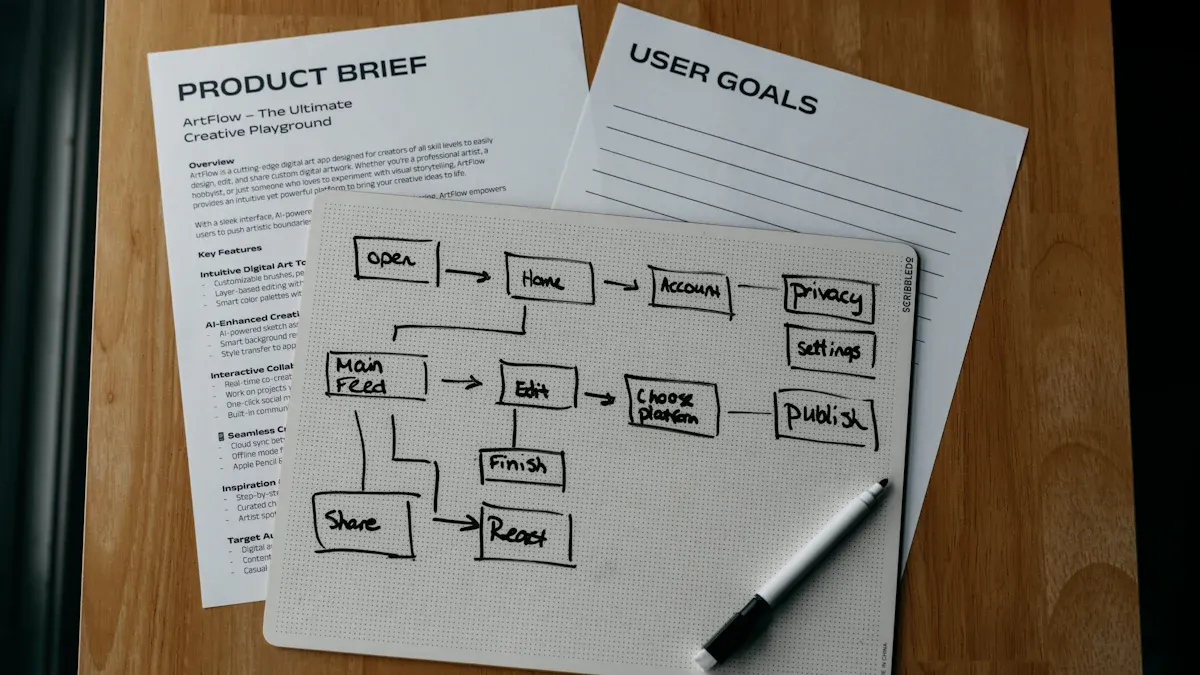
When you use Power Automate, you unlock significant time and efficiency gains. By automating repetitive tasks, you can focus on what truly matters. Imagine no longer spending hours on mundane activities like data entry or sending routine emails. Instead, you can redirect that time to strategic projects that drive your business forward.
Here are some key benefits of streamlining workflows with Power Automate:
| Benefit | Description |
|---|---|
| Increased Efficiency | Automates repetitive tasks, allowing you to focus on more valuable work. |
| Cost Savings | Reduces labor costs and human errors, leading to significant financial savings over time. |
| Data Accuracy | Prevents discrepancies and duplicate records by ensuring consistent data processing across systems. |
| Workflow Management | Provides a centralized platform for creating, monitoring, and managing workflows. |
| Scalability | Supports growth by allowing small to large automations, adapting to operational needs. |
| Integration | Connects with various applications, eliminating silos and enhancing efficiency. |
| Accessibility | Low-code interface enables non-technical users to create workflows, fostering innovation. |
Organizations that have adopted Power Automate have seen impressive results. For instance, one company saved an estimated $9.5 million by retiring old legacy systems and embracing a unified automation platform. Employees involved in high-impact RPA cases gained 200 hours of efficiency, resulting in a savings of $13.2 million over three years. These numbers highlight how automating administrative tasks can lead to remarkable time savings.
Enhanced Productivity
Power Automate doesn't just save time; it also enhances productivity. By minimizing manual errors and streamlining processes, you can concentrate on strategic tasks that require your expertise. Automated reporting ensures that decision-makers receive timely information without manual effort. This means you can make informed decisions faster.
Consider how Power Automate facilitates smoother onboarding. By automating workflows triggered by new employee records, HR can reduce administrative workload. This allows HR professionals to focus on building a strong team rather than getting bogged down in paperwork.
A Forrester Consulting study found a 248% ROI with a payback period of under six months, showcasing the financial benefits of using Power Automate. By measuring time and cost savings, error reduction, and productivity improvements, businesses can clearly see the impact of streamlining workflows.
Use-Cases for Power Automate
Automating Notifications
Power Automate shines when it comes to automating notifications. Imagine never missing an important update again! With this tool, you can set up flows that send alerts based on specific triggers. Here are some real use cases to consider:
- Procurement Alerts: When purchase orders exceed a set threshold, Power Automate can notify finance controllers and budget owners. This replaces lengthy email chains and keeps everyone informed.
- Customer Service Escalations: If a case remains unresolved for too long, an automated notification can alert team leads with essential details. This ensures timely follow-ups and better customer service.
- HR Onboarding Notifications: When a new employee record is created, Power Automate can coordinate notifications for IT, facilities, and hiring managers. This improves preparation efficiency and ensures a smooth onboarding process.
You can also create various automated notification flows. For example, you might want to automate email notifications for form submissions or document changes. This reduces manual effort and ensures timely communication.
| Example Type | Description | Benefits |
|---|---|---|
| Automated Email Notifications | Sends notifications for events like form submissions or document changes. | Reduces manual effort, ensures timely communication, and minimizes missed notifications. |
| Approval Workflows | Routes requests to approvers and notifies requestors upon approval. | Creates a consistent approval record and reduces manual follow-up. |
| Leave Requests & Approvals | Automates leave management and notifies users of request responses. | Streamlines the leave management process for employees and managers, ensuring smooth processing. |
Data Management Solutions
Power Automate also excels in data management solutions. It helps you keep your data organized and accessible. Here are some features that make it a powerful ally in managing your data:
- Managed Environments: This feature keeps your data secure while providing visibility and control with less effort.
- Automation in Excel, OneDrive, or Teams: You can automate tasks without switching applications, maintaining workflow continuity.
- Document Processing Setup: Power Automate facilitates robust document processing using Power Automate, Power Apps, and Microsoft Dataverse.
By integrating with Power BI, you can trigger workflows based on key performance indicators crossing critical thresholds. This means you can stay ahead of important metrics without manual tracking.
| Feature | Benefit |
|---|---|
| Managed Environments | Keeps your data secure and provides visibility and control with less effort. |
| Automation in Excel, OneDrive, or Teams | Allows users to automate tasks without switching applications, maintaining workflow continuity. |
| Document Processing Setup | Facilitates robust document processing using Power Automate, Power Apps, and Microsoft Dataverse. |
With these capabilities, Power Automate increases productivity by automating workflows, reducing manual workloads, and minimizing human error. You can integrate thousands of services and applications through connectors, making it easier than ever to manage your data effectively.
In summary, Power Automate is a powerful tool that helps you automate repetitive tasks and streamline your workflows. Here are some key takeaways:
- It’s perfect for Microsoft-centric environments and supports various flow types, including automated, instant, scheduled, and desktop flows.
- You can easily create flows without programming skills, making it accessible for everyone.
- By automating tasks, you reduce manual work and errors, which boosts efficiency and productivity.
Ready to get started? Access the Power Automate home page, explore templates, and utilize learning resources to enhance your automation skills. Dive in and see how you can transform your daily tasks!
FAQ
What is a flow in Power Automate?
A flow is an automated workflow that connects different applications and services. It triggers actions based on specific events, helping you streamline tasks without manual effort.
How do I create a flow?
To create a flow, log into Power Automate, select "Create," choose a flow type, and follow the prompts to set up triggers and actions.
Can I use Power Automate on mobile?
Yes! Power Automate has a mobile app that allows you to manage and monitor your flows on the go, making it easy to stay connected.
What types of flows can I create?
You can create automated flows, instant flows, scheduled flows, and desktop flows. Each type serves different purposes based on your needs.
Is coding required to use Power Automate?
No coding skills are necessary! Power Automate features a user-friendly interface that allows you to create flows using drag-and-drop functionality.
Can I share my flows with others?
Absolutely! You can share your flows with team members or colleagues, allowing them to collaborate and benefit from your automation efforts.
How does Power Automate integrate with other apps?
Power Automate connects with over 850 applications through connectors, enabling seamless automation across various platforms and services.
What support resources are available for Power Automate?
Microsoft offers extensive documentation, tutorials, and community forums to help you learn and troubleshoot Power Automate effectively.
🎧 Listen to this episode
Want a practical explanation of Power Automate? This episode breaks down the topic in clear language and shows why it matters for Microsoft 365, Azure, Power Platform, security, AI, and modern work.
Listen to this episode if you want to:
- Understand the key concepts behind Power Automate
- See how it fits into the wider Microsoft technology ecosystem
- Learn where it can create practical value for your organization
You may also enjoy these related M365 FM episodes:
- Power Automate vs Azure Logic Apps for Scalable Workflows
- Automate Microsoft 365 Governance Beyond Static Checklists
- Automate Microsoft 365 Administration and Governance
- Automate Compliance Workflows with Microsoft Power Automate
- High-Performance Automation Control Plane for Power Automate
Discover more practical Microsoft conversations on M365 FM.
Last reviewed: July 2026.
Who Should Listen
This episode is for Microsoft 365 administrators, architects, IT leaders, and practitioners who need a practical understanding of Power Automate before planning, implementing, or supporting it.
🚀 Want to be part of m365.fm?
Then stop just listening… and start showing up.
👉 Connect with me on LinkedIn and let’s make something happen:
- 🎙️ Be a podcast guest and share your story
- 🎧 Host your own episode (yes, seriously)
- 💡 Pitch topics the community actually wants to hear
- 🌍 Build your personal brand in the Microsoft 365 space
This isn’t just a podcast — it’s a platform for people who take action.
🔥 Most people wait. The best ones don’t.
👉 Connect with me on LinkedIn and send me a message:
"I want in"
Let’s build something awesome 👊
1
00:00:00,000 --> 00:00:03,480
Welcome to another episode of Microsoft Knowledge Nuggets here on M365.
2
00:00:03,480 --> 00:00:04,960
FM, I'm your host, Mirko Peters.
3
00:00:04,960 --> 00:00:07,320
Today's topic is one that almost everyone has heard of,
4
00:00:07,320 --> 00:00:09,000
but very few actually understand.
5
00:00:09,000 --> 00:00:10,800
I'm talking about Power Automate.
6
00:00:10,800 --> 00:00:13,560
A tool most people dismiss as just that flow thing
7
00:00:13,560 --> 00:00:15,720
buried somewhere in Microsoft 365.
8
00:00:15,720 --> 00:00:18,800
Maybe you've seen it mentioned in a menu or clicked past it by accident,
9
00:00:18,800 --> 00:00:21,760
but here's the thing, Power Automate is one of the most powerful tools
10
00:00:21,760 --> 00:00:23,520
in the entire Microsoft platform.
11
00:00:23,520 --> 00:00:26,600
By the end of this episode, you'll know exactly what it is,
12
00:00:26,600 --> 00:00:29,720
how it works, and why it matters for your everyday work.
13
00:00:29,720 --> 00:00:32,480
Think of it like hiring a virtual assistant who never sleeps,
14
00:00:32,480 --> 00:00:34,760
never forgets, and never asks for a raise.
15
00:00:34,760 --> 00:00:36,800
Grab your coffee and let's dive in.
16
00:00:36,800 --> 00:00:38,520
The problem power automate solves.
17
00:00:38,520 --> 00:00:40,240
Let's start with the problem first.
18
00:00:40,240 --> 00:00:43,680
Think about your typical workday and how many times you repeat the same actions.
19
00:00:43,680 --> 00:00:46,680
Moving files between folders, copying data into another system,
20
00:00:46,680 --> 00:00:49,040
sending that same email for the hundredth time,
21
00:00:49,040 --> 00:00:50,880
forwarding a document for approval,
22
00:00:50,880 --> 00:00:54,200
or updating a spreadsheet because someone submitted a form.
23
00:00:54,200 --> 00:00:56,760
These tasks eat hours every single week,
24
00:00:56,760 --> 00:00:58,280
and the frustrating part is
25
00:00:58,280 --> 00:01:01,400
they add almost zero strategic value nobody ever got promoted for being
26
00:01:01,400 --> 00:01:05,200
great at copying and pasting, but we do them anyway because they have to get done.
27
00:01:05,200 --> 00:01:08,280
20 years ago, if you wanted to automate these repetitive tasks,
28
00:01:08,280 --> 00:01:09,560
you really had only two choices.
29
00:01:09,560 --> 00:01:11,520
You could hire someone to do the boring work for you,
30
00:01:11,520 --> 00:01:13,880
or you could learn to write complex code yourself.
31
00:01:13,880 --> 00:01:17,160
Neither option was great because scripting was fragile and broke all the time,
32
00:01:17,160 --> 00:01:19,720
while enterprise automation software cost a fortune
33
00:01:19,720 --> 00:01:22,440
and required a whole team of experts to maintain.
34
00:01:22,440 --> 00:01:25,200
So most people just kept doing the repetitive work manually.
35
00:01:25,200 --> 00:01:27,520
Microsoft looked at that frustrating situation
36
00:01:27,520 --> 00:01:30,640
and decided to change it by building a tool that lets anyone,
37
00:01:30,640 --> 00:01:33,120
and I mean anyone, automate repetitive tasks
38
00:01:33,120 --> 00:01:35,040
without writing a single line of code.
39
00:01:35,040 --> 00:01:37,440
That tool is Power Automate, at its simplest,
40
00:01:37,440 --> 00:01:39,960
it connects your apps and services so they can talk to each other
41
00:01:39,960 --> 00:01:41,280
without you sitting in the middle.
42
00:01:41,280 --> 00:01:44,480
Instead of you being the bridge between Outlook SharePoint and Teams,
43
00:01:44,480 --> 00:01:46,480
Power Automate becomes that bridge,
44
00:01:46,480 --> 00:01:48,760
working around the clock without taking a lunch break
45
00:01:48,760 --> 00:01:50,560
or ever making a single typo.
46
00:01:50,560 --> 00:01:54,040
The simple definition, trigger plus action.
47
00:01:54,040 --> 00:01:55,720
So what exactly is Power Automate?
48
00:01:55,720 --> 00:01:57,240
Here's the simplest definition.
49
00:01:57,240 --> 00:01:59,200
Power Automate is made of two things,
50
00:01:59,200 --> 00:02:01,200
a trigger and one or more actions.
51
00:02:01,200 --> 00:02:03,520
That's it, everything else builds on that foundation.
52
00:02:03,520 --> 00:02:05,560
Think of a trigger as the starting pistol.
53
00:02:05,560 --> 00:02:07,160
It's the when.
54
00:02:07,160 --> 00:02:09,120
When a new email arrives in your inbox,
55
00:02:09,120 --> 00:02:11,480
when a file is created in a SharePoint folder,
56
00:02:11,480 --> 00:02:13,200
when someone submits a Microsoft form,
57
00:02:13,200 --> 00:02:16,840
when a calendar event starts, nothing happens until the trigger fires.
58
00:02:16,840 --> 00:02:17,640
That's the key.
59
00:02:17,640 --> 00:02:20,840
An action is the what happens next.
60
00:02:20,840 --> 00:02:22,880
Send a notification, create a file,
61
00:02:22,880 --> 00:02:25,280
update a spreadsheet row, post a message in Teams,
62
00:02:25,280 --> 00:02:27,280
add a task to plan a send an email.
63
00:02:27,280 --> 00:02:29,640
That's what the automation does in response to the trigger.
64
00:02:29,640 --> 00:02:30,520
It's that simple.
65
00:02:30,520 --> 00:02:32,280
Let's walk through a real scenario.
66
00:02:32,280 --> 00:02:35,080
Imagine a customer fills out a contact form on your website.
67
00:02:35,080 --> 00:02:36,680
That form submission is the trigger.
68
00:02:36,680 --> 00:02:37,760
What happens next?
69
00:02:37,760 --> 00:02:40,080
You might save their information to a SharePoint list.
70
00:02:40,080 --> 00:02:41,400
That's action number one.
71
00:02:41,400 --> 00:02:44,080
Send a notification to your sales team in Teams.
72
00:02:44,080 --> 00:02:47,840
Action number two, create a follow-up task in planer for tomorrow morning.
73
00:02:47,840 --> 00:02:50,600
Action number three, one trigger, multiple actions,
74
00:02:50,600 --> 00:02:52,440
all happening automatically in seconds.
75
00:02:52,440 --> 00:02:53,520
No manual work needed.
76
00:02:53,520 --> 00:02:54,320
Here's the thing.
77
00:02:54,320 --> 00:02:56,680
You don't write a single line of code to build these flows.
78
00:02:56,680 --> 00:02:59,280
You connect pre-built pieces together like Lego blocks.
79
00:02:59,280 --> 00:03:02,200
Microsoft has already built the blocks for hundreds of different services.
80
00:03:02,200 --> 00:03:03,320
You just snap them together.
81
00:03:03,320 --> 00:03:04,800
Want to add a send email step?
82
00:03:04,800 --> 00:03:05,480
Drag it in.
83
00:03:05,480 --> 00:03:07,240
Want to add a create file step?
84
00:03:07,240 --> 00:03:08,080
Drag it in.
85
00:03:08,080 --> 00:03:11,320
Want to add a condition that checks if something is true before proceeding?
86
00:03:11,320 --> 00:03:11,840
Drag it in.
87
00:03:11,840 --> 00:03:13,440
It's really that visual and that simple.
88
00:03:13,440 --> 00:03:15,600
Most people think power automate is complicated,
89
00:03:15,600 --> 00:03:18,120
but strip away all the marketing and technical jargon
90
00:03:18,120 --> 00:03:20,960
and it's really just when this happens, do that.
91
00:03:20,960 --> 00:03:22,000
That's the whole concept.
92
00:03:22,000 --> 00:03:23,920
Once you understand that foundation,
93
00:03:23,920 --> 00:03:27,320
everything else starts to make sense when the three types of flows.
94
00:03:27,320 --> 00:03:28,720
Now that you know the basic concept,
95
00:03:28,720 --> 00:03:30,960
let's dive into the different ways flows can run.
96
00:03:30,960 --> 00:03:32,400
Not all flows work the same way.
97
00:03:32,400 --> 00:03:34,720
Let's break down the three types you need to know.
98
00:03:34,720 --> 00:03:36,320
First is automated flows.
99
00:03:36,320 --> 00:03:38,600
These run completely on their own when something happens.
100
00:03:38,600 --> 00:03:40,960
A new email lands in your inbox and boom,
101
00:03:40,960 --> 00:03:42,880
a task gets created in planer.
102
00:03:42,880 --> 00:03:44,360
No human interaction needed.
103
00:03:44,360 --> 00:03:47,920
It just runs in the background, doing its job while you focus on something else.
104
00:03:47,920 --> 00:03:51,560
This is the most common type of flow for everyday business automation.
105
00:03:51,560 --> 00:03:54,880
You set it up once and it runs forever until you turn it off.
106
00:03:54,880 --> 00:03:56,640
Second is instant flows.
107
00:03:56,640 --> 00:03:58,360
These run when you click a button.
108
00:03:58,360 --> 00:04:01,960
From your phone, from inside teams or from a sharepoint side,
109
00:04:01,960 --> 00:04:03,960
imagine you're looking at a document in SharePoint
110
00:04:03,960 --> 00:04:06,800
and there's a button that says, "Send this for approval."
111
00:04:06,800 --> 00:04:09,600
You click it and the flow handles the rest.
112
00:04:09,600 --> 00:04:12,640
Instant flows are perfect for actions you want to control.
113
00:04:12,640 --> 00:04:14,120
You don't want them running automatically
114
00:04:14,120 --> 00:04:16,080
because you need to decide when they fire,
115
00:04:16,080 --> 00:04:19,040
but once you decide the flow does all the heavy lifting for you.
116
00:04:19,040 --> 00:04:20,640
Third is scheduled flows.
117
00:04:20,640 --> 00:04:21,800
These run on a timer.
118
00:04:21,800 --> 00:04:25,840
Every Monday at 8am send me a summary of all incomplete tasks every day at noon,
119
00:04:25,840 --> 00:04:26,880
back up this folder.
120
00:04:26,880 --> 00:04:29,240
Every first of the month generate a report.
121
00:04:29,240 --> 00:04:32,480
You set the schedule daily, weekly, monthly, whatever you need.
122
00:04:32,480 --> 00:04:33,760
And it runs like clockwork.
123
00:04:33,760 --> 00:04:37,880
Scheduled flows are great for recurring reports, reminders and cleanup tasks.
124
00:04:37,880 --> 00:04:39,520
Here's what you need to understand.
125
00:04:39,520 --> 00:04:42,480
The core engine is exactly the same for all three types.
126
00:04:42,480 --> 00:04:44,280
The only real difference is the trigger.
127
00:04:44,280 --> 00:04:46,280
Automated flows use event triggers.
128
00:04:46,280 --> 00:04:48,000
Instant flows use manual triggers.
129
00:04:48,000 --> 00:04:49,720
Scheduled flows use time triggers,
130
00:04:49,720 --> 00:04:53,200
but once the trigger fires, everything after that works exactly the same way.
131
00:04:53,200 --> 00:04:57,800
So pick the trigger that matches how you want the flow to start and you're good to go.
132
00:04:57,800 --> 00:04:58,640
Connectors.
133
00:04:58,640 --> 00:05:00,480
How power automate talks to everything.
134
00:05:00,480 --> 00:05:01,920
So you've got triggers and actions.
135
00:05:01,920 --> 00:05:04,720
But how does power automate actually talk to all these different apps?
136
00:05:04,720 --> 00:05:06,040
The answer is connectors.
137
00:05:06,040 --> 00:05:07,640
Connectors are the translators.
138
00:05:07,640 --> 00:05:11,640
Power automate doesn't natively speak, sharepoint, outlook, teams or Excel,
139
00:05:11,640 --> 00:05:12,680
but connectors do.
140
00:05:12,680 --> 00:05:15,720
Each connector knows how to talk to a specific service.
141
00:05:15,720 --> 00:05:19,160
What it can do, what data it expects, and how to send commands.
142
00:05:19,160 --> 00:05:23,760
When you add a step to your flow, you're really just picking a connector and telling it what to do.
143
00:05:23,760 --> 00:05:28,040
Over one 400 pre-built connectors exist right now, and that number keeps growing.
144
00:05:28,040 --> 00:05:33,040
The Microsoft connectors, SharePoint, Teams, Outlook, OneDrive come standard in most plans
145
00:05:33,040 --> 00:05:35,280
and cover the services you probably use every day.
146
00:05:35,280 --> 00:05:38,280
But the third party connectors open up a whole new world.
147
00:05:38,280 --> 00:05:43,680
Salesforce, Adobe, DocuSign, Google, Twitter, MailChimp, Power Automate can talk to all of them.
148
00:05:43,680 --> 00:05:47,760
You can build a flow that starts with a Google Form submission, saves the data to SharePoint,
149
00:05:47,760 --> 00:05:50,840
sends a DocuSign agreement and posts a notification in Teams.
150
00:05:50,840 --> 00:05:53,840
All in one flow, all without leaving the Microsoft ecosystem.
151
00:05:53,840 --> 00:05:57,160
And if there isn't a connector for the system you need, you can build your own.
152
00:05:57,160 --> 00:06:00,360
Custom connectors let you connect to any service that has an API.
153
00:06:00,360 --> 00:06:03,800
It takes a bit more work, but it means power automate can talk to anything.
154
00:06:03,800 --> 00:06:06,040
Each connector has its own set of triggers and actions.
155
00:06:06,040 --> 00:06:08,840
When you pick one, you only see what that service can actually do.
156
00:06:08,840 --> 00:06:11,640
SharePoints connector knows about lists and libraries.
157
00:06:11,640 --> 00:06:14,120
Outlooks connector handles emails and calendars.
158
00:06:14,120 --> 00:06:16,200
Teams connector deals with channels and messages.
159
00:06:16,200 --> 00:06:19,320
You don't have to guess because the connector tells you exactly what's available.
160
00:06:19,320 --> 00:06:21,240
That's the real power of power automate.
161
00:06:21,240 --> 00:06:22,800
It's not just for Microsoft services.
162
00:06:22,800 --> 00:06:27,680
It connects your entire tool stack, your CRM, your email, your file storage, your project management,
163
00:06:27,680 --> 00:06:29,640
into one unified automation system.
164
00:06:29,640 --> 00:06:31,920
They all become part of the same flow.
165
00:06:31,920 --> 00:06:34,240
Cloud flows versus desktop flows.
166
00:06:34,240 --> 00:06:36,000
Now, this is where people get confused.
167
00:06:36,000 --> 00:06:39,400
There are actually two kinds of power automate and they work very differently.
168
00:06:39,400 --> 00:06:40,840
The first kind is cloud flows.
169
00:06:40,840 --> 00:06:42,480
These run entirely on Microsoft servers.
170
00:06:42,480 --> 00:06:45,160
When you build a cloud flow, everything happens in the cloud.
171
00:06:45,160 --> 00:06:47,920
A form gets submitted and the data gets saved to SharePoint.
172
00:06:47,920 --> 00:06:50,680
An email arrives and a calendar event gets created.
173
00:06:50,680 --> 00:06:54,440
Your computer doesn't need to be on and you don't need any software installed.
174
00:06:54,440 --> 00:06:58,520
The flow runs on Microsoft's infrastructure and you just check the results later.
175
00:06:58,520 --> 00:07:01,760
Cloud flows are what most people think of when they hear power automate.
176
00:07:01,760 --> 00:07:03,680
The second kind is desktop flows.
177
00:07:03,680 --> 00:07:04,880
This is completely different.
178
00:07:04,880 --> 00:07:08,920
Desktop flows use something called robotic process automation or RPA.
179
00:07:08,920 --> 00:07:10,960
And here's what that means in plain English.
180
00:07:10,960 --> 00:07:13,880
Power automate literally takes control of your mouse and keyboard.
181
00:07:13,880 --> 00:07:18,880
It opens browser windows, clicks buttons, types text into fields and copies data from one
182
00:07:18,880 --> 00:07:20,200
application to another.
183
00:07:20,200 --> 00:07:24,320
If you've ever watched someone use remote desktop software to control another computer,
184
00:07:24,320 --> 00:07:27,680
it looks exactly like that except there's no person on the other end.
185
00:07:27,680 --> 00:07:29,560
It's just software moving your mouse around.
186
00:07:29,560 --> 00:07:33,120
The first time you see a desktop flow running, it's kind of freaky.
187
00:07:33,120 --> 00:07:37,240
Your cursor starts moving on its own, windows open and closed and text appears in fields
188
00:07:37,240 --> 00:07:38,240
you didn't click on.
189
00:07:38,240 --> 00:07:40,360
It looks like a ghost is using your computer.
190
00:07:40,360 --> 00:07:44,000
But once you get past the weirdness, you realize how powerful this is.
191
00:07:44,000 --> 00:07:45,680
So why would you need desktop flows?
192
00:07:45,680 --> 00:07:48,400
Because not every system has a modern API or connector.
193
00:07:48,400 --> 00:07:51,240
Think about those old business applications companies still use.
194
00:07:51,240 --> 00:07:55,280
The accounting system from the early 2000s, the custom database built 15 years ago, the
195
00:07:55,280 --> 00:07:58,120
legacy HR software running on a local server.
196
00:07:58,120 --> 00:08:01,920
These systems don't have triggers, connectors or any way to talk to the outside world,
197
00:08:01,920 --> 00:08:06,320
but a desktop flow can interact with them the same way a human would by clicking buttons
198
00:08:06,320 --> 00:08:07,640
and typing text.
199
00:08:07,640 --> 00:08:08,760
Which one do you need?
200
00:08:08,760 --> 00:08:12,120
Cloudflow's work for modern services that have APIs and connectors.
201
00:08:12,120 --> 00:08:16,520
Desktop flows handle legacy applications, old software or anything that can't connect
202
00:08:16,520 --> 00:08:17,680
programmatically.
203
00:08:17,680 --> 00:08:20,520
In many organizations you'll end up using both.
204
00:08:20,520 --> 00:08:22,640
How the pieces fit together, the system.
205
00:08:22,640 --> 00:08:26,360
Here's the thing, most people think power automate is just one tool, but understanding how
206
00:08:26,360 --> 00:08:29,880
the pieces fit together is what unlocks the real power.
207
00:08:29,880 --> 00:08:33,120
It's actually three layers working together, start with the trigger.
208
00:08:33,120 --> 00:08:34,480
Something happens in your work world.
209
00:08:34,480 --> 00:08:38,600
A form gets submitted, a file gets uploaded or an email arrives, that's the spark that
210
00:08:38,600 --> 00:08:39,920
starts everything.
211
00:08:39,920 --> 00:08:40,920
Next is the action.
212
00:08:40,920 --> 00:08:44,480
The automation does something useful like saving data, sending a notification, creating
213
00:08:44,480 --> 00:08:46,200
a task or updating a record.
214
00:08:46,200 --> 00:08:47,520
That's where the work gets done.
215
00:08:47,520 --> 00:08:48,560
Then there's the connector.
216
00:08:48,560 --> 00:08:50,880
This bridges the gap between your different tools.
217
00:08:50,880 --> 00:08:54,520
It lets the trigger talk to the action even when they're in completely different systems.
218
00:08:54,520 --> 00:08:56,560
The real power isn't any single piece.
219
00:08:56,560 --> 00:08:57,560
It's how they combine.
220
00:08:57,560 --> 00:08:58,560
Let me give you a real example.
221
00:08:58,560 --> 00:09:01,000
Say a customer fills out a contact form on your website.
222
00:09:01,000 --> 00:09:02,000
That's the trigger.
223
00:09:02,000 --> 00:09:06,200
Power automate picks that up and finds the right salesperson in a SharePoint list.
224
00:09:06,200 --> 00:09:10,080
Action one, then it sends a team's alert to that salesperson.
225
00:09:10,080 --> 00:09:14,160
Action two, then it creates a follow-up task in planner for the next morning.
226
00:09:14,160 --> 00:09:18,160
Action three, then it logs everything in an Excel spreadsheet for reporting.
227
00:09:18,160 --> 00:09:22,680
Action four, four actions from one trigger across three different services and it all
228
00:09:22,680 --> 00:09:23,880
happens in seconds.
229
00:09:23,880 --> 00:09:27,240
One trigger can chain into dozens of actions across multiple services.
230
00:09:27,240 --> 00:09:32,840
You can build flows that touch SharePoint, Teams, Outlook, Planner, Excel and Salesforce in
231
00:09:32,840 --> 00:09:34,280
the same automation.
232
00:09:34,280 --> 00:09:37,800
Each action passes data to the next one, building on what came before.
233
00:09:37,800 --> 00:09:39,840
The flow doesn't just do one thing.
234
00:09:39,840 --> 00:09:42,440
It handles a whole process from start to finish.
235
00:09:42,440 --> 00:09:43,440
That's the magic.
236
00:09:43,440 --> 00:09:45,640
What used to be a manual 10-minute process?
237
00:09:45,640 --> 00:09:49,840
Checking the form, finding the right person, sending a message, creating a task, logging
238
00:09:49,840 --> 00:09:52,880
the data, now happens instantly and automatically.
239
00:09:52,880 --> 00:09:53,880
No errors.
240
00:09:53,880 --> 00:09:55,520
The customer gets a faster response.
241
00:09:55,520 --> 00:09:59,240
The salesperson gets a clear next step and you never lift a finger.
242
00:09:59,240 --> 00:10:01,520
Real-world examples you can use tomorrow.
243
00:10:01,520 --> 00:10:02,960
Let's make this concrete.
244
00:10:02,960 --> 00:10:06,320
Here are three flows you can build right now starting today.
245
00:10:06,320 --> 00:10:08,000
Start with a form submission flow.
246
00:10:08,000 --> 00:10:12,440
Someone fills out a Microsoft form, maybe an event registration, a feedback form or a support
247
00:10:12,440 --> 00:10:13,440
request.
248
00:10:13,440 --> 00:10:16,600
When they hit submit, power automate saves their answers to a SharePoint list.
249
00:10:16,600 --> 00:10:18,680
Then it sends an email to your team with the details.
250
00:10:18,680 --> 00:10:19,680
That's it.
251
00:10:19,680 --> 00:10:23,080
One trigger, two actions and suddenly you never have to manually copy form responses
252
00:10:23,080 --> 00:10:24,760
into a spreadsheet again.
253
00:10:24,760 --> 00:10:29,200
Every submission gets automatically captured, organized and shared with the people who need
254
00:10:29,200 --> 00:10:30,280
to see it.
255
00:10:30,280 --> 00:10:32,640
Next up is an approval flow for documents.
256
00:10:32,640 --> 00:10:36,560
Someone uploads a file to a SharePoint folder, power automate detects the new file and sends
257
00:10:36,560 --> 00:10:38,280
an approval request to a manager.
258
00:10:38,280 --> 00:10:42,880
The manager gets an email or a team's notification with a simple approve or reject button.
259
00:10:42,880 --> 00:10:46,240
If they approve, the file automatically moves to a published folder.
260
00:10:46,240 --> 00:10:48,040
If they reject, it stays in drafts.
261
00:10:48,040 --> 00:10:49,840
No more chasing people down for sign-offs.
262
00:10:49,840 --> 00:10:52,600
No more wondering if a document has been reviewed or not.
263
00:10:52,600 --> 00:10:56,000
The flow handles the entire approval chain from start to finish.
264
00:10:56,000 --> 00:10:57,880
Then there's a daily task summary.
265
00:10:57,880 --> 00:11:02,320
Every morning at 7am, power automate checks your SharePoint task list for anything that's
266
00:11:02,320 --> 00:11:03,320
incomplete.
267
00:11:03,320 --> 00:11:06,960
It collects all the overdue and pending items and sends you a summary in teams.
268
00:11:06,960 --> 00:11:10,760
You start your day knowing exactly what's waiting for you, no need to open multiple lists
269
00:11:10,760 --> 00:11:12,200
or check different tools.
270
00:11:12,200 --> 00:11:15,240
The summary is right there in your chat when you sit down with your coffee.
271
00:11:15,240 --> 00:11:18,160
Each of these flows takes about 10 to 15 minutes to build.
272
00:11:18,160 --> 00:11:23,080
No coding required, no IT department needed, just you, a browser and the power automate editor.
273
00:11:23,080 --> 00:11:26,080
The trick is to start with one process that annoys you the most.
274
00:11:26,080 --> 00:11:29,480
The one you do every day where you think there has to be a better way.
275
00:11:29,480 --> 00:11:31,480
That's your first automation target.
276
00:11:31,480 --> 00:11:32,480
Getting started.
277
00:11:32,480 --> 00:11:34,240
Your first flow in 5 minutes.
278
00:11:34,240 --> 00:11:35,720
Ready to try it out?
279
00:11:35,720 --> 00:11:38,880
Here's exactly how to get your first flow running in just a few minutes.
280
00:11:38,880 --> 00:11:41,360
Open your browser and head to make power automate dot com.
281
00:11:41,360 --> 00:11:44,360
That's your central hub for building and managing flows.
282
00:11:44,360 --> 00:11:49,240
Then in with the same Microsoft 365 work account you already use for email and teams.
283
00:11:49,240 --> 00:11:54,080
Once you're in, click create on the left sidebar, then choose automated cloud flow.
284
00:11:54,080 --> 00:11:58,120
That tells power automate you want a flow that runs automatically when something happens.
285
00:11:58,120 --> 00:12:02,320
For your first flow, I recommend using when a new email arrives as your trigger.
286
00:12:02,320 --> 00:12:05,680
It's simple, easy to test and everyone gets email.
287
00:12:05,680 --> 00:12:07,720
Click create and you're in the editor.
288
00:12:07,720 --> 00:12:08,720
Now you need an action.
289
00:12:08,720 --> 00:12:11,480
Click the plus sign under your trigger and search for teams.
290
00:12:11,480 --> 00:12:14,600
Post a message in the chat or channel.
291
00:12:14,600 --> 00:12:17,200
Select flow bot as the sender.
292
00:12:17,200 --> 00:12:21,840
Pick yourself as the recipient and type a message like new email received.
293
00:12:21,840 --> 00:12:23,120
That's all there is to it.
294
00:12:23,120 --> 00:12:26,840
Click save and your first flow is ready and here's a tip you'll use again and again.
295
00:12:26,840 --> 00:12:28,800
The test button is your best friend.
296
00:12:28,800 --> 00:12:32,640
When you click it, power automate runs your flow immediately using whatever trigger data
297
00:12:32,640 --> 00:12:33,800
is available.
298
00:12:33,800 --> 00:12:36,800
For the email trigger, it waits for a new email to arrive.
299
00:12:36,800 --> 00:12:40,040
Just send yourself a quick test email and watch the flow fire off.
300
00:12:40,040 --> 00:12:42,320
You don't have to wait for the real trigger to happen naturally.
301
00:12:42,320 --> 00:12:44,360
If something does go wrong, don't panic.
302
00:12:44,360 --> 00:12:48,440
Click on the step that failed and look at the inputs and outputs sections.
303
00:12:48,440 --> 00:12:50,280
Inputs show what data the step received.
304
00:12:50,280 --> 00:12:51,800
Outputs show what it tried to do.
305
00:12:51,800 --> 00:12:55,680
Nine times out of ten, the problem becomes obvious once you check those two areas.
306
00:12:55,680 --> 00:12:58,400
Maybe the email subject was formatted differently than expected.
307
00:12:58,400 --> 00:12:59,640
Maybe a field was empty.
308
00:12:59,640 --> 00:13:02,520
The error messages are surprisingly helpful once you know where to find them.
309
00:13:02,520 --> 00:13:05,200
Start small, test often and build up gradually.
310
00:13:05,200 --> 00:13:07,280
Your very first flow might only have two steps.
311
00:13:07,280 --> 00:13:08,800
Your tenth flow could have 20.
312
00:13:08,800 --> 00:13:09,960
That's perfectly fine.
313
00:13:09,960 --> 00:13:14,680
Every flow you build teaches you something new about how your tools connect and work together.
314
00:13:14,680 --> 00:13:15,880
So that's the system.
315
00:13:15,880 --> 00:13:19,880
Triggers, actions and connectors all working together to handle the busy work that eats
316
00:13:19,880 --> 00:13:21,320
your time every day.
317
00:13:21,320 --> 00:13:24,680
Most people think automation is complicated or requires coding skills.
318
00:13:24,680 --> 00:13:25,680
But it doesn't anymore.
319
00:13:25,680 --> 00:13:30,200
The single smartest move you can make right now is to pick one repetitive task you do daily
320
00:13:30,200 --> 00:13:31,920
and build a flow for it.
321
00:13:31,920 --> 00:13:35,600
Subscribe for more breakdowns like this and drop a comment telling me what you'd automate

Founder of m365.fm, m365.show and m365con.net
Mirko Peters is a Microsoft 365 expert, content creator, and founder of m365.fm, a platform dedicated to sharing practical insights on modern workplace technologies. His work focuses on Microsoft 365 governance, security, collaboration, and real-world implementation strategies.
Through his podcast and written content, Mirko provides hands-on guidance for IT professionals, architects, and business leaders navigating the complexities of Microsoft 365. He is known for translating complex topics into clear, actionable advice, often highlighting common mistakes and overlooked risks in real-world environments.
With a strong emphasis on community contribution and knowledge sharing, Mirko is actively building a platform that connects experts, shares experiences, and helps organizations get the most out of their Microsoft 365 investments.




