

 Apple Podcasts
 Spotify
 Youtube Music
 Spreaker
 Podchaser
 Amazon Music
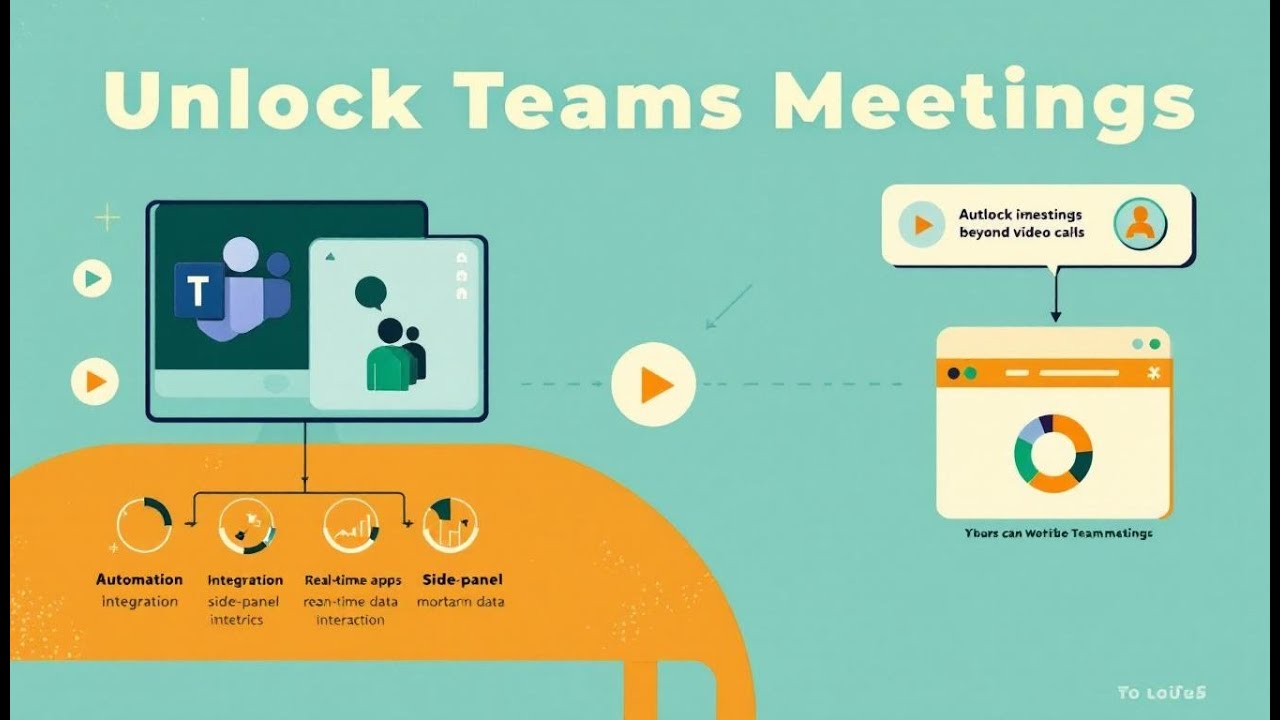
Teams meetings can be a live work hub—not just video. Combine custom apps, in-meeting side panels, and Microsoft Graph meeting lifecycle events to surface live business data, run workflows, and trigger automation from the meeting itself. Wire the three together so the meeting behaves like an app: context-aware, real-time, and automated.






You no longer join meetings just for video calls. With Microsoft Teams Meeting Extensibility, you unlock a new way to work inside meetings. Teams now let you use apps and bots that automate tasks, translate languages, and even create action lists in real time. AI features in Microsoft Teams help you capture notes and pull answers from different types of data. These tools turn teams meetings into interactive hubs, making it easier for you to focus and boost productivity. Microsoft gives you everything you need to get more out of every meeting.
Key Takeaways
- Microsoft Teams Meeting Extensibility transforms meetings into interactive workspaces with apps and bots.
- Use meeting tabs and side panels to access tools without leaving the meeting, keeping your focus intact.
- Automate tasks with bots to save time and improve workflow efficiency during meetings.
- Incorporate built-in and custom apps to enhance collaboration, such as running polls or brainstorming on a whiteboard.
- Bots can capture meeting notes, send reminders, and provide real-time support, acting as virtual assistants.
- Choose apps for teamwork activities and bots for automating tasks to maximize meeting productivity.
- Explore the Teams app store to find tools that fit your meeting needs and boost engagement.
- Stay aware of security and compliance when using apps and bots to protect your data and ensure safe collaboration.
9 Surprising Facts about Microsoft Teams Meeting App Extensibility
- Apps can be scoped specifically to a meeting instance. Microsoft Teams Meeting App Extensibility lets you install an app for a single meeting (meeting-scoped), so functionality and permissions can be limited to that meeting rather than the whole tenant or user.
- Meeting apps have lifecycle pages: pre-meeting, in-meeting, and post-meeting. You can provide custom configuration or prep screens before a meeting, interactive experiences during the meeting (tab, side panel, or meeting stage), and summary or follow-up actions after the meeting ends.
- Meeting apps can access rich contextual data via Microsoft Graph. With appropriate permissions, apps can read meeting details, participants, and scheduling information through Microsoft Graph APIs to tailor experiences to the meeting context.
- Apps can participate in the main meeting stage (large shared canvas). Meeting Extensibility supports rendering content directly on the meeting stage so multiple participants see the same shared experience, not just a private side panel.
- Bots, tabs, and messaging extensions all work inside meetings. The same Teams app capabilities you use elsewhere—bots for interactions, tabs for rich UIs, and messaging/compose extensions—can be embedded into the meeting environment to enable workflows without leaving the call.
- Real-time collaboration and live signaling are supported. Meeting apps can integrate real-time features (via WebRTC, SignalR, or Teams real-time APIs) to synchronize state among participants during the meeting for collaborative editors, whiteboards, and polls.
- Meeting apps can collect consented meeting data while respecting privacy boundaries. The platform enforces scoped permissions and consent flows, so apps can request access to attendance, transcript, and recording metadata only when necessary and authorized.
- Developers can test meeting apps locally and in staged environments. Microsoft provides tools and debugging flows (Teams Toolkit, ngrok, and validation steps) to iterate on meeting-scoped experiences before wide deployment.
- Extensibility unlocks automation around meeting events. Apps can react to meeting lifecycle events (join, leave, start, end) and automate tasks such as taking attendance, triggering follow-ups, or updating third-party systems in real time.
Microsoft Teams Meeting Extensibility Overview
Core Concepts and Architecture
Microsoft Teams Meeting Extensibility gives you the power to turn meetings into interactive workspaces. You can use meeting extensions to add new features and tools right inside your meetings. The architecture of these extensions relies on several key components that work together to create a seamless experience.
Meeting Tab and Side Panel
You interact with meeting tabs as the main interface for your meeting extensions. These tabs let you access custom apps, dashboards, or project boards without leaving the meeting. The meeting tab uses the teams sdk to connect your tools directly to the meeting environment. You can view tasks, update project status, or collaborate on documents in real time.
The side panel acts as an extra resource during meetings. It appears alongside your main meeting window and provides live information or context. For example, you might see a messaging extension that shows a Kanban board or a poll. The side panel uses the teams sdk to deliver updates without interrupting the flow of conversation. You stay focused because you do not need to switch between different apps or windows.
Microsoft Graph Lifecycle Events
Microsoft Graph lifecycle events play a big role in meeting extensions. These events trigger actions based on what happens during a meeting. For example, when you join a meeting, a messaging extension can preload important data using the teams sdk. When the meeting ends, another extension can use the sdk to create follow-up tasks or send summaries to your team. This automation saves you time and keeps everyone on track.
The teams sdk and messaging extensions work together to make sure your meeting extensions respond to every stage of the meeting. You get a smarter, more efficient workflow that adapts to your needs.
Why Extensibility Matters
Meeting extensions change the way you work in microsoft teams meetings. You no longer need to jump between different tools or lose focus during important discussions. Extensions bring everything you need into one place. You can use messaging extensions to share files, run polls, or update records without leaving the meeting.
The teams sdk supports a wide range of extensions, including messaging bots, workflow automation, and ai-powered features. These tools help you capture notes, assign tasks, and access business data in real time. You can even use messaging extensions to translate conversations or generate action lists instantly.
With meeting extensions, you turn every microsoft teams meeting into a productive workspace. You get more done, make better decisions, and keep your team connected. The teams sdk and messaging extensions ensure that your meetings are not just conversations—they become powerful collaboration hubs.
Microsoft Teams Apps in Meetings
What Are Microsoft Teams Apps
You use microsoft teams apps to add new features and tools to your meetings. These apps help you manage tasks, collect feedback, and work together with your team. You can choose from built-in apps or create custom apps that fit your needs. Built-in apps like Microsoft Whiteboard, Microsoft Forms, and Tasks by Planner and To Do come ready to use. Custom apps let you design unique solutions for your organization. You can add these apps to your meetings to boost engagement and make every session more productive.
Some of the most common types of apps you will find in a microsoft teams meeting include:
- Hypercontext: A project management app that helps you organize meetings with templates, agendas, and suggested questions.
- Microsoft Whiteboard: A digital canvas for real-time collaboration. You can type, draw, and leave comments with your team.
- Microsoft Forms: An app for collecting feedback and running surveys. You can gather project requirements or check in with your team.
- Tasks by Planner and To Do: This app brings together tasks from To Do, Outlook, and Planner so you can track progress.
- Translator: This app translates messages into different languages, making it easy to communicate with everyone.
- Power BI: You can view reports and data during meetings to support your decisions.
- Power Automate: This app helps you automate workflows and save time.
You can also find custom apps like Mural for digital whiteboards, LucidChart for diagrams, Trello for project management, and GitHub for code collaboration. These apps help you collaborate with others and keep your work organized.
Key Features of Meeting Apps
In-Meeting Collaboration
Meeting apps let you work together with your team in real time. You can share ideas, update documents, and solve problems without leaving the meeting. For example, you can open Microsoft Whiteboard to brainstorm or use a Kanban board to track project progress. You can also use apps to run polls and gather instant feedback. These features increase engagement and make meetings more interactive.
Teams meetings offer special features that support group work:
- Recording and transcription so you never miss important details.
- Separate meeting chats for clear communication.
- Organizer controls to manage the meeting.
- Breakout rooms for small group discussions.
- Polling for real-time feedback.
- Attendance reports to track user engagement.
You can use these features with both built-in and custom apps to create a powerful meeting experience.
Workflow Automation
Apps in teams meetings do more than just help you talk. They automate tasks and connect your meeting to other tools. For example, you can use Power Automate to create follow-up tasks when a meeting ends. You can set up apps to send reminders, update your calendar, or post meeting summaries in your team channel. This automation saves you time and keeps everyone on track.
The integration of microsoft teams apps with Microsoft 365 makes your work easier. You can edit an Excel spreadsheet together during a meeting. You do not need to switch between apps. Everything you need is in one place. This setup helps you focus on your work and improves workflow efficiency.
Tip: Use apps to automate routine tasks. This gives you more time to focus on important discussions.
| Feature | Description |
|---|---|
| Eliminate unnecessary context switching | Integrate essential data and workflows from other apps into Teams. |
| Gather all the apps and tools you need | Embed Microsoft 365 and third-party apps in Teams. |
| Infuse collaboration into your apps | Add Teams features like meetings and chat into standalone apps. |
Use Cases for Microsoft Teams Apps
You can use microsoft teams apps in many ways to improve your meetings. Here are some practical examples:
- Project management tools like Hypercontext and Trello help you organize meetings, plan projects, and track tasks. You can see all your work in one place and focus on the project itself.
- Kanban boards show project progress with columns like "in progress" and "in review." This makes it easy to see what your team is working on.
- Microsoft Forms lets you run polls and surveys during meetings. You can collect feedback or vote on ideas in real time.
- Microsoft Whiteboard gives you a space to brainstorm and draw together. You can sketch ideas, add notes, and build plans as a team.
- Power BI brings data into your meetings. You can review reports and make decisions based on real numbers.
- Employee Ideas lets your team share and vote on project ideas. This boosts engagement and helps you find the best solutions.
- Custom apps like Mural, LucidChart, and GitHub support special workflows. You can design diagrams, manage code, or create unique tools for your team.
You can also use apps to manage your calendar. For example, you can schedule meetings, set reminders, and track deadlines. Calendar integration keeps everyone on the same page and improves user engagement.
With custom apps, you can build tools that match your team's needs. You can automate calendar invites, create custom dashboards, or connect to other business systems. These apps help you get the most out of every microsoft teams meeting.
AI features in some apps can capture notes, suggest action items, and analyze meeting data. This makes your meetings smarter and more efficient.
Note: The right mix of built-in and custom apps can turn your meetings into powerful work sessions. Try different apps to see what works best for your team.
Bots in Microsoft Teams Meetings

What Are Meeting Bots
Meeting bots act as virtual participants in your meetings. You can think of them as digital helpers that join your video calls and interact with you and your team. These bots can capture audio, video, chat, and even meeting transcripts. They can also output information back into the meeting, making them active agents rather than silent observers. Some bots identify participant emails, join scheduled meetings through calendar integration, and provide real-time support during your sessions.
Here are some ways meeting bots differ from other bots in teams:
- A meeting bot joins your call as a participant and can interact in real time.
- It captures data like audio, video, chat, and metadata.
- It can output information back into the meeting, such as summaries or action items.
- It acts as an in-meeting agent, helping you automate tasks and access information instantly.
- It can join meetings automatically using calendar integration.
Meeting bots help you automate repetitive tasks and keep your meetings organized. You can use them to record conversations, generate transcripts, or even provide live translations.
Bot Development and Capabilities
You can build bots for teams meetings to automate tasks, manage workflows, and improve collaboration. Bot development involves several steps, from preparing your bot to managing its activity during meetings. You can use the teams ai library to add intelligence and natural language understanding to your bots. This allows your bots to interact with users through text, voice, or interactive cards.
Here are the main types of bots you might use in teams meetings:
| Bot Type | Description |
|---|---|
| Custom engine agent | Uses ai to perform automated tasks, understands natural language, and can engage in conversations. |
| Conversational bot | Simulates interactions with users, allowing engagement through text and interactive cards. |
| Notification bot | Sends alerts to users in teams channels or chats, allowing interaction through responses. |
| Workflow bot | Automates business processes by managing tasks and workflows, improving efficiency. |
Automated Notifications
Bots can send automated notifications to keep your team updated. For example, a notification bot can alert you when a meeting starts, remind you of agenda items, or notify you about action items assigned during the meeting. These notifications appear in your teams chat or channel, so you never miss important updates. You can also interact with these notifications by responding or taking action directly from the message.
Real-Time Data Access
Bots in teams meetings can access and process data in real time. For example, a conversational bot can monitor live transcriptions and capture changes in captions as people speak. Some bots can deploy instances on demand during meetings, giving you instant access to business data or analytics. You can use the teams ai library to build bots that analyze meeting content and provide insights or recommendations while the meeting is still in progress.
Bot capabilities extend to managing tasks, automating workflows, and even integrating with external services. You can use bots to pull data from other apps, update records, or trigger follow-up actions as soon as the meeting ends.
Bot Development Basics
If you want to create your own bot for microsoft teams meeting, you can follow these basic steps:
- Prepare your request body with required fields like service and meeting_url.
- Handle the response to get your bot's id and status.
- Monitor and manage your teams bot using the GET endpoint.
- Handle transcriptions and recordings by polling the endpoint for the final status and downloading recordings.
You can use the teams ai library to add advanced features, such as natural language understanding or integration with other microsoft services.
Security Considerations
When you deploy bots in teams meetings, you must pay attention to security and compliance. Here are some important steps:
- Configure the bot with a Resource Account so it acts as an internal user and does not get stuck in the lobby.
- Grant the correct Graph API permissions, such as Calls.JoinGroupCall.All, so the bot can join meetings directly.
- Set up meeting policies to allow the bot to bypass the lobby and join meetings without delays.
These steps help protect your data and ensure that only authorized bots can access your meetings.
Use Cases for Bots
You can use bots in teams meetings for many different tasks. Here are some common use cases:
- Embed functionality from other sites or services directly into your meeting.
- Trigger workflows from conversations, such as creating tasks or sending reminders.
- Automate low-level support tasks, like answering frequently asked questions.
- Sync conversations across different chat platforms to keep everyone connected.
- Track employee engagement and run surveys during meetings.
Bots functionality in teams meetings helps you save time and reduce manual work. You can use ai-powered bots as virtual assistants to manage meeting notes, schedule follow-ups, or provide live translations. Conversational bot solutions can answer questions, collect feedback, and guide your team through complex processes.
With the teams ai library, you can build bots that understand natural language and provide smart responses. These bots can help you make better decisions and keep your meetings productive. Microsoft teams gives you the tools to create custom bots that fit your unique needs and workflows.
Tip: Try using a conversational bot to automate meeting summaries or action item tracking. This can help your team stay organized and focused.
By using bots in your microsoft teams meetings, you unlock new ways to collaborate, automate, and innovate. You can rely on bot capabilities to handle routine tasks, so you can focus on what matters most.
Deploying and Managing Apps & Bots
Discovering Apps and Bots
You can discover and use apps and bots in teams by searching the Teams app store or your organization's app catalog. The Teams app store offers a wide range of tools, from project management apps to AI-powered bots. You can filter by category, popularity, or function to find the right solution for your meeting needs. If your organization builds custom apps, you will find them in the tenant app catalog. This catalog helps you access approved tools that match your business requirements.
Tip: Use the search and filter features in the Teams app store to quickly discover and use apps that boost your meeting efficiency.
Adding to Microsoft Teams Meetings
You can add apps and bots to your microsoft teams meeting by following a few simple steps. This process ensures that your tools are ready to use when your meeting starts. Here is a step-by-step guide:
- Add the Teams meeting app to your tenant app catalog.
- Obtain the necessary permissions and Graph access token with the required scopes, such as AppCatalog.Read.All, OnlineMeetings.ReadWrite, TeamsTab.ReadWriteForChat.All, and TeamsTab.ReadWriteForChat.
- Get the Teams app ID from the app catalog.
- Create an online meeting using the Graph API.
Once you complete these steps, you can launch the app or bot directly from the meeting interface. You can also manage which meetings include specific apps or bots, making it easy to tailor each session for maximum efficiency.
Security and Compliance
Security and compliance play a key role when you deploy apps and bots in teams. You must follow best practices to protect your data and ensure that only authorized users can access sensitive information. Here are some important steps you should take:
- Limit who can admit participants from the lobby to organizers and co-organizers only.
- Block specific external domains using the external access feature.
- Disable anonymous user access by turning off options for anonymous users to join meetings.
- Enable CAPTCHA-based human verification for anonymous and non-federated users.
- Require email verification for external participants.
- Use watermarking to deter unauthorized screenshots.
- Utilize end-to-end encryption so only meeting participants can access communication.
- Manage who can record, transcribe, or copy meeting content with granular controls.
- Apply sensitivity labels to classify and protect sensitive information.
You must also meet specific requirements for apps and bots in teams meetings. The table below summarizes key requirements:
| Requirement | Description |
|---|---|
| Financial Transactions | Payment information must be transmitted securely and not through chat interfaces. Disclose links to payment services in terms of use and privacy policy. |
| API Security | All API calls must use HTTPS with TLS 1.2 or higher. Do not trigger URL redirections. Serve APIs from a verified domain. |
| External Domains | Only allow specific external domains in the app manifest under certain conditions, such as using OAuthCard. |
| Functionality | Apps must not launch outside of Microsoft 365 without user permission. Align Graph API permissions with business scenarios. |
| Compatibility | Apps must function on the latest versions of specified operating systems and browsers. Provide clear failure messages for unsupported platforms. |
| Response Time | Apps must respond within a reasonable timeframe. |
Role-based access control (RBAC) and resource-specific consent (RSC) permissions help you manage how apps and bots access user data. These permissions let you control which teams or chats an app can access. Bots can only send and receive messages in chats where they are mentioned. You can block bots or remove them from the store if needed. This approach keeps your data secure and ensures that only trusted tools operate in your microsoft teams environment.
Note: Following these security and compliance steps helps you maintain efficiency and protect your organization’s information.
Apps vs Bots: Choosing the Right Tool
Functional Comparison
You need to understand the main differences between apps and bots in teams meetings. Apps give you interactive tools that you can use during meetings. You can open a Kanban board, run a poll, or share a whiteboard. Bots act as digital assistants. They join your meetings and help you by sending reminders, answering questions, or capturing meeting notes.
Here is a table to help you compare the two:
| Feature | Apps | Bots |
|---|---|---|
| User Interaction | Click, drag, type, select | Chat, voice, automated responses |
| Automation | Workflow triggers, data updates | Notifications, task automation |
| Real-Time Collaboration | Shared boards, forms, dashboards | Live summaries, Q&A, reminders |
| Integration | Microsoft 365, third-party services | External APIs, AI, data processing |
| Presence in Meeting | Tabs, side panels | Joins as a participant |
Apps let you work together on tasks. Bots help you automate and manage information.
When to Use Apps or Bots
You should choose apps when you want to collaborate with your team in real time. Apps work best for group activities like brainstorming, voting, or tracking progress. If you need to automate tasks or get instant answers, you should use bots. Bots can remind you about deadlines, send meeting summaries, or answer questions using AI.
Tip: Use apps for teamwork and bots for automation. This approach helps you get the most out of your meetings.
You can also combine both. For example, you can use an app to collect feedback and a bot to send out the results.
Real-World Scenarios
You might wonder how to decide between apps and bots in your daily work. Here are some examples:
- You want to run a poll during a meeting. Use a polling app in teams.
- You need to send reminders before every meeting. Set up a bot to automate this task.
- Your team wants to brainstorm ideas together. Open a whiteboard app.
- You want to capture action items and send them to everyone after the meeting. Use a bot to generate and distribute the list.
- You need to analyze meeting data and get insights. Use an app for dashboards and a bot with AI to summarize key points.
Note: You do not have to choose only one. Teams lets you use both apps and bots together for a complete solution.
When you understand the strengths of each tool, you can make your microsoft teams meetings more productive. You can focus on collaboration, automation, and smart decision-making with the right mix of apps and bots.
Maximizing Value with Microsoft Teams Meeting Extensibility
Getting Started Tips
You can start using teams meeting extensibility with a few simple steps. First, schedule your meeting in teams. Next, add an app like Polly by selecting the “+” sign next to meeting notes and searching for Polly. Create your first poll in Polly before the meeting begins. When you join the meeting, share your poll with everyone. After the meeting, review the poll results in the post-meeting chat. This process helps you see how apps and bots can make your meetings more interactive and productive.
Tip: Try adding different apps or bots to your meetings to see which ones help your team the most.
Measuring Impact
You want to know if your apps and bots are making a difference. Start by looking at leading indicators such as pull request throughput and how satisfied your developers feel in the first few months. After six months, check lagging indicators like code churn and the number of bugs in production. Use a framework like SPACE, which stands for Satisfaction, Performance, Activity, Collaboration, and Efficiency. This approach helps you see the full picture and avoid missing important details.
You can also use these metrics:
- Developer Experience Score: This survey-based score measures how your team feels about the tools and collaboration in teams.
- Tasks completed per period: Track how many tasks your team finishes, especially when using ai-powered bots.
- Quality improvements: Look for better results, not just faster ones.
- Innovation capacity: See if your team can focus on higher-value work because bots handle routine tasks.
Note: Measuring both output and satisfaction gives you a clear view of how teams meeting extensibility improves your workflow.
Future Trends
Teams continues to evolve, bringing new features that help you get more value from your meetings. You will soon see ai agents that act as facilitators. These agents manage agendas, keep conversations on track, capture notes, and sync tasks with Planner. Enhanced meeting protection will prevent unauthorized screen captures by turning the meeting window black if someone tries to capture the screen. Countdown timers will help you manage time and keep discussions on schedule. New organizer controls in the toolbar will give you quick access to key settings, making it easier to manage meetings.
| Feature | Description |
|---|---|
| Facilitator agent | AI agent manages agendas, notes, and task syncing. |
| Enhanced Meeting Protection | Prevents unauthorized screen captures for better security. |
| Countdown timer for Teams Meetings | Adds a timer to keep meetings on schedule. |
| Organizer controls in toolbar | Quick access to meeting settings for organizers. |
Microsoft teams now integrates contact center features, dual persona support, and advanced ai assistance. These updates show that teams is moving toward better integration and efficiency. You can expect even more improvements as microsoft invests in making meetings smarter and more secure.
"One of the most exciting things about AI is its potential to enhance collaboration across disciplines, product groups, time zones, and even languages," says Nathalie D’Hers, corporate vice president of Microsoft Employee Experience.
You can boost productivity and teamwork by using teams meeting extensibility. Teams apps and bots help you manage agendas, share knowledge, and automate follow-ups. Try different tools in your teams meetings to see what works best. Stay focused on security and compliance as you add new features. Teams gives you the power to create smarter, more connected meetings.
Microsoft Teams Meeting App Extensibility Checklist
meeting lifecycle: apps in teams meetings and meeting organizers
What is Microsoft Teams meeting extensibility and why should I extend the meeting lifecycle?
Microsoft Teams meeting extensibility lets developers build apps for teams meetings that integrate into the in-meeting, pre-meeting and post-meeting experiences. Extending the meeting lifecycle with custom meeting apps, tabs, bots and meeting APIs allows meeting organizers and attendees to surface contextual content, automate workflows, capture engagement data, and improve the post-meeting experience for follow-up and Microsoft adoption.
Which meeting types support apps in Teams meetings (for example webinars, events, and custom meeting experiences)?
Apps for microsoft teams meetings are available across meeting types, including ad-hoc meetings, scheduled meetings, Teams webinars and Teams events. Some capabilities differ by meeting type and by whether the meeting organizer enabled app access and meeting options; for example, webinars may require specific registration and roles while channel meetings integrate differently with teams and channels.
How do meeting organizers add apps to a given meeting and who can access them?
Meeting organizers can add apps via the meeting options or through the meeting details in the Teams desktop or new Teams experience. Organizers configure which apps are available to attendees, and users in a teams meeting will see apps in the meeting stage or a teams tab based on permissions. Users with a Microsoft 365 license and appropriate microsoft Entra ID access will be able to access integrated apps for teams meetings.
What types of apps can I build for in-meeting scenarios (tab app, bot, adaptive cards, etc.)?
You can build apps in teams meetings as tab apps that surface content on the meeting stage, bots using the Bot Framework or Bot Framework SDK for conversational interactions, and Adaptive Cards for rich, adaptive UI. Meeting APIs and the meeting SDK enable in-meeting experiences like polls, Q&A, whiteboards, and live reactions integrated into the teams meeting experience.
How do the Meeting APIs and meeting SDK work for developers who want to integrate their apps?
The meeting APIs and SDK provide programmatic access to meeting context, roster, and stage events so you can integrate your apps across the stage of the meeting lifecycle. Developers can use Microsoft Graph meeting APIs to read meeting details and lifecycle events, and the client SDKs to render apps inside meetings, enabling features like real-time collaboration, presence-aware content, and post-meeting summaries.
Can apps access attendee data and what are the security considerations?
Apps can access attendee information based on consent and permissions configured through Microsoft Entra ID and Microsoft 365 security policies. Security updates, compliance, and least-privilege access should be enforced; always request only required scopes and follow microsoft learn guidance for securing app credentials and tokens. Meeting organizers can change participant roles, which affects what attendees can do or access in integrated apps.
What is the post-meeting experience and how can apps improve it?
The post-meeting experience includes meeting recordings, transcripts, action items, and follow-up tasks. Apps can enhance the post-meeting experience by automatically generating summaries with Microsoft 365 Copilot, creating tasks in Planner, or sending tailored notifications. Meeting apis allow retrieval of artifacts so your app can stitch pre-, in-, and post-meeting data together for continuity.
How do bots built with the Bot Framework or Bot Framework SDK fit into Teams meetings and calls?
Bots can participate in meetings and calls to provide moderation, Q&A, or workflow automation. Using the Bot Framework SDK, you can design bots that respond to messages, post meeting notifications, or interact with users on the stage. Bots must adhere to Teams policies and be registered correctly to be available for teams meetings and calls.
Do I need Teams Premium or specific licensing to use advanced meeting extensibility features?
Some advanced features, like advanced meeting options, enhanced meeting security, and certain templates for webinars, may require Teams Premium or specific Microsoft 365 licensing. However, many meeting extensibility capabilities, including basic meeting apis and apps for teams meetings, are available to users with standard Microsoft 365 subscriptions—check your tenant’s licensing and microsoft learn resources for exact details.
How do I test and debug apps inside the Teams desktop and new Teams clients?
Use the Teams developer tools, local debugging with ngrok for webhooks, and the client SDKs to test apps in the Teams desktop and new Teams. The microsoft learn tutorials and sample repos include reference implementations for tabs, bots, and meeting apps. Ensure you test across device types and user roles so users in a teams meeting have the expected experience.
How can I support different meeting organizer and attendee roles in my app?
Design your app to respect roles: meeting organizers, presenters, and attendees often have different permissions. Use the meeting roster from meeting apis to determine roles and conditionally render UI or actions. Meeting organizers can change roles during a meeting so your app should listen for lifecycle or roster updates to adapt in real time.
What integration points exist between apps in Teams meetings and Teams channels or tabs?
Apps can integrate across teams and channels using tabs, messaging extensions, and connectors. A teams tab can be surfaced inside a meeting for collaborative content, and channel-based resources can be linked to meetings. Integrating your apps across these surfaces creates a seamless flow from inside microsoft teams to in-meeting and post-meeting experiences.
How do I make my meeting app adaptive and accessible for all attendees?
Follow accessibility best practices, use responsive layouts, and leverage Adaptive Cards for cross-device rendering. Ensure your UI scales for attendees joining from mobile, web, or the teams desktop. Use Microsoft Learn guidance for accessible design and test with real users to make the app inclusive for every stage of the meeting lifecycle.
Where can I find tutorials and samples to learn how to build apps for Teams meetings?
Microsoft Learn provides step-by-step tutorials and hands-on labs for building meeting apps, tabs, and bots. Explore GitHub sample repos for meeting SDK examples, Bot Framework SDK samples, and learn how to get started with meeting apis and app registration. These resources help developers go from tutorials to production-ready apps.
How does integrating Microsoft 365 Copilot enhance meeting extensibility?
Microsoft 365 Copilot can be integrated to generate post-meeting summaries, action items, and contextual insights from meeting content. When combined with meeting apis and your app’s data, Copilot can improve productivity by surfacing synthesized notes and suggested next steps to attendees and meeting organizers.
What technical support and privacy considerations should I plan for when deploying meeting apps?
Plan for technical support channels, logging, and monitoring to troubleshoot issues across the teams meeting experience. Ensure data privacy by following tenant policies, using Microsoft Entra ID for authentication, and implementing proper consent flows. Keep security updates current and document support steps for end users to handle common scenarios like access to teams or app permissions.
Can apps programmatically end a meeting or change meeting options during a session?
Programmatic control over meeting lifecycle actions is limited and governed by permissions and Teams APIs. Some meeting options can be changed by the meeting organizer through the UI, and certain meeting apis can trigger workflows for cleanup or post-meeting actions. However, forcibly ending a meeting typically remains an organizer action to prevent misuse.
How do I ensure my app is discoverable and available for teams meetings across my organization?
Publish apps to your org catalog or the Microsoft Teams store, configure app permission policies, and ensure users can find apps inside microsoft teams. Provide documentation, tutorials, and training to drive microsoft adoption. Admins can set which apps are available for meetings and control app lifecycle via the Teams admin center.
🚀 Want to be part of m365.fm?
Then stop just listening… and start showing up.
👉 Connect with me on LinkedIn and let’s make something happen:
- 🎙️ Be a podcast guest and share your story
- 🎧 Host your own episode (yes, seriously)
- 💡 Pitch topics the community actually wants to hear
- 🌍 Build your personal brand in the Microsoft 365 space
This isn’t just a podcast — it’s a platform for people who take action.
🔥 Most people wait. The best ones don’t.
👉 Connect with me on LinkedIn and send me a message:
"I want in"
Let’s build something awesome 👊
If you think Teams meetings are just about video calls and screen shares, you’re missing the real game. What if the meeting itself could trigger workflows, display live business data, or even run internal apps right next to the conversation?Today, we’re breaking down exactly how custom apps, in-meeting side panels, and Graph API events can turn Teams into a dynamic work hub — but the way they work together might surprise you. And once you see how these components connect, you’ll start seeing the meeting window as a control center, not just a chat box. Let’s unpack it.
The Core Building Blocks of Teams Meeting Extensibility
Most people who join a Teams meeting only see the faces, the chat, and maybe a shared screen or two. What they don’t see is the machinery under the hood that makes those meetings more than just digital conference calls. There’s an entire framework in place that can surface live data, automate tasks, and turn the meeting environment into something a lot smarter than it looks from the outside. The surprising part? That capability isn’t hidden behind obscure licenses or unreleased features—it’s sitting there in plain sight, but in pieces most people never connect together.Think of the Teams Meeting Extensibility System as three separate tools that can operate on their own, but were designed to work together. You’ve got custom apps—your tailor-made solutions built on the Teams platform. Then there are in-meeting side panels, which act like an extra set of eyes and hands in the call. Finally, there are Graph API meeting lifecycle events, the signals that tell your systems exactly when key moments in the meeting happen. Each of these has its own development model, permissions, and deployment considerations, but none depend entirely on the others to work. They’re interoperable, not interdependent.The problem is that most of the resources out there treat them like unrelated subjects. You’ll find one blog explaining how to pin a custom tab, another about launching a side panel, and maybe a separate API reference showing lifecycle event triggers. On their own, these guides are fine for quick wins, but they leave you without a mental map of how the entire system operates as a whole. It’s like hiring three different departments in a company, letting them operate in isolation, and never telling them what the others are working on. They might get their individual jobs done, but they’ll miss opportunities to create real synergy.Picture this: during a project status meeting, instead of juggling between Teams and your browser, the project tracker sits as a dedicated meeting tab. Everyone sees updates in real time, no one has to dig through links, and changes stick as soon as they’re made. That’s custom apps doing their job. Now, in the same meeting, without leaving the stage view, you open a side panel that shows live data pulled straight from your CRM about the client you’re discussing—current sales pipeline, outstanding issues, and even recent interactions. Zero tab-switching, no hunting for context. That’s the side panel bringing in high-value information exactly when it’s needed.Then you’ve got the piece most people ignore: lifecycle events. These aren’t visual at all. They’re signals—sort of like the meeting raising a hand to say, “We’ve just started,” or “This person has joined,” or “We’re wrapping up.” Using the Graph API, those signals can trigger a workflow: maybe syncing that CRM data into the side panel at the moment the meeting starts, or automatically compiling a follow-up task list as soon as the meeting ends. You’re not waiting on someone to remember to hit a button; the meeting’s state itself drives the automation.Individually, these pieces are useful. But when they’re aware of each other, you get a multiplier effect. The app in the meeting tab isn’t just static—it reacts to updates triggered by an event. The side panel isn’t just a read-only feed—it’s an interactive dashboard updated in context. The lifecycle events don’t just run in the background—they set the rhythm for how those other components behave. Once you start thinking this way, you stop seeing them as features to be bolted on and start seeing them as modules in an architecture you control.When you frame it as a system of plug-and-play parts, the picture changes. You can decide exactly which parts a given meeting needs, and wire them together so they act as a single, coordinated environment. That mindset shift is what moves Teams from being a video meeting tool to being a responsive workspace. Now, we can pull each of these apart and look at how they work without tripping over each other’s roles.
Custom Apps: Embedding with Zero Disruption
Ever notice how some in-meeting apps feel like they were always meant to be there, while others stick out like a pop‑up ad? Same platform, same concept, but completely different experiences. That gap usually comes down to how intentionally the app is built for the Teams meeting environment, versus being a re-skinned web app dropped into a tab without much thought for how people will actually use it mid‑discussion.When we talk about custom apps in this context, we’re not talking about off‑the‑shelf tools from the App Store. These are purpose‑built solutions created with the Teams SDK, designed to operate within a meeting surface. That means they can use Teams’ context, authentication, and integration points to feel like a first‑party feature. It also means they come with some responsibilities — you’re building inside a shared space where anything from slow load times to mismatched UI styling is immediately obvious to every participant.A lot of developers hit snags here. UI consistency is one of the big ones. You might have a great web app that works perfectly in a browser, but inside Teams it looks out of place because the color schemes, button sizes, or spacing don’t align. Then there’s the permissions model. Meetings have their own access rules and participant roles. If your app starts asking for extra sign‑ins or denies a key function to someone who doesn’t understand why, you’ve broken the meeting flow and lost momentum.Take a sales forecasting app as an example. If it’s embedded cleanly as a meeting tab, it can automatically recognize the meeting’s associated team or channel, pull in relevant sales data, and filter it to the client currently under discussion. No extra clicks, no hunting through menus — the app adapts to the meeting’s context without the user having to do anything. That seamless behavior comes down to configuring your app manifest carefully. The manifest controls not just the app’s name and icons, but where in Teams it can appear — including in‑meeting surfaces like side panels, shared tabs, and the main stage when shared.Deep linking and context parameters are a key part of making that happen. A deep link can drop a participant on a precise view — say, the forecast for one product line — instead of a generic dashboard. Context parameters let you determine that view dynamically based on the meeting itself. That’s how you avoid the classic “Okay, now click here” walkthrough during a live discussion.Security can trip you up, too. Authentication inside a meeting should be almost invisible. You can use Teams single sign‑on where possible so the participant doesn’t leave the meeting to log in. But you also need to be sure you’re requesting the right permissions up front. If the app starts prompting for elevated access during the meeting, you risk grinding the conversation to a halt while someone tries to figure out if they’re supposed to approve it.When all of this comes together — the manifest placement, the context‑aware deep linking, the seamless authentication — the app stops being “that extra thing” in the meeting. It just becomes the place where the work happens. People stop noticing it as separate from Teams. That invisibility is actually the goal, because it means the tool is supporting the meeting, not competing with it for attention.Of course, even the most polished custom app has its limits when it’s operating alone. It can present data and let people interact with it, but it can’t always supply live context during a fast‑moving conversation. That’s where side panels fill a different but complementary role — delivering real‑time information without pulling anyone out of the discussion.
In-Meeting Side Panels: Real-Time Context Without Switching Tabs
Most people assume the only meaningful space in a Teams meeting is the main stage — the video grid, screen shares, and whatever’s being presented. Side panels quietly challenge that idea. They give you a way to place information right alongside the conversation, so you’re not asking people to change screens or remember details from a separate app. It’s the difference between someone having the data in front of them as the discussion happens versus trying to recall numbers they saw two minutes ago.The value becomes obvious once you’ve tried to multitask mid‑meeting. Switching out of the call window to dig up a report or open a dashboard is a guaranteed way to lose track of the discussion. Even when you Alt‑Tab back, you’ve likely missed something and need to ask to repeat information. In training and real‑world deployments, that context switching always comes with a cost — delays, repeated explanations, and a meeting that drags on longer than it should.A practical example: imagine a second‑line support escalation call. A customer has an unresolved critical issue, and you’ve pulled in a few specialists to help. Instead of shuffling everyone to a separate browser tab to check case notes, you open a side panel that streams the live ticket right into the meeting. As the frontline agent updates details or attaches logs, those changes appear in real time for everyone on the call. That single change removes the “Can you refresh your screen?” loop and keeps the group focused on resolving the actual issue.From a technical standpoint, side panels can be launched in a couple of ways. An app command — like clicking a custom button in the Teams meeting UI — can trigger it on demand. Alternatively, a meeting event can open it automatically, so it appears for participants at the right moment without manual action. That launch control is part of your app design, configured in the manifest and wired through the Teams SDK.They’re not limited to static text or lists, either. A side panel can host interactive forms, so participants can submit data without leaving the meeting. It can hold live charts that update as new records hit your database during the conversation. You can even integrate lightweight AI models for real‑time summarization or recommendations. The trick is keeping these elements relevant to the meeting’s purpose and ensuring they don’t overload the interface.The data benefits are measurable. Decision‑making tends to speed up when participants aren’t mentally juggling multiple tools. By reducing context switching, you lower cognitive fatigue — which is particularly noticeable in back‑to‑back calls. The up‑to‑date information also means fewer follow‑up actions after the meeting just to confirm what was already discussed. That’s not just convenience; in time‑sensitive scenarios, it can directly affect outcomes.Where this becomes even more powerful is in combination with the other extensibility building blocks. A custom app can push its own data into a side panel, giving you functionality plus context. Graph API lifecycle events can trigger a panel to open with preloaded data the moment the meeting starts, or refresh it automatically when certain topics are covered. In that configuration, the panel almost acts like a live, reactive dashboard — not something you open manually, but something that responds to the flow of the meeting.Side panels aren’t about replacing the main stage. They’re about supporting it — keeping every participant anchored in the discussion while delivering just‑in‑time information where it’s most useful. When built with the same attention to context and integration as a well‑designed custom app, they quietly eliminate the lag between talking about a decision and having the data to make it. And that’s before you connect them to the hidden signals that can drive them automatically — the orchestration layer you tap into with Graph API lifecycle events.
Graph API Meeting Lifecycle Events: The Automated Conductor
Meetings tend to have obvious moments — when someone presents, when decisions get made, when people start dropping out. But there are also quiet moments that never show up on the screen and yet can drive entire workflows. Those are the signals that Graph API lifecycle events give you. They’re not about someone clicking a button or running a script; they’re about the meeting itself telling the system, “This just happened.” It could be the first participant joining, the meeting officially starting, or everyone leaving and the call ending. Those cues are the difference between a purely manual process and one that keeps running, even if no one remembers to trigger it.Lifecycle events fall into a few predictable categories. You’ve got “started,” “ended,” and participant changes like “join” or “leave.” Technically, these are webhook‑driven notifications that get sent to whatever service you’ve subscribed through Graph. If your workflow listens for the “started” event, you could have it pull the latest CRM data and push it straight into the side panel, so it’s waiting when people join. If it’s tied to the “ended” event, maybe it compiles the meeting transcript, extracts the key points, and files them in a project management tool. It’s not limited to documentation — you can connect it to anything that makes sense in your environment.The reality is many Teams integrations don’t use these triggers at all. Without them, the workflow relies on people remembering to perform a set of actions after the meeting. Someone has to manually open the CRM, hit refresh, paste notes into the record, or email out the follow‑up list. That’s fine until no one does it on time, or the wrong version of the data is shared. Lifecycle events remove that dependency on human memory by turning the meeting’s natural flow into automation steps.Picture a quarterly business review. The moment the meeting starts, your automation kicks off a data sync from your analytics platform into your custom app’s tab. At the same time, the side panel opens for all attendees with the latest metrics preloaded. No one had to scramble to upload reports. At the end of the session, the “ended” event triggers a task list generator that assigns follow‑up items in Planner based on the tagged action points in the transcript. The meeting isn’t just a conversation; it’s a machine that hands off work to the right systems without someone acting as the middleman.Setting this up does come with a technical checklist. You need the right permissions in Microsoft Graph — typically, subscription and read/write permissions to the meeting objects you care about. Then you define a subscription to those lifecycle events, specifying the resource (like `/communications/onlineMeetings`) and the events you want to listen for. Your service must expose a webhook endpoint that Graph can call when an event fires. You’ll also need to handle validation and security tokens so you’re not processing spoofed calls. None of this is particularly complex for an experienced developer, but it does require deliberate setup and testing across different meeting scenarios.The business impact is where this becomes interesting. By attaching automation to lifecycle events, you take pressure off participants to remember every procedural step. Reports get filed without delay. Alerts go out while the content is still fresh. Data sets update in sync with discussions, so the next call always starts with the current picture. In environments where speed matters — sales cycles, incident response, fast‑moving projects — that’s the difference between being proactive and constantly catching up.Once you layer this automation over custom apps and side panels, you get a feedback loop. The app can react to event‑driven updates, the panel can refresh itself mid‑conversation, and the meeting state becomes the conductor that keeps all of it in time. Suddenly, the “start” button is more than just a way to begin talking — it’s the signal for your entire meeting ecosystem to start working. And that’s the point where these three components stop feeling separate and start acting like parts of a single, coordinated system.
Conclusion
The real value isn’t in knowing how to build a custom app, launch a side panel, or subscribe to lifecycle events in isolation. It’s in wiring them together so the meeting reacts like a single, responsive system. One component feeds the other, context updates in real time, and automation keeps pace without manual input. For your next meeting extension, start with a real business pain point and design all three layers to address it. When the meeting itself becomes an active application — not just a place to talk — your collaboration space stops being static and starts delivering measurable outcomes.
Get full access to M365 Show - Microsoft 365 Digital Workplace Daily at m365.show/subscribe

Founder of m365.fm, m365.show and m365con.net
Mirko Peters is a Microsoft 365 expert, content creator, and founder of m365.fm, a platform dedicated to sharing practical insights on modern workplace technologies. His work focuses on Microsoft 365 governance, security, collaboration, and real-world implementation strategies.
Through his podcast and written content, Mirko provides hands-on guidance for IT professionals, architects, and business leaders navigating the complexities of Microsoft 365. He is known for translating complex topics into clear, actionable advice, often highlighting common mistakes and overlooked risks in real-world environments.
With a strong emphasis on community contribution and knowledge sharing, Mirko is actively building a platform that connects experts, shares experiences, and helps organizations get the most out of their Microsoft 365 investments.