
Copilot Prompts Guide: Mastering Microsoft 365 Prompting
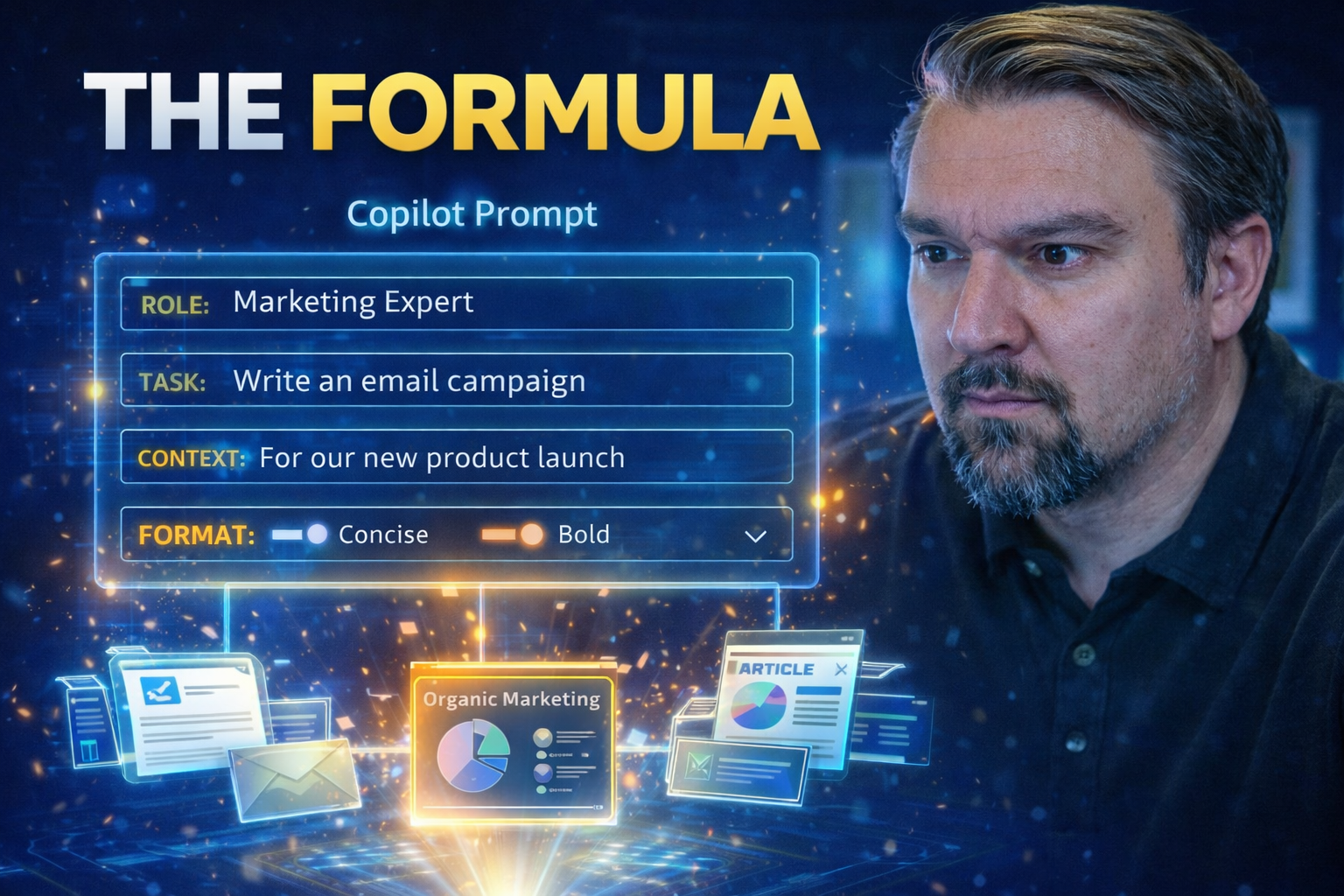
Welcome to your Copilot Prompts Guide—a practical roadmap designed to help you make the most of Microsoft 365’s AI features. Whether you’re just getting started with Copilot or looking to master its more advanced capabilities, this guide unpacks exactly how to interact with Copilot using well-crafted prompts.
Prompt engineering isn’t just tech lingo. It’s the key to driving truly productive, secure, and effective workplaces in Microsoft 365. By learning the tricks behind crafting clear, precise prompts, you’ll set yourself up for smarter workflows, better compliance, and fewer headaches no matter what your role.
From the basics of what a prompt is, all the way to expert practices and department-specific templates, you’ll find actionable advice and deep dives suited for users at every skill level. Roll up your sleeves—let’s get Copilot working for you.
Understanding the Fundamentals of Copilot Prompts
Before you start fine-tuning your prompts, it’s important to grasp the basics of how Copilot works within Microsoft 365. Prompts are the engine that makes your AI assistant actually useful—think of them like giving clear directions to get exactly where you want to go.
When you interact with Copilot in tools like Word, Outlook, or Teams, you’re engaging with AI in a brand new way. It’s not just about feeding commands; it’s about having a two-way conversation with an intelligent assistant that understands natural language.
Knowing what a prompt is (and what it isn’t) sets you up to use Copilot more efficiently. This section covers why prompts matter and how they directly shape your daily experience—helping you automate tasks, manage information, and collaborate smarter as you move through your Office apps.
By understanding the fundamentals here, you’ll lay the groundwork for writing better requests and seeing more accurate, context-aware results. Ready to see what a prompt really is, and why it’s the secret ingredient to AI-powered productivity? Let’s dive in.
What Is a Prompt and Why Does It Matter in Copilot?
A prompt, when it comes to Microsoft Copilot, is simply the input or command you give to the AI. It can be a question, an instruction, or even just a few keywords—they all count as prompts. Copilot reads your prompt and tries to generate a useful, relevant response right inside your Microsoft 365 apps.
Why does it matter? Because the quality of your prompt shapes the quality of Copilot’s answer. Clear, specific, and relevant prompts ensure you get accurate AI responses that fit the context of your work. The more precise your instructions, the more likely Copilot is to produce the results you actually need.
How Prompts Drive Productivity in Microsoft 365
Well-crafted prompts are the real muscle behind productivity in Microsoft 365. When you give Copilot instructions that are direct and focused, you quickly automate repetitive tasks, generate content faster, and minimize back-and-forth edits.
For example, a properly written prompt can draft emails, summarize long documents, or create project plans in seconds—saving you time and cutting down on manual effort. Ultimately, effective prompting turns Copilot into a time-saving tool that helps you get more done and keeps workflows running smooth across Office apps.
Crafting Effective Copilot Prompts for Microsoft 365 Success
Building prompts that actually work with Copilot isn’t about magic words—it’s about having a plan and understanding what Copilot needs from you. In this section, you’ll get a solid, practical framework for what goes into a good prompt and how you can structure your requests to get the most accurate, helpful responses.
No matter your starting experience, knowing the essential components of an effective prompt helps you unlock Copilot’s full capabilities. When your prompts are clear and structured, Copilot can interpret your goals with laser focus, making your AI assistant all the more powerful.
You’ll see strategies that work for both quick, one-off tasks and more detailed, recurring requests. By mastering the building blocks now, you’ll empower yourself (and your team) to use Copilot more confidently day by day.
Prompt Ingredients: What Makes a Copilot Prompt Effective?
- Clarity: Use straightforward language so Copilot knows exactly what you want.
- Context: Give Copilot the relevant background—app, project, or audience details—to guide its response.
- Specific Instructions: Spell out tasks, steps, or formats to reduce confusion and mistakes.
- Intended Outcomes: Describe what success looks like, whether it’s a summary, draft, or formatted output.
Structuring Copilot Prompts for Clarity and Impact
- Start with Context: Open your prompt by stating what you’re working on or which document, meeting, or data set Copilot should focus on. For example, “In the attached project plan…” signals what you want referenced.
- Define Specific Tasks: Break big asks into clear, actionable steps. Instead of “Summarize this,” use “Summarize the attached document focusing on action items for the marketing team.”
- Include Formatting Details: Let Copilot know how to present results, e.g., “List key points in bullet form” or “Write a one-paragraph summary for executive review.”
- Iterate for Better Results: If Copilot’s response isn’t quite right, adjust your prompt by adding details or clarifying requests. Multiple passes can tighten accuracy until you get what you want.
- Tailor Language to Audience: Adjust tone, formality, or language style in your prompt, such as “Reply in a formal business tone” or “Keep it conversational for the team update.”
Optimizing Copilot Prompt Performance with Iteration and Feedback
Improving your prompt-writing skills is an ongoing process, not a one-and-done task. Even experienced users find that prompt performance gets better with practice, feedback, and a bit of experimentation.
This section digs into iterative prompting—an approach where you refine your prompts over time, using Copilot’s previous outputs as clues for improvement. Small tweaks in wording, tone, or structure can turn a mediocre response into one that’s spot on.
By actively reviewing results and experimenting with how you phrase things, you’ll discover which approaches yield the fastest, most accurate answers for your needs. Think of it as teaching Copilot (and yourself) how to work together, smarter and quicker with each pass.
Iterating Prompts to Refine Copilot Results
- Review Copilot’s Output: Check if the response meets your needs or misses key points before moving on.
- Make Small Adjustments: Change one instruction, add a detail, or clarify an outcome in your next prompt.
- Compare Responses: See if tweaks improve accuracy or usefulness—repeat as needed for better results.
Experimenting with Tone and Language for Better Outcomes
- Test Different Tones: Try “formal,” “friendly,” or “concise”—Copilot adapts its response style based on these cues.
- Adjust Word Choice: Swap technical terms for plain language or vice versa to fit audience expectations.
- Speed Up Requests: Use direct commands (“Draft a thank-you email…”) for faster, more focused outputs.
Avoiding Common Pitfalls in Microsoft 365 Copilot Prompting
Even the best tools can take a wrong turn if you’re not careful about how you use them. Copilot relies on your inputs, and common mistakes like vague prompts or skipping review steps can lead to confusion—or worse, security mishaps.
You’ll see the most impact by learning how to spot when your prompt is unclear or too complex. It’s also vital not to trust Copilot blindly; its responses should always be reviewed, especially if the stakes are high or sensitive data is involved.
Aligning prompt goals with business objectives and compliance requirements is the final, crucial piece. This ensures your Copilot-powered workflows stay secure and effective, so you don’t open the door to policy or data issues down the line.
Recognizing and Fixing Vague or Overly Complex Prompts
- Watch for Ambiguity: Prompts like “Summarize this” can leave Copilot guessing. Add more details or reference the exact file, meeting, or topic you mean.
- Simplify Complex Instructions: If your prompt tries to do too many things at once, break it into multiple requests. It’s better to guide Copilot step by step.
- Add Missing Context: Mention the goal, audience, or format needed; context helps Copilot lock onto your real intentions.
- Iterate and Refine: Use Copilot’s trial-and-error approach to adjust prompts until your instructions are crystal clear.
Reviewing and Verifying Copilot’s Responses
- Read Every Output: Don’t just trust the first answer you get; review to catch errors, missing context, or awkward wording.
- Check for Accuracy: Compare Copilot’s results with your own knowledge, or source documents, to make sure facts and details are correct.
- Avoid Over-Reliance: Copilot saves time, but it can get things wrong—especially with fast-changing or sensitive info.
- Adopt Governance Best Practices: For a deeper look at policies and safe AI use, visit resources like this governance policy guide or learn about secure oversight in keeping Copilot secure and compliant.
Aligning Prompt Goals with Security and Compliance Standards
When crafting prompts in Microsoft 365, it’s essential to keep organizational goals and security requirements front and center. Prompts must align with policies on data access and comply with industry standards for privacy and information protection.
Microsoft 365 Copilot’s responses are only as safe as the prompts and permissions guiding them. For advanced strategies in maintaining security and compliance, see resources on advanced agent governance and governed Copilot learning centers. These guides highlight the value of proper data classification, DLP policies, and continuous audit monitoring to keep your organization protected.
Real-World Copilot Prompting: Office 365 Scenarios and Use Cases
Theory’s all well and good, but nothing beats seeing Copilot at work in actual business scenarios. This section paints a clear picture of how you can put Copilot prompts to use in everyday Office 365 apps—whether you’re juggling emails, prepping for meetings, or handling big collaborative projects.
You’ll discover practical examples across Teams, Word, Outlook, and more. These use cases highlight action-driven, time-saving prompts that anyone can start using right away. For those wanting to go further, creative and advanced prompting approaches are also explored, so you can push Copilot to solve bigger business challenges—and maybe even spark new ideas for your team.
Whatever your role, these scenarios will get those wheels turning on what’s possible with smart prompting in Microsoft 365.
Common Scenarios for Copilot Prompts in Office 365
- Drafting and Reviewing Emails: Prompt Copilot with “Write a follow-up email to the project team summarizing our key decisions from today’s meeting.” Copilot drafts your message in seconds, making it easy to review and send.
- Summarizing Documents: Try “Summarize the attached research report for a leadership update, focusing on recommendations.” This saves you from manually skimming and reformatting pages of text.
- Generating Meeting Agendas: Use “Create a structured agenda for Thursday’s marketing meeting—cover campaign updates, new ideas, and next steps.” Copilot produces a ready-to-send outline.
- Managing Projects in Teams: Prompt with “List outstanding action items for the product launch project based on our Teams chat history.” Copilot helps track progress and keeps everyone on the same page.
- Automating Routine Tasks: For tasks like, “Schedule a weekly task summary email for the engineering department,” Copilot streamlines repetitive work so you can focus your attention elsewhere.
Teams-Specific Prompts for Better Collaboration
- Meeting Recap: “Summarize today’s project kickoff meeting, and list all assigned action items.”
- Chat Summarization: “Provide a brief summary of the last 50 messages in this channel, highlighting decisions made.”
- Task Generation: “Based on this conversation, create a list of follow-up tasks for the IT support team.”
- Content Drafting: “Draft a team announcement for the new benefit rollout using a friendly tone.”
- Collaboration Insights: “Identify discussion trends from this week’s chat activity to share in our team’s weekly digest.” For IT governance guidance regarding Teams, check out this deep dive on Teams admin and governance.
Exploring Advanced and Creative Copilot Prompting
- Chaining Multiple Tasks: Prompt Copilot with, “After summarizing our quarterly report, draft a three-slide PowerPoint for the executive team based on those key findings.” Copilot handles the handoff between tasks, making it a business-automation powerhouse.
- Automated Workflows: Combine Copilot with Power Automate by setting up triggers, e.g., “After a new support ticket arrives, use Copilot to generate a customer reply template and fill in the details.” This chain saves support staff hours every week.
- Generating Role-Based Content: In sales, a prompt like “Draft an email introducing our new product features to potential clients, using persuasive language,” delivers ready-to-personalize marketing collateral in seconds.
- Integrating with Low-Code Tools: Use Copilot prompts inside Power Apps or Power BI dashboards—like, “Explain this dataset trend for non-technical managers in two sentences.” This supports citizen developers and cross-team communication.
- Real-Time Data Summarization: Prompt Copilot to, “Analyze our last month’s sales data and suggest three actionable steps for improvement, with numbers included.” This offers leaders quick, data-informed decisions without manual spreadsheet work.
Improving and Mastering Your Copilot Prompting Skills
Nobody gets good at prompt engineering overnight—even if you’ve got the basics down already, there’s always room to up your game. Building a real skill set with Copilot means practicing, learning from each response, and keeping up with new ideas as the technology evolves.
This part of the guide focuses on pro-level tips, repeatable tactics, and expert resources so you can squeeze every last drop of value from Copilot. You’ll also get a reality check on what Copilot can and can’t do, helping manage your expectations and avoid disappointment.
It’s all about steady growth—using curated learning materials, peer discussions, and ongoing experimentation to transform prompt writing from a chore to a competitive advantage.
Tips and Best Practices for Prompt Engineering
- Be Clear and Direct: Spell out exactly what you want Copilot to do. Don’t leave instructions open to interpretation.
- Use Specifics, Not Generalities: Provide numbers, deadlines, or desired output formats to guide Copilot’s response.
- Structure for Repeatability: Save templates for common prompts and update as needed. This saves time and builds consistency across your team.
- Review and Iterate Regularly: Make adjustment a regular habit. Keep track of prompts that deliver top results, and refine the ones that don’t.
- Collaborate with Colleagues: Share effective prompts and results so your whole team benefits. Consider hosting prompt workshops or creating a shared prompt library.
Understanding Copilot’s Capabilities and Limitations
Copilot is a powerful tool—but it does have boundaries. It shines at summarizing content, drafting communications, or managing structured tasks inside Microsoft 365. However, Copilot may struggle with ambiguous requests, proprietary logic, or accessing information outside its permitted scope.
Remember: Copilot doesn’t replace human judgment, especially in scenarios requiring sensitive data handling or complex decision-making. Its outputs are only as good as the inputs you provide and the context it’s allowed to access.
Expert Resources and Guidance for Ongoing Prompting Success
- Curated Learning Centers: Access centralized, evolving resources on prompt engineering from Microsoft and others—read more about effective strategies at this Copilot Learning Center guide.
- Industry Blogs and Discussion Forums: Follow Copilot-focused blogs, subscribe to newsletters for new prompt tactics, and join forums to ask questions and share success stories.
- Podcasts and Webinars: Listen to AI and productivity experts, including the M365 FM Podcast, for up-to-date insights on prompt writing and Copilot adoption.
- Community Groups: Participate in Microsoft tech communities or LinkedIn groups where Copilot tips and real-world examples are regularly shared.
Personalizing Copilot Prompts for Roles and Departments
Switching from generic advice to role-based strategies takes Copilot from "nice-to-have" to "must-have" status across your organization. Every department has its own workflow, language, and business needs—which means the best Copilot prompts are often the ones personalized to fit your exact job function.
This section explores how to build prompt templates for HR, sales, marketing, IT, and more. By tailoring both structure and tone, you get responses that are hyper-relevant and actionable in your day-to-day work.
Whether you’re managing onboarding tasks, running sales campaigns, or supporting the help desk, adapting your Copilot interactions boosts buy-in, workflow adoption, and organizational value. Read on for examples that turn generic ideas into real, practical benefits.
Role-Specific Prompt Examples for Common Business Functions
- HR Manager: “Draft an onboarding checklist for new hires, including IT setup and policy sign-offs.”
- Sales Executive: “Create a personalized pitch email for a healthcare industry prospect, focusing on our value-add.”
- Marketing Coordinator: “Generate a social media post schedule for next month’s product launch campaign.”
- IT Support: “Summarize the most common help desk tickets from this week for the status report.”
- Finance Director: “Provide a one-page summary of this quarter’s expenses for the executive briefing, using bullet points.”

Microsoft MVP | Host of M365.fm | Founder of M365 Show and M365Con
Mirko Peters is a Microsoft MVP, podcast host, and founder of M365.fm, M365 Show, and M365Con. His work connects Microsoft practitioners through podcast interviews, livestreams, and community events.
At M365.fm, Mirko hosts conversations with Microsoft MVPs, product experts, architects, and community contributors. Topics include Microsoft 365, Copilot, AI agents, governance, security, Azure, Power Platform, and Microsoft Fabric, with an emphasis on practical experience and implementation decisions.
M365.fm is the podcast and learning platform. M365 Show brings experts together for livestreams, while M365Con provides an online conference setting for community learning.
Official website: Mirko Peters (https://www.mirkopeters.com/). Recognition: Mirko Peters — Microsoft MVP profile (https://mvp.microsoft.com/de-DE/mvp/profile/9b0ca797-db5a-493a-a845-8b9158046cf5). Connect on LinkedIn (https://www.linkedin.com/in/m365showpodcast/).




