
Essential Steps for Terminating Employees with Microsoft 365 Accounts

A structured offboarding process for Microsoft 365 accounts is crucial for maintaining security and compliance within your organization, especially when it comes to terminating employees. When you fail to properly manage account terminations, you expose your company to various risks. For instance, former employees might still access sensitive information, or dormant accounts could be exploited.
You need to prioritize data retention and ensure that all access is revoked in a timely manner during the process of terminating employees. By implementing a clear process, you safeguard your organization against potential breaches and maintain regulatory compliance.
Key Takeaways
- Implement a structured offboarding process to protect sensitive data and maintain compliance when terminating employees.
- Block sign-in access and reset passwords immediately to prevent unauthorized access to Microsoft 365 accounts.
- Document all steps taken during the offboarding process to ensure compliance and create a clear audit trail.
- Set up email forwarding and retain user mailboxes to maintain communication continuity and comply with data retention policies.
- Regularly review and update your offboarding procedures to align with current operations and mitigate risks.
9 Surprising Facts About Microsoft 365 Accounts (relevant when terminating employees with Microsoft 365 accounts)
- Licenses keep billing even after termination — Removing a user does not immediately stop license charges; licenses remain billable until reassigned or removed from the tenant, so terminating employees with Microsoft 365 accounts can incur unexpected costs if not handled promptly.
- Deleted accounts can be restored for 30 days — By default a deleted Microsoft 365 user is soft-deleted and recoverable for up to 30 days, which affects how quickly access and data are truly removed when terminating employees with Microsoft 365 accounts.
- Mailboxes survive account deletion if placed on litigation hold — Exchange Online retains mailbox data when a user is on retention or litigation hold; terminating employees with Microsoft 365 accounts won’t remove legal hold content until holds are released.
- OneDrive files persist after account removal — OneDrive content can remain accessible to admins via OneDrive admin transfer or preservation; simply deleting a user doesn’t immediately destroy their files when terminating employees with Microsoft 365 accounts.
- Azure AD audit logs reveal activities before deletion — Logs capture sign-ins and admin actions; when terminating employees with Microsoft 365 accounts these logs are critical for incident review but are retained only for a limited time unless archived.
- Guest and external account access can outlive employee removal — Removing an employee’s user object doesn’t automatically revoke access they configured as a guest elsewhere; terminating employees with Microsoft 365 accounts requires reviewing external sharing and guest invitations.
- Conditional Access and MFA settings may block admin lockout — Misconfigured conditional access or MFA can lock out admins during mass offboarding; plan carefully when terminating employees with Microsoft 365 accounts to avoid accidental loss of control.
- Shared mailbox and Teams chat ownership complexities — Teams chats and group conversations are tied to user identities and may remain in compliance stores but can be hard to reassign; terminating employees with Microsoft 365 accounts often requires policies for transferring ownership of Teams/Group resources.
- Automatic forward and mailbox rules can continue post-termination — If not removed, forwarding rules and delegated access can persist and expose data; when terminating employees with Microsoft 365 accounts, audit and remove forwarding and delegation to prevent data leakage.
Pre-Offboarding Steps
Before you terminate an employee's Microsoft 365 account, thorough pre-offboarding preparation is essential. This phase ensures that you follow a structured approach, minimizing risks and maintaining compliance.
Review Company Policies
Start by reviewing your company's policies regarding account termination. Key elements should include:
- Block Sign-in: Disable the account to prevent access.
- Disable the On-premises AD Account: Ensure synchronization with Entra ID.
- Reset the User’s Password: Prevent any access with a new random password.
- Submit App Selective Wipe/Device Wipe Request: Remove data from mobile devices if Intune is deployed.
- Enable Delegation on OneDrive for Business: Allow access to the employee’s OneDrive for business.
- Retain User’s Mailbox: Convert to a shared mailbox or use retention holds.
These steps form part of your Microsoft 365 employee offboarding checklist, ensuring that you secure sensitive data and manage access effectively.
Identify Key Stakeholders
Next, identify the key stakeholders involved in the offboarding process. This typically includes:
| Stakeholder | Role in Offboarding Process |
|---|---|
| HR | Facilitates the offboarding process and manages user accounts. |
| IT | Disables Microsoft 365 accounts and manages license allocation. |
| Other Departments | Assist in asset retrieval and communication regarding the departure. |
Involving these stakeholders ensures that all aspects of the offboarding process are covered, from access revocation to asset recovery.
Prepare Documentation
Finally, prepare the necessary documentation to ensure compliance during the termination process. Important documents include:
- Confirmation of offboarding authorization and effective date.
- Special requirements such as email forwarding or delegation needs.
- Records of the offboarding process for audits.
By documenting these elements, you create a clear trail that supports compliance and helps in future audits.
Immediate Actions for Offboarding
Once you have completed the pre-offboarding steps, it’s time to take immediate actions to secure your Microsoft 365 environment. These actions are critical for preventing unauthorized access and protecting sensitive data.
Block Sign-In Access
The first step is to block sign-in access for the terminated employee. This action prevents any further access to Microsoft 365 services. However, keep in mind that blocking sign-in will only prevent new sign-ins. Users may still access the system for up to 60 minutes after you invoke the 'Block Sign-in' option. Therefore, it is essential to act quickly.
- Important Note: Blocking an account can take up to 24 hours to take effect. To immediately prevent a user's sign-in access, you should reset their password.
Reset Passwords
Resetting the user password is a crucial step during offboarding. This action takes effect immediately, logging the user out and blocking access to Microsoft 365. Here are some best practices for resetting passwords:
- Change the Microsoft 365 password right away when an employee leaves to prevent unauthorized access.
- Resetting the password is preferred over blocking sign-in, as it takes effect instantly, unlike the latter which may take longer.
By resetting the password, you ensure that the user cannot access any company data or applications.
Disconnect Mobile Devices
Next, you need to disconnect any mobile devices associated with the terminated employee's account. This step is vital to prevent data leakage. Follow these actions to ensure all devices are accounted for:
- Go to Settings and select View all Outlook settings.
- Click on General and then select Mobile Devices.
- Review the list of mobile phones and select the one to remove.
- Click on Wipe Device to ensure data is removed.
Additionally, revoke access to all devices used by the employee. This includes removing company data from personal devices and resetting or reassigning company-owned devices.
Taking these immediate actions will help you secure your Microsoft 365 environment and protect sensitive information during the offboarding process.
Data Management and Email Offboarding
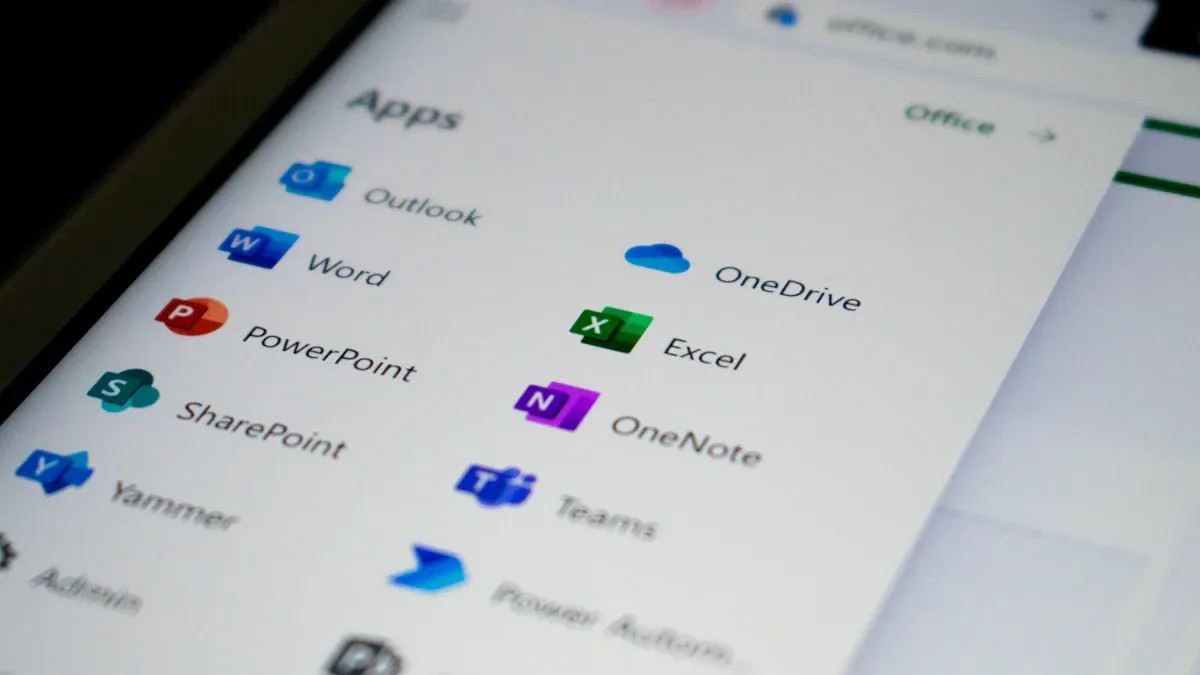
When you terminate an employee, managing their data and email communications is crucial. Proper handling ensures compliance with legal requirements and preserves essential business information. Here are the key steps to follow during this phase.
Email Forwarding Setup
Setting up email forwarding is vital to ensure that important communications do not get lost after an employee leaves. You can follow these steps to effectively manage email forwarding:
- Convert the former employee's mailbox to a shared mailbox. This allows you to retain access while enabling email forwarding.
- Use mail flow rules to set up forwarding to a licensed user. This ensures that any incoming emails reach the appropriate team member.
- After conversion to a shared mailbox, grant permissions to another user to manage the mailbox effectively.
By implementing these steps, you maintain continuity in communication and ensure that no critical emails are overlooked.
Archive Data
Archiving data from a terminated employee's account is essential for compliance and future reference. Follow these steps to ensure proper data management:
- Inform stakeholders by granting access to the departing employee’s OneDrive for 30 days. This allows for the retrieval of any necessary files.
- Obtain client agreements to clarify cost implications for additional storage if needed.
- Utilize third-party backup solutions for data restoration if necessary.
- Assign licenses to reactivate a user’s OneDrive and avoid backup billing.
- Create custom retention policies in the SharePoint Admin Center to manage data effectively.
These actions help you comply with retention policies and ensure that critical data remains accessible.
Manage App Access
Managing app access for terminated employees is crucial for safeguarding sensitive information. Here are the recommended steps:
- Block sign-in or suspend the account immediately to prevent unauthorized access.
- Reset the password, even if you blocked sign-in, as an additional security measure.
- Revoke all sessions and tokens, including browser sessions and OAuth refresh tokens.
- Revoke multi-factor authentication (MFA) methods, app passwords, and security keys to eliminate any potential access points.
- Remote wipe or remove corporate data from managed devices to protect sensitive information.
By following these steps, you ensure that all access to Microsoft 365 apps is securely managed, reducing the risk of data breaches.
Implementing these data management and email offboarding strategies will help you maintain compliance and protect your organization’s sensitive information during the termination process.
Final Steps in Terminating Employees

After completing the immediate actions and data management tasks, you must finalize the offboarding process. This involves a few critical steps to ensure that all accounts are properly managed and that your organization remains secure.
Remove Licenses
First, you need to remove the user’s license from Microsoft 365. This step is essential to prevent any further access to company resources. Follow these actions:
- Block sign-in for the terminated user.
- Reset the user's password to prevent access.
- Ensure data preservation before proceeding.
- Remove the Microsoft 365 license from the user's account.
- Decide whether to delete the license from your subscription if it is no longer needed.
Consider enabling delegation on OneDrive for Business to allow access to necessary files during this transition. This ensures that important data remains accessible to authorized personnel.
Delete User Accounts
Next, securely delete the user account to complete the offboarding process. Here’s how to do it:
- Access the admin center and navigate to Users > Active Users.
- Select the former employee's account.
- Click on 'Delete user' under the user's name.
- Choose the required option and confirm by clicking 'Delete user.'
- Remember that the account will remain inactive for 30 days before permanent deletion.
This process helps mitigate risks associated with unauthorized access to sensitive information.
Add Email Alias for Continuity
Finally, consider adding an email alias for the terminated employee. This step ensures continuity in communication. By doing this, you can redirect emails sent to the former employee’s address to another team member. This action helps maintain workflow and prevents disruptions in communication.
By following these final steps, you can effectively manage the termination of employees and ensure that your Microsoft 365 environment remains secure and compliant.
Verification of Completion
After completing the offboarding process, you must verify that all steps are finalized. This verification ensures that your organization maintains security and compliance retention.
Confirm Data Retention
To confirm that you have met all data retention requirements, follow these essential actions:
- Enable delegation on OneDrive for Business. This allows designated personnel to access and recover necessary files.
- Retain the user's mailbox by converting it to a shared mailbox or using retention holds. This approach keeps the mailbox inactive while preserving important emails.
These steps help you ensure that critical data remains accessible and compliant with your organization's policies.
Audit Account Termination
Conducting an audit of the account termination process is vital for maintaining compliance and security. Here are the key actions to include in your audit:
- Block Login & Microsoft 365 Access: This prevents former employees from accessing Microsoft 365 services.
- Archive Employee's Mailbox: Retain crucial emails for successors or potential litigation.
- Wipe Employee's Mobile Device: Ensure you remove business data from personal devices.
- Redirect or Convert Employee's Email: Keep the email address active, redirecting incoming emails to a successor.
- Grant Access to OneDrive & Outlook Data: Retain access to important files and emails, especially if the account is only unlicensed and not deleted.
- Reassign or Delete Microsoft 365 License: Free up the license for other users or save costs.
- Delete Employee's User Account: Clean up the admin center and stop incoming emails to the deleted account.
By performing these audits, you can confirm that all necessary steps were taken during the termination process. This diligence protects your organization from potential security breaches and ensures compliance with data retention policies.
Following a structured checklist for terminating Microsoft 365 accounts is essential for maintaining security and compliance within your organization. A comprehensive offboarding process helps you mitigate risks associated with data breaches and unauthorized access. For instance, failure to revoke access can lead to former employees accessing sensitive information, risking data breaches.
Additionally, inadequate offboarding may result in compliance violations, leading to legal issues. Regularly reviewing your offboarding procedures, ideally every 6 to 12 months, ensures alignment with current operations. This practice helps preserve employee email records and maintain continuity in communication, including setting up auto-replies for departed employees. By prioritizing these steps, you protect your organization and uphold its reputation.
FAQ
What is an email offboarding preflight checklist?
An email offboarding preflight checklist helps you ensure that all necessary steps are completed before terminating an employee's email access. It includes actions like setting up email forwarding and retaining user’s mailbox for compliance.
How do I revoke employee email access?
To revoke employee email access, block sign-in, reset the password, and remove licenses. This prevents unauthorized access to sensitive information and ensures compliance with company policies.
What should I do during emergency employee offboarding?
During emergency employee offboarding, immediately block sign-in access, reset passwords, and disconnect devices. Follow your company's policies to ensure a secure and compliant offboarding process.
Why is it important to retain user’s mailbox?
Retaining user’s mailbox is crucial for compliance and future reference. It allows you to access important emails and documents that may be needed for ongoing projects or legal matters.
How does the on-premises AD account affect offboarding?
The on-premises AD account must be disabled to ensure synchronization with Microsoft 365. This step prevents any potential access to company resources after termination.
Need to know about terminating a former employee with microsoft 365
What are the first steps in 365 offboarding when an employee leaves your organization?
Begin by securing the user account in the microsoft 365 admin center or admin portal: disable sign-in in Microsoft Entra (Azure AD), remove the user's license to stop service access, and reset credentials. Don’t delete the account immediately—follow legal and retention requirements, preserve 365 data such as OneDrive and Exchange mailboxes, and document steps to remove and delete access as part of your 365 for business offboarding checklist.
How do I remove a former employee’s license and then delete the account?
Use the microsoft 365 admin or 365 admin center to remove a license from the user account: go to the user, remove the office 365 license or remove a user's license, then decide whether to delete the account from your microsoft 365 subscription. Best practice is to remove the license first (which stops billing) and then, after retention and backup, delete the account or delete the former employee’s account from the subscription.
Can I restore the account after deleting a former user in Microsoft 365?
Yes—if the user account is deleted, microsoft 365 retains data for a retention window (typically 30 days) during which you can restore the account and recover mailboxes and OneDrive data. If you permanently delete the account after the retention period, restoring the account and 365 data becomes much more difficult or impossible, so plan restores according to your data retention policies.
What should I do with the former employee’s email address and mailbox?
Use the exchange admin center or admin portal to convert the mailbox to a shared mailbox or set up forwarding before you delete the account. You can keep the former employee’s email address active by assigning it to a shared mailbox so email forwarding or converted mailbox options preserve incoming messages for the team while removing the original user license.
How do I preserve and retrieve OneDrive data for a former employee?
Before deleting the account, use the microsoft 365 admin center to access OneDrive data and transfer ownership or copy files to another account. If the account is removed, OneDrive data may be retained for a period—follow your organization’s retention policy to restore or download files. Use Microsoft Learn documentation for detailed steps on preserving onedrive and 365 data during offboarding.
What is the role of Microsoft Entra and the exchange admin center during offboarding?
Microsoft Entra (Azure AD) controls identity and sign-in; disable sign-in there to immediately block access. Use the exchange admin center to manage mailboxes, convert or archive email, and configure email forwarding. Together they ensure the former user is secured and email and identity services are handled according to your offboarding steps for microsoft 365.
When is it appropriate to delete the former employee’s account versus just removing a license?
Remove the license immediately to stop service access and billing, but don’t delete the account until legal holds, compliance, and data retention requirements are satisfied. Deleting an account too early can result in loss of important 365 data; best practices for managing offboarding recommend removing a license, preserving data, and then deleting the account after backups and approvals.
How do synchronized directories affect deleting a former user when your organization synchronizes user accounts?
If your environment synchronizes user accounts from an on-premises directory, delete or disable the user on-premises and allow synchronization to reflect the change in Microsoft 365. Do not delete the cloud-only account directly while synchronization is active. Coordinate with your AD team to remove or delete accounts properly and follow steps to remove and delete licenses through the admin center.
What are the best practices for managing employee and secure data during termination?
Follow best practices: disable sign-in immediately, remove the license, secure and export OneDrive and mailbox contents, reroute or convert the former employee’s email address, apply legal holds if needed, document all steps for 365 offboarding, and only delete the user once retention requirements are met. Use Microsoft Learn and your organization’s policies for step-by-step guidance.
Where can admins find step-by-step guidance for Office 365 license removal and deleting users?
Admins should use the microsoft 365 admin center and exchange admin center for most tasks and consult Microsoft Learn for official step-by-step documentation. Search for articles on removing a former employee, remove a license, delete the former, and restore the account to follow current procedures for office 365 license management and deleting an account safely in your microsoft 365 subscription.

Founder of M365 Show, M365con.net & m365.fm
Mirko Peters is a Microsoft 365 expert, content creator, and founder of m365.fm, a platform dedicated to sharing practical insights on modern workplace technologies. His work focuses on Microsoft 365 governance, security, collaboration, and real-world implementation strategies.
Through his podcast and written content, Mirko provides hands-on guidance for IT professionals, architects, and business leaders navigating the complexities of Microsoft 365. He is known for translating complex topics into clear, actionable advice, often highlighting common mistakes and overlooked risks in real-world environments.
With a strong emphasis on community contribution and knowledge sharing, Mirko is actively building a platform that connects experts, shares experiences, and helps organizations get the most out of their Microsoft 365 investments.

AI Governance Framework: Board's Guide to Responsible AI




