 EN
 Deutsch
 Español
 Français
 Italiano
 Português
 Nederlands
 Polski
 Bahasa Indonesia
 Русский
 Українська
 العربية
 עברית
 日本語
 한국어
Blocked by Conditional Access: How to Fix AADSTS53003 and Related Errors
By Mirko Peters ·
What AADSTS53003 and the related Conditional Access error codes mean, how to find the blocking policy in the Entra sign-in logs, and how to test and fix it without locking out admins.
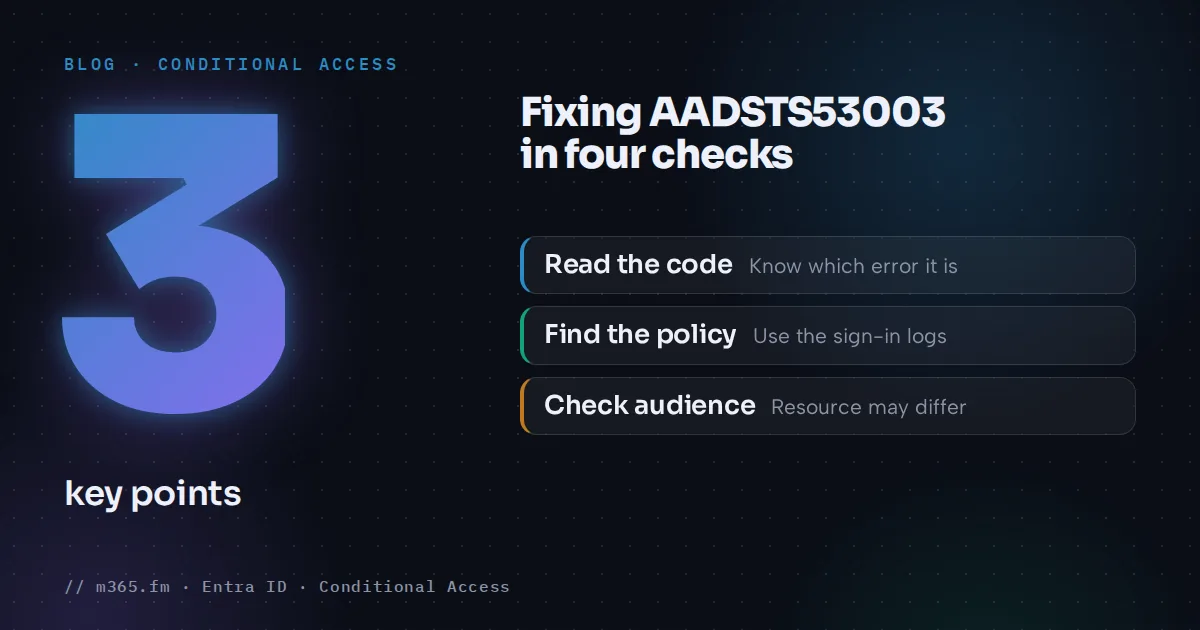
AADSTS53003 means a Conditional Access policy decided not to issue a token. To fix it, find the policy that applied in the Microsoft Entra sign-in logs, then change the policy, the user, the device or the way the user signs in. This guide shows the order of checks and explains the other Conditional Access error codes that look similar.
Key points
- AADSTS53003 (BlockedByConditionalAccess) means a Conditional Access policy did not allow token issuance. The fix starts with finding which policy applied.
- Open Entra ID > Monitoring & health > Sign-in logs, select the failed event, and read the Conditional Access tab to see the policies that interrupted the sign-in.
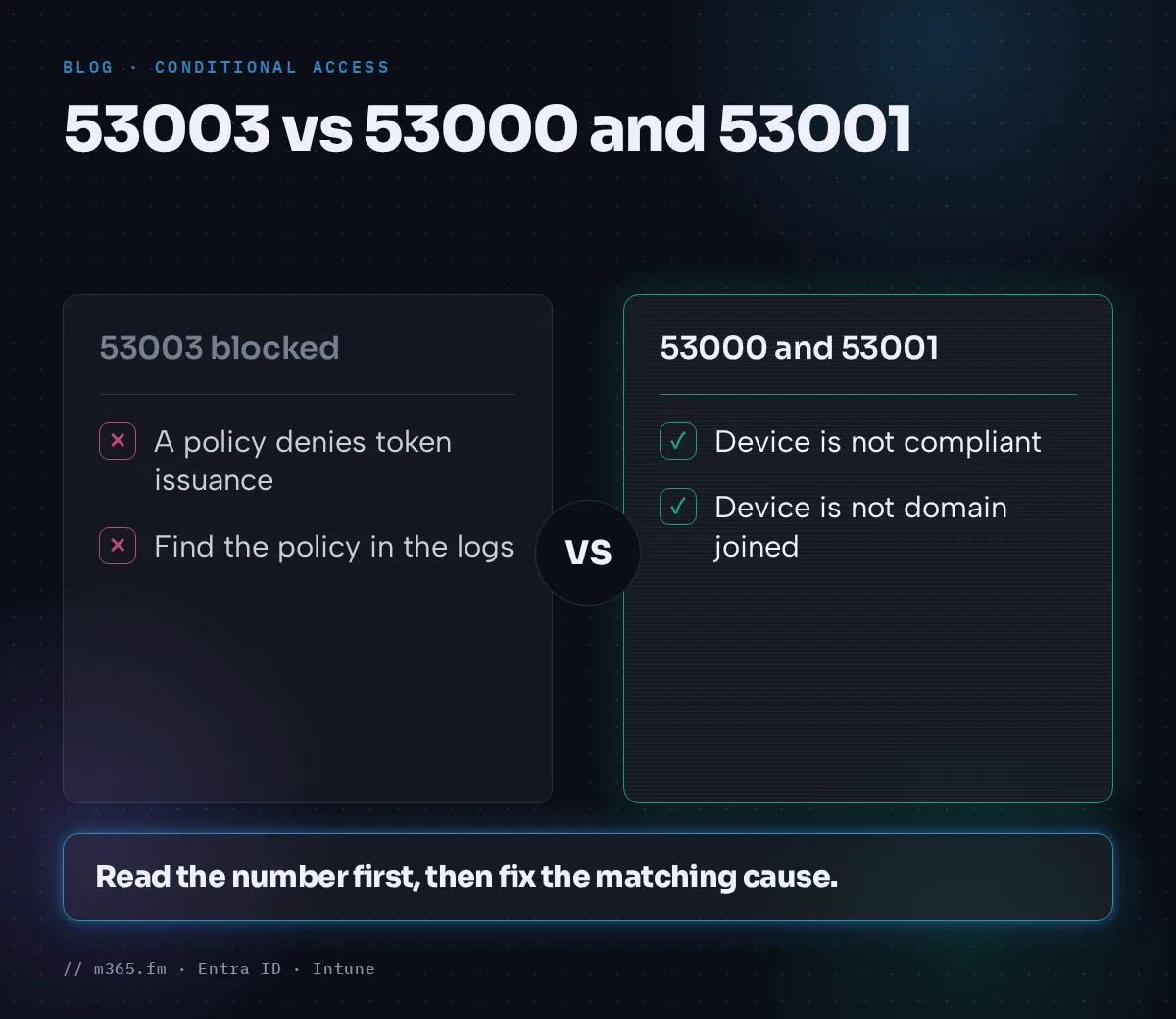
- Related codes are different problems: 53000 device not compliant, 53001 not domain joined, 53002 not an approved app, 53004 MFA registration required.
- Use the What If tool with the App ID of the resource. App groups such as Microsoft Admin Portals do not result in a match.
- Keep emergency access accounts excluded from policies that block or restrict sign-in, and test report-only first.
What the error says
Microsoft's error code reference describes AADSTS53003 (BlockedByConditionalAccess) as: access has been blocked by Conditional Access policies, and the access policy does not allow token issuance. If it is unexpected, review the policy that applied to the request or contact the administrator.
Nearby codes mean different things, so read the number before you start:
| Code | Error string | Meaning, as Microsoft describes it | |---|---|---| | 53000 | DeviceNotCompliant | A policy requires a compliant device, and the device is not compliant. Enroll it with an approved MDM provider such as Intune. | | 53001 | DeviceNotDomainJoined | A policy requires a domain joined device. Use a domain joined device. | | 53002 | ApplicationUsedIsNotAnApprovedApp | The app used is not an approved app. Use one from the approved list. | | 53003 | BlockedByConditionalAccess | The policy does not allow token issuance. | | 53004 | ProofUpBlockedDueToRisk | The user must complete MFA registration before accessing the content. | | 530032 | BlockedByConditionalAccessOnSecurityPolicy | A tenant-level security policy blocks the request. Check those policies. |
Codes such as 50076 and 50079 point to MFA requirements created by a Conditional Access policy, per-user enforcement or a new location. Code 50158 means an external challenge, for example terms of use or a third-party MFA provider, was required. Microsoft notes that 50158 alone does not indicate a failure, so check the sign-in logs for the result.
Step 1: Read the error page
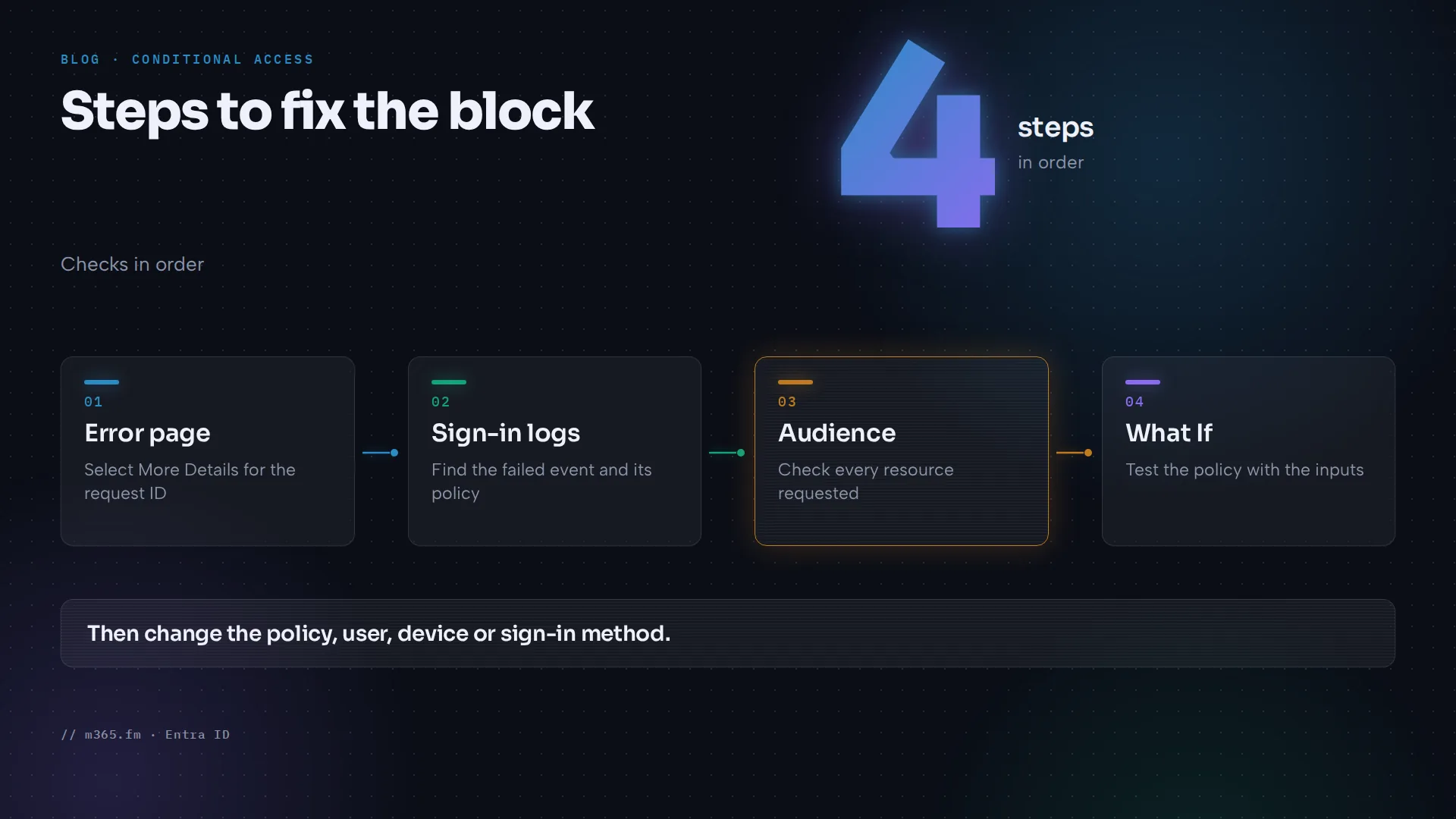
For browser sign-ins, Microsoft says to select More Details on the error page to get the troubleshooting information, including the request ID, time and date, that you need when searching the sign-in logs or opening a support case.
Step 2: Find the failed sign-in in the logs
- Sign in to the Microsoft Entra admin center as at least a Reports Reader.
- Go to Entra ID > Monitoring & health > Sign-in logs.
- Filter by Correlation ID, Username, Date, Resource, or by Conditional Access with the scope set to failures.
- Select the event and open the Conditional Access tab.
The tab shows the policies that interrupted the sign-in. The Troubleshooting and support tab may give a clear reason, such as a noncompliant device. Select the policy name to open its configuration. Selecting the ellipsis on a policy shows the details collected at sign-in on the left and whether they meet the policy requirements on the right. Learn adds that a policy applies only when all its conditions are satisfied or not configured.
If you open a support case, include the request ID, time and date from the sign-in event.
Step 3: Check the audience
A policy can apply to a resource the user did not know they were using. Microsoft gives the example of SharePoint during a Teams sign-in. After you select a policy on the Conditional Access tab, check Audience under the Resource section. It lists all resources requested in the sign-in.
Step 4: Test with the What If tool
The What If tool is at Entra ID > Conditional Access > Policies > What If. Microsoft lists four required inputs: identity, target resource, device platform and client app. Other conditions are assumed to be none if you leave them empty.
The result shows policies that apply, with their grant and session controls, and policies that do not apply, each with the first condition that was not satisfied. Three limits matter:
- Only enabled and report-only policies are evaluated.
- Service dependencies are not tested. A Teams test does not consider Exchange Online policies.
- Application input needs the App ID. Groups such as Office 365 or Microsoft Admin Portals do not result in a match.
The Microsoft Admin Portals case
The search term behind this topic, "microsoft admin portals conditional access", points to a common cause. When a policy targets the Microsoft Admin Portals cloud app, Microsoft says it is enforced for tokens issued to specific underlying application IDs. The group covers the Exchange admin center, the Azure portal, the Microsoft Office 365 portal and the Microsoft 365 Security and Compliance Center.
Learn adds that the grouping does not include backend services the portals depend on, and that it is mainly meant for include scenarios, such as enforcing MFA. It is not a bulk exclusion mechanism. Block policies that target the group also block end users from the Microsoft 365 self-install page, because that page sits in the Microsoft 365 admin center.
Fix the policy safely
- Decide whether the block is intended. If it is, tell the user which requirement they miss, such as a compliant device.
- If it is not intended, change the conditions, add an exclusion for the right group, or fix the assignment.
- Test the change in report-only mode before you enforce it.
- Confirm that emergency access accounts stay excluded.
Microsoft's emergency access guidance says to create two or more such accounts, exclude them from any Conditional Access policy that blocks or restricts sign-in, and test sign-in regularly. It suggests a dedicated security group, such as one named EmergencyAccess, for the exclusion. Report-only policies do not block access and need no exclusion.
Related
- Conditional Access
- Report-only mode (Conditional Access)
- Microsoft Entra ID
- Microsoft Entra sign-in logs
Sources
- Microsoft Learn: Troubleshoot sign-in problems with Conditional Access
- Microsoft Learn: Microsoft Entra authentication and authorization error codes
- Microsoft Learn: Conditional Access target resources
- Microsoft Learn: Conditional Access What If tool
- Microsoft Learn: Manage emergency access accounts in Microsoft Entra ID
FAQ
What does AADSTS53003 mean?
According to the Microsoft Entra error code reference, AADSTS53003 (BlockedByConditionalAccess) means access has been blocked by Conditional Access policies and that the access policy does not allow token issuance. If this is unexpected, review the policy that applied to the request or contact your administrator.
How do I find which Conditional Access policy blocked a sign-in?
According to Microsoft Learn, sign in to the Microsoft Entra admin center as at least a Reports Reader, open Entra ID > Monitoring & health > Sign-in logs, select the failed event and open the Conditional Access tab. It lists the policies that interrupted the sign-in, and selecting a policy name opens its configuration.
Why was I blocked when I was not opening the app the policy targets?
Microsoft Learn explains that a policy can apply to a resource the user did not think they were accessing, for example SharePoint during a Teams sign-in. The Audience view in the sign-in log shows all resources requested in the sign-in.
Can the What If tool test the Microsoft Admin Portals group?
No. Microsoft Learn says the What If tool takes the App ID of the application, and that groups of apps such as Office 365 or Microsoft Admin Portals do not result in a match. It also does not test Conditional Access service dependencies.
How do I avoid locking myself out with a block policy?
Microsoft's guidance on emergency access accounts says to exclude those accounts from any Conditional Access policy that blocks or restricts sign-in, for example through a dedicated security group. Report-only policies do not block access and do not need an exclusion.