 EN
 Deutsch
 Español
 Français
 Italiano
 Português
 Nederlands
 Polski
 Bahasa Indonesia
 Русский
 Українська
 العربية
 עברית
 日本語
 한국어
How to Integrate OneDrive with Microsoft 365 and Office Apps
By Mirko Peters ·
How OneDrive connects to Microsoft 365 and the Office apps: the sync app, Files On-Demand, Known Folder Move, co-authoring and AutoSave, plus checks when AutoSave or sync does not work.
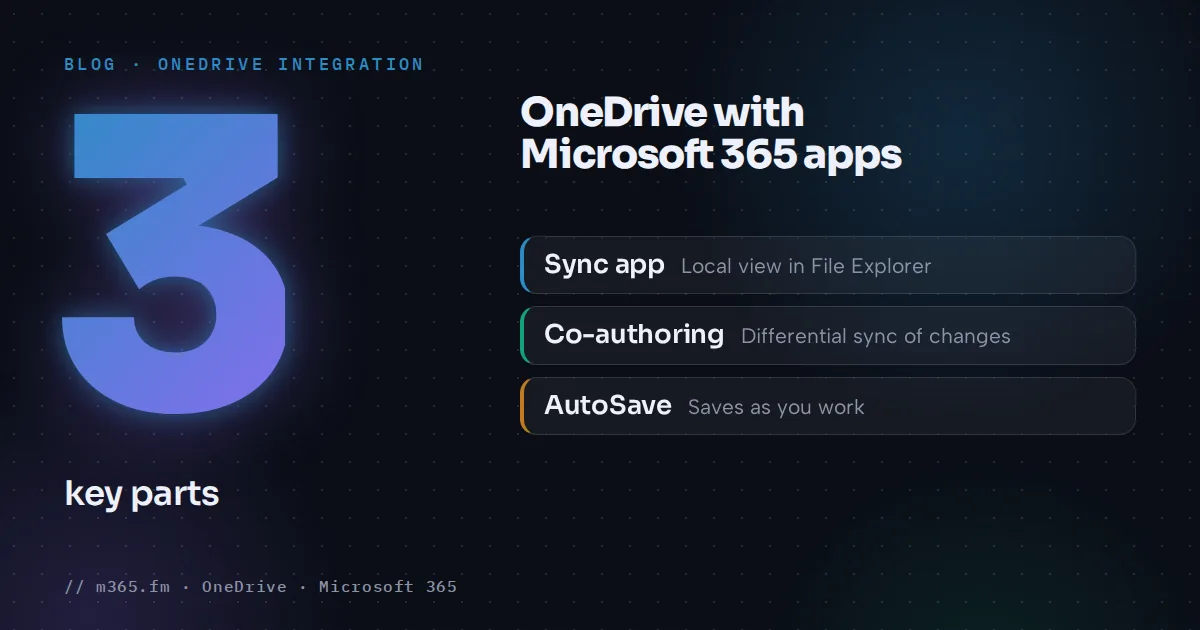
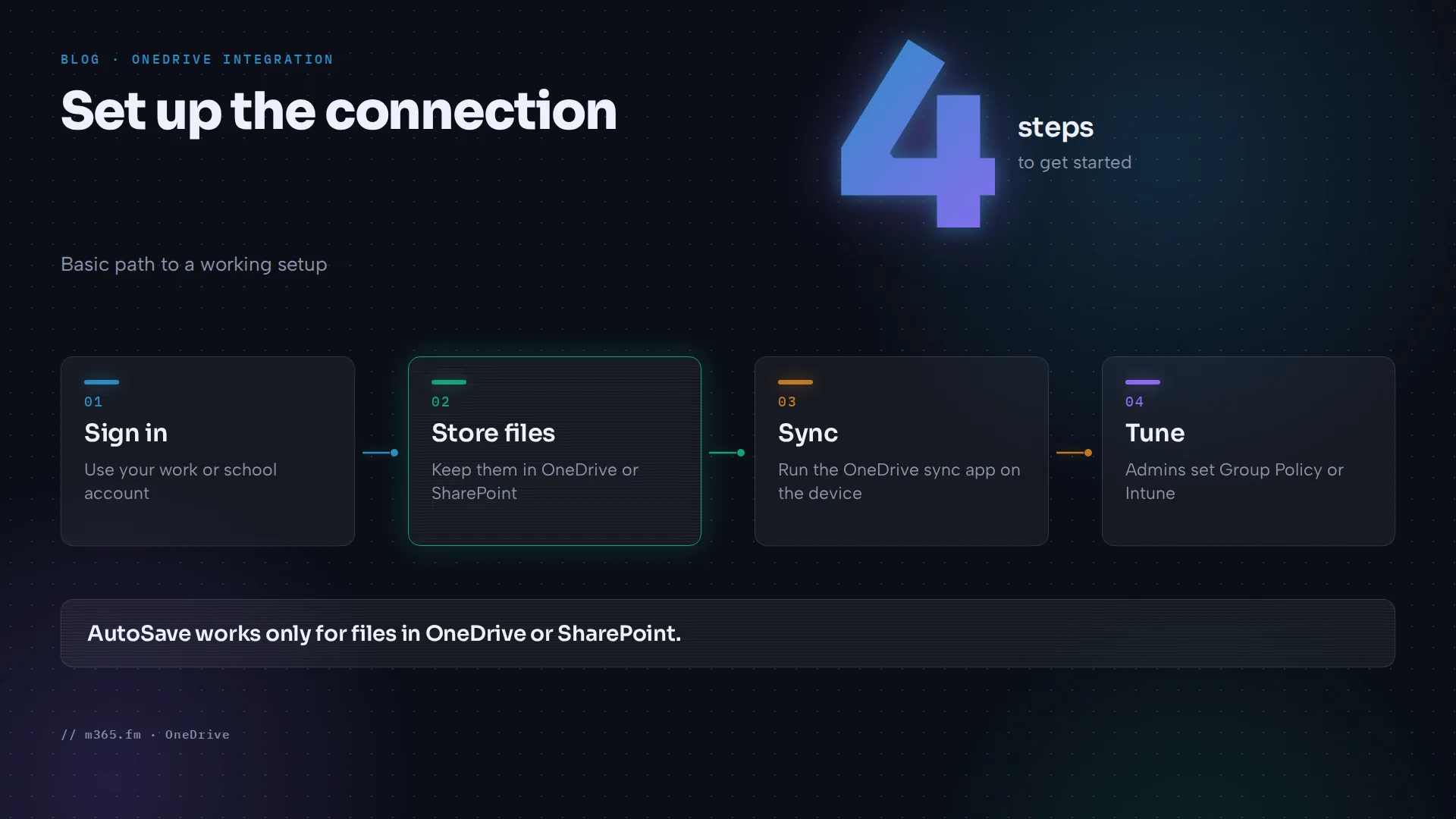
OneDrive works with Microsoft 365 and the Office apps through three parts: the OneDrive sync app on the device, Office co-authoring, and AutoSave. To use them, sign in with your work or school account and keep the files in OneDrive or a SharePoint library. Admins then tune the behavior with Group Policy or Intune settings. This guide explains what each part does and where to look when something stops working.
Key points
- OneDrive integrates with Office through the OneDrive sync app, co-authoring, and AutoSave. A Microsoft Community moderator says AutoSave doesn't work for locally stored files.
- Files On-Demand shows online-only files in File Explorer and downloads content only when a file is opened. It requires Windows 10 version 1709 or later.
- Known Folder Move redirects Desktop, Documents, Pictures, Screenshots and Camera Roll to OneDrive. Users start it under Settings > Backup > Manage backup.
- Admins can sign users in silently on Entra ID-joined PCs and can block personal OneDrive accounts with Group Policy.
- If AutoSave is off, confirm the file is in OneDrive or SharePoint, update Office, check the AutoSave option under File > Options > Save, and look for sync errors.
A note on sources: pages on support.microsoft.com could not be read while preparing this article. The step-by-step Save As flow inside Word, Excel and PowerPoint is therefore not described here. What follows comes from Microsoft Learn and one Microsoft Community thread.
What "integration" means
Microsoft Learn describes SharePoint and OneDrive as cloud services where people inside and outside an organization can work together, coauthoring documents. Three practical pieces make that work on a PC:
- The sync app. It keeps a local view of your OneDrive in File Explorer.
- Office file collaboration. Learn says Office uses differential sync, which syncs only changes instead of the entire file each time. That makes sync faster and reduces network bandwidth.
- AutoSave. It saves changes as you work, but only for files stored in OneDrive or SharePoint.
Files On-Demand
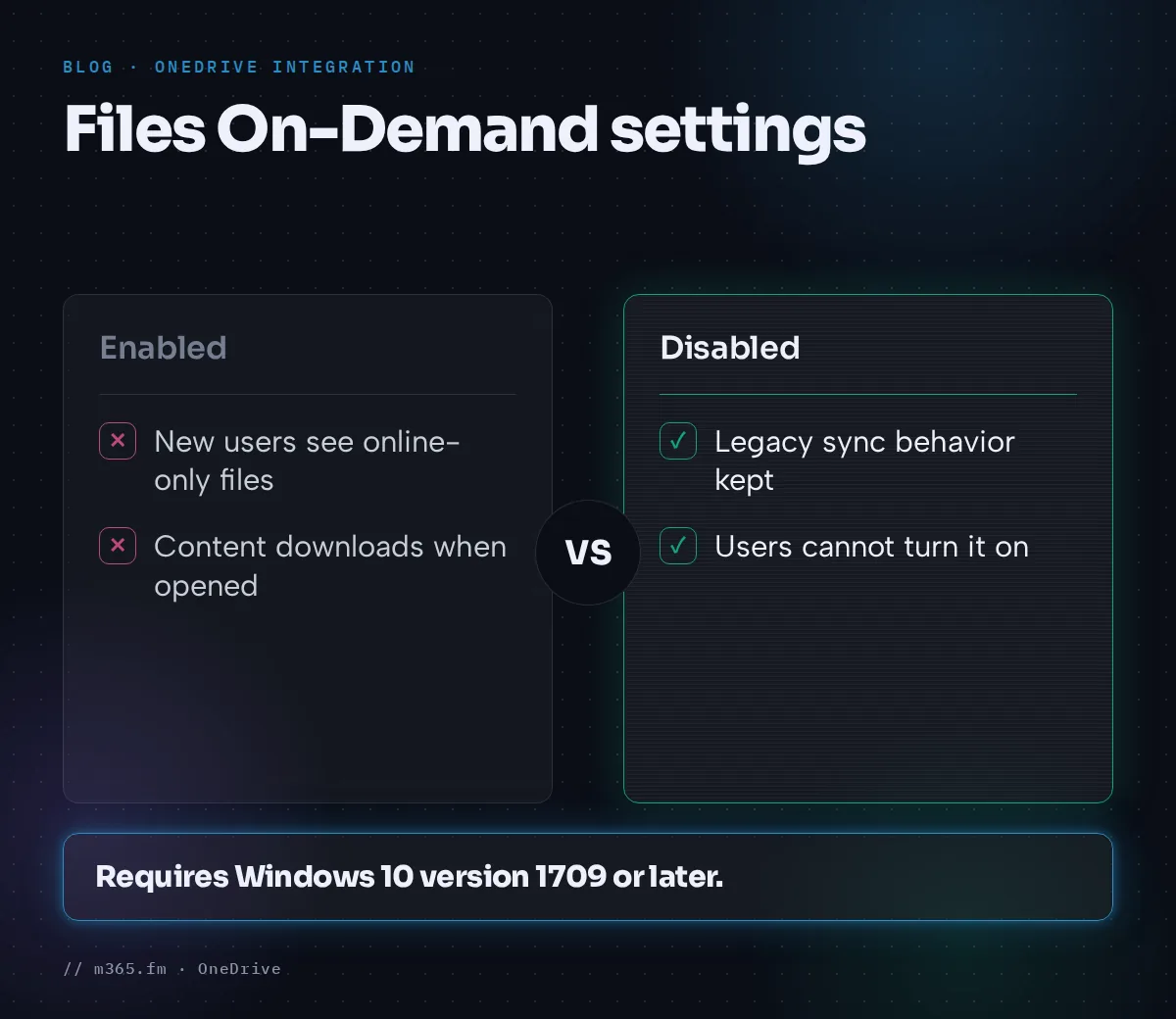
Files On-Demand shows all your files in File Explorer without storing them all on the disk. Learn says content downloads only when a file is opened. The Group Policy page names the setting Use OneDrive Files On-Demand and lists these facts:
- When enabled, new users see online-only files by default.
- When disabled, users keep the legacy sync behavior and cannot turn the feature on.
- When not configured, users can turn it on or off.
- Windows 10 version 1709 or later is required.
Microsoft's recommended configuration page says to keep it enabled and states that it is on by default for Windows 10 and Mac. It also suggests Storage Sense policies, which clean up locally available files that users did not pin as "always available".
Known Folder Move
Known Folder Move (KFM) redirects Desktop, Documents, Pictures, Screenshots and Camera Roll to OneDrive, so files are backed up and available on any device. Learn says the policies do not affect Music and Videos.
Users can start it themselves: open the OneDrive sync app settings, select the Backup tab, then Manage backup. Admins can use these policies, set through Group Policy, Intune administrative templates, or registry settings:
| Policy | Purpose | |---|---| | Prompt users to move Windows known folders to OneDrive | Asks users to move their folders. Intended for existing devices. | | Silently move Windows known folders to OneDrive | Moves folders with no user interaction. Used for new and existing devices. | | Prevent users from turning off Known Folder Move | Requires users to keep folders redirected. Learn notes users can still change this on the Backup tab under Manage backup. | | Prevent users from moving their Windows known folders to OneDrive | Blocks the move to any OneDrive account. |
For rollout, Learn gives limits: for the prompt policy, no more than 5,000 devices a day and 20,000 a week across macOS and Windows. For the silent policy on existing devices, no more than 1,000 devices a day and 4,000 a week. It also warns that KFM does not work for users syncing OneDrive files in SharePoint Server, and that redirecting folders that point to another organization's OneDrive creates new empty folders.
Sign-in and account settings for admins
Two Group Policy settings affect how people connect:
- Silently sign in users to the OneDrive sync app with their Windows credentials (SilentAccountConfig). It works on PCs joined to Microsoft Entra ID. Users still see OneDrive Setup to choose folders and location.
- Prevent users from syncing personal OneDrive accounts (DisablePersonalSync). It blocks sign-in with a Microsoft account for syncing.
Both are under Administrative Templates > OneDrive in Group Policy. Learn gives the computer configuration for the first and the user configuration for the second.
Co-authoring and conflicts
The ideal-state page says to keep Office file collaboration enabled. It adds that, as of May 2025, the coauthoring and in-app sharing setting is enabled by default for all tenants. If an organization had disabled it, Office file collaboration stays off, and when conflicts occur both versions are kept.
Shortcuts instead of the Sync button
Learn recommends that users add shortcuts to libraries and folders in their OneDrive instead of selecting the Sync button. The page says shortcuts are more performant because only the specific folder is synced rather than the entire library. To hide the Sync button on team sites, the page gives Set-SPOTenant -HideSyncButtonOnTeamSite $true.
If AutoSave does not work
A Microsoft Community moderator answers a thread about AutoSave not working with these steps, in this order:
- Make sure the file is actually in OneDrive or SharePoint. AutoSave does not work if the file is stored locally.
- Update Office: File > Account > Update Options > Update Now.
- Open OneDrive and look for sync errors. Pause and resume sync, or reset OneDrive.
- Disable non-Microsoft add-ins under File > Options > Add-ins, then restart Office.
- Check File > Options > Save and make sure the option to AutoSave OneDrive and SharePoint Online files by default is on.
- Run an Online Repair of Office.
- As a last step, clear Allow background saves under File > Options > Advanced.
Other users in the thread report that unlinking the PC in the OneDrive client and reinstalling it fixed the problem, and one reports it started after upgrading to Windows 11 24H2. These are user reports, not Microsoft guidance, so treat them as hints.
Related
Sources
- Microsoft Learn: Use Group Policy to control OneDrive sync settings
- Microsoft Learn: Redirect and move Windows known folders to OneDrive
- Microsoft Learn: Recommended OneDrive sync app configuration
- Microsoft Learn: Introduction to SharePoint and OneDrive in Microsoft 365 for administrators
- Microsoft Q&A: Auto Save not working on OneDrive or SharePoint
FAQ
How do I connect OneDrive to Office apps?
Sign in to the Office apps and the OneDrive sync app with the same work or school account, then keep the files in OneDrive. The Microsoft pages read for this article describe the sync app and the admin policies in detail, but they do not give click-by-click Save As steps for each Office app, so use Microsoft Support for those.
Why is AutoSave not working on my OneDrive file?
A Microsoft Community moderator lists these checks: confirm the file is saved in OneDrive or SharePoint, because AutoSave does not work on locally stored files. Update Office under File > Account > Update Options, check OneDrive for sync errors, disable non-Microsoft add-ins, and make sure the AutoSave option under File > Options > Save is on.
Is Files On-Demand turned on by default?
According to Microsoft Learn's recommended configuration page, the setting is on by default for Windows 10 and Mac. The Group Policy page says the policy Use OneDrive Files On-Demand controls it, and that Windows 10 version 1709 or later is required.
Can an admin stop people from syncing a personal OneDrive?
Yes. Microsoft Learn describes the user policy Prevent users from syncing personal OneDrive accounts. People who already sync a personal OneDrive stop syncing, but the files already on the computer remain.
What happens to Office co-authoring if the setting is off?
Microsoft Learn says that if the coauthoring and in-app sharing setting is disabled, Office file collaboration is turned off and both versions of a file are kept when a conflict occurs. As of May 2025 the setting is enabled by default for all tenants.