 EN
 Deutsch
 Español
 Français
 Italiano
 Português
 Nederlands
 Polski
 Bahasa Indonesia
 Русский
 Українська
 العربية
 עברית
 日本語
 한국어
Private Channels in Teams: How They Work, How to Create One and When to Use Them
By Mirko Peters ·
How private channels in Microsoft Teams work: who can create them, who can see them, the separate SharePoint site, guest rules, limits and how they differ from standard and shared channels.
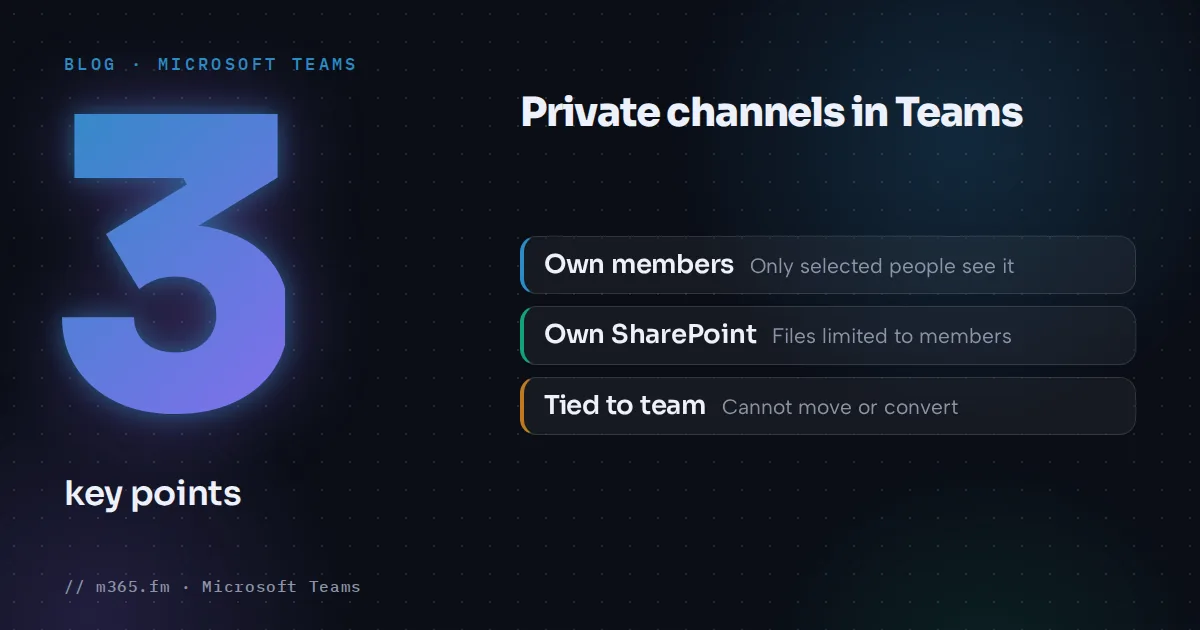
A private channel is a space inside a team that only selected team members can open. It has its own member list, its own settings and its own SharePoint site. Use it when a subset of a team needs to discuss something the rest of the team should not see, for example budgets, staffing or strategy, without creating a separate team.
Key points
- A private channel is visible only to its owners and members. Everyone you add must already be a member of the parent team, guests included.
- Each private channel gets its own SharePoint site, so files are limited to channel members. Team owners and admins cannot open it unless they are channel members too.
- Create one from a team's More options menu with Add channel, set the type to private, then add people from the channel's More options menu.
- A private channel cannot be moved to another team or converted to a standard channel, and the reverse is not possible either.
- Microsoft's own pages disagree on member and channel limits, so check the current limits page before you plan a large rollout.
This article covers how to create one, how access works, where files end up and how it compares with standard and shared channels.
How a private channel works
Microsoft Learn describes the basics this way:
- Only the channel's owners and members can access it. It shows a lock icon.
- Anyone, including guests, can be added as a member, as long as they are already members of the parent team.
- The channel is tied to its parent team. It cannot be moved to another team and cannot be converted to a standard channel or back.
- The creator becomes the private channel owner. Only an owner can directly add or remove people.
- New members can see all past conversations in the channel.
- Team members see only the private channels they have been added to.
If a channel owner leaves the organization or is removed from the Microsoft 365 group, a channel member is promoted to owner automatically. If someone leaves or is removed from the team, they are removed from all its private channels and must be added again if they return.
Create a private channel
These steps follow the Microsoft Support article on creating channels.
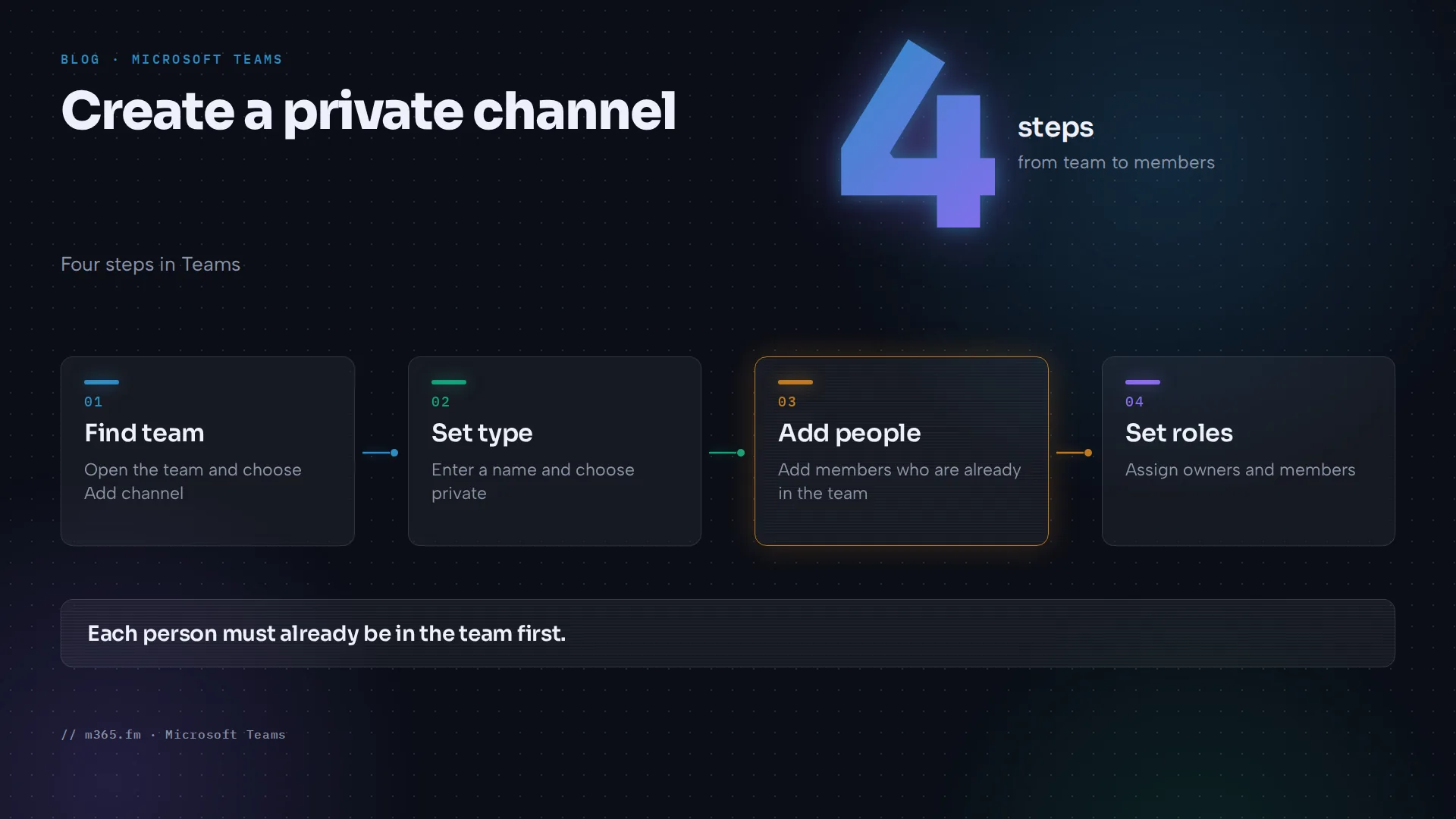
- In Teams, find the team. Select More options next to the team name and choose Add channel. Alternatively, open Chats and use the New items dropdown, then New channel.
- Pick the team that will host the channel.
- Enter a name and an optional description, and set the channel type to private.
- Select the channel name, then More options > Add members. Search for people, add them and set their roles.
You can also use More options > Manage channel and the Members tab. Each person must already be in the team. A private channel can have more than one owner.
If you do not see the private option, your admin may have limited who can create private channels. Learn says this is controlled through Teams policies at team and organization level, and team owners can then switch it on or off for members in the team's Settings tab.
Who can do what
Learn publishes a permissions table. The main points:
- Only a team owner or the channel owner can delete the channel. Deleted channels can be restored within 30 days, and the same people can restore them.
- Only the channel owner adds members, edits channel settings and manages tabs and apps. Apps must be installed for the team.
- Members can leave. Guests can leave but cannot add members, edit settings or delete the channel.
Files and the SharePoint site
Each private channel has its own SharePoint site, which is why file access is limited to channel members. Learn adds several details:
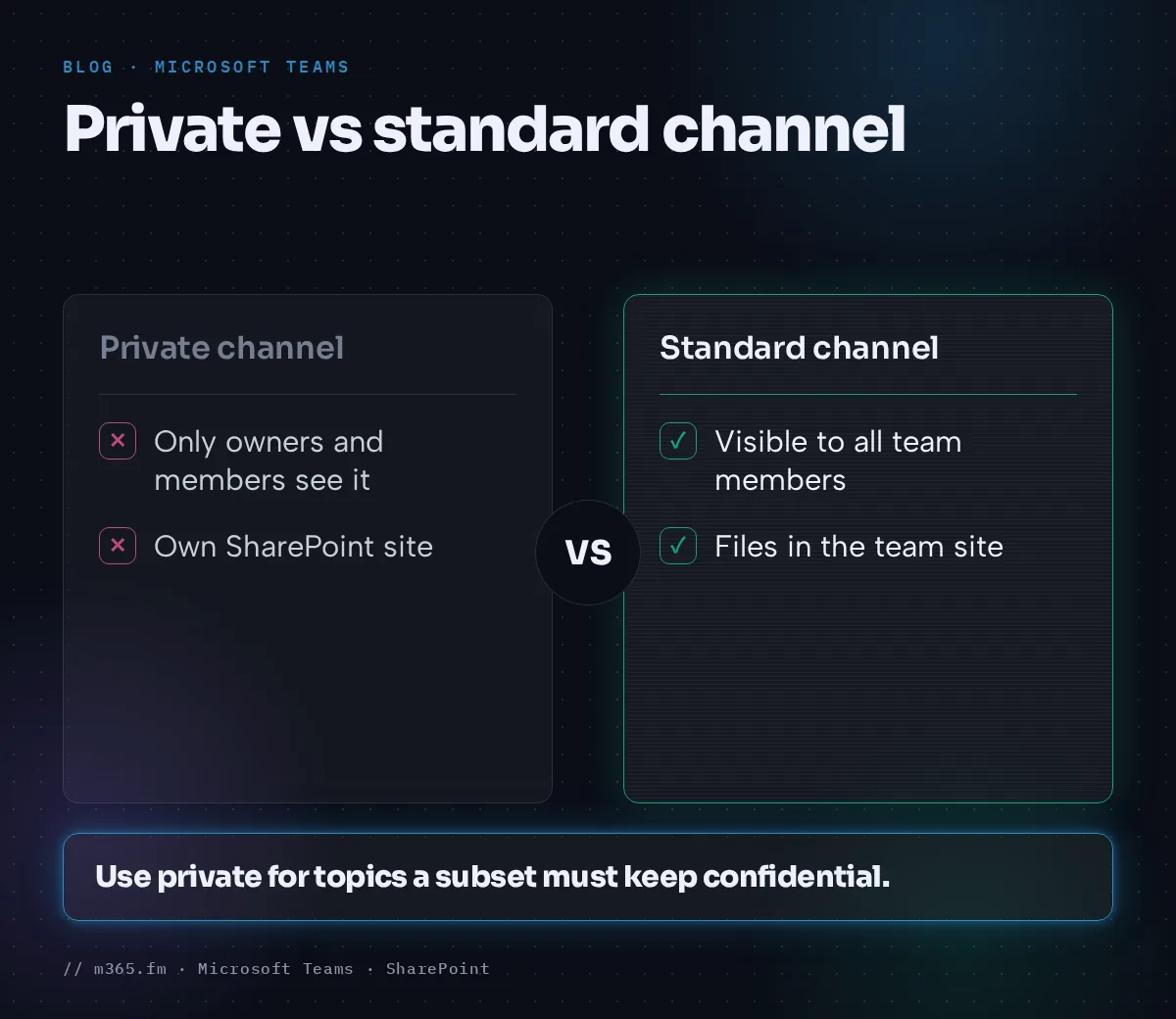
- Team owners and admins cannot access the site unless they are channel members.
- Owner and member groups on the site stay in sync with the channel membership. You cannot manage permissions independently in SharePoint.
- Teams manages the site's lifecycle. If someone deletes the site outside Teams, a background job restores it within four hours as long as the channel is active.
- Retention policies can apply to the site.
- Sharing links follow the SharePoint admin's external sharing settings.
For compliance, Learn says copies of channel messages go to the group mailbox, not to each member's mailbox.
Private, standard or shared
The Learn channel comparison table helps you pick.
| Feature | Standard | Private | Shared | |---|---|---|---| | Membership limited to a subset of the team | No | Yes | Yes | | Add people without adding them to the team | No | No | Yes | | Guests can participate | Yes | Yes | No | | External participants (B2B direct connect) | No | No | Yes | | Dedicated SharePoint site | No | Yes | Yes | | Moderation | Yes | No | No | | Planner | Yes | No | No | | Bots, connectors, messaging extensions | Yes | No | No |
Microsoft's page does not say when to choose which. A reasonable reading of the table: pick standard when the whole team should see the conversation or you need moderation, Planner or bots. Pick private when a subset of existing team members needs confidentiality. Pick shared when people outside the team need access without joining it.
Limits and known gaps
- Learn lists private channels as counting toward the 1,000 channels per team limit, with 5,000 members per private channel.
- The Microsoft Support article states up to 250 members and up to 30 private channels over a team's life. The Learn limits page itself contains a footnote that still refers to a 30 private channel limit, even though the table says otherwise.
- Connectors and tabs for Stream, Planner, Tasks by Planner and To Do, and Forms are not supported in private channels.
- Notifications from private channels are not included in missed activity emails.
- The Learn channel comparison table says scheduled meetings are not available in private channels. The private channel page says they support channel meetings. The Support scheduling article says channel meetings are not available in private channels.
Because of these conflicts, test the features you rely on, such as meetings and member counts, in your own tenant.
Common mistakes
- Adding someone to a private channel before adding them to the team. The team membership comes first.
- Expecting the team owner to be able to read the files. They cannot unless they are in the channel.
- Planning to convert a private channel to a standard one later.
- Relying on a single channel owner. Learn says a member is promoted automatically if the owner leaves, but only an owner can add or remove people, so name a second owner.
Related
Sources
- Private channels in Microsoft Teams (Microsoft Learn)
- Teams channels overview (Microsoft Learn)
- Limits and specifications for Microsoft Teams (Microsoft Learn)
- Create a standard, private, or shared channel in Microsoft Teams (Microsoft Support)
- Schedule a meeting in Microsoft Teams (Microsoft Support)
FAQ
Who can create a private channel in Teams?
By default any team owner or team member can, but guests cannot. According to Microsoft Learn, admins control this with Teams policies at the organization level, and team owners can then turn it on or off for members in the team's settings.
Can a team owner see a private channel they are not part of?
Only in a limited way. Learn says team owners who are not channel members can see the channel under Manage team but not in their channels list. They cannot open the channel's SharePoint site unless they are also channel members.
Can guests join a private channel?
Yes, if the guest is already a member of the parent team and a channel owner adds them. Learn says guests cannot create private channels, add members, edit settings or delete the channel. Guests can leave.
Can I turn a private channel into a standard channel?
No. Microsoft Learn states that a private channel is linked to its parent team, cannot be moved to another team and cannot be converted to a standard channel or back. Create a new channel of the type you need.
How many members can a private channel have?
The Microsoft pages differ. The Teams limits page on Learn lists 5,000 members per private channel and counts private channels toward 1,000 channels per team. The Microsoft Support article on creating channels states up to 250 members and up to 30 private channels over the life of a team. Check both pages for the current value.