 EN
 Deutsch
 Español
 Français
 Italiano
 Português
 Nederlands
 Polski
 Bahasa Indonesia
 Русский
 Українська
 العربية
 עברית
 日本語
 한국어
Permission inheritance: why breaking it creates debt
Disclosure: Cognillo sponsors M365.FM. This page describes the company factually; paid partnerships and links are labelled as advertising.
By Mirko Peters ·
Breaking permission inheritance in SharePoint solves a short-term sharing need but builds up unique permissions that are hard to review later. Learn how that turns into permission debt and what to do instead.
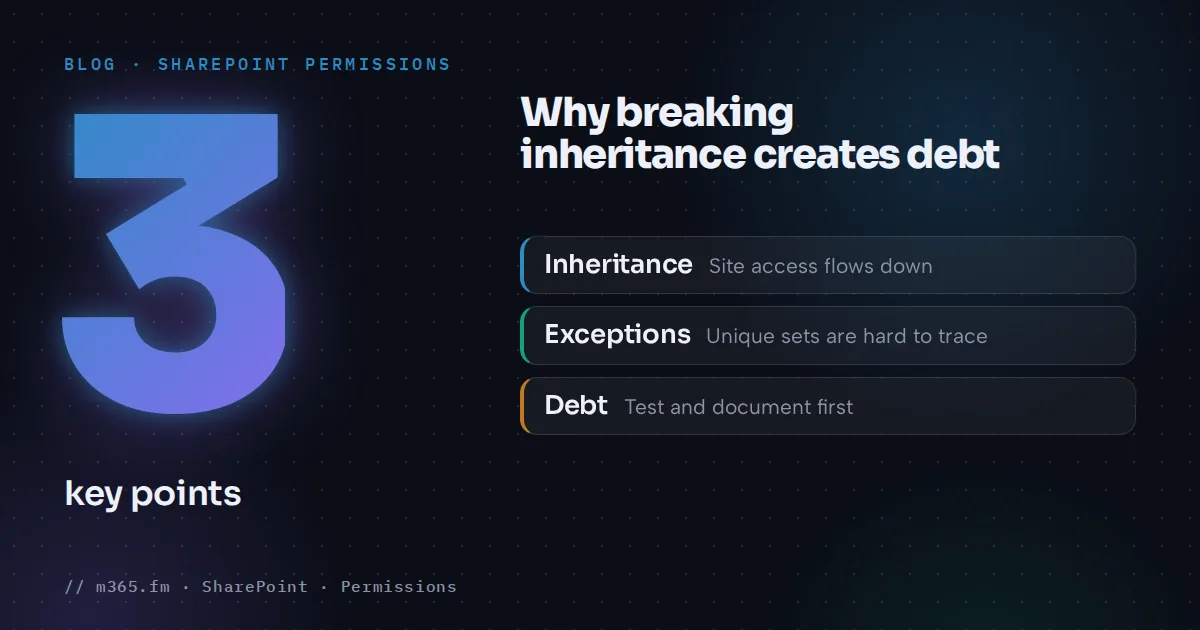
When someone asks for a folder that only a few people should see, the fastest answer in SharePoint is to stop that folder from following the rest of the site. It takes a few clicks, the request is closed, and everyone is happy.
The problem is not the single exception. It is what a collection of exceptions looks like a year later, when nobody remembers why they exist. This article explains how permission inheritance works, why breaking it creates permission debt, and what you can try first.
How permission inheritance works
SharePoint is built around the idea that access is set at the site and flows downwards. A document library, a folder or a file inherits the permissions of the site (or of its parent) unless someone changes that. This is the default, and it is the reason a site is understandable: look at who has access to the site, and you know who can reach its content.
SharePoint permissions are organised differently depending on the site type. Microsoft Learn describes the model like this:
- Team sites are by default connected to a Microsoft 365 group. The group owners become site owners and the group members become site members.
- Communication sites are not connected to a Microsoft 365 group and use the standard SharePoint groups Owners, Members and Visitors.
- Private and shared channel sites have their permissions managed in Teams.
On a team site, the three groups map to the permission levels Full Control (Owners), Edit (Members) and Read (Visitors). Permissions on a site, group or team give access to all content in it. That is the point of inheritance: one decision at the top applies everywhere below.
What breaking inheritance actually does
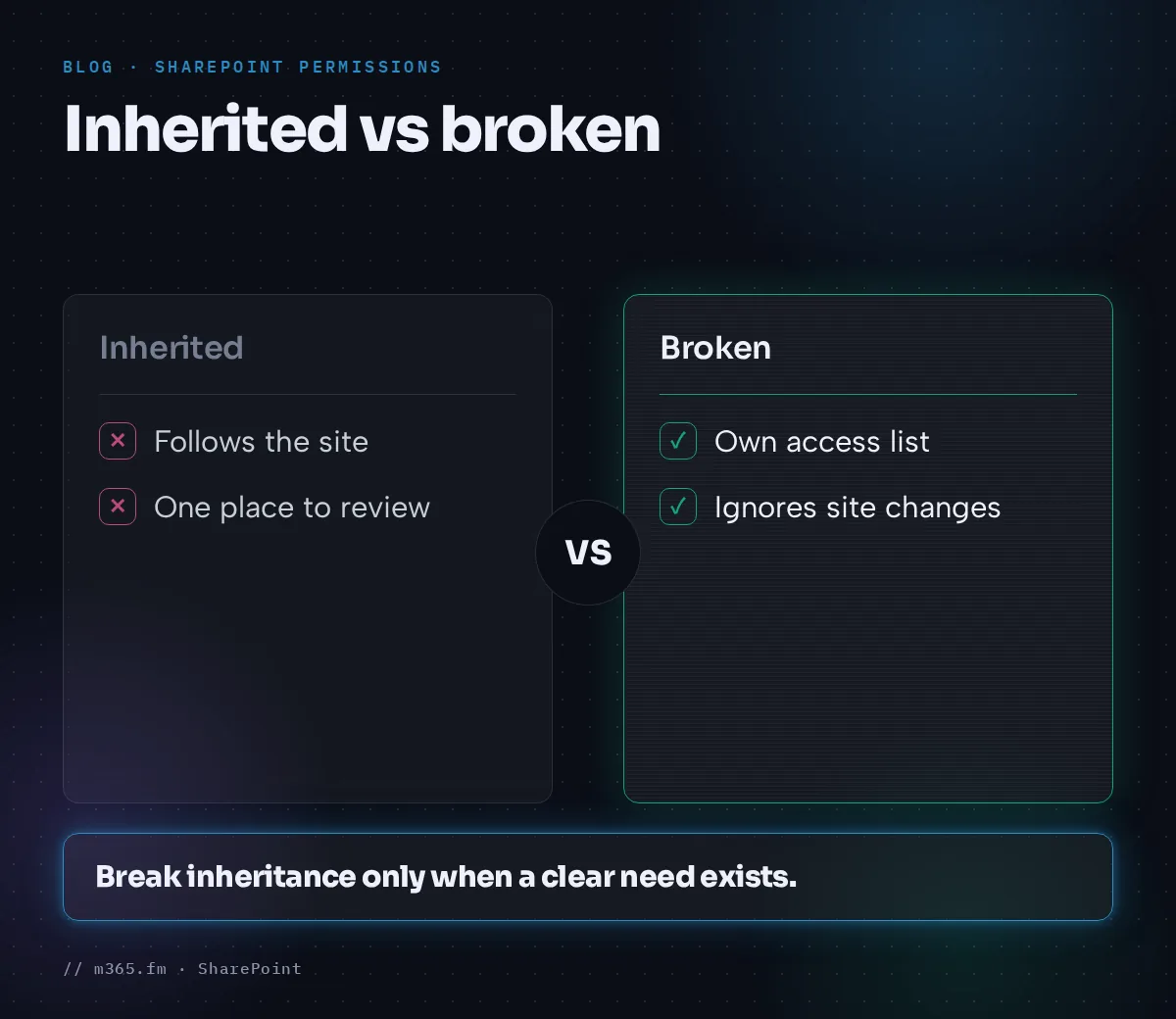
Breaking inheritance means a library, folder or file stops following the permissions of its parent and gets its own, unique permission set. From that moment, changes made at the site level, such as adding a new member to the site, no longer apply to that item.
Often this is exactly what the requester wanted. Imagine a finance subfolder that should not be visible to the whole team, so it gets its own list of people.
The side effect is less visible. The item now has an access list that lives separately from the site. To understand who can reach it, you have to look at the item itself, not just at the site. Multiply that by many folders, libraries and files and the site stops being something you can explain by looking at its groups. Microsoft also sets limits here: 50,000 is the supported limit of unique permissions in a list or library, with a general recommendation of 5,000, and in a list or library with more than 100,000 items you cannot break inheritance on the list itself.
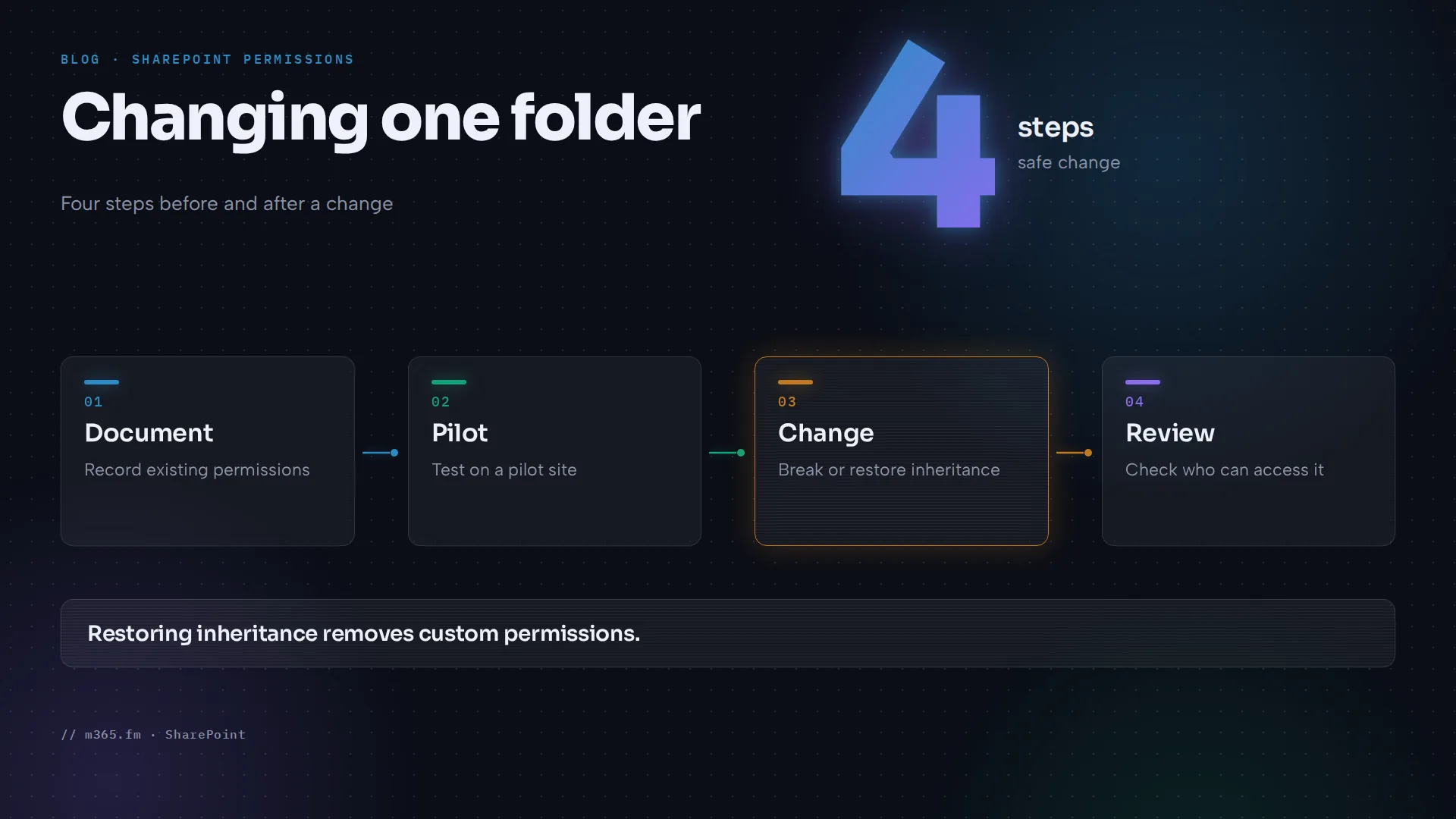
Test first. Changing inheritance changes who can access content. Before you do it, or before you reverse it, try the change on a pilot site or in a test tenant, and make sure you can return to the previous state, for example by documenting the existing permissions beforehand. Microsoft Support states that you can restore inheritance at any time, and that this removes the custom permissions you set, so record them beforehand.
Why exceptions turn into permission debt
Permission debt is the accumulated backlog of overly broad, inherited or outdated access rights, such as content shared with everyone, that stays latent until AI tools like Copilot surface the data at machine speed. Broken inheritance is one of the ways this backlog is built.
Imagine a team site for a product launch. During the project, several folders get unique permissions so that a handful of people can work on drafts. Some are shared with a small group, others with a wider audience because it was simpler at the time. The project ends, people move to other teams, and the folders stay as they are. Nobody owns the question of whether those exceptions are still needed.
This is how the debt accumulates:
- Exceptions have no expiry. A unique permission stays until someone changes it.
- They are hard to see. The site-level view does not show what was set on individual folders and files.
- They drift. People change roles, groups change, and the original reason is forgotten.
- They are broad by accident. A quick fix that grants access to a large audience is rarely revisited.
None of this is a defect in SharePoint. It is a consequence of making many local decisions without a process to review them. The debt becomes relevant when something starts to read across your content. AI tools such as Copilot can surface data at machine speed, so access rights that were never cleaned up can become visible in new ways.
Native options to try before breaking inheritance
Microsoft Learn says permissions for team sites are best managed through the Microsoft 365 group or the team, and recommends against managing them separately with SharePoint groups. It describes nested security groups as not recommended because they can cause performance issues. Within that model, there are several options worth considering before you create a unique permission set.
Use a separate site for a different audience. If a body of content has a clearly different audience, a separate site keeps the permission model simple. The site is the boundary, and its groups describe who has access. This is often easier to reason about than a folder with an exception.
Use sharing links for single files and folders. SharePoint offers three link types: Anyone, People in your organization and Specific people. For a one-off need, a Specific people link limits access to the named recipients without restructuring the site. Note that a site can allow external sharing only if it is allowed at organization level first, so external scenarios depend on your tenant settings. Be aware that sharing links also create access that needs to be reviewed over time.
Add read-only users to the Visitors group. A Microsoft 365 group has no view-only access. If people should only read, Microsoft Learn describes adding them directly to the Visitors group. That is a deliberate, visible setting at the site level, rather than a hidden exception on a folder.
Pick the right site type. Decide early whether a team site connected to a Microsoft 365 group or a communication site with the standard SharePoint groups fits the use case. The choice determines how permissions are managed from the start.
None of these removes the need for governance. They keep the number of exceptions lower and make the remaining ones easier to find.
When you do need unique permissions
Sometimes breaking inheritance is the right call. A small number of well-documented exceptions, with a named owner and a reason, is manageable. The problem is not the feature but unmanaged use of it.
If you decide to use unique permissions, a few habits help:
- Record the reason and the owner. A short note in your governance documentation about why an exception exists and who is responsible for it makes later reviews possible.
- Prefer groups over individuals. Assigning access to a group rather than to many named people makes the permission easier to read and update. Keep in mind the Microsoft recommendation about nested security groups.
- Keep exceptions close to the top. An exception on a library is easier to find than one on a file several folders deep.
- Plan the review. Decide when the exception will be checked again, for example when a project ends or at a regular access review.
To find existing exceptions, look at the reporting and review features Microsoft provides for SharePoint and Microsoft 365. Which ones are available depends on your licences and configuration, so check Microsoft Learn for the current options. Third-party tools are another option; for example, Cognillo offers the SharePoint Essentials Toolkit. See the vendor site for what it covers.
Cleaning up is itself a change to access. Do not remove or reset permissions in bulk without testing on a pilot site first and having a backup or a record of the current state, so you can restore access if a business process depends on it.
Practical takeaways
- Treat inheritance as the default and every break as an exception that needs a reason.
- Consider a separate site or a different site type before creating unique permissions on a folder.
- Manage access through the Microsoft 365 group or team where possible, and avoid nested security groups.
- Use Specific people sharing links for single items, and remember that links need review too.
- Document who owns each exception and when it will be reviewed.
- Test permission changes, including clean-ups and inheritance resets, on a pilot site first, and keep a record of the previous state.
- Check Microsoft Learn for the current permission model and available reporting before you design your process.
Sources
- Sharing & permissions in the SharePoint modern experience (Microsoft Learn)
- Default SharePoint groups (Microsoft Learn)
- Customize permissions for a SharePoint list or library (Microsoft Support)
- List View Threshold for large lists and libraries (Microsoft Support)
- Microsoft 365 Copilot data, privacy, and security (Microsoft Learn)
FAQ
What does it mean to break permission inheritance in SharePoint?
By default, a library, folder or file inherits the permissions of the site above it. Breaking inheritance means the item gets its own, unique permissions that no longer follow changes made at the site level. Check Microsoft Learn for the current description of this behaviour. Test any change on a pilot site first.
Why do unique permissions become a problem over time?
Each break creates an exception that someone has to remember and review. When people leave, projects end or sharing needs change, those exceptions stay in place unless someone checks them. The result is a growing backlog of access rights that are hard to see from the site level, which is what the term permission debt describes.
What is a better way to give a small group access to one folder?
Start with the native options: use a separate site or a Microsoft 365 group-connected team site for content with different audiences, or use sharing links such as Specific people for single files and folders. Which option fits depends on your content and governance. Check Microsoft Learn for the current guidance.