

 Apple Podcasts
 Spotify
 Youtube Music
 Spreaker
 Podchaser
 Amazon Music
This episode breaks down how Microsoft 365 Copilot Connectors are quietly becoming the backbone of the Copilot experience, transforming Microsoft Search from a basic tool into a powerful, enterprise-wide knowledge engine. We explore what connectors actually are, why they matter, and how they let Copilot reach far beyond Microsoft 365’s native data. Instead of being limited to Outlook, SharePoint, and Teams, Copilot can pull in insights from Salesforce, Dynamics 365, custom databases, line-of-business apps, and practically any external system an organization depends on. The conversation highlights how these connectors turn Copilot into a unified search layer that finally bridges the gap between scattered data silos and the employees who need that information instantly.
We dive into the difference between Microsoft’s prebuilt connectors and the fully customizable options developers can build through the Graph Connectors API and the Microsoft 365 agents toolkit. You’ll hear how custom connectors bring niche or legacy systems into the Copilot experience, how Microsoft Entra secures the entire data pipeline, and how the Copilot Connectors Gallery has become a discovery hub for organizations connecting more of their stack. We talk about how Copilot Studio lets teams configure, test, and validate connectors, and how ongoing monitoring ensures the right data stays accessible, secure, and up to date.
By the end, it’s clear that connectors are the real key to unlocking Copilot’s full potential. They determine how smart, how useful, and how relevant Copilot can be inside an organization. With the right connectors in place, Microsoft Search becomes richer, Copilot becomes sharper, and workers gain a single AI-powered window into every system they rely on—no matter where their data lives.






You can unlock new possibilities for your organization with Microsoft 365 Copilot Connectors. These connectors link Microsoft Copilot to external data sources, moving information into Microsoft Graph for powerful semantic indexing. This connection gives you a unified view of your data and makes knowledge discovery much easier. IT professionals often use Copilot Connectors for tasks like managing technical guides or tracking assets, which saves time and improves accuracy.
Key Takeaways
- Copilot Connectors link Microsoft Copilot to various data sources, enhancing data access and knowledge discovery.
- Two main types of connectors exist: Synced Connectors for indexed data and Federated Connectors for real-time access.
- Using Copilot Connectors improves productivity by streamlining tasks and reducing time spent on routine activities.
- Unified search capabilities allow users to find information across multiple platforms from a single search box.
- Customization options enable organizations to tailor Copilot to their specific needs using low-code and pro-code tools.
- Strong data governance is essential to protect sensitive information and ensure compliance with regulations.
- Regular training and support help teams effectively adopt and utilize Copilot Connectors for better outcomes.
- Planning and monitoring connector usage can optimize performance and enhance security across your organization.
9 Surprising Facts About Microsoft Copilot Connectors
- They connect more than just Microsoft services — microsoft copilot connectors can integrate third-party apps and legacy systems without extensive custom code.
- Connectors enable natural language access to data sources, letting Copilot query databases, CRMs, and file systems using plain English prompts.
- Many connectors support real-time data flows, so Copilot can act on up-to-date information rather than only static snapshots.
- Security is built-in: connectors can leverage enterprise identity and conditional access policies to enforce least-privilege access automatically.
- Custom connectors let organizations surface proprietary APIs and internal tools to Copilot in hours, not months.
- Metadata-driven mapping simplifies schema differences — Copilot Connectors can reconcile disparate data models behind the scenes.
- They support event-driven automation, allowing Copilot to trigger workflows or notifications when specific conditions are met in connected systems.
- Governance controls let admins whitelist or blacklist connectors, track usage, and audit data access from a central portal.
- Performance optimizations like caching and query folding are commonly used, so even complex queries through microsoft copilot connectors can remain fast and scalable.
Copilot Connectors Overview
Definition and Purpose
You can think of Copilot Connectors as the bridge that links Microsoft Copilot to many different data sources inside and outside your organization. These connectors enrich Copilot with data from enterprise systems like ERP and CRM, giving you access to comprehensive insights and seamless integration within your existing tools. When you use Copilot Connectors, you make it possible for Copilot to summarize and analyze information from multiple sources. This helps you find answers faster and work more efficiently.
Note: Microsoft 365 Copilot Connectors are designed to bring together data from many places, so you can use Microsoft Search and other tools to discover knowledge across your organization.
The main purposes of Copilot Connectors include:
| Purpose | Description |
|---|---|
| Ingest and Index | Copilot Connectors ingest and semantically index external content into Microsoft Graph, making it easier to search across Microsoft 365 apps. |
| Integration of Datasets | They help you combine different datasets, which leads to richer data analysis and better insights. |
| Security and Access | These connectors keep your security and access controls in place while making outside content easy to find. |
Connector Types
You will find two main types of connectors in the Microsoft 365 Copilot Connectors Gallery. Each type serves a different purpose and fits different data needs.
Synced Connectors
Synced connectors index data directly into Microsoft Graph. This means your organization can access and search this data through Microsoft 365 applications. If you want to make sure everyone in your company can find important documents or records, synced connectors are the right choice. They work well for large collections of files and can handle millions of documents, making them scalable for big organizations.
Federated Connectors
Federated connectors fetch content live from the original data source without storing or indexing it in Microsoft Graph. You use federated connectors when you need real-time access to information that changes often or when you do not want to move data from its original location. This type of connector is helpful for situations where data privacy or compliance rules require you to keep information in its source system.
| Type of Connector | Description |
|---|---|
| Federated Connectors | Connectors that fetch content live from data sources without indexing. |
| Synced Connectors | Connectors that index data into Microsoft Graph for organization-level access. |
Core Components
When you set up Copilot Connectors, you use several core components that work together to connect your data sources to Copilot. These components include:
- Connectors from Microsoft Power Platform, which act as wrappers around APIs. They let Copilot Studio communicate with other apps and services.
- Prebuilt connectors, which give you built-in connections to popular services.
- Standard connectors, included with all Copilot Studio plans.
- Premium connectors, available in select plans for advanced needs.
- Custom connectors, which allow you to connect to any public API if you have unique requirements.
You can also extend Copilot Studio’s abilities by using topics, tools, knowledge sources, and even other agents. These features help you integrate data from many enterprise systems and APIs, so Copilot can access and use this information effectively.
Tip: The Microsoft 365 Copilot Connectors Gallery makes it easy for you to discover, manage, and deploy the connectors that best fit your organization’s needs.
With Copilot Connectors, you can unify knowledge across departments, empower distributed teams, and ensure continuous compliance with security and privacy standards. This approach helps you break down data silos and gives everyone in your organization the information they need to succeed.
Copilot Connectors Integration
Microsoft Graph Connection
Data Flow
When you use Copilot Connectors, your data moves securely into Microsoft Graph. Microsoft Graph acts as the main hub for your organization’s information. You can connect different data sources using the Microsoft Graph connectors SDK. This SDK lets you build custom connectors that bring in data from many systems. Once you set up a connector, it ingests and indexes your content. This process makes your data searchable and ready for Copilot to use in Microsoft 365 apps.
To manage these connectors, you need access to the Microsoft 365 Admin Center. You should have Global Administrator or Search Administrator permissions. Each connector has its own data indexing limits, so you need to monitor usage, especially in large organizations. Your Microsoft 365 tenant must also support semantic indexing. This feature helps Copilot deliver context-aware search results.
Permissions
Security is a top priority when you connect external data. Microsoft Entra ID manages authentication and permissions for Copilot Connectors. Before you build a custom connector, you must register an application. You then grant admin consent for the required Microsoft Graph permissions in the Microsoft Entra admin center. This process ensures only authorized users and apps can access your organization’s data.
Tip: Always review permissions before connecting new data sources. This step helps protect sensitive information and keeps your environment secure.
External Platform Access
Copilot Connectors let you reach data from popular platforms like Salesforce and ServiceNow. For Salesforce, you set up a Connected App and register an OAuth application. Your account needs API access permissions. For ServiceNow, you create a service account with roles for incidents, problems, changes, and knowledge base access. You also configure OAuth 2.0 authentication. These steps allow Copilot to pull in real-time data from these platforms. You can also connect to custom databases and other business systems, making your Microsoft 365 environment even more powerful.
Many organizations use Copilot Connectors to save time and reduce manual work. You can focus on higher-value tasks while Copilot handles data gathering and analysis. This integration helps teams across departments work more efficiently.
Contextual AI Responses
Copilot Connectors do more than just move data—they help Copilot deliver smarter answers. Microsoft 365 Copilot uses a process called Retrieval-Augmented Generation (RAG). First, Copilot retrieves context from your Microsoft 365 environment. It then embeds and ranks the content, injects it into the prompt for the language model, and generates an answer using your actual data. Copilot also applies business logic and safety checks to make sure the response is accurate.
For example, if you ask Copilot in Excel for a Q4 revenue trend summary, it gathers data from Excel, SharePoint, Teams, and even Outlook. Instead of a generic answer, you get a tailored analysis with charts and tables based on your organization’s real numbers. This approach ensures every response is relevant and grounded in your own data.
Copilot Connectors Benefits
Unified Search
You can transform your organization’s search experience with unified search. Copilot Connectors bring together data from many sources, making it easier for you to find what you need. When you use these connectors, you do not have to search each system separately. Instead, you get a single search box that covers all your connected platforms.
- You can access data from Salesforce, ServiceNow, Google Drive, and more, all within Microsoft 365.
- Over 100 connectors help you summarize and analyze information from different datasets.
- Search results from external sources appear alongside your Microsoft 365 files in SharePoint.
- You see a unified view of people and content, even when the data comes from different systems.
- Security trimming ensures you only see information you have permission to access.
This unified approach helps you discover knowledge faster and reduces the time you spend switching between tools.
Productivity Boost
You can boost your productivity by using Copilot Connectors. Studies show that users complete tasks much faster and with less effort when they use Copilot in Microsoft 365. The following table highlights some key findings:
| Study | Findings |
|---|---|
| Meeting Summarization | Users summarized meetings nearly 4x faster, finishing in 11 minutes instead of 42. |
| Email Effectiveness | Emails written with Copilot were 18% clearer and 19% more concise. |
| Information Retrieval | Users gathered information 27% faster, completing tasks in 17 minutes instead of 24. |
| Customer Service | Agents resolved cases 12% faster, with 10% handled independently. |
| Security Analysis | New analysts were 44% more accurate and 26% faster, with 86% reporting better work quality. |
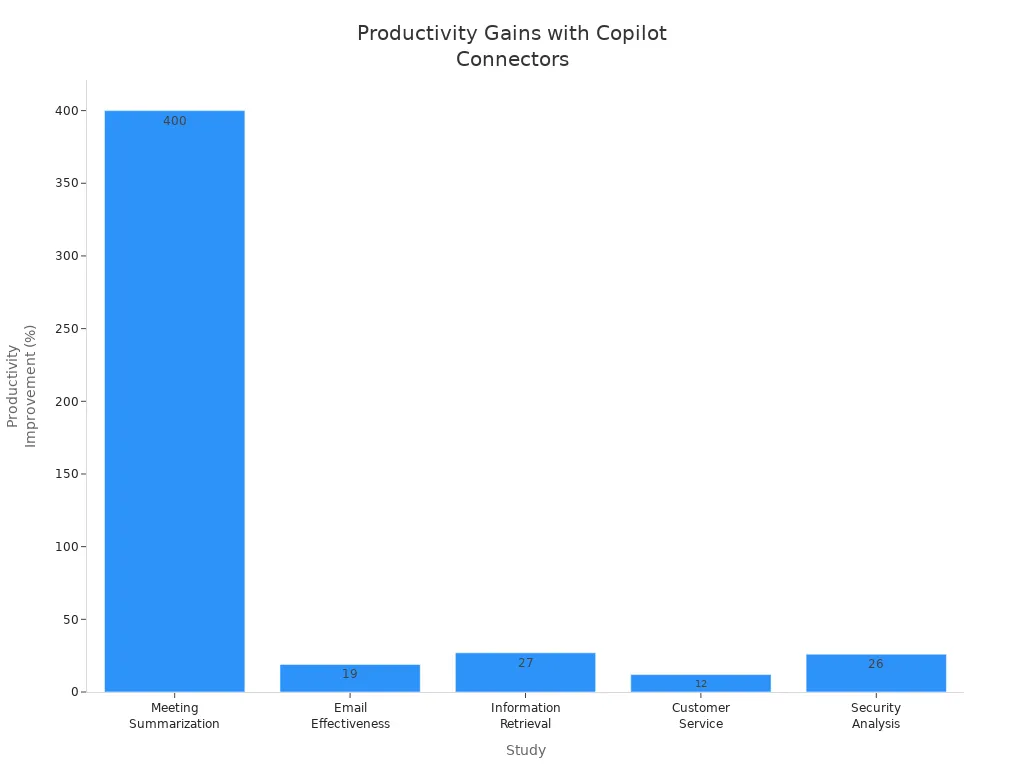
You can see that Copilot Connectors help you work smarter. You spend less time on routine tasks and more time on important projects. Your emails become clearer, your meetings get summarized quickly, and your team can solve problems faster.
Customization Options
You have many ways to customize your Copilot experience. Copilot Connectors let you connect to the data sources that matter most to your business. You can use low-code tools like Copilot Studio or Microsoft 365 Copilot to set up connections easily. If you need more advanced options, you can use pro-code tools such as Visual Studio Code or Teams SDK.
| Agent Type | Low-code Tool Options | Pro-code Tool Options |
|---|---|---|
| Declarative Agent | Microsoft 365 Copilot, Copilot Studio | Visual Studio Code + Microsoft 365 Agents Toolkit |
| Custom Engine Agent | Copilot Studio | Visual Studio Code + Teams SDK, Visual Studio 2022 |
You can also add plugins to give Copilot new abilities or connect to unique data through Microsoft Graph Connectors. This flexibility means you can tailor Copilot to fit your exact needs, whether you want to analyze sales data, manage customer support, or access custom databases.
Tip: Customization helps you get the most value from your Microsoft 365 investment. You can adapt Copilot to support your team’s workflows and business goals.
Data Governance
You need strong data governance to protect your organization’s information and meet regulatory requirements. Copilot Connectors help you manage your data with built-in features that support security, compliance, and control. When you connect external data sources, you want to make sure only the right people can access sensitive information. Good data governance gives you peace of mind and helps your business avoid risks.
Copilot Connectors use several tools to keep your data safe and compliant. You can see these features and their benefits in the table below:
| Data Governance Feature | Description | Compliance Benefit |
|---|---|---|
| Validation | Ensures data boundaries are enforced and permissions are managed. | Helps prevent unauthorized access to sensitive information. |
| Continuous Monitoring | Observes how Copilot interacts with extensibility components over time. | Detects anomalies and ensures compliance with data governance policies. |
| Administrative Controls | Involves periodic reviews of app permissions and security practices. | Maintains least-privilege access and prevents permission creep, ensuring compliance with regulatory standards. |
You can use validation to set clear boundaries for your data. This means you decide who can see or use certain information. If someone tries to access data they should not see, the system blocks them. This step helps you protect confidential files and customer records.
Continuous monitoring gives you real-time oversight. You can track how Copilot interacts with your data sources. If you notice unusual activity, you can respond quickly. This feature helps you spot problems before they become bigger issues. It also supports your compliance team by showing that you follow your organization’s data policies.
Administrative controls let you review permissions and security settings on a regular schedule. You can check which users or apps have access to each data source. If you find extra permissions that are not needed, you can remove them. This practice keeps your environment secure and prevents “permission creep,” where users slowly gain more access than they need.
Tip: Regular reviews and monitoring help you stay ahead of compliance audits and reduce the risk of data breaches.
With Copilot Connectors, you can unify your data while keeping control over who can access it. You support your compliance goals and build trust with customers and partners. Strong data governance also makes it easier to adapt to new regulations as they appear. You can focus on using your data to drive business results, knowing that your information stays protected.
Limitations and Considerations
Security Challenges
When you connect different data sources to Microsoft 365 Copilot, you must think about security. Each new connection can introduce risks if not managed carefully. You want to make sure only trusted sources feed information into your system. Attackers may try to use custom actions or apps to gain access to sensitive data. You also need to control who can use integrated apps and what those apps can do.
Here is a table that shows common security challenges and how you can address them:
| Security Challenge | Mitigation Strategy |
|---|---|
| Integrating untrusted data sources | Use trusted knowledge sources and set strict access controls. |
| Potential for attackers to manipulate custom actions | Design agents with security in mind and require human approval for sensitive operations. |
| Governance of integrated apps | Use Microsoft 365 controls to decide who can use integrated apps and which apps are enabled. |
Tip: Always review your security settings when you add new connectors. Regular checks help you keep your environment safe.
Privacy Concerns
Protecting privacy is just as important as securing your data. You need to make sure that only the right people can see sensitive information. Sometimes, users may have too much access, or data may not be labeled correctly. You also want to prevent prompt injection attacks, where someone tries to trick the system with harmful input.
The table below highlights key privacy concerns and best practices to help you manage them:
| Privacy Concern | Mitigation Strategy |
|---|---|
| Data Protection and Privacy | Set proper access controls, run regular audits, and use data loss prevention (DLP) policies. |
| Prompt Injection Attacks | Train employees on secure document handling and use input validation. |
| Over-Permissioned Access | Apply role-based access control (RBAC) and follow the principle of least privilege. |
| Flawed Data Classification | Use sensitivity labels and audit document creation. |
| Amplification of Existing Security Weaknesses | Run regular security audits and enforce strict data retention policies. |
| Intellectual Property Risks | Use encryption and access controls to protect intellectual property. |
| Over-Reliance and Lack of Review | Encourage users to verify AI-generated results and provide training on AI limitations. |
Note: Good privacy practices help you build trust with your users and meet compliance requirements.
Integration Complexity
Connecting Copilot to many systems can be complex. You may face challenges with large data schemas, technical setup, or slow response times from older systems. Sometimes, you need special knowledge to configure secure connections, especially with platforms like SAP or Dynamics. You might also see delays when indexing new files or extracting data from complex documents.
Here are some ways you can simplify integration:
- Use prebuilt connectors to reduce setup time and technical barriers.
- Build custom connectors for unique business needs.
- Learn about your data types, expected latency, and authentication requirements before you start.
- Plan for possible delays when indexing large files or working with legacy systems.
- Review permissions for service principals and make sure they match your security policies.
By understanding these complexities, you can plan your integration more effectively and avoid common pitfalls.
Licensing Factors
You need to understand licensing before you deploy Microsoft 365 Copilot Connectors. Licensing determines which features you can use and how you can scale your solution. Microsoft offers different plans and add-ons, so you should review your options carefully.
You start with a Microsoft 365 subscription. Not all plans include Copilot or Copilot Connectors. You may need to purchase Microsoft 365 Copilot as an add-on. Some advanced connectors or premium features require extra licenses. You should check the Microsoft 365 Copilot Connectors Gallery for the latest list of available connectors and their licensing requirements.
Here is a table to help you compare common licensing options:
| License Type | Included Features | Best For |
|---|---|---|
| Microsoft 365 E3/E5 | Core Microsoft 365 apps, basic search | General productivity |
| Microsoft 365 Copilot Add-on | Copilot features, access to standard connectors | Enhanced AI-powered workflows |
| Premium Connector Licenses | Advanced connectors (e.g., Salesforce, ServiceNow) | Integrating external platforms |
| Custom Connector API Access | Build and deploy custom connectors | Unique business requirements |
You should also consider how many users need access. Some licenses are per user, while others are per tenant. If your organization has many departments or remote teams, you may need to plan for extra seats. You can assign licenses through the Microsoft 365 Admin Center. This tool helps you manage who gets access to Copilot and which connectors they can use.
Tip: Review your current Microsoft 365 agreement before you add new licenses. This step helps you avoid unexpected costs.
Licensing also affects support and compliance. Premium licenses often include advanced security features and dedicated support. If your organization handles sensitive data, you may want these extra protections. You should also check if your region has special compliance rules. Some industries, like healthcare or finance, require specific licensing for data handling.
You can monitor license usage in the Microsoft 365 Admin Center. This dashboard shows which users have access and how they use Copilot Connectors. Regular reviews help you optimize your investment and ensure everyone has the tools they need.
You should plan your licensing strategy before you roll out Copilot Connectors. This approach helps you control costs, meet compliance needs, and support your business goals. If you have questions, you can contact your Microsoft account representative for guidance.
Copilot Connectors Use Cases

Business Process Automation
You can use Copilot Connectors to automate many business processes. These connectors help you build assistants that handle routine tasks and answer questions. For example:
- A procurement assistant can answer policy questions and check if vendors follow your company’s rules.
- A travel assistant can help employees file expense reports and guide them through approval steps.
- An IT support bot can sort help tickets and offer self-service troubleshooting.
When you use these solutions, you save time on document creation, meeting summaries, and reporting. You also see better writing quality and clearer communication. Many organizations notice that more people use Copilot features each week. Teams finish tasks faster and make fewer mistakes. Internal helpdesk requests often go down because users solve problems on their own.
Knowledge Discovery
Copilot Connectors make it easier for you to find and use information from different places. You can gather data from many systems and create reports or summaries quickly. In the biotech industry, Copilot agents can collect clinical trial data, research reports, and regulatory guidelines. They combine this information into one report for your team. In a law firm, a Copilot agent can pull case files from systems like iManage, NetDocuments, and SharePoint. You get a complete case summary when you need it.
This approach helps you discover knowledge that was once hidden in separate systems. You spend less time searching and more time making decisions.
Industry Scenarios
Healthcare
You can use Copilot Connectors in healthcare to track patient check-ins and manage treatment statuses. These tools help doctors and nurses keep up with both clinical and administrative tasks. You can build apps that improve how you care for patients and run your office.
Finance
In finance, risk analysts use Copilot to create loan evaluation apps. These apps automate data processing and scoring. You get faster decisions and better compliance tracking. This helps your team follow rules and make smart choices.
Manufacturing
Manufacturing teams use Copilot Connectors to monitor machine performance and automate maintenance requests. You can build dashboards that show how machines are working. This leads to better efficiency and higher quality in your products.
Tip: You can connect Copilot to your line-of-business systems and custom databases. This gives you a single place to manage data and automate tasks, no matter your industry.
Best Practices for Copilot Connectors
Implementation Planning
You set the stage for success by planning your Copilot Connectors deployment carefully. Start by evaluating your organization’s readiness. Assess your team’s AI literacy and identify champions who can lead the way. Next, run a pilot program with a small group. Gather feedback on their experience and use it to refine your approach.
Follow these steps for a smooth rollout:
- Assess readiness: Check if your team understands AI and Copilot basics.
- Identify champions: Choose people who can support and encourage others.
- Run a pilot: Test Copilot Connectors with a select group and collect feedback.
- Integrate technically: Set up connectors, configure access controls, and ensure everything works with your business systems.
- Manage change: Offer guidance and support as users adapt to new tools.
- Measure adoption: Track key performance indicators to show value and keep momentum.
Tip: Use Microsoft Entra to secure your data pipelines and monitor connector activity from the start.
Governance Strategies
Strong governance keeps your data safe and your Copilot Connectors running smoothly. You need to track user activity and monitor data access. Set up alerts for policy violations to catch unauthorized actions early.
- Track who uses Copilot and which applications they access.
- Monitor data access to support privacy and security audits.
- Set up alerts for any policy violations.
- Maintain audit trails to help with compliance and investigations.
Data policies play a key role. They block anonymous access and make sure only authenticated users can create and publish copilots. This aligns with your security policies and prevents unauthorized data exposure. Administrators can configure access controls, so only trusted users can publish solutions after IT certification.
Here is a quick overview of governance topics:
| Key Topics Covered | Description |
|---|---|
| Agent Governance Strategy | Manage AI agents across Microsoft 365, Power Platform, and Copilot Studio. |
| Security Measures | Protect sensitive data with encryption and connector management policies. |
| Management Tools | Use Microsoft 365 Admin Center to streamline permissions and compliance. |
Note: Regularly review your governance framework to keep up with organizational changes and new security requirements.
User Training
Effective training helps your team get the most from Copilot Connectors. Start with a strategic alignment workshop to match your organization’s goals with AI capabilities. Offer workshops that focus on discovery, education, and planning. Pilot studies let you test new features and measure their impact over several months.
Ongoing user enablement programs provide continuous support. These programs include onboarding, change management, and tailored education.
| Training Approach | Description |
|---|---|
| Strategic Alignment Workshop | Aligns your vision with AI in a focused session. |
| Copilot for Microsoft 365 Adoption Workshop | Multi-day sessions for discovery, education, and planning. |
| Scalable Pilot Study Evaluation | Tests feasibility and impact with real users over at least three months. |
| User Enablement Programs | Ongoing support and education tailored to your team’s needs. |
Tip: Combine workshops, pilot studies, and ongoing support to build confidence and drive adoption across your organization.
You can transform your Microsoft 365 experience with Copilot Connectors. These tools give you unified data access and boost productivity across your organization. The table below shows how Copilot Connectors deliver measurable value:
| Benefit | Impact |
|---|---|
| Unified Data Access | Microsoft Graph integration enhances collaboration and productivity. |
| ROI and Time Savings | Forrester found a 116% ROI; organizations save hundreds of hours monthly. |
To maximize your investment, you should:
- Work with teams to find the best use cases.
- Build proof-of-concepts and offer training.
- Use Copilot Studio and SharePoint Agents for extensibility.
- Integrate data from ERP and CRM systems.
- Track adoption and measure results.
Explore Copilot Connectors to unlock new possibilities and drive business success.
Microsoft Copilot Connectors Checklist
Use this checklist to plan, deploy, secure, and maintain Copilot Connectors.
additional resources for microsoft copilot connectors
What are Microsoft Copilot connectors and how do they extend Microsoft?
Microsoft Copilot connectors are integrations that bring external content into Microsoft 365 and copilot experiences so Copilot can access connector content from services like Confluence, MediaWiki, Google services, and custom data stores. They extend Microsoft and partner solutions by making content available to Copilot and improving discoverability for search and copilot search scenarios.
How do connectors interact with Copilot search, search and Microsoft 365 Copilot, and Microsoft Search?
Connectors index connector content and sync it into Microsoft Search and Copilot search contexts so copilot responses and search results can include content from external items. Synced connectors and semantic indexing enable Copilot to surface relevant content in Copilot chat and copilot and microsoft search experiences, improving the relevance of answers and BizChat workflows.
Can admins configure which connectors are available to Copilot and how?
Yes, admins can configure connectors via the Microsoft 365 admin center, Microsoft Graph, or partner portals. Admins can grant permissions, control discoverability, filter which content is indexed, and manage security updates and access policies so sensitive data is protected while making approved content available to copilot connectors.
Are there prebuilt connectors in a connectors gallery and can I see Copilot connectors before using them?
Microsoft and partner ecosystems provide a connectors gallery with many prebuilt options, including power platform connectors and connectors for popular services. You can see Copilot connectors in documentation and preview environments, and Microsoft Learn and additional resources list available connectors and guidance on how to deploy them.
How do I create custom connectors or custom agents to bring external data in real time?
You can create custom connectors using the Microsoft Graph Connector framework, Power Platform connectors, or by building custom agents that implement the model context protocol. Custom connectors can push data into Microsoft 365 or provide data in real time via APIs and Azure Services. Microsoft Learn and technical support resources provide step-by-step examples to create custom connectors.
What is semantic indexing and how does it affect copilot responses?
Semantic indexing enriches connector content with embeddings and metadata so search and Copilot can understand meaning and context, not just keywords. This improves Copilot responses' relevance and helps Copilot generate summaries or filter results by topic, date, or security label.
Can Copilot connectors include people data, and what is “Copilot connectors for people data”?
Yes, specialized connectors for people data let Copilot surface organizational profiles, reporting lines, and contact details. Copilot connectors for people data must be configured with care for privacy and security updates; admins can configure access and filters to ensure only appropriate people information is available to Copilot.
How do connectors handle content from external sources like Confluence or MediaWiki and maintain discoverability?
Connectors index content from external items such as Confluence and MediaWiki, extract metadata, and map it into Microsoft Search so content from external sources becomes searchable and discoverable in Microsoft 365 and Copilot experiences. Discoverability can be tuned with filters, tags, and semantic indexing.
Do connectors support real time data and data in real time for use in copilot chat or BizChat?
Some connectors support near real time synchronization or push notifications via Azure Services and webhooks so Copilot can access data in real time. For truly real time workflows in copilot chat or BizChat, build connectors that stream updates or implement APIs that provide live context to custom agents.
How are security updates and technical support handled for connectors?
Microsoft and partner connectors follow security update practices and compliance standards; administrators receive security updates and guidance through the Microsoft 365 security center. For issues, technical support is available from Microsoft Learn resources, partner support channels, and Microsoft technical support depending on the connector's source.
Will Copilot ever miss content from external systems and how can I reduce misses?
Copilot can miss content if connectors are misconfigured, not authorized, or if content isn't indexed due to filters or sync frequency. To reduce misses, verify connector content mapping, adjust filters, enable synced connectors or real time updates, and use semantic indexing so search and copilot responses surface relevant external items.
Can I filter what Copilot returns from connector content and enforce compliance?
Yes, admins can configure filters, sensitivity labels, and access controls to limit which connector content is indexed and returned in copilot responses. Filtering helps enforce compliance and ensures Copilot does not expose restricted information in search and copilot chat scenarios.
What about integrating Google Services and other third‑party platforms with Copilot?
Integrations with Google services and other third‑party platforms are possible through prebuilt connectors, partner connectors, or by creating custom connectors. These solutions bring content from external systems into Microsoft Search and Copilot, subject to authentication and security policies.
Where can I find additional resources and learning material about Copilot connectors?
Use Microsoft Learn, technical support articles, the connectors gallery, and documentation for search and copilot. Additional resources include tutorials on creating custom connectors, examples for model context protocol integration, and guidance on extending Microsoft with partner solutions.
How do Power Platform connectors relate to Microsoft Copilot connectors?
Power Platform connectors let you connect apps and flows to external systems and can be used to create or enrich connector content for Copilot. They make it easier to bring external data into Microsoft 365 and enable automation that supports copilot search and copilot chat scenarios.
Can I customize how Copilot uses connector content in Copilot chat or Copilot search results?
Yes, by creating custom agents, configuring semantic indexing, and tuning connector content mappings you can influence how Copilot uses external content. Admins and developers can control ranking signals, filters, and which fields are surfaced in copilot responses or search and microsoft 365 copilot outputs.
How do licensing, preview features, and availability affect using Copilot connectors?
Some connectors or features may be in preview or have specific licensing requirements. Availability can vary by tenant and region; check Microsoft Learn and the product roadmap for preview announcements and licensing details to ensure connector features are available to your organization.
Are there best practices for making connector content useful and discoverable to Copilot?
Yes. Best practices include applying clear metadata, using semantic indexing, keeping content updated, configuring filters and security labels, and testing in preview environments. These steps help Copilot surface accurate, relevant connector content and improve search and copilot responses.
What is the role of model context protocol when creating custom agents that use connectors?
The model context protocol helps custom agents provide structured context to language models, enabling Copilot to make better use of connector content. Implementing the protocol ensures consistent context formatting and improves the quality of copilot responses that reference external items.
How can I see Copilot connectors in action or test them before rollout?
You can test connectors in a sandbox or preview tenant, use Microsoft Learn labs, and try sample queries in Copilot chat or copilot search to evaluate how connector content appears. Use diagnostic tools and logs to verify syncing, semantic indexing, and that admins can configure settings correctly.
🚀 Want to be part of m365.fm?
Then stop just listening… and start showing up.
👉 Connect with me on LinkedIn and let’s make something happen:
- 🎙️ Be a podcast guest and share your story
- 🎧 Host your own episode (yes, seriously)
- 💡 Pitch topics the community actually wants to hear
- 🌍 Build your personal brand in the Microsoft 365 space
This isn’t just a podcast — it’s a platform for people who take action.
🔥 Most people wait. The best ones don’t.
👉 Connect with me on LinkedIn and send me a message:
"I want in"
Let’s build something awesome 👊
Ever feel like your Microsoft 365 BizChat conversations just skim the surface? You’re asking a tool to guide important decisions, but it can’t reach into your proprietary data or core apps. That gap isn’t small—it’s the difference between generic answers and insights grounded in your actual business context. In this podcast, I’ll show you how to close that gap. You’ll learn how to identify the right systems to connect, how to build a Copilot Connector, and how to secure it using Teams Toolkit. This is for makers and developers who know Microsoft 365 and want BizChat to work with their core apps. Because before we can fix the problem, we need to talk about why BizChat so often feels half-blind in the first place.
Why BizChat Feels Half-Blind
Most people come to BizChat expecting it to act like a seasoned strategist, ready with answers grounded in the reality of their business. But the reason it so often disappoints is simple—it can’t see the full picture. Out of the box, it does fine with information Microsoft 365 already holds: Outlook messages, Teams chats, OneDrive files, SharePoint libraries. The problem surfaces when users ask about data living elsewhere: the CRM that runs sales, the ERP that tracks inventory and invoices, or the project tool that monitors deadlines. The second BizChat can’t reach into those systems, it starts giving half-answers that feel more like guesswork than guidance. Take a common example. A sales manager kicks off a Monday meeting by asking BizChat about the current pipeline. Sure, BizChat will pull from recent email threads, proposal documents, maybe even meeting notes. But without access to the CRM, those numbers are incomplete. Instead of a reliable forecast, the response comes back vague, low on actual data, and largely unusable for a high-stakes decision. What should have been a fast insight becomes extra work: the manager now has to open up another system, grab the true numbers, and explain the shortfall to the team. In a moment, confidence in the tool drops. This pattern repeats in other departments. A finance director asks for outstanding invoice totals, but without ERP visibility BizChat gives an empty report. A project manager asks when deliverables are due, but without access to the tracking system, BizChat shrugs. Each scenario ends the same way: hopping between BizChat and the real system, manually filling in the missing pieces. Ask yourself this—if your team had to double-check every BizChat answer against another tool, would they keep using it as their first stop? That’s the practical cost: constant context switching. Staff move in and out of BizChat, copying numbers into the thread, pasting screenshots from dashboards, or rebuilding analyses that should have been automatic. Instead of a streamlined, AI-driven workflow, the experience regresses to manual patchwork. Over time, people learn not to bother asking it about the things that really matter, especially when the stakes are high. They drop back into old habits—downloads, pivot tables, or chasing data across multiple apps. Eventually, BizChat gets relegated to surface-level tasks, not because its core algorithms are weak but because it doesn’t connect to where the real answers live. Leadership sees the ripple effects. When adoption looks patchy, they question whether the rollout was worth it. IT fields complaints that point not to bugs in the platform but to blind spots in its reach. Employees onboarded with the idea of a “smarter copilot” start treating it like a limited chat bot. That mismatch between expectation and reality creates a slow erosion of trust. Once trust erodes, momentum stalls. And when productivity results fall below the hype, organizational support weakens. The truth is, none of this happens because BizChat lacks intelligence. It happens because it lacks visibility. The model works with what it has, but with only half the inputs, it produces half-formed results. The good news? That gap is fixable. With the right approach, you can give BizChat controlled access to the systems that matter, so answers feel specific instead of generic, and decision-making actually speeds up rather than slowing down. And that points to a bigger question: what separates a tool that feels “helpful” from one that actually drives outcomes for the business?
The Difference Between an Assistant and a Copilot
What makes BizChat feel limited for many teams is that, at its core, it still acts more like an assistant than a copilot. On its own, it does a fine job answering questions, summarizing emails, and pulling quick notes from your Microsoft 365 environment. But those are surface-level tasks, based only on what’s already in the open. An assistant gives you commentary; a copilot works alongside you to shape real decisions. And the only way that shift happens is when the tool has controlled access to your systems of record—the data and workflows that define how your business actually runs. This is the key distinction most organizations miss at rollout. They expect BizChat to provide deep insight out of the box, but conversational summaries alone don’t make it a copilot. Without connectors feeding it information from your CRM, ERP, or custom apps, it’s essentially a polished note-taker. With those links in place, it starts to feel like it’s truly in the decision-making process—reflecting back real numbers, live approvals, or accurate timelines instead of just rephrasing what’s already visible. Here’s a simple mental model you can use to judge whether you’re dealing with an assistant or a copilot. First, does the AI have access to live systems, the places where critical records actually live, not just email chains or files? Second, does it respect role-based permissions so that the information returned is both secure and tailored to the person using it? And third, can it actually drive outcomes, meaning its answers resolve tasks or accelerate decision points instead of sending you somewhere else to confirm? If you can check all three boxes, then you’re getting the copilot experience. If not, you’re still in “assistant” territory. Real examples make this distinction clearer. Picture a finance team asking BizChat for expense trends. As an assistant, it searches email attachments and shared folders to produce a rough picture of travel costs. That’s handy, but incomplete. As a copilot, with connectors into the expense management app or ledger, it delivers an accurate forecast and even flags upcoming variances in cash flow. The same shift applies in sales: instead of summarizing proposal drafts, a true copilot pulls the actual pipeline numbers from the CRM and shows where deals are stalling. One version saves you a few clicks; the other changes the way decisions get made. It’s also worth being clear about implementation. Teams don’t have to choose a single approach—connectors span the no-code, low-code, and pro-code spectrum. A business analyst can often wire up a connector to a common SaaS app without writing much code at all. A developer can go deeper and extend custom logic through Teams Toolkit or APIs. The right route depends on your internal skills and your tolerance for complexity, not on a blanket claim that one is easier or faster. The real point is that there is a path forward no matter what level of technical depth your team operates at. What often stalls progress is the assumption that Copilot will somehow “learn” a company’s unique data without being given structured access to it. That’s never the case. Without connectors, BizChat has no window into transaction records, product catalogs, or approval workflows. As a result, it reverts to generic answers, even though the intelligence to reason about that data is already there—waiting. Building the bridge is what unlocks the higher level of value. And once you make that shift, the day-to-day experience changes. Users aren’t bouncing between BizChat and other applications just to backfill what it couldn’t provide. They get what they need inside the flow of the conversation. Over time, this builds confidence and trust. Questions go deeper. Adoption rates climb, because people see BizChat as a system they can rely on, not just a convenience tool. Leadership feels the difference too, because teams are able to move faster on decisions with clear, defensible data at their fingertips. So the difference between an assistant and a copilot isn’t about flair—it’s about integration. Assistants repeat what they can see. Copilots connect to what matters most and help you steer based on it. Recognizing that contrast is essential, because the next decision you make determines whether you continue running BizChat in “assistant mode” or start enabling it to perform as a genuine copilot. And that starts with one practical step: deciding which systems are worth connecting first.
Finding the Right Integration Points
When it comes to getting real results from BizChat, the question isn’t “what can I connect?” but “which connections will change the way my teams work?” The Microsoft ecosystem is wide open, with the ability to wire up dozens of apps and data sources. But no team has the time or resources to link everything at once. That’s why the smartest move is to focus only on the integrations that deliver visible impact early. Get those right, and confidence in BizChat rises. Get them wrong, and adoption stalls. The most common mistake is starting with the easy wins that don’t matter. It feels productive to connect a minor data source just to show something is live. But low-value integrations don’t relieve the pain points people actually feel. As a result, workflows stay fragmented, and employees walk away thinking the tool is more novelty than necessity. You don’t want “demo wins”—you want operational wins. Like wiring a house: the first outlets you choose determine whether the rooms people need most are usable or just dim. So how do you focus on what matters? One quick way is to use a simple three-question filter. First: how often is this data needed in day-to-day work? Second: does connecting it eliminate a painful context switch—those moments when people leave BizChat to dig through another system? Third: what’s the exposure risk—is the data sensitive enough that integration requires extra governance before moving forward? If you get strong answers on frequency and friction, and manageable answers on risk, you’ve found a top candidate. You don’t need an intensive analysis to know where to begin. Try a 60‑second exercise with any stakeholder. Ask: “When BizChat hits a wall for you, where do you go next?” The answers—whether it’s a product catalog, a project tool, or a shared document library—will highlight the rough edges everyone already knows. These breakaway moments are ideal places to start, because integrating them removes constant interruptions and builds trust in the platform. One clear early win is targeting high‑frequency, high‑impact queries. For example, instead of looking up project timelines in a separate tracker, teams could ask BizChat directly for the latest status. That’s the kind of interaction people repeat every day, where shaving off context switching has an immediate compounding effect. Contrast that with a once‑a‑month report, and you can see why prioritizing by frequency and workflow friction is the smarter strategy. It’s equally important to avoid chasing integrations just because they’re technically feasible. Almost any system can be connected in some way, but not every connection changes behavior. The right integrations are the ones that directly improve high‑traffic decision points. Wherever BizChat can surface real data in real time—forecast numbers, updated project milestones, status checks—it stops being an assistant and starts becoming a trusted part of the process. This is why mapping integration points is more than a technical planning step; it’s about shaping perception. Employees don’t care if the connector was easy to build—they care that BizChat finally delivers useful answers without them leaving the conversation. And once they see it handle high‑value queries reliably, they keep coming back, which is how adoption compounds. Of course, prioritization doesn’t mean ignoring long‑term opportunities. Lower‑frequency systems may still be worth connecting later, once the high‑value targets prove BizChat’s usefulness. But at the start, it’s all about cutting the biggest sources of friction. That’s what signals to employees and leadership that the rollout is working, and that integrating more systems is worth the time and effort. So the real filter isn’t about technical possibility—it’s about impact. Which integrations, introduced right now, give BizChat the power to provide clear, reliable answers at the exact moment a decision is being made? Identify those, and you’ve laid the foundation for transforming everyday interactions. And once you know where those opportunities are, the next step is understanding the actual mechanism that makes integration possible.
What Copilot Connectors Really Are
Copilot Connectors are the piece that shifts BizChat from a superficial assistant into a tool that’s actually useful for day-to-day decision-making. At its core, a Connector is a controlled integration that lets BizChat query a system of record and return scoped answers. That’s the role it plays: creating a managed bridge between AI and the trusted sources inside your business. Two facts are worth keeping in mind: Connectors don’t change the model itself—they feed it context—and they can be built along a spectrum, from no-code setups to full pro-code implementations. Think of how your data sits today—scattered across document libraries, structured databases, cloud systems, and specialized apps. BizChat doesn’t naturally have a doorway into those environments. A Connector opens that doorway, but does it in a safe, governed way. When you ask BizChat a question, the Connector decides where that query should go—whether it’s finding live sales numbers in the CRM, invoices in the ERP, or active projects in a planning tool—and then returns the scoped information you actually need. The difference is visible. Without a Connector, BizChat gives you approximations pulled from mentions in chats or documents. With a Connector, you get live, authoritative data that reflects what the system of record says right now. There’s a common misconception that Connectors are only for developers writing hundreds of lines of code. The reality is more balanced. For simple cases, business makers can configure integrations through no-code and low-code options. For complex or high-governance scenarios, developers step in with more advanced builds. Both roles matter. This is where Copilot Studio comes into play. It’s the environment designed to extend Microsoft Copilot with custom agents, actions, and integrations, giving teams a way to design the experiences they actually need. For code-heavy API plugin scenarios, Teams Toolkit is also supported. Developers can use it to expose secure APIs that surface data from proprietary applications directly into BizChat, with the right permissions applied. That flexibility means integrations can scale with both skill level and complexity, but it also reminds us: some integrations will require heavy developer involvement and proper governance to get right. It’s equally important to clear up how Connectors interact with BizChat’s built-in intelligence. They don’t replace the AI that generates answers—they simply improve what the AI has to work with. Imagine asking about open purchase orders. Without a Connector, BizChat collects scattered mentions from emails or meetings and forms a vague response. Add a Connector, and suddenly BizChat queries the ERP, pulls back exact counts and statuses, and presents them in natural language. The workhorse is still the model, but the accuracy comes from the Connector. What makes this powerful is that it isn’t restricted to Microsoft-only systems. Yes, you can link into services across 365, but just as easily you can connect HR platforms, logistics tools, or custom databases that your business depends on. The crucial part is that every one of these handoffs happens through a Connector. BizChat isn’t blindly grabbing data in the background; it’s routing questions in a managed way, respecting permissions, and returning scoped results. That’s how it remains governed while still useful. Another part people sometimes miss: Connectors are as much about business alignment as they are about technology. Setting one up forces a conversation between IT and business teams about which questions actually matter. Do managers need live sales updates? Do finance leads need visibility into unpaid invoices? Do project teams need delivery milestones in front of them during meetings? Connectors bring those priorities into focus and make them operational. That’s one of their hidden values—they’re not just about wiring systems but about surfacing which workflows are most worth supporting. By this point, the role of a Connector should be clear. It’s not a niche add-on or a developer hobby project. It’s the mechanism that transforms BizChat from clever summaries into a trusted copilot with access to accurate data. Without them, adoption struggles because the tool can’t answer the questions people care about. With them, it steps into a new role—reliable enough to be used in front of peers, in real decision-making scenarios, and aligned with how the business really operates. The next natural step is to turn the idea into practice. Understanding what Connectors are is important, but what gives them value is building one and making sure it’s secured correctly.
Building and Securing Your First Connector
Building and securing your first Connector is less about coding skill and more about discipline in how you design access. Yes, there’s development involved, but the real weight is deciding what BizChat should see, how narrowly that scope is defined, and how tightly permissions are enforced. If the framework isn’t planned from the start, you’ll risk either leaking sensitive data or creating something so locked down that it doesn’t help anyone. Security here isn’t a layer you add later—it’s the structure you build on. The main tool most teams start with is Teams Toolkit. It provides developer tooling and templates to accelerate building Copilot API plugins and integrating with your Azure resources. It gets you moving quickly on the technical side, but what it doesn’t do is make the design decisions for you. You still need to define the right entry points, align them with business needs, and make sure every call stays within tightly scoped limits. What’s tempting is to rush a demo Connector just to show off live data—only to discover later that it exposes more information than anyone expected. Those quick wins look exciting, but if role-based boundaries vanish in the process, you’ve created a problem instead of a solution. A better approach is to treat the build as a structured sequence. Here’s a six-step checklist to keep the process grounded. Step one: define the use case in plain terms. What’s the actual business question you want BizChat to answer? Step two: map the exact queries and the minimal dataset needed—don’t give it everything if only a few fields matter. Step three: design the Connector’s surface, choosing which fields are exposed and which are off-limits. Step four: implement authentication and scoping, using identity-based access controls to enforce who can ask what and who can see which results. Step five: test with IT and business owners together, ideally with a small group of users running real queries to validate that permissions behave properly and the results actually support decision making. Step six: deploy with monitoring and governance in place so that you can track usage and adjust if something drifts out of scope. Read that out loud and it almost works as a script for designing any secure integration. To make this tangible, let’s consider a hypothetical example. Say your team wants BizChat to summarize CRM pipeline health. The request sounds simple—pull upcoming deal sizes, stages, and owners. But raw CRM records also contain freeform rep notes that often include sensitive customer details. In this scenario, the Connector should surface the structured fields—stage, value, owner—while explicitly excluding those unstructured notes. If you just wire the Connector to everything, you’ve overexposed. If you define scope tightly, you get the insights managers need without spilling anything that violates privacy or compliance expectations. This isn’t just a technical safeguard—it’s a design principle. Authentication is what makes scope enforcement real. Strong identity and access management ensures a user only sees what they’re allowed to see anyway. Role-based controls extend business rules into the Connector: a regional sales lead can view their territory’s pipeline, but can’t pull details on other regions. An authenticated call validates both identity and entitlements before a record is shown. These aren’t optional mechanics—they’re essential steps to uphold existing boundaries and stop sensitive data from bleeding into a chat where it doesn’t belong. It’s also a mistake to let only one group own the process. IT might know the system architecture, but business owners know which data points are mission-critical and which should never be exposed. Leaving one side out leads to imbalance: too restricted to be useful or too open to be safe. Bringing both perspectives in from the start avoids that trap. And during testing, make sure actual users run their real-world queries. That’s how you confirm results are both accurate and appropriately scoped before anything rolls out more widely. Once you step back, building a Connector is less about clever coding tricks and more about applied discipline. Define exactly what question you want solved, give BizChat just enough access to answer it, and enforce the same permissions your business already trusts. This combination—scope control, authentication, joint testing—is what makes the difference between a flashy demo and a reliable business tool. When those fundamentals are in place, BizChat gains credibility. It stops being treated like a neat experiment and starts being relied on in real workflows. The real payoff isn’t just that the system can technically return answers—it’s that those answers are specific, secure, and trusted. And with that foundation, you’re ready to take a broader perspective on what all of this actually adds up to for your organization.
Conclusion
The takeaway here isn’t theory—it’s about action. The single most important next step is this: pick one high-frequency workflow, define the exact fields BizChat needs from that system, and then build a scoped Connector around it. Keep it small, prove the value once, and you’ll have a foundation your team can trust and expand from. I’d like to hear from you—what’s the first system you’d connect? CRM, ERP, product catalog, or project tracker? Drop it in the comments. And if you want more step-by-step walkthroughs of building and securing Connectors, make sure you subscribe.
This is a public episode. If you'd like to discuss this with other subscribers or get access to bonus episodes, visit m365.show/subscribe

Founder of m365.fm, m365.show and m365con.net
Mirko Peters is a Microsoft 365 expert, content creator, and founder of m365.fm, a platform dedicated to sharing practical insights on modern workplace technologies. His work focuses on Microsoft 365 governance, security, collaboration, and real-world implementation strategies.
Through his podcast and written content, Mirko provides hands-on guidance for IT professionals, architects, and business leaders navigating the complexities of Microsoft 365. He is known for translating complex topics into clear, actionable advice, often highlighting common mistakes and overlooked risks in real-world environments.
With a strong emphasis on community contribution and knowledge sharing, Mirko is actively building a platform that connects experts, shares experiences, and helps organizations get the most out of their Microsoft 365 investments.