


 Apple Podcasts
 Spotify
 Youtube Music
 Spreaker
 Podchaser
 Amazon Music
every organization that takes data seriously eventually hits the same crossroads: the reports are getting bigger, the models are getting more complex, more people are asking for changes, and suddenly a single workspace with everyone pressing publish just doesn’t work anymore. this is usually the moment someone brings up deployment pipelines in power bi, and the whole process of managing reports starts to feel less like chaos and more like an actual system.
the concept is simple enough. instead of pushing everything straight into production, you move through stages. you build in one place, you test in another, and only when you’re ready do you send it to the environment where everyone depends on it. but the moment you start using deployment pipelines, you realize it’s not just about structure—it’s about control, quality, and avoiding the kind of mistakes that ripple across a whole organization because someone replaced a measure at the wrong time of day.
what makes pipelines feel so foundational is the way they mirror how real development should work. the development workspace is the messy place where you open power bi desktop, tweak a table, rebuild a dax calculation, experiment with a new visual, adjust power query steps, and iterate until it feels right. nothing is final here, and nothing breaks for anyone else. when you’re ready, you promote it forward, and suddenly you’re inside the test stage, where everything should behave exactly like production but without the risk. it’s here that you find the issues you didn’t expect—the wrong connection string, the parameter that didn’t switch, the role mapping that needs adjusting. testing becomes a real checkpoint instead of an afterthought.






You need a clear and structured approach for power bi deployment to keep your data secure, reliable, and scalable. Deployment pipelines, CI/CD practices, and strong governance help you deliver accurate insights while reducing risks. Microsoft Power BI gives you the tools to organize and manage reports as your business grows. Take a moment to think about how you handle deployments now and how best practices could improve your results.
Key Takeaways
- Use deployment pipelines to separate development, testing, and production environments. This practice enhances data security and report accuracy.
- Implement structured deployment practices to unify analytics across departments. This approach reduces confusion and improves project outcomes.
- Adopt version control with tools like Git to track changes and collaborate effectively. This helps manage report versions and reduces errors.
- Automate deployment processes using CI/CD tools like Azure DevOps. Automation speeds up releases and minimizes manual mistakes.
- Establish a strong governance framework to manage access and protect data. Clear roles and responsibilities enhance accountability.
- Monitor your deployment pipelines regularly to catch issues early. Set up alerts for critical events to maintain a stable analytics environment.
- Encourage user adoption through tailored training and ongoing support. Engaged users are more likely to leverage Power BI effectively.
- Continuously improve your deployment strategy by reviewing processes and optimizing performance. Small, regular updates lead to significant long-term benefits.
8 Surprising Facts About Power BI Deployment Best Practices
- Power BI deployment best practices recommend treating reports and datasets as separate deployment artifacts—surprising because many teams still deploy them together, causing unexpected schema mismatches in later stages.
- Using parameterized connection strings in deployment pipelines can eliminate workspace-specific republishing—this simple approach is part of best practices but often overlooked.
- Power BI deployment best practices emphasize versioning at the dataset/model level, not just report files; the Desktop file alone doesn’t capture lineage and changes in the semantic model.
- Automated dataset refresh validations in a test stage are a recommended best practice; catching refresh failures before production reduces business impact more than manual QA ever could.
- Row-level security (RLS) rules should be validated in isolated pipeline stages—surprising because RLS is often assumed to be static and only validated in production.
- Power BI deployment best practices promote separating gateway configuration from pipeline artifacts—gateways are environment resources and should be managed independently to avoid accidental breaks.
- Embedding deployment approvals (business sign-off) into the pipeline is a best practice; surprisingly, automated CI/CD flows without approval often increase risk rather than speed.
- Monitoring and telemetry for deployed reports (usage, performance) is a deployment best practice—surprising that telemetry often reveals that less-used production reports still consume the most refresh and model optimization effort.
Power BI Deployment Overview
What Is Power BI Deployment?
You use power bi deployment to move your analytics content from development to production in a controlled and reliable way. This process helps you manage reports, dashboards, and datasets so your organization can trust the insights you deliver. Power BI deployment combines deployment pipelines and Git integration, which brings software engineering practices into business intelligence. You can branch your work, review code, and promote content through different stages. These steps make your deployment fast and trustworthy.
You also benefit from data governance practices. You maintain a business glossary and track data lineage. This ensures your metrics stay consistent and traceable as you move through each deployment stage. When you use power bi deployment, you align your analytics with your business goals. You create a foundation for reliable decision-making.
Tip: Use deployment pipelines to separate development, testing, and production environments. This keeps your data secure and your reports accurate.
Why Deployment Best Practices Matter
Structured deployment practices help you avoid delays and confusion. You move from scattered reporting to a unified analytics environment that supports every department. Teams follow a clear roadmap, which keeps projects on track and prevents early mistakes.
Here are some key benefits you gain from structured deployment in Microsoft Power BI:
- You align your data with your strategic goals, making your analytics more effective.
- You embed governance, which ensures compliance and quality in how you use data.
- You drive user adoption, so more people get value from Power BI.
- You improve project outcomes by reducing deployment errors by up to 67%.
- You deliver projects three times faster, boosting productivity by 90%.
- You achieve system reliability rates as high as 99.9%.
Successful power bi deployment is not just about technology. You need strategic alignment and the right partners to unlock the full potential of Power BI. When you follow best practices, you create a culture of accountability and precision. You make sure your reports are accurate, your data is protected, and your business can rely on the insights you provide.
Note: Structured deployment helps you scale your analytics as your organization grows. It also makes it easier to manage changes and keep your data assets organized.
Power BI Deployment Pipelines Explained
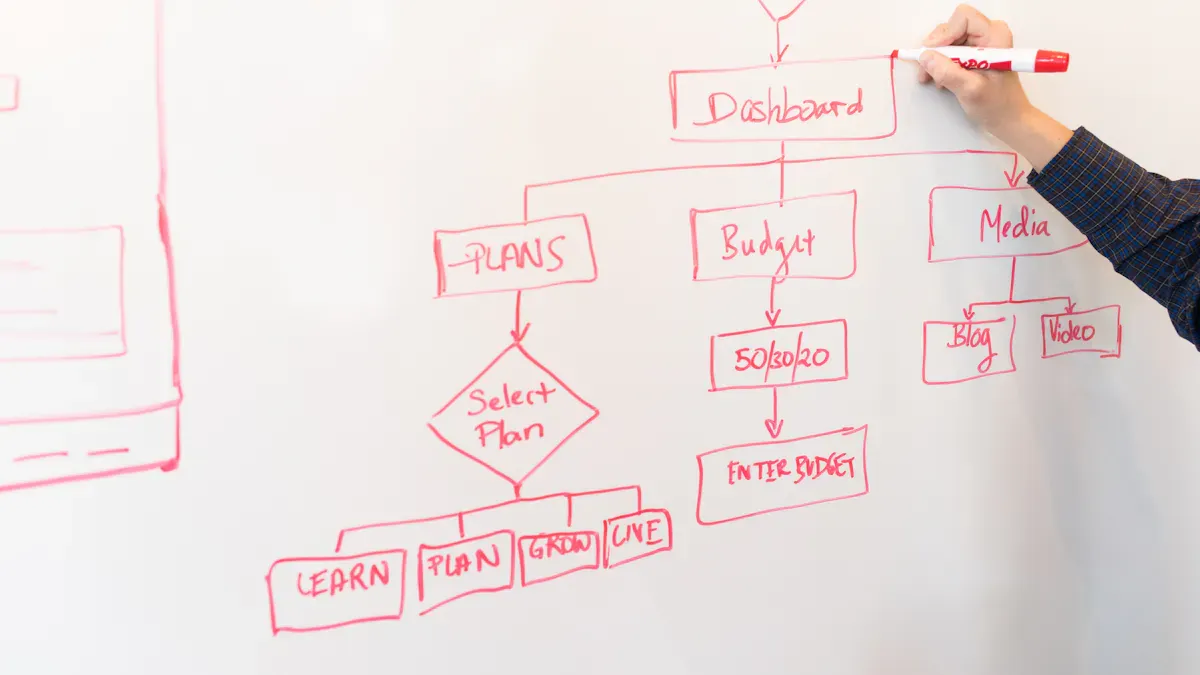
Power BI deployment pipelines give you a structured way to move your analytics content from start to finish. You can control every step, reduce mistakes, and deliver reports faster. These pipelines help you manage your business intelligence content with clear stages and powerful features.
Pipeline Stages: Development, Test, Production
You work through three main stages in deployment pipelines. Each stage has a clear purpose and helps you keep your reports accurate and reliable.
| Stage | Description | Contribution to Error Reduction and Process Control |
|---|---|---|
| Development | BI developers build and experiment with reports and datasets. | Provides a controlled environment for initial content creation, reducing early errors. |
| Test | A controlled environment for stakeholder review and quality assurance. | Validates content before deployment, ensuring only tested reports are published. |
| Production | The live environment where finalized reports are used for business decisions. | Ensures that only approved reports are accessible to users, minimizing the risk of errors. |
Development Stage
You start in the development stage. Here, you create and test new reports and datasets. You can try different ideas and make changes without affecting others. This stage gives you a safe space to experiment and fix problems early.
Test Stage
Next, you move your content to the test stage. You review your reports with your team and check for errors. Stakeholders can give feedback. You make sure everything works as expected before you go live. This step helps you catch mistakes and improve quality.
Production Stage
The production stage is where your reports reach end-users. Only approved and tested content goes live. You give your organization reliable insights for decision-making. This stage protects your business from errors and keeps your data secure.
Tip: Always use the test stage to review your content before moving to the production stage. This practice helps you avoid surprises and keeps your reports trustworthy.
Key Features of Deployment Pipelines
Deployment pipelines offer several features that make your workflow smooth and efficient.
| Feature | Benefit |
|---|---|
| Structured management of BI content | Enhances organization and governance of reports and datasets across environments. |
| Version control | Reduces errors and allows teams to track changes effectively. |
| Automated promotion processes | Streamlines deployment with one-click options, preserving relationships between content. |
| Integration with development practices | Supports consistent development processes and proper testing cycles. |
Content Cloning
You can clone your content across different stages. This feature lets you copy reports, datasets, and dashboards from development to test, and then to production. You save time and keep your environments consistent.
Parameter Swapping
Parameter swapping allows you to change settings like data sources or filters as you move content through the pipeline. You can test with sample data in development and switch to real data in production. This keeps your reports accurate and secure.
Audit Trails
Audit trails track every change you make in deployment pipelines. You can see who changed what and when. This helps you maintain accountability and quickly find the source of any issues.
Collaboration and Workflow
Deployment pipelines support teamwork and organized workflows. You and your team can work on different parts of a project at the same time. Version control helps you track changes and avoid conflicts. Automated promotion processes let you move content with one click, saving time and reducing errors.
You also benefit from integration with Microsoft Fabric. Many organizations use Fabric to connect data from different sources and manage analytics projects. For example:
- A retail company uses Microsoft Fabric to collect sales data from many stores. They build a lakehouse for raw data and use deployment pipelines to move reports smoothly from development to production.
- A marketing agency creates separate workspaces for each campaign. They use deployment pipelines to test reports before sharing them with clients.
- A hospital brings together healthcare data to improve patient care. Deployment pipelines help them update reports quickly and give doctors real-time insights.
Power BI deployment pipelines give you control, speed, and confidence. You can deliver high-quality analytics that your organization can trust.
Deployment Pipeline Setup
Environment Strategies
Workspace Organization
You need a clear strategy for organizing your Power BI workspaces. This helps your deployment stay scalable and easy to manage. Many organizations group workspaces by business domain or team. This approach clarifies who owns each workspace and makes responsibility clear. You should also separate development from production. This prevents accidental changes to live reports and supports proper testing.
A well-structured workspace design reduces errors and confusion. You can use shared datasets to avoid duplication and keep data definitions consistent. Lifecycle management keeps your workspaces relevant and secure. You create, manage, archive, and delete workspaces using standard procedures.
| Strategy | Description |
|---|---|
| Workspace Design | Organize workspaces by development lifecycle to reduce errors and confusion. |
| Security and Access Management | Use role-based access and monitoring for data visibility and compliance. |
| Monitoring and Performance Tracking | Track performance metrics with dashboards for proactive resource management. |
| Architectural Considerations | Choose between shared datasets and individual models for efficiency. |
| Deployment Governance | Use structured release processes for consistent reporting and fewer errors. |
Tip: Assign roles like Admin, Member, Contributor, and Viewer to control access and keep your deployment secure.
Naming Conventions
You should use clear naming conventions for workspaces, datasets, and reports. This makes it easy to find and manage content during deployment. For example, you can include the environment name (Dev, Test, Prod) in workspace titles. Consistent names help everyone understand where each report belongs.
Version Control in Deployment
Source Control Integration
Version control is essential for tracking changes and supporting teamwork in your deployment process. Many teams use Git or GitHub for source control. These tools allow you to manage Power BI files, especially with the .pbip format. You can create repositories, clone them for development, and use branches for different report versions. Integrating Git with your Power BI workspace supports smooth updates and collaboration.
- Git
- GitHub
These tools help you manage changes, collaborate, and keep your deployment history organized.
Managing Report Versions
You can use SharePoint for basic version control by storing PBIX files. This creates an automatic version history. For advanced needs, switch to Git and the PBIP format. This supports better collaboration and version management. Effective version history keeps your deployment manageable and up-to-date. You should choose tools that fit your team’s needs and collaboration style.
Automating Deployment Steps
Scheduling and Triggers
Automation makes your deployment faster and more reliable. You can use CI/CD tools like Azure DevOps or GitHub Actions to automate publishing. These tools let you schedule deployments or trigger them when you update a report. Power BI deployment pipelines also support automated promotion of content between environments.
| Method | Description |
|---|---|
| Automate publishing with CI/CD tools | Use Azure DevOps or GitHub Actions for automated deployment. |
| Use Power BI REST API for deployment | Programmatically upload reports and manage deployments. |
| Parameterize data sources and settings | Switch data sources dynamically with parameters in Power Query. |
Handling Dependencies
You must handle dependencies between datasets, reports, and data sources during deployment. Use parameters to swap data sources as you move content through environments. Tools like Tabular Editor help you manage dataset definitions and deployment scripts. Automating gateway and credential binding reduces manual errors. You can also set up approval steps in your deployment pipeline to catch issues before release.
Note: Automation and careful dependency management keep your deployment smooth and reduce the risk of mistakes.
CI/CD for Power BI
CI/CD Concepts in Power BI
You can transform your Power BI workflow by adopting continuous integration and continuous deployment practices. These concepts help you automate the process of building, testing, and releasing analytics content. In Power BI, you focus on data, reports, and dashboards rather than traditional software code. This approach brings structure and reliability to your deployment process.
- Version control and source control let you track changes and collaborate with your team.
- Continuous integration and continuous deployment automate the integration and delivery of Power BI content.
- DevOps practices connect development and operations, improving efficiency and collaboration.
CI/CD in Power BI emphasizes teamwork and automated testing designed for business intelligence. You use tools like Azure DevOps and Git to streamline version control and deployment. This method differs from traditional software CI/CD because you manage data-centric workflows and BI assets.
Tools for CI/CD Integration
You have access to several tools that make CI/CD possible in Power BI. These tools help you automate deployment, manage versions, and ensure quality.
| Tool/Feature | Description |
|---|---|
| Power BI Deployment Pipelines | Native feature for moving Power BI artifacts across environments (Dev → Test → Prod). |
| Source Control (Git Integration) | Enables version control for .pbix files, allowing for collaboration and rollback capabilities. |
| Automation Tools | Includes Azure DevOps Pipelines and Power BI REST APIs for publishing and refreshing datasets. |
Azure DevOps
Azure DevOps gives you a powerful platform for automating deployment and continuous integration. You can set up pipelines that build, test, and release Power BI content. Azure DevOps connects with Git repositories, so you can manage your reports and datasets with version control. You also gain the ability to schedule deployments and trigger them based on changes. This reduces manual errors and speeds up your release cycles.
GitHub Actions
GitHub Actions lets you automate workflows for Power BI projects. You can create actions that run when you push changes to your repository. These actions can publish reports, refresh datasets, or run automated testing. GitHub Actions integrates with other tools, making it easy to build a complete CI/CD pipeline. You improve team efficiency and reduce mistakes by automating repetitive tasks.
Power BI REST API
The Power BI REST API allows you to manage deployment programmatically. You can upload reports, refresh datasets, and move content between environments. The REST API works well with automation tools like Azure DevOps and GitHub Actions. You gain more control over your deployment process and can handle complex scenarios with custom scripts.
Tip: Use automation tools to avoid manual publishing mistakes and ensure a safe production environment.
Building CI/CD Pipelines
You can build a CI/CD pipeline for Power BI by following a structured process. This pipeline helps you automate deployment, maintain governance, and deliver high-quality analytics.
Power BI deployment pipelines provide structured environments to automate and streamline the promotion of BI content, ensuring data quality, governance, and faster deployment cycles.
- Planning: Define your deployment strategy and set up your environments.
- Development: Create and update Power BI content in a controlled workspace.
- Testing: Run automated testing to check for errors and validate your reports.
- Staging: Prepare your content for release by reviewing and finalizing changes.
- Production release: Deploy your content to the live environment for end-users.
You may face challenges such as licensing or workspace limitations, but the integration between Microsoft Fabric, Git, and Azure DevOps helps you overcome these obstacles. This integration has become essential for building effective CI/CD pipelines in Power BI.
Automated Testing
Automated testing plays a key role in your CI/CD pipeline. You can set up tests to check data accuracy, report visuals, and performance. Automated testing catches issues early, so you deliver reliable content to your users. You can use tools like pbi-tools or custom scripts to run tests as part of your deployment process. This step ensures that only high-quality reports reach production.
Release Management
Release management helps you control when and how you move content to production. You can schedule releases, require approvals, and track changes. This process reduces risk and keeps your deployment organized. With version control, you can roll back to previous versions if needed. Release management supports enterprise-ready governance and helps you maintain a safe production environment.
- No manual publishing mistakes
- Faster releases
- Version control and rollback
- Safe production environment
- Enterprise-ready governance
You create a robust deployment process by combining continuous integration, continuous delivery, and automated testing. This approach ensures that your Power BI content is accurate, secure, and always ready for your organization.
Monitoring and Troubleshooting Deployment
Effective monitoring keeps your Power BI deployment healthy and reliable. You need to track the status of your pipelines, catch issues early, and ensure your reports perform well for users. By setting up strong monitoring and troubleshooting processes, you can maintain trust in your analytics and respond quickly to problems.
Monitoring Pipelines
You should treat monitoring as a core part of your deployment strategy. Data observability helps you see if your environment aligns with business goals and remains healthy. Several tools support this process, each focusing on different aspects of your deployment.
- Quality Monitoring checks the accuracy and consistency of your data.
- Jobs Monitoring tracks scheduled tasks and alerts you to failures.
- Database Monitoring watches the health of your data sources.
- Data Streams Monitoring ensures your data flows smoothly from source to report.
You can use these tools to set up automated checks and alerts, so you never miss a critical issue.
Automated Checks and Alerts
Automated checks help you spot problems before they affect users. You can configure alerts for failed data refreshes, slow report loads, or broken visuals. These alerts notify you right away, so you can act quickly. Many organizations use built-in Power BI features or integrate with external tools to automate this process.
Tip: Set up alerts for key deployment events, such as pipeline failures or data quality issues. This proactive approach keeps your analytics environment stable.
Performance Metrics
Performance monitoring gives you insight into how your deployment performs over time. You should track metrics like data quality, job completion times, and database health. These metrics help you identify trends and spot bottlenecks. Regular reviews of these numbers ensure your deployment continues to meet business needs.
| Metric | What It Tells You |
|---|---|
| Data Quality | Accuracy and reliability of your reports |
| Job Performance | Speed and success of scheduled tasks |
| Database Health | Stability of your data sources |
Troubleshooting Common Issues
Even with strong monitoring, you may face challenges during deployment. Knowing the most common issues and how to resolve them helps you keep your analytics running smoothly.
Error Handling
You might encounter slow report loading times, data refresh failures, or broken visuals. These problems often come from complex visuals, inefficient calculations, or unstable data sources. To fix them, optimize your visuals, review DAX calculations, and audit your data sources regularly. Security and access conflicts can also arise. You should use a role-based security model to prevent unauthorized access.
- Slow reports: Simplify visuals and calculations.
- Data refresh failures: Check gateway configurations and credentials.
- Broken visuals: Update unsupported visuals and verify data sources.
- Security issues: Apply strict role-level security.
Rollback Strategies
Sometimes, a deployment introduces errors that affect users. You need a rollback plan to restore previous versions quickly. Version control systems, such as Git or SharePoint, let you revert to earlier report versions. You can also use deployment pipelines to promote stable content back to production if needed. This approach minimizes downtime and protects your business from disruptions.
Note: Always test your rollback process as part of your deployment routine. This ensures you can recover fast when issues arise.
Power BI Governance

You need a strong governance framework to keep your Power BI deployment secure, reliable, and compliant. Good governance helps you manage access, control changes, and protect your data. You can use different delivery approaches, such as Business-led, IT managed self-service, or Corporate BI. Each approach supports your organization’s data strategy and ensures effective content governance.
Governance Frameworks
You should define clear roles and responsibilities for everyone involved in your deployment. This step builds accountability and supports teamwork. You also need structured tenant settings and workspace management to keep your deployment under control. Change management processes help you handle updates and incidents without confusion.
- Assign roles for admins, developers, and users.
- Set up structural policies and role definitions.
- Monitor your deployment with ongoing processes.
A comprehensive Power BI governance framework covers access permissions, data security, certified datasets, content lifecycle, workspace rules, deployment pipelines for org apps, and compliance requirements. You should align your framework with your business goals and data governance strategy.
Roles and Responsibilities
You must assign roles to manage your deployment. Admins control tenant settings and security. Developers build and test reports. Users view and interact with dashboards. Clear roles prevent mistakes and support a governed release process.
Change Management
Change management keeps your deployment stable. You need a process for handling updates, incidents, and feedback. This process helps you track changes, communicate with your team, and avoid disruptions. Structured change management is a key part of devops best practices.
Security and Compliance
Security is critical in every Power BI deployment. You must protect your data and follow industry regulations. Enhanced security features help you control access and monitor activity.
| Compliance Requirement | Description |
|---|---|
| GDPR | Protects personal data and gives rights to access, correct, or delete it. |
| HIPAA | Secures health information in healthcare organizations. |
| SOX | Ensures accuracy in financial reporting for financial services. |
| Basel III | Sets risk management standards for financial institutions. |
You should use Mobile Application Management policies to control features like screenshots and offline storage. Regular security testing, such as penetration tests and access reviews, keeps your deployment safe. You also need incident response procedures to detect and resolve security issues quickly.
Access Control
Access control limits who can view, edit, or share your Power BI content. You should use role-based access and monitor permissions often. This practice supports both security and content governance.
Data Protection
Data protection means you keep your data safe from loss or misuse. You should use certified datasets, secure gateways, and encryption. Regular reviews help you spot gaps and improve your data governance.
Audit Logging
Audit logging tracks every action in your deployment. You can see who accessed, changed, or shared content. Audit logs support compliance and help you find security gaps.
Versioning and Auditability
Versioning and auditability are important for a reliable deployment. You should use naming conventions, refresh schedules, and a version control system. Centralized repository management acts as a single source of truth for all Power BI assets. Version tracking lets you compare reports and log changes in detail.
- Use version control to track changes and manage report versions.
- Keep audit logs and activity metrics to monitor access and usage.
- Review your deployment regularly to keep your data governance strong.
- Follow devops best practices with source control, pull requests, tags, and release notes.
- Make sure your deployment pipelines for org apps support environment-aware processes.
You build trust in your analytics by making your deployment transparent and repeatable.
Real-World Deployment Examples
Enterprise Case Study
You can see how large organizations use Power BI to solve real business problems. Many enterprises have improved their operations and decision-making with structured deployment pipelines.
- NHS uses Power BI to monitor urgent community responses and patient flow. Their dashboards help track clinical performance and improve efficiency.
- Tesco relies on Power BI for sales forecasting and performance tracking. The company analyzes data from over 2,000 supermarkets to make better decisions.
- John Lewis tracks campaign performance and customer engagement with Power BI. The company integrates data to improve merchandising analytics.
- HSBC uses Power BI in more than 50 countries. The bank manages client queries and saves many operational hours with better analytics.
- Barclays combines Microsoft 365 Copilot with Power BI. This helps streamline business risk reviews and training programs.
These examples show that you can use Power BI to handle complex data and deliver insights at scale. When you set up deployment pipelines, you make it easier to manage reports, test changes, and keep your data secure.
Tip: Large organizations often start with a clear workspace structure and strong governance. This helps teams work together and keeps data organized.
Small Business Example
You do not need to be a big company to benefit from Power BI deployment best practices. Small businesses can also use structured pipelines to improve their analytics.
Imagine a local retail store. You want to track daily sales, manage inventory, and understand customer trends. You set up three workspaces: Development, Test, and Production. You build new reports in the Development workspace. You review and test them in the Test workspace. When you are ready, you move the reports to Production for your team to use.
This approach helps you catch errors before they reach your staff. You can also use version control to track changes and roll back if needed. Even with a small team, you keep your data accurate and your reports reliable.
Note: Small businesses often see quick wins by adopting deployment pipelines. You save time, reduce mistakes, and make better decisions.
Lessons Learned
You can learn from both successes and challenges in Power BI deployments. Many organizations have found that following a few key steps leads to better results.
- Start with a holistic assessment. Understand your Power BI environment before making changes.
- Streamline workspace design. Reduce fragmentation by organizing your workspaces and apps.
- Simplify semantic models. Make your data models easy for business users to understand.
- Consolidate with golden semantic models. Use centralized datasets to avoid duplication.
- Optimize for performance. Keep your reports fast and efficient.
- Monitor and improve. Set up ongoing strategies to maintain your Power BI environment.
- Align modeling approaches with business needs. Choose the right modeling style for each situation.
By following these lessons, you build a Power BI deployment that supports your business goals and grows with your organization.
Overcoming Deployment Challenges
Managing Complex Dependencies
You often face complex dependencies when you move Power BI content through different environments. These dependencies can include data sources, datasets, and report relationships. To manage them, you need a clear strategy that keeps your deployment process smooth and reliable.
| Strategy | Description |
|---|---|
| Automated Content Promotion | Moves content through each deployment stage quickly and reduces manual errors. |
| Dynamic Data Source Management | Adjusts data sources for each environment, ensuring compatibility and reducing disruptions. |
| Quality Assurance Integration | Adds testing and validation steps to maintain data integrity and performance. |
You can also use these best practices:
- Implement incremental refresh to handle large datasets efficiently.
- Optimize DAX calculations for better performance.
- Design data models that support easy deployment and refresh.
Automating tests for code quality and data integrity helps you catch issues early. This approach ensures your deployment works across all environments and increases your deployment speed.
Scaling Deployments
As your organization grows, your deployment needs to scale with it. You must support more users, larger datasets, and more complex analytics. A sustainable operating model helps you manage this growth. You should also enforce strict security measures to protect your data and maintain comprehensive governance for accurate reporting.
Power BI Premium’s governance framework adapts as your data volumes and complexity increase. The platform connects to enterprise-grade data sources like SAP, Oracle, SQL Server, Azure Synapse, Snowflake, and BigQuery. It handles large datasets with in-memory compression and optimized storage. Incremental data refresh reduces load and improves performance. Composite models let you combine multiple data sources efficiently.
Scaling your deployment ensures you meet enterprise requirements without losing performance or governance standards.
User Adoption and Training
Driving user adoption is key to a successful deployment. You need to help users feel confident with Power BI and support them as they learn new tools. A structured change management process keeps everyone engaged during the transition. Tailor your training sessions to different user roles so each person learns what they need.
| Approach | Description |
|---|---|
| Structured Change Management | Guides users through the transition and keeps stakeholders involved. |
| Role-Based Training | Focuses on the specific needs and skills of each user group. |
| Ongoing Support Mechanisms | Offers continuous help through office hours or dedicated Teams channels. |
| Executive Sponsorship | Involves senior leaders to encourage adoption and model best practices. |
| Building a Champion Network | Creates a group of enthusiastic users who support and promote Power BI in their departments. |
You can build a strong support network by offering ongoing help and involving executive sponsors. This approach encourages users to adopt new tools and ensures your deployment delivers value across your organization.
Continuous Improvement
You need to treat continuous improvement as a core part of your Power BI deployment strategy. This approach helps you keep your analytics environment healthy, efficient, and ready for change. You can build a culture of improvement by focusing on teamwork, technology, and process.
Start by encouraging collaborative development. When you work closely with data analysts, developers, and stakeholders, you create better solutions. Teamwork helps you align your reports with business goals and solve problems faster. You also share knowledge and learn from each other.
You should use version control for all your Power BI assets. Version control lets you track changes, compare report versions, and roll back when needed. This practice reduces confusion and keeps your development history clear. You avoid version conflicts and make it easier to manage updates.
Compliance frameworks play a big role in continuous improvement. You need to follow industry standards and legal requirements. By integrating compliance checks into your development process, you protect your data and build trust with users. Regular reviews help you spot gaps and fix them before they become bigger issues.
Automated deployments make your workflow faster and more reliable. When you use CI/CD pipelines, you reduce manual errors and speed up releases. Automation frees up your time for more valuable work, like analyzing data or building new reports.
Tip: Review your deployment process every quarter. Look for ways to automate more steps, improve testing, or strengthen security.
You can also improve report performance by applying technical best practices. Try to use Import Mode when possible. This creates a fast, local copy of your data and makes reports load quickly. If you need real-time data, optimize DirectQuery at the source. Explore Hybrid Tables and Direct Lake Mode for a mix of speed and flexibility. Use Incremental Refresh to update only new data, which saves time and resources.
Here are some steps you can follow for continuous improvement:
- Meet with your team regularly to review deployment results and share feedback.
- Track changes with version control and keep a clear history of updates.
- Check compliance with industry standards and update your processes as needed.
- Automate deployments and testing to reduce errors.
- Optimize your data models and refresh strategies for better performance.
You build a strong Power BI environment by making small improvements over time. This mindset helps you adapt to new challenges and deliver high-quality analytics for your organization.
You transform your business intelligence when you deploy Power BI with automated pipelines, automation integration, and automated validation. You use git and git integration to manage every deploy and release. Automated pipelines help you release content faster and keep your data secure. Teams collaborate better and break down silos. You empower users with natural language querying and real-time alerts. You improve data governance and compliance. Review your deployment checklist often and use Microsoft resources to keep improving.
| Measurable Impact | Description |
|---|---|
| Improved Revenue Growth | You analyze campaigns and customer segments to optimize strategies. |
| Enhanced Collaboration | You enable seamless teamwork and shared access to reports. |
| Increased User Engagement | You let non-technical users explore data with automated insights. |
| Better Data Governance and Security | You ensure data quality and meet regulatory standards. |
- Power BI’s AI features enrich data exploration.
- You co-author reports and set up real-time alerts.
- Stringent governance keeps your data safe.
Power BI Deployment Pipeline Best Practices Checklist
power bi development lifecycle workspace dataset publish power query
What are the core deployment rules for deployment pipelines in Power BI to safely deploy content?
Deployment rules in Power BI deployment pipelines define how datasets, reports, and data sources map between development, test, and production environments so you can safely deploy content. Use rules to replace connection strings, gateway bindings, and query parameters so development and deployment use appropriate resources. Proper deployment rules reduce risk when you deploy to production and prevent accidental exposure of production data during power bi implementation and bi development.
How should teams structure development and test stages to support Power BI development best practices?
Segregate development, test, and production by creating dedicated workspaces for each stage and using deployment pipeline stages to move artifacts through the lifecycle. Keep power bi desktop projects and source control for PBIX files, use Azure DevOps or GitHub to track changes as part of software development practices, and ensure bi implementation teams validate data analytics, report behavior, and security in power bi before promoting to a power bi app or production workspace.
When is it appropriate to use Power BI Premium or Premium per user versus Power BI Embedded?
Choose power bi premium or premium per user when you need advanced capacities, paginated reports, larger model sizes, or deployment pipelines in Power BI at scale for enterprise BI development. Power BI Embedded targets ISVs and apps that need to embed interactive reports for customers. Consider cost, concurrency, and integration with azure or microsoft infrastructure when deciding between power bi embedded and premium options for your power bi solution.
What is the recommended approach for handling production data and security in Power BI during deployment?
Never expose sensitive production data in development workspaces. Use parameterization, masked views, or synthetic datasets in development and test. Configure the power bi gateway for secure on-premises data access, implement row-level security and least-privilege principles, and validate security in power bi as part of the deployment pipeline stages. Audit access and use Microsoft Fabric or Azure security services for additional controls where applicable.
How can teams use query parameters and Power Query to support efficient data and deployment rules?
Query parameters in Power Query let you abstract connection strings, environment-specific filters, and resource identifiers so you can switch between development and production without editing report logic. Combine parameters with deployment rules to automatically update parameters when you deploy content, enabling efficient data refreshes, consistent data models, and repeatable power bi development practices across environments.
What steps are involved in a safe deploy to production using deployment pipelines in Power BI?
A safe deploy to production includes: validate changes in power bi desktop projects, commit PBIX files to source control, publish to a development workspace in the power bi service, run automated and manual tests in test workspace, apply deployment rules to rebind gateways and datasets, and then deploy to production workspace or app. Include rollback plans and test reports against production data only after approvals to avoid backwards deployment issues.
How does integration with Power BI and external CI/CD tools (Azure DevOps, GitHub) improve BI development?
Integration with tools like Azure DevOps or GitHub enables version control for power bi desktop projects, automated validation, and scripted deployments via the power bi rest api. This brings software development rigour to BI development—change tracking, pull requests, and automated checks—reducing manual errors and accelerating deployment of a power bi solution while maintaining auditability and repeatable deployments.
What considerations apply when deploying Power BI reports as a Power BI app to end users?
Packaging reports and dashboards into a power bi app is ideal for broad distribution. Ensure datasets and reports are production-ready, apply deployment rules before publish, set appropriate app permissions, and monitor usage and performance post-deploy. Use premium per user or premium capacity if you need higher performance, and verify row-level security and gateway settings so end users see only authorized production data.
How do you prevent backwards deployment and accidental overwrites during development and deployment?
Prevent backwards deployment by enforcing deployment rules and using deployment pipeline stages that only move artifacts forward from development to test to production. Use role-based access controls in the power bi service, restrict who can publish to production workspaces, keep a clear release process in Azure DevOps or GitHub, and maintain versioned PBIX files so you can recover previous states if an accidental overwrite occurs.
🚀 Want to be part of m365.fm?
Then stop just listening… and start showing up.
👉 Connect with me on LinkedIn and let’s make something happen:
- 🎙️ Be a podcast guest and share your story
- 🎧 Host your own episode (yes, seriously)
- 💡 Pitch topics the community actually wants to hear
- 🌍 Build your personal brand in the Microsoft 365 space
This isn’t just a podcast — it’s a platform for people who take action.
🔥 Most people wait. The best ones don’t.
👉 Connect with me on LinkedIn and send me a message:
"I want in"
Let’s build something awesome 👊
Here’s a brutal truth: managing BI without ALM is like building a skyscraper with Jenga blocks. It all looks fine—until someone breathes on it.
Here’s what this video will give you: first, how to treat Power BI models as code, second, how Git actually fits BI work, and third, how pipelines save you from late-night firefighting. Think of it as moving from duct tape fixes to a real system.
We’re not here to act like lone heroes; we’re here to upgrade our team’s sanity. Want the one‑page starter checklist? Subscribe or grab the newsletter at m365 dot show.
And before we talk about solutions, let’s face the core mess that got us here in the first place.
Stop Emailing PBIX Files Like It’s 2015
Stop emailing PBIX files around like it’s still 2015.
Picture this: it’s Monday morning, you open your inbox, and three different PBIX files land—each one proudly labeled something like “Final_V2_UseThisOne.” No big deal, just grab the most recent timestamp, right? By lunchtime you’ve got five more versions, two of them shouting “THIS ONE” in all caps, and one tragic attempt called “Final_FINAL.” That’s not version control. That’s digital roulette. Meanwhile, you’re burning hours just figuring out which file is “real” while silently hoping nobody tweaked the wrong thing in the wrong copy.
On paper, firing PBIX files around by email or Teams looks easy. One file, send it over, done. Except it never works that way. Somebody fixes a DAX measure, another person reworks a relationship, and a third adds their “quick tweak.” None of them know the others did it. Eventually all these edits crash together, and your so-called “production” report looks like Frankenstein—body parts stitched until nothing fits. And when things break, you’re left asking why half the visuals won’t even render anymore.
The real danger isn’t just messy folders. It’s the fact you can lose days of work in one overwrite. That polished report you built last week? Gone—replaced by a late-night hotfix someone dropped into “Final.pbix.” Now you’re not analyzing, you’re redoing yesterday’s work while cursing into your coffee. It feels like two people trying to edit the same Word doc offline, hand-merging every edit, then forgetting who changed what. And suddenly you’re back in that Bermuda Triangle of PBIX versions with no exit ramp.
Here’s a better picture: imagine ten people trying to co-author a PowerPoint deck—but not in OneDrive. Everyone has their own laptop copy, they all email slides around, and pray the gods of Outlook somehow keep it consistent. Kim’s pie chart is slotting into slide 8 on her version but slide 12 in Joe’s. Someone else pastes “final numbers” into totals that already changed twice. Everyone pretends it’ll come together in the end, but you know it’s cursed. Power BI isn’t any different—PBIX files don’t magically merge, they fracture.
And yes, the cost is real. Teams I’ve worked with flat out admit they waste hours untangling this. Not because BI is impossible, but because someone worked off a stale file and buried the “real one” in their desktop folder. Instead of delivering insights, these teams run detective shifts—who changed which table, who overwrote which visual, and why the version sent Friday doesn’t match the one uploaded Monday. Business intelligence becomes business archaeology.
Of course, some teams argue it’s fine: “We’re small, email works. Only two or three of us.” Okay, but reality check—at two people it might limp along for a while. Do a quick test: both of you edit the same PBIX in parallel for a single sprint. Count how many hours get wasted reconciling or fixing conflicts. My bet? Enough that you’ll never say “email works” again. And the second your team grows, someone takes PTO, or worse—someone experiments directly in production because deadlines—everything falls apart.
Look, software dev solved this problem ages ago. Treat your assets like code. Put them somewhere structured. Track every single change. Why are BI teams still passing PBIX files back and forth like chain emails your grandma forwards? The file-passing era isn’t collaboration, it’s regression.
So let’s call it what it is: emailing PBIX files isn’t teamwork, it’s sabotage with a subject line. The only way out is to stop treating PBIX as a sacred artifact and start thinking of your model as code. That mental shift means better history, cleaner teamwork, and fewer nights spent piecing together ten mismatched “Final” files.
So: stop passing PBIX. Next: how to treat the model like code so Git can actually help.
Treating Power BI Models Like Real Code
Now let’s talk about the shift that actually changes everything: treating Power BI models like real code.
Think about it. That PBIX file you’ve been guarding like it’s the last donut in the office fridge? It’s one giant sealed box. You know it changed, but you have zero visibility into *what* changed, *when*, or *who touched it*. That’s because PBIX is stored in a single file format that Git treats like a blob—so out of the box, you don’t get meaningful diffs, just “yep, the file is different.” That’s as helpful as someone telling you your car “looks louder than yesterday.”
This is why so many teams shove a PBIX into Git, stare at the repo, and wonder why nothing useful shows up. Git’s not broken, it’s blind. It can’t peek inside that binary-like package to tell you a DAX measure was renamed or a relationship got nuked. To Git, every version looks like the same sealed jar.
So what’s the workaround? You split the jar open. Instead of leaving the entire model locked in that one file, you pull out the stuff that matters—tables, measures, roles, relationships—and represent them as plain text. There are tools that can extract model definitions into text-based artifacts. Once you’ve done that, Git suddenly understands. Now a commit doesn’t just say “the PBIX moved.” It reads like: “Measure SalesTotal changed from SUM to AVERAGE,” or “Added relationship between Orders and Products.” That difference—opaque blob versus readable text—is the foundation for real collaboration.
If you want a quick win that proves the point: in the next 20 minutes, take one dataset, export just a piece of its model into a text format, and drop it into a trial Git repo. Make one tiny edit—change a DAX expression or add a column—and check what Git shows in the diff. Boom. You’ll see the exact change, no detective work, no guessing game. That little test shows the value before you roll this out across an entire team.
Once your model looks like code, the playbook opens up. Dev teams live by ideas like branching and merging, and BI teams can borrow that without selling their souls to Visual Studio. Think of a branch as your own test kitchen—you get your space, your ingredients, and you can experiment without burning the restaurant menu. When you’re ready, merge brings the good dishes back into the main menu, ideally after someone else tastes it and says, “yeah, that actually works.” The explicit takeaway: branch for safety, merge after review. It’s not a nerd ceremony; it’s just insurance against wrecking the main file.
The usual pushback is, “But my BI folks don’t code. We don’t want to live in a terminal.” Totally fair. And the good news is—you don’t have to. Treating models like code doesn’t mean learning C# at midnight. It just means the things you’re already doing—editing DAX, adding relationships, adjusting tables—get logged in a structured format. You still open Power BI Desktop. You still click buttons. The difference is your changes don’t vanish into a mystery file—they get tracked like real work with proper accountability.
And when that happens, the daily pain points start to disappear. Somebody breaks a measure? Roll it back without rolling back the whole PBIX. Need to know who moved your date hierarchy? The log tells you—no Teams witch hunt required. Two people building features at the same time? Possible, because you’re not stomping on the same single file anymore. The entire BI cycle goes from “fragile file juggling” to “auditable, reversible, explainable changes.”
Bottom line: treating models as code isn’t about making BI folks pretend to be software engineers. It’s about giving teams a structure where collaboration is safe, progress is reversible, and chaos isn’t the default state of work. That’s the foundation you need before layering on heavier tools.
And since we’re talking about structure, there’s one system that’s been giving developers this kind of safety for years but makes BI folks nervous just saying the name. It’s not glamorous, and most avoid it like they avoid filing taxes. But it’s exactly the missing piece once your models are text-based.
Git: The Secret Weapon for BI Teams
Git: the so‑called scary tool that everyone thinks belongs to hoodie‑wearing coders in dark basements. Here’s the reality—it’s not mystical, it’s not glamorous, and it’s exactly the kind of history book BI teams have been missing. If you’ve ever wanted a clean log that tells you who changed what, when it happened, and why—it was built for that. The only reason it ever felt “not for BI” is because we’ve been trapped in PBIX land. Once your model is extracted into text, Git isn’t some alien system anymore. It’s just the ledger we wish we had back when “Final_v9.pbix” came crashing through our inbox.
The common pushback goes something like this: “PBIX files aren’t code, so why bother with Git?” That’s developer tunnel vision talking. Git doesn’t care whether you’re storing C#, JSON, or grocery lists—it just tracks change. If you’ve extracted your BI model into text artifacts, Git can store every line, log every tweak, and show you exactly what changed. Stop treating Git like a club you need a comp‑sci membership to join. It’s more like insurance: cheap, reliable, and a lifesaver when someone nukes the wrong measure on a Friday afternoon.
Think of Git as turning on track changes in a Word doc—except instead of one poor soul doing all the editing, everyone on your team gets their own copy, their own sandbox, and then the tool lines those changes up. Once you see history and collaboration actually work, it’s hard to imagine going back to guess‑and‑check folder chaos. That’s the upgrade BI needs most.
Now—let’s cut to the three features that matter for BI. First, history. Git keeps a complete record of who changed what. So when Jeff swears he didn’t touch the DAX measure that broke everything, you can pull the log and say, “Nice try, Jeff. Tuesday, 2:11 p.m.—and here’s exactly what you changed.” One small pro tip: don’t just commit blindly. On your next commit, include a clear message and a ticket number if your team uses one. That small habit makes the history actually useful when you’re tracing back a bad calculation months later.
Second, branching. Branching is basically your personal workshop. You create a branch, test your wild idea, break things to your heart’s content—and it doesn’t tank production. The main branch stays safe while you experiment. Then comes merging. When your model is text‑based, Git can compare your branch to the main branch, highlight the exact lines that changed, and attempt to stitch them together. Just to be clear: Git can merge text‑extracted artifacts, but conflicts are still possible. When they happen, you’ll need to review them before merging fully. This isn’t magic automation; it’s automation with guardrails.
Let’s ground this in a real situation. Two analysts are working on the same dataset. One is building new KPIs; the other is restructuring relationships. Without Git, this turns into a head‑to‑head collision over who gets to upload the “real” PBIX. With Git, both have branches. Both do their work without stepping on each other. When they’re ready, Git merges the updates, flags any true conflicts, and preserves both sets of contributions. A fight that used to be guaranteed is reduced to a quick review and a single merge commit. That’s what collaboration should look like.
But here’s the catch—you can’t just toss binary PBIX files into Git and expect miracles. Git will shrug and tell you the file changed, but not how. That’s why exporting the guts into a text‑friendly format is critical. Once you do, Git becomes the backbone of your BI process rather than a useless middleman.
What you get back is huge. A transparent log of every change. The ability to roll back a bad commit without endless detective work. A sandbox where ideas can live without wrecking production. It creates a system where innovation and safety actually co‑exist—a place where fixing a mistake is boring instead of catastrophic.
And speaking of useful—if this is already saving your team tickets, drop a sub now. I’ve got a one‑page Git starter checklist waiting on the newsletter at m365 dot show. It’s the fastest way to get the basics right the first time so your Git repo doesn’t turn into its own problem child.
So yeah, goodbye to mystery files and overwrites, and hello to clean, visible history. With Git, collaboration looks less like file roulette and more like a structured, traceable process. Which brings us to the next big hurdle—the step everyone dreads even more than file chaos. Once the work is ready, how do you move it into production without that gut‑drop moment where you’re praying dashboards don’t collapse? Let’s talk about that next.
From Chaos to Pipelines: Deploy Like a Pro
Deployments are where most BI projects either shine or explode. You know the drill—you’ve spent weeks building changes, now it’s time to get them into production, and suddenly you’re hovering over “Publish” like it’s the launch key for a nuke. One click and maybe everything works fine. Or maybe you just turned off half the dashboards in the company. That’s not deployment; that’s gambling with corporate data.
Most BI teams are still running on the coin-flip model. Someone tweaks a dataset, smashes “Publish,” and hopes the damage isn’t too bad. Sometimes the break is tiny—a measure pointing the wrong totals. Sometimes it’s catastrophic—you overwrite the live dataset and watch ten downstream reports crumble in real time. Either way, you’re wasting hours fixing disasters that never should’ve happened in the first place. That’s why structured pipelines exist.
Power BI offers deployment pipelines—or if you’re in a different setup, you can model the same idea with workspaces. The point isn’t the exact tool; it’s the principle. You build in development, validate in test, then promote into production. It’s moving from wild-west “publish directly” to controlled, stage-by-stage promotion. You don’t yank live wires with your bare hands—you run them through a breaker box, so if something shorts, you don’t set the whole building on fire.
With dev, test, and prod stages, everyone knows where the work belongs. In dev, you can experiment freely without nuking end-user dashboards. In test, you load data, run validation checks, and confirm the visuals don’t crash. Only after everything looks clean do you promote it into production. Guardrails instead of chaos, and all it takes is sticking to stages and checking work where failure won’t cause panic.
Here’s what it looks like in practice. Let’s say your team builds ten new measures and restructures key relationships. Without a pipeline, you either jam it straight into prod and cross your fingers, or spend hours manually validating screenshots and double-checking totals. With a pipeline, the workflow is clean: merge your branch into main, pipeline picks it up, test it against sample data, and when the numbers align, you trigger one button—promote it forward. That same package, already validated, lands in production untouched by human error.
And here’s a mitigation step you can take right now—even if you’re not ready to automate everything. At minimum, snapshot your production dataset and tag the corresponding Git commit before you publish. That gives you a rollback point. If the new version goes sideways, you can revert and restore instead of pulling a week-long forensic dive through folders trying to reconstruct the “last good” file.
When you’re ready to wire it into automation, you can even tie it into basic CI/CD behavior. Push into main, pipeline automatically moves the package into test, then require human sign-off before anything reaches production. It’s not a full-blown developer pipeline—it’s just a straightforward check that lowers risk without slowing delivery. You keep speed, but you don’t roll live changes on blind trust.
And no—setting this up is not an endless project. It takes a session or two to wire the first pipeline correctly. After that? It’s maintenance-free compared to firefighting broken dashboards. One setup session versus repeated hours rebuilding reports and patching hotfixes. The trade-off is so obvious it barely counts as a decision.
Once it’s in place, you gain repeatability. Every change follows the same flow. Everyone understands the stages. Nobody’s sneaking PBIX copies into prod after 5 p.m. just to meet their deadlines. Deployments stop being nerve-wracking “pray and spray” events and instead become mechanical, boring in the best way possible. Test, promote, done.
And the benefits add up. Pipeline history aligns with Git history. Promotions tie back to specific commits. You know when, how, and by who something reached production. Audits are simpler. Recoveries are faster. And your team stops wasting energy fixing last night’s self-inflicted wounds.
The question then becomes—once your deployments are repeatable and safe, how do you keep track of *why* changes were made in the first place? Because version history tells you what changed. Pipelines tell you how it got deployed. But context—the business reason—often disappears. That gap leads to the next problem we need to tackle.
Connecting the Dots: Tickets, Tracking, and Teamwork
Here’s the part teams forget: version control and pipelines keep changes clean, but they don’t explain the reason behind those changes. And without that context, you’re still left blank when somebody asks, “Why does the report look different today?” That’s where tickets, tracking, and actual teamwork plug the last gap.
Think about it—developers push commits, pipelines promote them, dashboards update. Technically, the system runs fine. But unless you tie those technical changes to a business need, you’re working blind. Maybe that sales measure was updated because Finance demanded fiscal weeks. Or maybe someone fat-fingered a column and fixed it in a panic. Without a tracking trail, both look the same in Git: one small edit. And six months later, nobody remembers what the real story was. That’s not just frustrating; it’s operational amnesia.
We’ve all been in the hot seat with this. Some VP barges in, points at a chart, and asks why last quarter’s margins don’t match what they saw today. You scroll through logs, find “Updated measure,” and realize the log just raised more questions than it answered. You know who made the change. You know when it happened. But you can’t tell them why. And without the why, you might as well be guessing during a budget review.
The reality is this: fixing a metric without documenting the reason is like patching a leaky pipe and throwing away the blueprint. Sure, the water runs again. But when the next tech opens the wall in a year, they’ve got no idea what happened or why, and they’ll end up ripping apart the wrong section. That’s what happens when BI work isn’t tied to a ticket. The patch is there, but the blueprint—the reasoning—is gone.
The grown-up move here is simple: link changes directly to a ticket system. Use whatever system your org already has—as long as it connects the request to the commit. Could be Jira, Azure DevOps, ServiceNow, or even Planner. Doesn’t matter. What does matter is consistency. Every Git commit, every pull request, and every promotion should point back to an ID that explains the business reason.
And here’s the micro-action to make it work: adopt a commit message convention. Something like “TICKET‑123: short summary.” Then require pull requests to reference that ticket. Now, when changes move through Git and into pipelines, anyone can click straight back to the request. Git tells you what changed. The ticket tells you why. Only together do you get the full picture.
The benefits are immediate. First, traceability is finally complete. You don’t just see the technical diff—you see the business request that caused it. Second, communication gets better. Analysts know which business problem they’re solving, managers can stop sending midnight texts asking who touched what, and business teams can check tickets instead of treating reports like suspicious lottery numbers. Everyone speaks through the same tracking system.
Here’s another win: compliance. For audits, you don’t need to dump screenshots or dig out old emails. You show the commit, you show the ticket, and you’re done. That’s plain evidence any reviewer understands—who changed what, when, and for what business reason. Reviews that usually sprawl into days get cut down to a quick trace between ticket and log. That’s governance people actually respect, because it’s both practical and provable.
The shift also rebuilds trust. Without proper tracking, BI teams stay in perpetual mystery mode—stakeholders assume the numbers are shady because the process is shaky. But once tickets connect every change to a business reason, accountability is visible. Every request leaves a digital footprint. Every edit has a clear justification. Suddenly, BI stops looking like backroom tinkering and starts looking like a professional operation.
And that’s the graduation point we’ve been working toward. With source control you know what changed, with Git you know when, pipelines tell you how, and ticketing captures why. Put all of that together, and you’re no longer juggling PBIX files—you’re running BI under real DevOps guardrails. It’s not overkill, it’s the bare minimum for scaling without chaos.
So the next time you wonder if ticketing is worth the hassle, remember the VP with the red face and the broken chart. Tracking commits to real requests is how you stop being the fall guy and start being the team that delivers with proof.
And with that, let’s zoom out. We’ve talked about version chaos, scaffolding models like code, branching safely, structured deployments, and tickets closing the loop. What do all those pieces really buy you at the end of the day? That’s the final truth we need to land on.
Conclusion
Here’s the blunt truth: ALM for BI isn’t about turning you into a coder—it’s about keeping your sanity. When updates are tracked, logged, and promoted through a structured flow, you stop firefighting broken files and start scaling without chaos. No mystery versions. No “who broke the chart.” Just a system that works.
Three takeaways to lock in:
* Treat models as code.
* Use Git for history.
* Enforce pipelines and ticket links.
Subscribe at m365 dot show or follow the M365.Show LinkedIn page for expert livestreams. Want the one‑page starter checklist? Newsletter’s at m365 dot show—link in description. Practical fixes, not PowerPoint fluff.
This is a public episode. If you'd like to discuss this with other subscribers or get access to bonus episodes, visit m365.show/subscribe

Founder of m365.fm, m365.show and m365con.net
Mirko Peters is a Microsoft 365 expert, content creator, and founder of m365.fm, a platform dedicated to sharing practical insights on modern workplace technologies. His work focuses on Microsoft 365 governance, security, collaboration, and real-world implementation strategies.
Through his podcast and written content, Mirko provides hands-on guidance for IT professionals, architects, and business leaders navigating the complexities of Microsoft 365. He is known for translating complex topics into clear, actionable advice, often highlighting common mistakes and overlooked risks in real-world environments.
With a strong emphasis on community contribution and knowledge sharing, Mirko is actively building a platform that connects experts, shares experiences, and helps organizations get the most out of their Microsoft 365 investments.