


 Apple Podcasts
 Spotify
 Youtube Music
 Spreaker
 Podchaser
 Amazon Music
the moment people hear “data activator,” they assume it’s just another automation tool tucked somewhere inside microsoft fabric. but once you actually see it in action, it feels more like watching data wake up. instead of dashboards that wait for someone to notice a problem, the activator notices it for you. instead of a report that quietly updates in the background, the activator jumps in and does something the second a condition is met. it turns fabric from a place where you look at data into a place where data reacts, nudges, alerts, and responds.
the idea behind it is simple: anything that changes in your data—anything that spikes, drops, drifts, or falls out of pattern—can automatically trigger an action. and the best part is that you don’t need code to make any of this happen. the activator listens to your streams from power bi, event hubs, and other sources, and you just tell it what to look for. when the pattern appears, the action fires. maybe it’s a teams message. maybe it’s a power automate flow. maybe it’s an update in a report. whatever the response is, the activator connects the dots between insight and action without waiting for a person to step in.
what makes it feel so different is the real-time nature of it. fabric already handles massive amounts of data, but the activator makes that data feel alive. one moment a metric is trending normally, and the next moment the activator taps someone on the shoulder because a threshold broke or a pattern suddenly flipped. it’s the difference between noticing something tomorrow and responding to something now. businesses that rely on timing—retail, manufacturing, logistics, finance—suddenly have a way to act the instant something changes instead of reacting after the fact.






You can change your business with fabric data activator in microsoft fabric. This tool helps you make data alerts that react fast to changes. Companies have seen real benefits. One brand made its products better and made customers happier by using customer reviews. Another business used alerts to change its products and got more sales before others did. Canadian Tire sold 20% more during store closures by using real-time plans. With fabric, you can use insights right when they happen.
Key Takeaways
- Fabric Data Activator lets businesses make real-time alerts without coding. This helps them react fast to data changes.
- Power BI alerts help track simple KPIs. But only the person who made them can use them. They also cannot do complex actions.
- Fabric Data Activator helps people make decisions before problems get worse. It lets businesses act early. When you use Fabric Data Activator with other Microsoft tools, it works even better.
- You can set up automatic workflows and get notifications. Pick Fabric Data Activator for smart, automatic alerts. Use Power BI alerts for easy, manual notifications.
Fabric Data Activator vs Power BI Alerts: 9 Surprising Facts About Power BI Alerts
- Alerts work only on tiles and KPI visuals — Power BI Alerts can be set on dashboard tiles and KPI visuals (and cards), not directly on most report visuals, which surprises users expecting per-visual alerts across reports.
- Thresholds are numeric-only — Alerts use simple numeric thresholds (greater/less than) and don’t support complex conditions, ranges, or text-based triggers out of the box.
- Frequency control is limited — You can choose alert frequency like “only once” or “every time data changes,” but fine-grained throttling (e.g., once per hour) is limited compared to external automation tools like Fabric Data Activator.
- Alerts trigger on data refresh, not just real-time dashboards — Alerts can fire when dataset refreshes update the underlying tile value, so scheduled refreshes can generate alerts even for non-real-time tiles.
- Email and mobile are built-in, but custom actions require integration — Power BI sends emails and mobile notifications natively; to perform custom workflows (e.g., create tickets), you need connectors like Power Automate or Fabric Data Activator.
- Alert history is ephemeral — Power BI shows recent alert notifications, but long-term alert auditing or rich history requires exporting or using external logging/automation solutions.
- Row-level security affects alert visibility — Alerts respect RLS: users only get alerts based on the data they can see, which can produce different alert behaviors across the same dashboard for different users.
- Alerts don’t scale well for many thresholds — Managing hundreds of per-tile alerts is cumbersome; for scalable, rule-based activation across many metrics, tools like Fabric Data Activator offer more centralized management and richer rule definitions.
- Power BI Alerts are free for Pro usage but have limits — Basic alerting is available for Power BI Pro users, but there are limits on alert frequency, supported visuals, and advanced actions; enterprise scenarios often pair Power BI alerts with Fabric Data Activator or Power Automate to overcome those limitations.
Power BI alerts overview
Alert capabilities
You can use Power BI to set up an alert when your data reaches a certain value. This feature helps you track important numbers in your dashboards. For example, you might want to know when sales go above a target or when costs rise too high. You can create an alert on a card or gauge tile that shows a single value. Power BI checks your data and sends you a notification if the value crosses the limit you set. You do not need to watch your dashboard all the time. The alert will let you know when something important happens. You can use this tool to stay updated and make quick decisions.
Limitations of Power BI alerts
You should know about some limits before you rely on Power BI for all your alert needs. Power BI alerts only work for the person who creates them. If you share your dashboard, others will not see your alerts. You can only set an alert on numbers. You cannot use date or time data for this feature. Power BI alerts do not work with static data uploads. Your data must refresh often for the alert to work. If you use a card tile with a date or time measure, you cannot set an alert on it.
Note:
Power BI alerts only work with refreshed numeric data. They do not support static uploads or date and time measures.
- Alerts are only visible to the user who created them.
- Alerts can only be set on numeric data types.
- Alerts require refreshed data from streaming datasets.
These limits mean you may need another tool if you want more options or need to share alerts with your team.
Fabric Data Activator overview
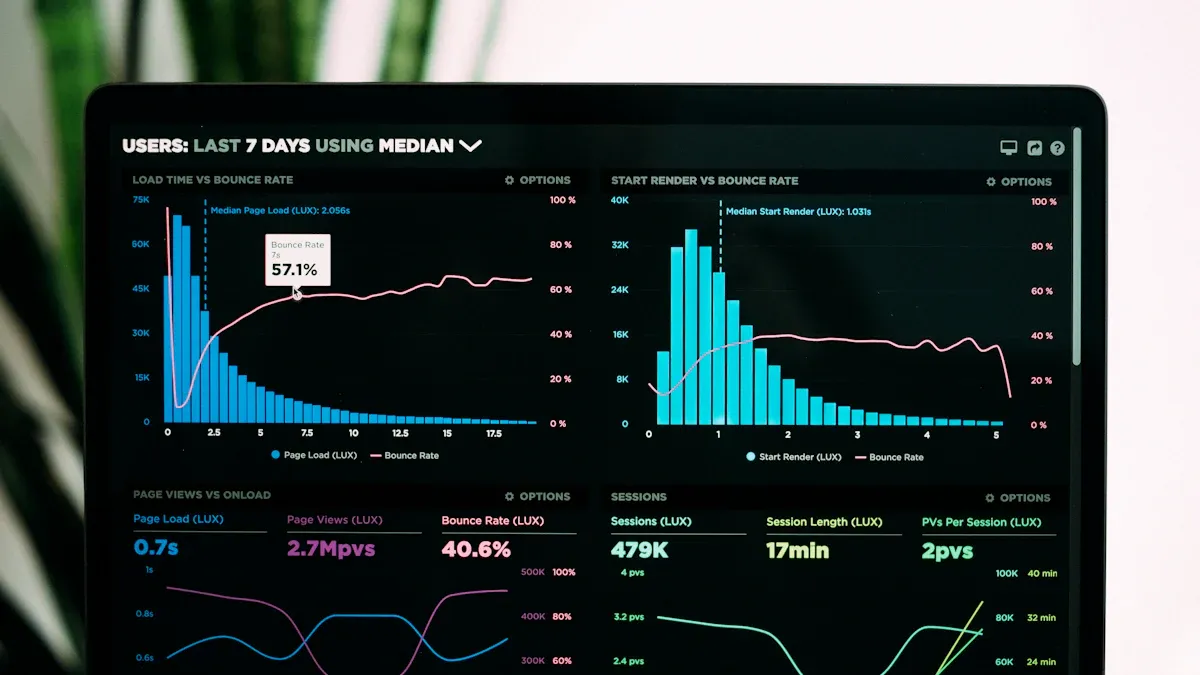
Real-time monitoring and automated alerts
You can use fabric data activator to change how you handle alerts. This tool lets you set up data alerts without writing code. You can connect data activator to many sources like Power BI or Azure Event Hubs. You can watch live data and see changes right away. You can spot spikes, drops, or patterns as they happen. You can make rules for alerts, like when sales go above a number. You can also set rules for inventory dropping below a certain amount. When your rules are met, data activator sends alerts or starts actions. You can get messages in Teams, emails, or trigger workflows. This helps your business react quickly and work better.
Tip:
You can watch single business objects, not just averages. This gives you more exact alerts and actions.
You can use fabric data activator to go from waiting to acting fast. The system checks your data streams and reacts right away. You do not need to check things by hand. You can trust data activator to keep you updated and help you act quickly.
How Data Activator works
Data activator uses a simple setup. You can make alerts and actions without coding. You pick your data source, set your rules, and choose what happens when rules are met. You can watch data from Power BI tables, Azure Event Hubs, or KQL databases. You can trigger actions like sending Teams messages or running Spark jobs. You can create support tickets or restart services automatically.
Here is a table showing the main features:
| Functionality | Description |
|---|---|
| Event Monitoring | You watch data streams and spot changes as data updates. |
| Event Sources | You treat all data sources as streams, like Azure Event Hubs and IoT Hub. |
| Business Objects | You watch real or idea objects for exact alerts. |
| Rules | You set conditions and actions for each object. |
| Actions | You trigger alerts, run pipelines, or use Power Automate. |
| Alert Management | You preview and guess impact before turning on rules. |
| Monitoring & Control | You pay only when activators run, and you get logs and reports. |
You can use fabric data activator to automate responses and keep your business running well. You can rely on constant data checks to catch problems early and act before they grow. You can make your operations smarter and faster with fabric.
Fabric Data Activator vs Power BI alerts
Real-time alerts comparison
You want alerts to come quickly. Fabric Data Activator sends you notifications before problems grow. You see changes right away. Power BI alerts tell you after something happens. These are reactive notifications. Fabric Data Activator finds issues fast with low delay. You can fix things before they get worse. You can act right away. Power BI alerts might not catch every problem if the limits do not change. Fabric Data Activator uses smart detection. It checks numbers against what is normal. You get better alerts and fewer mistakes.
Here is a table that shows how fast each tool sends alerts:
| Feature | Fabric Data Activator | Power BI Alerts |
|---|---|---|
| Alert Type | Proactive | Reactive |
| Real-time Delivery Speed | Faster | Slower (post-issue) |
You can set up automatic actions with Fabric Data Activator. You act as soon as data passes a set point. You get messages in Teams, email, or start a workflow. You can stop problems early.
Data sources and integration
You connect Fabric Data Activator to many data sources. You use Power BI tables, Azure Event Hubs, and KQL databases. You treat all your data like streams. You watch business objects and act on live data. Power BI alerts work mostly inside Power BI. You set alerts on dashboard visuals. You get a message when a number passes your set point.
Fabric Data Activator works with other Microsoft tools. You can use power automate to start workflows. You can send messages to teams or update records. You can start actions when data changes. Power BI alerts do not connect as much. You get messages but cannot do more outside Power BI.
Here is a table that shows how each tool connects:
| Feature | Fabric Data Activator | Power BI Alerts |
|---|---|---|
| Dynamic Alerts | Yes | No |
| Integration with Power BI | Yes | Limited |
| Alerts based on Data Changes | Yes | No |
Customization and automation
You can change alerts in Fabric Data Activator. You watch objects, triggers, and properties. You set up special rules for alerts and actions. You make a Reflex to act when something happens. For example, you send an email when a number goes too high. You can use power automate to do more. You can run a Spark job or make a support ticket.
Power BI alerts focus on simple rules in visuals. You set alerts on card or gauge tiles. You get a message when a number passes your set point. You cannot set up complex actions. You only get basic alerts.
Here is a table that compares how you can change and automate alerts:
| Feature | Fabric Data Activator | Power BI Alerts |
|---|---|---|
| Customization | You can watch objects, triggers, and properties for special alerts and actions. | You set simple rules in visuals. |
| Triggers | You can set up many kinds of triggers. | You use basic triggers. |
| Integration | You can use other Microsoft tools for more features. | You mostly stay inside Power BI. |
You can set up workflows in Fabric Data Activator. You act when data changes. You send messages, update records, or start workflows. You use power automate to link alerts to your business.
User experience and actionability
Fabric Data Activator is easy to use. You see alerts and rules in one place. You manage messages and actions together. You make rules in a simple way. You know how rules work. You act with easy steps. You see live data with charts, tables, and filters. You look at data as it happens.
Power BI alerts are simple to set up. You make alerts on visuals. You get a message when a number passes your set point. It is harder to set up actions. You may need to do things by hand.
Here is a table that shows how user experience is better:
| Improvement/Issue | Description |
|---|---|
| Simplified Navigation | You see alerts and rules more clearly, so it is easier to manage. |
| Rule Creation | You make rules in a simple way, so it is easier to use. |
| Understanding Measures | You see how rules in Power BI work in Data Activator. |
You use Fabric Data Activator to act and set up automatic responses. You get messages that help you act fast. You make your business better with real-time alerts.
Use cases for automated alerts
When to use Fabric Data Activator
Fabric Data Activator helps when your business must react fast. You use it if you need to watch important changes as they happen. This tool lets you set up triggers for any kpi you want. You can make a trigger for things like sales steps or checking product quality. For example, you can set an alert if a value in your CRM is too high. This helps your sales team act fast on big deals.
Many companies use these alerts to work better. You can watch sensors in factories and tell engineers if defects go up. Finance teams can track transactions and start checks if something looks wrong. Customer service teams can see if people stop using a service and send messages to keep them.
Here is a table with common ways businesses use alerts:
| Use Case | Description |
|---|---|
| Sales Pipeline | Watch deal values; alert sales VP when a deal is in "Negotiation". |
| Manufacturing Quality | Track sensor data; alert engineer if defects go over 2%. |
| Financial Compliance | Watch transactions; alert compliance team if activity is odd. |
| Customer Churn | Watch engagement; start retention steps if usage drops by 40%. |
You should use Fabric Data Activator if you need to watch live data. For example, you can track package temperatures or make sure bikes are ready when needed. You can send a test alert to check your setup. This makes sure your team gets messages right away.
When to use Power BI alerts
Power BI alerts are good for watching simple kpi numbers on your dashboard. If you want to set an alert for one number, like sales or inventory, Power BI is easy to use. You can set alerts for kpi limits and get a message when numbers go past your set point. This is good for basic checks, like watching sales totals or seeing if costs go up.
Power BI alerts help you stay updated without checking by hand. You can use them for daily tasks, like tracking sales or watching budgets. If you do not need automatic actions or special triggers, Power BI alerts are enough.
Tip: Use Power BI alerts for simple messages. Pick Fabric Data Activator for more automation and fast reactions.
You can pick the best tool for your business. If you need quick actions and workflows, Fabric Data Activator gives you more choices. If you only want simple alerts on dashboards, Power BI alerts are a good fit.
Alerts comparison summary table
You need to pick the best alert tool for your business. The table below helps you compare Fabric Data Activator and Power BI Alerts. You can check which features are important for you.
| Feature | Fabric Data Activator | Power BI Alerts |
|---|---|---|
| No-code platform | Yes | No |
| Real-time anomaly detection | Yes | Limited |
| Integration with other tools | Microsoft Teams, Power Automate, custom webhooks | Limited to Power BI visuals |
| Visual rule builder | Yes | No |
| Historical baseline comparison | Yes | No |
| Scheduling controls | Yes | No |
| Alert on business objects | Yes | No |
| Alert type | Proactive, automated | Reactive, manual |
| Data source flexibility | Power BI, Azure Event Hubs, KQL, more | Power BI dashboards only |
| Action automation | Yes (Teams, email, workflows, Spark jobs) | No |
Tip:
There is a new setting in Power BI. It lets everyone see the 'Set alert' button. Now, all users can make Fabric Data Activator alerts on their visuals.
Here are some ways you might use each tool:
- Fabric Data Activator lets you watch shipments as they happen. If a delivery might be late, you can tell your customer service team fast. You can also check inventory, spot quality problems, or set up automatic actions when data changes.
- Power BI Alerts help you set easy alerts on dashboard numbers. You get a message when a value goes past your limit. This is good for watching sales goals or budget numbers.
Pick Fabric Data Activator if you want quick, automatic actions and need to connect with other Microsoft tools. Power BI Alerts are best for simple, personal messages on your dashboards. Use the table to help you choose the right tool for your needs.
You now know how Fabric Data Activator and Power BI Alerts work. If you want alerts right away, pick Fabric Data Activator. This tool helps you act fast and stay ahead of others. You can set up tasks to run on their own. You can respond to things as soon as they happen. This helps your business work better.
| Benefit | What It Means for You |
|---|---|
| Automate repetitive tasks | Save time and focus on important work |
| Real-time, event-driven responses | Act quickly and stay ahead in your market |
| Faster data readiness and efficiency | Make decisions faster and reduce costs |
Try Fabric Data Activator to help your business act faster and use data better.
Checklist: Power BI Alerts with Data Activator in Microsoft Fabric
This checklist helps implement and operate Power BI Alerts integrated with Data Activator (Fabric) — useful when comparing Fabric Data Activator vs Power BI Alerts.
core concepts
What is the difference between Fabric Data Activator and Power BI alerts?
Fabric Data Activator is an event-driven tool in Microsoft Fabric designed to detect patterns, evaluate logic across data streams and trigger downstream actions (for example via Power Automate flow), while alerts in Power BI reports are metric thresholds tied to visuals or power bi dataset values that notify power bi users when a value changes outside a range. Data Activator focuses on real-time intelligence and eventstreams, whereas Power BI alerts are simpler conditional notifications based on report visuals or dashboards.
How does Fabric Data Activator handle real-time data compared to alerts in Power BI?
Fabric activator and Data Activator in Fabric are built for multiple times per second processing of real-time data, including iot sensors and storage events, detecting patterns are detected across eventstreams and object instances. Alerts in Power BI are not intended for high-frequency ingestion; they typically evaluate a power bi dataset refresh and notify stakeholders when a value crosses thresholds.
Can I reuse semantic model logic between Fabric Data Activator and Power BI?
Yes—if you design a power bi semantic model and semantic layers carefully you can want to reuse logic by calling the same SQL or DAX measures from downstream components. Data Activator can reference semantic model outputs or raw microsoft fabric data to drive activator monitors while Power BI consumes the same power bi semantic definitions for consistent analytics.
microsoft fabric
What kinds of triggers and conditions can Fabric Data Activator evaluate that differ from a Power BI alert?
Fabric activator supports complex conditional logic across eventstreams, storage events like Azure Blob notifications, and custom data fields; it can detect patterns such as repeated value changes, object instance anomalies, or analytics-based signals. Alerts in Power BI are limited to value thresholds or changes in a visual tied to a power bi dataset and do not natively process event-based triggers.
How do activator item and activator monitors work in a Fabric workspace?
An activator item is a unit of configuration in a fabric workspace that defines the data source, conditions, and actions for monitoring. Activator monitors evaluate incoming real-time intelligence against those conditions and then invoke actions—such as calling a power automate flow, updating a fabric item, or notifying business users downstream.
power automate
Can I use Power Automate flow with both Fabric Data Activator and Power BI alerts?
Yes. Fabric Data Activator can trigger a Power Automate flow to perform complex workflows, integrate with external systems, or manage storage events. Alerts in Power BI can also call Power Automate flow via alert hooks or Power Automate connectors, but the Power BI integration is focused on notifying power bi users rather than continuous event-driven orchestration.
When should I simply use Power Automate flow instead of Data Activator or Power BI alerts?
Use a Power Automate flow for simple automation tasks or integrations that respond to a single service event (like a new file in Azure Blob). Choose Data Activator for high-frequency, pattern-detecting, real-time intelligence across eventstreams, and choose Power BI alerts when you want business users to monitor report visuals or power bi data with minimal setup.
workspace
How do Fabric workspace and fabric capacities affect Data Activator and Power BI alerts?
Fabric workspace and fabric capacities determine compute and storage allocation. Data Activator workloads that process high-volume real-time data may require larger capacities for low-latency detection, while Power BI alerts depend on dataset refresh cadence within a workspace. Proper capacity planning ensures both systems meet SLAs for analytics and notification delivery.
dashboard
Can alerts in Power BI dashboards and Fabric Data Activator coexist for the same metric?
Yes—alerts in Power BI dashboards can provide business-user-facing notifications for visual thresholds, while Data Activator runs parallel real-time intelligence for operational monitoring and downstream automation. Combining both lets stakeholders receive dashboard alerts and technical teams manage programmatic responses via activator item actions or Power Automate flows.
activator item
What kinds of actions can an activator item trigger when a condition is met?
An activator item can trigger notifications, invoke Power Automate flow, write to a fabric item or power bi dataset, call APIs, or push events to downstream analytics. It can also trigger SQL jobs or update storage events handling logic to ensure the alerted condition results in measurable operational changes.
semantic
How does semantic modeling affect the reliability of alerts and activations?
Using a consistent semantic model and power bi semantic definitions helps ensure that both Fabric Data Activator and Power BI alerts use the same measures, DAX calculations, and data field interpretations. This reduces discrepancies between what business users see in reports and what activator monitors detect in real-time.
real-time intelligence
What scenarios favor Fabric Data Activator for real-time intelligence over Power BI alerts?
Scenarios such as monitoring iot sensors, detecting fraud patterns across eventstreams, handling multiple times per second telemetry, or reacting to storage events like rapid Azure Blob ingestion favor Fabric Data Activator. These require continuous pattern detection and complex conditional logic that alerts in power bi reports cannot provide.
semantic model
Can I use DAX measures from a semantic model to define Data Activator conditions?
In many architectures you can reference semantic model outputs and DAX-defined measures as part of the logic feeding Data Activator, enabling consistency between analytics and operational triggers. Where direct reuse isn't possible, replicate key DAX logic or expose the results in a power bi dataset or fabric item that Data Activator can query.
How do I decide whether to detect events in Fabric Data Activator or create an alert in a Power BI report?
Decide based on frequency, complexity and audience: use Data Activator to detect high-frequency patterns, multi-field conditions, and to run automated responses; use an alert in a Power BI report when business users need simple threshold notifications tied to dashboard visuals or power bi data refreshes.
Can Fabric Data Activator send alerts to Power BI users directly?
Fabric Data Activator can integrate with notification channels (email, teams, or Power Automate flows) to notify business users; while not the same as in-report Power BI alerts, these notifications can reach power bi users and stakeholders outside a range of dashboard interactions.
What are common pitfalls when replacing Power BI alerts with Fabric Data Activator?
Common pitfalls include overcomplicating simple threshold use-cases, underestimating capacity needs for real-time workloads, misaligning semantic models leading to inconsistent metrics, and not planning stakeholder communication—business users often prefer the familiarity of alerts in power bi reports for simple monitoring.
Where can I find additional resources to learn about Fabric Data Activator and Power BI alerts?
Consult Microsoft Learn for tutorials, the Microsoft Fabric documentation for fabric workspace and fabric activator specifics, Power BI documentation on alerts in power bi reports and power bi dataset management, and community blogs that cover eventstreams, storage events, and examples integrating Power Automate flow with activator monitors.
🚀 Want to be part of m365.fm?
Then stop just listening… and start showing up.
👉 Connect with me on LinkedIn and let’s make something happen:
- 🎙️ Be a podcast guest and share your story
- 🎧 Host your own episode (yes, seriously)
- 💡 Pitch topics the community actually wants to hear
- 🌍 Build your personal brand in the Microsoft 365 space
This isn’t just a podcast — it’s a platform for people who take action.
🔥 Most people wait. The best ones don’t.
👉 Connect with me on LinkedIn and send me a message:
"I want in"
Let’s build something awesome 👊
Let’s be real—Power BI alerts are like Clippy: “It looks like you’re trying to stay informed… but let me waste your time first!” Who decided restricting alerts to dashboards was a smart move anyway? Probably the same squad that thought Cortana was going to beat Siri. Follow the M365.Show LinkedIn page for livestreams with MVPs—because you’ll want the real fixes, not the marketing slides.
Now, Microsoft says alerts keep you in the loop. In practice, they keep you building dashboards you never wanted. Data Activator promises a different approach—and we’re about to walk through what that looks like. Stick around, we’ll show the fix.
So with that said—why does setting up an alert feel like you’re building a shrine instead of just checking data?
The Dashboard Prison
That brings us to what I call the Dashboard Prison—the place where most Power BI alerts get locked up by design. Instead of being quick and flexible, alerts are tied down with rules that turn a basic need into an administrative headache.
Here’s the core frustration. Many admins find that Power BI alerts require pinned visuals on dashboards. You can’t just hop into a report, set a threshold, and get notified. No—first you’ve got to pin something to a dashboard you never planned on creating. (If you want the formal definition, Microsoft’s docs spell it out, but the lived reality is obvious the first time you try it.) It’s the classic Microsoft trade: a simple feature, but wrapped inside something bigger that you didn’t actually ask for.
And let’s be clear—no admin wakes up thinking, “Please give me more dashboards laying around my tenant.” But that’s the tax you pay. A single alert equals another pinned card somewhere, which equals another dashboard object cluttering up workspaces. Very quickly, you’re managing an entire graveyard of dashboards that exist for no purpose other than propping up one lonely alert.
Here’s a relatable example. Say you’re an IT admin who needs a daily heads-up if revenue passes $1,000. Sounds simple. In practice, you’ve now built a dedicated visual, pinned it onto a brand new dashboard, and made yourself responsible for explaining what the dashboard is for—because in six months, you probably won’t remember. That’s not lightweight alerting. That’s unnecessary upkeep. Now multiply that setup across dozens of metrics and you’re essentially drowning in dashboards that exist purely as storage containers, not working tools.
And even once you’ve made peace with the clutter, there’s another catch. Admins repeatedly point out that alerts are tied only to card visuals. In other words, if you want to track something meaningful like a trend line, a KPI over time, or any chart with context—you’re out of luck. If you double-check Microsoft’s documentation, you’ll see the guidance: alerts trigger only on card-type visuals pinned to dashboards. If you don’t feel like digging into the docs, just trust the admins who set up dummy cards every day just to work around that rule.
That restriction is where the system really shows its age. Businesses don’t care about flat one-number tiles. They care about changes, patterns, outliers. But Power BI alerts don’t give you that. Management doesn’t ask, “Did you build me enough dashboards?” They ask, “Why didn’t anyone flag the problem last night?” And our answer is usually something like, “Because Microsoft made us wrap the alert inside a dashboard, on a card, and nothing else counts.” That’s not a system serving you. That’s you serving the system.
And beyond annoyance, it adds to governance sprawl. Every pinned card is an object your tenant has to carry. That means permissions, names, lifecycle, the whole bit. Admin teams already deal with clutter in Teams, SharePoint, and OneDrive. Do we really need alerts manufacturing more dead objects? It’s the equivalent of not letting you install a smoke detector without building a shed to house it first. By the time the flames show up, you’re still explaining why twenty half-dead dashboards exist.
The truth is, this design feels outdated. An alert should be quick, focused, and easy to remove when it’s no longer needed. Power BI alerts? They demand ceremony. They force us into setup that doesn’t deliver value, and the only thing they produce in bulk is clutter. No wonder admins reach for scripts, Power Automate flows, or third-party solutions when what they really wanted was the simplest possible trigger.
And as messy as the dashboard requirement is, that’s just step one in the chain. Next up—why that dashboard-only rule gets worse once we talk visuals.
The Card Visual Trap
What makes this mess worse is how alerts are chained to one very specific type of visual. Think of it like being told your toaster only works on sliced white bread, not bagels, waffles, or anything remotely interesting. That’s the world of Power BI alerts: many admins find them effectively limited to card-like single-value visuals (check your tenant or Microsoft docs to confirm). Not tables. Not charts. Not KPI visuals that show movement over time. Just the plain card—sitting there with a single number and zero context.
And that limitation shows as soon as you try to monitor something with real depth. Say you need an alert when sales dip under forecast for the week. Sounds straightforward. But the system doesn’t let you target the trend itself. You have to collapse that whole story into one frozen value, stick it in a card, and then pin it. Now your alert is built on the least interesting snapshot of your data. That’s like monitoring driver safety by looking at how many miles are on the car today—while ignoring the accident that almost happened yesterday.
This card-only rule wastes a lot of effort. Plenty of us have ended up fabricating “alert cards” that exist purely to feed the engine. You hack a number into card format, pin it, and hope the ping means what you think it means. The irony? Those fake visuals usually come back and bite people later, because nobody remembers why they exist or where the values came from.
If you absolutely must use the card hack approach, at least treat it like a controlled hazard. Document the card. Name it with a prefix like “Alert–SalesForecast.” And drop a quick note in the owner or description fields about what it represents. That way, when someone has to adjust the threshold six months from now, they’re not playing guessing games with three different “SalesCardFinal2” dashboards. That little bit of hygiene saves hours of detective work.
The bigger issue is how this design cuts entire categories of monitoring out of the picture. Want alerts for anomalies? Not possible, because anomalies live in charts, not cards. Want region-specific alerts, like when one store spikes or tanks? Same story. Need to know when a trend line breaks tolerance? The platform doesn’t care. Power BI already visualizes all of this beautifully in reports—but the alert system has blinders on. It only reacts to the one-number tile, as if the rest of your visuals don’t exist.
And what grows out of that is a sad side effect: over time, dashboards lose their meaning. Instead of being big-picture tools, they become walls of one-off cards whose only purpose is to prop up alerts. These aren’t dashboards anyone wants to analyze—they’re just visual scaffolding for the alert system. You look at it and think, “This isn’t analytics; it’s single-digit bookkeeping.” You could almost replace the whole thing with an Excel cell and a sticky note, but with triple the clutter and overhead.
So it leaves you asking: why build visuals nobody wants, in dashboards nobody uses, just to serve a mechanism that spits out trivia-level messages? True automation should reduce friction. These alerts add friction. They don’t push workflows forward; they just sprinkle half-context numbers into your notifications.
And once you see it that way, the message lands. Power BI alerts aren’t really automation. They’re static signals, full of restrictions, forcing you down rigid paths that make little sense. They stay alive mainly because people don’t know the alternatives. But if you’ve run into their limits, you already know—it feels like pushing your data through a straw and calling it enterprise monitoring.
Which brings us to the next mess admins try to escape into: scripts. Because when visuals and dashboards fail you, the temptation is to fire up PowerShell like it’s the duct tape for everything. Next: when scripting becomes the only escape route—and why that’s messy.
The Custom Script Hangover
When Microsoft tools don’t give you an off-the-shelf fix, a lot of us default to PowerShell. It feels like duct tape—handy, flexible, and ready to hold almost anything together. The problem? Duct tape after a few weekends usually looks like your drunk uncle at a barbecue: loud, messy, and not entirely reliable. It talks like a solution, but a couple months later, no one’s sure why it’s still running or what it’s really holding up.
Many teams we talk to end up leaning on scripts when they hit the wall with alerts. Need to watch if an order total drops under a threshold? Script. Need an email if storage spikes? Script again. At first that feels liberating. You’re not trapped by dashboards or cards. You’re “automating.” But fast forward a bit, and the charm fades. Scripts go from feeling like clever shortcuts to feeling like a junkyard inventory problem—half-working pieces of code patched together with whatever syntax made sense at 11 p.m. last quarter.
That’s the heart of the trap: flexibility seems like a win, until it isn’t. Yes, you can bolt on any condition you like. You can fire alerts into Teams, write to a log, blast an email, maybe even do three of those at once. But the slightest change—a renamed column, a schema refresh, even a different data type—can topple it. Suddenly your “quietly reliable” script decides to drop fifty duplicate pings into leadership inboxes overnight because one decimal didn’t parse. That flexibility? Turns into fragility at the exact moment you were counting on it most.
Here’s a quick horror story most admins can relate to. A junior staffer builds a script: simple, neat, clever. It emails when revenue dips under $100. Everyone’s impressed. Then reality hits. That person leaves. The script stays. Months later, it goes haywire during overnight maintenance. Inbox floods, wrong people looped in, nobody knows the credentials it’s using, zero documentation left behind. Three beats, always the same: it felt good at first, it broke the second the environment shifted, and now you’re left holding something brittle with no owner.
If you’re stuck with scripts, the least-bad option is adding some discipline. Treat them like production code, not disposable hacks. At minimum: record a runbook so the next person knows what it actually does. Centralize credentials in a managed service account, not somebody’s personal login. And schedule a quarterly dry run so you know if it still works, instead of finding out the hard way at 2 a.m. That level of hygiene won’t turn them into a platform, but it will stop them from becoming cursed, undocumented artifacts nobody dares touch.
In our experience, scripts demand ongoing hands-on maintenance, which quickly becomes a single-person risk. If that one maintainer leaves, the script turns into baggage overnight. It’s sharp power but only in skilled hands—and the second those hands aren’t around, the sharpness cuts deep. That’s the definition of shadow IT. It pops up to solve today’s problem but adds tomorrow’s liability.
And governance teams know it. Script sprawl means risks: unknown accounts running in the background, scattered silos of automation nobody documented, and fire drills when something goes sideways. Companies didn’t ask for “more clever hacks.” They asked for tools that scale, that can be seen, and that don’t break when people move on. Technical debt is the tax every organization pays when scripts spin out of control—and support budgets quietly bleed from it year after year.
So yes, scripting feels like duct tape on day one. It bends to your will, gets you a result, maybe even earns applause in a meeting. But by year two, that duct tape is holding together a car frame, four pipes, and a lawn chair. It’s not sustainable. And that’s why PowerShell, while brilliant for the right jobs, is a terrible foundation for enterprise-grade monitoring.
So dashboards are clunky, scripts are brittle—what’s the alternative? Let’s meet Data Activator.
Data Activator: The Automation Grown-Up
Instead of patching dashboards or babysitting scripts, imagine your data doing the job for you—tapping you on the shoulder the moment something critical happens. That’s the role Microsoft positions for Fabric Data Activator. And before anyone rolls their eyes—this isn’t another little “extra” buried in the UI like alerts were. It’s Microsoft actually trying to treat monitoring and automation like a grown-up problem, one that deserves more than dashboards bloating your tenant or PowerShell duct tape balancing on a weekend fix.
Think about the context we just laid out. On one side, the dashboard pileup: every alert chained to visuals you didn’t want, cluttering workspaces with “dashboards-for-one.” On the other side, the script treadmill: brittle, one-off solutions running in the shadows until they break. Together? That’s a rickety tower. One data change, the whole stack rattles. Enter Data Activator, which by design is meant to step away from those patterns. The pitch is: stop stacking fragile pieces, start plugging into direct signals and actions.
Now, here’s where I need to hedge—because product claims fly around fast. You’ll see phrasing like “no more dashboard requirements” or “no more card limitations.” Official docs suggest that Data Activator is built to be more flexible than classic Power BI alerts. It’s not restricted to single-value card visuals, and it’s designed to integrate with automation tools like Power Automate. My ask: confirm this in your tenant and check Microsoft’s docs for the fine print. Treat this less like mythology, more like “features you should test yourself before leaning hard on them.”
Here’s how that difference plays out in practice. Instead of alerts sitting there like sticky notes, Data Activator is meant to watch the data itself. You define rules or thresholds. Those can then act as triggers into automation endpoints—most commonly Power Automate. Verified doc language shows that when a rule fires, Data Activator can trigger a flow. And through that flow, actions like sending a Teams alert, creating a ServiceNow ticket, or notifying leadership by email can happen automatically. That’s an order of magnitude beyond “hey, a number changed.” It’s closer to workflow brain than dashboard nag.
Picture a factory floor at night. A sensor passes a critical vibration threshold at 2 a.m. Previously, you’d be lucky if a red card blinked on a dashboard nobody checked, or if some script fired off an email from an account nobody recognized. With Data Activator configured, that same trigger could spin up a real workflow. Ticket created. On-call engineer pinged in Teams. Problem lined up with the right person immediately. No dashboards. No ghost scripts. No magical guessing game. (And if you’re demoing this, tag the moment and show it live—seeing it in action cements the difference.)
And this isn’t only about factory floors. Finance can flag when balance lines dip below tolerance. HR can set up expiration monitoring for compliance documents. Retail can monitor inventory thresholds. None of those use cases require you to fake card visuals or duct-tape PowerShell together. That’s why admins call it a grown-up shift—it cuts busywork out of the loop and gets closer to what leadership assumes you already had.
Pro tip from the admin trenches: don’t roll Data Activator out shotgun-style. Pilot it. Pick one business process where alerts actually mean money or compliance risk. Define ownership so it’s clear who reviews and maintains thresholds. Run it for two weeks. Then adjust what needs tuning and expand carefully. That approach beats chasing every department’s wish list right away and stops you from promising more than you can deliver in week one.
And let’s keep expectations grounded. Like anything in the stack, availability and licensing matter. Different tenants, different preview stages, different quirks. Confirm it’s in *your* environment before building a rollout plan. Nothing ruins credibility faster than promising an automation engine that half your tenant can’t see yet.
Bottom line, Data Activator isn’t trying to bolt itself to the same shaky foundation Power BI alerts sat on. It’s stepping toward a truly actionable system—less sticky note, more actual workflow. Which leaves us with the obvious next question: once you line these two side by side, how does the comparison really look?
Why It’s No Contest
Comparing Power BI alerts with Fabric Data Activator is like putting a horse‑drawn cart next to an EV. One rattles along held together by wishful thinking, the other actually moves you forward without manure on your shoes. That’s the difference admins feel the moment they stop building dashboards just to prop up alerts and start wiring in actual automation.
Stripped down to basics, alerts are rigid. Build a card, pin it, and hope it doesn’t become just another object gathering dust in some workspace. They light up a number and then quit—no follow‑up, no next step, no handoff. By contrast, Data Activator is positioned to behave like something made for this decade: flexible triggers, integration with automation flows, and no need to fake visuals just to catch a threshold. One keeps you busy babysitting, the other aims to close loops.
For admins, this isn’t really about licenses or cost—it’s about whether the business trusts what you’ve built. Try rolling alerts across finance, sales, and operations. You’ll patch together dashboard after dashboard, each with mysterious card visuals nobody understands later. That model fails trust tests fast. Data Activator is built to span across business processes without you playing dashboard janitor every week. Leadership doesn’t want magic; they want repeatable workflows backed by systems that don’t collapse the moment your data setup changes.
Here’s the pragmatic view. Alerts are flip‑flops—you can hobble forward in them, but not far. Data Activator is the running shoe meant for the long haul. And while the metaphor gets a laugh, the governance kicker is the more important part: if you do adopt it, plan ownership and naming conventions upfront. Define who sets thresholds, how they’re labeled, and how they’re retired. That’s how you build trust so people actually believe the outputs.
Real‑world example: say sales leadership needs an alert when revenue hits $100K so it feeds into CRM for bonus workflows. If you’re stuck with Power BI alerts, all you really get is a card notification—so someone has to eyeball it and then manually update CRM. With Data Activator, you can configure it to kick off an automation that updates CRM automatically, provided you’ve got the right connector or flow ready in Power Automate. That’s a big caveat—check your tenant and verify the connectors—but the payoff is speed and consistency.
Same idea in finance: leadership wants to know if net profit dips below tolerance. Traditional alerts equal an email someone may or may not read until Tuesday. Data Activator’s model can push into a flow: maybe a Teams post, maybe a Planner task, maybe both—but again, the connectors and setup matter. Confirm in your own environment. The real point isn’t the exact integration, it’s that Data Activator is designed to link data signals directly to actions instead of dumping you back into manual work.
So where does that leave decision‑makers? Here’s a blunt checklist. First: if you need alerts that actually trigger actions instead of just waving at you, move to Data Activator. Second: if you’re sick of creating dashboards nobody uses just to keep alerts alive, move to Data Activator. Third: if your auditors demand monitoring you can point to later—clean, centralized, with ownership defined—move to Data Activator. Those three criteria alone tell you whether alerts still make sense or if it’s time to evolve.
Bottom line, alerts were always just sticky notes. They remind you something happened, then they sit there while you scramble. Data Activator’s advantage is that it behaves more like a nervous system: it notices changes, lights up the right process, and hands things off where they belong. It doesn’t just tell you what changed—it pushes the response forward.
So ask yourself: do you want to build on sticky notes, or do you want something closer to actual infrastructure? Because once you see workflows firing without dashboards or duct‑taped scripts, you can’t go back to pretending old alerts were enough. You get why one is a toy and the other feels inevitable. And that realization sets us up for the final takeaway on why this shift matters at all.
Conclusion
Fabric Data Activator isn’t just another shiny button—it’s the line between staring at numbers and actually acting when they shift. Activator is designed to drive action when data crosses thresholds—though you’ll want to check your tenant and configured actions to confirm what that looks like in practice. The big difference is simple: alerts add noise, Activator moves work forward without duct tape.
Don't forgett follow the M365.Show LinkedIn page for livestreams with MVPs—practical, no-fluff tooling walkthroughs and live Q&A. And subscribe to the M365.Show Substack at m365.show so you don’t miss the survival guides.
One takeaway: alerts are notifications—Data Activator is built to close the loop—but confirm specifics in your tenant and always pilot first.
That’s it: clean, practical, no mystique. Hit Subscribe for these Podcast and I see you next time.
This is a public episode. If you'd like to discuss this with other subscribers or get access to bonus episodes, visit m365.show/subscribe

Founder of m365.fm, m365.show and m365con.net
Mirko Peters is a Microsoft 365 expert, content creator, and founder of m365.fm, a platform dedicated to sharing practical insights on modern workplace technologies. His work focuses on Microsoft 365 governance, security, collaboration, and real-world implementation strategies.
Through his podcast and written content, Mirko provides hands-on guidance for IT professionals, architects, and business leaders navigating the complexities of Microsoft 365. He is known for translating complex topics into clear, actionable advice, often highlighting common mistakes and overlooked risks in real-world environments.
With a strong emphasis on community contribution and knowledge sharing, Mirko is actively building a platform that connects experts, shares experiences, and helps organizations get the most out of their Microsoft 365 investments.