

 Apple Podcasts
 Spotify
 Youtube Music
 Spreaker
 Podchaser
 Amazon Music
Outlook lag, Word re-formatting déjà vu, and Excel nudging—those tiny frictions steal hours. GPT-4-era Copilot helped, but often felt transactional: you instructed; it complied. With GPT-5, Copilot shifts from executing commands to understanding intent—mirroring tone, anticipating steps, and stitching context across Word, Excel, PowerPoint, and Outlook. The leap is twofold: quality (first-try outputs that match your voice and goal) and speed (near-instant responses that preserve flow). Result: quieter inboxes, fewer prompts, smarter charts and slides, and headspace reclaimed for decisions—not formatting.






With Copilot GPT-5 in Microsoft 365, you unlock a new level of productivity thanks to advanced Copilot GPT-5 features. This intelligent AI assistant understands your intent and adapts to your unique workflow, minimizing micro-frictions and helping you work more efficiently across Word, Excel, PowerPoint, and Outlook.
Copilot GPT-5 features empower you with smart suggestions that accelerate task completion and streamline your daily work.
You can stay focused without constantly switching between applications, as Copilot GPT-5 features enable rapid summaries and edits directly within your favorite tools.
| Benefit | Description |
|---|---|
| Reduced Task Switching | Copilot GPT-5 features integrate AI directly into your editor, eliminating the need to switch apps and helping you maintain focus. |
| Faster Workflows | With Copilot GPT-5 features, tasks like summarizing and rewriting are completed faster, right where you work. |
| Context-Aware Assistance | Copilot GPT-5 features analyze your open files to provide relevant suggestions and actions tailored to your needs. |
Key Takeaways
- Copilot with GPT-5 helps you work faster. It puts AI right into Microsoft 365 apps. You do not have to switch between different tools as much.
- The context memory feature is very smart. Copilot remembers what you like. You do not need to say the same things again and again. It is easier to get the help you need.
- Real-time model routing gives you the best help for your work. It works for both easy and hard tasks. This makes your work go smoother.
- Better safety features keep your data safe. They also follow privacy rules. You can feel safe while you work.
- It is simple to start using Copilot. Just open your Microsoft app. Type your question. The AI will help you finish your work quickly.
8 Surprising Facts About GPT-5 in Microsoft 365 Copilot
Below are eight surprising insights into copilot gpt-5 features as integrated into Microsoft 365 Copilot.
- Massively extended contextual memory: GPT-5 in Microsoft 365 Copilot can retain and reason over far longer document histories and cross-app context, enabling it to summarize months of project communications and draw connections across Word, Outlook, and Teams without losing coherence.
- Native multimodal understanding: The model handles mixed inputs—text, images, screenshots, and simple diagrams—allowing Copilot to analyze a slide image, extract key points, and draft speaker notes in one step.
- Actionable task generation from conversations: GPT-5 can convert meeting transcripts and chat threads into prioritized action items, assign tentative owners based on calendar context, and suggest deadlines that align with participants' availability.
- Context-aware code and formula assistance: Copilot uses GPT-5 to generate, explain, and debug code snippets and complex Excel formulas within the user’s actual workbook or script context, reducing back-and-forth and preserving workbook integrity.
- Adaptive writing voice tied to organization style: The model learns an organization’s preferred tone and formatting conventions, applying them automatically across emails, reports, and presentations while keeping suggestions editable by the user.
- Stronger enterprise-grade privacy controls: GPT-5 features in Copilot support granular data access policies and audit trails, allowing IT admins to control which internal data sources the assistant may reference for different user groups.
- Faster iterative refinement with explainable suggestions: When Copilot proposes changes—edits, rewrites, or strategy recommendations—GPT-5 can surface brief rationales and alternative options so users understand why a suggestion was made and can pick the best variation.
- Offline and bandwidth-aware modes: Copilot implements copilot gpt-5 features that can operate with reduced connectivity by prioritizing essential functions, caching approved context locally (per policy), and syncing results securely when bandwidth is available.
These copilot gpt-5 features combine to make Microsoft 365 Copilot more contextually powerful, secure, and practical for day-to-day enterprise productivity.
Copilot GPT-5 Features Overview
Context Memory and Intent Reasoning
When you use copilot gpt-5 features, you get a smarter helper. The system remembers what you like and facts from before. This memory means you do not have to repeat yourself. You can say what you need, and Copilot knows what you want. Copilot can solve hard problems and follow tricky steps. It gives you clear answers because it remembers your work. Copilot can read long documents and chats without forgetting. You spend less time talking and more time getting things done.
Copilot gpt-5 features help you reach your goals faster instead of just explaining tasks.
Here is a table that shows some new technology:
| Feature | Description |
|---|---|
| Massive context window | Handles up to 400,000 tokens, improving document analysis and conversation depth. |
| Advanced multimodal processing | Understands text, images, audio, and video for richer interactions. |
| Native chain-of-thought reasoning | Solves multi-step logic problems with higher accuracy. |
| Persistent memory | Remembers facts and preferences across sessions for personalized help. |
Real-Time Model Routing
Copilot gpt-5 features use real-time model routing. You do not have to pick which AI model to use. Copilot picks the best one for your job. Easy questions get fast answers. Harder questions get better thinking. This smart system changes to fit your needs. You get quick help for simple things and strong answers for tough ones. The routing system makes Microsoft 365 apps work better and faster.
Here is a table with how well it works:
| Metric | Value |
|---|---|
| Latency Reduction | 11% |
| Median Latency for Simple Prompts | Under 800 ms |
| GPU Usage Reduction | 17% compared to static GPT-4.1 |
| User Adoption Rate | Nearly 70% of Fortune 500 |
| All-time Users of GitHub Copilot | Over 20 million |
Copilot gpt-5 features give you faster answers and smarter help by making every task work better.
Massive Context Windows
Copilot gpt-5 features let you use a context window of 400,000 tokens. This means you can work with long files, emails, and lots of data. You can finish big jobs without splitting them up. The model gives better answers because it knows more about your work. This saves you time and helps you make fewer mistakes. Other models cannot handle as much information, so Copilot is better for big jobs.
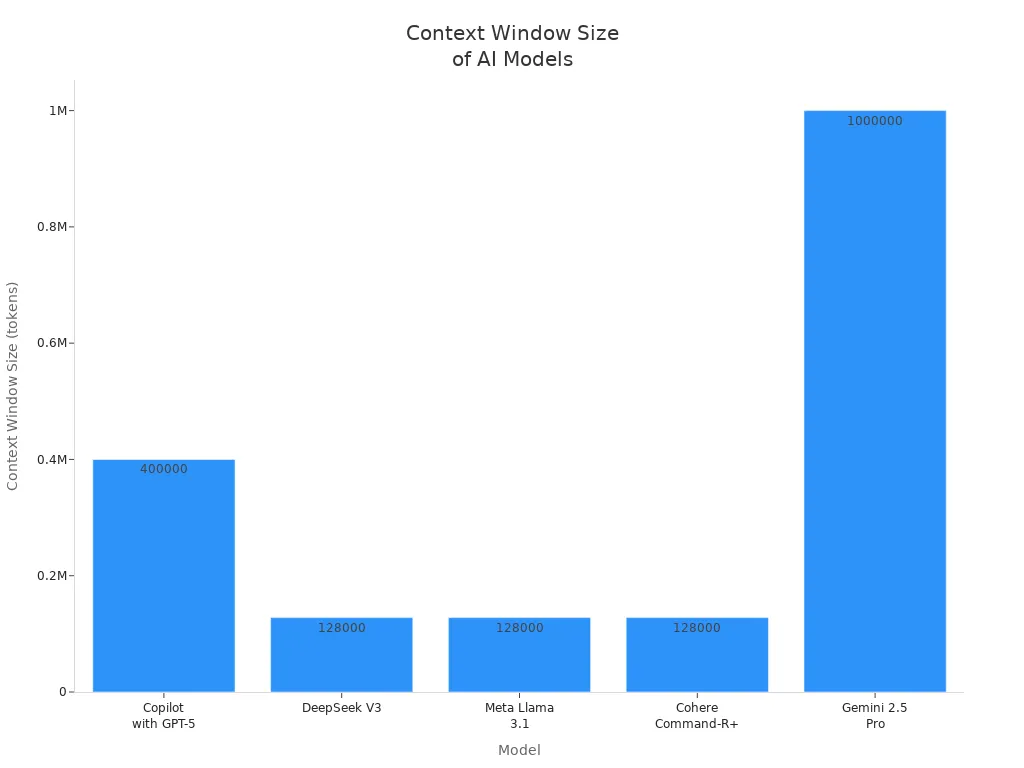
Here is a table to compare:
| Model | Context Window Size |
|---|---|
| Copilot with GPT-5 | 400,000 tokens |
| DeepSeek V3 | 128,000 tokens |
| Meta Llama 3.1 | 128,000 tokens |
| Cohere Command-R+ | 128,000 tokens |
| Gemini 2.5 Pro | 1,000,000 tokens |
You can load up to 183 pages of data, which makes your work easier and faster.
Enhanced Safety and Security
Copilot gpt-5 features keep your data safe and follow rules. Microsoft Purview checks your files and finds private information. Better controls let you choose who uses Copilot and what they see. Microsoft Edge for Business stops you from putting private data into AI apps. These tools help you keep your information safe.
Here is a table with new safety tools:
| Feature | Description |
|---|---|
| Microsoft Purview Integration | AI-powered content analysis and sensitive data identification. |
| Enhanced Access Controls | Granular access controls with AI web category filter in Microsoft Entra. |
| Browser-Level DLP Protection | Prevents sensitive data from being typed into AI apps in Microsoft Edge for Business. |
You can feel safe because copilot gpt-5 features protect your data while you work.
Productivity in Action

Smarter Email Management in Outlook
Using copilot gpt-5 features in Outlook makes email easier. The AI sorts your emails and marks important ones. You will not miss anything that matters. Copilot writes replies for you and keeps your inbox neat. This helps you talk to people better and focus on big tasks.
| Feature | Benefit |
|---|---|
| Automated drafting of replies | Saves time in responding to emails |
| Organization of inboxes | Helps you manage your emails efficiently |
| Flagging of priority items | Ensures critical communications are addressed |
Copilot keeps your inbox tidy and helps you work faster.
Streamlined Document Creation in Word
Copilot gpt-5 features help you make documents fast in Word. Copilot can write a draft in less than a minute. If you want more details, use Word Chat Mode to talk and change your document. You can build your writing step by step and add files you already have.
- Quick Turnaround: Copilot creates drafts in 30-60 seconds.
- Word Chat Mode: You refine and expand documents through dialogue.
You spend less time typing and more time sharing ideas.
Data Insights in Excel
Copilot gives you smart tips in Excel. The AI does hard work and makes formulas simple. You can see live data from many places. This helps you look at numbers faster and do less by hand. Copilot shows you patterns and helps you understand your data.
Copilot turns numbers into easy stories so you can decide better.
Visual Storytelling in PowerPoint
Copilot helps you make cool slides in PowerPoint. The AI builds slides and helps you tell your story. Copilot uses your data from Word and Excel to make your talk stronger. You can think about your message while Copilot works on the pictures.
| Application | Focus Area |
|---|---|
| Word | Structured writing, drafting, revising, and summarization |
| Excel | Numerical analysis, trend identification, and model interpretation |
| PowerPoint | Visual storytelling, slide construction, and presentation narrative |
| Outlook | Communication efficiency, message refinement, and workflow management |
| Teams | Meeting intelligence, collaboration, alignment, and action tracking |
Copilot makes your slides look great and helps you speak with confidence.
Advanced Use Cases
Coding and Developer Productivity
Copilot gpt-5 features help you code faster and better. The AI can write code for you and check your work. It adds comments to explain what the code does. You get tips that fit new programming languages. This makes learning new tech easier. Copilot finds mistakes and helps you fix them. Many developers finish their jobs quicker and feel happier at work.
| Benefit Type | Description |
|---|---|
| Automated Code Generation | Makes code pieces and functions based on what you need, saving time on easy coding jobs. |
| Code Review Assistance | Acts like a code checker, finds bugs, and gives ideas to make your code better. |
| Documentation and Commenting | Adds notes and explanations, helping teams work together and understand the code. |
| Learning New Technologies | Gives tips that use the newest rules, making it easier to learn new languages. |
| Time Efficiency | Saves time for developers, so they can focus on big jobs like designing software. |
| Quality Improvement | Makes code better, so there are fewer mistakes and less fixing needed. |
| Onboarding and Training | Helps new workers learn fast, showing them good ways to write code. |
| Accelerated Development Cycles | Cuts down time on easy jobs, so teams finish projects faster. |
| Developer Satisfaction | Most developers (72%) feel good about using Copilot for their daily work. |
You spend less time on boring jobs and more time on fun projects.
Enterprise-Grade Reasoning
Copilot gpt-5 features help with tough business choices. The AI looks at data and helps control how work gets done. It helps keep costs low. You can change how the AI acts, like how fast it answers or how it sounds. This makes it good for big companies. Teams use Copilot for customer service, making reports, and tracking projects. You can trust Copilot to do important jobs and help your team.
| Feature | Description |
|---|---|
| Intelligence | Smarter and easier to use, scoring higher in tests. |
| Control | Lets you change how fast, how it talks, and how steady it is. |
| Cost Efficiency | Costs less to use, so big companies can use it everywhere. |
| Operational Viability | Made for real work, moving from hard-to-manage to easy-to-use for businesses. |
| Reasoning-Optional Modes | Lets leaders control details, making voice AI and chatbots work better. |
You can use Copilot to check contracts, manage inventory, and watch how customers feel.
Multi-Step Logic and Planning
Copilot can handle jobs that need many steps. The AI knows what you want and makes plans for you. For example, Copilot can make a project plan, write code, and fix mistakes as it goes. Teams can work with Copilot to get better results. Companies like JetBrains got faster and better at planning and coding with GPT-5. You get better teamwork, more work done, and stronger results.
- More work gets done
- Code is better
- Teams work together better
Copilot helps you plan, build, and finish hard projects easily.
Challenges and Onboarding
Learning Curve and User Adoption
When you first use Copilot with GPT-5, there are new things to learn. You might not know how to get the best answers right away. You may wonder how to tell the AI what you want. You can make things easier by using some simple tips. Set a clear goal for each thing you want to do. Tell Copilot what you want and how you want it done. If your task is big, break it into small steps. This helps Copilot stay on track and give better answers.
Here is a table with helpful strategies:
| Strategy | Purpose |
|---|---|
| Define clear criteria in your prompt | Keeps answers focused and on track. |
| Set a clear goal | Guides Copilot to the right outcome. |
| Provide a step-by-step method | Makes answers easier to follow. |
| Define stopping rules | Tells Copilot when to finish. |
| Handle uncertainty | Avoids confusion if results do not match. |
| Control depth | Keeps answers simple and useful. |
| Encourage action over overthinking | Helps you move forward quickly. |
Tip: If you are specific, Copilot can help you more.
Privacy and Compliance
You want your data to be safe. Copilot with GPT-5 uses strong security to protect you. It follows important rules for privacy. Microsoft keeps track of every action, so you can check what happened. Copilot meets world rules like GDPR, HIPAA, and CCPA. It uses encryption and special controls to keep your data safe. You also get help in the app to follow the rules.
| Compliance Feature | Description |
|---|---|
| Data Retention and Audit Trail Management | Tracks and logs every interaction for easy audits. |
| Multi-Jurisdiction Regulatory Compliance | Meets rules like GDPR, HIPAA, and CCPA. |
| Data Privacy and Security Risk Management | Uses encryption and access controls. |
| Business Continuity and Risk Management | Keeps your work safe with backups and alerts. |
| User Training and Change Management | Offers in-app compliance coaching. |
| Certifications | Holds SOC 2 Type II, ISO 27001, and FedRAMP certifications. |
You can trust Copilot to keep your work private and safe.
Getting Started Quickly
You can start using Copilot with GPT-5 right now. Try it in Word, Excel, PowerPoint, or Outlook. Type your question or upload a file to begin. Ask Copilot to summarize, explain, or describe something. Use it with long documents or code and ask for help. If you want to learn more, look at beginner guides or tutorials.
Quick Start Steps:
- Open Copilot in your Microsoft app.
- Type your question or upload a file.
- Try prompts like “Summarize this” or “Explain step by step.”
- Use long documents for deeper help.
- Ask Copilot to show its reasoning.
- Double-check important answers.
- Explore tutorials for more tips.
Start with easy tasks, try new features, and see your productivity grow.
Future Outlook
Evolving Features
Copilot with GPT-5 will keep getting better. Microsoft will add new features to help you work easier. The AI will answer faster, so you can decide quickly. Copilot will make fewer mistakes as it gets more accurate. Hybrid model abilities will let Copilot pick the best way to help you for each job. Better reasoning will help with hard tasks and make you more efficient.
Here is a table showing what you can expect:
| Feature | Expected Impact on Productivity |
|---|---|
| Faster response times | Lets you finish tasks and decide faster. |
| Improved accuracy | Helps you make fewer mistakes and get better results. |
| Hybrid model capabilities | Copilot gives answers that fit each job. |
| Enhanced reasoning | Makes hard jobs easier and helps you work faster. |
Copilot will keep learning from what you do. You will get smarter tips and more help made just for you.
Impact on Workflows
You will see big changes in how you work. Copilot will learn your habits and help before you ask. The AI will use your device to handle data, making your work safer and quicker. You will get more personal help in your daily jobs. Smarter assistants will help you finish tasks with less effort.
- GPT-5 in Microsoft Copilot will help you work faster and get more personal help.
- Smarter assistants will learn what you do and help you before you ask.
- On-device AI will make your data safer and your work faster.
If you work at a company, you might start Copilot with a small group. You will need to clean your data and label it for safety. You can also check your data to follow privacy rules.
Copilot will change to fit your needs. Your work will be smoother, and you will have more time for important jobs.
Copilot with GPT-5 changes how you work every day. The AI gives you easy summaries and smart tips. You can talk to your documents and make changes.
- Custom summaries help you make good choices.
- Smart suggestions help you save time and energy.
- Talking tools help you fix your ideas fast.
- You save more than 5 hours each week.
- Copilot helps teams and people work better.
- You can keep up with bigger companies.
Copilot keeps getting better. Experts think AI will help in school, work, and research. You will get smarter tools and more personal help soon.
Copilot GPT-5 Features Checklist
Checklist for evaluating, deploying, and managing GPT-5 in Microsoft 365 Copilot (copilot gpt-5 features)
microsoft copilot: gpt-5 in copilot and copilot studio
What are the core copilot gpt-5 features users should know?
Copilot gpt-5 features include advanced reasoning capabilities, longer-context conversations, multimodal understanding, and agentic automation that enables complex task orchestration. Powered by openai’s latest gpt-5 model, these features bring deeper reasoning, improved contextual understanding of work data across Microsoft 365, and higher-throughput responses for developer and enterprise scenarios.
How does gpt-5 in copilot improve reasoning compared to previous models?
Gpt-5 in copilot uses a deeper reasoning model designed for advanced reasoning and complex tasks, reducing hallucinations and improving step-by-step problem solving. This results in more reliable outputs for technical queries in Visual Studio Code and for business workflows in Microsoft 365 copilot, as the model is optimized to use relevant context and maintain longer conversations.
Can I access gpt-5 inside Microsoft Copilot or Copilot Studio?
Yes, many users can access gpt-5 inside copilot and copilot studio depending on their subscription and copilot plans. Access gpt-5 options include paid copilot tiers and enterprise licenses like the microsoft 365 copilot license; some features may require specific Azure AI or Azure AI Foundry configurations for deployment and scaling.
What is the difference between Copilot Chat and Copilot Studio with gpt-5?
Copilot Chat focuses on conversational assistance, quick queries, and interactive help embedded across Microsoft apps, while Copilot Studio enables developers and copilot users to build custom agents, prompts, and integrations using gpt-5’s capabilities. Copilot Studio offers tools to customize models, configure routers, and create agentic workflows that automate complex tasks across Microsoft 365.
How does integration with Azure and Azure AI Foundry work for gpt-5?
Integration with Azure and Azure AI Foundry provides infrastructure, compliance, and enterprise deployment for openai models including gpt-5. Azure AI Foundry can host high-throughput workloads, enable private networking for work data, and connect copilot and Microsoft services for secure access to openai’s gpt-5 capabilities across an organization.
Is gpt-5 available to developers in Visual Studio and Visual Studio Code?
Yes, gpt-5 is available to developers via extensions and integrations for Visual Studio and Visual Studio Code, often labeled as copilot with gpt-5 or copilot now uses gpt-5. These integrations provide code completion, contextual suggestions, and complex refactoring assistance powered by the latest gpt-5 reasoning and smart mode features.
What are the privacy and data handling considerations when using gpt-5 in Microsoft Copilot?
When using gpt-5 in Microsoft Copilot, enterprises should configure data governance through Azure controls and Microsoft 365 settings to ensure work data remains protected. Organizations can leverage private model deployments, data residency options, and compliance tools in Azure AI Foundry so copilot and openai’s gpt-5 operate within corporate policies and avoid sending sensitive data to shared endpoints.
How do I get started with Copilot and try gpt-5 features?
To get started with copilot, sign up for the relevant copilot plans or Microsoft 365 copilot license, enable copilot features in the Microsoft 365 environment, and explore Copilot Studio for custom agents. Developers can install the Copilot extension in VS Code or Visual Studio to try gpt-5’s advanced AI in coding workflows and use copilot chat to test conversational scenarios.
Can organizations customize gpt-5 behavior for their workflows?
Yes, organizations can customize gpt-5 behavior using Copilot Studio to create custom agents, tune prompts, and configure routers that direct queries to specialized instances. This allows tailoring of gpt-5’s contextual understanding to specific domains, integrating with automation platforms, and ensuring responses align with corporate tone and policy.
What limitations or risks should users expect with copilot gpt-5 features?
Despite its advanced capabilities, gpt-5 may still exhibit limitations such as occasional inaccuracies, sensitivity to prompt phrasing, and the need for guardrails to prevent undesired outputs. Enterprises should run AI red team evaluations, set usage policies, and combine the deeper reasoning model with verification steps for mission-critical tasks to mitigate risks while leveraging generative AI benefits.
How does copilot gpt-5 integration relate to ChatGPT and OpenAI’s ecosystem?
Copilot gpt-5 features are part of the broader openai models ecosystem and interoperate with ChatGPT experiences when enabled. Microsoft’s integration leverages openai’s advancements, offering gpt-5 across Microsoft products so users experience generative ai and chat-style interactions inside familiar applications like the copilot app and Microsoft 365.
Does using gpt-5 in Copilot improve automation and agentic workflows?
Yes, gpt-5’s advanced reasoning and agentic abilities enable more robust automation, allowing copilot users to chain actions, query multiple data sources, and automate complex processes. In Copilot Studio, these capabilities translate into custom agents that can perform high-throughput tasks, orchestrate cross-app workflows, and reduce manual effort for repetitive or complex jobs.
What is the cost model for accessing gpt-5 with Copilot?
Costs vary by copilot plans, paid copilot tiers, and enterprise licensing like the microsoft 365 copilot license. Additional charges may apply for Azure-hosted instances, high-throughput usage, or dedicated gpt-5 deployments through Azure AI Foundry. Organizations should consult Microsoft pricing and their Azure subscription details to estimate costs for production use.
How does gpt-5 handle longer conversations and context retention inside Copilot?
Gpt-5 is optimized for longer conversations and improved context retention, enabling sustained multi-turn interactions in copilot chat and the copilot app. This allows users to maintain complex threads, reference prior messages, and build on previous responses, enhancing productivity in collaborative and coding scenarios across Microsoft 365 and VS Code.
Are there options to select specific models or versions of gpt-5 in Copilot?
Copilot Studio and Azure integrations often let administrators and developers select preferred models or tuning variants, such as the latest gpt-5 model or specialized deeper reasoning variants. Selecting the right version helps balance latency, throughput, and reasoning capabilities for specific workloads, and can be configured through Azure AI tools and copilot settings.
🚀 Want to be part of m365.fm?
Then stop just listening… and start showing up.
👉 Connect with me on LinkedIn and let’s make something happen:
- 🎙️ Be a podcast guest and share your story
- 🎧 Host your own episode (yes, seriously)
- 💡 Pitch topics the community actually wants to hear
- 🌍 Build your personal brand in the Microsoft 365 space
This isn’t just a podcast — it’s a platform for people who take action.
🔥 Most people wait. The best ones don’t.
👉 Connect with me on LinkedIn and send me a message:
"I want in"
Let’s build something awesome 👊
Ever wonder why Outlook still feels slower than it should, or why Word insists on making you repeat the same edits over and over? Most of us just work around those frustrations. But now imagine Copilot actually anticipating your intent before you even finish typing. GPT-5 isn’t just faster—it changes what Copilot understands about your workflow. Stay with me, because in the next few minutes we’re going to unpack exactly where that leap starts to make your day smoother, and what problems it quietly eliminates that you’ve probably stopped noticing yourself.
Why Our Daily M365 Tools Still Feel Slower Than Us
Imagine waiting longer for Outlook to load than it takes to actually write the reply. That tiny delay doesn’t just cost you seconds—it breaks your rhythm. You’re ready to respond, your thought is clear, and suddenly you’re staring at a spinning icon instead of getting the job done. We’ve all been in that spot, and it’s easy to shrug and move on. But when you add these interruptions across a day, it’s more than an inconvenience. It’s a pattern of friction that slows everything down, even when the actual work you’re doing is simple. Outlook, Word, Excel—all of them have habits like this that we’ve just learned to tolerate. Think about how often you’ve searched for an email thread only to find yourself manually scrolling anyway because the filters take too long or don’t sort quite right. Or the number of times you’ve copied a block of text in Word only to fix the formatting for the tenth time that week. In Excel, it’s the endless adjustments of column widths, tweaking formulas that should have been reusable, or fighting to keep charts consistent with the new data you pasted in. None of these are “hard” tasks. They’re repetitive in a way that feels like you’ve become the low-level assistant to the software, not the other way around. The strangest part is how normal it feels at this point. If you step back, it almost doesn’t make sense. Microsoft rolls out updates constantly. We’ve all installed patches, seen the ribbon interfaces evolve, and noticed the little AI “help” icons creeping into the toolbar. But the experience of actually using the tools hasn’t shaken off those daily bumps. There’s a quiet resignation in the way people approach it: Outlook is just slow, Word will always need formatting cleanup, Excel will always require nudging. We plan for it in the same way we plan for traffic during a commute. I know someone who manages quarterly reporting for their team. Each time, they copy in the same data, update the same formulas, and then spend half a day reformatting charts and cleaning up the report’s design so that it looks presentable for management. The automation tools are technically there—macros, some quick AI assist—but they underestimate what people actually need. Instead of anticipating style preferences, phrasing, or layout decisions, the tools just repeat mechanical actions. The result is a ritual of doing the same extra work, quarter after quarter, with only partial relief. Outlook has its own flavor of inefficiency. Sorting rules work, but they’re rigid. You still wade through noise before landing on the emails that matter. Yes, it can surface important messages, but the blunt categories leave you second-guessing whether something has slipped through. In Word, predictive suggestions often fall flat. You may type “per our” and it wants to auto-complete into something overly formal—or worse, irrelevant—missing the way you actually communicate. The AI tries, but it doesn’t really understand repetition that comes with nuance. To be fair, Copilot with GPT-4 brought real improvements. Drafts get generated in seconds, and you can ask for summaries or formula suggestions that would have saved massive effort a few years ago. But here’s the catch: it still feels transactional. The tool does what you say, but it doesn’t quite grasp what you mean. Copilot interprets commands, but it doesn’t yet understand the context that shapes why you’re doing the task or what outcome would save you the next three steps. That gap is where friction survives. Our expectations are higher. We all want smart tools that cut the boring work automatically, not smart-ish tools that require additional babysitting. When Copilot produces a draft that needs heavy rewriting, or a summary that strips out the detail you actually needed, you don’t save time. You just trade manual typing for manual fixing. The promise of seamless assistance is there, but it’s still not fully realized. That brings us to GPT-5. Instead of bolts of intelligence added onto inefficient systems, you start to see software that moves closer to how you think and work. GPT-5 doesn’t just respond when spoken to—it starts to preempt the actions you always repeat. Whether it’s grasping the tone of your writing without prompting or recognizing the structure of your spreadsheet before you explain it, the shift is subtle but noticeable. These once-accepted annoyances stop background humming in your day and quietly fade out of your workflow. If Word and Outlook have always felt one step behind you, next we’ll see how GPT-5 flips the script by moving from instructions to something that feels much closer to genuine understanding.
The Leap from Instructions to True Understanding
Copilot right now often feels like handing a to-do list to a new intern—you have to spell out every step in plain detail. Type this exactly, fix that formatting, summarize this thread. And even after all that, you still expect they’ll miss the tone you wanted or drop the detail that actually matters. It isn’t bad work, but you don’t feel like you’re collaborating with a capable partner. You’re still managing the tool instead of trusting it to manage the job. That’s because today’s Copilot operates mostly on instructions rather than understanding. It parses the words you type, but it doesn’t fully grasp the intent behind them. This difference between instructing software and working alongside it is subtle but important. Think of it this way: instructing is what happens when you say, “Make a chart with these numbers.” Collaborating is when the system recognizes the messy dataset, understands what you’ve been working toward over the last few minutes, and proactively says, “Here’s a chart that aligns with your goal—do you want it grouped by region or by time period?” We’re not talking about magic insights. We’re talking about something as basic as the system keeping track of the context you’ve already provided instead of starting fresh every time. Where this breaks down today is in moments when Copilot delivers something that technically follows your instruction but ignores the context around it. Maybe you’ve typed a professional but warm email draft fifty times before. You ask Copilot for help, and it spits out sterile corporate phrasing that sounds like a standardized template. Or you’re in Excel, and you need a formula to track average sales by salesperson for the quarter. Copilot might suggest SUM instead of AVERAGE, or give you something valid but irrelevant. Then you end up trying variation after variation of the same prompt until the output lines up with what you need. Each rerun chips away at the supposed time savings. And it isn’t just Excel or email. In Word, users often repeat themselves in a slightly different way just to nudge Copilot into getting the draft closer to their real tone. Instead of “summarize this report,” it becomes “summarize this report for senior leadership with emphasis on team performance and without repeating background details.” Then you try again with “make it shorter,” or “shift the tone to encouraging, not neutral.” Taken individually those steps don’t look terrible. In practice, though, you often end up writing just as much as you would’ve by hand, except now you’re writing instructions instead of sentences. GPT-5 changes the nature of those interactions. The leap isn’t about adding more features or more pre-written templates. It’s about threading reasoning through the task so the system understands the why along with the what. GPT-5 builds a memory of tone, audience, and purpose across the different files and apps you’re touching. This acts as glue. Instead of resetting with every new command, it keeps track of the bigger picture. Picture drafting a report in Word. With previous Copilot versions, you’d write a chunk of text, ask for a summary, fix the tone, then maybe cut it down again. With GPT-5, the system recognizes your usual phrasing, mirrors your ways of emphasizing key points, and produces a summary that already sounds like your work. The difference is immediate. Instead of multiple prompts, you’re looking at a usable draft on the first attempt. Or take Excel. You paste in a dataset with hundreds of rows. You ask for analysis. Instead of spitting out raw formulas or awkward charts unrelated to your decision point, GPT-5 now interprets the dataset. It sorts dates naturally, recognizes which column is the identifier, and understands you want overall trends, not just arithmetic. The formula it suggests isn’t generic—it’s tailored to the shape and meaning of the data. Maybe it highlights anomalies or points out correlations before you even asked. That type of anticipation is where repeated prompting drops away. The result for the user is far less back-and-forth. Output quality shifts from “usable after editing” to “usable right away.” When the system nails tone, structure, and calculation on the first attempt, you stop thinking about how to phrase prompts. You focus back on the actual work outcome. That’s the real leap from instruction to understanding. And it sets the stage for the next big question: usually, when something gets smarter, it also gets slower. But with GPT-5 in Copilot, the surprise is that it manages to be both sharper and faster at the same time.
Speed You Can Actually Feel in Daily Workflows
Nothing kills your flow like asking Copilot for a draft while the clock is running down before a meeting. You’re focused, idea lined up, and instead of seeing text take shape, you’re staring at dots on the screen moving back and forth. Waiting even half a minute feels much longer when you’re under pressure. That moment is when AI shifts from being a helpful assistant to a frustrating delay. For tools that promise speed, lag is the number one way they can lose trust. GPT-5 changes that calculation by taking on the issue of responsiveness and making results show up closer to the pace you work at naturally. Humans are surprisingly sensitive to delay. There’s research showing we start to notice lag if it takes longer than about a second. Below that, it feels almost immediate. Cross that boundary, though, and it interrupts the way you think. That’s why even small pauses in Copilot can derail you. You were in typing mode, adding ideas to a draft, and then you’re forced out of the writing process because you have nothing to interact with. That mental reset isn’t just annoying, it makes you less willing to rely on the tool when the stakes are high. Earlier Copilot versions had the intelligence, but not always the pace. They could give strong insights, but you paid for them with frequent waits. You might ask for a summary of a document, and instead of staying immersed, you’d shift into idle mode while the animation ran. Once or twice is acceptable. But in a workday full of repeat asks, the waiting screens added up. In the background you knew you could Google something faster or skim by hand if you had to. The tradeoff undercut the value. There’s a perfect example in Outlook searches. Say you’re presented with a massive project thread from three weeks ago. You need that one email where a decision was made. Copilot is supposed to pull the thread highlights, but you find yourself staring at the wheel. Sometimes it really is faster to open another tab, type a keyword into a search engine, and dig through the cached data yourself. The irony is obvious: the “smart” digital assistant sometimes required more patience than just switching tools. It felt like extra weight on the process instead of relief. With GPT-5, Microsoft’s focus has been on shrinking those gaps to the point you barely notice them. The work behind the scenes involves optimizations in both the model and how it integrates into M365 apps. To you, it shows up as results that appear at a speed not far from human typing. Instead of blank pauses, you see text roll out nearly in real time. The impact is subtle until you realize you’ve stopped thinking about waiting altogether. In practice, you issue the request, and your focus stays intact because the system’s timing tracks your own. Microsoft points to measurable improvements here. GPT-5 isn’t just a bigger model, it’s tuned for reduced retries and faster response times. Each query goes through fewer cycles to generate a relevant answer. That means fewer moments where you restate or re-prompt to get something useable. The cumulative savings add up quickly, especially when your workload involves dozens of quick interactions rather than one big request. Think about Excel pivot tables. Before, you might spend five minutes trying different instructions, waiting each round for Copilot to respond. Sometimes what you got back wasn’t quite aligned and needed another attempt. With GPT-5, you can ask for sales grouped by region and get chart-ready insights in under a few seconds. No iteration, no stepping away from the task, no wasted motion. The speed isn’t only about clock time—it’s about preserving the momentum you had before you called on Copilot. That change produces a different emotional response. Instead of feeling like you’ve placed an order at a slow-moving kiosk, you feel as though the tool is catching pace with you. Relief comes from not having to second-guess whether it will stall out when you most need efficiency. Trust is rebuilt in the moment you notice you aren’t waiting around anymore. Once the system stops delaying you, it restores the natural rhythm of how you already think and work. GPT-5 doesn’t just improve usability—it changes how confident you feel letting it into more moments of your day. Now, speed is only part of the story. Productivity isn’t just about how fast information gets delivered, but how much unnecessary input you never had to look at in the first place. And nowhere is that problem more obvious than the inbox. So let’s look at how GPT-5 tackles the one chore nearly everyone dreads: email overload.
The Quiet Fix to Email Overload in Outlook
Outlook inboxes look like a digital landfill—but what if half of that clutter disappeared before you saw it? For years, most of us have just accepted that each morning brings another pile of updates, notifications, and low-value noise. You scan through recurring status reports that say little more than, “no change this week.” You get pinged by system notifications for tools you don’t even use every day. Then sprinkle in those endless follow-up reminders—soft nudges that fill space but don’t demand action. Add them together, and your inbox becomes less about communication and more about sifting. The absurd part is how much time disappears not into answering important emails but simply judging which ones deserve your attention. Today, Copilot already helps in small ways. It can summarize long threads. It can surface key points. But even here the friction remains. You’re still left to decide which summary matters and which thread can be ignored outright. Nothing has been removed; it’s only reorganized. That means the burden of triage hasn’t gone away—it’s just been dressed up in shorter text. For anyone responsible for leadership roles, the difference is minor. They still open summaries, skim sentences, and mark the mail as done before moving to the next message. It feels like progress, but it doesn’t eliminate the underlying effort. Take the case of a manager who is copied on everything. Every update, every check-in, every micro-decision in their department lands in their inbox. Copilot can condense those chains, yes, but the manager still feels forced to at least skim. Why? Because there’s always that chance an important decision is buried halfway in. So even with summaries, the time cost remains. That reflexive skimming consumes hours every week. It’s the digital version of being handed stacks of paper and told, “Don’t worry, the highlights are yellow.” The highlighting doesn’t stop you from leafing through all the pages. Here’s where GPT-5 shifts the ground. Instead of passively repackaging messages, it uses intent recognition to figure out which mail actually matters to you. That means your inbox no longer shows you everything. You begin seeing only the small set of messages you’re statistically likely to act on, while the rest get tucked into background folders you don’t have to check in real time. Suddenly, half of that landfill really does vanish before it disrupts your focus. The system isn’t just aware of words in the subject line; it understands patterns in your behavior—what you reply to, what you ignore, and what you forward. The examples make it real. Say an approval request lands in your inbox. GPT-5 can prepare the response in your tone, ready with the same style you’ve used the last ten times. Instead of rephrasing “Approved, thanks” or “Go ahead” again and again, the draft is already in place, waiting for a single click to send. Or think of cascading email threads. A quick technical escalation from your team gets separated from a casual “thanks for the update” reply. GPT-5 sorts which needs your direct input versus which can be acknowledged automatically. The routine acknowledgments stop being your problem. What you notice most is the reduction in repetitive labor. Copilot with earlier models helped generate drafts, but you still had to customize them often. GPT-5 starts anticipating content. If you’ve sent shift approvals in a certain polite style with a one-line response, the system mirrors that. Instead of opening each request, you can clear a batch all at once because the work of phrasing has already been handled. When the inbox builds up with predictable asks, the tool scales your responses without breaking rhythm. The bigger gain shows up in meeting prep. Instead of digging through twenty back-and-forth messages to catch the history of a project, GPT-5 collapses the entire exchange into a brief tailored for your next meeting. It knows the difference between numbers you need to quote and background chatter you’d skim past. So when you enter the call, you’re not fumbling through your inbox trying to reconstruct who said what. You walk in with the essential points surfaced and ready. And that’s the payoff—Outlook begins shifting from inbox-first to action-first. You stop spending energy on management of mail and start focusing directly on decisions. GPT-5 essentially restores time by intercepting the input that would otherwise eat your attention. What used to be hours of sorting turns into moments of action, and the fatigue that comes with endless triage begins to lift. Finally, this transformation isn’t limited to text-heavy apps. In fact, the leap in context and intelligence becomes even clearer when you see what GPT-5 does across data and slides. That’s where Outlook’s quiet fix meets Excel’s numbers and PowerPoint’s stories.
From Data Crunching to Storycrafting with GPT-5
You can have the right numbers lined up in Excel, broken down by region, product line, and quarter, and still be stuck staring at a blank PowerPoint when it’s time to present. The numbers themselves don’t tell a story—at least not in the way executives or stakeholders expect to hear them. They want a narrative that connects results to goals, explains patterns, and points toward action. That’s where most people lose momentum. The raw data is correct, but the job of shaping it into a message is left to you. And in the rush of a deadline, that can feel like two different projects—analyzing the data, then rewriting it to make sense on slides. Picture this: it’s Thursday afternoon, and you’ve got a meeting first thing Friday morning. The spreadsheet is ready. Hours of work have gone into cleaning the data, building formulas, and crunching totals. But the PowerPoint deck is still a skeleton, waiting for charts, bullet points, and the flow that ties everything together. This is the moment where current Copilot can give you a head start. It generates a few graphs, maybe drafts a couple of slides. But what you get back often looks generic, like something a trainee analyst would throw together before understanding the audience. The numbers are right, but the slides don’t hit the point you’ll actually need to emphasize, and you end up rebuilding large portions by hand anyway. That’s the weakness people have run into with GPT-4 inside Copilot. The outputs, while technically accurate, often miss the mark of what leaders really want to see. For example, suppose you ask Copilot to “show average sales growth by quarter.” It obliges with neat formulas, maybe even a simple chart. But your VP isn’t asking for growth overall—they care about where momentum is dropping off, which regions are pulling ahead, and how current figures line up with targets. Those kinds of insights require pulling threads together, not just executing a math function. So you either nudge the AI with hyper-specific prompts or accept that you’ll need to reframe the story yourself. This is where GPT-5 starts revealing its edge. Instead of treating tasks one app at a time, it carries awareness across your workflow. It doesn’t just see Excel as numbers and PowerPoint as boxes for slides. It recognizes that the numbers have an audience and those slides are a delivery vehicle for a narrative. When you ask GPT-5 to take quarterly sales data and prepare a presentation, it doesn’t just lift raw charts into PowerPoint. It builds a sequence of slides that reflect a story: performance against last quarter, regions trending up or down, and the likely implications for next quarter. You’re not handed detached visualizations; you’re given talking points aligned to what decision-makers will ask about. Take a concrete case. Your Excel sheet tracks revenue over the past nine months, broken into three major regions. Instead of inserting three disconnected line charts, GPT-5 produces a slide outline that says: “North America overtook Europe in Q2, growth slowed in Asia by 8%, North America is now driving 55% of total revenue.” The talking points are placed beside the chart, not merely listing numbers but suggesting emphasis. It means the AI has understood which trends stand out rather than leaving you to manually identify them later. The time savings show up not just in creating slides faster but in reducing the mental scrambling before you present. You spend fewer minutes adjusting formulas and charts, and more minutes deciding strategy. If the deck is already structured with meaningful context, you can walk into the meeting ready to guide action rather than defending why the slide titles don’t match leadership priorities. It’s a different kind of preparation; less firefighting, more messaging. The long-term value of GPT-5 goes even deeper. The consistency across Word, Excel, and PowerPoint means you no longer reinvent the same material three times. Draft the briefing document, and the same themes carry into your slide deck without extra prompting. Summarize the figures in Word, and the points align with the charts surfaced in Excel. The system is piecing your material into one continuous thread. That consistency has been missing from earlier AI support, where each app felt like its own island and you became the bridge between them. What emerges is not just faster formatting or cleaner charts, but assistance that leans toward strategy. GPT-5 behaves less like a calculator or slide generator, and more like a colleague who sees both the data and the message it needs to support. It takes you out of the role of slide assembler and into the position of discussing outcomes. And once you’ve seen that shift, it’s easier to imagine a workday where each app doesn’t compete for your attention but contributes seamlessly to the same objective. Now let’s bring it all together with one final clarity check.
Conclusion
GPT-5 inside Copilot isn’t about flashy breakthroughs. It’s about stripping away the invisible weight you’ve been carrying—those repeated micro-tasks like formatting, sorting, and rewriting. The kinds of chores that barely register individually but consume real hours every week. When that overhead disappears, the change isn’t loud, but it’s felt. So here’s the question: if you got back five, maybe ten hours each week normally lost to email triage and document cleanup, what would you choose to spend it on? This shift isn’t about making software faster. It’s about reclaiming headspace for the work that actually matters.
This is a public episode. If you'd like to discuss this with other subscribers or get access to bonus episodes, visit m365.show/subscribe

Founder of m365.fm, m365.show and m365con.net
Mirko Peters is a Microsoft 365 expert, content creator, and founder of m365.fm, a platform dedicated to sharing practical insights on modern workplace technologies. His work focuses on Microsoft 365 governance, security, collaboration, and real-world implementation strategies.
Through his podcast and written content, Mirko provides hands-on guidance for IT professionals, architects, and business leaders navigating the complexities of Microsoft 365. He is known for translating complex topics into clear, actionable advice, often highlighting common mistakes and overlooked risks in real-world environments.
With a strong emphasis on community contribution and knowledge sharing, Mirko is actively building a platform that connects experts, shares experiences, and helps organizations get the most out of their Microsoft 365 investments.