

 Apple Podcasts
 Spotify
 Youtube Music
 Spreaker
 Podchaser
 Amazon Music
Microsoft 365 pushes 300–400 changes every month. For most IT teams, the raw volume makes “staying aware” impossible — and pretending to read everything is fantasy. The danger isn’t the noise — it’s the 5% of updates that actually trigger outages, compliance exposure, licensing surprises, new reporting visibility, or destroyed workflows.
This episode lays out the problem of update overload, and then gives a four-layer solution:
1. Filter — not every change matters to you
2. Assess — who actually feels impact (IT? legal? users?)
3. Strategize — move from reaction to repeatable triage
4. Communicate — without drowning people in useless patch-note text
The takeaway: you don’t need to know everything — you need a system that spotlights the small fraction of changes that have real-world business impact.






You face a constant flood of m365 update management tasks every month. The sheer volume of 365 changes can overwhelm any IT team. You must prioritize because not every microsoft 365 update impacts your organization equally. Filtering 365 updates helps you focus on what matters most. Assessing the effect of each microsoft 365 update gives you control over managing microsoft 365 apps. By building a proactive triage process, you turn m365 update management into a strategic advantage. Clear communication and automation make m365 update management smoother and more efficient. With the right approach, you can master 365 software updates.
Key Takeaways
- Identify critical Microsoft 365 updates that address security vulnerabilities and major bugs to protect your organization.
- Assess the impact of updates on different teams to ensure smooth transitions and avoid disruptions.
- Establish a repeatable triage process to categorize updates as urgent, important, or routine, helping your team focus on what matters most.
- Utilize tools like Intune and the Microsoft 365 Apps admin center to automate and monitor update management effectively.
- Create update rings to test new features on a small group before a full rollout, minimizing risks and disruptions.
- Communicate updates clearly to users, using simple language and visual aids to enhance understanding and engagement.
- Gather user feedback regularly to improve the update process and address issues early, ensuring a smoother experience.
- Review and optimize your update management process frequently to enhance efficiency and keep your organization secure.
8 Surprising Facts about Microsoft 365 Apps Update Management
- Update cadence is flexible, not fixed. While Microsoft publishes monthly feature updates, M365 update management lets IT choose channels (Current, Monthly Enterprise, Semi-Annual) and control when devices receive feature changes, enabling phased rollouts tailored to risk tolerance.
- Security fixes can bypass deferral settings. Even when you defer feature updates, critical security and reliability fixes for Microsoft 365 Apps are often pushed sooner to protect endpoints, meaning deferral doesn't guarantee immediate exclusion from all patches.
- Bandwidth optimization options reduce network impact. Microsoft 365 Apps update management supports Delivery Optimization, peer-to-peer caching, and CDN usage so large deployments can dramatically lower WAN consumption during broad updates.
- Telemetry influences update behavior. Diagnostic and feedback levels configured in the tenant can affect which updates are prioritized or surfaced for devices, so privacy and data settings indirectly shape update experience.
- Update management integrates with endpoint tools. You can manage M365 updates via Microsoft Endpoint Manager (Intune), System Center Configuration Manager (SCCM), or update policies in Microsoft 365 admin center, enabling centralized control alongside OS and third-party patching.
- Channel switching can be automated at scale. Enterprises can automate moving user groups between update channels based on validation rings, deployment success, or user business need, reducing manual overhead for migrations.
- Office CDN and Click-to-Run change distribution patterns. The Click-to-Run installation model plus Office CDN means updates are streamed and applied differently than traditional MSI packages, often resulting in smaller, faster incremental updates and reduced user disruption.
- Reporting and rollback options are more limited than expected. While telemetry and admin portals provide update status and health signals, full granular rollback of specific M365 app updates across a fleet can be complex and typically requires orchestrated redeployment or channel changes rather than a single undo action.
Understanding these points helps administrators build an effective m365 update management strategy that balances security, bandwidth, user experience, and control.
Prerequisites for M365 Update Management
Before you start managing updates for Microsoft 365, you need to check a few important prerequisites. These steps help you avoid common pitfalls and ensure your organization stays ready for every 365 update.
Licensing and Permissions
You must have the right licenses and permissions to access advanced update management features in 365. Different subscription plans offer different levels of access. The table below shows which plans support these features:
| Type | Subscription Plan |
|---|---|
| Education | Microsoft 365 A3, Microsoft 365 A5 |
| Business | Microsoft 365 Business Standard, Microsoft 365 Business Premium |
| Enterprise | Office 365 E3, Office 365 E5, Microsoft 365 E3, Microsoft 365 E5 |
You also need Microsoft Intune Plan 1 and a Windows license that includes the Autopatch entitlement. These tools let you automate and control 365 updates across your organization.
Tip: Make sure your IT team has admin permissions for all relevant 365 services. This step prevents delays and ensures smooth update deployment.
Supported Devices and Platforms
365 updates only work on supported devices and operating systems. You must check that your computers and servers meet the requirements. The following tables show which systems are supported:
| Operating System | Support Status | End of Support Date |
|---|---|---|
| Windows Server 2022 | Supported while in Mainstream Support | October 2026 |
| Windows Server 2019 | Ended | October 14, 2025 |
| Windows Server 2016 | Ended | October 14, 2025 |
| Windows Server 2012 R2 | No longer supported | January 14, 2020 |
| Operating System | Support Status | End of Support Date |
|---|---|---|
| Windows 10 | Ended | October 14, 2025 |
| macOS Version | Support Status | Notes |
|---|---|---|
| macOS Tahoe (26) | Supported | - |
| macOS Sequoia (15) | Supported | - |
| macOS Sonoma (14) | Required for updates after September 2025 | - |
You must update your devices regularly to keep receiving 365 updates. Unsupported systems can block critical updates and cause security risks.
Network Requirements
Reliable network connectivity is essential for 365 update delivery. You need to measure your bandwidth and check your infrastructure. The chart below compares network bandwidth for Office Outlook 2007 and OWA across usage categories:
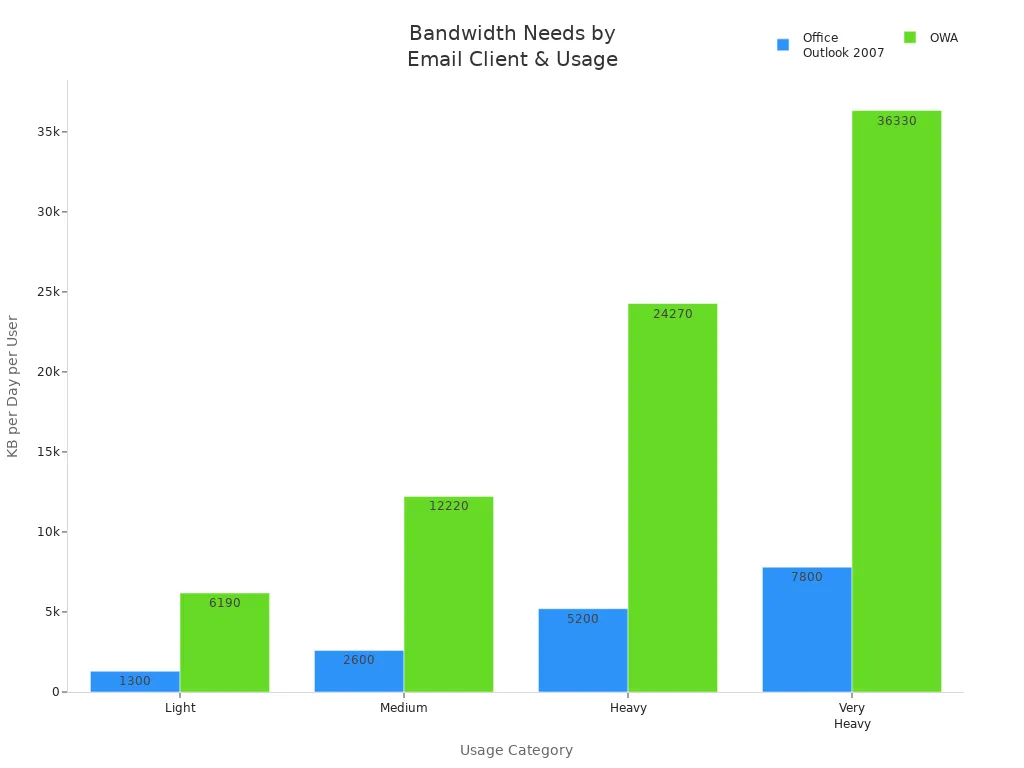
For heavy Office Outlook 2007 users, you need an average network traffic of 18.5 KB/sec and a peak requirement of 37 KB/sec for 100 users. For medium OWA users, the average is 42.4 KB/sec and the peak is 84.9 KB/sec for 100 users. SharePoint Online users generate about 1.6 megabits per second for 100 active users.
Microsoft recommends no more than 2,000 users behind each public IP address. Bypass Office traffic through proxies for optimal connectivity.
You must review these requirements before you deploy 365 updates. This step ensures your users get updates quickly and without interruption.
Filtering and Prioritizing Microsoft 365 Apps Updates
You face hundreds of microsoft 365 apps updates every month. Not all of these updates matter to your organization. You need a way to filter out the noise and focus on the critical few. This process helps you protect your business, keep users productive, and avoid unnecessary disruptions.
Identifying Critical Updates
You must identify which microsoft 365 apps updates are critical. These updates often address security vulnerabilities, fix major bugs, or change how key features work. Security updates deserve your attention first. For example, in December 2025, Microsoft released 57 security updates that fixed serious risks, including remote code execution flaws in Office. In October 2025, dozens of updates addressed zero-day threats and other critical issues. Recent updates have also patched vulnerabilities like Copilot Spoofing.
| Update Type | Number of Updates | Description |
|---|---|---|
| Security Updates | 57 | December 2025 Patch Tuesday fixed 57 vulnerabilities, including critical RCE flaws in Microsoft Office. |
| Security Updates | Dozens | October 2025 Patch Tuesday addressed numerous zero-day and critical issues impacting Microsoft 365. |
| Security Updates | Multiple | Various vulnerabilities, including zero-day RCE and Copilot Spoofing, were patched in recent updates. |
You should also look for updates that affect compliance, legal requirements, or business-critical workflows. These updates can impact your organization’s reputation and operations. By focusing on these areas, you make sure you do not miss the updates that matter most.
Assessing Update Impact
After you identify critical microsoft 365 apps updates, you need to assess their impact. Start by asking who will feel the effects of each update. Some updates only affect IT teams. Others change how end-users work with 365 apps. A few updates may impact legal, finance, or compliance teams.
You can use three main criteria to assess impact:
| Criteria | Description |
|---|---|
| Network Capability | Assess bandwidth and distribution of client devices, ensuring internet access for activation and updates. |
| Application Compatibility | Test business-critical applications, add-ins, and macros for compatibility with Microsoft 365 Apps. |
| Change Management Practices | Utilize structured change management to ensure smooth deployment and update processes. |
You should test updates in a controlled environment before rolling them out. Check if your network can handle the update traffic. Make sure your business-critical apps, add-ins, and macros still work after the update. Use structured change management to guide your deployment. This approach helps you avoid surprises and keeps your organization running smoothly.
Tip: Involve key users from different departments in your testing process. Their feedback helps you spot issues early.
Building a Triage Process
You need a repeatable triage process to manage microsoft 365 apps updates. This process helps you sort updates into categories: urgent, important, and routine. You can use a simple checklist to guide your triage:
- Does the update fix a security vulnerability?
- Will the update affect compliance or legal requirements?
- Does the update change how users interact with 365 apps?
- Will the update impact business-critical workflows?
- Can your network and devices support the update?
You should review updates weekly. Assign responsibility to specific team members. Document your decisions and share them with your team. This process turns update management from a reactive task into a strategic advantage.
Note: A clear triage process reduces stress and helps your team focus on what matters most.
By filtering and prioritizing microsoft 365 apps updates, you protect your organization from risks and keep your users productive. You also save time and resources by avoiding unnecessary work. This approach prepares you for the next wave of 365 updates and helps you stay ahead.
Tools for M365 Update Management

Intune Microsoft 365 Apps Updates
You can use intune microsoft 365 apps updates to manage office updates across your organization. Intune gives you a centralized way to deploy, monitor, and control update options for all your 365 devices. Start by making sure your devices are managed by intune and that you have deployed Microsoft 365 Apps. Next, create a device configuration profile in the intune portal. Go to Devices, select Windows, and then choose Configuration Profiles. Pick "Create" and select "Windows 10 and Later" with the Settings Catalog. Name your policy and add settings for office 365 update channel and update options.
You can set delivery optimization to help devices download updates efficiently. This step reduces network congestion and speeds up the process. After you configure your device configuration profile, you can monitor update status through the microsoft 365 apps admin center portal. Intune lets you manage office updates for different groups, set update options, and track compliance. You can also use intune to schedule update waves and control when users receive new features or security patches. This approach helps you keep your 365 environment secure and up to date.
M365 Apps Admin Center
The microsoft 365 apps admin center portal gives you a powerful dashboard to manage office updates and update options. You can use the cloud update feature to organize rollout waves, set exclusion windows, and pause or roll back updates if needed. The admin center shows update progress for all office 365 update channel profiles. You can filter by update channel to see which devices have received updates and which still need attention.
Here is a table showing key features of the admin center:
| Functionality | Description |
|---|---|
| Cloud Update | Use the cloud update feature for custom rollout waves, exclusion windows, pause, and rollback. |
| Update Progress | Track update progress for all office 365 update channel profiles. |
| Channel Overview | View active office 365 update channel profiles, their status, and release dates. |
| Update Failures | See reported failures and issues for each device. |
| Tenant Settings | Set tenant-level update options like exclusion windows and exclude groups. |
| Profile Controls | Manage office 365 update channel profiles with pause and rollback features. |
You can also view current channel updates and manage office updates for the Monthly Enterprise Channel or Current Channel. The admin center helps you spot problems early and take action before users experience issues. You can use profile controls to pause or roll back updates if you see failures.
Configuration Manager Integration
You can use Configuration Manager to manage office updates and update options for your 365 environment. Start in the Configuration Manager console. Go to Site Configuration, select Sites, and pick your site server. On the Home tab, choose Configure Site Components, then Software Update Point. In the Software Update Point Component Properties, select Microsoft 365 Apps/Office 2019/Office LTSC under Products. On the Classifications tab, pick Updates. Synchronize software updates to see them in the console.
Here are the main requirements for using Configuration Manager:
| Requirement | Description |
|---|---|
| Microsoft Configuration Manager | You need the current branch version. |
| Microsoft 365 Apps | Use the enterprise or business subscription. |
| WSUS | Windows Server Update Services 4.0 is required. |
| Internet Access | Devices must reach specific Microsoft URLs. |
Configuration Manager lets you control office 365 update channel assignments, schedule update options, and monitor deployment status. You can use device configuration to target specific groups and ensure that only approved updates reach your users. This tool gives you flexibility and control over your 365 update process.
Cloud Update Options
Cloud update options give you a modern way to manage Microsoft 365 updates. You can use these tools to automate update delivery, improve compliance, and reduce manual work. Many organizations choose cloud-based solutions because they offer flexibility and control. You do not need to rely on traditional on-premises servers. Instead, you can manage updates from anywhere with an internet connection.
Cloud update options let you decide how and when your devices receive 365 updates. You can group devices into deployment rings. This method allows you to send updates to a small group first, such as your IT department. If everything works well, you can expand the rollout to more users. This staged approach helps you catch problems early and protect your business from widespread issues.
You can also set up configurable rollout schedules. You choose the number of days between each wave of updates. You can set a deadline for when all devices must finish updating. This level of control helps you balance security and productivity. If you need to pause updates during busy times, you can create exclusion dates. For example, you might block updates during a company-wide event or at the end of a financial quarter.
The table below shows the main features of cloud update options for Microsoft 365:
| Feature | Description |
|---|---|
| Control over updates | Gives you more control over 365 updates, similar to Windows Update for Business. |
| Deployment rings | Lets you deploy updates in waves, starting with select groups and ending with all users. |
| Configurable rollout | Allows you to set the timing between rollout waves and set update deadlines. |
| Rollback option | Lets you reverse an update with just a few clicks if problems occur. |
| Exclusion dates | Enables you to block updates during important dates or events. |
Cloud update options also include a rollback feature. If an update causes issues, you can quickly reverse it. This action protects your users and keeps your systems stable. You do not need to wait for a fix from Microsoft. You stay in control of your 365 environment.
Tip: Review your update settings regularly. Make sure your deployment rings and exclusion dates match your business needs.
Cloud update options help you streamline 365 update management. You save time, reduce risk, and keep your organization secure. By using these tools, you turn update chaos into a smooth, predictable process.
Setting Update Policies and Channels
Setting the right update settings for your organization helps you control how and when devices receive 365 updates. You can reduce risk and keep your users productive by using a structured approach. This section explains how to create update rings, assign policies to groups, and configure update channels for microsoft 365.
Creating Update Rings
Update rings let you group devices and manage update settings in phases. You can test new features and security patches on a small set of devices before rolling them out to everyone. This method helps you catch problems early and avoid disruptions.
Best practices for creating update rings include:
- Meet all prerequisites for each update ring policy.
- Standardize and automate update deployment to reduce disruption.
- Deliver critical updates and patches on time.
- Deploy updates in phases to test stability before a full rollout.
- Customize restart behavior and deferral periods to lower user impact.
- Align update settings with security and compliance needs.
A typical setup uses three rings:
- Pilot Ring: IT or test users, minimal deferral.
- Broad Ring: Most users, 7–14 day deferral.
- Late Ring: Sensitive devices, longer deferral and stricter controls.
You can adjust update settings for each ring, such as deferral periods, restart rules, and notification options. For example, you might delay feature updates by 30 days for the late ring but only 7 days for the pilot ring.
Assigning Policies to Groups
You need to decide if you want update settings to follow the device or the user. Assign policies to device groups when you want the settings to apply no matter who signs in. This works well for shared devices in offices or labs. Assign policies to user groups if you want the settings to follow users across multiple devices, such as for email or certificates.
- Use device groups for shared or public devices.
- Use user groups when settings should move with the person.
This approach gives you flexibility. You can make sure each group gets the right update settings for their needs. Review your group assignments often to keep your 365 environment secure and efficient.
Configuring Update Channels
Update channels control how often users get new features and fixes. Choosing the right channel is a key part of your update settings. Each channel offers a different balance between getting the latest features and ensuring stability.
Here is a table comparing the main update channels:
| Category | Current Channel | Monthly Enterprise Channel | Semi-Annual Enterprise Channel |
|---|---|---|---|
| Recommended use | New features as soon as ready | New features monthly | For devices needing extra testing |
| Release frequency | At least once a month | Once a month | Once a month |
| Feature updates | As soon as ready | Once a month | Twice a year (Jan, Jul) |
| Security updates | Once a month | Once a month | Once a month |
| Non-security updates | At least once a month | Once a month | Once a month |
| Support duration | About one month | Two months | Eight months (from July 2025) |
| Rollback support | Not applicable | Two months | Two months |
You can also see the differences in update frequency and support duration in the chart below:
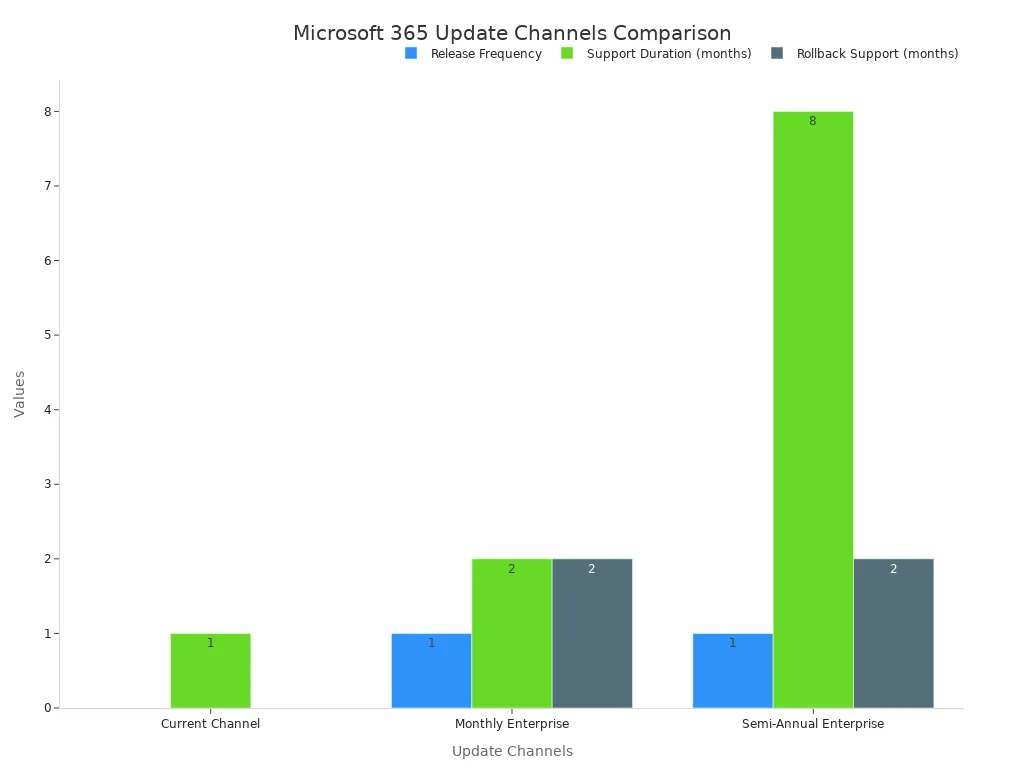
Choose the update channel that matches your business needs. For example, use the Current Channel for users who need the latest features right away. Use the Semi-Annual Enterprise Channel for devices that run automated tasks or need more testing before updates.
By setting clear update settings for rings, groups, and channels, you gain control over your 365 environment. You keep your users secure and productive while reducing surprises from unexpected updates.
Automating and Scheduling Updates

Keeping your organization secure and productive means you must automate office updates and schedule them wisely. You can use several tools and strategies to manage automatic updates for Microsoft 365. These options help you reduce manual work, control timing, and ensure every device receives the right updates.
Automatic Deployment
You have many ways to automate office updates across your environment. The table below shows the main automation options for 365:
| Automation Option | Description |
|---|---|
| Update automatically | Client devices are updated directly from the Office CDN based on the defined update channel. |
| Manage updates with Intune | Set policies on devices to control how and when updates are received from the cloud. |
| Manage updates with cloud update | Comprehensive toolset for managing updates from the cloud for Monthly Enterprise and Current Channels. |
| Manage updates with Configuration Manager | Updates are downloaded and deployed to client devices using Configuration Manager. |
| Manage updates with Office Deployment Tool | Downloads updates to a local source for installation on client devices, requiring more management. |
You can choose the best method for your organization. Many IT teams prefer automatic updates because they keep 365 apps current without extra effort. Intune and cloud update tools let you set policies and schedules, so you control when updates happen. Configuration Manager works well for larger environments that need more control over deployment.
Tip: Review your update policies often to make sure every device receives the latest security patches and features.
Rollout Waves
You can minimize disruption by structuring rollout waves for monthly enterprise channel updates. Rollout waves help you test updates on a small group before a full deployment. You can use different approaches to fit your business needs:
- Use phased rollout to start with a pilot group, then expand to more users.
- Try a hub-and-spoke model to update central teams first, then branch offices.
- Create a wave-based plan that staggers updates over several days or weeks.
- Build a global template for consistency, but allow local teams to adjust as needed.
- Rely on local insights and strong governance to spot issues early and keep users productive.
This approach helps you catch problems before they affect everyone. You can pause or adjust the rollout if you see issues in the early waves.
User Engagement Strategies
You need users to adopt new features and updates quickly. Effective user engagement strategies can boost adoption rates for 365 apps. The table below highlights proven methods:
| Strategy | Description | Benefits |
|---|---|---|
| Streamline dashboards | Tailor dashboards to show only relevant data for specific user roles. | Reduces distractions and enhances focus on core tasks. |
| Custom apps for workgroups | Create customized apps to meet the needs of different teams. | Increases relevance and engagement for specific user groups. |
| Leverage visual tools | Use visual enhancements to improve user interaction with the system. | Makes the system more intuitive and engaging for users. |
| Personalization | Allow users to modify fields, forms, and dashboards to reflect their unique processes. | Improves relevance, enhances productivity, and increases user engagement. |
| Comprehensive training | Provide tailored training sessions and resources for different user roles. | Increases confidence, reduces support tickets, and improves overall productivity. |
You can combine these strategies to help users feel comfortable with automatic updates. Training and clear communication make transitions smoother. Personalization and visual tools keep users engaged and productive.
Note: Engaged users adapt faster to changes and report fewer issues after updates.
By automating and scheduling 365 updates, you save time and reduce risk. You keep your organization secure and ready for every new feature or patch.
Monitoring Updates and Handling Exceptions
Tracking Update Status
You need to track the progress of 365 deployments to keep your environment healthy. Start by using the Microsoft 365 Apps admin center or Intune dashboards. These tools show you which devices have received the latest 365 updates and which still need attention. You can filter by update channel, device group, or location. This helps you spot patterns and address issues quickly.
Set up alerts for failed or delayed deployments. Review update logs to see why a device did not update. If you see repeated failures, investigate the root cause. You can use built-in reports to check compliance and identify devices that fall behind. Regular monitoring keeps your 365 environment secure and reduces surprises.
Tip: Schedule weekly reviews of your update dashboards. This habit helps you catch problems before they grow.
Compliance and Reporting
You must prove that your organization follows update policies. Use compliance reports in the Microsoft 365 Apps admin center or Configuration Manager. These reports show which devices meet your update standards. You can export data to share with auditors or leadership.
Create a simple table to track compliance:
| Device Group | Update Status | Last Update Date | Compliance (%) |
|---|---|---|---|
| IT | Up to date | 2025-06-01 | 100% |
| Finance | Pending | 2025-05-28 | 85% |
| Sales | Up to date | 2025-06-01 | 98% |
Review compliance data each month. Address gaps by reaching out to device owners or adjusting update schedules. Good reporting builds trust with stakeholders and shows that you manage 365 responsibly.
Managing Rollbacks and Failures
Sometimes, a 365 update causes problems. You need a clear plan to handle these situations. Start by rolling back affected systems to the last-known-good configuration. Make sure your team agrees on what that state is. If you need to act fast, remove updated systems from production and direct users to stable devices.
You can use feature flags to bypass the part of 365 that causes trouble. This lets you continue the rollout while you fix the issue. For urgent problems, deploy a hotfix using safe practices but with a faster timeline.
Clear communication matters during incidents. Assign roles so everyone knows who will inform users and leaders. After you resolve the issue, hold a blameless review to learn from the event. Test your rollback and failure plans often to stay ready for the next challenge.
Note: A strong exception plan keeps your 365 environment stable and your users confident.
Communication and Optimization Strategies
Communicating Updates Effectively
You must communicate clearly when you manage 365 in your organization. Good communication helps users understand what is changing and why it matters. You should avoid technical jargon and use plain language. Summarize the most important points and explain how the updates will affect daily work. You can use email, chat, or internal portals to share information. Visual aids, such as screenshots or short videos, can make your message easier to understand.
Tip: Send update notifications before changes happen. Give users time to prepare and ask questions.
You should also target your messages. For example, send technical details to IT staff and simple instructions to end users. This approach reduces confusion and builds trust across your teams.
Continuous Improvement
You need to review your 365 update process often. Look for ways to make your workflow faster and more reliable. Track how long it takes to deploy updates and how many issues you find. Use this data to spot patterns and improve your methods. Meet with your team after each major update. Discuss what worked well and what you can do better next time.
You can set up a checklist for each update cycle:
- Review update release notes.
- Test updates in a pilot group.
- Communicate changes to users.
- Monitor for issues after deployment.
- Collect feedback from users and IT staff.
This checklist helps you stay organized and ensures you do not miss important steps. Over time, you will build a repeatable process that keeps your microsoft 365 environment secure and efficient.
Leveraging Feedback
You should gather feedback from users to learn how 365 updates affect their work. Feedback helps you find problems early and improve future deployments. You can use built-in thumbs up or thumbs down reactions for quick responses. For deeper insights, you can add custom feedback forms using Adaptive Cards. These forms let users rate their experience or leave comments.
Here is a table comparing two feedback options:
| Feature/aspect | Built-in thumbs up/down reactions | Custom feedback via Adaptive Card |
|---|---|---|
| Setup and effort | Zero setup required | Requires configuration |
| Feedback format | Positive or Negative | Multi-choice, rating scale, or text input |
| User experience | Simple, one click | Richer, but can be intrusive |
| Data captured | Reaction and comment | Custom data, ratings, or choices |
| Analytics | Automatic in Copilot Studio | Needs custom reporting |
| Extensibility | Limited | Extensible and customizable |
| Ideal use cases | General satisfaction | Deep feedback or custom workflows |
You can also:
- Allow users to access a feedback portal.
- Let users submit feedback directly to Microsoft.
- Use in-product surveys to collect opinions.
- Enable users to attach screenshots or log files.
- Allow Microsoft to follow up on feedback.
Note: Regular feedback helps you adapt your update process and keeps users engaged.
By focusing on communication, continuous improvement, and feedback, you turn 365 update management into a strategic advantage for your organization.
You can streamline 365 update management by filtering out unnecessary changes, prioritizing the most important 365 updates, and automating your workflows. Proactive communication and continuous optimization help your organization manage 365 changes, boost user productivity, and keep your environment secure. Customers who use the continuous update channel report higher satisfaction. To succeed, you should build a repeatable process for 365, assign clear ownership, and validate every upgrade. This approach keeps your 365 solution future-ready and aligned with your business goals.
Microsoft 365 Apps Update Management Checklist
Checklist to plan, configure, deploy, monitor, and maintain updates for Microsoft 365 Apps (m365 update management).
Planning
- Inventory current Microsoft 365 Apps versions across devices
- Identify supported channels (Current Channel, Monthly Enterprise Channel, Semi-Annual Enterprise Channel)
- Define update cadence and maintenance windows aligned with business needs
- Establish update approval and rollback policies
- Document device groups and pilot cohorts for phased rollout
Configuration
- Enable and configure update channels and channel assignments in admin center
- Configure Microsoft Endpoint Configuration Manager or Intune for update distribution
- Set Group Policy or registry settings for Office update behavior where applicable
- Configure delivery optimization and bandwidth limits to reduce network impact
- Ensure telemetry and diagnostic settings are appropriate for update visibility
Pilot and Testing
- Select pilot users/devices representing key roles and configurations
- Validate update installation, application functionality, and add-ins compatibility in pilot
- Verify user experience for updates that require restarts or app restarts
- Collect feedback and adjust policies before wide deployment
Deployment
- Schedule phased rollout to device groups based on pilot results
- Monitor deployment progress and address failed installations promptly
- Use feature control to block or enable specific updates if needed
- Communicate update schedule and expected impacts to end users
Monitoring and Reporting
- Monitor update status and installation success rates in admin consoles
- Configure alerts for failed deployments or unexpected behavior
- Track compatibility and performance metrics post-update
- Maintain logs for auditing and compliance purposes
Compliance and Security
- Ensure updates address critical security vulnerabilities promptly
- Verify compliance with organizational patching policies and SLAs
- Maintain an up-to-date inventory for regulatory reporting
- Implement least-privilege and secure configuration for update management tools
Troubleshooting and Rollback
- Define rollback procedures and recovery points for problematic updates
- Keep known-good builds available for re-imaging or repair
- Document common installation errors and remediation steps
- Validate restore and rollback in a test environment periodically
Continuous Improvement
- Review update policies and outcomes after each deployment cycle
- Update pilot criteria and testing procedures based on lessons learned
- Train IT staff and update runbooks for m365 update management
- Automate reporting and common remediation tasks where possible
microsoft 365 update and office 365 update settings
What is m365 update management and why is it important?
m365 update management refers to the processes and tools used to update Microsoft 365 apps, Office 365 applications and the Office 365 client across devices. It ensures users run the latest version of office, receive security patches, and maintain compatibility. Effective update management reduces security risk, improves stability and supports compliance with enterprise patch management policies.
How do updates to Microsoft 365 apps get delivered?
Updates to Microsoft 365 apps are delivered via Office Click-to-Run for most consumer and business installations, Windows Update for Business in some cases, or through centralized tools like Microsoft Configuration Manager. Administrators can also deploy updates using update packages obtained with the Office deployment tool to download specific builds or channels.
Can I manage updates to Microsoft 365 from Microsoft Configuration Manager?
Yes. You can use Microsoft Configuration Manager (ConfigMgr) to manage updates to Microsoft 365 apps by importing the Office 365 client management features and deploying updates as software update management. ConfigMgr integrates with software update management workflow and lets you create deployment rings, test updates and use apps with Microsoft Configuration Manager to target devices.
What is the difference between Microsoft 365 Apps for enterprise and Microsoft 365 Apps for business when updating?
Functionally the update mechanisms are similar, both use Click-to-Run and support updates through Microsoft Update, Configuration Manager, or Office deployment tool. Licensing and feature availability differ: Microsoft 365 Apps for enterprise often includes broader admin controls and integration with enterprise management tools used in patch management workflows compared to Microsoft 365 Apps for business.
How do I control update channels and version of Office for my organization?
Control of update channels (Monthly, Current Channel, Semi-Annual, etc.) and the version of Office is handled through Group Policy, Office deployment tool configuration XML, Microsoft Endpoint Manager or Configuration Manager. Administrators configure the update package and channel to set when and which updates are applied, ensuring the latest office 365 or a specific version of office is deployed.
What is the Office Deployment Tool and when should I use it?
The Office Deployment Tool is a command-line utility used to download and deploy Office 365 installation files, specify channels, and create update packages for managed deployments. Use it when you need offline installations, to configure update settings centrally, or to deploy a specific version of Microsoft or Office 2016/Office 365 installations across many devices.
How does Office Click-to-Run affect updating Office 365 applications?
Office Click-to-Run streams and updates Office 365 applications efficiently by applying updates in the background with minimal user disruption. It supports automatic updates and allows administrators to control update channels and timing. Click-to-Run is the primary mechanism for Office 365 client updates on modern Windows systems.
Can I hide or defer updates to Microsoft 365 apps?
Yes. Administrators can hide or defer updates by configuring update policies in Configuration Manager, using Group Policy, or choosing a slower update channel. However, excessive deferral increases security risk; use phased deployments and testing rings to balance stability and timely security patching.
How do I update Microsoft Office 365 for devices that don’t use Configuration Manager?
For devices not managed by Configuration Manager you can enable automatic updates via Office Click-to-Run, use Windows Update for Business, deploy updates with Microsoft Endpoint Manager (Intune), or run the Office deployment tool to update the office 365 installation. Users can also manually check for updates from within an Office app (File > Account > Update Options > Update Now).
What are best practices for patch management of 365 applications?
Best practices include testing updates in a pilot group, using phased deployments, automating update approval where possible, monitoring update compliance, and integrating with your broader software update management workflow. Use Configuration Manager or Endpoint Manager to create update rings, report on update status, and ensure critical security updates to Microsoft 365 apps are prioritized.
How do I check the latest version of Office or version of Microsoft installed?
Open any Office app, go to File > Account, and look under Product Information for the version and build. Administrators can also inventory versions using Configuration Manager, Intune, or scripts that query Click-to-Run. Microsoft Docs and Microsoft Learn provide official guidance on interpreting version numbers and channel builds.
Are there additional costs to manage updates to Microsoft 365?
Updating the Microsoft 365 apps themselves is included with the subscription, but additional costs can arise from using paid management tools, advanced endpoint management suites, or consultant services. Solutions like Microsoft Configuration Manager, Intune, or third-party patch management tools may require licensing or infrastructure costs.
How do I update Office 2016 or legacy versions when moving to Microsoft 365?
To move from Office 2016 to Microsoft 365 apps, use the Office deployment tool or in-place upgrade methods supported by Click-to-Run. Plan for compatibility testing, review the version of office supported, and use Configuration Manager or Intune for large-scale deployments to ensure updates and feature parity during transition.
Where can I find official guidance and scripts for update microsoft 365 tasks?
Official guidance, deployment examples and scripts are available on Microsoft Docs and Microsoft Learn. Search topics like update microsoft 365, office click-to-run, and using Microsoft Configuration Manager to update Microsoft 365. These resources include sample XML for the Office deployment tool and recommended update settings.
How do I configure update settings for Office 365 applications to minimize disruption?
Configure update settings by selecting appropriate channels (e.g., Semi-Annual Channel), scheduling maintenance windows in Configuration Manager or Intune, enabling automatic updates outside business hours, and using deployment rings to phase updates. This approach balances timely updates with minimal impact on end users.
Can I use Configuration Manager to deploy updates with patch for non-Microsoft apps along with 365 applications?
Yes. Configuration Manager supports software update management for both Microsoft and many third-party applications using integrated update catalogs or vendor-supplied patches. You can create synchronized workflows to deploy updates with patch and report on compliance across your environment.
What should I do if an update breaks functionality in an Office 365 app?
If an update causes issues, roll back to a previous version using Click-to-Run or Configuration Manager, pause the update deployment, and investigate using logs and telemetry. Test a fix in a pilot group before redeploying. Keep communication channels open with users and consult Microsoft Docs for known issues and mitigations.
How do I keep track of update packages and the update microsoft 365 roadmap?
Track update packages using Configuration Manager or Endpoint Manager reporting, subscribe to Microsoft 365 release notes and Message Center, and follow Microsoft Docs for updates to microsoft 365 apps. Maintain an internal change log and align update schedule with your organization's patch management calendar.
Is there a difference between updating office 365 and update microsoft office 365 commands?
Semantically they refer to the same goal—keeping the Office 365 apps current—but the method can differ: “updating office 365” often implies end-user or Click-to-Run updates, while “update microsoft office 365” in admin contexts may imply scripted or managed deployments via Configuration Manager, Office deployment tool, or Intune. Choose the approach that fits your environment and policy requirements.
How can small businesses manage Microsoft 365 updates with minimal IT overhead?
Small businesses can enable automatic updates via Office Click-to-Run, use Microsoft 365 Apps for business default settings, and rely on built-in update mechanisms. For more control, use Microsoft Endpoint Manager (Intune) which is cloud-based and simpler to manage than on-premises Configuration Manager, balancing cost and administrative overhead.
🚀 Want to be part of m365.fm?
Then stop just listening… and start showing up.
👉 Connect with me on LinkedIn and let’s make something happen:
- 🎙️ Be a podcast guest and share your story
- 🎧 Host your own episode (yes, seriously)
- 💡 Pitch topics the community actually wants to hear
- 🌍 Build your personal brand in the Microsoft 365 space
This isn’t just a podcast — it’s a platform for people who take action.
🔥 Most people wait. The best ones don’t.
👉 Connect with me on LinkedIn and send me a message:
"I want in"
Let’s build something awesome 👊
Imagine opening your inbox Monday morning to discover Microsoft made 350 changes last month alone. Which of those updates could break a workflow, spark a compliance review, or confuse your end-users? The truth is, most IT teams can't track it all—but ignoring them carries hidden costs you don't see until it's too late. Stay with me, because in this session we'll cut through the noise and show a clear path to knowing what matters and what you can safely ignore.
The Hidden Weight of 350 Updates
Imagine trying to read every patch note while also keeping your ticket queue from overflowing. That’s what it feels like when Microsoft drops hundreds of changes every single month into Microsoft 365. The message center fills up, the roadmap keeps shifting, and before you’ve even processed one major update, five smaller ones are already rolling out in the background. On paper, three to four hundred changes a month might look like progress. In practice, it pulls IT into a constant juggling act where just staying aware feels impossible, let alone staying ahead. Think about how much time it would take to review even half of those posts in detail. Let’s say you spend just five minutes skimming each one. That’s already 25 hours a month, gone. And that’s only skimming. If you want to actually understand the dependencies, test features, or flag compliance concerns, five minutes doesn’t cut it. At scale, that task balloons into something no one has the resources to manage. The math alone makes it obvious that you can’t approach these updates by brute force. But the reality hits hardest when “small” changes roll out that cripple workflows. For example, Teams often receives what look like harmless policy adjustments—something about a new setting for meeting experiences or a tweak to external access. But those “minor” toggles have in the past shut down business processes for some tenants overnight. Imagine a finance team about to run their end-of-month review, only to discover the reporting workflow they rely on is suddenly blocked because guest access rules shifted in ways they weren’t warned about. The change log might describe it in one vague sentence, but the fallout lands in real people’s backlogs, and it lands hard. This is where the weight of volume shows more than anywhere else. When you can’t tell which of the 350 notifications are worth immediate attention, the instinct becomes to tune it all out. IT admins often admit quietly that they’ve stopped checking every single update, because sifting through endless “Coming soon” or “Preview” posts doesn’t feel productive. The challenge is that while most updates really are irrelevant to a specific tenant, the rare ones that do matter carry more than an inconvenience—they can touch compliance risks, create exposure for data retention, or trigger costly downtime. That last five percent creates the dilemma. Ignore too much, and you risk missing the one note that would have saved you from hours of cleanup. The fatigue around this volume isn’t only anecdotal. In surveys across enterprise IT, admins consistently describe an “update overload.” Some report that without proper filters, the information feels like noise instead of guidance. Traditional IT systems were built to distribute service packs every few months, not hundreds of dripped changes across cloud apps. The pace erodes confidence that you can reasonably prepare. Many enterprises tried creating internal watchlists or assigning staff to review updates daily, but those tasks often fall by the side once the reality of project deadlines and support tickets takes precedence. That’s when blind spots creep in. I’ve seen cases where an update labeled as “administrative experience” ended up creating audit requirements for compliance teams, simply because data location handling changed in the background. That kind of surprise usually sparks tense conversations between IT and governance teams, with everyone asking why the issue wasn’t flagged earlier. But when the original message was buried among 300 other minor notes, it’s actually no wonder the alert didn’t stand out. Too much volume creates blind spots, and blind spots create exposure. The human side of this problem often gets lost in the technical detail. There are admins balancing multiple tenants, support engineers trying to keep services healthy, and project leads chasing new deployments—all while Microsoft quietly slides new changes under the door every other day. For many, the coping mechanism is selective ignorance: focusing on the handful of updates that seem important, and quietly skipping the rest. The problem is, the skipped ones are exactly where the risks often hide. It’s like ignoring most of your car’s warning lights because nine times out of ten it’s just low windshield fluid. You only notice the tenth when the engine fails. And that’s what makes awareness itself the first real challenge. It’s not just that three to four hundred updates exist each month, it’s that the pace erodes the tools and habits needed to process them. Pretending you can read every patch note is a fantasy. Recognizing you can’t—that’s the first step toward building a system that works. The heavy load isn’t going to slow down, so the smarter answer is cutting through the noise to find the signals. Now let’s move from knowing you’re underwater to spotting which updates are the real lifelines hiding in that flood.
Sorting Chaos Into Signals
Not every change is urgent—so which ones are worth dropping everything for, and which ones can safely fade into the background? That’s the heart of the problem with Microsoft 365’s flood of updates. You know the volume is heavy, but the real headache is figuring out which updates actually demand your attention before they spiral into bigger issues. Treating them all as equal isn’t sustainable, and neither is ignoring them altogether. The trick is knowing where each update sits on the scale of urgency. Think of it like being in an emergency room. A nurse doesn’t treat every patient as if they’re in the middle of a heart attack. Someone with chest pain will get examined immediately, while a broken finger can wait. The same is true with Microsoft’s updates. A security patch that closes a vulnerability belongs in the “treat-now” category. On the other hand, a fresh icon redesign for Outlook probably won’t ruin anyone’s week. Both are changes, but they deserve different levels of reaction. Without triage, you burn energy on the small stuff while the real emergencies slip past unnoticed. The reality is that M365 changes come in several flavors, and the urgency depends on the type. Security-critical updates address vulnerabilities that attackers can exploit if you leave them unpatched. Compliance-related updates may alter how data is stored, processed, or retained, pulling in legal and governance teams. User-experience changes affect how staff interact with tools, and while they rarely create security risks, they do come with training or support costs if you don’t prepare the ground. Then there are feature previews or experimental rollouts, which may tempt early adopters on your team but carry lower priority for production systems. Each category needs its own default response strategy. So, how do you actually separate them in practice? Microsoft gives you some signals if you know how to read them. The Message Center tags updates with categories like “security,” “feature update,” or “admin impact.” Those labels aren’t perfect, but they provide a starting filter. Add to that external resources—blogs that track roadmap shifts, community-driven summaries, or even third-party dashboards that condense the noise—and you start to see what actually matters for your environment. Cross-checking those signals against your internal processes cuts down wasted time. Instead of staring at 50 updates, you flag maybe five that are worth closer inspection. But here’s an important nuance: not every update applies to every business. Microsoft runs a global cloud, meaning some rollouts are only relevant to specific geographies, licensing tiers, or workloads. For instance, a new compliance setting in Exchange Online may only show up if you hold a particular level of licensing. If you don’t, spending time on that update is wasted effort. This is where tenant-specific awareness is key. Knowing which workloads you actually use in production keeps you from chasing phantom changes that will never affect your users. When admins forget this filter, they end up stressing over features that won’t even appear in their tenant. And that stress is real. Nothing creates more pressure than seeing an update and not being sure what bucket it belongs in. If you can’t immediately tell whether it’s compliance-related or just a cosmetic tweak, the default instinct is to treat it as urgent. That inflates the to-do list and feeds burnout. Teams start feeling like they’re on the back foot all the time, racing to catch up with changes that may never have deserved the effort. It’s the uncertainty as much as the workload that grinds people down. The benefit of categorization is not abstract—it’s measurable. By reducing the stream of “must-check” updates down to only those with business impact, you reclaim hours each month. Those hours are better spent on testing truly risky updates, engaging compliance officers when it matters, or building documentation for staff. Sorting isn’t busywork; it’s a direct time saver. And once you have a categorization habit, the flood of updates stops feeling like a blur and starts looking like predictable patterns. Great, now that we can sort the noise into signals, the next challenge is tougher: how do you actually judge the real-world impact of those updates inside your organization? That’s where the picture gets more complicated, because the people who feel the change aren’t always the ones running IT.
Impact: Who Feels It and When
An update can look tiny in Microsoft’s message center until it lands and breaks something that really matters. Maybe it’s a harmless description about a recording policy in Teams. But hidden in that change is a ripple effect—suddenly your HR system stops syncing files because retention rules shifted. Or your works council calls and asks why user activity is being logged differently than before. What started as one line in a changelog now becomes a cross-department fire drill. That’s the part that often catches IT teams off guard. The challenge isn’t reading about a change—it’s predicting who, inside or outside the IT group, is going to feel it first. The bigger issue is that you rarely know the impact until it shows up in a real workflow. A lot of teams only hear about it once end users put in tickets, or when a manager pushes back because their department can’t finish something critical. That means the first indicator of a system update is frustration on the business side, not early detection on the IT side. And once you’re already in reaction mode, you’re playing catch-up. This is why classifying updates by urgency isn’t enough; you need a way of forecasting whose world is about to shift and when. Take that Teams recording example again. Microsoft updates the default settings for how recordings are handled and stored. To an IT admin, it looks like another storage tweak. But if your legal department depends on specific retention periods for audits, this change is an immediate compliance issue. Waiting until after rollout isn’t an option, because non-compliance can lead to financial penalties or audits you never wanted. On the flip side, roll out a new Outlook interface design, and there’s no legal impact at all—yet support calls spike because users can’t find common actions where they used to. You don’t need compliance on day one, but you absolutely need a comms plan or some hands-on training so users don’t feel blindsided. The difference highlights why knowing the type of impact is only half the story. Timing and stakeholders matter just as much. When you think about it, each update lands in one or several domains—technical, legal, and operational. Technical updates change how the system itself works. Legal ones alter policies around retention, monitoring, or data protection. Operational updates affect how staff use tools on a daily basis, which touches productivity, training, and sometimes morale. Looking at each category helps you flag who needs to be looped in. If it’s technical, your IT engineers own it. If it’s legal, compliance or your data protection officer gets involved. If it’s operational, that’s on training and internal comms. Sometimes one update crosses all three at the same time, which is where coordinated response matters most. There’s another layer here most teams underestimate: organizational actors beyond IT. In German organizations, for example, the works council has a voice whenever employee data or monitoring comes into play. A change in reporting visibility or audit logs isn’t just “background IT noise.” It’s a trigger for worker representation bodies who want a say before rollout. Missing that involvement not only risks conflict but can slow projects to a halt until those concerns are addressed. So, part of anticipating impact is knowing when non-IT stakeholders need briefing before anything goes live. The mistake many admins make is treating every update as purely technical. They look at whether it breaks scripts or integrations, but stop short of asking: who in the business gets dragged into this if it goes wrong? Compliance cares when retention changes, finance cares when licensing impacts costs, HR cares when employee data visibility shifts, and everyday staff care when their app layouts move overnight. Impact isn’t just measured by outages—it’s measured by the organizational friction an update creates. When you start examining updates from that wider perspective, prioritization gets sharper. The goal shifts from “Did this update apply to my tenant?” to “Whose workflows are about to change?” That small adjustment changes the way you plan. It forces IT to stop being the only filter and instead act as the connector, making sure legal, operations, or the works council are aware of changes before they explode into issues. And here’s the key takeaway: assessing impact isn’t a technical checkbox. It’s organizational strategy. If you map changes to the right stakeholders at the right moment, updates become manageable instead of chaotic. Once you know the scope and who is affected, the next step is drawing the line between awareness and action. In other words, how do you turn insight into concrete steps your teams can follow? That’s where strategy comes in.
From Reaction to Strategy
IT teams often treat Microsoft 365 updates like fire drills—everything looks calm until an announcement hits, then everyone runs at once. Servers get patched late at night, scripts are written on the fly, and users wake up to apps acting differently without warning. It’s a routine that feels normal in many organizations, but it comes with hidden costs. Burnt-out admins, wasted hours, and in some cases, actual money lost because a change slipped past undetected. The pattern of reacting at the last possible moment isn’t proof of poor planning—it’s proof that the current way of handling updates doesn’t scale. Most IT pros can picture the scenario. You’re in the middle of another project—maybe a migration, maybe just dealing with tickets—and then you see that a critical update has already begun rolling out. Suddenly, you’re rushing to test integrations, verify policies, and notify stakeholders after the fact. It’s exhausting because you know the rollout didn’t need to be that chaotic. Instead of preparation, you’re trying to plug leaks. And the more this happens, the less energy is left for proactive work that actually improves the environment. The constant scramble turns what should be manageable adjustments into crises that eat days of effort. Reactive behavior has a cost that isn’t always visible at first. Every unplanned response drains team capacity, delays other projects, and shortens the patience of leadership who can’t understand why “small” changes keep causing disruption. Over time, the fatigue builds. Admins stop following updates closely, just to protect their own workload. That’s how critical items slip through undetected. One example came when licensing rules in Power Automate changed. A company kept their automations running as before, assuming nothing impactful had shifted. A month later, invoices landed for a much higher subscription tier, and by then, reversing the situation wasn’t possible. The finance team wasn’t happy, IT looked unprepared, and the costs were real. The obvious question is: how do you escape this cycle? You don’t stop updates and you can’t review every single one, but you can build a framework that forces clarity. Think of it like a decision tree. First question: does this update have compliance or security consequences? If yes, it’s non-negotiable, action immediately. If no, next question: could it disrupt a business-critical workflow or key integration? If yes, then testing and planned rollout are required. If both answers are no, then the update moves into a monitored bucket where you keep an eye on it but don’t expend resources until it actually matters. That basic filter shrinks hundreds of updates into just a handful of decisions at a time. The beauty of a decision tree is that it acts as a shared playbook. Everyone on the IT team sees the same flow. No more different admins making scattered calls about priority. Instead, there’s a single path that defines what deserves an immediate scramble and what doesn’t. This means your energy is spent where it counts. Compliance doesn’t slip, business processes stay intact, and the rest of the noise gets parked safely until it proves relevant. Of course, frameworks alone don’t save time unless they’re paired with efficient review habits. A simple adjustment is shifting from daily dives into every update feed to a scheduled weekly session. Thirty minutes once a week, dedicated to scanning categorized updates, is often enough to spot the key ones. And when that’s tied into the decision tree, the entire exercise is streamlined. Compare that to the dozens of times admins toggle into the message center throughout the week, often scanning without context and walking away more stressed than informed. The weekly review replaces scattered anxiety with structured focus. Automation plays a role here too. Several third-party dashboards, along with some Microsoft-provided tools, allow you to strip down the endless stream into curated lists that matter for your tenant. Instead of reading 300 posts, you might receive ten notifications automatically filtered for security, compliance, and high-impact changes. Automation doesn’t remove the need for human decision-making, but it acts as the first filter that saves your team hours. Combining automation with human categorization makes the workload finally feel manageable. There’s also a long-term payoff in documenting how you respond. Every time your team reacts to an update, capture what triggered the decision, who needed to be involved, and what actions followed. Over time, this builds into an internal playbook. The next time a similar update arrives, you already have a template for the response. That repetition removes guesswork, shortens reaction times, and trains the team to perform consistently. What started as panic-driven reaction evolves into predictable practice. When a team shifts from reactive chaos to applied strategy, updates stop being disruptive surprises. They become predictable, even routine, because you’ve already defined how to handle them before they arrive. Users experience smoother rollouts, the business sees less downtime, and IT gains breathing room to tackle projects that matter. But even with the best triage, categorization, and strategy, none of that matters if communication fails. And that’s often where the real breakdown begins—knowing what’s important doesn’t help unless you deliver the right message to the right people at the right time.
Communicating Without Adding Noise
You finally know which updates actually matter—so how do you tell end users without drowning them in noise? This is the point where many IT teams stumble. They’ve done the work of filtering hundreds of updates into a handful of relevant ones, but then they forward Microsoft’s patch notes straight to staff or managers. On the surface, that seems transparent. In reality, it’s the fastest way to bury the important message in technical jargon that no one outside IT wants to read. People already skim half the emails they get each day. If the subject line reads like a changelog, most won’t even open it. That’s where overcommunication quietly turns into undercommunication. By pushing too much raw data, you create the exact problem you’re trying to solve: information that looks overwhelming, so users tune out. Once people stop paying attention, you’ve lost the channel completely. The worst part is you don’t realize it until a high-impact update rolls out and staff complain they were “never told” anything about it. They were told, technically, but what they received didn’t connect with them. It’s like giving someone the entire raw weather forecast when all they want is to know if it will rain today. Yes, sharing wind speeds and pressure changes is complete. But for most people, it’s useless detail that hides the real point: “bring an umbrella.” Communication around updates has the same principle. End users don’t need to know what registry keys changed. They care about whether their files are stored differently, their login screen looks new, or their usual workflow has extra steps tomorrow. That’s the level where information becomes usable, instead of background noise. So the challenge isn’t just relaying Microsoft’s text. It’s translating it. Best practice starts with summarizing in plain language. Drop the official phrases and write it in a sentence people can actually understand. Something like, “When you join a Teams meeting next week, recordings will be saved here instead of there. Nothing you need to do now, but here’s where to find them.” That single sentence adds more clarity than three pages of Microsoft’s patch notes. The next step is audience targeting. Not every update affects everyone. The finance team doesn’t care about UI tweaks in Teams. Compliance officers don’t need to know about emoji reactions getting added. You don’t copy-paste every change to every inbox. You tailor the message to the group that needs it. That could mean end-user notes for staff, governance briefings for legal, and technical details reserved for IT. Each group gets what matters to them, nothing more. And if you want people to actually read the message, keep it focused. Instead of dumping one hundred small updates, filter it into “three key changes this week, and what you should do about them.” That’s actionable. People don’t feel like you’re wasting their time. They see a short, clear list and know right away if something requires attention. The difference between “here are all the changes Microsoft made this week” and “these are your three takeaways” is the difference between ignored emails and useful communication. The delivery channel matters too. Email isn’t always your best option. If staff live in Teams every day, a targeted Teams announcement reaches them where they already are. Compliance-heavy updates might not need company-wide messages at all—they deserve a leadership briefing with stakeholders who will feel the impact. Using the correct channel is how you avoid notification fatigue. The same way you wouldn’t broadcast payroll updates in a sales scroll, you shouldn’t drop governance updates in a casual Teams chat. Context shapes how much trust people give to the message. And speaking of trust, that’s the real currency of IT communication. Messaging that feels selective or incomplete erodes confidence. People start thinking IT hides or filters what it wants, and resistance builds. Clear, proactive notes where you admit upfront what’s changing and why it matters build the opposite. Users feel they are part of the loop. Managers see IT not as a gatekeeper blocking change but as a partner making disruption easier to handle. The difference is huge when updates touch on sensitive topics like productivity metrics or data logs. Transparency keeps things collaborative instead of confrontational. Good communication pays off quickly. Staff start expecting short, useful updates rather than endless streams of unreadable text. Leaders trust IT when you summarize compliance shifts in a way that connects to real business impact. The message center stops being a wall of noise because you’ve already absorbed and translated it before anyone else sees it. IT looks more strategic. Not as the department of “no,” but as the group that turns Microsoft’s chaos into clarity. So where does all this leave us? Once you can filter the flood, assess the impact, set a strategy, and deliver clear communication, you stop treating updates as a problem and start turning them into an advantage. And that’s where we arrive at the bigger picture.
Conclusion
The flood of Microsoft 365 updates isn’t slowing down. But the difference between drowning in noise and staying in control comes down to how you filter, assess, act, and most importantly, communicate. The work isn’t about knowing everything—it’s about knowing what matters for your organization and when. So here’s the challenge: stop chasing every single change, but also stop ignoring the hidden costs of tuning it all out. Build clarity into your process now, before the next wave hits. The future of Microsoft 365 won’t bring fewer updates—it’ll reward smarter management. And that clarity starts with you.
This is a public episode. If you'd like to discuss this with other subscribers or get access to bonus episodes, visit m365.show/subscribe

Founder of m365.fm, m365.show and m365con.net
Mirko Peters is a Microsoft 365 expert, content creator, and founder of m365.fm, a platform dedicated to sharing practical insights on modern workplace technologies. His work focuses on Microsoft 365 governance, security, collaboration, and real-world implementation strategies.
Through his podcast and written content, Mirko provides hands-on guidance for IT professionals, architects, and business leaders navigating the complexities of Microsoft 365. He is known for translating complex topics into clear, actionable advice, often highlighting common mistakes and overlooked risks in real-world environments.
With a strong emphasis on community contribution and knowledge sharing, Mirko is actively building a platform that connects experts, shares experiences, and helps organizations get the most out of their Microsoft 365 investments.