

 Apple Podcasts
 Spotify
 Youtube Music
 Spreaker
 Podchaser
 Amazon Music
Still writing PowerShell against MSOnline and AzureAD modules in 2025? This episode explains why that stack is legacy – and how to go API-first with pure REST and Microsoft Graph. We walk through the core “token, headers, REST call” pattern, three real-world auth flows (device code, client credentials with certificates, and managed identity), plus the one token audience gotcha that breaks most Graph scripts.
You’ll see how to build cross-platform Graph automation that runs cleanly on Linux, containers, GitHub Actions, Azure Functions, and Azure Automation – with no fragile module dependencies. Then we apply the pattern to enterprise scenarios: Intune device cleanup, identity onboarding, and compliance drift detection and remediation, all with least-privilege Graph permissions, robust retry logic, pagination helpers, and full audit trails in Log Analytics.
If you’re an Azure, Intune, or Microsoft 365 engineer who’s tired of “works on my laptop” modules, this practical Graph-first PowerShell deep dive is your fast path off legacy cmdlets.






As businesses increasingly rely on Microsoft 365, automating management tasks becomes essential. You can enhance efficiency and save valuable time by integrating PowerShell + Graph API. This powerful combination unlocks robust management capabilities that streamline operations.
However, many users encounter challenges. For instance, some key functionalities lack documented endpoints, complicating automation efforts. Additionally, legacy APIs may lead to silent failures, hindering your scripts' maintainability. Don't worry! This post will break down these complex concepts into easy, actionable steps, guiding you through the process with clear solutions.
Key Takeaways
- Integrate PowerShell with Graph API to automate Microsoft 365 tasks and enhance efficiency.
- Ensure your system meets prerequisites like PowerShell 7 or higher and the latest Microsoft Graph module for smooth execution.
- Understand permissions and scopes to control what your scripts can access in Microsoft 365, following the principle of least privilege.
- Register your app in Azure AD to create a secure identity for your scripts, allowing safe access to Microsoft Graph.
- Choose the right authentication flow, such as Device Code Flow or Managed Identity Flow, to secure your access tokens effectively.
- Construct well-formed HTTP requests using PowerShell to interact with Microsoft Graph API and retrieve data.
- Handle errors and API limits carefully to ensure your scripts run smoothly and avoid disruptions.
- Optimize your scripts by using selective property retrieval and batching requests to improve performance and reduce resource consumption.
Prerequisites for PowerShell + Graph API
Before you start automating Microsoft 365 tasks using PowerShell + Graph API, you need to prepare your system and environment properly. This preparation ensures smooth execution and secure access to Microsoft Graph resources.
Installing PowerShell Modules
You must install the right PowerShell modules to interact with Microsoft Graph API. The Microsoft Graph PowerShell SDK provides all the necessary cmdlets for this integration. To avoid errors, check your system meets these minimum requirements:
| Requirement | Description |
|---|---|
| PowerShell Version | PowerShell version 7 or higher is required. |
| .NET Framework | .NET Framework 4.7.2 or later is necessary on macOS. |
| PowerShellGet | Update PowerShellGet to the latest version. |
| Execution Policy | Set the execution policy to remote signed or less restrictive. |
You can update PowerShellGet by running Install-Module PowerShellGet -Force and set the execution policy with Set-ExecutionPolicy RemoteSigned. After that, install the Microsoft Graph module using:
Install-Module Microsoft.Graph -Scope CurrentUser
This command downloads the latest stable version of the module, enabling you to call Microsoft Graph endpoints easily.
Setting Up Microsoft 365 Environment
Configuring your Microsoft 365 environment correctly is crucial for automation. Follow these steps to get started:
- Confirm your system meets the requirements: PowerShell 7.2 or later, .NET Framework 4.7.2 or newer, and the latest PowerShellGet module.
- Install the Microsoft Graph PowerShell module as shown above.
- Connect to your Microsoft 365 tenant by importing the module and authenticating with the necessary scopes. For example:
Connect-MgGraph -Scopes "User.ReadWrite.All","Directory.ReadWrite.All"
This command prompts you to sign in and grants your session permissions to read and write user and directory data. You can adjust scopes depending on your automation needs.
Understanding Permissions and Scopes
Permissions and scopes define what your scripts can access or modify in Microsoft 365. Microsoft Graph API uses two main permission types:
- Delegated permissions: These apply when you run scripts as a signed-in user. They limit access to data the user owns or can access.
- Application permissions: These allow your app or script to access data across the organization without a signed-in user.
Common permissions include *.Read.All for read-only access and *.ReadWrite.All for full read and write capabilities. For example, SecurityActions.Read.All lets you view security actions, while SecurityActions.ReadWrite.All allows you to modify them.
Application permissions require admin consent. A tenant administrator must approve these permissions to ensure security. Also, users need appropriate Microsoft Entra roles, like Security Reader, to access sensitive data. This role-based access adds an extra security layer.
When you connect using the Microsoft Graph PowerShell SDK, specify only the scopes your script needs. This practice follows the principle of least privilege, reducing security risks. Keep in mind that permissions granted to your app apply to all users of that app, so review and manage them regularly.
By understanding and configuring permissions carefully, you protect your environment while enabling powerful automation with PowerShell + Graph API.
App Identity in Azure AD
Registering a New App
To automate Microsoft 365 tasks with PowerShell and Graph API, you first need to register an application in Azure Active Directory (Azure AD). This app acts as an identity that your scripts use to access Microsoft Graph securely. Follow these steps to register your app:
- Open the Azure portal and navigate to Azure Active Directory > App registrations > New registration.
- Give your app a meaningful name, such as "My Graph App".
- Choose the supported account types:
- Single tenant: Only users in your Azure AD tenant can sign in.
- Multi-tenant: Users from any Azure AD tenant can sign in.
- Multi-tenant and personal accounts: Includes Azure AD users and personal Microsoft accounts.
- Set the Redirect URI based on your app type:
- For web apps, use a URL like
https://yourapp.com/auth/callback. - For single-page apps, use
https://yourapp.com. - For mobile or desktop apps, use
https://login.microsoftonline.com/common/oauth2/nativeclient.
- For web apps, use a URL like
- Click Register to create your app.
This process creates a unique application identity in your tenant. You will use this identity to request tokens and call Microsoft Graph API.
Configuring API Permissions
After registering your app, you must configure the API permissions it needs. These permissions control what your app can access or modify in Microsoft 365. To set permissions:
- In your app registration, go to API permissions > Add a permission > Microsoft Graph.
- Choose Delegated permissions if your app runs with a signed-in user’s context. This limits access to data the user can access.
- Select the specific permissions your app requires, such as
User.ReadorMail.Read. - Click Add permissions to apply them.
⚠️ Always apply the principle of least privilege. Assign only the permissions your app needs to reduce security risks.
Some permissions require admin consent before your app can use them. You can grant this consent by clicking Grant admin consent for [tenant name] in the Azure portal. Regularly review permissions to avoid over-privileging your app.
Generating Client Secret or Certificate
Your app needs credentials to authenticate securely with Azure AD. You can use either a client secret or a certificate. Both methods prove your app’s identity when requesting tokens.
| Method | Advantages | Disadvantages |
|---|---|---|
| Client Secret | Easy to create and use; works with many authentication flows. | Acts like a password; can leak if not stored securely; no automatic alert if compromised. |
| Certificate | More secure; does not send the actual certificate during authentication; supports immediate revocation via CRL. | More complex to manage; Azure AD does not automatically check certificate revocation lists. |
To create a client secret, go to Certificates & secrets in your app registration, select New client secret, add a description, and set an expiration period. For certificates, upload a valid certificate file under the same section.
Choosing between a client secret and a certificate depends on your security needs and environment. Certificates provide stronger security but require more management effort. Client secrets offer simplicity but demand careful handling to avoid leaks.
By registering your app properly, configuring precise permissions, and securing credentials, you establish a strong foundation for automating Microsoft 365 with PowerShell and Microsoft Graph API.
Acquiring Access Tokens
Understanding OAuth 2.0
OAuth 2.0 plays a vital role in securing your access to Microsoft Graph API when using PowerShell + Graph API. It acts as a trusted gatekeeper that lets your applications authenticate safely and obtain access tokens. These tokens serve as digital keys, granting your scripts permission to call Microsoft Graph endpoints without exposing your credentials directly.
To use OAuth 2.0, you must first register your application in Azure Active Directory (Azure AD). This registration provides client credentials, such as an application ID and secret or certificate. When your script requests an access token, it presents these credentials to Azure AD. Azure AD then verifies your identity and issues a short-lived token. Your script includes this token in API requests to prove it has the right to access the requested resources.
This process ensures secure, controlled access to Microsoft 365 data. It also supports fine-grained permissions, so your scripts only get the access they need. By following OAuth 2.0 standards, you protect your environment from unauthorized access while enabling powerful automation with PowerShell + Graph API.
Using PowerShell for Token Requests
You can acquire access tokens using several authentication flows tailored to different scenarios. Each flow balances security and usability differently. Microsoft Graph API supports these common flows:
- Device Code Flow: Ideal for devices or scripts without a browser or input capabilities. You authenticate on a separate device, making it secure and user-friendly.
- Certificate-Based Flow: Designed for headless automation, this flow uses certificates instead of passwords, enhancing security for unattended scripts.
- Managed Identity Flow: Best for cloud-native environments like Azure Functions or virtual machines, this flow leverages Azure's managed identities to obtain tokens without storing secrets.
Below, you will find detailed explanations and PowerShell examples for each flow.
Device Code Flow
Device Code Flow works well when you run scripts locally or on devices without easy input options. It lets you authenticate interactively on another device, such as your phone or PC browser.
Here is how you can use Device Code Flow with PowerShell:
Run the following command to start the device code authentication:
Connect-MgGraph -Scopes "User.Read.All" -DeviceCodePowerShell displays a code and a URL. Open the URL in your browser on any device.
Enter the code shown in PowerShell and sign in with your Microsoft 365 account.
After successful authentication, PowerShell obtains an access token and connects your session.
💡 Device Code Flow balances security and usability. It avoids embedding credentials in scripts and works well for manual or semi-automated tasks.
Certificate-Based Flow
Certificate-Based Flow suits automated scripts running without user interaction. Instead of a client secret, you use a certificate to prove your app’s identity. This method reduces risks related to leaked secrets.
To use this flow, follow these steps:
- Register your app in Azure AD and upload a certificate under Certificates & secrets.
- Store the certificate securely on the machine running your script.
- Use PowerShell to request a token by specifying the certificate thumbprint, client ID, and tenant ID.
Here is a simplified example of how to get a token using a certificate in PowerShell:
$tenantId = "YOUR_TENANT_ID"
$clientId = "YOUR_CLIENT_ID"
$certThumbprint = "YOUR_CERT_THUMBPRINT"

$cert = Get-Item Cert:\CurrentUser\My\$certThumbprint

$body = @{
    grant_type = "client_credentials"
    client_id = $clientId
    scope = "https://graph.microsoft.com/.default"
    client_assertion_type = "urn:ietf:params:oauth:client-assertion-type:jwt-bearer"
    client_assertion = New-JwtToken -Certificate $cert -TenantId $tenantId -ClientId $clientId
}

$tokenResponse = Invoke-RestMethod -Method Post -Uri "https://login.microsoftonline.com/$tenantId/oauth2/v2.0/token" -Body $body
$accessToken = $tokenResponse.access_token
⚠️ Managing certificates requires care. Protect private keys and rotate certificates regularly to maintain security.
Managed Identity Flow
Managed Identity Flow works best when you run PowerShell + Graph API scripts inside Azure services like Azure Virtual Machines, Azure Functions, or Azure Automation. Azure automatically assigns an identity to your resource, so you do not need to manage credentials manually.
To get an access token using Managed Identity, follow these steps:
- Enable Managed Identity on your Azure resource.
- Assign the necessary Microsoft Graph API permissions to this identity in Azure AD.
- Use PowerShell to request a token from the local Azure Instance Metadata Service (IMDS).
Example PowerShell snippet to get a token via Managed Identity:
$resource = "https://graph.microsoft.com"
$tokenAuthUri = "http://169.254.169.254/metadata/identity/oauth2/token?api-version=2018-02-01&resource=$resource"

$headers = @{ Metadata = "true" }
$response = Invoke-RestMethod -Method Get -Uri $tokenAuthUri -Headers $headers
$accessToken = $response.access_token
🔐 Managed Identity Flow eliminates the need to store secrets in your scripts. It provides secure, seamless authentication within Azure environments.
By choosing the right authentication flow, you ensure your PowerShell + Graph API scripts run securely and efficiently. Whether you prefer interactive sign-in, certificate-based automation, or cloud-native managed identities, OAuth 2.0 supports your needs with robust token management.
Summary of Token Acquisition Steps
Here is a quick overview of the general steps you follow to acquire access tokens in PowerShell:
- Register your app in Azure AD and configure permissions.
- Choose the authentication flow that fits your scenario.
- Use PowerShell commands or REST calls to request an access token.
- Include the token in your Microsoft Graph API requests to authenticate.
Following these steps helps you build secure, scalable automation scripts that leverage the full power of Microsoft Graph API.
Making API Calls with PowerShell + Graph API

Making API calls with PowerShell + Graph API allows you to interact with Microsoft 365 services effectively. Understanding how to construct HTTP requests is essential for successful communication with the API.
Constructing HTTP Requests
When you interact with Microsoft Graph API, you need to construct HTTP requests correctly. Here are the key components of an HTTP request:
- Access Token Retrieval: Use
Invoke-WebRequestto obtain an access token. - Headers Setup: Set necessary headers, including
Content-TypeandAuthorization. - GET Request: Make a GET request to the desired Microsoft Graph API endpoint.
By following these components, you ensure your requests are well-formed and ready for execution.
Using Invoke-RestMethod
The Invoke-RestMethod cmdlet simplifies communication with Microsoft Graph API. It allows you to send HTTP requests and receive responses in a straightforward manner. Here’s a quick overview of its features and limitations:
| Limitation | Description |
|---|---|
| Maximum results per call | Microsoft recommends requesting fewer than 120 results per call to avoid errors. |
| Error handling | The cmdlet can return a 400 Bad Request error if the request exceeds limits. |
| Performance | Retrieving sign-in activity data can be resource-intensive, hence the limit on results. |
Using Invoke-RestMethod, you can easily retrieve data from Microsoft Graph API and handle responses effectively.
Common API Endpoints
Several Microsoft Graph API endpoints are frequently used for Microsoft 365 management tasks. Here are some of the most common ones:
| Endpoint | Use Case |
|---|---|
| Get Office 365 Groups Activity Counts | Run a report on Microsoft 365 groups and identify the group with the most communication. |
| List Plans for a Group | Find the plans associated with a Microsoft 365 group. |
| Post Conversations | Start a new conversation within a Microsoft 365 group. |
| Get Default Notebook | Retrieve the default notebook for a group. |
These endpoints cover a range of functionalities, from retrieving group activity to managing conversations and notebooks.
User Information Retrieval
You can retrieve user profiles and photos using the Microsoft Graph API. This capability allows you to access essential information about users in your organization. For example, you can use the following command to get user details:
Invoke-RestMethod -Uri "https://graph.microsoft.com/v1.0/users/{user-id}" -Method Get -Headers $headers
Managing Groups and Teams
Managing groups and teams is another common use case. You can create, update, or delete groups using the API. For instance, to list all groups, you can execute:
Invoke-RestMethod -Uri "https://graph.microsoft.com/v1.0/groups" -Method Get -Headers $headers
Accessing Mail and Calendar Data
Accessing mail and calendar data is crucial for many automation scenarios. You can retrieve calendar events or send emails through the API. For example, to get calendar events for a user, use:
Invoke-RestMethod -Uri "https://graph.microsoft.com/v1.0/users/{user-id}/events" -Method Get -Headers $headers
By utilizing these common API endpoints, you can automate various tasks within Microsoft 365, enhancing your productivity and efficiency.
Managing API Output
Understanding JSON Responses
When you interact with Microsoft Graph API, it returns data in JSON format. JSON (JavaScript Object Notation) is lightweight and easy to read. Understanding JSON responses is crucial for effective data manipulation. A typical JSON response looks like this:
{
  "id": "1",
  "name": "John Doe",
  "email": "john.doe@example.com"
}
In this example, you see key-value pairs. The keys are strings, while the values can be strings, numbers, arrays, or even nested objects. Familiarizing yourself with this structure helps you extract the information you need.
Converting JSON to PowerShell Objects
To work with JSON data in PowerShell, you need to convert it into PowerShell objects. This conversion allows you to manipulate the data easily. You can use the ConvertFrom-Json cmdlet for this purpose. Here’s how it works:
$jsonData = '{"id": "1", "name": "John Doe", "email": "john.doe@example.com"}'
$powerShellObject = $jsonData | ConvertFrom-Json
Now, $powerShellObject contains properties you can access directly, like $powerShellObject.name.
You can customize the conversion process using parameters. Here’s a summary of useful parameters:
| Parameter | Description |
|---|---|
| -AsHashtable | Converts the JSON to a hash table object, preserving the order of keys in PowerShell 7.3 and later. |
| -DateKind | Specifies how date time values are parsed, with options like Default, Local, Utc, Offset, and String. |
| -Depth | Sets the maximum depth for JSON input, defaulting to 1024. |
| -InputObject | Allows piping a JSON string to the cmdlet for conversion. |
Using these parameters helps you tailor the conversion to your specific needs.
Filtering and Formatting Data
Once you have your data in PowerShell objects, you can filter and format it to suit your requirements. PowerShell provides various techniques to refine your data output. For instance, you can use query parameters when making API calls to filter results directly from Microsoft Graph API.
Here are some useful query parameters:
| Query Parameter | Description | Example |
|---|---|---|
| $expand | Returns related resources. | /groups?$expand=members |
| $filter | Filters results (rows). | /users?$filter=startswith(givenName,'J') |
| $format | Returns results in the specified media format. | /users?$format=json |
| $orderby | Orders results. | /users?$orderby=displayName desc |
| $search | Returns results based on search criteria. | /me/messages?$search=pizza |
| $select | Filters properties (columns). | /users?$select=givenName,surname |
| $skip | Skips items in a result set. | /me/messages?$skip=11 |
| $top | Sets the page size of results. | /users?$top=2 |
By applying these parameters, you can retrieve only the data you need, making your scripts more efficient. For example, if you want to get users whose names start with "J," you can use the $filter parameter effectively.
Exporting Results
Exporting results from your PowerShell scripts is essential for effective data management. You can save your output in various formats, such as CSV, JSON, or XML. Each format serves different purposes, so choose the one that best fits your needs.
Here are some recommended approaches for exporting results:
CSV Files: This format is ideal for tabular data. You can easily open CSV files in Excel or other spreadsheet applications. Use the
Export-Csvcmdlet to save your data. For example, if you fetch user details from Microsoft Graph, you can export them like this:$users = Get-MgUser -All $users | Select-Object DisplayName, Mail | Export-Csv -Path "Users.csv" -NoTypeInformationJSON Files: If you need to maintain the structure of complex data, JSON is a great choice. You can use
ConvertTo-Jsonto convert your PowerShell objects into JSON format. Here’s how you can do it:$data = Get-MgUser -All $data | ConvertTo-Json | Out-File -FilePath "Users.json"XML Files: For applications that require XML, you can use
ConvertTo-Xml. This format is less common but useful in specific scenarios.
When exporting data, consider the size of your output. Large datasets can slow down your script. Instead of printing each item to the console, manage your output effectively. Use verbose or debug streams for debugging purposes. This approach helps control output and can significantly improve script performance, especially when dealing with multiple API requests.
For those less comfortable with PowerShell, the Microsoft Graph Explorer tool can be a helpful alternative. You can test API calls directly in your browser. To retrieve user information, you would run one query for users and another for their managers. This method allows you to see the results immediately without writing any code.
Additionally, the Entra ID Admin Center offers reporting features. You can add a 'manager' column to your reports and export the list. However, this method may be slow and unreliable for large directories.
Best Practices and Troubleshooting
Handling Errors and API Limits
When you work with Microsoft Graph API, errors often arise from tenant-specific settings or permission issues. Many users run scripts downloaded from the internet without adjusting them for their environment. This mismatch causes failures. To avoid this, always customize scripts to fit your tenant’s configuration and verify that your Azure AD app registration has the correct permissions.
Pagination also causes confusion. Microsoft Graph API returns data in pages, usually 100 items per page. Your scripts must handle paging to collect all data. Ignoring this leads to incomplete results. Privacy settings in Microsoft 365 can also cause unexpected or obfuscated data in reports. Keep these settings in mind when analyzing output.
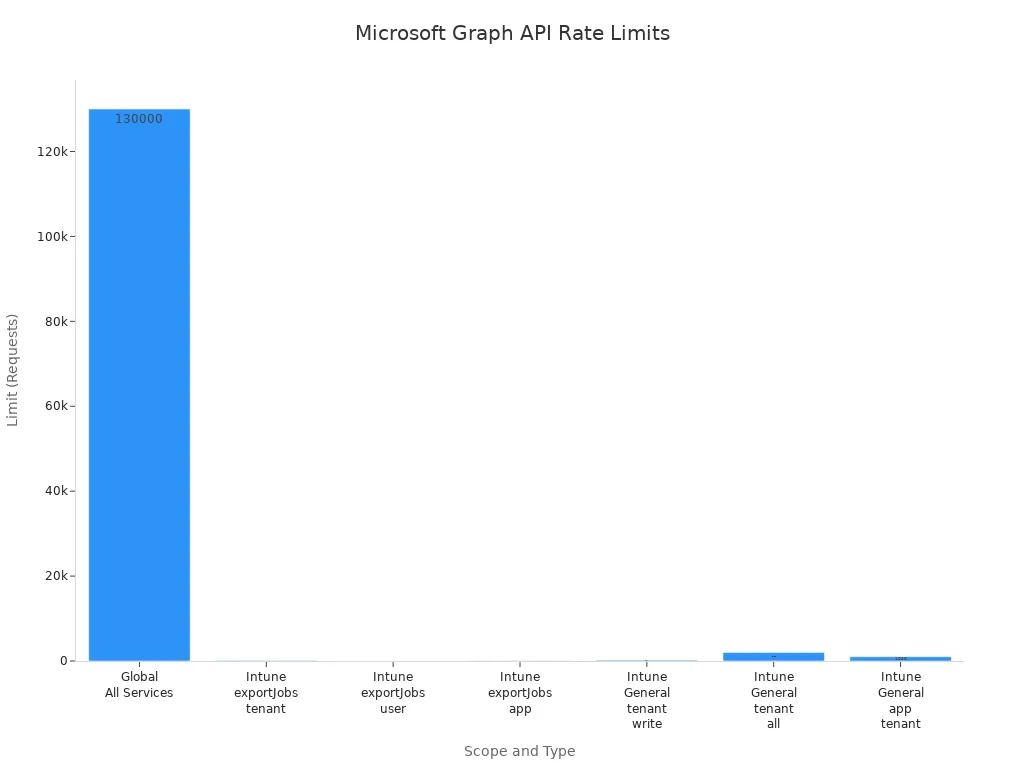
Microsoft Graph enforces rate limits to protect its services. If your script sends too many requests too quickly, the API returns a 429 status code. You should respect the Retry-After header and wait the suggested time before retrying. If the header is missing, use exponential backoff: start with a short delay and double it after each retry until the request succeeds or reaches a maximum wait time.
| Scope | Type | Limit | Notes |
|---|---|---|---|
| Global (All Services) | Any | 130,000 per 10 seconds per app | Absolute ceiling across all Graph services |
| Intune exportJobs | Any | 100 per tenant per minute | Documented in export API docs |
| Intune exportJobs | Any | 8 per user per minute | Sub-limit within tenant quota |
| Intune exportJobs | Any | 48 per app per minute | Sub-limit within tenant quota |
| Intune (General) | Any | 200 per tenant per 20 seconds | Tenant-wide write limit |
| Intune (General) | Any | 2,000 per tenant per 20 seconds | Tenant-wide limit for all operations |
| Intune (General) | Any | 1,000 per app per tenant per 20 seconds | Your app’s limit for all operations |
Securing Credentials
Protecting your credentials is critical when automating Microsoft 365 tasks. Use app registrations to create a unique identity for your application. Avoid storing client secrets in plain text inside your scripts. Instead, keep secrets in secure vaults or encrypted files.
Set short lifetimes for client secrets, ideally six months, to reduce risk if a secret leaks. Name and document your secrets clearly to avoid confusion during renewal. Consider using self-signed certificates for authentication instead of client secrets. Certificates offer stronger security and reduce the chance of accidental exposure.
Here is a recommended approach to secure credentials:
- Create a self-signed certificate using PowerShell.
- Export the public and private keys to
.cerand.pfxfiles. - Store the client secret securely as a secure string in a file.
- Use the stored secret or certificate to authenticate your app to Microsoft Graph API.
By following these steps, you reduce the risk of credential compromise and improve your automation’s security posture.
Optimizing Scripts
Efficient scripts save time and reduce resource consumption. Use selective property retrieval by applying the $select query parameter to request only the data you need. This approach reduces payload size and speeds up responses.
Use the Prefer header to request minimal representation responses when supported. This feature returns only essential data, further improving performance.
Consider using webhooks to get notifications about data changes instead of polling the API repeatedly. Webhooks reduce unnecessary API calls and improve responsiveness.
Batch multiple requests into a single JSON batch call. This technique lowers network latency and conserves resources, especially when working with large datasets.
| Strategy | Description |
|---|---|
| Selective Property Retrieval | Use $select to retrieve only needed properties, improving speed. |
| Minimal Response Requests | Use Prefer header to get minimal data representation. |
| Webhooks | Receive notifications for data changes instead of polling. |
| JSON Batching | Combine multiple requests into one batch to reduce network overhead. |
You can expect performance improvements of 30-50% for small datasets, 40-60% for medium datasets, and up to 62% for large datasets by applying these strategies.
By handling errors carefully, securing your credentials, and optimizing your scripts, you build reliable and efficient automation solutions. This approach ensures your scripts run smoothly and securely in any environment.
Combining PowerShell with Graph API significantly enhances your ability to manage Microsoft 365. This integration simplifies automation tasks and boosts productivity. You can access Azure AD and Office 365 through a single REST API endpoint, streamlining your administrative processes.
Following the step-by-step approach in this blog makes the learning process approachable and effective. I encourage you to experiment with the examples provided and explore additional capabilities of the Graph API.
To stay updated with the latest changes and features, check out resources like What's new in Microsoft Graph and the Microsoft Graph API changelog. Continuous learning will ensure your success in leveraging these powerful tools.
FAQ
What is PowerShell?
PowerShell is a task automation framework from Microsoft. It combines a command-line shell with a scripting language. You can use it to automate system management tasks and manage Microsoft 365 services.
What is Microsoft Graph API?
Microsoft Graph API is a unified endpoint for accessing data across Microsoft 365 services. It allows you to interact with resources like users, groups, and files using RESTful API calls.
How do I install the Microsoft Graph PowerShell module?
You can install the Microsoft Graph PowerShell module using the following command:
Install-Module Microsoft.Graph -Scope CurrentUser
This command downloads the latest version of the module for your user account.
What are delegated and application permissions?
Delegated permissions allow your app to act on behalf of a signed-in user. Application permissions enable your app to access data across the organization without user context. Choose permissions based on your automation needs.
How do I handle API rate limits?
Respect the Retry-After header when you receive a 429 status code. Implement exponential backoff in your scripts to manage retries effectively. This approach helps prevent overwhelming the API.
What is OAuth 2.0?
OAuth 2.0 is an authorization framework that allows applications to obtain limited access to user accounts. It uses access tokens to grant permissions without exposing user credentials.
Can I use PowerShell on Linux?
Yes, PowerShell is cross-platform. You can run PowerShell on Windows, macOS, and Linux. This flexibility allows you to automate tasks in various environments seamlessly.
How do I export data from PowerShell?
You can export data using the Export-Csv cmdlet for CSV files or ConvertTo-Json for JSON files. Choose the format that best suits your needs for data management.
🚀 Want to be part of m365.fm?
Then stop just listening… and start showing up.
👉 Connect with me on LinkedIn and let’s make something happen:
- 🎙️ Be a podcast guest and share your story
- 🎧 Host your own episode (yes, seriously)
- 💡 Pitch topics the community actually wants to hear
- 🌍 Build your personal brand in the Microsoft 365 space
This isn’t just a podcast — it’s a platform for people who take action.
🔥 Most people wait. The best ones don’t.
👉 Connect with me on LinkedIn and send me a message:
"I want in"
Let’s build something awesome 👊
1
00:00:00,000 --> 00:00:03,880
If your script is still lean on MS Online or Azure AD, they're already legacy.
2
00:00:03,880 --> 00:00:05,800
And if you think that doesn't apply to you,
3
00:00:05,800 --> 00:00:08,080
oh boy, you're exactly who I'm talking to.
4
00:00:08,080 --> 00:00:09,080
The cloud moved on.
5
00:00:09,080 --> 00:00:10,040
Your modules didn't.
6
00:00:10,040 --> 00:00:12,640
Modules break on Linux runners, containers, CI/CD.
7
00:00:12,640 --> 00:00:13,440
Rest doesn't.
8
00:00:13,440 --> 00:00:14,640
PowerShell isn't going away.
9
00:00:14,640 --> 00:00:16,640
The modules are, we're going API first.
10
00:00:16,640 --> 00:00:18,840
I'll show you the raw rest pattern, three auth flows,
11
00:00:18,840 --> 00:00:21,000
and three enterprise demos that actually ship.
12
00:00:21,000 --> 00:00:24,480
There's one gotcha that ruins most graph scripts will fix it later.
13
00:00:24,480 --> 00:00:26,880
If you're still loading modules in 2025,
14
00:00:26,880 --> 00:00:29,680
you're heating the office with old exchange servers.
15
00:00:29,680 --> 00:00:32,560
Why PowerShell without modules is the future?
16
00:00:32,560 --> 00:00:35,400
Everything you care about lives in Microsoft Graph now.
17
00:00:35,400 --> 00:00:39,480
Users, groups, devices, Intune Teams, SharePoint licenses, app registrations,
18
00:00:39,480 --> 00:00:41,800
the portal writes graph, your scripts should too.
19
00:00:41,800 --> 00:00:44,440
Rest beats modules because it cuts out the middle mess,
20
00:00:44,440 --> 00:00:47,040
no load times, no dependency, roulette, no version drama.
21
00:00:47,040 --> 00:00:50,040
You call the endpoint, you get the data, you move on with your day.
22
00:00:50,040 --> 00:00:51,920
Token speed credentials full stop.
23
00:00:51,920 --> 00:00:55,040
Oauth2 with search or managed identity gives you short-lived access,
24
00:00:55,040 --> 00:00:58,280
clean audit trails, and automation that doesn't depend on a human
25
00:00:58,280 --> 00:01:01,040
remembering a password they already wrote on a sticky note.
26
00:01:01,040 --> 00:01:03,000
Managed identity means no secrets at all.
27
00:01:03,000 --> 00:01:04,000
That's the point.
28
00:01:04,000 --> 00:01:06,880
Less to steal, less to rotate, less to screw up.
29
00:01:06,880 --> 00:01:09,080
CloudNative means it runs everywhere.
30
00:01:09,080 --> 00:01:15,080
Azure Automation, Functions, GitHub Actions, Containers, Linux, Local,
31
00:01:15,080 --> 00:01:18,040
PowerShell Core is cross-platform, but Graph is the constant.
32
00:01:18,040 --> 00:01:19,840
Curl works on anything with a pulse.
33
00:01:19,840 --> 00:01:22,920
Invogrest method does the job without dragging in the structural integrity
34
00:01:22,920 --> 00:01:24,000
of wet cardboard.
35
00:01:24,000 --> 00:01:27,360
Remember when installing a module meant praying to the new get-gods?
36
00:01:27,360 --> 00:01:28,840
Those days are over.
37
00:01:28,840 --> 00:01:31,200
Benchmarks aren't glamorous, but they're loud.
38
00:01:31,200 --> 00:01:34,560
Load time, modules lag, rest is fire and go.
39
00:01:34,560 --> 00:01:36,960
Cold start in a function or an actions runner.
40
00:01:36,960 --> 00:01:38,400
Rest starts immediately.
41
00:01:38,400 --> 00:01:40,200
Modules sit there thinking.
42
00:01:40,200 --> 00:01:44,680
Reliability, modules choke on throttling or stale tokens you never ask for.
43
00:01:44,680 --> 00:01:48,320
Rest is predictable if you set headers and handle retries.
44
00:01:48,320 --> 00:01:52,320
Portability, Linux and containers don't care about your module drama.
45
00:01:52,320 --> 00:01:54,000
Rest just runs.
46
00:01:54,000 --> 00:01:56,840
Here's the business side because someone will ask about value.
47
00:01:56,840 --> 00:02:00,000
Faster delivery because you don't wait on module updates.
48
00:02:00,000 --> 00:02:03,000
Fewer outages because you control the token and the retry logic.
49
00:02:03,000 --> 00:02:06,280
Easier governance because permissions are explicit and scoped per job,
50
00:02:06,280 --> 00:02:08,400
not hidden inside someone's global profile.
51
00:02:08,400 --> 00:02:11,920
Cost, your cold start, stop wasting minutes, your failures go down.
52
00:02:11,920 --> 00:02:13,720
No works on my laptop nonsense.
53
00:02:13,720 --> 00:02:16,400
The thing most people miss, Graph updates instantly,
54
00:02:16,400 --> 00:02:18,520
modules lag by weeks or never.
55
00:02:18,520 --> 00:02:20,280
New feature? It lands on Graph first.
56
00:02:20,280 --> 00:02:21,720
You can call it today.
57
00:02:21,720 --> 00:02:25,040
Waiting for a module means waiting for a maintainer who isn't on your payroll.
58
00:02:25,040 --> 00:02:26,920
Meanwhile, your project deadline didn't move.
59
00:02:26,920 --> 00:02:30,360
And yes, modules load slower than my ancient exchange server.
60
00:02:30,360 --> 00:02:32,240
Graph doesn't care. It just responds.
61
00:02:32,240 --> 00:02:34,280
You can pin versions on V1.
62
00:02:34,280 --> 00:02:36,880
Test beta endpoints when needed and guarded with feature flags.
63
00:02:36,880 --> 00:02:39,200
You get to control change instead of being surprised by it.
64
00:02:39,200 --> 00:02:41,040
Security teams will actually like this.
65
00:02:41,040 --> 00:02:43,120
These privileged scopes per app registration.
66
00:02:43,120 --> 00:02:44,760
Admin consent reviewed on a schedule.
67
00:02:44,760 --> 00:02:46,800
Search based auth with short lifetimes.
68
00:02:46,800 --> 00:02:48,720
Managed identity where you can.
69
00:02:48,720 --> 00:02:50,560
Search where you must.
70
00:02:50,560 --> 00:02:51,760
Every call leaves a trail.
71
00:02:51,760 --> 00:02:54,840
Request IDs, correlation IDs, who consented to what?
72
00:02:54,840 --> 00:02:57,560
You don't get that from a plain text password stuffed into a script
73
00:02:57,560 --> 00:02:59,560
like a loose wire in a breaker panel.
74
00:02:59,560 --> 00:03:02,360
So why now? Because the cross-platform reality is here.
75
00:03:02,360 --> 00:03:04,360
You're running on Linux, runners, building containers,
76
00:03:04,360 --> 00:03:05,880
pushing jobs into functions.
77
00:03:05,880 --> 00:03:08,280
The module stack was built for a Windows First World
78
00:03:08,280 --> 00:03:09,640
and a simpler set of products.
79
00:03:09,640 --> 00:03:11,080
We don't live there anymore.
80
00:03:11,080 --> 00:03:12,080
All right?
81
00:03:12,080 --> 00:03:13,120
Enough theory.
82
00:03:13,120 --> 00:03:14,600
Here's the pattern you'll use everywhere.
83
00:03:14,600 --> 00:03:17,240
Get a token, set headers, call rest, handle paging,
84
00:03:17,240 --> 00:03:18,800
honor retry after and move on.
85
00:03:18,800 --> 00:03:21,000
It's boring, which is why it works.
86
00:03:21,000 --> 00:03:21,880
The core pattern.
87
00:03:21,880 --> 00:03:24,840
Native PowerShell plus rest plus graph API.
88
00:03:24,840 --> 00:03:26,040
Here's the pattern I promised.
89
00:03:26,040 --> 00:03:27,560
Token, headers, rest, call.
90
00:03:27,560 --> 00:03:28,440
That's the loop.
91
00:03:28,440 --> 00:03:30,400
You'll reuse it for everything from listing users
92
00:03:30,400 --> 00:03:32,480
to smacking non-compliant devices.
93
00:03:32,480 --> 00:03:34,320
Scripts don't fail because of PowerShell.
94
00:03:34,320 --> 00:03:35,560
They fail because of assumptions.
95
00:03:35,560 --> 00:03:36,880
So stop assuming magic.
96
00:03:36,880 --> 00:03:39,400
Build the three pieces every time and you'll sleep at night.
97
00:03:39,400 --> 00:03:40,640
Start with the token.
98
00:03:40,640 --> 00:03:43,400
You've got three ways to get one and they map to real life.
99
00:03:43,400 --> 00:03:46,520
Device code for local testing when it's just you at a console.
100
00:03:46,520 --> 00:03:48,760
Client credentials with a certificate for automation
101
00:03:48,760 --> 00:03:50,360
where no one's clicking anything.
102
00:03:50,360 --> 00:03:52,240
Managed identity when you're in Azure
103
00:03:52,240 --> 00:03:54,960
and you want secrets to disappear like they should have years ago.
104
00:03:54,960 --> 00:03:56,440
Same outcome, different doors.
105
00:03:56,440 --> 00:03:57,800
Device code is the friendly one.
106
00:03:57,800 --> 00:04:01,840
You request a token for HTTPS, graph, Microsoft.com.
107
00:04:01,840 --> 00:04:05,160
With the scopes you need, you get a code, you open a browser,
108
00:04:05,160 --> 00:04:08,080
you confirm it's you and PowerShell gets a token back.
109
00:04:08,080 --> 00:04:10,640
Great for building the first version and poking endpoints.
110
00:04:10,640 --> 00:04:13,480
Bad for production because humans are squishy and forgetful.
111
00:04:13,480 --> 00:04:15,080
Client credentials is the adult path.
112
00:04:15,080 --> 00:04:16,400
You create an app registration.
113
00:04:16,400 --> 00:04:18,880
You granted only the graph application permissions it needs
114
00:04:18,880 --> 00:04:20,160
and you add a certificate.
115
00:04:20,160 --> 00:04:22,480
Your script signs a JWT with that cert
116
00:04:22,480 --> 00:04:25,800
and requests a token using the pass-sass default scope for graph.
117
00:04:25,800 --> 00:04:27,200
No user, no prompts.
118
00:04:27,200 --> 00:04:29,320
Clean audit trail, rotate the cert and move on.
119
00:04:29,320 --> 00:04:31,520
If I see a client secret pasted in plain text again,
120
00:04:31,520 --> 00:04:32,680
I'm revoking Wi-Fi.
121
00:04:32,680 --> 00:04:34,600
Managed identity is the quiet killer.
122
00:04:34,600 --> 00:04:37,840
You enable it on your automation account, function app or VM.
123
00:04:37,840 --> 00:04:40,880
Then you call the local identity endpoint, ask for a graph token
124
00:04:40,880 --> 00:04:43,120
and Azure hands you one tied to that identity.
125
00:04:43,120 --> 00:04:44,560
No vault lookups in your script.
126
00:04:44,560 --> 00:04:45,960
No secrets to rotate.
127
00:04:45,960 --> 00:04:47,640
You just need to grant that identity.
128
00:04:47,640 --> 00:04:52,160
The graph app rolls it requires at least privilege means fewer to a m calls.
129
00:04:52,160 --> 00:04:53,160
Now the headers.
130
00:04:53,160 --> 00:04:54,240
Don't overthink it.
131
00:04:54,240 --> 00:04:55,960
Authorization, bearer your token.
132
00:04:55,960 --> 00:04:58,880
Content type, application, JSON for anything with a body.
133
00:04:58,880 --> 00:05:02,680
When you're doing advanced queries or searches, add consistency.
134
00:05:02,680 --> 00:05:05,680
Level, eventual and the appropriate prefer headers
135
00:05:05,680 --> 00:05:07,480
if the endpoint supports them.
136
00:05:07,480 --> 00:05:10,120
The thing most people miss is they forget the consistency level
137
00:05:10,120 --> 00:05:13,000
and then wonder why their account or filter looks drunk.
138
00:05:13,000 --> 00:05:14,240
Then make the call.
139
00:05:14,240 --> 00:05:15,680
In VogueGress method is fine.
140
00:05:15,680 --> 00:05:17,280
Method, URI,
141
00:05:17,280 --> 00:05:19,280
headers, maybe a body.
142
00:05:19,280 --> 00:05:20,600
The mental model is simple.
143
00:05:20,600 --> 00:05:24,040
Token, headers, call, check, page, retry, continue.
144
00:05:24,040 --> 00:05:26,080
You'll page through results using AdO data.
145
00:05:26,080 --> 00:05:27,440
Next link whenever it shows up.
146
00:05:27,440 --> 00:05:29,520
If you only got 100 items, that's not a mystery.
147
00:05:29,520 --> 00:05:31,080
That's the default page size.
148
00:05:31,080 --> 00:05:32,880
Follow next link until it stops.
149
00:05:32,880 --> 00:05:36,120
Put a guard on your loop so it can't run forever if the API burps.
150
00:05:36,120 --> 00:05:37,560
Now here's where most people mess up.
151
00:05:37,560 --> 00:05:39,240
You must respect throttling.
152
00:05:39,240 --> 00:05:43,480
Graph doesn't care about your feelings, implement retries or enjoy failures.
153
00:05:43,480 --> 00:05:46,680
If you see 420503 look for retry after,
154
00:05:46,680 --> 00:05:48,680
sleep for that duration plus a little jitter
155
00:05:48,680 --> 00:05:51,640
so you don't join a thundering herd, then try again.
156
00:05:51,640 --> 00:05:53,840
Exponential back off beats panic clicking.
157
00:05:53,840 --> 00:05:57,160
If your automation can't survive transient errors, it's not automation.
158
00:05:57,160 --> 00:05:58,360
It's a suggestion.
159
00:05:58,360 --> 00:06:00,520
Common mistakes, so you don't repeat them.
160
00:06:00,520 --> 00:06:03,600
One wrong audience, you ask entra for a token to management.
161
00:06:03,600 --> 00:06:06,440
Azure.com and then called graph, Microsoft.com.
162
00:06:06,440 --> 00:06:08,560
That's a 401, not a conspiracy.
163
00:06:08,560 --> 00:06:11,440
Two pagination denial, why 100 rows only?
164
00:06:11,440 --> 00:06:13,000
Because you never read next link?
165
00:06:13,000 --> 00:06:15,040
Three tight loops without delay.
166
00:06:15,040 --> 00:06:17,760
You angered the throttle gods and now everything slower.
167
00:06:17,760 --> 00:06:20,120
Four over permissioned app with directory.
168
00:06:20,120 --> 00:06:21,360
Read right all just to test.
169
00:06:21,360 --> 00:06:23,280
You just failed and ordered you haven't had yet.
170
00:06:23,280 --> 00:06:25,640
Let me show you the quick wins you can do today.
171
00:06:25,640 --> 00:06:29,480
Device code, grab a token, get me and confirm you can read your own profile.
172
00:06:29,480 --> 00:06:31,480
That proves your token and headers are wired.
173
00:06:31,480 --> 00:06:34,360
Client credentials use default call users,
174
00:06:34,360 --> 00:06:39,240
select id, display name, mail to keep payload small and process a page or two.
175
00:06:39,240 --> 00:06:40,360
Managed identity.
176
00:06:40,360 --> 00:06:45,840
In Azure call intune's device endpoint via graph, set top, follow next link and dump only
177
00:06:45,840 --> 00:06:48,760
id device name and last check in date time.
178
00:06:48,760 --> 00:06:51,160
Good words, bad scripts because contrast helps.
179
00:06:51,160 --> 00:06:54,840
Bad module error, import, fail update, fail, copy, fail.
180
00:06:54,840 --> 00:06:57,080
Good rest error token call done.
181
00:06:57,080 --> 00:07:01,480
Sure, your rapid and functions are at logging, but the backbone is boring on purpose.
182
00:07:01,480 --> 00:07:06,000
One more pro move, build a tiny retry helper and a pagination helper once.
183
00:07:06,000 --> 00:07:09,920
Pass in the your eye and headers, get back the full data set with retries already handled.
184
00:07:09,920 --> 00:07:13,320
Suddenly every script is 20 lines shorter and 10 times calmer.
185
00:07:13,320 --> 00:07:17,680
The game changer nobody talks about is you can test these helpers locally, then drop them
186
00:07:17,680 --> 00:07:20,320
in a container or a function without changing a line.
187
00:07:20,320 --> 00:07:23,520
Done, enterprise demo one, intune device cleanup.
188
00:07:23,520 --> 00:07:27,520
Ten and SWAT devices stack up like abandoned cards in a grocery lot.
189
00:07:27,520 --> 00:07:31,600
Policies get noisy, compliance drifts and suddenly your reports look haunted.
190
00:07:31,600 --> 00:07:35,680
Let's clean it with graph, no modules on a schedule, with logs you can show to security
191
00:07:35,680 --> 00:07:36,680
without blushing.
192
00:07:36,680 --> 00:07:41,040
Here's the plan, we query intune devices from graph where last check and date time is older
193
00:07:41,040 --> 00:07:42,920
than a threshold you set.
194
00:07:42,920 --> 00:07:48,120
We decide action by agent tags, disable if stale, retire if older, delete if fossilized.
195
00:07:48,120 --> 00:07:51,440
And we check ownership first so you don't nuke personal devices because someone missed
196
00:07:51,440 --> 00:07:54,840
a field, boring, predictable, safe.
197
00:07:54,840 --> 00:07:59,160
Start with the end point, you're calling gethttps/graph.
198
00:07:59,160 --> 00:08:03,600
Microsoft.com/beta-divisemanagement-devices-with-select-trim-payload.
199
00:08:03,600 --> 00:08:09,760
ID, device name, operating system, last check and date time, manage device owner type,
200
00:08:09,760 --> 00:08:13,160
as your AD device eat and any tag you rely on.
201
00:08:13,160 --> 00:08:14,960
Use filter for server side cut.
202
00:08:14,960 --> 00:08:20,280
Last check and date time LT24-0101-TZ-UZC-OCE.
203
00:08:20,280 --> 00:08:23,760
If you can't filter exactly how you want, pull with the conservative window and filter
204
00:08:23,760 --> 00:08:24,760
in PowerShell.
205
00:08:24,760 --> 00:08:25,760
You'll get paging.
206
00:08:25,760 --> 00:08:27,880
Follow @odeta.nextlink until it stops.
207
00:08:27,880 --> 00:08:29,800
Guard the loop so it can't spin forever.
208
00:08:29,800 --> 00:08:34,240
Then classification, corporate owned, evaluate action thresholds.
209
00:08:34,240 --> 00:08:42,080
For example, 30 to 60 days, mark for review, 60 to 120, retire, 120 plus delete.
210
00:08:42,080 --> 00:08:45,360
Personal owned, maybe you only notify or tag for review.
211
00:08:45,360 --> 00:08:50,240
The thing most people miss is time skew and inactive but just reprovision devices.
212
00:08:50,240 --> 00:08:54,560
Cross check as your AD device ID against Entra device last seen if you need more confidence.
213
00:08:54,560 --> 00:09:00,480
If there's conflict, skip and lock now actions retire is opposed to manage devices, ID retire.
214
00:09:00,480 --> 00:09:04,520
Delete is delete, manage devices like ID.
215
00:09:04,520 --> 00:09:08,320
Disable often means flipping state where supported or writing a tag and letting policy handle
216
00:09:08,320 --> 00:09:11,720
it, batch where the endpoint supports it but don't stamp it.
217
00:09:11,720 --> 00:09:15,720
Respect for 29503, owner, retry after with jitter.
218
00:09:15,720 --> 00:09:20,680
Write every action to lock analytics, device, ID, action, recent time stamp result, request
219
00:09:20,680 --> 00:09:24,800
ID, correlate with a runead so you can reconstruct the story later.
220
00:09:24,800 --> 00:09:25,800
Horror time.
221
00:09:25,800 --> 00:09:30,000
I watched someone delete 800 devices because they didn't understand last check in timestamps.
222
00:09:30,000 --> 00:09:34,320
They filtered on a property that lagged for re-enrolled devices and skipped dry run.
223
00:09:34,320 --> 00:09:38,280
Graphed it exactly what they asked, it always does, in tune, never lies but boy does it stay
224
00:09:38,280 --> 00:09:41,120
quiet until it's too late, don't be that headline.
225
00:09:41,120 --> 00:09:46,040
Automation setup, use an automation account with a system assigned managed identity, granted
226
00:09:46,040 --> 00:09:50,360
least privilege, graph roles for device read and the specific device actions.
227
00:09:50,360 --> 00:09:55,080
For non-secret config invariables, thresholds, tag names, action map have a feature flag
228
00:09:55,080 --> 00:09:56,080
for dry run.
229
00:09:56,080 --> 00:09:58,040
Dry run writes what it would do not what it did.
230
00:09:58,040 --> 00:10:01,240
Run that first, then run it again, then maybe touch production.
231
00:10:01,240 --> 00:10:05,220
Mistakes to avoid, looking devices during a regional time skew, forgetting to limit by
232
00:10:05,220 --> 00:10:07,880
platform when your Mac fleet reports differently.
233
00:10:07,880 --> 00:10:11,600
Running with directory, read write, all just to test.
234
00:10:11,600 --> 00:10:16,120
No back off policy and hitting global throttle so the next team's job also fails.
235
00:10:16,120 --> 00:10:18,240
Write locks, not feelings, punch line.
236
00:10:18,240 --> 00:10:22,840
If the portal shows it, graph can do it faster, quieter and on schedule.
237
00:10:22,840 --> 00:10:25,920
No module drama, just tokens headers calls.
238
00:10:25,920 --> 00:10:30,680
Enterprise demo 2, identity onboarding via graph only, 450 words.
239
00:10:30,680 --> 00:10:33,360
Onboarding should be boring, if it's exciting something is wrong.
240
00:10:33,360 --> 00:10:38,560
We're wiring HR to identity with graph, so accounts show up, licensed, grouped and ready,
241
00:10:38,560 --> 00:10:41,000
before the manager gets impatient and opens a ticket.
242
00:10:41,000 --> 00:10:44,440
Flow is simple, client credentials with a certificate, not a secret.
243
00:10:44,440 --> 00:10:47,320
Your app registration has only the graph app roles it needs.
244
00:10:47,320 --> 00:10:51,040
User, read write, all if you must create users group.
245
00:10:51,040 --> 00:10:55,400
Read write, all if you must assign membership, directory, read all for lookups and the license
246
00:10:55,400 --> 00:10:56,640
assignment roles.
247
00:10:56,640 --> 00:10:58,880
Admin consented once, reviewed quarterly.
248
00:10:58,880 --> 00:11:05,360
Your script signs the request, asks graph for a token using passgars default for http.graph.microsoft.com
249
00:11:05,360 --> 00:11:06,840
and starts the pipeline.
250
00:11:06,840 --> 00:11:08,800
Step one, create the user.
251
00:11:08,800 --> 00:11:11,080
Post 2, users with minimal attributes.
252
00:11:11,080 --> 00:11:16,240
Account enabled, true, display name, mail nickname, user principle name, usage location
253
00:11:16,240 --> 00:11:20,000
and a temporary password with force change password next sign.
254
00:11:20,000 --> 00:11:23,400
In true, if you're not using SSPR start, keep it lean.
255
00:11:23,400 --> 00:11:25,840
If the user already exists, you patch, not freak out.
256
00:11:25,840 --> 00:11:29,800
It impotency means you can rerun safely after a failure and it won't make a mess.
257
00:11:29,800 --> 00:11:31,840
Step 2, assign a baseline license.
258
00:11:31,840 --> 00:11:36,160
You'll get subscribescuse once, cache the skew map and pick the right skew ID, then post
259
00:11:36,160 --> 00:11:41,320
2, users rush ID, assign license with ad licenses containing the skew ID and disable plans
260
00:11:41,320 --> 00:11:45,080
array if you do selective services, handle quota gracefully.
261
00:11:45,080 --> 00:11:48,880
If you're out of licenses, you log a blocking event and notify the right channel, not
262
00:11:48,880 --> 00:11:51,440
explode the run and leave half created objects.
263
00:11:51,440 --> 00:11:53,200
Step 3, groups by role.
264
00:11:53,200 --> 00:11:57,520
You keep a configuration map from job code or department to static group IDs.
265
00:11:57,520 --> 00:11:58,760
Names drift IDs don't.
266
00:11:58,760 --> 00:12:05,200
You put or post 2, groups slash, group id, members ref with the user's directory object ID.
267
00:12:05,200 --> 00:12:07,200
If the user is already a member, skip.
268
00:12:07,200 --> 00:12:10,920
If the group doesn't exist, that's a configuration failure, not a runtime adventure.
269
00:12:10,920 --> 00:12:15,840
For script keeps moving for other memberships and logs they miss with correlation id.
270
00:12:15,840 --> 00:12:17,680
Step 4, app access.
271
00:12:17,680 --> 00:12:20,840
Many enterprise apps hang off group assignments or app roles.
272
00:12:20,840 --> 00:12:26,240
For app roles, you post to a service principles, a speed, app role assigned to with the user's
273
00:12:26,240 --> 00:12:28,640
object id and the app role id.
274
00:12:28,640 --> 00:12:32,160
For group based SSO, adding the user to the right group is enough.
275
00:12:32,160 --> 00:12:33,880
Again, use IDs from config.
276
00:12:33,880 --> 00:12:38,040
No name, lookups and hotpots, guard rails, correlation id per onboarding.
277
00:12:38,040 --> 00:12:42,720
Every graph call logs request id, URI, method, status, duration, retries.
278
00:12:42,720 --> 00:12:49,160
Retry, back off on 429.5.6, feature flag for dry run, which creates a plan, but does no rights.
279
00:12:49,160 --> 00:12:50,600
Item potency everywhere.
280
00:12:50,600 --> 00:12:54,800
If user exists, patch, if license exists, skip.
281
00:12:54,800 --> 00:12:57,080
If group membership exists, skip.
282
00:12:57,080 --> 00:13:01,240
And for the last time, if I see a client secret hard coded again, I'm revoking Wi-Fi.
283
00:13:01,240 --> 00:13:02,720
User third or manage identity.
284
00:13:02,720 --> 00:13:05,440
Quick win, this runs on a Linux runner with PowerShell Core.
285
00:13:05,440 --> 00:13:08,760
No modular load, no waiting for someone to publish a fix.
286
00:13:08,760 --> 00:13:13,040
User shows up in seconds with baseline access and your help desk doesn't touch a thing.
287
00:13:13,040 --> 00:13:17,240
Now your pipeline is the quiet boring part of onboarding, the way it should be.
288
00:13:17,240 --> 00:13:20,720
Enterprise demo three, compliance drift detection and remediation.
289
00:13:20,720 --> 00:13:23,440
Compliance sprawl is the slow leak that flattens your weak.
290
00:13:23,440 --> 00:13:27,120
Devices drift, users get risky, tickets pile up like snow.
291
00:13:27,120 --> 00:13:31,720
We're going to scan, target, remediate and verify, all with graph, no modules, and without
292
00:13:31,720 --> 00:13:35,880
waking up set-ups at 2 a.m. start with a schedule and a managed identity.
293
00:13:35,880 --> 00:13:38,560
This job isn't special, it just needs to be reliable.
294
00:13:38,560 --> 00:13:41,920
The identity gets only the graph rolls it needs.
295
00:13:41,920 --> 00:13:45,800
Device compliance read, device actions if you remediate identity protection, read for
296
00:13:45,800 --> 00:13:49,000
user risk and the session revoke permission.
297
00:13:49,000 --> 00:13:53,480
Don't grab directory.
298
00:13:53,480 --> 00:13:54,480
Read right.
299
00:13:54,480 --> 00:13:56,960
All just to test.
300
00:13:56,960 --> 00:13:58,640
That's how audits become folklore.
301
00:13:58,640 --> 00:14:05,920
First pass devices call get a tbsgrushishgraph.microsoft.com/v1, device management, device compliance policy,
302
00:14:05,920 --> 00:14:10,640
settings eight, summaries or the device compliance states and point your tenant users.
303
00:14:10,640 --> 00:14:12,560
Use select to keep payload small.
304
00:14:12,560 --> 00:14:17,240
ID, device name, user principle name, operating system compliance state.
305
00:14:17,240 --> 00:14:19,840
Filter where you can, compliance state EQ non-compliant.
306
00:14:19,840 --> 00:14:24,320
You'll get pages, follow adodata.next link, put a guard on the loop, now classify.
307
00:14:24,320 --> 00:14:27,280
Non-compliant doesn't mean execute order 66.
308
00:14:27,280 --> 00:14:31,520
You map severity to action for low severity as maybe a push notification or an email with
309
00:14:31,520 --> 00:14:36,200
a remediation guide, medium trigger a remediation script or force of policy sync.
310
00:14:36,200 --> 00:14:39,400
High, quarantine the device or block access to sensitive apps.
311
00:14:39,400 --> 00:14:44,040
Batch where the endpoint supports it, but keep the degree of parallelism low.
312
00:14:44,040 --> 00:14:46,320
Throttling friendly, not stumpy.
313
00:14:46,320 --> 00:14:48,160
When you act, log like an adult.
314
00:14:48,160 --> 00:14:52,520
For every device you touch, write run ID, device it action reason, request it, status and
315
00:14:52,520 --> 00:14:54,000
latency to log analytics.
316
00:14:54,000 --> 00:14:57,880
If a device flips to compliant during the run, skip and note the flip.
317
00:14:57,880 --> 00:14:59,960
After a remediation, reach agst status.
318
00:14:59,960 --> 00:15:04,680
If it's still non-compliant, escalate once, not five times, alert thresholds, not spam,
319
00:15:04,680 --> 00:15:05,680
users next.
320
00:15:05,680 --> 00:15:08,000
Pull risky users from identity protection via get.
321
00:15:08,000 --> 00:15:15,480
HTTPS, xxgraph, Microsoft.com/v1, identity protection, risky users, filter, risk level
322
00:15:15,480 --> 00:15:20,760
EQ high and selected user principle name risk level risk state for each high risk user
323
00:15:20,760 --> 00:15:27,200
take targeted action, revoke sign in sessions via posts or users to ID, revoke sign in sessions.
324
00:15:27,200 --> 00:15:32,400
If your policy demands it temporarily block sign in, patch users ID with account enabled
325
00:15:32,400 --> 00:15:36,840
false time box and logged mini rant, don't carpet bomb sign in, use severity.
326
00:15:36,840 --> 00:15:39,800
You're not diffusing a movie bomb.
327
00:15:39,800 --> 00:15:42,160
Reality check compliance isn't a state.
328
00:15:42,160 --> 00:15:44,040
It's a drifting target you have to chase.
329
00:15:44,040 --> 00:15:46,160
That's why we use delta where possible.
330
00:15:46,160 --> 00:15:51,240
For device compliance, if delta endpoints exist for your scenario, use them to avoid rescanning
331
00:15:51,240 --> 00:15:52,240
the world.
332
00:15:52,240 --> 00:15:58,680
For users, keep a cache of last process risk change timestamp query only what changed since.
333
00:15:58,680 --> 00:16:01,400
That's how you keep runs under budget and under the throttle radar.
334
00:16:01,400 --> 00:16:05,400
Common mistakes, blanket blocks without a severity filter, congratulations, you just created
335
00:16:05,400 --> 00:16:06,840
a help desk fire drill.
336
00:16:06,840 --> 00:16:08,040
No audit lock.
337
00:16:08,040 --> 00:16:11,320
Now security wants names, times and reasons you can't show.
338
00:16:11,320 --> 00:16:14,680
Hard coded IDs, someone renames a policy and your script face plans.
339
00:16:14,680 --> 00:16:16,600
Identity IDs in config, not code.
340
00:16:16,600 --> 00:16:19,640
If you can't reproduce a run from logs, you're guessing.
341
00:16:19,640 --> 00:16:26,560
Punch line, detect target, remediate, verify, log, quiet, repeatable and boring on purpose.
342
00:16:26,560 --> 00:16:31,120
Architecture breakdown, identity, automation, execution, observability, you've seen the
343
00:16:31,120 --> 00:16:32,120
pattern.
344
00:16:32,120 --> 00:16:33,120
Now why are the plumbing?
345
00:16:33,120 --> 00:16:35,760
So it doesn't fall over when someone sneezes near Azure.
346
00:16:35,760 --> 00:16:37,120
Identity layer first.
347
00:16:37,120 --> 00:16:39,440
Managed identity wherever the workload lives.
348
00:16:39,440 --> 00:16:43,360
Automation account, function app container in ACI, VM, flip it on.
349
00:16:43,360 --> 00:16:47,520
And only the graph app rolls the job needs and stop thinking about secrets.
350
00:16:47,520 --> 00:16:51,520
If you can't use managed identity, fine, and trap registration with a certificate, short
351
00:16:51,520 --> 00:16:54,280
lifetime stored in key vault rotated on a schedule.
352
00:16:54,280 --> 00:16:58,000
No secrets in scripts, not in dev, not just testing, not ever.
353
00:16:58,000 --> 00:16:59,000
Automation layer.
354
00:16:59,000 --> 00:17:02,680
Use Azure automation for simple schedules with runbooks that wake up, do one job and
355
00:17:02,680 --> 00:17:03,960
go back to sleep.
356
00:17:03,960 --> 00:17:06,440
Use functions for event driven flows.
357
00:17:06,440 --> 00:17:10,360
User created device status changed, license inventory dipped.
358
00:17:10,360 --> 00:17:14,280
Small, fast, cold start friendly when you're not dragging modules.
359
00:17:14,280 --> 00:17:19,320
GitHub actions for CICD and cross OS runners stick the same scripts in pipelines that validate
360
00:17:19,320 --> 00:17:20,760
then deploy to prod.
361
00:17:20,760 --> 00:17:25,080
Local power shell for validation and reproducible test before you throw anything at production,
362
00:17:25,080 --> 00:17:28,520
execution layer, power shell core plus invoke rest method.
363
00:17:28,520 --> 00:17:30,840
Version pin your endpoints V1.
364
00:17:30,840 --> 00:17:34,080
For stable, beta only behind feature flags with clear blast radius.
365
00:17:34,080 --> 00:17:35,320
Build two helpers once.
366
00:17:35,320 --> 00:17:41,480
Retry handler that honors 429 503 with exponential back off and jitter and a pager that follows
367
00:17:41,480 --> 00:17:42,480
at or data.
368
00:17:42,480 --> 00:17:45,280
Next link with guards, drop those helpers into every script.
369
00:17:45,280 --> 00:17:49,320
Suddenly your code is small, predictable and not stitched together with three connectors
370
00:17:49,320 --> 00:17:50,720
and a prayer.
371
00:17:50,720 --> 00:17:51,720
Configuration and secrets.
372
00:17:51,720 --> 00:17:57,440
Store non-secret config like group IDs, sqmaps, thresholds, in json or environment variables.
373
00:17:57,440 --> 00:18:01,440
Keep one config per environment so you don't hard code anything that will drift.
374
00:18:01,440 --> 00:18:03,160
Secrets and certs live in key vault.
375
00:18:03,160 --> 00:18:07,400
The code reads via managed identity, not a magic string in a ps1 file.
376
00:18:07,400 --> 00:18:11,400
Feature flags for dry run and confirm impact make rollout safe instead of theatrical.
377
00:18:11,400 --> 00:18:12,400
Observability.
378
00:18:12,400 --> 00:18:15,240
If you can't see your automation, you can't trust your automation.
379
00:18:15,240 --> 00:18:20,880
Send logs to log analytics, request id, correlation id, uri, method, status, duration retry
380
00:18:20,880 --> 00:18:21,880
count.
381
00:18:21,880 --> 00:18:25,040
Trace the whole flow with a run id so you can reconstruct what happened without calling
382
00:18:25,040 --> 00:18:26,280
six people.
383
00:18:26,280 --> 00:18:29,720
App insights for dependencies and live telemetry on functions.
384
00:18:29,720 --> 00:18:33,960
Change your monitor alerts on patterns that matter, failure rate spikes, throttle rate surges,
385
00:18:33,960 --> 00:18:36,160
SLA breaches, not every 404.
386
00:18:36,160 --> 00:18:37,160
Guard rails.
387
00:18:37,160 --> 00:18:40,480
Lease privilege map to jobs, not teams, pin versions.
388
00:18:40,480 --> 00:18:42,120
Review app consent squatterly.
389
00:18:42,120 --> 00:18:44,240
Dry run by default in new environments.
390
00:18:44,240 --> 00:18:48,360
And yes, Microsoft wants you here, not because it's cute, because modules can't keep up.
391
00:18:48,360 --> 00:18:51,760
This stack is faster to ship, simpler to govern and it doesn't panic when you move it from
392
00:18:51,760 --> 00:18:53,720
your laptop to Linux to a container.
393
00:18:53,720 --> 00:18:54,720
That's the point.
394
00:18:54,720 --> 00:18:56,680
Why Microsoft wants you on graph?
395
00:18:56,680 --> 00:19:00,840
Microsoft wants you on graph because it's the one surface they can actually ship to at speed.
396
00:19:00,840 --> 00:19:04,600
Identity devices, apps, content, the portal rights graph, so your code should too.
397
00:19:04,600 --> 00:19:05,600
Features hit graph first.
398
00:19:05,600 --> 00:19:07,600
Modules get love when someone finds the time.
399
00:19:07,600 --> 00:19:08,600
Sure.
400
00:19:08,600 --> 00:19:09,600
So is winning the lottery.
401
00:19:09,600 --> 00:19:10,600
Governance gets cleaner.
402
00:19:10,600 --> 00:19:14,600
O-auth scopes and consent tell you exactly who can do what and every call leaves a trail
403
00:19:14,600 --> 00:19:18,240
you can audit without rummaging through someone's profile script.
404
00:19:18,240 --> 00:19:19,240
Scale.
405
00:19:19,240 --> 00:19:23,320
The endpoints handle global traffic if you handle paging and back off like an adult.
406
00:19:23,320 --> 00:19:27,680
That from reality, Microsoft ships, PowerShell core, but graph is the constant.
407
00:19:27,680 --> 00:19:31,480
The thing most people miss is maintainers don't control product release speed.
408
00:19:31,480 --> 00:19:34,360
Rest schema changes land your code can adopt them that day.
409
00:19:34,360 --> 00:19:37,400
Beta has risk, pin versions and wrap with feature flags.
410
00:19:37,400 --> 00:19:39,240
Permissions will sprawl if you're lazy.
411
00:19:39,240 --> 00:19:40,440
Design roles per job.
412
00:19:40,440 --> 00:19:42,800
The portal is just a pretty face on top of graph.
413
00:19:42,800 --> 00:19:44,800
Don't be the last person to realize it.
414
00:19:44,800 --> 00:19:48,440
A best practices security reliability speed.
415
00:19:48,440 --> 00:19:49,440
Security first.
416
00:19:49,440 --> 00:19:53,040
Use managed identity wherever it exists when it doesn't set off speed secrets.
417
00:19:53,040 --> 00:19:55,800
Microsoft lifetimes rotate on schedule, store in key vault.
418
00:19:55,800 --> 00:19:58,520
Least privileged graph roles per job, not per team.
419
00:19:58,520 --> 00:20:01,560
Quarterly consent reviews or enjoy surprise outages.
420
00:20:01,560 --> 00:20:02,560
Reliability next.
421
00:20:02,560 --> 00:20:04,680
Handle pagination on every list endpoint.
422
00:20:04,680 --> 00:20:07,240
Detect 429503 on a retry after.
423
00:20:07,240 --> 00:20:09,360
Add exponential back off with jitter.
424
00:20:09,360 --> 00:20:10,760
E-dampotency everywhere.
425
00:20:10,760 --> 00:20:11,760
Check before change.
426
00:20:11,760 --> 00:20:12,760
Abset patterns.
427
00:20:12,760 --> 00:20:14,280
Use e-tags when available.
428
00:20:14,280 --> 00:20:16,240
Delta queries cut scan time and cost.
429
00:20:16,240 --> 00:20:17,240
Performance matters.
430
00:20:17,240 --> 00:20:19,120
Use select to trim payloads.
431
00:20:19,120 --> 00:20:20,600
Batch wear supported.
432
00:20:20,600 --> 00:20:23,000
Parallel with limits so you don't stampede the API.
433
00:20:23,000 --> 00:20:27,080
Cashestatic lookups like group IDs and SKU maps with a TTL.
434
00:20:27,080 --> 00:20:28,520
Observability isn't optional.
435
00:20:28,520 --> 00:20:33,240
Log request ID, correlation ID, URI methods, status, duration, retry count.
436
00:20:33,240 --> 00:20:34,920
Keep a run in for multi-step flows.
437
00:20:34,920 --> 00:20:38,880
Track success rate, P95 latency, throttle rate and delta efficiency.
438
00:20:38,880 --> 00:20:43,080
If your automation can't survive a 429, it's not automation, it's a suggestion.
439
00:20:43,080 --> 00:20:45,840
Write logs not feelings code hygiene keeps you sane.
440
00:20:45,840 --> 00:20:48,000
Small functions over 500 line scripts.
441
00:20:48,000 --> 00:20:51,640
Config driven via JSON or environment variables, no hard coded IDs.
442
00:20:51,640 --> 00:20:53,640
Triflex for dry run and save rollout.
443
00:20:53,640 --> 00:20:54,960
And yes, test your back off.
444
00:20:54,960 --> 00:20:57,640
Graph doesn't care about your feelings.
445
00:20:57,640 --> 00:20:59,400
The gotcha that ruins most graph scripts.
446
00:20:59,400 --> 00:21:00,880
Alright, the promised gotcha.
447
00:21:00,880 --> 00:21:04,360
This one ruins more graph scripts than anything else and it's not even interesting.
448
00:21:04,360 --> 00:21:05,600
Wrong token audience.
449
00:21:05,600 --> 00:21:07,440
You ask for a token to management.
450
00:21:07,440 --> 00:21:09,320
As your dot com, then you call graph.
451
00:21:09,320 --> 00:21:10,320
Microsoft dot com.
452
00:21:10,320 --> 00:21:13,680
And you stand there wondering why you got a 401 like it's a plot twist.
453
00:21:13,680 --> 00:21:14,680
It's not.
454
00:21:14,680 --> 00:21:16,080
Fix is dull and absolute.
455
00:21:16,080 --> 00:21:17,280
Audience must match resource.
456
00:21:17,280 --> 00:21:22,440
If you're using client credentials, you request for HTTPS, Graph, Microsoft dot com with
457
00:21:22,440 --> 00:21:25,320
the world default scope device code.
458
00:21:25,320 --> 00:21:26,320
Same story.
459
00:21:26,320 --> 00:21:30,280
Scopes for graph, not something you copied from an Azure arm tutorial in 2018.
460
00:21:30,280 --> 00:21:34,560
Managed identity, ask the local endpoint for graph, not whatever's in the sample.
461
00:21:34,560 --> 00:21:38,200
If you mess up your token audience, don't worry, you'll know immediately.
462
00:21:38,200 --> 00:21:41,160
Graph will reject you faster than a bad Tinder opener.
463
00:21:41,160 --> 00:21:43,040
Bonus trap pagination plus filtering.
464
00:21:43,040 --> 00:21:45,040
Not every property is filterable server side.
465
00:21:45,040 --> 00:21:46,720
If the docs say it isn't, believe them.
466
00:21:46,720 --> 00:21:50,760
Do what you can with filter on supported fields, then finish the cut in PowerShell.
467
00:21:50,760 --> 00:21:54,680
And when you mix search, count or advanced queries, remember the consistency level eventual
468
00:21:54,680 --> 00:21:59,320
header, or you'll get results that feel like they were assembled by a drunk spider.
469
00:21:59,320 --> 00:22:01,240
Sanity checklist before you hit run.
470
00:22:01,240 --> 00:22:02,960
Token audience is graph.
471
00:22:02,960 --> 00:22:06,520
Required scopes granted and admin consented pagination handled with guards.
472
00:22:06,520 --> 00:22:10,400
Retry with back off wired and tested, logging on every call with request id and correlation
473
00:22:10,400 --> 00:22:11,720
id.
474
00:22:11,720 --> 00:22:14,720
Scope it right or enjoy 401s and a long walk through
475
00:22:14,720 --> 00:22:15,720
the path.
476
00:22:15,720 --> 00:22:16,720
You'll see the future of the path.
477
00:22:16,720 --> 00:22:17,720
The future is pure graph.
478
00:22:17,720 --> 00:22:18,720
Here's the take away.
479
00:22:18,720 --> 00:22:22,520
The future of PowerShell is tokens, rest and graph, not modules.
480
00:22:22,520 --> 00:22:24,040
Move one thing to graph this week.
481
00:22:24,040 --> 00:22:25,720
Start with your worst module script.
482
00:22:25,720 --> 00:22:27,480
Ship the token headers call pattern.
483
00:22:27,480 --> 00:22:28,480
Use retries.
484
00:22:28,480 --> 00:22:29,480
Kill secrets.
485
00:22:29,480 --> 00:22:32,560
Then come back for the advanced patterns and my throttle save retry function.
486
00:22:32,560 --> 00:22:34,760
Next episode has the reusable auth wrappers.
487
00:22:34,760 --> 00:22:36,280
Stop living like it's 2016.
488
00:22:36,280 --> 00:22:37,280
Graph is the job now.
489
00:22:37,280 --> 00:22:38,280
Modules are nostalgic.
490
00:22:38,280 --> 00:22:39,280
Graph gets the job done.

Founder of m365.fm, m365.show and m365con.net
Mirko Peters is a Microsoft 365 expert, content creator, and founder of m365.fm, a platform dedicated to sharing practical insights on modern workplace technologies. His work focuses on Microsoft 365 governance, security, collaboration, and real-world implementation strategies.
Through his podcast and written content, Mirko provides hands-on guidance for IT professionals, architects, and business leaders navigating the complexities of Microsoft 365. He is known for translating complex topics into clear, actionable advice, often highlighting common mistakes and overlooked risks in real-world environments.
With a strong emphasis on community contribution and knowledge sharing, Mirko is actively building a platform that connects experts, shares experiences, and helps organizations get the most out of their Microsoft 365 investments.
