

 Apple Podcasts
 Spotify
 Youtube Music
 Spreaker
 Podchaser
 Amazon Music
 Close the Microsoft Teams Channel Governance Gap

This episode breaks down the often-overlooked security implications behind something as simple as hiding or showing a channel in Microsoft Teams. It goes far beyond basic interface cleanup and focuses on how channel visibility ties directly into cybersecurity, threat detection, and organizational governance. We explore how Teams channels structure communication, why they matter for reducing noise, and why they can also become a weak point if not managed with the right security mindset. The conversation highlights how Microsoft Security Copilot and threat intelligence tools can spot anomalies inside channels, detect suspicious file activity, and help admins stay ahead of vulnerabilities or malware hiding inside everyday collaboration spaces.
We walk through the real meaning of hiding a channel—why it’s a user-level visibility choice rather than a security control—and why relying on hidden channels for confidentiality is a mistake. Instead, the episode digs into the security layers that actually matter: permission management, DLP policies, identity monitoring, multifactor authentication, and proactive governance. We talk about impersonation risks in Teams, the dangers of malicious attachments or spoof attempts, and how admins can use logging, auditing, and AI-powered insights to keep attackers from exploiting overlooked communication spaces.
By the end, it’s clear that hiding or showing a channel is less about secrecy and more about organization, while real protection comes from strong governance and modern Microsoft 365 security tooling. The takeaway is straightforward: visibility settings help you work cleaner, but they don’t secure your data—security posture, monitoring, identity controls, and Microsoft Security Copilot do.
The real governance gap in Microsoft 365 arises when organizations fail to maintain ongoing oversight of how users share, store, and secure information. This gap exposes critical risks, as seen in recent audit failures and widespread lack of visibility. Microsoft Teams often reveals these problems, especially with channel visibility and permission management. The impact is clear: 85.6% of reported data loss incidents occur in cloud storage, and breaches involving cloud-stored data reach 82%. 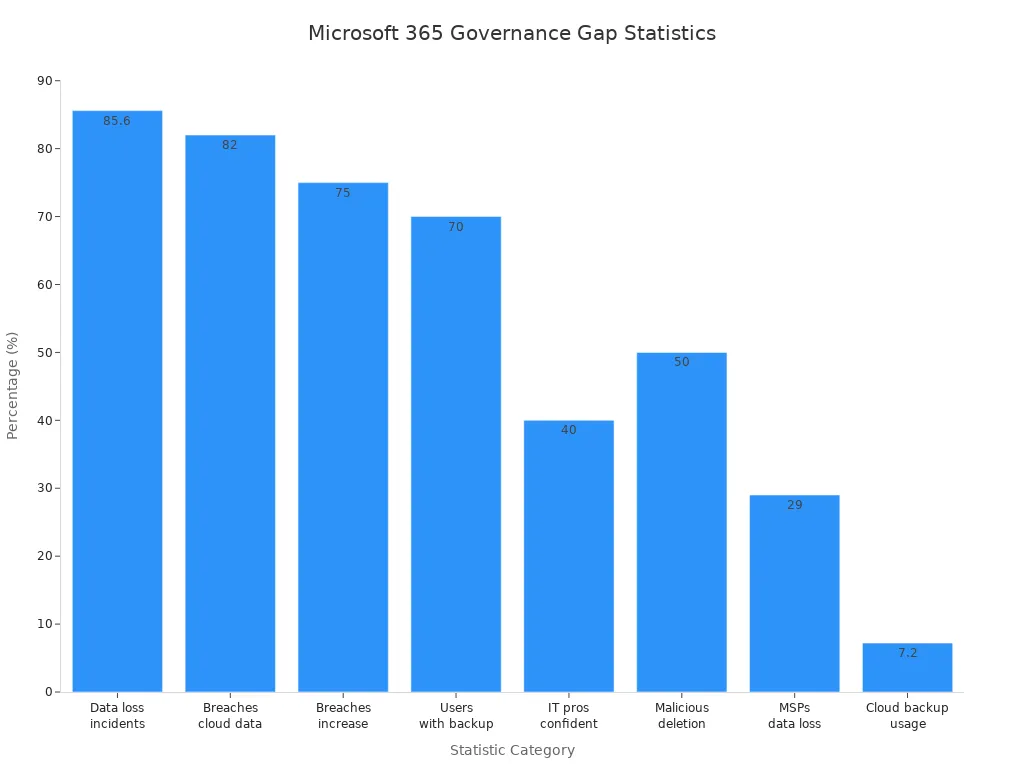 Microsoft 365 Copilot plays a key role in closing the governance gap by using AI to detect threats and secure sensitive data. Microsoft 365 Copilot also helps teams monitor activity, enforce policies, and prevent data leaks. With Microsoft 365 Copilot, organizations address the governance gap before it leads to costly incidents. Microsoft 365 Copilot ensures continuous improvement in security and compliance, making the governance gap less likely to widen.
Key Takeaways
- Organizations must maintain ongoing oversight of Microsoft 365 to prevent data loss and security breaches.
- Establish clear governance policies to define roles, responsibilities, and data management practices.
- Automate policy enforcement to ensure consistent application of security measures across all teams and channels.
- Regularly review and update governance strategies to adapt to changes in technology and organizational needs.
- Implement lifecycle management to track and manage Teams and channels, reducing data sprawl and security risks.
- Use advanced reporting tools to gain visibility into user activity and identify potential compliance issues early.
- Train employees on best practices to minimize insider threats and human errors that can lead to data leaks.
- Leverage AI tools like Microsoft 365 Copilot to enhance security and streamline governance processes.
7 Surprising Facts About Microsoft 365 Data Governance
- Many organizations assume Microsoft 365 enforces perfect controls by default, but a persistent governance gap in Microsoft 365 means default settings often leave sensitive data exposed until explicitly configured.
- Retention labels and policies exist, yet they can conflict across Exchange, SharePoint, OneDrive and Teams—creating invisible retention gaps that the governance gap in Microsoft 365 can amplify.
- Guest access and external sharing are easy to enable but hard to manage at scale; unmanaged guest identities are a common source of the governance gap in Microsoft 365.
- Audit logs are comprehensive but scattered: correlated investigation across services is complex, so missing cross-service context widens the governance gap in Microsoft 365.
- Data classification tools like auto-labeling rely on accurate taxonomies—without governance, auto-classification can mislabel content and deepen the governance gap in Microsoft 365.
- Many security and compliance features require licensing tiers (E5, Purview add-ons); organizations often assume capabilities are included, creating a functional governance gap in Microsoft 365 when licenses are insufficient.
- Role-based access controls exist but are frequently underutilized or misconfigured; excessive admin roles and delegated permissions are one of the largest practical contributors to the governance gap in Microsoft 365.
Understanding the Governance Gap
What Is the Governance Gap?
The governance gap describes the difference between how organizations use Microsoft 365 and how they manage its security and compliance. Many companies adopt new tools like Microsoft 365 Copilot quickly, but their governance frameworks do not keep up. This gap appears when teams use Microsoft Teams and other services without clear rules or oversight.
- Most Fortune 500 companies now use Microsoft 365 Copilot, but only a small number have fully developed governance programs.
- Many organizations remain in the early stages of digital governance, with only 25% having a complete AI governance plan.
- The rapid growth of Microsoft 365 often outpaces the creation of strong governance in microsoft 365.
This gap means that while organizations enjoy the benefits of collaboration and AI, they may not have the controls needed to protect their data and users.
Why the Gap Matters
The governance gap has real consequences for organizations. Without strong governance in microsoft 365, teams face confusion and risk. Problems often arise because no one knows who is responsible for managing data or enforcing policies.
- Fragmented ownership leads to disputes instead of solutions.
- Siloed processes make it hard to manage Microsoft 365 as a whole, since each tool gets treated separately.
- Omissions in governance leave important data boundaries unclear, which can result in accidental data leaks.
Digital governance helps organizations avoid these problems by creating clear rules and responsibilities. When teams do not address the governance gap, they risk losing control over their information and processes.
Hidden Risks in Microsoft 365
Many risks in Microsoft 365 stay hidden until they cause trouble. For example, almost half of all accounts do not use multi-factor authentication, which leaves them open to attacks. The connected nature of Microsoft 365 means that ignoring one service, like SharePoint, can create problems in others, such as Teams or Exchange.
- Stale data builds up over time, leading to outdated information being used for important decisions.
- AI tools like Copilot may give wrong answers if they rely on old or irrelevant data.
- Organizations often do not understand how their data gets used, which makes it hard to improve governance in microsoft 365.
Most organizations do not find these risks until something goes wrong. Gaps in governance in microsoft 365 usually show up during audits or after a security incident. Teams often discover unmanaged content and oversharing only when compliance failures occur.
- Data sprawl grows as users create new Teams and sites every day.
- Compliance gaps become visible at critical moments, showing that digital governance was not proactive.
- Without clear standards, organizations react to problems instead of preventing them.
Note: Proactive digital governance in microsoft 365 helps organizations spot risks early and keep their data safe.
Causes of Governance Gaps in Microsoft 365
Rapid Adoption Without Planning
Many organizations move to microsoft 365 quickly to boost collaboration and productivity. They often skip the planning phase. This rush creates gaps in governance in microsoft 365. Teams may overshare files or set up channels without clear rules. Labels for sensitive data become inconsistent. Data loss prevention features might be enabled but not enforced. Retention policies can have gaps, and ownership of channels or files may remain unclear.
- Oversharing of documents and information
- Inconsistent labeling of sensitive data
- Data loss prevention enabled but not enforced
- Retention gaps across Teams and SharePoint
- Unclear ownership of channels and files
These issues make it hard to track who has access to what. They also increase the risk of accidental data leaks. Without a solid plan, organizations struggle to keep up with the pace of change in microsoft 365.
Shadow IT and Unmanaged Teams
Shadow IT happens when employees use apps or services without approval from the IT department. In microsoft 365 environments, this often means users create Teams or channels outside official processes. These unmanaged Teams can lead to security risks and compliance problems.
| Statistic | Value |
|---|---|
| Average number of unknown cloud services in a company | 975 |
| Average number of known cloud services in a company | 108 |
| Percentage of unsanctioned SaaS applications used by enterprises | 52% |
| Percentage of employees at Fortune 1000 companies using unapproved SaaS | 67% |
| Percentage of businesses encountering cyber incidents due to shadow IT | 11% |
| Estimated percentage of IT expenditure that is shadow IT | 30-40% |
| Percentage of employees acquiring technology without IT knowledge | 41% |
| Expected increase in employees acquiring technology without IT knowledge | 75% by 2027 |
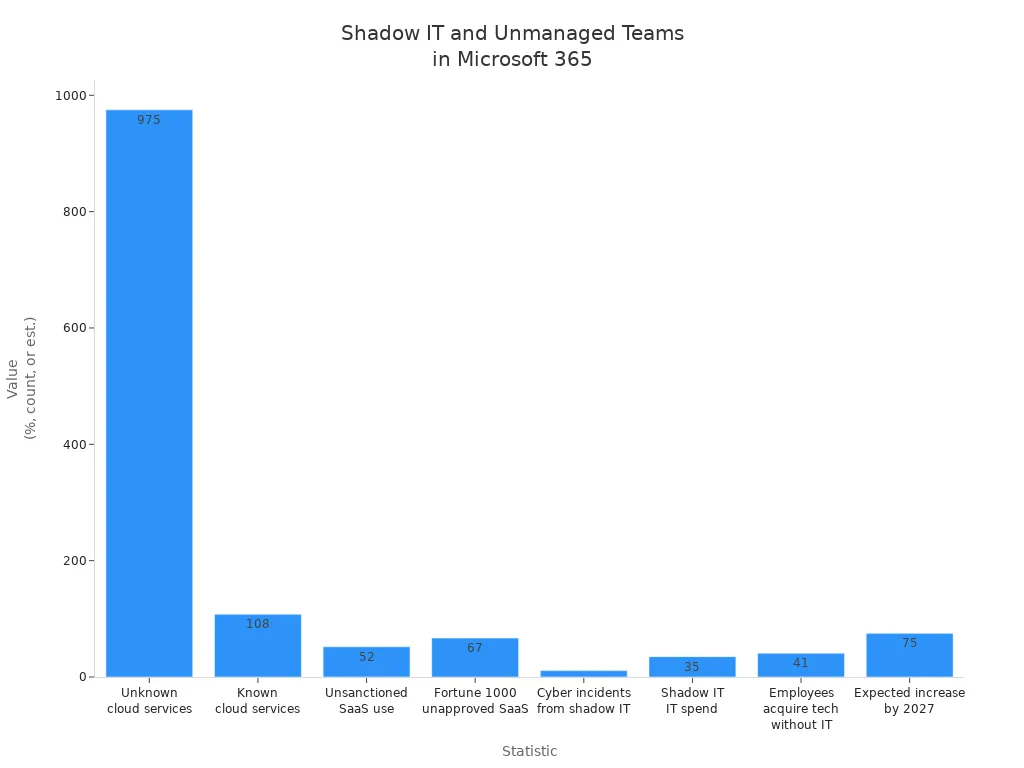
These numbers show that shadow IT is a major challenge for governance in microsoft 365. Unmanaged Teams can bypass data loss prevention and permissions management, making it difficult to protect sensitive information.
Inconsistent Policy Enforcement
Policy enforcement in microsoft 365 must be consistent to keep data safe. Many organizations face problems because they set up policies once and never review them. They may believe governance is a one-time project, but it requires ongoing attention.
- Policy configuration errors can cause multiple rules to detect the same data types.
- Some policy settings do not work with all versions of Outlook.
- External sharing conditions can affect policy tips in SharePoint Online and OneDrive for Business.
- MailTips and policy tips must be enabled for Outlook clients.
- Legacy Exchange Online data loss prevention policies should be updated to avoid issues.
Organizations sometimes forget to set up email authentication protocols like SPF, DKIM, and DMARC. They may leave anti-phishing and anti-spam policies at default settings. These missteps increase the risk of phishing and spoofing attacks. Regular reviews and updates help close the governance gap in microsoft 365.
Lack of Visibility and Reporting
Visibility and reporting play a crucial role in maintaining strong governance in microsoft 365. Many organizations struggle to track who accesses information, how data moves, and where sensitive files are stored. Without clear reporting, teams cannot identify risks or enforce data loss prevention policies. This lack of oversight leads to gaps that threaten security and compliance.
Teams often create channels in Microsoft Teams without proper monitoring. Administrators may not see which users share files or invite guests. When reporting tools do not provide real-time insights, unauthorized access can go unnoticed. Data loss prevention becomes less effective because teams cannot spot violations quickly. As a result, sensitive information may leave the organization without warning.
A table below shows the impact of low governance maturity levels:
| Impact of Low Governance Maturity Levels | Description |
|---|---|
| Lack of Compliance Attention | Organizations at level 100 maturity show minimal focus on compliance, lacking necessary policies and procedures. |
| Risk of Data Breaches | Absence of controls and training increases the likelihood of sensitive data exposure and theft. |
| Increased Costs and Inefficiencies | Elevated eDiscovery costs and inefficiencies arise from unstructured information and excessive document search times. |
| Emergence of Shadow IT | Employees may create unauthorized document storage solutions, leading to governance challenges. |
| Unclear Accountability | Lack of clarity in information governance can result in uncontrolled data sprawl and loss risks. |
Teams that do not use reporting features in microsoft 365 face higher risks. They may miss signs of data sprawl or shadow IT. Unclear accountability makes it difficult to assign responsibility for data loss prevention. When organizations lack visibility, they spend more time searching for documents and less time protecting information.
Note: Regular reporting helps teams spot unusual activity and enforce data loss prevention policies. Administrators can use dashboards to track file sharing, guest access, and channel creation. These tools help organizations respond to threats before they become incidents.
A strong reporting system supports compliance and reduces costs. Teams can find documents faster and avoid unnecessary eDiscovery expenses. Clear visibility also prevents employees from creating unauthorized storage solutions. When organizations monitor activity, they keep sensitive data safe and maintain control over their environment.
Governance in Microsoft 365: Operational Challenges
Complexity of the Microsoft 365 Ecosystem
The Microsoft 365 ecosystem includes many applications, such as Teams, SharePoint, and OneDrive. Each tool offers unique features, but this variety creates challenges for organizations. Users must learn how to manage settings and connect different services. Administrators often find it difficult to keep track of all the changes and updates.
A table below shows the main challenges organizations face:
| Category | Description |
|---|---|
| Integration | Challenges in integrating various applications within the Microsoft 365 ecosystem. |
| Customer Support | Difficulties in obtaining timely and effective support for users navigating the ecosystem. |
| Design & Complexity | The intricate design of the platform complicates user experience and governance. |
| Privacy & Security | Concerns regarding data privacy and security due to the complexity of managing multiple applications. |
| Cost & Pricing | Issues related to understanding the pricing structure and managing costs effectively. |
| Performance & Compatibility | Challenges in ensuring compatibility and performance across different applications and services. |
Self-service features give employees more freedom, but they also make governance harder. Organizations must balance user independence with strong security and permissions controls. Effective governance helps protect data and ensures compliance with company policies.
Decentralized Administration
Many organizations use decentralized administration in Microsoft 365. This means different departments or teams manage their own settings and users. While this approach can speed up decision-making, it often leads to inconsistent security and permissions practices.
A fragmented approach increases the effort needed to monitor compliance. Administrators may not know who controls certain Teams or channels. Manual governance tasks become time-consuming and prone to mistakes. Continuous monitoring is essential to identify changes and maintain compliance across the organization.
- Continuous monitoring is essential for compliance.
- Managing settings across various tools is complex.
- Manual governance tasks are labor-intensive and prone to human error.
When organizations do not coordinate their efforts, they risk gaps in security and permissions. Regular reviews and clear communication help reduce these risks.
User and Access Management
User and access management forms the foundation of strong governance in Microsoft 365. Administrators must control who can access sensitive information and what actions they can perform. Best practices include enabling multi-factor authentication for all users. This step protects accounts from unauthorized access.
Secure password policies also play a key role. Weak passwords make it easier for attackers to gain entry. Admin accounts should always use multi-factor authentication because they have higher levels of access and risk. These steps help organizations maintain strong security and permissions.
- Enable multi-factor authentication for all users.
- Use secure password policies.
- Prioritize admin accounts for extra protection.
By following these practices, organizations reduce the risk of data breaches and improve their overall security and permissions posture. Ongoing governance processes ensure that user access remains appropriate as teams and projects change.
Lifecycle Management Issues
Lifecycle management in Microsoft 365 presents ongoing challenges for organizations. As teams create new channels and projects, administrators must keep track of every asset’s status and ownership. Without a structured process, Teams and channels can quickly become outdated or unmanaged, leading to security and compliance risks.
Orphaned Teams and Channels
Orphaned Teams and channels occur when no active owner remains to manage them. This situation often arises when employees leave the company or change roles. Without an owner, no one monitors membership, permissions, or content. Guests and external users may stay in Teams indefinitely, which increases the risk of unauthorized access. Orphaned channels can also hold sensitive or outdated information that no one reviews or deletes.
Owners play a key role in lifecycle management. They manage who can join or leave, set permissions, monitor activity, and ensure compliance with policies.
| Responsibility | Description |
|---|---|
| Team Membership Management | Owners manage who can join or leave the Team, including Guests. |
| Control Over Policies | Owners set permissions for creating channels and managing settings. |
| Lifecycle Management | Owners can edit, delete, renew, archive, or restore Teams. |
| Activity Monitoring | Owners track team activity to address issues promptly. |
| Data Management | Owners ensure data security and compliance with regulations. |
| Compliance Assurance | Owners ensure adherence to laws and organizational policies. |
| Collaboration Promotion | Owners encourage effective collaboration among team members. |
When Teams lack active owners, organizations lose control. Security risks increase, and Teams can become chaotic. Regular reviews help identify orphaned Teams and channels so administrators can assign new owners or archive unused assets.
| Risk | Description |
|---|---|
| Security Risks | Guests remain in Teams indefinitely without an Owner, posing security threats. |
| Lack of Control | Without Owners, Teams can become chaotic, leading to ineffective management. |
Data Sprawl
Data sprawl happens when information spreads across too many Teams and channels without oversight. Users create new spaces for every project or topic, but few get cleaned up or deleted. Over time, this leads to clutter, making it hard to find important documents or track where sensitive data lives.
Unchecked data sprawl increases the risk of accidental data leaks and raises eDiscovery costs. Administrators must use reporting tools to monitor growth and enforce retention policies. Regular audits and clear ownership assignments help control data sprawl. By keeping Teams and channels organized, organizations improve security, reduce costs, and support compliance efforts.
Tip: Schedule periodic reviews to archive unused Teams and channels. This keeps the Microsoft 365 environment clean and secure.
Security and Compliance Risks

Data Leakage and Unauthorized Access
Data leakage and unauthorized access remain top concerns for organizations using Microsoft 365. Many companies face these risks due to misconfigurations and over-permissioned access. When permissions drift, users may see or share information they should not. This can lead to accidental data exposure and create compliance incident risks.
A table below highlights common security and compliance risks in Microsoft 365:
| Risk Type | Description |
|---|---|
| Misconfigurations and over-permissioned access | Permissions can drift, leading to accidental data exposure and compliance risks. |
| Data sprawl and retention policy conflicts | Difficulty in managing data due to unclear retention policies can complicate audits. |
| Insider risks and shadow IT | Internal users may unintentionally create risks by sharing files or using unauthorized apps. |
| Visibility and auditability gaps | Lack of clarity on data access and changes can lead to compliance blind spots. |
In 2021, 85% of companies using Microsoft 365 experienced a security breach. The global average cost of a data breach in 2023 reached USD 4.45 million. These numbers show the serious financial impact of a single incident. In one case, a compromised user accessed OneDrive, SharePoint, and Teams for seven days without detection. The root cause was a failure in security operations. Logs were collected but not reviewed, so no alerts were triggered. In another incident, a misconfiguration in Microsoft Azure exposed thousands of customer accounts and databases. This happened because a third-party partner made an error.
Tip: Regularly review permissions and monitor user activity to reduce the risk of unauthorized access.
Regulatory Compliance Failures
Regulatory compliance failures can have severe consequences for organizations. When teams do not follow rules for handling sensitive data, they may face fines or legal action. Unclear retention policies and data sprawl make it hard to prove compliance during audits. A compliance incident often reveals these gaps too late.
Many organizations struggle to keep up with changing regulations. They may not update policies or train employees on new requirements. This increases the risk of a compliance incident. Visibility and auditability gaps make it difficult to track who accessed or changed important information. Without clear records, organizations cannot show that they followed the law.
Note: Strong data security practices help organizations avoid regulatory penalties and protect their reputation.
Insider Threats and Human Error
Insider threats and human error play a major role in governance gaps within Microsoft 365. Employees may accidentally share sensitive files or use unauthorized apps. These actions can lead to data leaks and intellectual property theft. The complexity of managing data across multiple platforms increases these risks.
- Insider threats and human error are major factors leading to governance gaps in Microsoft 365.
- These issues can result in serious consequences such as data leaks and intellectual property theft.
- The complexity of managing data across multiple platforms increases the risks associated with insider threats.
Organizations must train employees to recognize risks and follow best practices. Regular reviews and clear policies help reduce mistakes. By focusing on education and monitoring, teams can strengthen their security posture and protect valuable information.
Audit and Monitoring Gaps
Audit and monitoring gaps in Microsoft 365 create serious challenges for organizations. Many teams believe that once they set up their environment, their work is done. In reality, ongoing monitoring is essential for strong security and compliance. Without regular audits, organizations cannot see who accesses sensitive data or when changes occur.
A lack of proper monitoring tools often leads to blind spots. Administrators may not notice unusual activity, such as unauthorized file sharing or unexpected guest access. These gaps make it difficult to detect threats early. Attackers can move through systems without being noticed, putting important information at risk.
Note: Regular audits help organizations find weaknesses before they become bigger problems.
Many organizations struggle to keep up with the volume of activity in Microsoft 365. Teams create new channels, share files, and invite guests every day. Manual tracking becomes impossible as the environment grows. Automated monitoring tools can help, but only if teams use them correctly.
A table below shows common audit and monitoring challenges:
| Challenge | Impact on Security and Compliance |
|---|---|
| Lack of real-time alerts | Delayed response to incidents |
| Incomplete audit logs | Missing evidence during investigations |
| Limited visibility into Teams | Unnoticed data leaks or policy breaches |
| Manual review processes | Increased risk of human error |
Security teams need clear and complete audit logs to investigate incidents. Missing or incomplete logs slow down response times. They also make it hard to prove compliance during audits. Organizations that do not monitor activity closely may miss signs of insider threats or accidental data leaks.
Automated monitoring tools, such as those powered by artificial intelligence, can improve visibility. These tools scan for unusual behavior and alert administrators quickly. For example, Microsoft Security Copilot helps teams spot risks in real time. It analyzes chat data, file sharing, and channel activity to find potential threats.
Tip: Set up automated alerts for sensitive actions, such as sharing files outside the organization or adding new guests to Teams.
Strong audit and monitoring practices support overall security. They help organizations respond faster to incidents and reduce the risk of data loss. By closing audit and monitoring gaps, teams can protect their information and meet compliance requirements.
AI Governance Gap in Microsoft 365
AI-Driven Content and Security
The rise of artificial intelligence in Microsoft 365 has changed how organizations manage content and security. Microsoft 365 Copilot generates documents, emails, and meeting notes at a rapid pace. This increase in AI-driven content can create challenges for governance. Many organizations find that AI-generated files do not follow a uniform structure. This lack of consistency makes it harder to manage, search, and audit information.
AI tools also add to the volume of data. Employees may feel overwhelmed by the amount of new content, which can hide important insights. The integration of AI with collaboration platforms sometimes leads to accidental sharing of sensitive information. Microsoft 365 Copilot can access and search across large amounts of organizational data, which increases the risk of data exposure. Security teams must adapt their strategies to address these new challenges and close the ai governance gap.
- AI-generated content may lack a uniform structure, complicating management and auditing.
- Increased data volume can lead to information overload, hiding critical insights.
- Integration with collaboration tools raises the risk of unintentional sharing of sensitive data.
- Rapid AI adoption can overwhelm employees, leading to resistance.
Automation and Workflow Risks
Automation tools like Power Automate help organizations streamline tasks in Microsoft 365. These tools can also introduce new risks if not managed carefully. Security vulnerabilities may appear when automated workflows lack proper oversight. Limited visibility into automation actions can create blind spots. Sensitive data might move outside the organization without anyone noticing.
Microsoft 365 Copilot can help monitor these workflows, but organizations must set up strict access controls. Role-based access control limits who can create or change automated flows. Data loss prevention policies stop sensitive information from leaving secure environments. Continuous auditing and robust monitoring ensure that every action is logged and reviewed. Disabling unnecessary automation tools reduces the attack surface and helps close the ai governance gap.
- Automation tools can create security vulnerabilities and visibility gaps.
- Strict access controls and continuous auditing are essential for safe automation.
- Logging and monitoring Power Automate activities help maintain transparency.
- Role-based access control and data loss prevention policies protect sensitive data.
New Attack Surfaces
The integration of AI in Microsoft 365 has created new attack surfaces for organizations. Microsoft 365 Copilot can access sensitive data across the platform, which increases the risk of exposure if not properly managed. Security teams now have new responsibilities. They must focus on protecting the data used by AI applications and monitoring how AI interacts with organizational information.
A table below highlights key findings from recent cybersecurity reports:
| Key Findings | Description |
|---|---|
| Increased Risk | User adoption of generative AI has led to a rise in data security incidents, nearly doubling from 27% in 2023 to 40% in 2024. |
| New Responsibilities | The integration of AI has reshaped the responsibilities of data security teams, focusing on the security of data used by AI applications. |
| Data Exposure | Microsoft 365 Copilot can access and search sensitive data across an organization, increasing the risk of exposure. |
Organizations must address the ai governance gap by updating their security policies and training employees. Microsoft 365 Copilot offers advanced threat detection, but ongoing vigilance remains essential. By understanding these new risks, teams can protect their data and maintain strong security in an AI-driven environment.
Balancing Innovation and Control
Organizations face a challenge when they introduce AI tools in Microsoft 365. They want to encourage innovation, but they must also keep control over security and compliance. Leaders need to find a balance that allows teams to use new technology without putting data at risk.
Many organizations start by defining clear objectives. They set goals that match their AI vision with business needs. This step helps everyone understand why the organization uses AI and what they hope to achieve. Teams also invest in scalable infrastructure. This means they build systems that can grow as AI use increases. Strong infrastructure supports efficient AI operations and reduces the risk of slowdowns or failures. High-quality data is another key factor. Teams must keep their data accurate and up to date. They enforce strong governance policies to make sure only the right people can access sensitive information.
- Define clear objectives that align AI vision with business goals.
- Invest in scalable infrastructure to support efficient AI operations.
- Maintain high-quality data and enforce strong governance policies.
Organizations must adapt their governance structures to fit new AI frameworks. They review existing policies and update them for AI-driven tools like Microsoft Security Copilot. Leaders ask important questions about security, privacy, and responsible AI use. They make sure that every new tool meets company standards for accessibility and data protection. Maintaining control over organizational data remains crucial during this process.
- Adapt governance structures to new AI frameworks.
- Use key questions about security, privacy, and responsible AI to guide reviews.
- Keep control over organizational data when adding AI tools.
Microsoft Teams provides a good example of this balance. Teams administrators use AI features to improve collaboration and detect threats. At the same time, they set permissions and monitor activity to prevent unauthorized access. Microsoft Security Copilot helps by analyzing data and alerting teams to risks. These tools show that innovation and control can work together.
“As Customer Zero, we need to balance product innovation with security and operational needs,” says Mykhailo Sydorchuk, Customer Zero lead for Microsoft 365 integrated apps in Microsoft Digital.
Success depends on ongoing review and adjustment. Organizations must stay flexible as AI technology changes. They train employees to use AI tools responsibly. Regular audits help teams spot problems early and keep systems secure. By following these steps, organizations can enjoy the benefits of AI while protecting their data and reputation.
Closing the Governance Gap: Strategies and Best Practices
Clear Governance Policies
Organizations must start by establishing clear governance policies. These policies define how teams manage information, set permissions, and protect sensitive data. Leaders create rules for channel creation, guest access, and document sharing. They also clarify roles and responsibilities for every team member. A governance board oversees these policies and ensures accountability.
A structured approach prevents confusion and reduces the risk of governance breakdowns. Teams document their processes so everyone understands expectations. Continuous feedback loops help organizations adjust policies as needs change. Clear accountability keeps teams focused and prevents structural issues from causing failures.
| Evidence Description | Key Points |
|---|---|
| Compliance governance engine | Enhances customer trust and drives innovation through AI-powered products. |
| Automation of compliance configurations | Ensures adherence to regulations is foundational, not an afterthought. |
| Comprehensive reporting and notifications | Provides visibility and timely updates on critical metrics to drive trust. |
| Unified compliance framework | Simplifies evidence sharing and meets multiple regulatory requirements efficiently. |
Microsoft 365 copilot supports governance in microsoft 365 by helping teams monitor policy adherence and providing real-time insights. Having data and being able to action it allows organizations to respond quickly to risks and maintain compliance.
Tip: Document governance processes and assign clear roles to prevent confusion and improve accountability.
Automated Policy Enforcement
Automated policy enforcement strengthens governance in microsoft 365. Teams use tools to set rules for data protection, access control, and compliance. Automation ensures policies apply consistently across all channels and teams. Microsoft 365 copilot enables context-aware governance at scale, monitoring content from creation to expiration.
Automated alerts notify administrators about unusual activity. These alerts help teams detect risks early and take action before incidents occur. Automated enforcement reduces the risk of data breaches and streamlines collaboration. Teams gain visibility into data usage and associated risks, making it easier to manage access controls.
- Ensures compliance with data protection regulations.
- Manages access controls effectively.
- Provides visibility into data usage and associated risks.
- Reduces the risk of data breaches.
- Streamlines collaboration across teams.
A well-structured data governance framework guides user behavior and aligns teams. Microsoft 365 copilot transforms data into a trusted foundation for security and compliance. Having data and being able to action it empowers organizations to enforce policies and protect information.
Note: Automated policy enforcement helps organizations maintain security and compliance without increasing resources.
Lifecycle and Access Management
Lifecycle and access management play a vital role in governance in microsoft 365. Teams must plan for every phase, from creation to decommissioning. Administrators analyze needs and define processes for each lifecycle stage. Standardized templates simplify team setup and approval workflows.
Monitoring and control ensure teams track activity, owners, access, and sensitivity labels. Microsoft 365 copilot assists by providing dashboards that show real-time data. Having data and being able to action it lets administrators identify inactive teams and remove obsolete guest users.
- Plan: Analyze needs for each lifecycle phase and define processes.
- Create with templates: Standardize team setup, approval workflows, and structure.
- Monitor & control: Track activity, owners, access, and sensitivity labels.
- Decommission: Archive or delete inactive teams and remove obsolete guest users based on defined criteria.
- Involve stakeholders: Collaborate with legal, compliance, and business teams.
Organizations implement expiration policies for Microsoft 365 Groups and Teams. They set expiration dates to trigger deletion or archiving after inactivity. Group owners receive notifications before deletion and can extend their team or group if needed.
- Implement expiration policies for Microsoft 365 Groups and Teams.
- Set expiration dates for groups and teams to trigger deletion or archiving after inactivity.
- Notify group owners before deletion and allow them to extend their team/group.
The University of Waikato improved governance in microsoft 365 by streamlining processes, tightening sharing protocols, and enforcing lifecycle management. This case shows that structured approaches achieve effective governance without increasing resources.
Schedule periodic reviews to archive unused Teams and channels. This keeps the environment clean and secure.
Advanced Reporting and Visibility
Strong governance in Microsoft 365 depends on advanced reporting and clear visibility. Organizations need to know who accesses data, when changes happen, and where sensitive information lives. Without this insight, teams cannot spot risks or enforce policies effectively.
Modern reporting tools give administrators real-time dashboards and detailed logs. These features help teams track user activity, file sharing, and permission changes. When organizations use advanced reporting, they can quickly identify unusual behavior or unauthorized access. This approach reduces the chance of data leaks and supports compliance with regulations.
Microsoft 365 offers several tools and features that improve reporting and visibility. The table below highlights some of the most effective options and their benefits:
| Tool/Feature | Benefits |
|---|---|
| Microsoft Entra ID P1 and P2 | Advanced identity and access management features, ideal for secure access and user productivity. |
| Identity Governance Solutions (SailPoint, Saviynt, Okta) | Shift from reactive to proactive governance, ensuring stronger security, continuous compliance, and operational efficiency. |
Microsoft Entra ID P1 and P2 help organizations manage user identities and control access to resources. These tools allow administrators to set rules for who can see or edit information. They also provide alerts when someone tries to access restricted data. This level of control keeps sensitive information safe and boosts user productivity.
Identity governance solutions like SailPoint, Saviynt, and Okta take reporting a step further. These platforms help organizations move from reacting to problems to preventing them. They offer continuous monitoring, automated compliance checks, and detailed audit trails. Teams can see who accessed what data and when, making it easier to spot risks early.
Tip: Regularly review reports and dashboards to catch unusual activity before it becomes a problem.
Advanced reporting tools also support operational efficiency. Teams spend less time searching for information and more time focusing on their work. Automated alerts and clear logs help organizations respond quickly to incidents. By investing in strong reporting and visibility, organizations build a safer and more efficient Microsoft 365 environment.
Real-World Examples and Success Stories

Financial Services Case Study
A large financial services company faced challenges with data security and compliance in Microsoft 365. The company managed thousands of client records and needed to protect sensitive information. Teams often created new channels without clear rules. This led to confusion about who could access important files.
The IT department decided to implement automated policy enforcement using Microsoft 365 Copilot. They set up strict access controls and enabled real-time monitoring for all Teams channels. The company also used advanced reporting tools to track file sharing and guest access. Administrators received alerts when users tried to share sensitive documents outside the organization.
The company reduced unauthorized access incidents by 60% in the first six months. Audits became easier because administrators could quickly find records of user activity. The company passed its next compliance review with no major findings.
Manufacturing Case Study
A global manufacturing firm struggled with data sprawl and orphaned Teams. Employees created new Teams for every project, but many channels became inactive after the projects ended. Sensitive design files and contracts remained in these unused channels. The company worried about data leaks and high eDiscovery costs.
The IT team introduced lifecycle management policies. They used Microsoft 365 Copilot to identify inactive Teams and notify owners. If no one responded, the system archived or deleted the channels. The company also trained employees on best practices for channel creation and data retention.
A table shows the results after one year:
| Metric | Before Policy | After Policy |
|---|---|---|
| Orphaned Teams | 320 | 45 |
| Data Sprawl (GB) | 2,100 | 1,200 |
| eDiscovery Search Time (hrs) | 12 | 4 |
The company saw a 70% drop in orphaned Teams and faster searches during legal reviews. Employees found it easier to locate important documents.
Lessons Learned
These case studies show that strong governance in Microsoft 365 leads to better security and efficiency. Organizations that use automated tools and clear policies reduce risks and save time.
Key takeaways include:
- Automated policy enforcement prevents unauthorized access.
- Lifecycle management controls data sprawl and reduces costs.
- Employee training supports long-term success.
- Advanced reporting improves visibility and audit readiness.
Success in Microsoft 365 governance comes from ongoing effort, not one-time fixes. Teams that review and update their policies stay ahead of risks and protect their data.
Building a Sustainable Governance Framework
Continuous Improvement
A sustainable governance framework in Microsoft 365 requires ongoing attention. Teams must review policies and processes regularly. Technology changes quickly, so organizations need to adapt their governance strategies. They should schedule periodic audits to check for gaps or outdated rules. Administrators can use feedback from users to improve workflows and address pain points.
Tip: Set reminders for quarterly reviews of governance policies. This helps teams stay ahead of new risks.
Continuous improvement also means learning from incidents. When a data breach or compliance issue happens, teams should analyze the cause. They can update policies to prevent similar problems in the future. Training sessions help employees understand new rules and tools. Organizations that focus on improvement build stronger defenses over time.
Aligning Governance with Business Goals
Governance should support the overall goals of the business. Leaders must connect governance policies to the company’s mission and values. For example, a company that values innovation should allow flexible collaboration while protecting sensitive data. Teams need to understand how governance helps them reach their objectives.
A table below shows how governance aligns with common business goals:
| Business Goal | Governance Focus |
|---|---|
| Innovation | Secure collaboration |
| Compliance | Strong data protection |
| Efficiency | Automated workflows |
| Customer Trust | Transparent reporting |
Teams should involve stakeholders from different departments. Legal, compliance, and IT teams can work together to create balanced policies. Regular meetings help everyone stay informed and aligned. When governance matches business needs, employees see its value and follow the rules more closely.
Measuring Success
Measuring the success of governance efforts helps organizations improve. Teams should track key metrics, such as the number of policy violations, time to resolve incidents, and user adoption rates. Dashboards and reports provide clear data for decision-making.
Note: Use visual dashboards to share progress with leadership and staff.
Organizations can set goals for reducing data breaches or increasing compliance scores. They should celebrate achievements and share lessons learned. Regular measurement keeps teams motivated and focused on improvement.
A checklist for measuring governance success:
- Track policy violations and incident response times
- Monitor user adoption of governance tools
- Review audit and compliance results
- Gather feedback from users and stakeholders
By measuring progress, organizations ensure their governance framework stays effective and relevant.
Addressing the governance gap in Microsoft 365 cannot wait. Delayed or incomplete governance exposes organizations to data loss, compliance failures, and security threats. Proactive management with Microsoft Teams and AI tools like Microsoft Security Copilot brings stronger protection and better visibility.
- Teams that act now reduce risks and build trust.
- Ongoing reviews and improvements keep data safe.
- Every organization benefits from a clear, continuous governance strategy.
Microsoft 365 Data Governance Checklist
Focus: identify and remediate the governance gap in Microsoft 365.
FAQ: microsoft 365 governance: robust governance framework for collaboration and data protection
What is the "governance gap in Microsoft 365"?
The "governance gap in Microsoft 365" refers to the disparity between the platform's built-in governance capabilities and an organization's actual governance needs — covering architecture, governance controls, data lifecycle, permission management, and effective data governance across Microsoft 365. It appears when governance practices, policies, or enforcement are insufficient to manage enterprise data, unstructured data, cloud collaboration, ai agents like Microsoft 365 Copilot, or security risks introduced by user behavior and integrations.
Why does a governance gap emerge in Microsoft 365 environments?
A governance gap emerges because Microsoft 365 is highly flexible and expansive: many data sources, collaboration tools, and third-party apps mean governance decisions are complex. Organizations often lack a microsoft 365 governance framework, consistent policies for data protection and retention, clear roles for governance capabilities, or adequate security controls. Rapid adoption, ai innovation (including microsoft 365 copilot and ai agents), and decentralized collaboration exacerbate the gap.
How does the governance gap affect collaboration and collaboration governance?
A governance gap undermines collaboration governance by creating inconsistent access controls, unclear ownership of sites and teams, and unmanaged sharing that risks sensitive data exposure. It affects business value from collaboration by reducing trust in data quality and making cross-team collaboration brittle. Proper governance is required to balance open collaboration with security and compliance.
What are common signs that our organization has a governance gap in Microsoft 365?
Common signs include uncontrolled sharing of sensitive data, inconsistent retention and data lifecycle practices, orphaned teams and sites, proliferation of duplicate data sources, lack of visibility across enterprise data, sporadic application of governance best practices, and weak orchestration of governance capabilities like Microsoft Purview and security controls.
How should we start closing the governance gap — what is a practical governance plan?
Begin with an assessment of the environment and organization's data to map data sources, unstructured data locations, and collaboration patterns. Define governance goals and a microsoft 365 governance framework that covers permission models, data protection, data retention, and data quality. Prioritize actions: implement access controls, enforce classification and labeling with Microsoft Purview, create lifecycle rules, formalize governance roles, and adopt automation where possible for scale.
What role does Microsoft Purview play in addressing the governance gap?
Microsoft Purview provides core governance capabilities for classification, labeling, data loss prevention (DLP), and retention across Microsoft 365. It helps establish effective data governance by enabling policies for sensitive data, data protection, and retention management, improving visibility into data within the environment, and supporting compliance and governance best practices.
How do ai agents and Microsoft 365 Copilot affect governance requirements?
AI agents and Microsoft 365 Copilot introduce new governance considerations such as data used for model prompts, privacy of organization's data, access to enterprise data sources, and auditability of ai systems. Proper governance must include controls around ai innovation, limitations on data exposure, monitoring of ai-driven actions, and policies to protect sensitive data while enabling business value from ai systems.
What governance controls should we apply to permissions and access in Microsoft 365?
Apply a least-privilege model with role-based access control, conditional access policies, regular access reviews, and just-in-time access where possible. Implement governance practices to manage guest access, external sharing, and group lifecycle, and use automation to enforce consistent permission settings across teams and sites to protect enterprise data.
How can we protect sensitive data and ensure data quality across Microsoft 365?
Protect sensitive data by classifying and labeling content, deploying DLP policies, encrypting data in transit and at rest, and limiting sharing of sensitive data. Improve data quality by defining metadata standards, automating data lifecycle policies, consolidating duplicate data sources, and applying governance best practices to ensure reliable and trustworthy enterprise data.
What limitations should we be aware of when implementing governance in Microsoft 365?
Limitations include platform boundaries, integration gaps with third-party apps, user adoption challenges, and complexities introduced by unstructured data. Technical constraints in automating certain governance processes and the need for continuous tuning of policies (especially with ai agents) mean governance is ongoing rather than a one-time project.
How do governance practices differ for cloud-first vs traditional on-premises environments?
Cloud-first environments require governance that emphasizes dynamic permission models, automated data lifecycle controls, and real-time monitoring, while traditional on-premises governance often focused on static perimeters and manual processes. Effective data governance across Microsoft 365 must adapt to the cloud's scale, the distributed nature of collaboration, and the prevalence of unstructured data.
What governance best practices improve readiness for audits and compliance?
Best practices include documenting governance decisions, implementing consistent classification and retention policies, centralizing audit logs, enforcing DLP and encryption, conducting periodic access reviews, and using Microsoft Purview for compliance reporting. A documented microsoft 365 governance framework and robust governance framework increase readiness and demonstrate control over enterprise data.
Who should own governance in a Microsoft 365 deployment — IT, security, or the business?
Ownership should be shared: IT provides platform architecture and automation, security enforces security controls and microsoft 365 security practices, and business units drive data stewardship and governance decisions about business value and data lifecycle. A cross-functional governance council is a key governance capability to coordinate policies and governance practices across the organization.
How can we measure progress in closing the governance gap?
Measure progress with metrics such as reduced number of unmanaged sites, percentage of labeled sensitive data, frequency of policy violations, time to remediate incidents, results of access reviews, data quality indicators, and coverage of automated governance controls. Regular reporting against these metrics shows improvement in governance capabilities across Microsoft 365.
What are recommended next steps to build a sustainable Microsoft 365 governance framework?
Create a phased roadmap that includes discovery of data and collaboration patterns, defining policies for data protection and retention, deploying Microsoft Purview and security controls, establishing governance roles and automation, training users on governance best practices, and setting continuous monitoring and improvement to adapt to new requirements and ai systems.
🚀 Want to be part of m365.fm?
Then stop just listening… and start showing up.
👉 Connect with me on LinkedIn and let’s make something happen:
- 🎙️ Be a podcast guest and share your story
- 🎧 Host your own episode (yes, seriously)
- 💡 Pitch topics the community actually wants to hear
- 🌍 Build your personal brand in the Microsoft 365 space
This isn’t just a podcast — it’s a platform for people who take action.
🔥 Most people wait. The best ones don’t.
👉 Connect with me on LinkedIn and send me a message:
"I want in"
Let’s build something awesome 👊
Most Teams admins think they’re just managing channels and permissions. But here’s the hidden layer: creating a Team usually triggers the provisioning of Microsoft 365 resources in the background—things like a connected group object, a SharePoint site, and other linked services you may not even notice at first. If you’ve ever wondered why changing a small setting suddenly causes ripple effects across Microsoft 365, this is often the reason. By the end of this podcast, you’ll be able to visualize how a single Team affects multiple services and adjust roles or policies without unexpected side effects. If you’re a Teams admin—or if you’ve ever seen these surprise side effects—drop a quick comment or like so we know this applies to you. Because at its core, creating a Team isn’t just about adding a workspace. It’s about setting off a series of invisible connections that admins rarely see until something breaks.
The Ripple Effect of Creating a Team
When you click “create a Team,” you’re not just carving out a chat window with some folders attached. That single action can set broader processes in motion across Microsoft 365—what we’ll call the ripple effect of creating a Team. Most admins don’t see it because the surface looks simple, but underneath, multiple services are usually brought online together and stitched into one framework. Think of it like a line of dominoes: the first tile you tip—the Team—doesn’t stand on its own. It pushes into others that fall in sequence. Typically, that sequence begins with a Microsoft 365 Group, and from there, linked resources such as a SharePoint site, group membership updates in Entra ID, an Exchange mailbox and calendar, and sometimes connections to services like Planner appear automatically. The exact behavior can differ by tenant configuration, so it’s always worth verifying against your own documentation. But the key point is this: a Team usually comes with more than admins bargain for, and those extra moving parts matter when troubleshooting. This automatic provisioning is what often creates surprises elsewhere in the environment. Let’s say you add a new channel thinking it’s just another discussion spot. Suddenly permissions shift in SharePoint storage or a folder behaves differently. To users, it feels random. To admins, it’s frustrating because no one explicitly clicked “provision a site” or “adjust a rule”—the system just did it. That chain reaction is why a tiny change in Teams sometimes surfaces as a support ticket somewhere else in Microsoft 365. One illustrative scenario: imagine a project lead sets up a new Team and then, to organize work, spins up a few private channels. A couple of days later, IT notices extra SharePoint sites have appeared in their admin view. The project lead didn’t mean to create those sites—yet by creating private channels, SharePoint created new storage locations automatically. This isn’t a rare bug; it’s the design of how connected services behave. At scale, it can mean your governance and storage policies multiply without anyone planning for it. It’s tempting to think of Teams as its own silo, but the architecture is more like a web stretched across Microsoft 365 services. When you touch one strand, others move with it. SharePoint isn’t just file storage—it’s providing the container for your Team’s documents. Exchange isn’t just email—it’s the calendar engine for that Group. Entra ID isn’t only about user accounts—it’s tying identity directly into those same resources. And because all of it rests on the Microsoft 365 Group, you can’t really separate them. Teams isn’t designed to operate without those connections, which is why the ripple effect is built-in rather than optional. Understanding that structure changes how you respond when something seems “off” in Teams. Many issues aren’t really Teams problems at all—they’re signals from those underlying layers. Permissions not matching up? That’s likely SharePoint rules tied to Group membership. Calendar issues? Exchange. User access confusion? Probably Entra ID. Once you see Teams as the façade on top of these services, the troubleshooting path begins to make more sense. In practice, this means that clicking “new Team” is closer to deploying an entire collaboration stack in one move than it is to creating a single workspace. Without realizing it, you’ve written to directories, spun up sites, created a group object, and distributed permissions across several services. Recognizing that scope helps you avoid treating Teams like a simple app and reminds you that each new Team carries admin responsibilities beyond chat and channels. A practical takeaway here: after creating a Team, take a moment to confirm its associated Group and linked sites in the admin centers you rely on. Knowing what else was created alongside the Team helps you get ahead of permission mismatches and storage sprawl. Check the documentation tied to your tenant so you understand exactly what resources to expect. And if these ripple effects start with a Group object, the next question is: what role do those Groups play behind the curtain? Because while they don’t show up front-and-center in the Teams admin center, they often decide how everything else behaves. That’s where we need to look next.
Groups: The Hidden Puppet Master
Unlike Teams, where everything looks front and center in the admin center, the mechanics of Groups aren’t presented quite so clearly. Groups don’t show up with a big flashing banner that says “manage me here.” Instead, they sit in the background as the structural object that ties Teams to other Microsoft 365 services. Because they operate quietly, it’s easy for admins to miss their importance—or dismiss them as clutter in Outlook or a nuisance when trying to manage permissions. But here’s the thing: if you don’t pay attention to Groups, every other part of Teams administration ends up resting on unsteady ground. The mistake many organizations make is treating Groups like an afterthought. A new Team gets created, a Group comes along with it, and then nobody tracks ownership or rules. That might not cause an issue right away, but six months later you’re handling permissions that don’t line up, calendars that confuse users, and SharePoint access that doesn’t reflect what anyone thought they configured. The Team isn’t “breaking”—the Group underneath is dictating behavior, and if that wiring isn’t designed properly, surprises crop up everywhere. To bring this closer to home, picture two organizations. In the first, department heads could create Teams whenever they wanted. The Groups that followed were ignored almost completely. Nobody checked who the owners were, and as contractors cycled in and out, their accounts stayed active because nobody cleaned up Group membership. The result: forgotten Groups with valid permissions tied to them, and files accessible to people who shouldn’t have them. In the second organization, IT looked at Groups as the anchor point rather than the byproduct. They tied Group membership to Entra ID roles, enforced expiry policies, and required verified owners. When staff left, access ended everywhere automatically because the Group was the single point of control. The difference came down to whether Groups were treated as noise or as the backbone. If you want to avoid the risks that come from ignoring Groups, there are three simple checks you should always be running. First, verify that every Group has at least one active owner. Second, review membership regularly to catch any external users who linger longer than they should. And third, confirm whether your organization has set expiry or lifecycle policies so Groups don’t remain active forever without oversight. These aren’t exotic techniques—they’re basic routines that give you a clear baseline for controlling access. When you start tackling this in practice, don’t just rely on memory or one-off cleanups. Head into your tenant’s admin center and audit logs to identify Groups without owners and flag unusual membership patterns. Different organizations might label or surface these details in different ways, so confirm the exact steps in your tenant documentation or the workshop materials you’re using. The key takeaway is simple: there’s no way to keep Teams predictable if you’re blind to what’s happening with the Groups underneath. The trouble is that when admins don’t recognize Groups as the binding agent, every connected service feels chaotic. A Teams channel suddenly shows up as a SharePoint folder. A SharePoint site appears linked to a Group, which also happens to create an Outlook calendar most users never touch. None of these outcomes are random—it’s the Group linking them together by design. If you expect Teams to be self-contained, it’s confusing. Once you accept Groups as the organizer, the system starts to look consistent again. The real tension comes from the fact that Groups don’t just list members; they define how permissions flow into other Microsoft 365 layers. A misconfigured Group echoes across SharePoint, calendars, and Teams simultaneously. For instance, if you leave external accounts inside a Group, you’ve effectively granted them access everywhere that Group has reach, even if you thought you were only sharing a single Team. Without explicit policies in place, those oversights turn into long-term governance gaps. So while Teams might be the interface you interact with every day, Groups are quietly steering the outcomes. They decide who belongs, what roles are inherited, and how far each permission stretches. If your Teams environment ever feels unpredictable, odds are it’s a Group setting surfacing in ways you didn’t expect. Understanding that puts you in a stronger position to manage the bigger picture—and more importantly, to explain to colleagues why what looks like a random glitch isn’t random at all. Which leads us into the next layer: if Groups are setting the stage, why do so many Teams still feel riddled with access holes? The answer has less to do with creating new Groups and more to do with how permissions cascade once they’re in place. That’s where things start to feel fragile, and it’s where most admins discover problems the hard way.
The Permission Puzzle
Why do so many Teams setups leave admins wrestling with unpredictable access issues? On the surface, everything looks controlled—channels are built, files sit neatly in SharePoint, and members get added right inside Teams. But the tricky part is how permissions often inherit across Group, Teams, and SharePoint boundaries in ways you might not immediately expect. These services don’t operate in isolation; the decisions made in one layer can ripple into another. A modest adjustment to roles in Teams might alter file visibility in SharePoint or appear as an unexpected access change in Entra ID. The challenge is that administrators usually realize this only after a user reports a problem. For instance, a manager sets up a new private channel, assuming it’s just a trimmed-down space for restricted conversation. What actually happens in many tenants is that SharePoint provisions a related folder or site behind the scenes, and the permissions flowing from Teams can shape who sees those documents. If the rules don’t line up cleanly, users end up confused or locked out. From the admin’s chair, it feels like permissions are skipping logic when in reality they’re inheriting in the background. A best-practice reminder here: when you run into inconsistencies, start by tracing group membership and reviewing effective permissions rather than only adjusting a single setting in isolation. Think of it this way: you can bolt every door in the house, but one forgotten window is all it takes to negate the effort. Teams permissions behave similarly—tighten things at the Team level, but if inheritance gives broader access at the SharePoint layer, that “open window” undermines the design. A simple diagnostic approach is to verify which permissions users are effectively receiving across all layers when something feels off. That’s usually faster than scanning through every possible toggle inside Teams alone. One common place this shows up is when channels get deleted. To most users, removing a channel looks like cleaning up clutter. But because those channels often tie directly to SharePoint folders or even entirely separate sites, deleting them also disrupts access to related content. Documents tied to the channel, retention policies set in compliance tools, and folder permissions may all be affected. This is where inheritance behavior can catch you out. A straightforward admin check here is to review the connected SharePoint resources and retention settings before finalizing a channel deletion—just to confirm nothing critical is still attached. This is further complicated by default configurations in Microsoft 365. Out of the box, Teams assumes it’s safer to lean toward openness for easier collaboration, which means generous access is the norm unless specifically tightened. That works decently for small teams that simply need a space to communicate quickly. But for enterprises—especially in regulated industries—it can turn into long-term leakage of access if nobody reviews what inheritance has granted. If you try to counterbalance later by manually tweaking SharePoint permissions, the exceptions stack on top of already inherited rights, complicating matters further. At some point, even experienced admins struggle to explain why a user has access they shouldn’t. To cut down on that confusion, a simple micro‑tip is worth remembering: whenever you adjust roles inside a Team, always validate the effective permissions in SharePoint immediately afterward. It only takes a minute, and it helps catch permission mismatches before they escalate into tickets or audit findings. This practice is less about mastering every hidden rule and more about building habits that expose issues early. In short, Teams permissions can feel unpredictable not because the system itself is broken, but because the flows between Group objects, Teams, and SharePoint are often invisible until you’re forced to troubleshoot. Small changes are rarely isolated events; they’re part of a chain, and pulling on one link always moves the others. Recognizing this pattern takes the guesswork out of diagnosing access problems and turns what feels like random glitches into something you can track methodically. What this also reveals is a deeper issue: if permissions can drift just from daily changes, what does that mean for organizations trying to keep Teams compliant and sustainable over the long run? Managing access is only half the story. The other half is governance—where the real strain shows up once Teams scale across hundreds or even thousands of workspaces. That’s where the conversation needs to go next.
Governance: The Rules You Didn’t Know Teams Was Breaking
Getting a Team up and running is simple—click a button, give it a name, and users jump right in. But keeping that Team organized, secure, and sustainable over time is a different challenge. That’s where governance comes in. Most admins don’t feel the urgency early on, but the real strain shows up months later when project owners leave, content piles up, and no one is quite sure who is accountable for managing the space. Governance fills those long‑term gaps by putting rules in place that prevent Teams from quietly spiraling into clutter or risk. Instead of burying governance in theory, focus on three priorities that make the biggest difference: enforce clear naming standards, apply lifecycle or expiry rules, and require defined ownership with regular audits. A strong naming standard avoids confusing duplicates like “Marketing,” “Marketing 2,” and “Marketing Final,” which create overlap with no obvious distinction. Lifecycle rules ensure Teams don’t sit abandoned for years—holding data, accounts, and even external access that nobody remembers exist. And requiring owners, plus checking those assignments on a regular cycle, helps prevent “orphaned” Teams where no one is left to manage permissions or members. These three steps alone establish a baseline that scales far better than leaving everything to user discretion. The consequences of skipping these basics usually surface later and in bulk. One organization allowed self‑service Team creation with no expiry rules. Within 18 months they had hundreds of active Teams, many untouched for months. Some Groups had no owners, and worse, former employees were still listed as members. When compliance auditors arrived, the IT staff couldn’t even produce a clean map of which Teams were still valid or what data they held. The resulting risk far outweighed the effort it would have taken to establish policies earlier. The good news is the building blocks are already in the tenant. Admin centers provide policy types that cover templates, meeting options, and messaging controls. Instead of leaving every Team creator to decide how their workspace should function, administrators can bake in defaults that keep collaboration aligned to corporate rules. For example, templates dictate the starting structure of a Team; meeting policy types decide whether recordings are allowed or if anonymous users can join; and messaging rules guide what users can send or delete. Depending on your organization, the exact naming in the admin center might differ, so confirm the exact steps and labels in your tenant documentation or in the workshop materials if you’re following along in a demo. Without those policy levers in place, Teams quickly turns into a free‑for‑all. Each user sets up features how they like, and before long, administrators face a patchwork of settings that no single person can track. Governance prevents that scenario. It doesn’t slow Teams down—it creates a predictable path for adoption by removing guesswork and inconsistency. A simpler way to think about it: governance is less about control and more about removing friction. A short rule of thumb sums it up well: governance first, cleanup later loses momentum. If you start by setting consistent rules, Teams runs smoothly without constant intervention. If you delay until hundreds of workspaces already exist, hindsight rules rarely stick, and admins spend far more time chasing problems. The misconception is that policies make Teams rigid. In practice, the opposite is true. With the right rules in place—naming, lifecycle, ownership—admins stop micromanaging each creation, and users know they can spin up new workspaces without hitting security or compliance roadblocks later. It reduces shadow IT because people trust the official system works for them. And it lowers risk because data and access don’t drift unchecked. The system feels both flexible and secure. That shift in mindset is critical: governance isn’t an optional afterthought, it’s the framework that makes Teams sustainable at scale. Once those rules are embedded and enforced, users get the freedom to collaborate without creating long‑term overhead for IT. And that sets the stage for the next challenge—moving from managing collaboration spaces to handling real‑time communications, where Teams acts as more than chat and meetings. It’s the point where admins discover the platform’s role as a voice system inside hybrid work.
Voice and Hybrid Work: Beyond the Chat Window
Most administrators are comfortable managing Teams for chats and meetings, but when hybrid work depends on consistent communication, that surface-level understanding isn’t enough. What often gets overlooked is that Teams isn’t just a meeting app—it also functions as a full voice platform. In many organizations, voice has become just as critical as chat because it supports customer calls, remote collaboration, and continuity across dispersed teams. Missing a chat can usually be caught up later, but missing a client call due to a misrouted queue has an immediate cost. That’s why voice should be treated as a core workload, not an afterthought. The challenge is that stepping from chat and meetings into voice feels like entering a different world. Admins expect the same policy toggles and role assignments they’re used to, but voice introduces concepts such as PSTN connectivity (via calling plans or direct routing—confirm which option applies in your tenant), auto attendants, and call queues. These aren’t inherently complicated, but they do behave differently from the channel-and-permission model you’re used to. A misconfigured call queue can mean lost business calls, and unlike a delayed chat, that kind of mistake immediately frustrates end users and damages trust. A simple high-level safeguard is to monitor call logs and test inbound call flows during rollout, and confirm the right approach in your workshop resources before relying on production traffic. Once you get past the learning curve, the structure of Teams voice is logical. You start with licensing and enabling PSTN connectivity, then establish which users can make or receive calls. From there, you define call queues so groups can share incoming volume, and set up auto attendants to provide callers with clear routing options. Meeting room devices add another dimension, because now you’re ensuring that physical rooms connect consistently with virtual participants during hybrid work. Each of these pieces ensures that whether an employee is taking a headset call at home or presenting in a conference room, the voice experience doesn’t break down. To keep this practical, think of a short readiness checklist before deploying voice in your tenant: confirm licensing and PSTN setup, define your call queues and auto attendants, and test meeting room devices in a non-production environment. These steps don’t replace detailed documentation, but they anchor your thinking so you don’t miss critical workstreams in the rush to deploy. Exact licensing procedures and configuration details must always be confirmed against your tenant documentation or the workshop labs you’re following. There’s also an important policy angle. The governance settings you created earlier don’t disappear when voice enters the picture; they flow into it. For example, meeting-recording and messaging policies also affect how voice content is stored or shared—something to validate in your tenant’s documentation. Voice isn’t a stand-alone workload; it’s woven into the same policy framework across Teams, and that makes alignment crucial. If your messaging rules don’t account for voicemail forwarding, or if your meeting policies don’t anticipate call recordings, mismatches will show up quickly and cause confusion. The good news is that admins don’t need to learn this purely from documentation. Safe demo environments and workshops let you stand up real components—a call queue, an auto attendant, a fully licensed test user—without risking production users. Watching how a call routes in practice cements the knowledge more than reading about menus ever could. This hands-on approach turns what looks like telecom jargon into something admins can manage with confidence. When organizations begin to approach Teams as a platform that supports chat, meetings, and enterprise-grade calls, it stops feeling like a patchwork tool and starts functioning as unified communications infrastructure. Hybrid work depends on that integration. A consistent user experience—whether you’re at a desk, in a meeting room, or working remotely—comes from understanding that Teams voice can and should be just as reliable as other workloads. Admins who build confidence here stop fearing misconfigurations and start recognizing how all the underlying layers work together. And that brings us to the bigger perspective: Teams is never just one feature at a time. It’s an interconnected system of Groups, permissions, governance, and voice layers all woven together. Seeing those connections is what separates environments that feel chaotic from those that run predictably.
Conclusion
At this point, it’s clear that Teams demands more than surface‑level management. The platform runs on invisible layers that determine whether it remains functional or becomes a source of constant admin fire‑fighting. That’s why this conclusion is less about features and more about how you approach the job. Keep three practical reminders in mind: recognize the Group as the hidden object that ties services together, enforce governance rules from the beginning, and test voice and policy behaviors safely in a demo or lab tenant. If you have access, create a demo tenant or use a lab environment and run a single Team‑creation test to observe the linked services and verify your policies. Now it’s your turn: drop a comment with your single biggest Teams admin headache, and subscribe if you want more practical breakdowns of Microsoft 365 administration. Editorial note: before recording, cross‑check all absolute product behavior statements against your workshop materials or Microsoft’s official documentation, and soften any claim that isn’t fully verified.
This is a public episode. If you'd like to discuss this with other subscribers or get access to bonus episodes, visit m365.show/subscribe

Founder of m365.fm, m365.show and m365con.net
Mirko Peters is a Microsoft 365 expert, content creator, and founder of m365.fm, a platform dedicated to sharing practical insights on modern workplace technologies. His work focuses on Microsoft 365 governance, security, collaboration, and real-world implementation strategies.
Through his podcast and written content, Mirko provides hands-on guidance for IT professionals, architects, and business leaders navigating the complexities of Microsoft 365. He is known for translating complex topics into clear, actionable advice, often highlighting common mistakes and overlooked risks in real-world environments.
With a strong emphasis on community contribution and knowledge sharing, Mirko is actively building a platform that connects experts, shares experiences, and helps organizations get the most out of their Microsoft 365 investments.




