

 Apple Podcasts
 Spotify
 Youtube Music
 Spreaker
 Podchaser
 Amazon Music
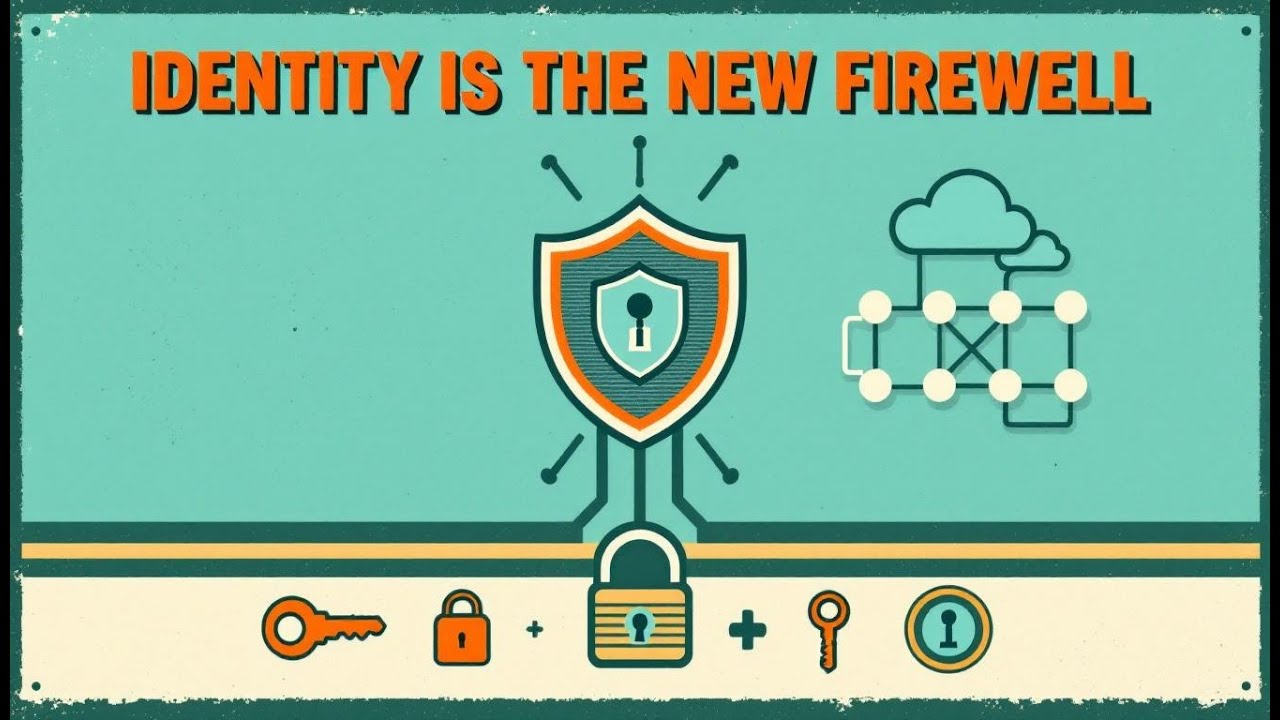
Identity is the real border now. In Microsoft cloud the firewall is no longer the decisive wall — Entra ID is. Modern attackers don’t smash doors; they log in using harvested, phished, or purchased credentials. That’s why a password-only world is effectively a natural-1 on defense. Real protection comes from layered verification — MFA so a stolen password no longer opens the castle, Conditional Access so logins are judged in the context of risk, Privileged Identity Management so admin power is temporarily granted instead of permanently exposed, and SSO so users stop creating their own insecure shortcuts. Identity isn’t just a login form, it is the security surface. If Entra ID is weak, every downstream system inherits that weakness. Strengthen identity first — because the attack path starts there now.






Securing your Entra ID Secured effectively is essential for protecting your organization's data and user identities. With the rise of cyber threats, such as phishing and unauthorized access, you must take action to safeguard your identity infrastructure. Phishing actors often exploit complex routing to spoof domains, while unauthorized access can result from social engineering techniques that bypass multi-factor authentication. To combat these threats, you should implement robust security practices and stay vigilant.
Key Takeaways
- Implement Multi-Factor Authentication (MFA) to block over 99% of account compromise attempts. Use methods like text codes or biometric scans for added security.
- Utilize Conditional Access Policies to control access based on user identity, device compliance, and location. This helps prevent unauthorized access.
- Adopt Privileged Identity Management (PIM) to grant just-in-time access to sensitive accounts. This limits the risk of privilege abuse and enhances security.
- Leverage Single Sign-On (SSO) to simplify user access while maintaining security. This reduces password fatigue and encourages secure practices.
- Educate users on security risks and safe practices. Regular training helps them recognize threats like phishing and respond appropriately.
- Conduct regular access reviews to ensure users have the right permissions. This helps prevent unauthorized access and maintains security.
- Monitor identity protection alerts to detect suspicious activities. Use automated risk remediation to respond quickly to potential threats.
- Consider passwordless authentication methods to enhance security and improve user experience. Options like FIDO2 keys eliminate the need for passwords.
Microsoft Entra ID Security Features

Multi-Factor Authentication (MFA)
Multi-Factor Authentication (MFA) serves as a critical layer of security for your Microsoft Entra ID. By requiring two or more verification methods, MFA significantly reduces the risk of account compromise. Research shows that implementing MFA can prevent over 99.2% of account compromise attempts. This statistic highlights the importance of using MFA in your security strategy.
You can configure MFA to require additional verification steps, such as a text message code or a biometric scan. This means that even if someone steals your password, they cannot access your account without the second factor. Additionally, configuring risk-based Conditional Access policies can enhance MFA's effectiveness. These policies can automatically respond to risky behaviors by blocking sign-in attempts or requiring further actions, such as secure password changes or additional MFA prompts.
Conditional Access Policies
Conditional Access Policies in Microsoft Entra ID help you manage access to your resources based on specific conditions. These policies evaluate various signals to determine whether to allow or block access. Here are some key signal types:
| Signal Type | Description |
|---|---|
| User Identity | Evaluates the identity of the user attempting to access resources. |
| Device Compliance | Checks if the device meets security compliance requirements. |
| Location | Assesses the geographical location of the sign-in attempt. |
| Sign-In Risk | Analyzes the risk associated with the sign-in attempt based on unusual patterns or behaviors. |
By using Conditional Access Policies, you can mitigate risks from unauthorized access attempts. For example, if a user tries to sign in from an unfamiliar location, the system can flag this as a potential risk. You can then require MFA for these sign-ins or block them altogether. This proactive approach helps protect your organization from credential theft and other security threats.
Privileged Identity Management (PIM)
Privileged Identity Management (PIM) is another essential feature of Microsoft Entra ID. PIM helps you manage and control access to sensitive accounts, reducing the risk of privilege escalation attacks. With PIM, you can provide just-in-time access to administrative privileges. This means that users receive elevated rights only when necessary, minimizing the attack surface.
Here are some key features of PIM:
| Feature | Description |
|---|---|
| Just-in-time access | Provides privileged access only when needed, reducing the window of opportunity for attacks. |
| Time-bound access | Assigns access with specific start and end dates, limiting the duration of elevated privileges. |
| Approval requirement | Requires approval to activate privileged roles, adding an extra layer of security. |
| Multifactor authentication | Enforces MFA to ensure that only authorized users can activate roles. |
| Notifications | Sends alerts when privileged roles are activated, enhancing awareness of access changes. |
By implementing PIM, you can ensure that only authorized users have access to critical roles. Regular access reviews and audit history tracking further enhance your security posture, allowing you to monitor and manage access effectively.
Single Sign-On (SSO)
Single Sign-On (SSO) is a powerful feature of Microsoft Entra ID that simplifies user access while enhancing security. With SSO, you can manage multiple applications using a single set of credentials. This approach not only streamlines the user experience but also strengthens security measures.
Here are some key benefits of using SSO in Microsoft Entra ID:
- Centralized Identity Management: SSO centralizes identity management, which enhances security by reducing the risks associated with password fatigue. When users have to remember multiple passwords, they often resort to weak or reused passwords, increasing vulnerability.
- Multi-Factor Authentication (MFA): SSO integrates seamlessly with MFA, adding an additional layer of security. Even if a password is compromised, the second factor of authentication helps protect your account.
- Improved User Experience: Users authenticate once and gain access to multiple applications without re-entering credentials. This convenience encourages users to adopt secure practices, as they are less likely to bypass security measures due to frustration.
While SSO offers many advantages, improper configuration can lead to significant risks. Here are some potential pitfalls to avoid:
- Excessive Access Rights: Granting external vendors owner-level access can lead to security vulnerabilities. Ensure that you limit access based on the principle of least privilege.
- Compliance Concerns: Questions arise regarding the compliance of external devices with internal policies. Always verify that external devices meet your organization's security standards.
- Unnecessary Persistent Access: Persistent access to the tenant is unnecessary for typical maintenance tasks. You can handle these tasks securely without granting such access.
By leveraging SSO within Microsoft Entra ID, you can create a secure and user-friendly environment. This feature not only protects your organization from unauthorized access but also enhances productivity by simplifying the login process.
Securing Your Entra ID
Enforce Strong Authentication
Implementing MFA Policies
To enhance your security posture, you must enforce strong authentication methods for all users. Implementing Multi-Factor Authentication (MFA) is a critical step. MFA requires users to provide two or more verification methods before accessing their accounts. This significantly reduces the risk of unauthorized access. Research shows that MFA can block 99.9% of account compromise attacks, making it an essential component of your identity and access management strategy.
Consider these best practices for implementing MFA:
- Enforce MFA for all human identities, including employees and contractors.
- Adopt phishing-resistant MFA methods, such as Microsoft Entra ID Certificate-Based Authentication (CBA) or FIDO2 security keys.
- If phishing-resistant MFA cannot be enforced, require an alternative MFA method for all users to mitigate risks associated with single-factor authentication.
Passwordless Authentication Options
Passwordless authentication methods offer a secure and user-friendly alternative to traditional passwords. You can implement options like FIDO2 security keys and Windows Hello for Business, especially for users in privileged roles. These methods not only enhance security but also improve user experience by eliminating the need to remember complex passwords.
By 2026, organizations with advanced identity-first security programs will experience 50% fewer identity-related breaches compared to those without. Transitioning to passwordless authentication can significantly contribute to this reduction.
Configure Conditional Access
Location and Device Restrictions
Conditional Access policies allow you to manage access based on specific conditions, such as user location and device compliance. Define named locations in Microsoft Entra ID based on IP ranges or geographic regions. This helps you make informed decisions about access based on the user's location, effectively addressing risks associated with sign-ins from unfamiliar or high-risk areas.
To enhance security, integrate device compliance checks with your Conditional Access policies. Ensure that only compliant devices can access organizational resources. This proactive approach minimizes the risk of unauthorized access.
Risk-Based Access Controls
Utilizing risk-based access controls is vital for maintaining a strong security posture. Microsoft Entra ID evaluates various risk signals to determine the likelihood of unauthorized access. Here are some common risk types and their corresponding access control actions:
| Type of Risk | Description | Access Control Action |
|---|---|---|
| User Risk | Indicates a user account is likely compromised | Block access or require MFA if risk detected |
| Sign-in Risk | Flags suspicious login attempts | Block access or require MFA if risk detected |
| High User Risk | User account is highly compromised | Block access |
| Medium Sign-in Risk | Suspicious login attempt | Require MFA |
| Low User Risk | User account is not compromised but should be monitored | Allow access but monitor |
By implementing these controls, you can effectively respond to potential threats and protect your organization from identity-related breaches.
Monitor Identity Protection
Identity Protection Alerts
Monitoring identity protection in Microsoft Entra ID is crucial for detecting and responding to suspicious activities. The system utilizes machine learning to automatically identify and score risky sign-ins and users. You can configure risk policies to block access or require secure remediation when risks are detected.
Detailed insights into suspicious activities, such as unfamiliar sign-ins and impossible travel, help you respond effectively. Regularly reviewing audit logs allows you to stay informed about potential threats and take necessary actions.
Automated Risk Remediation
Automated risk remediation enhances your ability to respond to threats quickly. Microsoft Entra ID can enforce strong authentication or secure password resets based on detected risk levels. Here are some types of remediation available:
| Type of Remediation | Description |
|---|---|
| Automatic Remediation | Automatically require password resets, enforce MFA, or block access for risky accounts. |
| Manual Remediation | Admins must manually review and take action on risky accounts. |
Admins can block access, reset passwords, or dismiss false alarms based on their review. This proactive approach ensures that you maintain a secure environment while minimizing disruptions to legitimate users.
Manage User Access
Managing user access is crucial for maintaining the security of your Microsoft Entra ID. By implementing the principle of least privilege, you can significantly reduce the risk of unauthorized access to sensitive resources.
Least Privilege Principles
To ensure that users have only the access they need, follow these best practices:
- Grant access only to required resources to prevent unauthorized access.
- Use Role-Based Access Control (RBAC) to assign minimal permissions per role.
- Implement Just-In-Time (JIT) access through Privileged Identity Management (PIM).
- Conduct regular auditing and access reviews to ensure compliance with least privilege.
- Enforce a default deny access model to limit unnecessary privileges.
- Limit the number of global administrators to reduce risk.
- Apply conditional access policies, including Multi-Factor Authentication (MFA).
- Automate provisioning and access reviews to maintain security.
By adhering to these principles, you can create a secure environment that minimizes the potential for data breaches.
Regular Access Reviews
Conducting regular access reviews is essential for maintaining secure user permissions. You can set up access reviews to occur at various intervals, such as weekly, monthly, quarterly, or annually. The frequency of these reviews should depend on your organization's specific needs and the sensitivity of the roles being reviewed. Regular reviews help you identify and revoke unnecessary access, ensuring that only authorized users retain permissions.
Secure Application Integrations
Securing application integrations is vital for protecting your organization's data. Microsoft Entra ID supports OAuth and OpenID Connect, which provide secure methods for authorizing access to applications.
OAuth and OpenID Connect
When integrating applications, follow these best practices to enhance security:
| Best Practice | Description |
|---|---|
| Maintain ownership of redirect URIs | Keep DNS records up-to-date and avoid using wildcards in URIs. |
| Ensure secure and encrypted URIs | Use HTTPS schemes for all web app URIs. |
| Use platform-specific redirect URIs | For public clients, apply platform-specific URIs for iOS and Android. |
| Implement multifactor authentication | Enhance security for all SSO integrations. |
| Set up conditional access | Enforce security requirements based on user location, device state, and risk level. |
By following these practices, you can secure your application integrations and protect sensitive data from unauthorized access.
API Permissions Management
Managing API permissions effectively is crucial for preventing unauthorized access. Here are some strategies to consider:
- Enforce least-privilege scopes: Only request the minimal Microsoft Graph scopes needed; prefer delegated over application permissions where possible.
- Use admin consent workflows: Require justifications and multi-approver admin consent for high-privilege apps.
- Restrict who can register or consent to apps: Limit app registration and admin consent to a small, vetted group.
- Review and remove unused apps: Regularly audit service principals and app registrations to delete orphaned or unnecessary ones.
- Prefer certificate-based authentication for confidential clients instead of client secrets.
- Store secrets in managed vaults (Azure Key Vault) with strict RBAC and managed identity access.
- Automate rotation of client secrets and certificates and enforce short lifetimes where operationally possible.
- Require Conditional Access for app token issuance: Block risky sign-ins, require compliant devices, and enforce MFA.
- Log and monitor Graph API usage: Alert on unusual patterns.
By implementing these strategies, you can effectively manage API permissions and enhance your organization's security posture.
Educate Users on Security
Educating users about security risks is essential for maintaining a secure environment. Users play a critical role in protecting your organization from threats.
Security Awareness Training
Provide comprehensive security awareness training to your users. Consider these effective methods:
- Offer real-world examples of attack scenarios, such as phishing emails or suspicious sign-in attempts, to illustrate the risks clearly.
- Conduct training sessions for end-users and administrators on identifying and responding to security threats.
- Develop guidelines for verifying the authenticity of sign-in attempts and responding to MFA challenges appropriately.
- Distribute regular updates on emerging threats and recommended security practices.
- Encourage a culture of security awareness by recognizing and rewarding proactive behaviors that contribute to organizational safety.
By investing in user education, you empower your team to recognize and respond to security threats effectively.
Promoting Safe Practices
Encouraging safe practices among users is vital for maintaining security. Remind users to:
- Use strong, unique passwords for different accounts.
- Enable Multi-Factor Authentication (MFA) wherever possible.
- Be cautious of unsolicited emails and messages requesting sensitive information.
- Regularly update software and applications to patch vulnerabilities.
By promoting these safe practices, you can create a security-conscious culture within your organization.
Advanced Security Measures
Privileged Identity Management (PIM)
Privileged Identity Management (PIM) helps you control access to sensitive resources by limiting who can use privileged roles and when. It reduces the risk of privilege abuse by granting just-in-time access, which means users get elevated permissions only when they need them and only for a limited time. PIM also requires you to approve role activations, adding an extra layer of oversight.
Here are key ways PIM strengthens your security:
| Feature | Description |
|---|---|
| Multi-Factor Authentication | Requires MFA before users activate privileged roles, verifying their identity. |
| Approval Workflows | Ensures managers approve role activations to prevent unauthorized access. |
| Just-in-Time Access | Grants temporary permissions only when necessary, reducing standing admin access. |
| Time-Bound Permissions | Limits how long users keep elevated privileges, minimizing exposure. |
| Access Reviews | Regularly checks if users still need their privileges to avoid privilege creep. |
| Real-Time Notifications | Alerts you when privileged roles activate, so you can respond quickly to suspicious activity. |
| Audit and Compliance Reporting | Tracks all privileged access for governance and regulatory needs. |
By using PIM, you follow zero-trust principles. You ensure only authorized users access critical resources, and you keep a clear record of who did what and when. This approach helps you prevent privilege escalation attacks and meet compliance requirements.
Identity Governance for Compliance
Identity governance helps you manage user access and meet regulatory requirements. It automates many processes to keep your environment secure and compliant. You can schedule access reviews, manage access packages, and automate identity lifecycle events like onboarding or role changes.
The table below shows key components of identity governance and how they support compliance:
| Component | Description |
|---|---|
| Automated Access Reviews | Schedule and automate reviews to confirm users have the right access and reduce unauthorized use. |
| Entitlement Management | Define access packages linked to roles, standardizing provisioning while allowing flexibility. |
| Lifecycle Management | Automate identity lifecycle tasks to adjust access promptly during role changes or departures. |
| Enhanced Security | Strengthen your security by automating controls and providing audit trails for compliance. |
Using identity governance, you reduce risks from outdated or excessive permissions. You also simplify audits by keeping clear records of access changes. This system helps you stay ahead of compliance demands and protect your organization’s data.
Integrating with SIEM
Integrating Microsoft Entra ID with Security Information and Event Management (SIEM) systems improves your ability to detect and respond to threats. SIEM collects and analyzes security data from multiple sources, giving you a unified view of your security posture.
Here are the main benefits of this integration:
| Benefit | Description |
|---|---|
| Unified Security Operations | Centralizes security management, reducing complexity and improving efficiency. |
| Automated Incident Response | Enables quick, automated responses to threats, minimizing damage and downtime. |
| Advanced Threat Detection | Uses behavior analytics and machine learning to spot suspicious patterns and anomalies early. |
By connecting Entra ID with your SIEM, you enhance identity threat detection. You gain real-time insights into risky activities and can act faster to protect your environment. This integration supports continuous monitoring and helps you maintain a strong security posture.
Tip: Regularly review your SIEM alerts and tune your detection rules to reduce false positives and focus on real threats.
Continuous Access Evaluation (CAE)
Continuous Access Evaluation (CAE) transforms how you protect your Microsoft Entra ID environment by enabling real-time security enforcement. Unlike traditional token-based access, which relies on fixed lifetimes, CAE allows applications to respond instantly to changes in user risk or account status. This means you can revoke access immediately when a threat arises, rather than waiting for a token to expire.
Here is how CAE works in practice:
- You sign in to a CAE-enabled application using a valid access token.
- The application subscribes to critical security events related to your account.
- When a critical event occurs, the application receives an immediate notification.
- The application checks your access policies in real-time with Microsoft Entra ID.
- If the system detects a policy violation, it revokes your session instantly.
- You experience minimal disruption because the system adapts dynamically to security needs.
Critical security events that trigger CAE include:
- User account deletion or disabling
- Password changes for the user
- Enabling Multi-Factor Authentication (MFA)
- Explicit token revocation by an administrator
- Detection of elevated user risk, such as suspicious sign-in behavior
By responding to these events instantly, CAE helps you block access for compromised accounts or risky sessions. For example, if Microsoft Entra ID detects that your credentials might be stolen or your account is under attack, CAE forces reauthentication before you can continue. This immediate action reduces the window of opportunity for attackers and strengthens your overall security posture.
💡 Tip: Enable CAE on all supported applications to ensure your organization benefits from real-time access control. This proactive approach helps you stay ahead of evolving threats and protects sensitive data more effectively.
Continuous Access Evaluation represents a shift toward dynamic security. It aligns with zero-trust principles by continuously verifying trust rather than assuming it based on a token’s lifetime. By implementing CAE, you gain greater control over who accesses your resources and when, helping you maintain a secure and resilient identity environment.
Securing your Microsoft Entra ID is crucial for protecting your organization. Leverage its security features alongside best practices to create a robust defense. Regularly monitor for suspicious sign-in activities and establish an incident response plan to address any security breaches. Implement password management strategies, including self-service password reset, and enforce multifactor authentication for all users.
Stay vigilant and review your security measures frequently. By doing so, you can adapt to evolving threats and enhance your security posture. Take action now to protect your identity environment and ensure your organization remains secure.
FAQ
What is Microsoft Entra ID?
Microsoft Entra ID is a cloud-based identity and access management service. It helps organizations secure user identities and manage access to applications and resources.
How does Multi-Factor Authentication (MFA) enhance security?
MFA adds an extra layer of protection by requiring users to provide two or more verification methods. This significantly reduces the risk of unauthorized access.
What are Conditional Access Policies?
Conditional Access Policies allow you to control access to resources based on specific conditions, such as user location, device compliance, and sign-in risk.
Why is Privileged Identity Management (PIM) important?
PIM helps manage access to sensitive accounts by granting just-in-time access to administrative privileges. This minimizes the risk of privilege abuse and enhances security.
How can I implement passwordless authentication?
You can implement passwordless authentication using methods like FIDO2 security keys or Windows Hello for Business. These options improve security and user experience by eliminating passwords.
What should I do if I suspect a security breach?
If you suspect a breach, immediately review your account activity. Change your password, enable MFA, and notify your IT department to investigate further.
How often should I conduct access reviews?
Conduct access reviews regularly, ideally quarterly or annually. The frequency depends on your organization's needs and the sensitivity of the roles being reviewed.
What role does user education play in security?
User education is crucial for maintaining security. Training users on recognizing threats and promoting safe practices helps protect your organization from potential attacks.
🚀 Want to be part of m365.fm?
Then stop just listening… and start showing up.
👉 Connect with me on LinkedIn and let’s make something happen:
- 🎙️ Be a podcast guest and share your story
- 🎧 Host your own episode (yes, seriously)
- 💡 Pitch topics the community actually wants to hear
- 🌍 Build your personal brand in the Microsoft 365 space
This isn’t just a podcast — it’s a platform for people who take action.
🔥 Most people wait. The best ones don’t.
👉 Connect with me on LinkedIn and send me a message:
"I want in"
Let’s build something awesome 👊
Imagine your company’s digital castle with wide‑open gates. Everyone can stroll right in—vendors, employees who left years ago, even attackers dressed as your CFO. That’s what an unprotected identity perimeter looks like. Before we roll initiative on today’s breach boss, hit Subscribe so you get weekly security briefings without missing the quest log.
Here’s the twist: in the Microsoft cloud, your castle gate is no longer a firewall—it’s Entra ID. In this video, you’ll get a practical overview of the essential locks—MFA, Conditional Access, Privileged Identity Management, and SSO—and the first steps to harden them.
Because building walls isn’t enough when attackers can just blink straight past them.
The New Castle Walls
The new castle walls aren’t made of stone anymore. Once upon a time, you could build a giant moat, man every tower, and assume attackers would line up politely at the front gate. That model worked when business stayed behind a single perimeter, tucked safely inside racks of servers under one roof. But now your kingdom lives in clouds, browsers, and every laptop that walks out of the office. The walls didn’t just crack—they dissolved.
Back then, firewalls were your dragons, roaring at the edge of the network. You trusted that anything inside those walls belonged there. Cubicles, desktops bolted under desks, devices you imaged yourself—every user was assumed trustworthy just by virtue of being within the perimeter. It was simpler, but it also hinged on one assumption: that the moat was wide enough, and attackers couldn’t simply skip it.
That assumption crumbled fast. Cloud apps scattered your resources far beyond the citadel. Remote work spread employees everywhere from home offices to airport lounges. And bring-your-own-device policies let personal tablets and home laptops waltz right into the mix. Each shift widened the attack surface, and suddenly the moat wasn’t holding anyone back.
In this new reality, firewalls didn’t vanish, but their ability to guard the treasure dropped sharply. An attacker doesn’t charge at your perimeter anymore; they slip past by grabbing a user’s credentials. A single leaked password can work like a skeleton key, no brute force required. That’s why the focus shifted. Identity became the castle wall.
In the cloud, Microsoft secures the platform itself, but what lives within it—your configuration, your policies, your user access—that’s on you. That shared-responsibility split is the reason identity is now your primary perimeter. Your “walls” are no longer walls at all; they’re the constant verification points that decide whether someone truly belongs.
Think of a password like a flimsy wooden door bolted onto your vault. It exists, but it’s laughably fragile. Add multi-factor authentication, and suddenly that wooden plank is replaced with a gate that slams shut unless the right key plus the right proof line up. It forces attackers to push harder, and often that effort leaves traces you can catch before they crown themselves royalty inside your systems.
Identity checks aren’t just a speed bump—they’re where almost every modern attack begins. When a log-in comes from across the globe at 3 a.m. under an employee’s name, a perimeter-focused model shrugs and lets it pass. To the old walls, credentials are enough. But to a system built around identity, that’s the moment where the guard at the door says, “Wait—prove it.”
Failure to control this space means intruders walk in dressed like your own staff. You won’t catch them with alerts about blocked ports or logon attempts at your firewall. They’re already inside, blending seamlessly with daily activity. That’s where data gets siphoned, ransomware gets planted, and attackers live quietly for months.
So the new castle walls aren’t firewalls in a server room. They’re the tools that protect who can get in: identity protections, context checks, and policies wrapped around every account. And the main gate in that setup is Microsoft Entra ID. If it’s weak, every other safeguard collapses because entry has already been granted.
Which leaves us at the real question administrators wrestle with: if keeping the gate means protecting identity, what does it look like to rely on just a single password? So if the walls no longer work, what becomes the gate? Identity—and Entra ID is the gatekeeper.
And as we’ll see next, trusting passwords alone is like rolling a D20 and hitting a natural 1 every time.
Rolling a Natural 1 with Passwords
Passwords have long been the front door key for digital systems, but that lock is both brittle and predictable. For years, typing a string of characters into a box was the default proof of identity. It was cheap, simple, and everyone understood it. But that very simplicity created deep habits—habits attackers quickly learned to exploit.
The main problem is reuse. People juggle so many accounts that recycling the same password across services feels inevitable. When one forum gets breached, those stolen logins often unlock doors at work too. Credential dumps sold on dark-web marketplaces mean attackers don’t even need to bother guessing—they just buy the keys already labeled. That’s a massive flaw when your entire perimeter depends on “something you know.”
Even when users try harder, the math still works against them. Complex passwords laced with symbols and numbers might look tough, but machines can rattle through combinations at astonishing speed. Patterned choices—birthdays, company names, seasonal phrases—make it faster still. A short password today can fall to brute force in seconds, and no amount of rotating “Spring2024!” to “Summer2024!” changes that.
On top of that, no lock can withstand social engineering when users get tricked into handing over the key. Phishing strips away even good password practices with a simple fake login screen. A convincing email and a spoofed domain are usually enough. At that point, attackers don’t outsmart a password policy—they just outsmart the person holding it.
This is why passwords remain necessary, but never sufficient. Microsoft’s own guidance is clear: strong authentication requires layering defenses. That means passwords are only one factor among several, not the one defense holding back a breach. Without that layering, your user login page may as well be guarded by a cardboard cutout instead of a castle wall.
The saving throw here is multi-factor authentication. MFA doesn’t replace your password—it backs it up. You supply a secret you know, but you must also confirm something you have or something you are. That extra check stops credential stuffing cold and makes stolen dumps far less useful. In practice, the difference is night and day: with MFA, logging in requires access to more than a leaked string of text.
Entra ID supports multiple forms of this protection—push approvals, authenticator codes, even physical tokens. Which method you pick depends on your organization’s needs, but the point is consistency. Layering MFA across accounts drastically lowers the success rate of attacks because stolen credentials on their own lose most of their value.
Policies enforcing periodic password changes or quirky complexity rules can actually backfire, creating predictable user behaviors. By contrast, MFA works with human tendencies instead of against them. It accepts that people will lean toward convenience, and it cushions those habits with stronger verification windows.
If you only remember one thing from this section: passwords are the old wooden door—MFA is your reinforced gate. One is technically a barrier; the other turns casual attempts into real work for an attacker. And the cost bump to criminals is the whole point.
Of course, even armor has gaps. MFA shields you against stolen passwords, but it doesn’t answer the question of context: who is logging in, from where, on what device, and at what time. That’s where the smarter systems step in. Imagine a guard at the castle gate who doesn’t just check if you have a key, but also notices if you’re arriving from a faraway land at 3 a.m. That’s where the real gatekeeping evolves.
The Smart Bouncer at the Gate
Picture a castle gate with a bouncer who doesn’t just wave you through because you shouted the right password. This guard checks your ID, looks for tells that don’t match the photo, and asks why you’re showing up at this hour. That’s Conditional Access in your Microsoft cloud. It’s not just another lock; it’s the thinking guard that evaluates signals like device compliance, user risk, and geographic location, then decides in real time whether to allow, block, or demand more proof.
MFA alone is strong armor, but armor isn’t judgment. Social engineering and fatigue attacks can still trick a user into approving a fraudulent prompt at three in the morning, turning a “yes” into a false green light. Conditional Access closes that gap. If the login context looks suspicious—wrong city, unhealthy device, or risk scores that don’t align—policies can force another verification step or block the attempt outright. It’s the difference between blind acceptance and an actual interrogation.
Take a straightforward scenario. An employee account logs in from across the globe at an odd hour, far from their normal region. Username, password, and MFA all check out. A traditional system shrugs. Conditional Access instead notices the anomaly, cross-references location and time, and triggers additional controls—like requiring another factor or denying the sign-in entirely. The bouncer doesn’t just say “you match the description”; it notices that nothing else makes sense.
What makes this especially effective is how flexible the rules can be. A common early win is to ensure older, insecure authentication methods aren’t allowed. Conditional Access enforces modern authentication and can require that all accessing devices meet compliance standards—patched, encrypted, and managed through your MDM. That alone eliminates a slice of risky paths attackers count on. From there, policies get more granular. You can block access from high‑risk countries, or require additional verification if someone connects from an unfamiliar IP. You can even tie access rules to the sensitivity of the resource: for example, requiring device compliance plus MFA before anyone launches a payroll or finance app.
These checks are less about punishing users and more about injecting common sense at speed. Without Conditional Access, every login looks the same, whether it’s from your CFO’s secured laptop or a sketchy device booted off a thumb drive in a coffee shop. With it, trust isn’t assumed—it’s earned with context. The rule changes from “password plus MFA equals entry” to “entry only if password, MFA, device health, and location line up.”
Think of that bouncer again. They don’t just verify your ID card. They notice if you’re wobbling on an obvious disguise or if you claim to be a regular but don’t know where the bar is. Conditional Access spots those tells that attackers hope stay invisible. For real users, it’s a quick confirmation they can pass. For intruders, it’s friction they can’t easily fake.
The difference between open‑ended trust and policy‑driven trust is sharp. Letting any credential work feels smooth in the moment—but it gifts thieves with straightforward entry. Conditional Access forces you to define trust on your terms while still adapting the level of scrutiny to the risk at hand. It transforms logins from static yes‑or‑no checks into dynamic decisions that respect both security and usability.
But even with smarter bouncers at the gate, one problem looms larger than the rest. Because if the person knocking isn’t a standard user at all, but someone holding the keys to every chamber, every vault, and every system—that’s not just an intruder. That’s a disaster waiting to happen. And that problem has its own name: the skeleton key of admin privileges.
The Skeleton Key Problem
When elevated rights sit wide open, the whole environment tilts in an attacker’s favor. Compromising a regular account might snag a few scraps of data. Compromising an administrator account means total control—settings altered, logs erased, defenses switched off. A single high‑privilege login can reshape the entire castle from the inside out.
Admin privileges exist for good reasons. Real admins need to configure systems, create new users, and resolve outages. The trouble starts when those privileges are permanent. Think of it like leaving siege weapons mounted inside your courtyard with the safety latch off—they’re useful tools, but spectacularly risky if anyone else gets their hands on them. Always‑on admin roles become irresistible targets for attackers.
Dormant accounts make this worse. Leave a “just in case” admin account enabled, and no one looks twice when credentials are used at odd hours. If an attacker finds that opening, they can rewrite configurations, deploy invisible backdoors, and vanish again without tripping obvious alarms. That’s why shared responsibility models stress identity governance—the fewer privileged keys lying around, the smaller the blast radius when something goes wrong.
The way out of this bind is Privileged Identity Management, or PIM. Instead of letting admin powers run around unlocked, PIM locks them in a vault and turns on just‑in‑time access. When an admin needs elevated rights, they request activation. The role lights up for a defined period, then automatically expires. No constant master key hanging around, no passive exposure to compromise.
This drastically shrinks the attack surface. If a dormant high‑privilege account is compromised, PIM requires activation anyway—and with approvals in place, a stolen password alone isn’t enough. Access reviews add more rigor, regularly asking: does this person still need that role? If the answer is no, the entitlement disappears. It’s a governance check that clears out leftover keys before they’re misused.
Approval workflows raise the bar further. Instead of one person silently elevating themselves at 2 a.m., PIM can demand an approver sign off before elevated rights take effect. Even if stolen credentials slip past, the activation never completes without a second guard confirming the request. Combine that with access reviews, and your environment stays lean—only the right identities hold roles, and only when justified.
Identity Protection ties directly into this. It watches live sign‑in behavior and risk patterns. If a user signs in from an unusual device or a flagged location, PIM activation can be paused or blocked. The would‑be intruder may know the right password, but context breaks their disguise. Risky requests get challenged with additional MFA, or they’re flat‑out denied. Elevated access becomes possible only when signals align.
And this isn’t just about security—it’s built for sanity, too. PIM is temporary and auditable. Admins get what they need, when they need it, without carrying permanent risk. Every activation leaves an audit trail: who got the role, for how long, and what they did. That history is available for compliance reviews and investigations, giving organizations clear visibility instead of blind trust.
Of course, not every feature comes in the base package. Advanced governance controls like PIM and Identity Protection are tied to Microsoft Entra ID Premium P2 licensing. Knowing that context is important so teams set expectations correctly. The capabilities are powerful, but they’re also tied to a service tier designed for enterprise‑grade security posture.
When you add all these pieces together—just‑in‑time access, time‑bound roles, access reviews, approval workflows, and identity risk detection—you close off one of the most dangerous gaps in any environment. Attackers don’t get easy skeleton keys. Admins still solve problems, but the rules for using elevated power are baked into the system itself.
That balance—security without crippling usability—anchors the whole fortress. Because the point isn’t to bury administrators under endless hoops, but to give them tools that are both safer and smoother. And speaking of smooth, that tension isn’t just about admins. Regular users feel it, too, in the day‑to‑day grind of logins and passwords. If security makes every door a chore, people start cutting corners. And that brings us to the next challenge: keeping protection tight without turning every task into a key‑ring puzzle.
Convenience Without Cracks
Convenience counts when you’re the one carrying keys all day, and that’s what makes this next piece critical: convenience without cracks. Users want to get work done, not memorize a spellbook of login incantations, and forcing them through endless gates doesn’t just slow them down—it creates weak links attackers love.
Password fatigue is the classic outcome. One login for email, another for chat, another for HR, and yet another for the ticketing tool. Each system nags with its own rules, reset cycles, and quirks. After a while, people cut corners—shorter, recycled passwords, predictable tricks, or sticky notes left in plain sight. The intent is to cope, but the net result is more doors, easier to push open. That fatigue is the telltale flaw in a defense made entirely of separate locks.
Single Sign-On changes that layout. Instead of juggling a cluttered ring of mismatched keys, you grant one identity that opens every door a user is supposed to enter. It unifies the login process into a central check. Microsoft Entra ID has SSO built in, meaning one sign-in can cover Teams, Outlook, SharePoint, and any linked apps in your environment. That centralization doesn’t just help users—it means IT can shape access at the front gate instead of leaving it scattered across side doors.
From the user’s perspective, the difference is huge. Start of the day, one login. That session then escorts them through all the authorized portals: chats, documents, dashboards, and line-of-business tools. No fumbling with six different passphrases before lunch. It feels like moving quickly through a secure corridor rather than wrestling with a gauntlet of checkpoints.
But if SSO were just convenience, it would open a fresh problem: one set of credentials becomes a very tempting target. That’s where Multi-Factor Authentication remains essential. Think of SSO as the smoother key workflow; MFA is what makes the single key hard to fake. Even if an attacker steals a password, the system won’t treat it as valid unless the second factor lines up—a confirmation prompt, a biometric scan, or a token. One improves productivity, the other resists compromise. Together, they plug both sides of the gap.
It’s like handing out an enchanted master key that only works for the rightful bearer. In your hand, it opens the right doors seamlessly. In an intruder’s hand, it stays inert. That’s why layering MFA over SSO is the natural pairing: you reduce hurdles for staff, but you multiply hurdles for adversaries. Smooth logins for real users, steep walls for anyone else.
Behind the curtain, administrators win too. Centralized authentication means one vantage point to see logs, spot anomalies, and apply policies. When everyone goes through the same identity hub, audits and compliance checks become straightforward. It also simplifies onboarding and offboarding. Provision a user once, and they inherit all the right permissions. Remove them, and the account deprovisions across linked apps instantly. That closes off abandoned accounts—no forgotten access lurking in a corner system—while also reducing clutter for IT.
Helpdesk load eases in the same breath. Calls about forgotten passwords for niche apps drop dramatically once employees stop juggling fifteen authentication prompts. Support can shift focus from constant password resets to actual security tuning. For administrators, that’s time given back from drudge work. For end users, it’s fewer interruptions, faster access, and less friction in the middle of their day.
SSO also fits naturally with Conditional Access policies. By controlling every login from a central hub, you can enforce device compliance checks before opening sensitive apps or apply stricter policies for finance systems while leaving day‑to‑day collaboration smooth. It gives you the best of both worlds: fine‑grained control where it matters most, without adding needless steps to everything else.
This model aligns perfectly with Zero Trust security. Every request is verified against identity, context, and risk. The login experience is streamlined, but the protections never drop. Location, device state, conditional context—it’s all part of the verification. From a user’s view, the system “just works.” From an attacker’s view, they hit a wall of checks they can’t easily fake.
The outcome is balance. Users aren’t burned out by endless keys, IT isn’t drowning in password tickets, and attackers can’t stroll in with reused logins. With Entra ID providing SSO and MFA at the core, you walk that narrow line between convenience and security without leaning too hard either way.
We’ve now seen how passwords, MFA, Conditional Access, PIM, and SSO interlock to raise both usability and protection. Which brings us to the final insight: it’s not the outer firewall that decides if the castle falls—it’s whether the gate of identity is locked or left standing wide open.
Conclusion
So here’s where every admin’s quest log ends: practical steps you can roll today, not someday.
First—enable multi-factor authentication for all users. It’s the lowest‑effort, highest‑impact way to cut off easy breaches. Second—review your Conditional Access policies and enforce device compliance before anyone touches sensitive apps. That closes the door on shady logins from untrusted machines. Third—turn on Privileged Identity Management for admin roles and set up recurring access reviews. That way, elevated powers don’t linger where they shouldn’t.
Boss down, runbook secured. If this walkthrough helped you roll a natural 20 on defense, smash Subscribe for weekly briefings.
This is a public episode. If you'd like to discuss this with other subscribers or get access to bonus episodes, visit m365.show/subscribe

Founder of m365.fm, m365.show and m365con.net
Mirko Peters is a Microsoft 365 expert, content creator, and founder of m365.fm, a platform dedicated to sharing practical insights on modern workplace technologies. His work focuses on Microsoft 365 governance, security, collaboration, and real-world implementation strategies.
Through his podcast and written content, Mirko provides hands-on guidance for IT professionals, architects, and business leaders navigating the complexities of Microsoft 365. He is known for translating complex topics into clear, actionable advice, often highlighting common mistakes and overlooked risks in real-world environments.
With a strong emphasis on community contribution and knowledge sharing, Mirko is actively building a platform that connects experts, shares experiences, and helps organizations get the most out of their Microsoft 365 investments.
