


 Apple Podcasts
 Spotify
 Youtube Music
 Spreaker
 Podchaser
 Amazon Music
This episode uncovers the real scalability limits of the Power Platform and shows how to avoid the performance issues that often catch teams off guard. Through candid stories and expert insights, it explains where apps typically hit bottlenecks, what early warning signs to watch for, and which design decisions can quietly create major slowdowns or unexpected costs.
Listeners get case studies of apps that failed under load — along with the specific mistakes behind them — plus practical strategies like partitioning, batching, and offloading heavy workloads. The episode also breaks down how scale affects licensing, when to move functionality to SaaS or custom services, and how to monitor the metrics that truly matter before users experience issues.
It closes with guidance on future-proofing architecture and extending scalability without having to rebuild everything later. The goal is to equip architects, makers, and developers with the knowledge and tactics needed to design Power Platform solutions that stay fast and reliable as demand grows.






You rely on the power platform to automate tasks and drive results. Suddenly, you notice slow data sync or confusing error messages. These issues often trace back to power platform limits. Many users struggle with the licensing model, which can cause unexpected costs. You may also find the platform’s complexity overwhelming, especially in large organizations where governance and security become challenging. If you face these pain points, you are not alone. This blog will give you practical steps to address these challenges and keep your apps running smoothly.
Key Takeaways
- Understand the limits of the Power Platform to avoid performance issues and keep your apps running smoothly.
- Design flows that trigger only under specific conditions to reduce unnecessary executions and stay within request limits.
- Monitor your API usage regularly in the Power Platform Admin Center to prevent throttling and performance issues.
- Use efficient design patterns, like modular flows and scheduled triggers, to optimize your apps and reduce API calls.
- Plan for growth by analyzing historical data and predicting future needs to ensure your solutions can scale effectively.
- Implement strong governance policies and provide training to help users manage their usage and stay within platform limits.
- Consider upgrading your licenses or adding capacity when your needs exceed current limits to maintain app performance.
- Learn from real-world examples to apply successful strategies and avoid common pitfalls when using the Power Platform.
7 Surprising Facts About Microsoft Power Platform: Limitations and Limits
- Delegation traps limit data queries: Canvas apps use a delegation model—many functions and data sources aren’t delegable, so queries run locally and return only a capped number of rows (the default is low but can be increased). This often surprises makers who expect server-side filtering for large data sets.
- API throttling and per-user / per-environment caps: Dataverse and many connectors enforce throttling and request quotas at user and environment levels. High-volume automation or many concurrent users can hit limits and be throttled, requiring architectural changes or additional capacity.
- Power Automate run and action time constraints: Flows have execution duration limits and individual action timeouts; long-running or heavily looping flows may be terminated or throttled. Some patterns (e.g., huge loops or synchronous waits) will fail at scale unless reworked.
- Canvas app performance vs. control counts: Adding many controls, screens, or complex formulas degrades performance—there are practical limits before the user experience becomes poor. Design patterns that reuse components and limit on-screen controls are necessary for large apps.
- Storage, file, and attachment limits in Dataverse: Dataverse enforces storage quota types (database, file, log) and file/attachment size limits; storing large files or massive tables can quickly consume paid capacity and impact costs and scalability.
- Connector and licensing boundaries: Some premium connectors, on-premises gateways, and certain actions require elevated licensing or are restricted by tenant settings. Building solutions that rely on many premium connectors can unexpectedly increase license complexity and cost.
- Reporting and analytics scale constraints: Power BI datasets, refresh rates, and export limits can become bottlenecks for Power Platform solutions that need near-real-time analytics or very large data volumes—integrations must account for dataset size limits, refresh frequency, and query performance.
These common "power platform limitations" are often workable but require early planning: understand delegation, quotas, storage, licensing, and performance trade-offs when designing scalable solutions.
Where Power Platform Limits Begin
Understanding power platform limits is essential for anyone who wants to build reliable solutions that scale. As you create apps and automate workflows, you need to know how request limits can affect your projects. Microsoft designed the Power Platform to help you innovate quickly, but every platform has boundaries. Recognizing these boundaries early helps you avoid performance issues and keeps your apps running smoothly.
Common Scenarios for Limits
You often encounter limits when your flows or apps grow in complexity or usage. Every action in a flow counts as an api call, including internal steps like setting variables. If you build flows with many actions, you can quickly reach request limits. The primary owner of the flow determines the action request limit, not the account used in the connection reference. This means that even simple flows can hit limits if they run frequently or process large amounts of data.
Here are some typical scenarios where limits come into play:
- Flows that trigger for every incoming email can exceed request limits, especially if your team receives high volumes.
- Workflows that activate for every change in a SharePoint list may run into api throttling if the list grows.
- Apps that process large datasets or require frequent updates can hit throughput limits on connectors.
You can reduce unnecessary executions by designing flows that trigger only for specific conditions. For example:
- Set flows to activate only when an email contains "Urgent" in the subject.
- Schedule workflows to run during business hours, avoiding after-hours processing.
- Trigger actions only when a SharePoint item's priority is "High".
These strategies help you stay within request limits and maintain performance.
Tip: Always review your flow triggers and actions. Optimizing them prevents unexpected throttling and keeps your apps responsive.
Impact on Apps and Workflows
When you reach power platform limits, your apps may slow down or fail to complete tasks. Increased latency can occur because data replication for reliability uses part of your performance budget. Resource balancing for reliability may affect how quickly requests are processed. If your components are distributed across different regions, network latency can also impact performance.
Non-delegable queries in Power Apps are limited to 2,000 records. This can hinder performance when you work with large datasets. Throughput limits on connectors may cause failures when reading or writing many items, affecting reliability. You may notice these issues more in production environments, especially when scaling up from small prototypes.
Monitoring for reliability can decrease system performance as observability increases. Limited performance tuning tools may require you to create custom apis, which can lead to hidden costs. As your organization grows, managing request limits becomes crucial for scaling enterprise solutions. Microsoft continues to update the platform to prevent storage limitations from stifling innovation, ensuring you can scale your solutions without facing significant barriers.
Types of Request Limits in Power Platform

Understanding the different types of request limits in Power Platform helps you build reliable apps and workflows. These limits affect how you use resources, manage data, and plan for scaling. You need to know how API, storage, and licensing boundaries shape your solutions.
API Request Limits Overview
API request limits control how many actions your apps and flows can perform in a day. Each time you connect to a service, update a record, or trigger a flow, you use part of your request capacity. Microsoft sets daily API request limits based on your license type. These allocations help keep the platform stable for everyone.
How API Limits Work
You receive a set number of API requests each day, depending on your license. The table below shows the request allocations for different Power Platform products:
| Products | Requests per paid license per 24 hours |
|---|---|
| Paid licensed users for Power Platform (excludes Power Apps per App, Power Automate per flow, and Microsoft Copilot Studio) and Dynamics 365 excluding Dynamics 365 Team Member | 40,000 |
| Power Apps pay-as-you-go plan, and paid licensed users for Power Apps per app, Microsoft 365 apps with Power Platform access, and Dynamics 365 Team Member | 6,000 |
| Power Automate per flow plan, Microsoft Copilot Studio base offer, and Microsoft Copilot Studio add-on pack | 250,000 |
| Paid Power Apps Portals login | 200 |
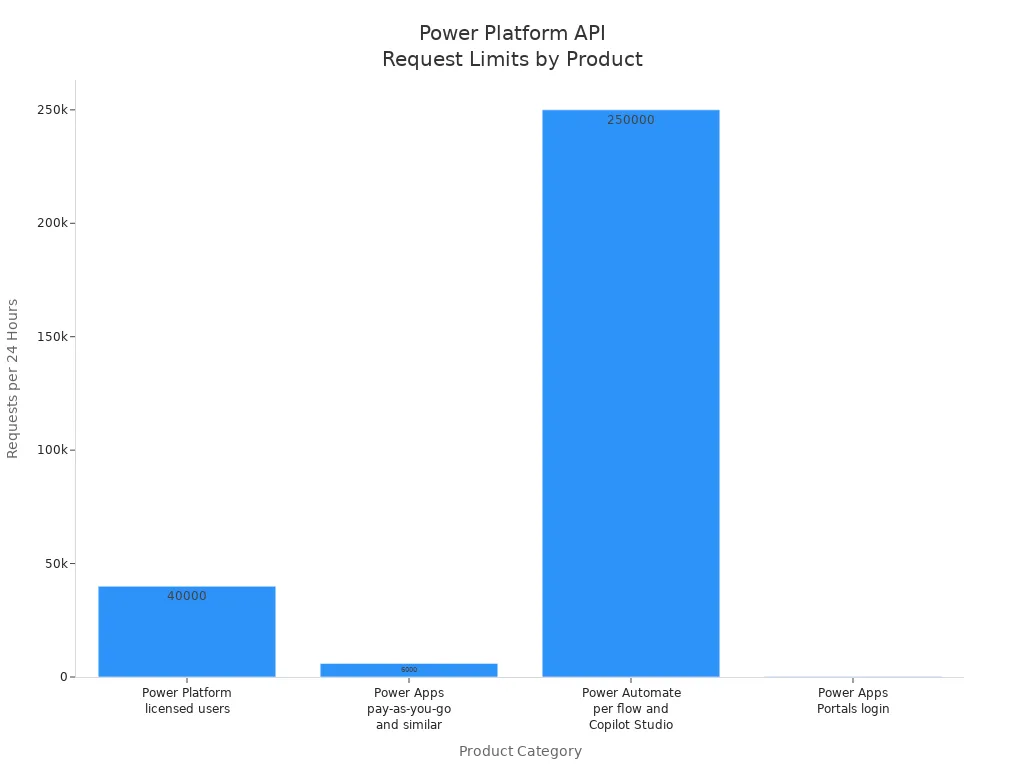
You need to track your request allocations to avoid interruptions. If your apps make extensive API requests, you may reach your daily limit faster than expected.
Enforcement and Throttling
When you exceed your request limits, Power Platform enforces throttling. This means the platform slows down or blocks extra API calls until your allocation resets. You might see errors or delays in your workflows. For example, a sales app that syncs customer data every few minutes can hit the API limit if it runs too often. Throttling protects the system but can disrupt business processes if you do not plan for it.
Tip: Monitor your API usage in the Power Platform Admin Center. Set up alerts to warn you before you reach your limits.
Storage and Capacity Limits
Storage and capacity limits affect how much data you can keep in Dataverse and how large your files can be. These limits help you manage resources and keep your apps running smoothly.
Dataverse Storage
Dataverse provides three main types of storage: database, file, and log. Each has its own capacity limit. The table below shows the current allocations:
| Storage Type | Capacity |
|---|---|
| Dataverse Database | 3 GB |
| Dataverse File | 3 GB |
| Dataverse Log | 1 GB |
Recent updates changed how Web Resources are stored. You may notice small changes in file storage, but overall capacity remains stable. If you manage many files or logs, you need to watch your usage closely.
File Size Restrictions
File size restrictions can impact how you manage documents and images in your apps. Power Apps limits the size of files you can upload. If a file is too large, the platform rejects it without clear feedback. This can frustrate users and make data management harder. You can use Power Automate to check file sizes before uploading, but this adds extra steps.
- Large files may not upload, causing confusion.
- Users do not always see why a file failed.
- Workarounds exist, but they require extra setup.
Note: Plan your data structure to avoid hitting file size limits. Break large files into smaller parts if possible.
Licensing and Feature Boundaries
Licensing boundaries define what features you can use and how you can scale your solutions. The type of license you choose affects your access to connectors, storage, and advanced features.
Standard vs. Premium Connectors
Standard licenses include basic connectors and features. Premium licenses unlock advanced capabilities, more storage, and better integration options. The table below compares key differences:
| Feature Category | Standard License | Premium License |
|---|---|---|
| Licensing | Included with Microsoft 365 E3/E5, Business Premium, Teams licenses. | Requires premium licenses (included with standalone Power Apps, Power Automate, Copilot Studio, Power Pages, Dynamics 365 licenses). |
| Scalability / Storage | Limited storage (2GB per team), no expansion. | Cloud-scale data storage, high performance, flexible storage; designed for large data volumes. |
| Security / Governance | Limited security (Teams membership control), restricted to specific team. | Advanced security features (Row-Level Security (RLS), Field-Level Security (FLS), audit logs, tenant-level DLP policies), full administrative control. |
| Integration / Extensibility | Limited integration capabilities. | Extensive integration capabilities (custom connectors, virtual tables, Azure Synapse Link, direct SQL access). |
| Use Cases / Scope | Lightweight apps within Teams, personal productivity, simple workflows. | Enterprise-grade applications, complex business processes, end-to-end solutions. |
You need a premium license for enterprise-grade apps or when you want to use advanced connectors and integrations.
Feature Access by License
Your license allocations determine how many users can access your apps and what features you can use. Licensing boundaries also affect the cost of scaling your solutions. If you plan to grow your business or add more users, align your license with your goals. This ensures you have enough request capacity and feature access for your needs.
- Licensing boundaries set user access levels.
- They shape the types of apps you can build.
- Costs increase as you scale, so plan your license strategy early.
Callout: Review your license allocations regularly. Make sure your plan matches your business needs and growth targets.
By understanding these types of limits, you can design better apps, avoid disruptions, and support your organization’s growth.
Microsoft Power Platform: Limitations and Limits — Pros and Cons
Pros (Strengths despite limits)
- Low-code rapid development: Enables fast app and workflow creation, reducing development time even when complex scenarios require workarounds.
- Integration with Microsoft ecosystem: Deep connectors to Office 365, Azure, Dynamics 365 and Teams mitigate some integration limits by leveraging Microsoft services.
- Extensible via premium features and Azure: Limitations can often be addressed by adding premium connectors, Dataverse capacity or Azure functions for advanced logic and scale.
- Strong governance and admin controls: Admin and tenant-level controls help manage environment limits, licensing boundaries and data policies.
- Built-in AI and analytics capabilities: AI Builder, Power BI and prebuilt components reduce need for custom code even if advanced scenarios hit platform caps.
- Large community and documentation: Extensive guidance, patterns and best practices help design solutions that stay within limits or degrade gracefully.
Cons (Key limitations and hard limits)
- API and request limits: Per-user and per-tenant API call quotas and throttling can impact high-volume automation and integrations.
- Performance and scaling constraints: Canvas app delegation limits, control and screen rendering limits, and flow concurrency limits affect large datasets and heavy usage.
- Data storage and capacity caps: Dataverse storage is metered (database, file, log); excess requires capacity add-ons and careful data management.
- Complex logic and customization limits: Advanced custom code scenarios may need Azure services because Power Platform expressions, loop limits and flow actions have practical bounds.
- Connector and licensing restrictions: Some connectors and premium features require additional licenses; licensing complexity can limit feature access and increase cost.
- Security and compliance boundaries: Tenant-level policies, data residency and integration with external systems can be constrained by platform capabilities and connector support.
- Limited support for very large relational datasets: Dataverse and delegation limits make complex relational queries and large-scale reporting less efficient than a dedicated database/BI architecture.
- UI and UX customization limits: Canvas and model-driven apps have design limitations compared with full custom web or native apps; pixel-perfect or highly interactive experiences can be difficult.
- Monitoring and debugging complexity at scale: Tracing, telemetry and root-cause analysis for many flows/apps across environments can be fragmented and require Azure monitoring investments.
- Versioning and ALM challenges: Application lifecycle management for complex solutions can be cumbersome; solutions, pipelines and environment differences add friction.
Monitoring and Managing Power Platform Limits
Effectively managing power platform limits starts with strong monitoring tools and clear strategies. You need to track request usage, storage, and high-usage areas to keep your apps and workflows running smoothly. The right approach helps you avoid disruptions and supports your governance model.
Using Power Platform Admin Center
The Power Platform Admin Center acts as your main dashboard for request management and monitoring usage. You can view allocations for database, file, and log storage across all environments. The Admin Center also provides insights into api calls and helps you spot trends before they become problems. Other tools, such as Lifecycle Services and Azure Monitor, offer deeper diagnostics and alerting. Custom dashboards can give you real-time views of table growth and system health.
| Tool | Description |
|---|---|
| Power Platform Admin Center | Central hub for monitoring database, file, and log storage usage across environments. |
| Lifecycle Services (LCS) | Offers diagnostic tools like SQL insights and database size analysis for optimization opportunities. |
| Azure Monitor | Provides advanced logging, alerting, and diagnostics across cloud services and infrastructure. |
| Storage Capacity Reports | Regular reports that help forecast capacity thresholds with trends and metrics. |
| WaferWire’s Custom Monitoring Dashboards | Custom dashboards for real-time insights into table growth, system health, and usage spikes. |
You should check these tools regularly to stay ahead of potential limits.
Proactive Monitoring Strategies
You can prevent most issues by setting up proactive monitoring strategies. Centralized control lets you spot problems early. Automation helps you reduce manual errors and keep your system efficient. Continuous monitoring gives you real-time insights into api usage and system performance. Using dedicated service principals for resource ownership protects your data if team members leave. Integrating Center of Excellence (CoE) data with Azure Monitor or Power BI helps you predict and address high-usage areas.
Alerts and Notifications
Set up alerts to warn you when you approach api or storage limits. These notifications help you act before your apps slow down or stop. You can use built-in features in the Admin Center or connect to Azure Monitor for advanced alerting. Automated alerts keep your team informed and ready to respond.
Key Metrics to Track
Track these key metrics for effective request management:
- Daily api request usage by environment
- Storage allocations and trends
- Number of active flows in power automate
- Largest tables in power apps
- Frequency of errors or throttling events
Monitoring these metrics helps you identify patterns and optimize your solutions.
Governance and Best Practices
Strong governance keeps your organization within power platform limits. You need clear policies and ongoing training to guide users and protect data.
Usage Policies
Implement a lifecycle management framework to track and manage objects. Set Data Loss Prevention (DLP) policies to control which connectors users can access. Adopt a multi-environment strategy to apply granular policies and limit access based on user groups. A governance body should review and update these policies as your needs change.
Training and Communication
Training programs should cover DLP policies, environment strategies, and responsible platform use. The CoE Toolkit helps you monitor user behavior and identify training needs. Teach users how to design and follow a governance model that supports scaling and compliance. Good communication ensures everyone understands their role in managing api and request usage.
Tip: Regular training and clear policies help your team automate processes safely and stay within platform limits.
What Happens When You Hit Request Limits
Throttling and Performance Issues
When you reach power platform limits, you will notice changes in how your apps perform. Throttling is a common response. The platform slows down or blocks extra API calls to protect stability. You may see slowness in your apps, or actions may not complete as expected. The most common symptoms include:
- Throttling errors that stop your flows or apps.
- Blocked agent messages after you reach request limits.
- Specific error messages that tell you quotas have been exceeded.
You may also see errors like "429 Too Many Requests" or messages about exceeding the allowed number of requests in a short time. These issues happen when you send too many API calls, use too much combined execution time, or have too many concurrent requests. Throttling helps maintain consistent performance and availability for all users.
Tip: Distribute your API requests evenly over time. Avoid sending large bursts of requests. Optimize slow requests to reduce the risk of throttling.
Error Messages and Failures
When you exceed request limits or storage quotas, the platform provides clear error messages. These messages help you identify the problem quickly. Here are some examples you might see:
| Error Message | Source |
|---|---|
| We couldn't complete your request because your item or storage limit has been exceeded. | Microsoft Tech Community |
| Your changes could not be saved because this SharePoint Web site has exceeded the storage quota limit. | EnjoySharePoint |
You may also see errors like "Exceeded limit of 6000 requests over 300 seconds" or "Combined execution time exceeded 1,200,000 milliseconds over 300 seconds." These messages point to specific API request limits or storage issues. If you see these errors, review your request usage and storage allocations in the Power Platform Admin Center. Good request management helps you avoid repeated failures.
User and Business Impact
Hitting request limits can affect more than just your apps. Users may lose access to important features or experience delays. Business operations can slow down if workflows stop or data does not sync. In some cases, breaches of limits can expose sensitive information, which can impact customer trust and require changes to your governance policies.
- Users may see failed actions or missing data in apps.
- Business processes may pause, causing delays in service.
- Security incidents can lead to changes in platform settings and new training for your team.
You need to monitor your API usage and set up alerts to catch problems early. Strong governance and regular reviews of your limits help protect your organization and keep your solutions running smoothly.
Note: Plan for growth by reviewing your request usage and storage needs often. This helps you avoid surprises and keeps your business moving forward.
Strategies to Overcome Power Platform Limits
Optimizing Apps and Flows
You can overcome many power platform limits by optimizing your apps and flows. Careful design helps you use your request capacity more efficiently and keeps your solutions running smoothly.
Reducing API Calls
Reducing unnecessary api calls is one of the most effective ways to stay within limits. You should focus on making each action count. The table below shows some top techniques for reducing api calls in your apps and flows:
| Technique | Description |
|---|---|
| Use Parallel Branching | Run independent tasks at the same time to finish faster and use fewer requests. |
| Minimize Unnecessary Loops | Replace loops with filter arrays or batch processing to avoid slowdowns and extra api calls. |
| Reduce API Calls | Filter queries, store values in variables, and combine actions to use fewer requests. |
| Adjust Trigger Frequency | Set triggers to run only as often as needed to prevent extra executions. |
You can start by reviewing your flows and looking for actions that repeat or run too often. Use variables to store data and avoid calling the same connector multiple times. Schedule triggers to run only when needed. These steps help you stay within your daily request capacity.
Efficient Design Patterns
Choosing the right design patterns makes a big difference in how your apps perform. Efficient patterns help you avoid hitting limits and keep your workflows reliable. The table below highlights some strategies you can use:
| Strategy | Benefit |
|---|---|
| Modular Flows | Break processes into smaller parts to reduce the number of requests. |
| Scheduled Triggers | Run requests at set times to optimize usage and avoid spikes. |
| Event-Driven Architectures | Trigger actions only for specific events, which reduces unnecessary requests. |
You can design modular flows that handle one task at a time. This approach makes it easier to manage and scale your solutions. Scheduled triggers help you control when requests happen, so you do not overload the system. Event-driven designs ensure that your flows run only when something important happens.
Scaling with Azure Functions
When your apps need to handle more users or complex tasks, integrating Azure Functions offers a strong scaling strategy. Azure Functions let you offload heavy processing from the power platform. This approach helps you avoid redesigning your architecture as your needs grow.
- You can support more users and larger workloads without manual optimization.
- Azure Functions operate across over 60 Azure regions, so you meet data compliance needs.
- You can start small and scale up as your organization grows.
- Many organizations report supporting 10 times more users and 50 times more apps without performance loss.
By using Azure Functions, you extend the power platform and keep your apps responsive, even as demand increases.
Upgrading Licenses and Adding Capacity
Sometimes, the best way to overcome limits is to upgrade your licenses or add more capacity. This step gives you more room to create and manage apps, flows, and data.
- You receive notifications when you reach capacity limits, so you can act before apps stop working.
- Existing solutions keep running, and you can still perform create, read, update, and delete operations.
- Upgrading from Dataverse for Teams to Dataverse unlocks advanced features like enterprise application lifecycle management and better governance.
Review your current license and storage needs often. Upgrading ensures you have enough request capacity and storage to support your business as it grows.
Tip: Combine optimization, smart design, Azure Functions, and license upgrades for a complete scaling strategy. This approach helps you get the most from the power platform while staying within limits.
Planning for Growth
You need a solid plan to ensure your Power Platform solutions keep up with your organization’s needs. Growth can happen in many ways. Sometimes you see steady increases in users or data. Other times, you face sudden surges during special projects or new feature launches. Planning for both predictable and unexpected changes helps you avoid disruptions.
Start by thinking about different scenarios. Ask yourself what happens if your user base doubles or if a new department starts using your app. Consider how your workflows might change during busy periods. Planning for these situations prepares you for anything.
You should review your Power Platform usage at key times. Design phase reviews help you set the right foundation. Regular check-ins during known spikes, such as end-of-quarter reporting, keep you on track. Feature launches often bring new users and data, so plan ahead for those moments.
Use data to guide your planning. Look at historical usage patterns to see how your apps and flows performed in the past. Statistical analysis helps you spot trends and forecast future demand. For example, you might notice that API requests always spike at the end of each month. Recognizing these patterns lets you adjust your capacity before problems arise.
Trend analysis gives you a deeper look at how your needs change over time. Track key metrics like API calls, storage usage, and active users. If you see consistent growth, you can predict when you will need more resources. This approach helps you avoid last-minute scrambles.
Predictive modeling takes your planning to the next level. Build simple models using your historical data. These models help you estimate future demand with greater accuracy. You do not need advanced math skills to get started. Many tools in Power Platform and Microsoft Azure offer built-in analytics to support your efforts.
Tip: Review your growth plan every quarter. Update your forecasts and adjust your resources as needed. This habit keeps your solutions reliable and ready for change.
A strong growth plan supports your business goals. You stay ahead of limits and keep your users happy. With careful planning, you can scale your Power Platform solutions smoothly and confidently.
Key steps for planning growth:
- Plan for both steady and sudden increases in usage.
- Review your platform usage during design, spikes, and launches.
- Analyze historical data to find usage patterns.
- Use trend analysis to predict future needs.
- Apply predictive modeling for accurate forecasts.
By following these steps, you build a foundation for long-term success with Power Platform.
Real-World Examples and Lessons

API Request Limits in Sales Apps
You may build sales apps that need to sync large amounts of customer data. Many organizations start by making direct API calls for every record change. This approach can quickly hit request limits, especially during busy sales periods. For example, a SaaS company with 500,000 customer records faced frequent synchronization failures. Their apps could not keep up because they reached the daily API request limits. Data became inconsistent, and users lost trust in the system.
You can solve this problem by changing your approach. Instead of pulling entire datasets, use filters like OData to get only the records you need. Combine expressions to reduce the number of steps. Offload heavy logic to custom connectors or backend code. Batch operations through HTTP requests instead of running actions for each record. When one company switched to a rate-aware synchronization platform, they saw zero sync failures and a 95% drop in API consumption. High-priority records synced in less than a second. These changes show how smart design helps you stay within request limits and keep your apps reliable.
Storage Limits in Document Management
You often need to store and manage many documents in your business apps. Storage limits can become a challenge as your files grow. Many organizations use SharePoint as a file storage solution with power platform. SharePoint offers strong integration, customization, and secure collaboration. You can manage large volumes of files without hitting storage limits in Dataverse.
Treat your document storage like a database. Use metadata to tag and organize files instead of relying on folders. This method makes it easier to search and retrieve documents. Some organizations store CRM documents in SharePoint and keep business data in Dataverse. This approach reduces storage use, improves organization, and supports version control. You can scale your document management system and keep your apps running smoothly.
Throttling in High-Volume Workflows
High-volume workflows can trigger throttling if you do not plan for load. You may see delays or failures when too many requests hit the system at once. Efficient load balancing helps you avoid these problems. Make sure you have the right licensing to handle high request volumes. Set up continuous monitoring and alerts to catch issues early. For example, email flows can hit limits if they process too many messages. Monitoring helps you adjust before users notice problems. You keep your workflows reliable and your business running.
Tip: Always review your workflow design and monitor usage. Small changes can prevent big disruptions.
Key Takeaways from Case Studies
You can learn a lot from organizations that have tackled Power Platform limits head-on. These case studies show how smart strategies and careful planning help you build reliable solutions. Here are some key lessons you can apply to your own projects:
- La Trobe University improved access to academic resources by using AI prompts and hybrid orchestration in their Copilot Studio agent, Troby. This approach reduced manual workloads for faculty and staff. Troby resolved 71% of inquiries, showing how automation can optimize operations and boost efficiency.
- You need to focus on data quality. AI-generated responses depend on the accuracy and completeness of your underlying data. Good data management ensures your apps deliver reliable results and helps you avoid unexpected errors.
- Built-in connectors have limits. You may need to explore custom solutions when your requirements go beyond what standard connectors offer. Custom connectors let you extend functionality and integrate with specialized systems.
- Power Query plays a vital role in data transformation. You can use it to clean and shape your data before loading it into apps. However, Power Query may struggle with large datasets. Understanding its data source limitations helps you plan for effective integration. Sometimes, you need custom solutions to fill functional gaps.
Tip: Always monitor your solution’s performance. Track key metrics like inquiry resolution rates and API usage. Regular reviews help you spot issues early and keep your apps running smoothly.
You can see that successful organizations use a mix of optimization, automation, and custom development. They do not rely on a single approach. Instead, they combine tools and strategies to overcome limits and support growth.
| Lesson Learned | How You Can Apply It |
|---|---|
| Automate repetitive tasks | Use AI and orchestration to save time |
| Manage data quality | Clean and organize your data |
| Explore custom connectors | Extend app functionality |
| Monitor performance | Track metrics and review regularly |
You should build solutions that adapt to changing needs. Start with strong data management. Use automation to handle routine tasks. When you hit limits, look for custom options. Keep an eye on performance and adjust your strategy as your organization grows.
By following these takeaways, you set yourself up for long-term success with Power Platform. You create apps that scale, stay reliable, and deliver value to your users.
You can manage power platform limits by taking several important steps.
- Set clear policies for use cases, data classification, and application lifecycle management.
- Build a structured environment strategy with development, UAT, and production stages.
- Monitor connectors and manage request usage with approval processes.
Strong governance and regular request management help you scale power platform solutions.
Review your power apps and power automate workflows often.Take action now. Assess your current limits and plan for scaling to keep your solutions reliable.
Microsoft Power Platform: Limitations and Limits Checklist
FAQ
What happens if you exceed Power Platform API request limits?
You will see throttling. The platform slows or blocks extra requests. Your flows or apps may fail or show errors. You should check your usage in the Power Platform Admin Center.
How can you check your current usage and limits?
Open the Power Platform Admin Center. You will find dashboards for API requests, storage, and active flows. Set up alerts to get notified before you reach any limit.
Can you increase your API or storage limits?
Yes. You can upgrade your license or buy more capacity. Review your needs and choose the right plan. Microsoft offers options for both API requests and storage.
What is the difference between standard and premium connectors?
Standard connectors work with basic Microsoft services. Premium connectors let you connect to advanced services and external systems. You need a premium license to use them.
How do you avoid hitting request limits?
You should optimize your flows. Reduce unnecessary actions. Use filters and batch operations. Schedule flows to run only when needed. Monitor usage often.
What tools help you monitor Power Platform limits?
You can use the Power Platform Admin Center, Azure Monitor, and custom dashboards. These tools show key metrics and trends. They help you spot problems early.
Do limits apply to all Power Platform environments?
Yes. Limits apply to all environments, including development, testing, and production. You should track usage in each environment to avoid surprises.
What are the main power platform limitations I should know about?
Main limitations include API limits and allocations (requests per 24-hour period), flow runs quotas, request capacity for licensed user and tenant-level allocations, concurrency and execution time limits, storage and Dataverse row limits, limits on model-driven apps and custom apps, and constraints tied to power platform licensing such as per user vs per flow plans.
How do API limits and requests limits and allocations affect my automations?
API limits define how many requests users and applications can make to microsoft dataverse and other platform APIs within a specified window (often requests per 24-hour period). When request usage reaches limits, calls are throttled which can delay or fail automations, flows, and power apps. Monitoring request usage and optimizing queries or batching operations helps avoid hitting API limits.
What is the difference between power automate per user and per user plan for licensing?
Power Automate per user licensing (per user plan) lets an individual user run unlimited flows within the bounds of service limits, while other plans like per flow license or bundled licenses (microsoft 365 plans, dynamics 365 users) assign capacity differently. Each license type affects requests limits and allocations, flow runs allowances, and access to premium connectors such as Microsoft Dataverse and Power Virtual Agents.
How do flow runs and flow run limits impact my solution design?
Flow runs measure each execution of a flow. Power Automate imposes limits on the number of runs and the frequency for certain license types; exceeding these can result in queued or failed runs. Design patterns to reduce runs include combining steps, using batching, filtering triggers, and offloading heavy processing to scheduled jobs or Azure functions to stay within flow run quotas.
Are there limits specific to microsoft dataverse or dataverse storage I should plan for?
Yes. Microsoft Dataverse enforces row and table size limits, storage capacity per tenant based on license allocations, and API request limits. Dataverse capacity is affected by power apps licenses and platform request allocations; large data volumes may require additional storage purchases or archiving strategies to remain within limits.
How do platform request and power platform request quotas work for licensed user vs individual user scenarios?
Platform request quotas are often assigned per licensed user and aggregated at the tenant level. An individual user with a per user license contributes to the overall request capacity; tenants have pooled allocations based on number of paid licenses. Excessive request usage by some users can exhaust tenant capacity and impact other users, so governance and monitoring are important.
Can microsoft copilot or power virtual agents increase my request usage or limits?
Yes. Integrations like Microsoft Copilot and Power Virtual Agents can generate additional API calls, increasing request usage and potentially consuming flow runs or API limits. When deploying bots or AI assistive features, estimate expected traffic and factor those calls into request capacity planning and licensing decisions.
What are common strategies to avoid hitting requests per 24-hour period or API throttling?
Strategies include caching results, reducing polling frequency, consolidating multiple requests into single batch calls, using server-side filtering, implementing exponential backoff on retries, scheduling heavy workloads off-peak, and ensuring appropriate power platform licensing so pooled request allocations are sufficient.
Do power apps per user and apps per user limits restrict building many custom apps?
Power Apps per user licensing allows an individual to run unlimited custom apps within service limits, but there are platform constraints—like concurrent sessions, Dataverse capacity, and environment-level limits—that can restrict scaling. For many users or many apps, consider appropriate licensing tiers (power apps premium) and architecture to distribute load across environments.
How do licensed user and per user license differences influence request capacity and limits?
Licensed user types (microsoft 365 plans, power apps licenses, power automate license, dynamics 365 users) each contribute different entitlements to tenant-level capacity and requests limits. Per user license often grants direct usage rights and may increase individual request quotas; bundling and license SKU choice affect total tenant capacity and requests users can make.
What role do APIs and custom code play in working around power platform limitations?
Custom code and APIs (including Azure functions and custom connectors) can offload heavy processing, reduce flow runs, and manage batching to stay within platform limits. However, custom solutions still consume API requests and may introduce additional costs; they should be used to complement platform capabilities while respecting microsoft's power platform rules and allocations.
How do I monitor request usage, flow runs, and platform request consumption?
Use the Power Platform admin center, Dataverse analytics, and Microsoft 365 or Azure monitoring tools to track requests usage, flow runs, API calls, and environment metrics. Set alerts for approaching thresholds, review requests limits and allocations documentation on Microsoft Learn, and implement governance policies to control consumption by individual user or app.
When should I choose a power automate premium license or power automate per user plan?
Choose a power automate premium license or per user plan when you need advanced connectors (Dataverse, premium APIs), higher request allocations, unattended automation, or broader capabilities for enterprise-scale flows. Evaluate expected flow runs, request capacity needs, and whether per user or per flow licensing better matches your usage patterns.
How do request capacity and request usage affect model-driven apps and power bi integrations?
Model-driven apps and Power BI integrations can generate significant API calls and data reads from Dataverse. High request usage affects performance and may trigger throttling, impacting interactive experiences. Optimize queries, use direct query prudently, offload heavy reporting to scheduled jobs, and ensure sufficient platform request capacity through appropriate licensing and environment planning.
🚀 Want to be part of m365.fm?
Then stop just listening… and start showing up.
👉 Connect with me on LinkedIn and let’s make something happen:
- 🎙️ Be a podcast guest and share your story
- 🎧 Host your own episode (yes, seriously)
- 💡 Pitch topics the community actually wants to hear
- 🌍 Build your personal brand in the Microsoft 365 space
This isn’t just a podcast — it’s a platform for people who take action.
🔥 Most people wait. The best ones don’t.
👉 Connect with me on LinkedIn and send me a message:
"I want in"
Let’s build something awesome 👊
Here’s the truth: the Power Platform can take you far, but it isn’t optimized for every scenario. When workloads get heavy—whether that’s advanced automation, complex API calls, or large-scale AI—things can start to strain. We’ve all seen flows that looked great in testing but collapsed once real users piled on. In the next few minutes, you’ll see how to recognize those limits before they stall your app, how a single Azure Function can replace clunky nested flows, and a practical first step you can try today. And that brings us to the moment many of us have faced—the point where Power Platform shows its cracks.
Where Power Platform Runs Out of Steam
Ever tried to push a flow through thousands of approvals in Power Automate, only to watch it lag or fail outright? That’s often when you realize the platform isn’t built to scale endlessly. At small volumes, it feels magical—you drag in a trigger, snap on an action, and watch the pieces connect. People with zero development background can automate what used to take hours, and for a while it feels limitless. But as demand grows and the workload rises, that “just works” experience can flip into “what happened?” overnight. The pattern usually shows up in stages. An approval flow that runs fine for a few requests each week may slow down once it handles hundreds daily. Scale into thousands and you start to see error messages, throttled calls, or mysterious delays that make users think the app broke. It’s not necessarily a design flaw, and it’s not your team doing something wrong—it’s more that the platform was optimized for everyday business needs, not for high-throughput enterprise processing. Consider a common HR scenario. You build a Power App to calculate benefits or eligibility rules. At first it saves time and looks impressive in demos. But as soon as logic needs advanced formulas, region-specific variations, or integration with a custom API, you notice the ceiling. Even carefully built flows can end up looping through large datasets and hitting quotas. When that happens, you spend more time debugging than actually delivering solutions. What to watch for? There are three roadblocks that show up more often than you’d expect: - Many connectors apply limits or throttling when call volumes get heavy. Once that point hits, you may see requests queuing, failing, or slowing down—always check the docs for usage limits before assuming infinite capacity. - Some connectors don’t expose the operations your process needs, which forces you into layered workarounds or nested flows that only add complexity. - Longer, more complex logic often exceeds processing windows. At that point, runs just stop mid-way because execution time maxed out. Individually, these aren’t deal-breakers. But when combined, they shape whether a Power Platform solution runs smoothly or constantly feels like it’s on the edge of failure. Let’s ground that with a scenario. Picture a company building a slick Power App onboarding tool for new hires. Early runs look smooth, users love it, and the project gets attention from leadership. Then hiring surges. Suddenly the system slows, approvals that were supposed to take minutes stretch into hours, and the app that seemed ready to scale stalls out. This isn’t a single customer story—it’s a composite example drawn from patterns we see repeatedly. The takeaway is that workflows built for agility can become unreliable once they cross certain usage thresholds. Now compare that to a lighter example. A small team sets up a flow to collect survey feedback and store results in SharePoint. Easy. It works quickly, and the volume stays manageable. No throttling, no failures. But use the same platform to stream high-frequency transaction data into an ERP system, and the demands escalate fast. You need batch handling, error retries, real-time integration, and control over API calls—capabilities that stretch beyond what the platform alone provides. The contrast highlights where Power Platform shines and where the edges start to show. So the key idea here is balance. Power Platform excels at day-to-day business automation and empowers users to move forward without waiting on IT. But as volume and complexity increase, the cracks begin to appear. Those cracks don’t mean the platform is broken—they simply mark where it wasn’t designed to carry enterprise-grade demand by itself. And that’s exactly where external support, like Azure services, can extend what you’ve already built. Before moving forward, here’s a quick action for you: open one of your flow run histories right now. Look at whether any runs show retries, delays, or unexplained failures. If you see signs of throttling or timeouts there, you’re likely already brushing against the very roadblocks we’ve been talking about. Recognizing those signals early is the difference between having a smooth rollout and a stalled project. In the next part, we’ll look at how to spot those moments before they become blockers—because most teams discover the limits only after their apps are already critical.
Spotting the Breaking Point Before It Breaks You
Many teams only notice issues when performance starts to drag. At first, everything feels fast—a flow runs in seconds, an app gets daily adoption, and momentum builds. Then small delays creep in. A task that once finished instantly starts taking minutes. Integrations that looked real-time push updates hours late. Users begin asking, “Is this down?” or “Why does it feel slow today?” Those moments aren’t random—they’re early signs that your app may be pushing beyond the platform’s comfort zone. The challenge is that breakdowns don’t arrive all at once. They accumulate. A few retries at first, then scattered failures, then processes that quietly stall without clear error messages. Data sits in limbo while users assume it was delivered. Each small glitch eats away at confidence and productivity. That’s why spotting the warning lights matters. Instead of waiting for a full slowdown, here’s a simple early-warning checklist that makes those signals easier to recognize: 1) Growing run durations: Flows that used to take seconds now drag into minutes. This shift often signals that background processing limits are being stretched. You’ll see it plain as day in run histories when average durations creep upward. 2) Repeat retries or throttling errors: Occasional retries may be normal, but frequent ones suggest you’re brushing against quotas. Many connectors apply throttling when requests spike under load, leaving work to queue or fail outright. Watching your error rates climb is often the clearest sign you’ve hit a ceiling. 3) Patchwork nested flows: If you find yourself layering multiple flows to mimic logic, that’s not just creativity—it’s a red flag. These structures grow brittle quickly, and the complexity they introduce often makes issues worse, not better. Think of these as flashing dashboard lights. One by itself might not be urgent, but stack two or three together and the system is telling you it’s out of room. To bring this down to ground level, here’s a composite cautionary tale. A checklist app began as a simple compliance tracker for HR. It worked well, impressed managers, and soon other departments wanted to extend it. Over time, it ballooned into a central compliance hub with layers of flows, sprawling data tables, and endless validation logic hacked together inside Power Automate. Eventually approvals stalled, records conflicted, and users flooded the help desk. This wasn’t a one-off—it mirrors patterns seen across many organizations. What began as a quick win turned into daily frustration because nobody paused to recognize the early warnings. Another pressure point to watch: shadow IT. When tools don’t respond reliably, people look elsewhere. A frustrated department may spin up its own side app, spread data over third-party platforms, or bypass official processes entirely. That doesn’t just create inefficiency—it fragments governance and fractures your data foundation. The simplest way to reduce that risk is to bring development support into conversations earlier. Don’t wait for collapse; give teams a supported extension path so they don’t go chasing unsanctioned fixes. The takeaway here is simple. Once apps become mission-critical, they deserve reinforcement rather than patching. The practical next step is to document impact: ask how much real cost or disruption a delay would cause if the app fails. If the answer is significant, plan to reinforce with something stronger than more flows. If the answer is minor, iteration may be fine for now. But the act of writing this out as a team forces clarity on whether you’re solving the right level of problem with the right level of tool. And that’s exactly where outside support can carry the load. Sometimes it only takes one lightweight extension to restore speed, scale, and reliability without rewriting the entire solution. Which brings us to the bridge that fills this gap—the simple approach that can replace dozens of fragile flows with targeted precision.
Azure Functions: The Invisible Bridge
Azure Functions step into this picture as a practical way to extend the Power Platform without making it feel heavier. They’re not giant apps or bulky services. Instead, they’re lightweight pieces of code that switch on only when a flow calls them. Think of them as focused problem-solvers that execute quickly, hand results back, and disappear until needed again. From the user’s perspective, nothing changes—approvals, forms, and screens work as expected. The difference plays out only underneath, where the hardest work has been offloaded. Some low-code makers hear the word “code” and worry they’re stepping into developer-only territory. They picture big teams, long testing cycles, and the exact complexity they set out to avoid when choosing low-code in the first place. It helps to frame Functions differently. You’re not rewriting everything in C#. You’re adding precise extensions for tasks too heavy or too customized for Power Automate to handle on its own. The platform stays low-code at the surface. Functions just carry a fraction of the work at the moments that matter. A useful way to think about them is single-purpose add-ons. Prefer Functions when you hit two common cases: workloads with heavy compute, and connections to APIs without available connectors. If you keep them small and document what each one does, they complement your low-code projects instead of complicating them. Take a demo scenario: parsing a 20,000-line CSV full of transactions. In Power Automate, looping line by line would push against time limits or stall with retries. If you offload that parsing step to a Function, the data crunching happens in one controlled burst. The flow doesn’t carry the load; it just picks up the cleaned results and moves on. Another scenario: your app needs to call an internal line-of-business API that doesn’t have an off-the-shelf connector. Instead of stacking fragile workarounds, a Function can manage authentication, perform the call, and hand back only the necessary data. The flow keeps its clean layout, while the Function absorbs the complexity. An analogy helps but doesn’t need to stretch too far: Power Platform is the simple dashboard; Azure Functions work more like the engine under the hood. The dashboard makes things approachable, but the engine carries the hard workload you’d never manage through knobs and dials alone. The practical takeaway: if your flow spends most of its time looping or wrestling with complex API calls, that’s the moment to consider a Function. Design choices matter too. A good implementation keeps Functions tight: they should return only the data your flow actually needs, so you aren’t shuffling around bulky payloads. And they should handle errors cleanly. If something fails, the Function should signal it clearly so the flow can retry or stop instead of hanging indefinitely. That discipline makes the difference between adding stability and introducing a new point of failure. Another benefit is scalability. Functions can run in consumption-based hosting models where they spin up on demand and scale out as needed. In those cases, you often only pay for execution time. But here’s the important caveat: this behavior depends on the hosting plan you select. Different plans manage resources and costs differently. Always verify your configuration rather than assuming every Function will automatically bill per second. The general point still holds: you can match resource use and expense to the scale of your workload more flexibly than by forcing Power Automate to brute-force the same task. Consider how this played out for a financial services firm. They built reporting tools in Power Apps to support compliance, but the volume of calculations overwhelmed Power Automate. Reports lagged so badly that entire teams were stuck waiting for results. Instead of rebuilding everything, IT added a set of Functions to perform the intensive tax and interest calculations. Users still interacted through the same familiar app, but heavy math happened invisibly on the side. Reports that once failed regularly began finishing in minutes. The front-end experience didn’t need to change; the back end simply gained muscle. The larger point is that Functions don’t replace Power Platform. They extend it in precise ways, strengthening performance while keeping the low-code interface approachable for business teams. Used selectively—for compute-heavy routines or complex integrations—they add headroom without overwhelming the solution. And once you see that pattern, the question shifts. It’s not just about speed or scale anymore. The next step is asking how your apps and workflows could move from simply reacting faster to actually making smarter decisions.
When Workflows Get Smarter, Not Just Faster
Speed alone doesn’t solve every challenge. The real shift comes when workflows aren’t just automated—they’re equipped with intelligence. This is where bringing AI into your Power Platform solutions opens new possibilities. Up until now, the focus has been on handling bigger workloads more reliably. Azure Functions help with that. But when you start tapping into AI, you’re moving from simply executing tasks to enabling workflows that can interpret, adapt, and even predict what comes next. Inside the Power Platform, AI Builder provides a straightforward entry point. It lets you set up models for form processing, basic predictions, or even object detection with minimal setup. For many teams, that’s enough to demonstrate real value quickly. But for organizations with specialized requirements, higher volumes of data, or more advanced use cases, AI Builder alone may not cover everything. In those cases, it’s common to extend into Azure’s broader set of AI services. Microsoft designed Cognitive Services as modular building blocks across vision, language, speech, and decision-making, all of which can connect to your Power Apps or Power Automate flows. The goal isn’t to replace AI Builder but to choose the right tool for the right scope. That raises the practical question: how do you decide where to start? A simple rule of thumb works here. Begin with AI Builder for quick wins—things like extracting fields from a form or building a simple prediction model. If you need fine-grained control, multi-language support, or integration with specialized APIs, then it’s time to evaluate Azure Cognitive Services or even develop a custom model. The distinction isn’t about one tool being absolutely better than the other; it’s about fitting the approach to the problem you need solved. Take sentiment analysis as a typical use case. Imagine a customer service app built in Power Apps. Without AI, routing might be purely keyword-driven—“billing” goes to finance, “delivery” to logistics. Useful, but limited. With Azure’s language services, you can layer in sentiment detection. If a customer submits a message full of frustration, the system doesn’t just see the keywords—it recognizes the urgency and escalates instantly to a high-priority queue. That way, the workflow isn’t only faster, it’s actually smarter in how it prioritizes issues before they snowball into lost accounts. Another common scenario is natural language understanding. Customers, partners, and employees don’t all phrase requests the same way. A vacation request might be “time off,” “holiday,” or just “need next week off.” Systems that rely on fixed keywords often break here, leaving users to adjust themselves to the process. With Azure’s language capabilities, the app instead adjusts to the way people actually speak or type. The workflow becomes more flexible and user-friendly, and the process feels less like training humans to fit a rigid system. Vision-based services highlight a different dimension. Suppose your finance team processes supplier invoices at scale. A Power Automate flow can detect an incoming PDF and route it to SharePoint, but the actual review still requires manual work. AI Builder can read structured invoices and capture basic fields fairly well. But when documents are unstructured—scanned images, variable templates, or receipts—accuracy falters. This is where Azure Vision services can help by extracting content, detecting anomalies, and even flagging suspicious line items that could represent billing errors or fraud. These aren’t fringe scenarios—they reflect real-world bottlenecks where automated data extraction and validation reduce human effort and improve trust in the process. One point often overlooked is governance. Intelligent workflows aren’t fire-and-forget. It’s important to validate models against real business data, monitor their accuracy over time, and design human-in-the-loop checkpoints for edge cases. This doesn’t reduce the value of automation—it builds confidence that the system is acting reliably and that exceptions are managed properly. Having oversight processes in place keeps AI from becoming a black box and helps ensure compliance in regulated spaces. The larger lesson across these scenarios is that AI shifts automation from being rule-based to being adaptive. Workflows can anticipate risks, prioritize intelligently, and take on the repetitive review steps that used to stall progress. That allows staff to concentrate on judgment calls instead of routine checks. For end users, the experience feels smoother and more natural, since the workflow adjusts itself rather than forcing them to adapt. The key takeaway here is that the decision isn’t just about whether a task can be automated. The question becomes whether the system can make the right call automatically. By adding AI Builder for rapid prototyping or extending into Azure Cognitive Services for advanced intelligence, you give Power Platform solutions not just more speed, but more awareness. And while AI can unlock this smarter automation, success depends on how well these enhancements are maintained and supported over time. Later we’ll look at operational practices to keep these AI-enhanced flows reliable, so they don’t just work on day one, but continue to work as demands grow.
Future-Proofing With Best Practices
Keeping solutions healthy isn’t just about scale—it’s about designing them to last. Future-proofing with best practices is what separates a system that works during pilot testing from one that continues working a year later when it’s mission-critical. Extending the Power Platform with Azure adds new headroom for growth, but it also adds a new layer of responsibility. Once you start pulling in Functions, calling APIs, or using AI services, choices around security, monitoring, and architecture matter in ways they didn’t when you were simply wiring up a quick approval workflow. The risk isn’t that Azure makes things harder—the risk is assuming you can keep building the same way without adapting your habits. What often happens is that teams bolt on pieces reactively. One flow calls a Function here, another uses a connector built in a hurry there, and pretty soon the environment looks more like a tangle of workarounds than a planned system. And that’s where small oversights become big costs. A connector with credentials hard coded inside it can suddenly expose secrets or fail when someone changes a password. The direct fix is simple: store secrets in a managed key-vault service (for example, Azure Key Vault—verify its specifics and licensing before adopting) and have apps retrieve them at runtime. That shift alone prevents duplication of secrets across apps and scales in a way hard coding never can. The same principle applies to monitoring. Without visibility, you only discover problems when users complain. Application-level monitoring services (like Application Insights—again, verify exact capabilities before relying on them) give you logs, metrics, and error trends in one place. Instead of skimming through hundreds of flow run histories, you can see patterns that expose bottlenecks before they become outages. At scale, that context is the difference between firefighting and prevention. A practical way to frame this is as a simple operational checklist. Centralize connectors to cut duplication and mismatched logic. Store credentials in a managed vault and never leave them hard coded. Enable monitoring and alerting so that failures surface automatically rather than through user reports. Design workflows with batching and asynchronous patterns instead of looping records one by one. These are small steps individually, but together they shift your solution from “working today” to “ready for tomorrow.” Performance tuning is one area where small design changes matter a lot. Flows process one record at a time, which works well when the dataset is small. But when you need to move tens of thousands of records, one-by-one processing turns into hours of execution—or timeouts that never complete. Bulk processing is the way to go here. Break records into parallel chunks or offload them to a service designed for concurrency. Instead of the flow dragging itself across thousands of iterations, the job completes in minutes by pushing work where parallelism is supported. That doesn’t require a rebuild—just a conscious design choice upfront. Consider a team that built a flow to generate customer PDFs from form submissions. It looked perfect during tests because they were only trialing with a handful of entries. Launch week showed the cracks immediately: submissions scaled into hundreds, and each one spun up a separate flow run. Limits were hit, and users ended up waiting until the next day for documents. The failure wasn’t because of Azure—it was because operational practices like batching, monitoring, and planned scaling weren’t in place. With those practices accounted for, the rollout could have handled the volume with no disruption. Compliance cannot be an afterthought either. Especially in regulated industries, proof of what happened is as important as the outcome itself. Audit logs, access controls, and record immutability should all be on the design table from day one. Treating compliance as a checklist item makes it easier to satisfy later audits. At a basic level, include role-based access controls (using identity platforms such as Azure AD, but verify licensing or plan implications) and confirm audit logging is switched on for sensitive data paths. For details beyond these fundamentals, hand off to compliance owners early. It’s far easier to design governance into a solution now than retrofit it under pressure later. If you frame all of this under one guiding principle, it’s this: extend deliberately, not reactively. Don’t just reach for a new connector or Function to plug a hole. Plan extensions as shared components that can be reused, secured, and monitored consistently. Document dependencies so your environment evolves in a predictable way. That shift in thinking pays off—because instead of rebuilding every few months, your workflows adapt as the business expands. And that’s the point. Best practices aren’t overhead for their own sake—they’re what let the Power Platform and Azure grow together without collapse. Each practice safeguards performance, security, or trust, while also making the system easier to support at scale. If you’ve noticed the same themes appearing—limits, risks, cracks—it’s worth remembering: these aren’t failures. They’re simply signals of where the tools need support. And recognizing those signals sets us up for what comes next.
Conclusion
When Power Platform starts slowing down, that isn’t failure—it’s a signpost. Those limits tell you where to add support rather than push harder. The pattern is simple: let Power Platform handle the workflows and user experience, then bring in small Azure Functions or AI services only where scale or intelligence is needed. That way, each tool carries the part it’s best at. Here’s a concrete first step: as a suggested lab exercise, carve out one hour to add a tiny Azure Function that parses a CSV and call it from a single flow. Test it, see the difference, and drop your results—or your biggest scale pain point—in the comments. Low-code and code aren’t in competition. The teams that succeed use both on purpose, not by accident.
This is a public episode. If you'd like to discuss this with other subscribers or get access to bonus episodes, visit m365.show/subscribe

Founder of m365.fm, m365.show and m365con.net
Mirko Peters is a Microsoft 365 expert, content creator, and founder of m365.fm, a platform dedicated to sharing practical insights on modern workplace technologies. His work focuses on Microsoft 365 governance, security, collaboration, and real-world implementation strategies.
Through his podcast and written content, Mirko provides hands-on guidance for IT professionals, architects, and business leaders navigating the complexities of Microsoft 365. He is known for translating complex topics into clear, actionable advice, often highlighting common mistakes and overlooked risks in real-world environments.
With a strong emphasis on community contribution and knowledge sharing, Mirko is actively building a platform that connects experts, shares experiences, and helps organizations get the most out of their Microsoft 365 investments.
