

 Apple Podcasts
 Spotify
 Youtube Music
 Spreaker
 Podchaser
 Amazon Music
This episode dives deep into the foundations of Microsoft 365 security and why locking down your M365 tenant has never mattered more. The conversation opens with a look at what “Microsoft 365 security” truly means today: a constantly evolving mix of policies, controls, and intelligent protection layers designed to defend identity, data, devices, and collaboration spaces across the cloud. As the hosts point out, M365 may come packed with powerful tools, but those tools only work when organizations configure them intentionally. Without strong baselines, attackers exploit weak MFA, lax external access, and poorly monitored environments long before anyone notices.
The episode highlights how Microsoft Defender for Office 365 plays a starring role in stopping modern threats, with anti-phishing policies, safe links, safe attachments, real-time alerts, and analytics that reveal attacks before users even fall for them. They stress that pairing Defender for Office 365 with Defender for Endpoint and Conditional Access builds the layered security posture every business needs. But technical controls alone aren’t enough. The hosts break down the recurring risks in most tenants, from mismanaged SharePoint and OneDrive permissions to overshared teams, unused guest accounts, and inconsistent Intune device governance.
A big focus is Microsoft Purview and how it brings clarity to what data you have, where it lives, and who accesses it. The discussion shows how Purview’s classification, DLP, auditing, and monitoring tools expose hidden risks and help organizations enforce real compliance rather than relying on good intentions. When Purview is tied into conditional access and least-privilege permissions, it becomes a powerful guardrail that stops sensitive information from slipping outside the organization.






You can secure Microsoft 365 without making daily work harder for your team. Strong security does not have to slow down productivity. Microsoft 365 Security gives you tools to protect your organization’s data, identities, and devices. Use both technical controls and user awareness to reduce risks. Focus on building good habits and using smart features. This approach helps you keep your environment safe while your users stay productive.
Key Takeaways
- Microsoft 365 security relies on a shared responsibility model. You manage users and data while Microsoft secures the infrastructure.
- Use multi-factor authentication (MFA) to add an extra layer of protection. This simple step can block many attacks.
- Implement role-based access control. Give users only the permissions they need to limit exposure and prevent data leaks.
- Regularly audit permissions and sharing settings. This helps catch potential security gaps before they become serious issues.
- Train users on security best practices. Regular training helps them recognize threats like phishing and understand their role in keeping data safe.
- Use conditional access policies to control who can access your environment based on risk factors like location and device health.
- Automate security tasks where possible. Automation reduces manual work and helps maintain compliance without burdening users.
- Continuously review and improve your security policies. Adapt to new threats and user feedback to keep your environment secure and user-friendly.
Microsoft 365 Security Best Practices: 8 Surprising Facts
- Many threats are stopped by default—Microsoft 365 security features such as Exchange Online Protection and Microsoft Defender for Office 365 block a large portion of phishing and malware before any admin action is taken, so proper configuration amplifies built-in protections.
- AI and the Microsoft Graph significantly improve threat detection—Microsoft 365 security best practices increasingly rely on machine learning and Graph signals to identify sophisticated attacks across email, identity, and endpoints.
- Secure Score can be misleading if used as a checklist—while the Microsoft 365 secure score helps prioritize actions, a high score doesn’t guarantee strong security; contextual risk and business requirements still matter.
- Legacy authentication is one of the biggest single risks—attacks frequently bypass multi-factor authentication by exploiting legacy protocols, making disabling legacy auth a top Microsoft 365 security best practice.
- Zero Trust is built into the platform—Microsoft 365 provides native conditional access, identity protection, and device compliance controls that enable Zero Trust architectures without replacing your environment.
- Data loss prevention spans apps, endpoints, and cloud—Microsoft 365 security best practices include using DLP and sensitivity labels to protect data not just in Exchange and SharePoint but across endpoints and third-party services.
- Insider risk detection uses behavioral analytics—Microsoft 365’s insider risk management and UEBA capabilities can flag unusual user behavior before data exfiltration occurs, often revealing risks that traditional tools miss.
- Licensing determines what you can enforce—many advanced Microsoft 365 security best practices require specific licenses (e.g., Defender for Office 365, Microsoft 365 E5), so security posture can vary widely based on subscription level.
Microsoft 365 Security Responsibilities
Shared Responsibility Model
You play a key role in keeping your organization safe in the cloud. Microsoft 365 uses a shared responsibility model. Microsoft protects the core infrastructure, such as servers and data centers. You manage your users, devices, and data. This partnership helps you build a strong security foundation.
Here is a quick look at how responsibilities are divided:
| Responsibility Area | Microsoft Role | Customer Role |
|---|---|---|
| Security and Monitoring | Secures the cloud infrastructure | Manages Windows client OS and application security |
| Support and Troubleshooting | Provides platform-level support | Handles OS-level issues and user-related concerns |
| Change Management | N/A | Integrates and tests service changes |
| Licensing | N/A | Assigns and manages licenses to end users |
| Network Connectivity | N/A | Manages security, configurations, and connectivity |
| Security and Compliance | N/A | Implements endpoint security policies and compliance |
| User Management and Auth | N/A | Manages user accounts and access permissions |
You must set up account creation, security configurations, and user access controls. You also need to manage cybersecurity features to prevent breaches. Microsoft provides built-in security features, such as multi-factor authentication and encryption, to help you protect your data.
User Experience Impact
Your security choices can shape how users feel about their daily work. If you set up too many manual tasks, users may feel frustrated. Overly strict controls can slow down productivity. For example, if you give users too many permissions, they might accidentally share sensitive files. If you do not enforce consistent policies, users may lose trust in the system.
Here is how some common challenges affect productivity and satisfaction:
| Challenge | Impact on Productivity and Satisfaction |
|---|---|
| Data sprawl across unmanaged devices | Increases risk of data leaks and disrupts workflow and user trust. |
| Access mismanagement | Causes accidental data exposure and reduces user confidence in the system. |
| Configuration drift | Creates vulnerabilities and compliance issues that affect user experience. |
| Manual workloads | Introduces human error, reduces efficiency, and increases dissatisfaction with IT processes. |
You should aim for a balance. Strong security should not make work harder for your team. Use automation and clear policies to help users stay productive and secure.
Common Security Gaps
Many organizations face similar security gaps in m365. You may see mismanaged permissions in SharePoint or OneDrive. Oversharing files or teams can lead to accidental data leaks. Inconsistent device management can create weak spots in your defenses. You need to review permissions often and limit external sharing. Set up device compliance policies to keep all endpoints secure.
Tip: Regularly audit your environment to catch and fix these gaps before they become bigger problems.
By understanding your responsibilities and the impact of your decisions, you can create a safer and more efficient microsoft 365 environment.
Microsoft 365 Security Basics
Multi-Factor Authentication
Multi-factor authentication stands as one of the most effective security best practices for your m365 environment. You add an extra layer of protection by requiring users to verify their identity with more than just a password. This simple step blocks attackers, even if they know your password.
MFA Setup and Options
You can set up multi-factor authentication in microsoft 365 with several options. Choose from text messages, phone calls, mobile app notifications, or hardware tokens. Each method gives you flexibility and helps you match your organization's needs. You can enable MFA for all users or start with high-risk groups. This approach keeps your environment secure without making daily tasks harder.
Tip: Enabling multi-factor authentication could have prevented 62% of microsoft 365 breaches. Start with admin accounts and expand to all users for maximum protection.
Protecting Admin Accounts
Admin accounts need the strongest security. You should always require multi-factor authentication for these accounts. Admins control sensitive settings and data, so attackers target them first. Use conditional access policies to enforce MFA for admins, especially when they sign in from unfamiliar locations or devices. This strategy reduces risk and strengthens your security posture.
Role-Based Access Control
Role-based access control helps you manage who can see and change information in m365. You assign roles based on job functions, so users only get the permissions they need. This practice limits exposure and prevents accidental data leaks.
Limiting Permissions
Apply the principle of least privilege. Grant users and admins only the permissions necessary for their tasks. You can use built-in roles or create custom roles for special needs. This method reduces the attack surface and keeps sensitive data safe. Monitor role activities and audit changes to spot unusual behavior.
| Best practice | Description |
|---|---|
| Apply the principle of least privilege | Grant admins only the permissions they need for their job functions. |
| Leverage custom roles | Create custom roles tailored to specific needs when built-in roles are too broad. |
| Enable multi-factor authentication | Require additional authentication factors for all accounts. |
| Implement Conditional Access policies | Restrict access based on user behavior, location, role, or device. |
| Employ automation for role management | Use automation tools to streamline role creation and assignment. |
| Monitor role activities and changes | Audit admin activity and role changes to detect anomalies. |
Just-In-Time Access
Just-in-time access gives users temporary permissions when they need them. You can automate this process to reduce manual work and improve administrative efficiency. This approach helps you resolve non-compliance issues quickly and blocks unauthorized access attempts. You keep your microsoft 365 security strong while making sure users can do their jobs.
Device and Endpoint Security
Device and endpoint security protects your m365 environment from threats. You set policies that require devices to meet certain standards before they access resources. This step blocks risky devices and keeps your data safe.
Device Compliance Policies
Device compliance policies ensure only trusted devices connect to microsoft 365. You can use Intune to check device status and enforce rules. Devices must meet requirements like updated software, encryption, and antivirus protection. If a device does not comply, you can block access or require remediation.
| Security Feature | Contribution to Microsoft 365 Protection |
|---|---|
| Device Compliance | Ensures only compliant devices access resources, blocking non-compliant devices. |
| Threat Intelligence | Provides real-time threat detection and risk assessment for dynamic access control. |
| Conditional Access | Evaluates multiple signals to enforce Zero Trust policies, ensuring only trusted users access resources. |
Mobile Device Management
Mobile device management helps you control smartphones and tablets in your organization. You can set up policies to require device encryption, enforce password rules, and manage app installations. This process protects your data from threats and keeps your compliance standards high. You adjust access requirements based on real-time detection and risk levels from Microsoft Defender for Endpoint.
Note: Device and endpoint security forms a critical layer in your overall microsoft 365 security strategy. You protect your users, data, and organization from evolving threats.
By focusing on these foundational security best practices, you build a strong defense for your m365 environment. You empower users to work safely and efficiently while maintaining robust protection.
User Training and Awareness
You play a key role in protecting your organization’s data. Technology alone cannot stop every threat. You need to help your users understand how to spot risks and respond the right way. Microsoft 365 gives you tools and resources to build a strong security culture.
Phishing Simulations
Phishing attacks remain one of the most common ways attackers try to steal information. You can use phishing simulations to teach your users how to recognize suspicious emails and links. These simulations send safe, fake phishing messages to your team. When users interact with these messages, you can see who needs more training.
Tip: Run phishing simulations every few months. This keeps users alert and helps you measure progress over time.
You should:
- Use Microsoft 365’s built-in attack simulation tools to create realistic scenarios.
- Review the results with your team and explain what to look for in real attacks.
- Encourage users to report anything that looks suspicious, even if they are not sure.
Phishing simulations help you build confidence. Your users learn to pause, think, and act safely when they see something unusual.
Security Best Practices Training
You need to offer regular training programs for your users. These sessions teach employees how to protect company data and respond to threats. Microsoft 365 provides resources you can use to make training easy and effective.
Key topics to cover include:
- How to create strong passwords and use multi-factor authentication.
- Why you should never share login details or sensitive information.
- How to spot signs of phishing, social engineering, and other scams.
- What to do if you think your account or device is at risk.
Fostering a culture of security means everyone understands their role. You should communicate often and remind users that security is a shared responsibility.
You can use short videos, quizzes, and newsletters to keep security top of mind. Make training part of your onboarding process for new employees. Update your programs as threats change.
A well-trained team forms your first line of defense. When you invest in user awareness, you reduce the risk of mistakes and help protect your Microsoft 365 environment.
Security Best Practices for Microsoft 365
Conditional Access Policies
Conditional access policies help you control who can access your m365 environment and when. You set rules that decide if a user can sign in based on their location, device, or risk level. These policies protect your organization from threats and keep your security posture strong.
Location-Based Controls
Location-based controls let you restrict access to microsoft 365 from certain places. You can block sign-ins from risky countries or unknown regions. You allow trusted locations, such as your office or known networks. This method reduces the chance of unauthorized access and helps you meet compliance requirements.
| Policy Type | Benefit |
|---|---|
| Trusted Locations | Limits access to safe networks |
| Blocked Regions | Prevents sign-ins from risky countries |
| Geo-Fencing | Adds another layer of protection |
Tip: Review your access logs often. You can spot unusual sign-ins and adjust your policies to keep your environment secure.
Risk-Based Authentication
Risk-based authentication checks the risk level of each sign-in. You set rules that require extra verification if a user tries to log in from a new device or location. You can ask for multi-factor authentication or block access until you confirm the user's identity. This approach stops attackers and protects sensitive data.
You use conditional access policies to:
- Restrict access based on user role and device type.
- Require extra steps for risky sign-ins.
- Keep your m365 environment safe without slowing down users.
Data Loss Prevention
Data loss prevention protects your information everywhere it lives. You use DLP tools to stop accidental sharing of sensitive files. These tools scan messages, documents, and chats for confidential data. You set rules that block or warn users before they share something important.
DLP for Teams, SharePoint, OneDrive
You apply data loss prevention to Teams, SharePoint, and OneDrive. You set up policies that detect sensitive information, such as credit card numbers or health records. If a user tries to share this data, DLP stops the action or sends a warning. You keep your organization safe and meet compliance standards.
Note: 60% of data breaches come from insider threats. DLP tools help you reduce accidental data exposure and protect your business.
Many CISOs rely on DLP tools. About 51% use these tools as part of their security strategy. You can trust DLP to help you prevent data leaks and keep your microsoft 365 security strong.
Preventing External Sharing
Preventing external sharing is a key part of your security best practices. You limit who can share files outside your organization. You set up policies that block or require approval for external sharing. You review permissions often and remove access for users who no longer need it.
| Action | Result |
|---|---|
| Limit external sharing | Reduces risk of data leaks |
| Review permissions regularly | Keeps your environment secure |
| Require approval for sharing | Adds another layer of protection |
Tip: Use Microsoft Purview to classify and monitor your data. You can track who shares files and stop leaks before they happen.
Email and Threat Protection
Email is a common target for attackers. You need strong protection to keep your users safe. Defender for Office 365 gives you advanced threat protection against phishing, malware, and unsafe links.
Defender for Office 365
Defender for Office 365 scans emails for threats. It blocks phishing attempts and removes dangerous attachments. You set up anti-phishing policies to protect your users from scams. You get real-time alerts when something suspicious happens.
You use advanced threat protection to:
- Stop phishing attacks before they reach your inbox.
- Remove malware and unsafe files.
- Keep your m365 environment safe from evolving threats.
Safe Links and Attachments
Safe links and attachments add another layer of security. Defender for Office 365 checks every link and file in your emails. If a link leads to a risky site, it blocks access. If an attachment contains malware, it removes the file. You protect your users from threats without slowing down their work.
Callout: Enable safe links and safe attachments for all users. You block over 99% of credential-based attacks and keep your microsoft 365 environment secure.
You build a strong security posture by using these tools and policies. You protect your data, users, and organization from threats. You keep your m365 environment safe and productive.
Security Monitoring and Alerts
You need strong visibility to protect your Microsoft 365 environment. Security monitoring and alerts give you the power to see threats as they happen. You can act quickly and keep your organization safe. Microsoft 365 provides advanced tools that help you monitor activity, detect risks, and respond to incidents in real time.
Security Center Dashboards
Security Center dashboards in Microsoft 365 give you a clear view of your security posture. You can track alerts, review incidents, and monitor trends from one place. These dashboards show you what matters most, so you can focus on real threats.
- You get end-to-end visibility across your users, devices, and data.
- The dashboards highlight suspicious activity and help you spot patterns.
- You can drill down into alerts to see details and take action.
- The system reduces alert fatigue by grouping similar alerts and showing you what needs attention first.
- Security Center empowers you with advanced insights, so you can make smart decisions fast.
Tip: Check your Security Center dashboards every day. You will catch threats early and keep your environment secure.
Automated Incident Response
Automated incident response in Microsoft 365 helps you react to threats without delay. The system uses intelligent automation to investigate and respond to alerts. You save time and reduce manual work.
- Automated investigation tools review alerts and decide if they are real threats.
- The system can isolate affected endpoints or block malicious IP addresses right away.
- Automated Threat Response (ATR) acts without human intervention when a threat is detected.
- You get faster responses and reduce the risk of damage to your organization.
Note: Automation does not replace your security team. It gives you more time to focus on complex problems while Microsoft 365 handles routine threats.
Security monitoring and alerts form the backbone of your defense strategy. You stay ahead of attackers and protect your users by using these powerful tools.
Advanced Security Best Practices
Zero Trust Security
Zero Trust Security changes how you protect your Microsoft 365 environment. You do not trust anyone by default, even if they are inside your network. You check every request and always verify who is trying to access your data.
| Principle | Description |
|---|---|
| Verify explicitly | Authenticate and authorize based on multiple contextual data points. |
| Use least-privilege access | Limit access to the minimum permissions necessary for users. |
| Assume breach | Always assume that attackers are already inside the network. |
Least Privilege Access
You should give users only the permissions they need to do their jobs. This practice limits the damage if an account is compromised. For example, a marketing employee does not need access to financial records. You review permissions often and remove any that are not needed. This step keeps your sensitive data safe and reduces risk.
- Assign roles based on job duties.
- Remove unused or outdated permissions.
- Use built-in tools to monitor access changes.
Continuous Verification
You must check every access request, every time. Do not rely on a one-time login. Microsoft 365 lets you use signals like device health, location, and user behavior to decide if access should be allowed. If something looks risky, you can require extra steps, such as multi-factor authentication. This approach helps you stop attackers before they reach important data.
Tip: Set up alerts for unusual sign-ins or access from unknown devices. You can respond quickly to threats.
Identity Protection
Identity protection keeps your accounts safe from attackers. Microsoft 365 uses several smart tools to lower the risk of account compromise.
- Multi-factor authentication blocks most attacks by asking for more than a password.
- Conditional access uses rules to allow or block sign-ins based on risk.
- Privileged identity management gives admin rights only when needed, so attackers have fewer chances to cause harm.
- Identity protection tools find and flag risky accounts so you can act fast.
Azure AD Identity Protection
Azure AD Identity Protection watches for risky sign-ins and strange behavior. It uses machine learning to spot patterns that could mean an attack. You get alerts when something looks wrong. You can set policies to block or require extra checks for risky users. This tool helps you stop threats before they spread.
Privileged Identity Management
Privileged identity management controls who gets admin rights and when. You can give users temporary access to sensitive tasks. This reduces the time anyone holds powerful permissions. You also get reports on who used admin rights and why. This makes it easier to track changes and spot problems.
Information Protection
Information protection helps you control and secure your data, no matter where it goes. You can label, encrypt, and monitor files to keep them safe.
Sensitivity Labels
Sensitivity labels let you mark files and emails based on how private they are. You can set rules for each label. For example, you can block sharing outside your company for confidential files. Users see clear labels, so they know how to handle information.
Encryption Policies
Encryption policies protect your data by turning it into unreadable code. Only people with the right permissions can unlock and read the files. Microsoft 365 applies encryption to files in storage and during sharing. This keeps your information safe from prying eyes.
Note: Review your labels and encryption settings often. Make sure they match your current needs and risks.
Third-Party Integrations
You can make your Microsoft 365 security even stronger by connecting it with third-party tools. These integrations help you see more, act faster, and protect your data better. Microsoft 365 works well with many security platforms, so you can build a defense that fits your needs.
SIEM and SOAR
Security Information and Event Management (SIEM) and Security Orchestration, Automation, and Response (SOAR) tools help you watch over your environment and respond to threats quickly. You can connect Microsoft 365 to popular SIEM solutions like Microsoft Sentinel, Splunk, or IBM QRadar. These tools collect logs and alerts from Microsoft 365 and other sources. You get a full view of what is happening across your network.
With SIEM, you can:
- Collect and analyze security data from Microsoft 365 and other systems.
- Spot threats and suspicious activity faster.
- Meet compliance requirements by keeping detailed records.
SOAR tools take things a step further. They help you automate your response to threats. For example, if a SIEM tool finds a risky sign-in, a SOAR playbook can block the account or send an alert to your team. This saves time and reduces mistakes.
Tip: Connect Microsoft 365 to your SIEM and SOAR platforms. You will get better visibility and faster responses to security incidents.
| Tool Type | What It Does | Example |
|---|---|---|
| SIEM | Collects and analyzes security data | Microsoft Sentinel |
| SOAR | Automates threat response actions | Palo Alto Cortex XSOAR |
Advanced Threat Protection Add-ons
You can boost your Microsoft 365 security with advanced threat protection add-ons. These tools give you extra layers of defense against new and complex attacks. Some add-ons work inside Microsoft 365, while others come from trusted partners.
Popular add-ons include:
- Microsoft Defender for Endpoint: Protects devices from malware and ransomware.
- Microsoft Defender for Identity: Monitors user behavior and detects identity threats.
- Third-party anti-phishing tools: Add more filters to catch tricky phishing emails.
- Cloud Access Security Brokers (CASBs): Watch and control how users access cloud apps.
These add-ons help you:
- Block threats before they reach your users.
- Detect attacks that basic tools might miss.
- Get detailed reports and alerts for faster action.
Note: Review your security needs often. Choose add-ons that match your risks and goals. You can mix Microsoft and third-party solutions for the best results.
By using third-party integrations, you make your Microsoft 365 environment safer and more flexible. You gain more control and can respond to threats with confidence.
Balancing Security and User Experience
Reducing User Friction
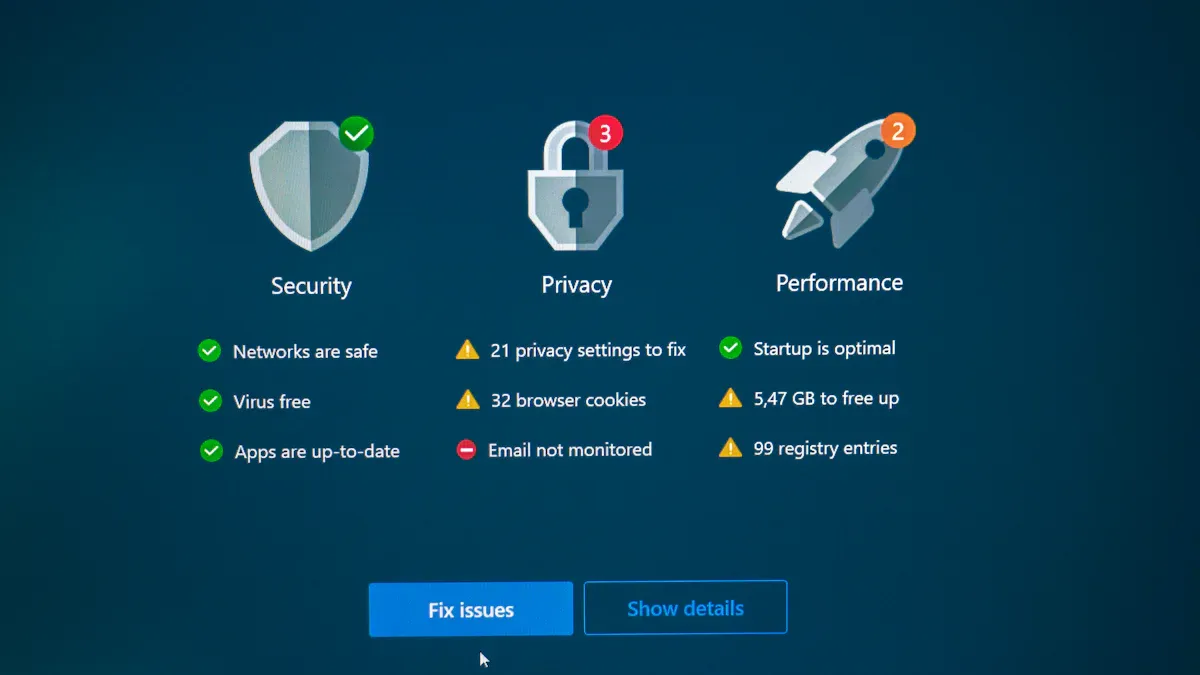
You want your team to stay secure without feeling frustrated. When you design microsoft 365 security, focus on making protection simple and seamless. Choose authentication methods that are quick and easy, such as push notifications or biometric sign-ins. Use single sign-on so users do not have to remember many passwords. Automate as many security tasks as possible. For example, set up automatic device compliance checks in your m365 environment. This way, users do not need to take extra steps to prove their devices are safe.
Clear communication also helps reduce friction. Explain why you set certain policies and how they protect users from threats. When users understand the reasons behind security, they are more likely to follow best practices. You can also gather feedback through quick surveys or team meetings. This helps you spot pain points and adjust your approach.
Tip: Start with small changes and test them with a pilot group. You can fix issues before rolling out new security features to everyone.
Communicating Security Changes
When you update security policies or add new features, you need to keep everyone informed. Microsoft 365 gives you tools to share updates and announcements. The Message Center acts as your notification hub for planned changes and important news. You can use it to send messages about new policies, upcoming updates, or urgent actions.
Here is how you can use the Message Center to communicate changes:
| Feature/Category | Description |
|---|---|
| Message Center | Notification hub for planned changes and important announcements in Microsoft 365. |
| Categories of Messages | 1. Prevent or fix issues 2. Plan for change 3. Stay informed |
| Attributes of Messages | Publish Date, Message ID, Title, Description |
| Integration with Planner | Messages can be synced with Planner to create actionable tasks for better change management. |
You can also use email, team meetings, or internal chat channels to reach users. Always give clear instructions and explain how changes will help protect the organization. Encourage questions so users feel comfortable with new security measures.
Measuring Success
You need to know if your security efforts work and if users feel satisfied. Track key performance indicators (KPIs) to measure both security and user experience. Some important KPIs include the Security Friction Score, Security Net Promoter Score (NPS), Authentication Satisfaction Index, Security Knowledge Score, and Security Effort Rating. These metrics show how easy it is for users to follow security steps, how much they trust your policies, and how well they understand their role in protection.
A large financial services company improved its m365 security by focusing on people and technology. They saw a 37% drop in Security Friction Score, a jump in Security NPS from -28 to +12, and a 42% rise in Authentication Satisfaction Index. Security-related help desk tickets fell by more than half. These results show that you can boost user satisfaction and strengthen your security posture at the same time.
Note: Review your KPIs often. Use the results to adjust your policies and keep your m365 environment safe and user-friendly.
Iterative Improvement
You need to treat Microsoft 365 security as an ongoing process. Threats change, and user needs evolve. You must review your security policies often and adjust them to fit new risks and feedback from your team. This approach helps you build a stronger defense and keeps your users happy.
Start by setting a regular schedule for security reviews. You can check your policies every quarter or after major updates. Look at your security metrics and user feedback. Identify areas where users struggle or where threats have increased. Use this information to make targeted improvements.
Here are steps you can follow for iterative improvement:
Collect Feedback
Ask your users about their experience with security features. Use surveys, interviews, or suggestion boxes. Listen to their concerns and ideas.Analyze Data
Review your security dashboards and KPIs. Look for trends in help desk tickets, authentication issues, or compliance gaps.Prioritize Changes
Focus on fixes that improve both security and user experience. For example, you can simplify authentication steps or automate device checks.Test Updates
Roll out changes to a small group first. Monitor their experience and gather feedback. Adjust your approach before a full launch.Communicate Clearly
Explain new policies and why you made changes. Use simple language and visuals. Make sure everyone understands the benefits.Measure Impact
Track the results of your updates. Compare metrics before and after changes. Look for improvements in security and user satisfaction.
Tip: Use Microsoft 365’s built-in analytics tools to monitor the impact of your changes. You can spot issues early and respond quickly.
You can use a table to organize your improvement cycle:
| Step | Action | Outcome |
|---|---|---|
| Collect Feedback | Survey users | Find pain points |
| Analyze Data | Review metrics | Identify trends |
| Prioritize Changes | Choose fixes | Target key issues |
| Test Updates | Pilot new policies | Reduce risk of disruption |
| Communicate | Share updates | Build trust |
| Measure Impact | Track results | See progress |
Iterative improvement keeps your Microsoft 365 environment secure and user-friendly. You build trust with your team and adapt to new challenges. You empower users to work safely and efficiently. By making small, regular changes, you create a culture of continuous improvement.
Next Steps and Resources
Building a Security Roadmap
You need a clear plan to strengthen your microsoft 365 security. Start by bringing together key people in your organization. Ask them about their biggest challenges and what they want to achieve. This helps you understand your current situation.
Next, hold workshops to set your goals. Work with your team to decide which security scenarios matter most. You can then create a draft roadmap that matches your business needs. Make sure you update this roadmap often. Assign someone to own each part of the plan. Treat your roadmap as a living document that changes as your needs grow.
Here are the main steps for building a security roadmap:
- Assessment: Identify stakeholders and gather insights on current challenges and goals.
- Visioning: Conduct workshops to define objectives and prioritize scenarios.
- Build the roadmap: Create a draft roadmap based on prioritized business needs.
- Execute the roadmap: Update the roadmap regularly and assign ownership.
Tip: Review your roadmap every quarter to keep up with new risks and changes in your organization.
Microsoft 365 Security Resources
You have many resources to help you learn and stay informed. Use these trusted sources to guide your security journey:
- Read articles that share the latest updates in microsoft 365 security best practices. These articles give you new ideas for protecting your data and meeting compliance needs.
- Explore guides that outline key security best practices for Azure and Office 365. These guides help you understand important cloud security settings.
- Check the official Microsoft documentation. This resource gives you step-by-step advice on identity management and access control for microsoft 365.
Note: Bookmark these resources so you can find answers quickly when you need them.
Staying Updated
Threats change all the time. You must stay alert and keep your knowledge fresh. Train your team regularly so everyone knows about new risks. Run risk assessments often to find weak spots in your environment. When you find new risks, update your security policies right away. Add new security measures if needed.
- Ongoing training helps you stay ahead of new threats.
- Regular risk assessments show you where to improve.
- Update your policies and tools based on what you learn.
Callout: Make security reviews a regular habit. This keeps your microsoft 365 environment strong and ready for anything.
By following these steps, you build a safer and smarter organization. You protect your users and your data while making the most of microsoft 365.
You can build a secure Microsoft 365 environment that supports your team’s productivity. Strong security empowers users by automating tasks and monitoring threats without slowing down workflows.
- Automated processes reduce friction for users.
- Proactive compliance lets your team focus on their work.
Start with basic security steps, then add advanced protections as your needs grow. Review your policies often and adapt to new risks. Work with certified Microsoft professionals and use trusted resources to keep your organization safe.
| Requirement | Description |
|---|---|
| Certified Professionals | Staff with Microsoft certifications |
| Performance Metrics | Track deployment success and impact |
Microsoft 365 Security Best Practices Checklist
Use this checklist to assess and improve your Microsoft 365 security posture.
- Enable Multi-Factor Authentication (MFA)
Require MFA for all users, especially admins and privileged accounts. - Enforce Strong Password Policies
Implement minimum length, complexity, and ban reused passwords; enable password protection and lockout settings. - Use Conditional Access Policies
Create policies based on risk, location, device compliance, and app sensitivity to control access. - Protect Privileged Accounts
Use Privileged Identity Management (PIM), just-in-time elevation, and limit permanent global admins. - Implement Least Privilege Access
Grant users only the permissions they need; review roles and group memberships regularly. - Enable Unified Audit Logging
Turn on audit logging and retention for investigations and compliance reporting. - Configure Advanced Threat Protection
Enable Microsoft Defender for Office 365 for anti-phishing, safe attachments, and safe links. - Protect Data with DLP and Sensitivity Labels
Classify, label, and apply Data Loss Prevention policies for sensitive information. - Encrypt Email and Data at Rest
Use Microsoft Purview Information Protection and Office 365 Message Encryption where required. - Enable Mobile Device Management
Use Intune to enforce device compliance, encryption, and remote wipe for mobile devices. - Secure External Collaboration
Review and configure Guest access, external sharing settings, and B2B collaboration controls. - Monitor Secure Score and Implement Recommendations
Track Microsoft Secure Score and prioritize high-impact security improvements. - Implement Email Authentication
Publish SPF, DKIM, and DMARC records to reduce spoofing and phishing. - Harden SharePoint and OneDrive Settings
Limit anonymous links, configure sharing expiration, and review external access logs. - Backup Critical Data
Ensure backups for Exchange, SharePoint, OneDrive, and Teams to recover from data loss or ransomware. - Apply Conditional Access for Legacy Authentication
Block or restrict legacy authentication protocols that bypass modern authentication controls. - Configure Microsoft Defender for Endpoint
Deploy endpoint protection, EDR, and automated remediation for managed devices. - Set Up Security Baselines and Policies
Use Microsoft security baselines and Intune configuration profiles to standardize settings. - Conduct Regular Security Awareness Training
Train users on phishing, safe handling of data, and reporting suspicious activity. - Perform Regular Access Reviews and Attestation
Schedule periodic reviews of group memberships, app access, and guest accounts. - Implement Logging and SIEM Integration
Forward logs to Microsoft Sentinel or another SIEM for central monitoring and correlation. - Define Incident Response and Recovery Plans
Document playbooks for common incidents and test recovery procedures regularly. - Keep Software and Configurations Updated
Apply updates to Microsoft 365 apps, endpoints, and related infrastructure promptly. - Review Third-Party App Permissions
Audit and restrict OAuth app permissions and remove unused app registrations.
Secure Microsoft 365 Environment: microsoft secure score and built-in security features
What are the core microsoft 365 security best practices for protecting microsoft office 365 accounts?
Core best practices include enabling multi-factor authentication (MFA) using Microsoft Authenticator or other methods, applying security defaults or custom policies, enforcing strong password and access policies with conditional access, keeping office apps and microsoft teams updated, and monitoring microsoft 365 data and activity through Microsoft 365 Defender and Microsoft Purview to detect security threats and suspicious sign-ins.
How does microsoft secure score help improve my organization’s security posture?
Microsoft Secure Score measures your organization’s security posture by assigning points for recommended configurations and actions across 365 services. Use microsoft secure score to prioritize improvements, track progress, and implement recommended 365 security features such as advanced threat protection, data protection policies, and device management with Microsoft Intune to reduce exposure to business email compromise and other security threats.
What role does Microsoft Defender for Office 365 play in threat protection?
Microsoft Defender for Office 365 provides advanced threat protection for email and collaboration tools by filtering malicious attachments and links, offering safe attachments and safe links, and providing investigation and response capabilities. It integrates with Microsoft 365 Defender to coordinate detection across email, endpoints, identities, and data to protect business operations from phishing, malware, and targeted attacks.
How can I use Microsoft Purview to meet compliance and data protection requirements?
Microsoft Purview helps enforce data protection and compliance by enabling data classification, sensitivity labels, data loss prevention (DLP) policies, eDiscovery, and retention across microsoft 365 data. Configure Purview to prevent sharing of sensitive information such as social security numbers, ensure regulatory compliance, and maintain audit trails for 365 security and compliance reporting.
What security policies should be enforced for remote and mobile users with microsoft intune?
With Microsoft Intune, enforce policies that require device compliance before accessing microsoft 365 resources: require device encryption, PIN or biometric access, app protection policies for office apps, conditional access to limit access to compliant devices, and regular patching. These measures create a layer of security by requiring managed devices for users to access microsoft 365 and protect corporate data on personal devices.
How do security defaults compare to custom security strategy and conditional access?
Security defaults provide a baseline of protection (MFA for privileged accounts, blocking legacy auth) suitable for many organizations and is easy to enable. Custom security strategy using conditional access allows more granular controls—based on user risk, device compliance, location, and application—and integrates with identity protection and Microsoft Defender to align with specific security requirements and the organization’s security framework.
What steps should I take to protect against business email compromise within microsoft 365?
To reduce business email compromise risk, enable Defender for Office 365 anti-phishing, enforce MFA and conditional access, implement DLP and mailbox auditing, train employees in security awareness to spot spoofing and social engineering, and use mail flow rules and authentication standards like SPF, DKIM, and DMARC to block fraudulent emails.
How can organizations secure collaboration in microsoft teams and office apps?
Secure collaboration by configuring tenant-level policies for external access and guest sharing, applying sensitivity labels and DLP to chats and files, using Microsoft Information Protection to classify and protect content created in office apps, enabling safe link scanning in Teams, and controlling integrations with third-party apps to reduce attack surface across 365 services.
What is the recommended approach to protect microsoft 365 data and ensure business continuity?
Protect microsoft 365 data by implementing regular backups of critical mailboxes and SharePoint/OneDrive content, using DLP and retention policies in Microsoft Purview, restricting data exfiltration with conditional access and endpoint protection, and planning business continuity with disaster recovery procedures and incident response playbooks integrated with Microsoft 365 Defender alerts.
How do I implement a security awareness program focused on security in microsoft 365?
Build a security awareness program that trains users on phishing, safe collaboration in office apps and microsoft teams, reporting suspicious emails, and secure use of personal devices. Use simulated phishing campaigns, regular training updates aligned with latest security threats, and measure behavior changes using telemetry from Microsoft 365 Defender and Secure Score to reinforce security practices.
What built-in security features in microsoft 365 should every admin enable first?
Enable MFA and security defaults or conditional access, turn on unified audit logs and mailbox auditing, configure Microsoft Defender for Office 365 policies, set up Microsoft Purview DLP and retention labels, enforce device compliance with Microsoft Intune, and review microsoft secure score recommendations to prioritize additional built-in security features.
How can I enforce least privilege and secure access to microsoft 365 for administrators and users?
Apply the principle of least privilege by using role-based access control (RBAC) in the Microsoft 365 admin center and Azure AD, enable privileged identity management for just-in-time admin elevation, require MFA and strong authentication methods, and monitor admin activities through audit logs and alerts in Microsoft 365 Defender to reduce risk from compromised privileged accounts.
🚀 Want to be part of m365.fm?
Then stop just listening… and start showing up.
👉 Connect with me on LinkedIn and let’s make something happen:
- 🎙️ Be a podcast guest and share your story
- 🎧 Host your own episode (yes, seriously)
- 💡 Pitch topics the community actually wants to hear
- 🌍 Build your personal brand in the Microsoft 365 space
This isn’t just a podcast — it’s a platform for people who take action.
🔥 Most people wait. The best ones don’t.
👉 Connect with me on LinkedIn and send me a message:
"I want in"
Let’s build something awesome 👊
Have you ever turned on a new security policy in M365… only to get a flood of Monday morning tickets from unhappy users? If that sounds familiar, you're not alone. Today, we're going to cover 10 critical settings that lock down your tenant, but won’t lock out your users. The trick is balancing ironclad security with usability—and we’ll show you exactly how to do it without the usual pain.
The Security Setting Everyone Forgets
Most admins feel confident once they’ve set strong password requirements. Complexity rules are in place, expiration is turned on, and minimum length checks out. It looks solid on paper, but here’s the catch—attackers don’t actually care how complex those passwords are if the system doesn’t demand anything more during sign-in. That one missing layer is exactly where most tenants stay vulnerable, even if the admin thinks the basics are covered. The assumption is simple: if users must create long, complex passwords, that’s enough to keep intruders out. But attackers have changed the game. Password spray attacks are automated, fast, and usually successful against at least a handful of accounts in even the most mature organizations. The truth is, complexity requirements don’t stop an attacker from trying endless combinations across many accounts. And if a single password is weak—or reused somewhere else—that’s often all it takes. One tenant I worked on learned this the hard way. They had standard password policies in place, thought they were in the clear, and moved on to more visible projects. It wasn’t until their helpdesk started drowning in reports of missing emails that they realized something was wrong. A single compromised user account had been sending thousands of phishing messages internally and externally for days. The attacker didn’t need to crack a difficult password from scratch. Instead, they tried common patterns across every user, and eventually one hit. Because nothing else was configured, that account was fair game. Stories like that aren’t rare. Microsoft has published insights showing that the overwhelming majority of successful credential-based attacks target tenants without any additional identity protections. Numbers vary, but the pattern is crystal clear: password-only defenses eventually fail, no matter how strict the characters and symbols are. Attackers rely on that blind spot, because they know it’s surprisingly common for organizations to overlook. So what’s the actual setting that gets skipped? It’s the consistent application of multi-factor authentication through conditional access. Microsoft even provides a baseline MFA configuration, yet many admins hold back from turning it on. Sometimes the hesitation comes from thinking it will be a nightmare for users. Other times it’s because conditional access feels like a big design project, touching every login scenario across the entire tenant. Either way, hesitation leaves a door cracked open. Admins often picture the worst-case backlash: Monday morning chaos, phones lighting up with complaints, executives locked out of their inbox. That fear of disruption leads to postponing the change, sometimes indefinitely. But here’s what most of us don’t realize at first—once MFA and conditional access are enforced, end-users barely notice in practice. Modern apps handle the sign-in flow smoothly, and once a device is trusted, prompts drop down to a quick tap or notification check. Think about it like this: attackers don’t target just the CEO account. They’ll happily compromise an intern’s mailbox if it lets them pivot further into the company. With that perspective, a single well-placed conditional access rule has an outsized impact. It isn’t about locking everything down so tightly that work grinds to a halt. It’s about requiring just enough verification to stem the most common attacks before they gain any traction. The real kicker is how effective this simple switch can be. Enabling baseline MFA combined with policies to block legacy authentication stops the vast majority of credential-based compromises right at the gate. Attackers thrive on weak links. Remove those, and you eliminate entire categories of risk without overhauling your environment. It’s like going from leaving the office door open overnight to hiring a guard—except the guard doesn’t interfere with your staff walking in every morning. This is why skipping MFA and conditional access ends up being the most dangerous oversight. Not because it’s technically complex, but because it feels deceptively optional. The default assumption is that security must always equal friction. That mindset leaves many tenants exposed for far too long. And yet, it doesn’t have to be either/or. Smart identity policies add a wall of protection without burying users in prompts. Which raises the bigger question—if identity is this easy to improve, what about the rest of the environment? Collaboration is where most businesses walk the tightrope of usability versus protection. And when it comes to Teams and SharePoint sharing, the stakes can get even higher than a compromised password.
Collaboration Without Leaks
Sharing keeps the business moving, but the convenience comes with a hidden risk. One wrong link shared outside the tenant can be all it takes for confidential data to escape. In Teams or SharePoint, collaboration flows fast, and that’s the good part. The challenge is that the same speed allows mistakes to spread just as quickly. Nobody sets out to expose financial figures or HR reports, but the platform makes a single click enough to push sensitive files beyond company boundaries. You’ve probably seen this scenario play out: someone in finance drops a spreadsheet into a Teams chat, meaning to share it only with their manager. Instead, the link gave external access to a supplier who happened to be part of the channel. That supplier now has visibility into salary data and budget breakdowns that were never intended to leave internal walls. By the time the admin steps in, it’s already too late—copies are made, attachments are in inboxes, and the cleanup effort becomes more about damage control than prevention. This kind of misstep is not as rare as people would hope. Everyday file sharing is at the center of knowledge work, and with that volume comes error. Data leaves organizations unintentionally far more often than through deliberate theft. A huge percentage of users working in Microsoft 365 admit at some point they’ve sent the wrong file or granted more permission than intended. Cloud collaboration makes it simple to work across projects and borders, but simplicity is also what enables these slips. So how do you keep the benefits of sharing without creating a constant leak? Microsoft has put several layers in the toolbox to address exactly that. Sharing controls are the foundation—admins can define whether links default to internal, people with existing access, or anyone with the link. Then come sensitivity labels, which travel with the document and adjust behavior whether the file is stored in OneDrive, Teams, or emailed as an attachment. On top of that, there’s Data Loss Prevention, which lets you watch for patterns like personal information, financial identifiers, or even project-specific keywords. Instead of blocking productivity outright, DLP can step in with a friendly warning that says, “Are you sure you want to send this externally?” Users need that balance because if controls feel restrictive, they’ll start looking for workarounds. IT wants certainty, users want to keep their flow, and those goals sound like they clash. The reality is, when policies are written in plain language, most people understand instantly what’s at stake and correct themselves before sending. A popup that speaks human language—“This file contains customer records”—lands much better than abstract codes or technical warnings. Of course, without those guardrails, the risk stretches beyond embarrassment. One accidental share can cross into regulatory trouble or contract breaches. Consider a healthcare organization where a misplaced file violates patient privacy law, or a financial institution that unintentionally provides external access to trade-sensitive data. In cases like that, the clean-up cost includes fines, legal reviews, and trust lost with partners and clients. What started as a harmless share link now has material business fallout that could have been avoided by setting better defaults. The good news is, prevention here doesn’t require draconian rules. A well-tuned DLP policy can be specific to business context. Maybe legal documents can’t ever leave the tenant, but marketing materials can be sent broadly. If the policies guide users with clarity and stop only the real risks, they feel less like roadblocks and more like safety rails. The moment an employee gets a notification explaining why a file can’t be shared, and the wording makes sense, you’ve raised awareness without halting productivity. That kind of configuration not only reduces risk but also redirects the conversation between IT and business units. Instead of saying “no” to every request, admins can show they’ve created space for secure sharing. Over time, that builds trust because teams see IT as an enabler, not a blocker. Monday mornings don’t turn into ticket marathons because users understand the prompts and quickly adjust their behavior. So the lesson here is straightforward: design your collaboration model with smart defaults, use sensitivity labels to enforce context, and let DLP policies communicate in clear, user-friendly terms. You’ll avoid the endless cycle of accidental oversharing while keeping people productive. And once collaboration guardrails are in place, attention returns to identity. Because if file leaks are one side of the puzzle, the other side is stopping attackers before they even reach the data—and there’s one conditional access policy that does more of that heavy lifting than almost anything else.
The 80% Fix
What if there was one rule you could set that would block most of the attacks hitting Microsoft 365 tenants today? Not half, not a quarter, but the majority of them. The surprising part is that this rule already exists in every tenant—you don’t need premium add‑ons, and you don’t need a six‑month rollout plan—but most environments still don’t use it to its full potential. Conditional Access is one of the most powerful tools in the platform, yet when you look at how it’s applied day to day, the majority of admin teams are barely scratching the surface. A lot of that hesitation comes from perception. Everyone knows Conditional Access can enforce things like MFA or location policies, but the fear is always the same: if you turn it on too broadly, you’ll break something. Executives won’t be able to connect while traveling. A legacy application built years ago won’t authenticate correctly. Remote workers will flood your helpdesk trying to sign in. So, many admins take the cautious approach. They acknowledge it’s important, maybe configure a pilot group, but then stop shy of enforcing it everywhere. The result is a tenant that looks secure on paper but still has wide open paths for attackers. That would be manageable if the workforce was always bound to the office. But users today log in from airports during layovers, hotel Wi‑Fi, coffee shops with shared networks, and their home routers. Every one of those locations carries its own risks. A session started from an unmanaged device on an untrusted network is exactly what attackers look for. If there are no guardrails, you’ve essentially given them a clear runway to try stolen or guessed credentials. And if legacy protocols are still accepted, those controls can be sidestepped altogether. Think about what that means in practice: A sales manager is racing to download a proposal before boarding a flight, quickly entering their password on a public connection. Without Conditional Access enforcing MFA and blocking high‑risk sign‑ins, that same login could be replayed by someone running a credential stuffing attack from across the world. It wouldn’t even raise a red flag to the user. They’d still get in, carry on with their day, while the attacker sets up persistence using the same account in the background. The numbers make this gap even clearer. Microsoft has shown data that a single, well‑configured Conditional Access policy can prevent up to 80 percent of identity‑related incidents in M365. That’s not a minor optimization—that’s closing off the main path attackers use to break into tenants. And yet, when you check many environments, these settings are either missing entirely or only partially applied. It’s a strange contradiction: everyone recognizes the value, but the fear of disruption outweighs the simplicity of putting it in place. So what exactly is that 80 percent fix? Two pieces, and they’re simpler than most admins expect. First, you block legacy authentication. Older protocols don’t support MFA and give attackers a way around modern defenses. Leaving them enabled is like insisting on keeping a back door unlocked even after upgrading the front entrance with new locks. The second step is requiring Conditional Access policies for all users, not just executives or IT teams. That way every account has to meet the same baseline security checks before it can get into the tenant. Here’s the key: for modern clients, this doesn’t cause headaches. Outlook, Teams, OneDrive—these already know how to handle Conditional Access challenges. Once the device is registered or trusted, MFA becomes a quick tap on the phone instead of a repeated password drill. The security jump is enormous while the day‑to‑day disruption for staff is minimal. Administrators worry they’ll trigger mass confusion, but in practice, most users barely notice anything new beyond an occasional prompt that quickly becomes routine. When you step back, this one configuration shift changes the math of your tenant’s risk profile. Instead of relying on complex password rules that attackers test against in bulk, you’re demanding real proof that the person signing in is who they say they are—and refusing communication from outdated authentication models entirely. That simple baseline policy does most of the heavy lifting for you. And once your own accounts are under that level of protection, the natural question becomes: what about everyone else connecting into your environment? Vendors, contractors, and partners often need access too, and they can easily become the weak link if left unmanaged. We’ll look at how to maintain the same balance of control and usability when it comes to guests, without turning external collaboration into a permanent risk.
Guest Access Without Regret
Guest access is one of those settings that feels like a lifesaver when you’re trying to get things done quickly. A partner needs to review some documents? Invite them. A contractor needs access to Teams for the next three weeks? Add them. Vendors need a workspace to collaborate on a project? No problem. With a couple of clicks, the door is open and they’re in. That’s what makes M365 so flexible and why businesses lean on it for day‑to‑day operations. The challenge, though, is that the same flexibility that enables those partnerships can also leave your tenant exposed if you don’t keep control over the long term. It really is both your greatest enabler and your easiest way to inherit unnecessary risk. The reality is most organizations constantly work with externals—suppliers, clients, auditors, consultants. It’s not optional anymore, it’s just the way business runs. Teams, SharePoint, and OneDrive are designed to handle it effortlessly. But that’s where guest access often escapes oversight. You’re so focused on making sure projects move forward that no one stops to think about, “Do these users still need to be here next quarter?” Before you know it, your Azure AD is bloated with accounts that nobody remembers creating, and that’s a problem. A good way to understand the risk is to picture this: A vendor is brought in to help implement a new system. They get added as a guest in Teams, join meetings, drop files in SharePoint, and everything flows as it should. Six months later, the project is finished, the team moves on, but the guest account is still sitting there. Nobody officially removed it. That account may not even be monitored anymore. If it was tied to a personal email address, there’s no accountability. If the vendor’s own security suffers a breach, that forgotten guest account is a direct line into your environment. Attackers know this gap exists. They don’t just look for privileged accounts; sometimes the easiest way in is through the forgotten contractor who hasn’t logged in for months. Those abandoned guest accounts offer persistence that defenders rarely notice, and they bypass many of the identity protections admins worked hard to implement. By the time anyone detects suspicious activity, attackers might have pivoted deeper into your tenant, impersonating normal collaboration traffic while they quietly gather sensitive data. The frustrating part for admins is that the intention was never careless. You wanted to enable collaboration quickly and avoid slowing down the business. But the system doesn’t automatically clean up those accounts for you without some planning. That’s where Microsoft has built‑in controls that most organizations still underuse. Expiration policies are one of the most straightforward. You can define lifecycles on guest accounts so that access automatically expires if not renewed. Instead of living in your directory forever, unused accounts get cleaned out unless someone takes explicit action to extend them. For project work, just‑in‑time invites also help. Rather than maintaining a broad list of external identities hanging around indefinitely, you only approve access for the period they’re actively contributing. When the project is done, the account closes down with it. There’s no awkward email to the vendor asking why you’re removing them. The policy takes care of it cleanly, and the business keeps its rhythm. The balance is what matters most here. Users should still be able to invite partners without opening a ticket and waiting days for approval. Collaboration has to feel natural, or else employees will sidestep the system entirely—maybe by sending sensitive files over consumer cloud services where you have no visibility. Admins, though, need to keep the reins tight enough to feel confident that the directory doesn’t become a graveyard of unused guests. Microsoft’s tools let you achieve both. Team owners can bring guests in, but expiration ensures that when those accounts outlive their purpose, they don’t linger as silent liabilities. That’s really the sweet spot: easy collaboration backed by automatic oversight. By applying group or team‑based expiration settings, you free yourself from manually chasing down every guest account, while still protecting against long‑term exposure. Users continue to work with vendors and contractors like they always have, barely noticing anything changed, while IT quietly reduces attack surface in the background. In the end, guest access doesn’t have to be that hidden vulnerability everyone worries about. With the right settings tuned to your business, you provide a safe place for partners to work without building a permanent backlog of abandoned accounts. Trust with external parties stays intact because they get the access they need, and IT can sleep easier knowing nothing extra is hanging around. But security by invitation only works if you’re able to see what’s actually happening once those accounts are in the system. Controlling who gets access is one side of the puzzle; being able to track and surface the important activity signals is the other. And if you can’t see what’s really going on behind the wave of logs and events, then you’re running blind. That’s why visibility—and filtering it down to what actually matters—is the next critical piece.
Visibility That Actually Matters
Most admins can tell you how many events their tenant logs in a single day, but ask them which ones actually mattered last night and the answer is usually guesswork. The volume is huge, tens of thousands of signals streaming in every hour. Login attempts, file edits, permission changes, role assignments—it all gets captured. But without some way to separate noise from signal, the data just becomes another background hum. You’re investing in storing all this telemetry, yet the practical benefit during a security incident feels almost nonexistent. The problem is partly scale and partly focus. Every admin wants visibility, but no one has the bandwidth to manually comb through giant log files. When incident response time is measured in minutes, there’s no chance you’ll scroll line by line looking for a needle in the haystack. So you narrow your gaze. You keep dashboards of sign‑in failures, application performance, or device health. Those metrics make sense operationally. But when something serious happens, that very focus can blind you to the details that count. Logging exists, but the clarity doesn’t. Take an IT team at a regional firm as an example. They were already collecting logs across Microsoft 365 and Azure AD. Dashboards lit up with the usual red and yellow signals: password resets, license assignments, CPU load. Nothing looked abnormal. Meanwhile, an attacker with valid credentials quietly created inbox rules for several accounts, forwarding sensitive internal emails to an external address. The admin team didn’t catch it for a week because their monitoring emphasized infrastructure health trends, not mailbox rule audits. All the right data was technically recorded, but without structured auditing and clear alerts, it disappeared into the static. By the time they pieced together the timeline, confidential project info had already leaked. This isn’t unique. It’s the natural outcome of drowning in too much input. Humans are simply not built to triage raw logs at machine speed. That’s where the built‑in tools Microsoft provides come into play. Unified Audit Log is the foundation. Instead of dumping every event into random buckets, it creates a comprehensive timeline of who did what. Paired with proper alert policies, you can cut through the static and highlight only the actions that matter when assessing risk. Suddenly, you can see that a global administrator account just had its credentials reset at 3 a.m., or that a user created forwarding rules redirecting executive mail outside the domain. The difference between endless raw logs and structured auditing is night and day. With raw data, you end up exporting to CSVs, filtering in Excel, and hoping you didn’t miss something. With structured auditing, context is added by default, and alerts bring forward anomalies you can act on in real time. It turns an overwhelming firehose into a focused monitor feed where each signal earns your attention. You’re not cutting down on data collection—you’re refining it so admins can respond intelligently. From a user’s perspective, enabling these logs and alerts is invisible. There’s no prompt, no policy change, and no friction in their workflow. People keep working in Teams, SharePoint, Outlook, completely unaware anything has shifted. For admins, though, the impact is massive. You move from feeling blind during incidents to having a clear set of breadcrumbs to follow. Investigation time shrinks, and you’re able to contain issues before they widen. The payoff comes the first time an alert surfaces an event you wouldn’t have spotted otherwise. Maybe it’s a series of failed login attempts from an impossible travel location, maybe it’s suspicious role assignments. Without those alerts, you’d be firefighting blind, reacting only after someone reports strange behavior. With them, you’re engaged in surgical defense, cutting off threats while they’re still small. Ultimately, security in M365 isn’t only about who can get in or what data they can share. It’s also about whether you can actually see what’s going on once they’re inside. Identity controls reduce the chance of compromise, collaboration guardrails prevent accidental data spills, and high‑signal visibility ensures you catch the events that matter before they spiral. These three together form a practical approach to tenant security that doesn’t trade usability for peace of mind. Which brings us to where it all ties together: protecting productivity and security doesn’t have to be opposites if you’re using the right defaults in the right places.
Conclusion
Locking down Microsoft 365 doesn’t mean locking out your people. The trick is using smart defaults that protect identity, data, and visibility without dragging productivity down. Most admins overestimate the pain these settings cause, when in reality the right baseline runs quietly in the background. So here’s the challenge—start small. Pick one of these tenant‑wide settings, turn it on today, and see the difference for yourself. And this isn’t the end. We’ll explore automation and AI‑assisted administration in upcoming sessions, showing how to manage M365 with less manual effort and smarter responses. That’s where things get interesting.
This is a public episode. If you'd like to discuss this with other subscribers or get access to bonus episodes, visit m365.show/subscribe

Founder of m365.fm, m365.show and m365con.net
Mirko Peters is a Microsoft 365 expert, content creator, and founder of m365.fm, a platform dedicated to sharing practical insights on modern workplace technologies. His work focuses on Microsoft 365 governance, security, collaboration, and real-world implementation strategies.
Through his podcast and written content, Mirko provides hands-on guidance for IT professionals, architects, and business leaders navigating the complexities of Microsoft 365. He is known for translating complex topics into clear, actionable advice, often highlighting common mistakes and overlooked risks in real-world environments.
With a strong emphasis on community contribution and knowledge sharing, Mirko is actively building a platform that connects experts, shares experiences, and helps organizations get the most out of their Microsoft 365 investments.