


 Apple Podcasts
 Spotify
 Youtube Music
 Spreaker
 Podchaser
 Amazon Music
Microsoft 365 Copilot AI is making waves across the tech world, but the real question is whether it’s a revolutionary leap forward or just the latest overhyped gimmick. In this episode, we unpack what Copilot actually is, how deeply it integrates with the Microsoft 365 ecosystem, and whether its AI-powered features truly move the needle for everyday productivity. Copilot promises to transform the way users work in Word, Excel, PowerPoint, Outlook, and Teams by generating content, summarizing information, answering questions, analyzing data, and automating tasks. We explore how generative AI and large language models make this possible, how Copilot adapts to different workflows, and what its growing customization options mean for users who want more control. At the same time, we dig into the ongoing debate: is Copilot a meaningful AI assistant or just another shiny feature destined to fade like past Microsoft experiments? With predictions pointing toward full integration and even more powerful capabilities by 2025, this episode examines whether Copilot will reshape digital workflows or remain a premium add-on with mixed results. If you’re wondering whether Microsoft 365 Copilot is the future of work or simply another accessory in the AI hype cycle, this breakdown gives you the clarity you need.






You want results. Microsoft 365 Copilot delivers. If you use Microsoft 365 daily, you unlock a smarter way to work. You see tasks completed faster, emails drafted instantly, and data analyzed in seconds. Microsoft Copilot fits into every Microsoft 365 app you rely on—Word, Excel, PowerPoint, Outlook, and Teams. Over 78% of organizations using Microsoft 365 Copilot notice real productivity gains, with Microsoft estimating a 10% to 15% lift in enterprise productivity. Small and medium businesses can achieve up to 353% ROI in three years. If you ask, "Is Microsoft Copilot Worth It?"—the numbers say yes.
Key Takeaways
- Microsoft 365 Copilot boosts productivity by automating repetitive tasks, saving users an average of 9 hours per month.
- The integration of Copilot with Microsoft 365 apps like Word, Excel, and Outlook allows for seamless workflow without switching tools.
- Businesses can achieve up to 353% ROI in three years by utilizing Copilot, making it a valuable investment.
- Copilot enhances collaboration by summarizing meetings and providing real-time insights, keeping teams aligned and informed.
- Users can customize Copilot's responses and settings to fit their unique workflows and preferences.
- Microsoft Copilot is suitable for both individuals and businesses, offering plans that cater to different needs and budgets.
- While Copilot offers many benefits, users should be aware of potential hidden costs and data privacy considerations.
- Training and support resources are available to help users maximize the value of Copilot in their daily tasks.
Is Microsoft Copilot worth it? 5 surprising facts about costs
- Multiple licensing layers: Copilot appears as a single product but costs can come from several licenses (Microsoft 365 base, Copilot add-on, and sometimes E3/E5 requirements), so sticker price isn’t the whole story.
- Different Copilots, different prices: “Copilot for Microsoft 365,” “Copilot for Business,” and “Windows Copilot” are separate offerings or inclusions—each has distinct pricing and entitlements that can change your per-user cost dramatically.
- Hidden infrastructure and usage costs: Heavy or enterprise-scale use often drives up behind-the-scenes compute, Azure, or API expenses (especially if integrating with custom models or large-scale data ingestion), which aren’t always covered by the base Copilot fee.
- Implementation and governance add up: Real costs include implementation, security review, compliance, prompt-engineering, training, and monitoring—consulting or internal project time can exceed subscription fees in the first year.
- ROI depends on workflow and scale: For small teams with light use the cost-per-benefit can be high, while large organizations that optimize workflows and measure productivity gains often justify the investment—so “is Microsoft Copilot worth it” often comes down to usage patterns and measured outcomes.
Microsoft Copilot Worth It?
What Makes Copilot Valuable
Productivity Boost
You want to get more done in less time. Microsoft Copilot gives you that edge. The feature set stands out because it automates repetitive tasks, drafts emails, and analyzes data instantly. You save hours every month. Copilot helps you summarize meetings, extract key points from documents, and generate content with ease. You see a boost in productivity across every Microsoft 365 app you use.
Copilot users report saving an average of 9 hours per month. Enterprises see productivity benefits worth $18.8 million over three years. Small and medium businesses experience up to 353% return on investment.
Copilot’s AI assistant adapts to your workflow. You get contextual suggestions in Word and Excel. Teams users can summarize meetings and draft follow-ups. Outlook users receive help with email composition and real-time research insights. You unlock creativity and clarity, even if English is not your first language.
Workflow Integration
Microsoft Copilot fits seamlessly into your daily routine. The feature integration with Microsoft 365 apps means you never have to switch tools. You work in Word, Excel, PowerPoint, Outlook, and Teams, and Copilot is always there to assist. The AI features include document summarization, image generation, and web page summarization. You can customize Copilot’s responses and modes to match your preferences.
Here’s a quick look at what sets Copilot apart from other productivity tools:
| Feature | Description |
|---|---|
| Updated Information | Provides accurate and recent data through Bing Search. |
| Multifaceted AI Assistant | Handles image design, code writing, and web searches. |
| Image Generator | Uses DALL-E 3 to create images from text descriptions. |
| Document and Web Page Summarization | Summarizes large amounts of information quickly. |
| Integration with Microsoft Tools | Works with Excel, Word, Teams, and Outlook. |
| Customization | Lets you adjust response settings and modes. |
| Prevention of Inappropriate Responses | Adapts to social contexts. |
| Microsoft Edge Integration | Summarizes and retrieves citations directly in the browser. |
You get a multifaceted AI assistant that goes beyond text generation. Copilot’s features help you create images, summarize web pages, and automate tasks. You see real value in every workflow.
Who Should Consider Copilot
Business Use Cases
If you run a business, you want measurable results. Microsoft Copilot delivers value for teams and departments. You use Word and Excel for contextual suggestions and data analysis. Teams helps you summarize meetings and draft follow-ups. Outlook and Edge provide assistance with email composition and real-time research insights.
- Roles across departments find new ways to leverage AI at work.
- You can summarize client meetings and automate new employee onboarding.
- Copilot simplifies complex workflows and accelerates productivity during work hours.
You see a 2.6% increase in top-line revenue and a 2.5% improvement in sales win rates. The investment in Copilot pays off quickly. You gain a competitive advantage and unlock new levels of productivity.
Individual and Personal Use
You don’t need to run a business to benefit from Copilot. Microsoft Copilot offers value for individual users. You use Copilot for notetaking, meeting summaries, and action items. The feature generates real-time summaries during meetings, recaps missed points, and suggests actionable follow-up tasks.
- Notetaking, Meeting Summaries, and Action Items: Copilot generates real-time summaries and actionable tasks.
- Draft Emails and Summarize Threads in Outlook: You draft emails, summarize long threads, and improve message tone and clarity.
- Create Knowledge from Cases: Copilot creates knowledge from customer service cases, summarizing details and documenting lessons learned.
You improve your writing quality, especially if English is not your first language. Copilot gives you creativity that would be hard to have without AI. You see real value in every feature, whether you work alone or in a team.
Microsoft Copilot is worth it if you want to maximize productivity, streamline workflows, and get measurable return on investment. You unlock the full potential of Microsoft 365 with Copilot’s advanced features.
Microsoft Copilot Pricing
Subscription Options
Individual vs. Business Plans
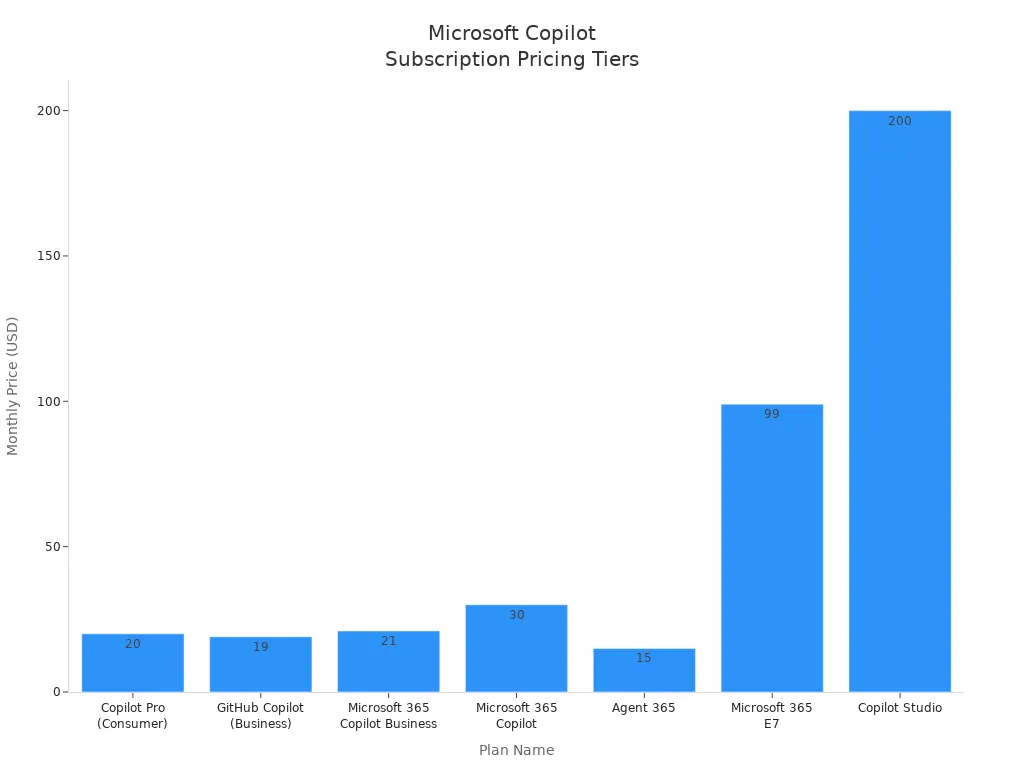
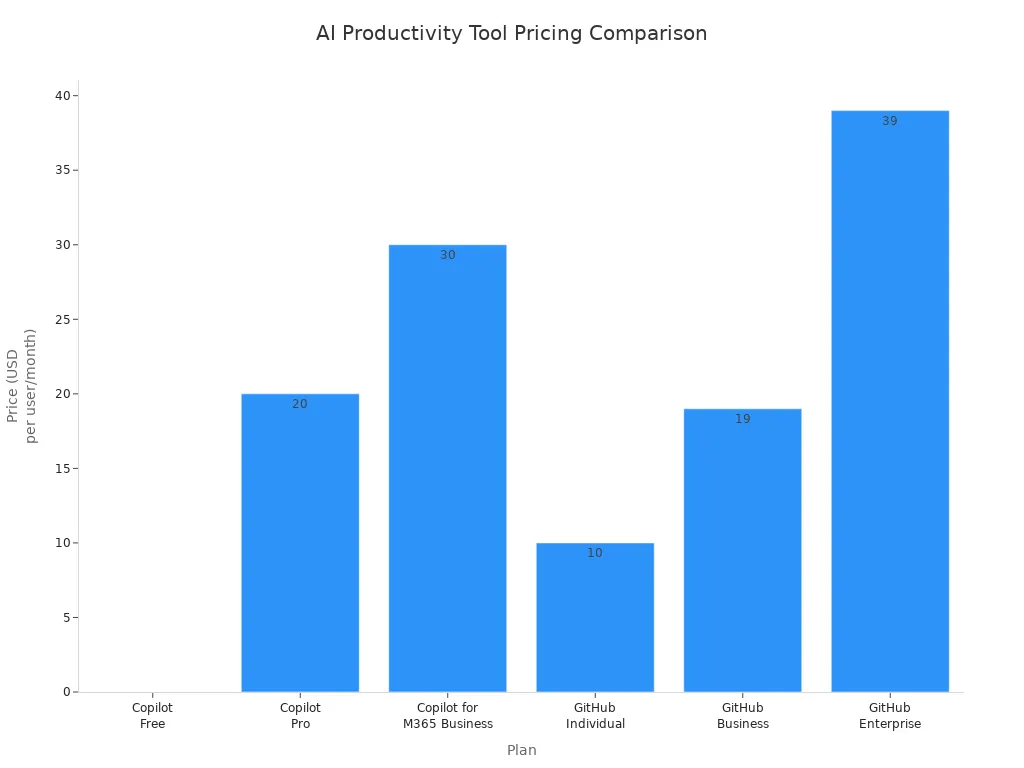
You have several choices when you look at microsoft copilot pricing. Microsoft offers plans for individuals, small businesses, and large enterprises. If you use microsoft 365 apps for personal tasks, you can select Copilot Pro for $20 per month. Small and medium businesses can access Microsoft 365 Copilot Business for $21 per user each month. Enterprises unlock advanced copilot features with Microsoft 365 Copilot for $30 per user monthly. Microsoft also provides Copilot Chat for all microsoft 365 users at no extra cost. Copilot Studio lets you build custom AI agents for $200 per tenant per month.
| Plan Name | Target Audience | Price | Additional Notes |
|---|---|---|---|
| Microsoft 365 Copilot Business | SMBs (<300 users) | $21/user/month | Available from Dec 1, 2025 |
| Microsoft 365 Copilot | Enterprise E3/E5 | $30/user/month | Requires annual subscription |
| Copilot Pro (Consumer) | Individuals, M365 Personal/Family | $20/user/month | Requires M365 subscription |
| Copilot Chat | All M365 users | Included | No additional cost |
| Copilot Studio | Custom GPTs, chatbots | $200/tenant/month | 25K messages included |
Included Features
You get a wide range of copilot features with each subscription. Microsoft 365 Premium gives you up to 6 TB of cloud storage, access to all microsoft 365 apps, and exclusive copilot features. Copilot Studio allows you to build and customize AI agents. Copilot Free offers basic features for web-based tasks. Copilot in microsoft 365 provides deep integration with microsoft 365 apps, unlocking advanced copilot features for productivity.
| Subscription Option | Features |
|---|---|
| Microsoft 365 Premium | Up to 6 TB cloud storage, access to Word, Excel, PowerPoint, Outlook, OneNote, exclusive copilot features, Microsoft Designer AI-powered image creator |
| Copilot Studio | Build, test, publish AI agents, customize copilot for microsoft 365, generative AI plugins |
| Copilot Free | General-purpose AI assistant for web-based tasks, limited features |
| Copilot in Microsoft 365 | Deep integration with microsoft 365 apps, full copilot features |
Cost vs. Value
ROI for Businesses
You want to see results from your investment. Microsoft copilot delivers measurable value. Businesses report thousands of hours saved each year. The productivity boost from copilot features offsets subscription costs quickly. You streamline operations and unlock efficiency across microsoft 365 apps. Copilot features help you automate tasks, summarize meetings, and generate content. You see positive ROI within weeks.
Affordability for Individuals
You do not need a big budget to benefit from copilot features. Microsoft makes copilot affordable for individuals. Copilot Pro gives you access to advanced features for $20 per month. You use microsoft 365 apps to draft emails, analyze data, and create documents faster. The time savings and improved productivity make the subscription worthwhile. Copilot features help you maximize every minute you spend in microsoft 365.
Microsoft copilot offers flexible pricing and subscription options. You choose the plan that fits your needs and budget. Copilot features deliver value for every user, from individuals to enterprises.
Copilot Benefits

Time Savings
Automating Repetitive Tasks
You want to focus on work that matters. Microsoft copilot takes care of repetitive tasks for you. With features like automated workflows, you can delegate routine actions and free up your schedule. Copilot handles data entry, meeting summaries, and follow-up emails. This means you spend less time on manual work and more time on creative projects. The copilot experience brings real labor cost savings and boosts operational efficiency across your team.
Faster Content Creation
You can turn ideas into polished content in minutes with copilot. The features let you start with a keyword, a rough outline, or even a voice memo. Copilot quickly transforms your input into full posts or documents.
- You reduce the time needed to start content creation.
- Copilot speeds up the initial draft, so you move from concept to completion faster.
- You still have control over editing, but the time saved per task is significant.
Quality Improvements
Enhanced Documents
You want your documents to stand out. Copilot features help you transform simple bullet points into detailed paragraphs. You get clarity and depth in every document. The copilot experience lets you refine your work, combining AI speed with your creativity. Copilot adapts its suggestions to your goals, so your documents always align with your strategy.
- You can revise content quickly based on feedback.
- Copilot synthesizes information from different sources, ensuring your documents stay consistent and professional.
Better Collaboration
You work better when your team stays connected. Microsoft copilot integrates with microsoft 365 apps, making collaboration seamless. Copilot draws insights from emails, Teams chats, and shared files to create context-rich documents. This integration reduces miscommunication and keeps everyone aligned. You experience real-time assistance in shared documents, so everyone’s input gets captured and organized. The copilot experience helps your team move faster and work smarter.
Customization
Adapting to Workflows
You need tools that fit your unique workflow. Copilot features let you create and customize AI agents for your business needs. With Copilot Studio, you design, test, and publish agents that automate your processes.
| Feature | Description |
|---|---|
| AI Agent Creation | Create and tailor AI agents for specific workflows. |
| Copilot Studio | Design, test, and publish conversational AI agents. |
| Workflow Automation | Automate business processes to save time and reduce errors. |
You save time and reduce mistakes. Even if you are not technical, you can build smart workflows that boost efficiency.
User Preferences
You want control over your copilot experience. Microsoft copilot gives you options to tailor the features to your style.
| Option | Description |
|---|---|
| Turn off personalization | Disable personalization to keep copilot from remembering past interactions. |
| Adjust response tone | Set the tone of copilot’s responses to match your preference. |
| Response modes | Choose between balanced, accuracy-focused, or creative modes. |
You decide how copilot interacts with you. This flexibility ensures your microsoft 365 experience feels personal and productive.
Copilot Drawbacks
Pricing Concerns
High Cost for Small Teams
You want to maximize value, but the true cost of copilot can surprise you, especially if you run a small business or manage a lean team. While microsoft 365 copilot offers powerful features, you may face several hidden expenses beyond the subscription price. Consider these common concerns:
- Hidden costs related to setup, integration, training, and maintenance.
- Requirement of a qualifying microsoft 365 subscription to access copilot.
- Technical setup and configuration costs, including possible hardware or software upgrades.
- Data integration complexities that may require custom solutions.
- Compliance and security costs to meet enterprise standards.
- Need for consultancy and expertise to manage integration.
- Ongoing training and support costs for employees.
- Potential additional fees for major updates and performance optimizations.
You need to weigh these factors when calculating the total investment. For many small teams, these extra costs can add up quickly and impact your budget planning.
Data Privacy
Cloud Dependency
You care about privacy and want to know how your data is handled. Copilot relies on cloud-based processing, which means your information moves through microsoft servers. This setup enables advanced features, but it also means you depend on microsoft 365 cloud infrastructure for daily operations. You should review the privacy policy to understand how your data is stored and processed.
Security Considerations
Microsoft 365 copilot takes privacy seriously and provides enterprise data protection and privacy controls. Your interactions remain private and exclusive to your organization. Copilot respects user identity and access permissions, so only authorized users can view sensitive data. Data is encrypted at rest and in transit, with isolation between tenants to secure organizational information. Microsoft does not use enterprise data for model training, keeping your information within a secure environment. The privacy policy and compliance framework follow strict standards, including GDPR and ISO/IEC 27018. You can trust that privacy and security remain top priorities.
Accuracy Limits
Complex Queries
You expect copilot to handle every task, but some complex queries may challenge its capabilities. Review this table to see where manual intervention might still be necessary:
| Limitation Description | Example Impact |
|---|---|
| Ineffective management of intricate data operations | You may find it more efficient to handle complex analyses manually. |
| Missing detailed information in summaries | Copilot can miss details, requiring you to review and fill in gaps. |
| Lack of personal touch in automated drafts | Drafts may need manual edits to perfect tone and content. |
You should always double-check important outputs, especially when working with advanced data or nuanced communication.
Inconsistent Results
You want reliable answers every time. Some users have reported receiving incorrect formulas when seeking formula assistance, which can slow down your workflow. Copilot sometimes provides troubleshooting steps that do not resolve your issue. You may also notice a lack of contextual understanding, resulting in generic responses that do not fully address your needs. Staying aware of these limitations helps you get the most from microsoft 365 copilot while maintaining high standards for accuracy and privacy.
Microsoft Copilot vs. Alternatives
Copilot vs. ChatGPT
Integration Differences
You want a tool that fits right into your workflow. Microsoft copilot stands out because it is built for microsoft 365. You get seamless integration with Word, Excel, Outlook, and Teams. You do not need to switch between apps or copy and paste content. Copilot works inside your favorite microsoft 365 applications, so you stay focused and productive.
- Microsoft copilot enhances productivity by connecting directly with organizational data.
- You receive suggestions for formulas in Excel and content in Word without leaving the app.
- Copilot provides persistent chat and memory across all microsoft 365 applications.
- You enjoy workflow continuity and access to meetings without losing context.
- ChatGPT works as a standalone tool, so you must copy and paste information between apps.
Use Case Comparison
You want to choose the right tool for your needs. Copilot and ChatGPT serve different purposes. Copilot is your productivity partner in microsoft 365, while ChatGPT is a general-purpose conversational ai.
| Feature | Microsoft Copilot | ChatGPT |
|---|---|---|
| Purpose | Optimized for productivity in microsoft 365 | General-purpose conversational ai |
| Integration | Integrates with Outlook, Word, Excel, Teams | Standalone engine |
| Data Handling | Uses organizational data securely | Relies on user-provided context |
| Use Cases | Summarizing emails, generating reports | Brainstorming, coding help, answering questions |
| Security | Enterprise-grade security | Not tied to enterprise systems |
You use copilot to auto-draft emails, summarize documents, and build spreadsheets. ChatGPT helps with open-ended creativity, like generating content or answering general questions. If you want to boost productivity in microsoft 365, copilot is the clear choice.
Copilot vs. Google Workspace AI
Features and Compatibility
You want the best ai for your business. Microsoft copilot offers deep integration with office apps, giving you a productivity edge. You control deployment and user access, so your team stays secure. Copilot builds on microsoft’s secure environment and existing policies, making it easy to manage data integrity.
| Feature | Microsoft Copilot | Google Gemini AI |
|---|---|---|
| Integration | Deeply embedded in office apps, enhancing productivity | Limited integration with core apps |
| Administrative Control | Full control over deployment and user access | Fewer controls, generally enabled across the domain |
| Security & Data Integrity | Built on a secure environment with existing policies | Requires additional configuration for data access |
You get more control and better compatibility with microsoft 365. Copilot’s features help you automate tasks and keep your data safe.
Other AI Productivity Tools
Unique Value of Copilot
You want an ai assistant that understands your work. Microsoft copilot is designed for businesses and integrates perfectly with microsoft 365 apps like Word, Excel, Teams, and Outlook. You automate tasks and maintain context across different applications, something general-purpose ai tools cannot match.
- Copilot observes your work habits and suggests workflow improvements.
- You receive real-time tips during meetings, helping your team stay on track.
- Businesses report real productivity gains with copilot, showing its effectiveness in real-world scenarios.
- Copilot delivers built-in security and strong task-based performance in the microsoft 365 environment.
If you want to maximize productivity, streamline your workflow, and keep your data secure, microsoft copilot is the smart choice for your business or personal use.
Maximizing Copilot Value
Best Practices
Effective Implementation
You want to maximize copilot roi and see real results from your investment. Start with a strong foundation. Follow these best practices to get the most from microsoft copilot in your microsoft 365 environment:
- Enforce Multi-Factor Authentication (MFA) for all users.
- Audit copilot usage regularly to track adoption and spot trends.
- Limit access to high-sensitivity content at first, then expand as you gain confidence.
- Review access controls and apply sensitivity labels to protect your data.
- Create clear internal AI usage policies so everyone knows how to use copilot responsibly.
| Best Practice | Description |
|---|---|
| Conduct a Comprehensive System and Workflow Assessment | Understand your current systems and workflows to avoid fragmentation. |
| Incorporate Penetration Testing as Part of AI Deployment | Simulate real-world attacks to identify vulnerabilities. |
You should also assess your workflows before rolling out copilot. This step helps you avoid fragmentation and ensures smooth integration with microsoft 365 apps.
Training and Support
Training empowers your team to use copilot effectively. Microsoft offers a range of resources to help you and your team master copilot features:
| Resource | Description |
|---|---|
| Microsoft 365 Copilot Skilling Center | Learn how to use copilot in workflows, prompting, and boosting productivity. |
| Explore Microsoft 365 Copilot Chat | Free learning path for getting started with copilot chat. |
| Get started with Copilot learning path | Modules that cover the basics of copilot. |
| Copilot user help and learning | Short demo videos and resources for quick starts. |
| Microsoft training events | Live training for specific roles led by microsoft trainers. |
| Customer Hub Copilot fundamentals | On-demand webinars covering copilot basics. |
You can also join free copilot bootcamps to cover essential topics like end-user training, admin, and security. These resources help you unlock the full power of copilot in your microsoft 365 apps.
Suitability by User Type
Professionals
You want to work smarter, not harder. Professionals see big gains with copilot. You save time on emails, reports, and data analysis. In enterprise environments, you experience significant productivity and efficiency improvements. Copilot helps you focus on high-value tasks and reduces time spent on routine work.
Students
Students benefit from copilot in many ways. At the University of South Carolina, 84% of users saved between one and five hours per week. You use copilot to summarize readings, draft assignments, and organize notes. Educators at Brisbane Catholic Education saved over nine hours per week on administrative tasks, giving them more time to enhance student experiences.
Enterprises
Enterprises see the greatest value from copilot. You experience increased productivity and cost reductions across teams. Microsoft 365 copilot helps you automate workflows, improve compliance, and secure sensitive data. In regulated industries like healthcare, microsoft copilot’s compliance with the Business Associate Agreement (BAA) makes it a strong choice.
Tip: Communicate clearly with copilot and avoid highly technical terms. This approach ensures accurate responses and a better user experience.
You can maximize copilot roi by following best practices, investing in training, and choosing the right plan for your needs. Microsoft 365 copilot adapts to your workflow, helping you achieve more every day.
You want to work smarter. Microsoft 365 copilot gives you that power. You see real gains in productivity with microsoft 365 and copilot working together. Microsoft designed copilot to fit your workflow and boost results. If you use microsoft 365 daily, you unlock more value with copilot. You should try microsoft copilot now and experience the difference.
Checklist: Make Copilot Valuable for Your Company - is microsoft copilot worth it
Use this checklist to evaluate and maximize the value of Microsoft Copilot for your organization.
FAQ
What is Microsoft Copilot?
You get an AI-powered assistant that works inside your favorite Microsoft 365 apps. Copilot helps you write, analyze data, and automate tasks. You boost productivity and save time every day.
How does Copilot integrate with Microsoft 365?
You use Copilot directly in Word, Excel, Outlook, PowerPoint, and Teams. Microsoft designed Copilot to fit your workflow. You never need to switch between tools or copy content.
Is Copilot secure for business use?
You benefit from Microsoft’s enterprise-grade security. Copilot keeps your data private and follows strict compliance standards. You control access and permissions for your organization.
Can individuals use Copilot, or is it just for businesses?
You can use Copilot as an individual or as part of a business. Microsoft offers plans for both. You get advanced features whether you work alone or with a team.
How do I get started with Copilot?
You sign up for a Microsoft 365 subscription and choose a Copilot plan. You follow simple setup steps. You start using Copilot in your daily tasks right away.
Does Copilot require training to use?
You do not need special training. Copilot uses natural language, so you ask questions or give commands. Microsoft provides helpful resources if you want to learn more.
Can Copilot help with content creation?
You create documents, emails, and presentations faster with Copilot. You give a prompt, and Copilot generates drafts or summaries. You save time and improve your writing quality.
Is Copilot worth the investment?
You see real value with Copilot. Microsoft reports strong productivity gains and high ROI. You work smarter and get more done every day.
What is Microsoft 365 Copilot and how does this ai assistant work within Microsoft 365 suite?
Microsoft 365 Copilot is an ai-powered assistant embedded within Microsoft apps across the Microsoft 365 suite that combines large language models with your data in Microsoft Graph. Copilot works by analyzing context from documents, emails, chats, and calendars to generate drafts, summarize content, suggest edits, and automate routine tasks inside Microsoft Office, Teams, Outlook, Word, Excel, and PowerPoint.
Is Microsoft 365 Copilot worth the cost for individual users and businesses?
Whether Microsoft 365 Copilot is worth the cost depends on usage and productivity gains. For business leaders and heavy Microsoft apps users, the roi can justify the license cost when Copilot saves time on content creation, reporting, and meetings. For individuals, consider whether features in Microsoft 365 Personal or Family meet your needs or if the additional per user per month fee (commonly discussed around 30 per user) delivers measurable time savings.
How does the license cost and pricing (per user per month) affect whether Copilot is worth the cost?
License cost is a core factor when deciding if Copilot is worth the cost. Many organizations evaluate per user per month pricing against average time saved per employee, reductions in external contractor needs, and faster decision cycles. Businesses should run pilot deployments to quantify benefits before full rollout to justify the cost.
Can you show copilot in action—what practical copilot uses should I expect?
Copilot in action includes generating meeting summaries in Microsoft Teams, creating first-draft emails in Outlook, building slides in PowerPoint, cleaning up data and creating formulas in Excel, and summarizing long documents in Word. Users can ask Copilot to draft, edit, extract insights, or automate repetitive tasks, demonstrating how copilot provides concrete time savings.
How well does Copilot integrate with existing tools like Microsoft Teams, GitHub Copilot, and third-party services?
Copilot integration is deep within the Microsoft ecosystem: Copilot is embedded in Microsoft Teams, Office apps, and other Microsoft services, and it complements solutions like GitHub Copilot for developer workflows. Integration with third-party services varies; organizations should check connectors and Copilot Studio options for custom integrations and data access rules.
What data privacy and security controls exist for Copilot within the Microsoft 365 ecosystem?
Copilot is built with enterprise-grade security and leverages Microsoft 365 compliance controls and Microsoft Graph data governance. Admins control data access, and Copilot uses tenant-specific signals rather than sending proprietary documents to external systems. Organizations can configure policies to limit access, upload original content securely, and audit Copilot activity to meet compliance needs.
How can business leaders justify the cost—what roi metrics should be tracked?
To justify the cost, business leaders should track metrics such as time saved per task, reduced turnaround times for proposals, fewer revisions, increased output per employee, decreased reliance on external writers, and improvements in meeting efficiency. Quantifying these benefits across departments helps determine whether Microsoft 365 Copilot worth the investment for the organization.
Is Copilot actually worth it for small businesses and teams that use office 365 or the microsoft 365 suite?
Small businesses should weigh Copilot benefits against price and existing workflows. If teams frequent Microsoft apps and need faster document generation, automated reporting, or improved collaboration in Teams, Copilot can boost productivity. If usage is light or alternative tools already suffice, it may be better to delay until clearer use cases emerge or a lower-cost plan is available.
How does Copilot compare to tools like ChatGPT and other ai tools—should I use ai from Microsoft or elsewhere?
Copilot is tailored for the Microsoft ecosystem and integrates with your Microsoft 365 data, making it more context-aware for enterprise documents and workflows than general-purpose tools like ChatGPT. Other ai tools might excel in specific tasks or integrations, but Copilot provides seamless inside Microsoft 365 experiences. Organizations may choose multiple tools depending on needs and data governance.
What are common limitations and when might Copilot not be worth it?
Common limitations include occasional factual errors, dependency on high-quality input data, and potential overlap with simpler automation. Copilot may not be worth it if teams rarely use Microsoft apps, if data sensitivity prevents using AI tools, or if the anticipated time savings are minimal compared with the license cost.
Can users customize Copilot with Copilot Studio and upload original content for more accurate results?
Yes, Copilot Studio allows admins and developers to tune Copilot experiences, connect proprietary data sources, and configure prompts. Users can upload original content within allowed policies to improve domain-specific outputs, which helps Copilot generate more accurate and relevant responses for business needs.
How do I find Copilot within Microsoft 365 and start using it—what steps should admins and users take?
Admins can enable Copilot access to Copilot within the Microsoft 365 admin center and assign licenses. Users can find Copilot embedded inside Word, Excel, PowerPoint, Outlook, and Microsoft Teams as a Copilot button or pane. Training, pilot programs, and documentation help users learn to ask Copilot effectively and make the most of its capabilities.
Does Copilot help developers or integrate with GitHub Copilot and other developer tools?
Copilot complements developer workflows by integrating with GitHub Copilot for code suggestions and with Microsoft 365 Copilot for documentation, project planning, and meeting notes. While GitHub Copilot focuses on code generation, Microsoft 365 Copilot supports cross-functional tasks like spec writing, release notes, and stakeholder communication.
What should organizations consider when deciding between Microsoft 365 Premium, Microsoft 365 Personal, or adding Copilot access?
Organizations should evaluate whether features in Microsoft 365 Premium or Personal meet security and productivity needs, and then assess incremental benefits of Copilot access. Consider employee roles, frequency of Microsoft app use within the Microsoft 365 ecosystem, and whether copilot provides measurable improvements that justify additional license cost.
🚀 Want to be part of m365.fm?
Then stop just listening… and start showing up.
👉 Connect with me on LinkedIn and let’s make something happen:
- 🎙️ Be a podcast guest and share your story
- 🎧 Host your own episode (yes, seriously)
- 💡 Pitch topics the community actually wants to hear
- 🌍 Build your personal brand in the Microsoft 365 space
This isn’t just a podcast — it’s a platform for people who take action.
🔥 Most people wait. The best ones don’t.
👉 Connect with me on LinkedIn and send me a message:
"I want in"
Let’s build something awesome 👊
Summary
Running Why Leadership Thinks Copilot Is Useless (And Where the Numbers Back Them Up) feels like standing between two worlds: the marketing hype about AI changing everything, and leadership asking, “So where are the results?” In this episode, I tackle the harsh reality behind adoption dashboards: many leaders judge Copilot’s value by sign-in metrics — not actual usage.
You’ll walk away knowing how to decode what’s shown in the Copilot / Insights admin view, how to build adoption narratives that don’t collapse under questions, and which usage patterns matter more than flashy graphs. This isn’t an AI sales pitch — it’s a wake-up call for how to measure and defend the real ROI of Copilot in your tenant.
What You’ll Learn
* Why leadership often sees Copilot as a flop — because they’re looking at the wrong metrics
* The difference between sign-in telemetry and behavioral usage telemetry
* How to interpret adoption: what signals are noise and what signals count
* How to map Copilot prompt categories (summaries, tone changes, rewrites) to real work
* Tactics to defend Copilot’s business case in leadership reviews
* A simple 3-step playbook: confirm visibility, identify usage hotspots, and build adoption plans
Full Transcript
Here’s something spicy: most organizations think Copilot is underused… not because users hate it, but because no one’s checking the right dashboard. Subscribe at m365.show if you want the survival guide, not the PPT bingo.
We’ll check which Copilot telemetry matters, where users actually click, and how prompts reveal who’s using it for real work. Often the signals you need live in a different pane—let’s show you where to look in your tenant. This isn’t a pep rally; it’s a reality check with the data points that count.
And once you’ve seen that, we need to talk about the reports leadership is already waving in their hands.
The CFO’s Report Doesn’t Lie
Ever had that moment when the CFO barges in, waving a glossy admin report like it’s courtroom evidence, and asks why the company shelled out for a Copilot license nobody seems to use? Your stomach drops, because you’re not just defending an IT budget line—you’re defending your job. And here’s the kicker: the chart they’re holding isn’t wrong, but it’s not telling the story they think it is.
The leadership bind is simple: licenses cost real money, so execs want hard proof that Copilot isn’t just another line item in the finance system. Microsoft does provide reports, but what those charts measure isn’t what most people assume. Log into the admin center and you’ll see nice graphs of sign-ins and “active users.” Sounds impressive until you realize it’s basically counting how many times someone opened Word, not whether they actually touched Copilot once they were in there.
This is where the data trips people up. That report showing 2,000 Word sign-ins? Leadership reads that as 2,000 instances of Copilot lighting up productivity. Reality: it just means 2,000 people still have Word pinned to their taskbar and clicked it once. No one tells them that Copilot activity is captured in separate telemetry. So while the chart says “adoption,” in truth Copilot might be sitting unused like an expensive treadmill doubling as a coat rack.
Now, to be fair, Entra AD does exactly what it promises. It focuses on identity and sign-in telemetry—it tells you who walked through the door and which app they technically opened. What it does not do, by default, is surface the action-level data that proves Copilot adoption. Put simply: it’ll show you that John launched Word, but it won’t show you that John asked Copilot to crank out a three-page summary to save himself an afternoon. Always check your tenant’s docs or Insights pane for what’s actually available, because the defaults don’t go that far.
Here’s one clean metaphor you can safely use with leadership: those reports are counting swipes of a gym membership card. They don’t show whether anyone touched the treadmill, lifted weights, or just grabbed a chocolate bar from the vending machine. That one line paints the picture without drowning in analogies.
So what do you say when finance is breathing down your neck with pretty graphs? Here’s the leadership-ready soundbite: “Sign-in counts show who opened the apps. Copilot adoption means showing who actually used prompts and actions. I can pull behavioral reports for that—if our tenant has telemetry enabled.” That’s a safe, honest line that doesn’t oversell anything but tells executives you can provide a real answer once you’ve got the right data enabled.
And this is where your action item comes in. Don’t waste time trying to prove adoption from identity numbers. Instead, verify whether your tenant has Copilot Insights or usage reports that surface prompts and actions. If it does, prep a side-by-side demo for the CFO or CIO: slide one shows a bland graph of “sign-ins,” slide two shows actual prompts being used in Outlook, Word, or Teams. The contrast makes your point in about 30 seconds flat.
Because at the end of the day, raw sign-in and license charts will always frame the wrong narrative. They’re a door count, not a usage log. What leadership really needs to see are the actions that prove value—the moments where Copilot shaved hours off real workflows, not just opened an application window.
And that sets up the bigger story. Because Microsoft doesn’t give you just one way to see Copilot activity—they give you two different dashboards. One is the guard at the door. The other is the camera inside the building. And only one of them will tell you whether Copilot is actually changing how people work.
Entra AD vs. Insights: The Tale of Two Dashboards
Microsoft gives you two main dashboards tied to Copilot adoption: Entra AD and Insights. At first glance they both look polished enough to screenshot into a slide deck, but they don’t measure the same thing. If you confuse them, you’ll end up telling execs a story that sounds great but falls apart the minute someone asks, “Okay, but did anyone actually use Copilot to get work done?”
Here’s the split. Entra AD primarily records identity and sign‑in events. It’s useful for security and access checks—who got in, from where, on what device, and at what time. That’s its lane. It doesn’t go deep on what happens after the app opens. Think of it as the entry log. Helpful? Yes. Proof of adoption? Not really. Insights, on the other hand, is where you start seeing behavioral patterns. Depending on what your tenant exposes, it can surface things like prompt counts, app‑level activity, and even departmental usage. That’s the level you need if the conversation is about ROI.
Here’s the trap admins fall into. You’re on the spot in a meeting, leadership asks, “How many people used Copilot this week?” Under pressure, you run a quick Entra AD report and point to a chart showing thousands of Word users. But what you’ve proved is that people still open Word every week. Copilot activity might be a fraction of that, but Entra won’t show it. It’s the classic “stadium is full” headline when the team never left the locker room.
A better way to frame it is like this: Entra AD tells you John opened Word at 9 a.m. on Monday. Insights, if enabled, might show John used Copilot to generate a draft report in those same three minutes. Which one of those slides convinces a CFO that the product is paying for itself? Exactly.
So what should you actually do here? Step 1: in your admin center, confirm whether Copilot/Insights telemetry is visible and that you have the right permissions to view it. Don’t assume it’s just on. Depending on your role assignment, you might not be able to see adoption data at all. Step 2: if telemetry is available, check what categories are exposed. Non‑definitively, you’re looking for at least three dimensions—activity by app, prompt/use counts, and departmental breakdowns. Step 3: keep in mind privacy. Avoid dropping user‑level detail into leadership slides. Aggregate it by team, anonymize where needed, and stay compliant. Finance might want a name‑and‑shame list, but resist that urge, or you’ll create more HR tickets than Copilot tasks.
This is the part that kills a lot of adoption projects. You can’t design smart training or change campaigns if the only metric you have is “they opened Word.” Insights, when surfaced, shows where work is really happening—or not happening. Maybe Marketing fires off prompts all day, while Legal never touches the thing. That department‑level picture is the difference between targeted adoption efforts and yet another generic, hour‑long training no one remembers.
Bottom line: Entra AD is valuable, but it’s a door count. It makes sense for identity, security, and blocking attackers. It doesn’t measure whether Copilot replaced busywork. Insights, if wired into your tenant, is the view you need to argue for ROI, improve adoption, and spot which groups need support. Always check role permissions first, respect privacy rules, and don’t oversell what the data shows.
Now that you know which pane matters, the next step is to examine where inside the apps that Copilot usage actually shows up—and that picture looks very different from the marketing demos you’ve been shown.
Where Copilot Clicks Actually Happen
When you strip away the dashboards, the real story sits in the apps themselves—where people actually click Copilot. And here’s the surprise: those clicks aren’t happening in the flashy scenarios from Microsoft’s keynote clips. They’re landing in the everyday tools people touch constantly, and that pattern matters more than any marketing reel.
A common pattern we see in many tenants is heavier Copilot usage in communication apps like Outlook, Teams, and Word, compared with apps like PowerPoint or Excel. It makes sense if you think about it—email triage happens every morning, chat replies pop up all day, and quick edits in Word are a constant grind. Slide decks or complex models? Those only hit the calendar once in a while. But don’t take my word for it. Validate it yourself against your tenant’s Insights reports.
And this brings us to a key point: Copilot adoption grows fastest where the tool reduces friction in small, repetitive tasks. Think cleaning up an email, fixing awkward grammar, or smoothing a Teams message before you hit send. Those are quick, safe interactions that don’t require perfect prompts or lengthy context dumps. Users try it once for a throwaway email, it works, and then they start leaning on it every day. That’s “sticky adoption”—not glamorous, but reliable.
Here’s your actionable step: pull app-level activity from your tenant and rank the top three apps by prompt count. Start your training and success stories in the top two. Don’t waste budget blasting universal sessions when you already have evidence of where your people click. Adoption always follows need, not wishful thinking.
Let’s hold up PowerPoint as an example. In a lot of tenants, its Copilot numbers look weak compared to Outlook and Teams. That doesn’t mean abandon it. It means test smarter. If reports show low activity, don’t fund broad “Copilot for PowerPoint” rollouts to the whole company. Instead, pick two teams that live and die by decks, run a pilot, and measure usage before deciding if it’s worth scaling. That keeps the spend justified and the expectations realistic.
The bigger lesson is adoption isn’t driven by potential—it’s driven by frequency and pain points. Workers live in email and chat, not in quarterly slide design. That’s why Copilot earns loyalty where it chips away at daily friction. Small, sticky wins add up: shaving a few minutes off every email response compounds into hours when you add it up across a month. That’s a metric you can safely take upstairs, as long as you calculate it straight from your tenant’s usage data.
Another overlooked angle: the click patterns reveal culture. If Outlook dominates prompts, you’re an email-first shop whether leadership admits it or not. If Teams clicks rival Outlook, you’ve got a chat-heavy culture. If PowerPoint is high, you’re living in a reporting cycle. You can’t just tell execs about adoption—you can show them a mirror of how the org really works. Some leaders love that insight; others go quiet because the charts finally surface what people actually do versus what the vision deck claimed they do.
This is where your success stories get grounded. Instead of saying Copilot is saving the company by “revolutionizing workflows,” show how it reliably trims minutes from email triage. Break that into a metric: “average time per reply reduced by X.” That’s clean, measurable ROI. Nobody cares if Microsoft demoed Copilot reorganizing a ten-page strategy doc—they care that Karen in Accounting can process her inbox without skipping lunch. That’s retention value, not marketing fluff.
So, once you’ve mapped the hotspots—the apps where Copilot really earns its keep—the next question is obvious: what exactly are people typing into those prompts? Because knowing the click zones is one thing, but the prompts behind them tell you if it’s genuine work or just novelty clicks wasting cycles.
Prompts: Useful Work or Just Digital Small Talk?
So let’s zero in on what people are actually typing into Copilot. The section on app hotspots gave us click zones, but the real diagnostic tool is prompt history. This is where you can separate the genuine work from the digital small talk. Leadership doesn’t care how many buttons get clicked—they care whether the text going in represents real productivity or just curiosity clicks.
What we see in many tenants is a common pattern: Outlook and Word prompts often cluster around the same themes—rewrite for clarity, shorten to keep it tight, adjust tone so it doesn’t sound blunt, or summarize long emails. It’s the copy‑edit intern that never complains. PowerPoint prompts, by contrast, are lighter and more one‑off: brainstorm a slide title, draft speaker notes, maybe generate a bullet list—helpful, but less repetitive. Treat these not as absolutes but as trends to check against your own tenant’s data. Pull prompt history and look for those recurring categories: rewrite, shorten, tone tweaks, summarization, and creative brainstorms. If they recur week after week, you’re looking at genuine adoption. If you see one‑off oddities that vanish, that’s noise.
It’s easy to overestimate early usage. Every roll‑out sees novelty spikes: someone inevitably asks Copilot to write a sonnet about pizza Monday. That inflates your metrics for a few weeks and makes activity look stronger than it is. Don’t panic when you spot those. Filter them out. A quick smell test is consistency—if the same prompt category keeps surfacing 30, 60, 90 days in, it’s work. If it shows up once, gets a laugh, and disappears, it’s novelty. That’s the simple rule.
Here’s the practical move: define the top five prompt categories inside your organization and track their recurrence over three months. If “reword email into two sentences” shows up every week from multiple users, you can start treating it like a required workflow. If “write a Shakespearean love note to Jira tickets” spikes only in the first week, put it in the novelty column and stop counting it toward adoption. Run this filter before leadership sees the slides, or you’ll end up defending joke prompts instead of real savings.
And don’t stop with classification—convert repeat prompts into assets. Tag or export categories that come up constantly, then wrap them into templates or quick macros your users can grab. Think about HR: if their Copilot prompts constantly adjust tone in sensitive emails, turn that into a formalized “comms tone” template so they’re not reinventing it each time. If Finance is repeatedly asking for trimmed‑down status reports, save a baseline structure they can reuse. This is how you turn casual Copilot usage into repeatable, efficient workflows instead of one‑off experiments.
There’s also an interpretation angle here. If the same prompt category repeats weekly within a team, don’t just log it—treat it as a signpost for a workflow change or automation candidate. That’s Copilot surfacing a job people clearly hate doing by hand. On the other hand, if a category spikes once and collapses, don’t burn energy analyzing it. Call it novelty and move on. It saves you time while making sure leadership only sees ROI you can back up.
Bottom line: prompt data is where the hype clears, and adoption becomes measurable. Your job is to strip away the fluff, document the patterns, and show leadership the difference between random playtime and meaningful workflow shifts. Novelty spikes make the charts bounce early, but it’s the repeat categories that matter—the boring, consistent prompts that prove Copilot is embedded in the day‑to‑day.
And once you know which types of requests represent real work, the next revealing layer is seeing which departments lean into those patterns and which ones act like Copilot never arrived. That’s where the adoption story shifts from prompts to people.
Departments: Heroes and Ghost Towns
In most tenants, adoption doesn’t spread evenly across the company. One department jumps in like Copilot is free pizza, while another treats it like spam mail. Insights makes this visible fast, and it usually breaks leadership’s neat assumption that “everyone is using it about the same.” Spoiler: they aren’t. There are always heroes and ghost towns.
Take HR, for example. Frequently they’re the ones lighting up the graphs because Copilot saves them from rewriting endless internal emails. Drafting yet another “mandatory compliance reminder”? They offload the first draft to Copilot and polish it. That adds up into steady daily clicks. If you’ve got a similar pattern in your tenant, try one concrete step: build a shared library of prompt templates for rephrasing, summarizing, or adjusting tone, and make it easy for HR staff to grab them. That way the casual success they’re already having gets formalized into a repeatable set of workflows.
Marketing often shows a similar curve—lots of prompt traffic because Copilot is handy for jump-starting taglines, social snippets, or campaign drafts. Not everything sticks, but it beats staring at a blank slide deck. If you see the same signals, don’t just celebrate them. Turn their experiments into a short branded prompt playbook—approved examples that line up with company voice. Store it on SharePoint, Teams, whatever channel they live in. It both boosts their productivity and makes leadership feel better about message consistency.
Then there’s IT. You’d think admins would be the poster children for Copilot, but a common pattern is a spike during the rollout and then silence. They click the button once, confirm it “works,” and move on. This doesn’t mean IT never benefits; it just means Copilot doesn’t overlap with much of their day-to-day. Here’s your diagnostic: check if your own admins are showing up in the top user lists. If not, don’t blame them—ask why. Then run a very targeted demo with relevant use cases, like Copilot summarizing a week of incident tickets or auto-drafting change notes. Give them a taste that fits their actual work.
Finance is almost always a cautious adopter. Reports often show their activity flat compared with HR or Marketing. That doesn’t mean they can’t use Copilot; it usually means they don’t see the risk as worth it. Numbers need to be precise, and auditors aren’t in the mood for “AI got creative.” If you’re trying to unstick Finance, don’t give them generic training. Instead, take one of their actual budget templates and run a side-by-side demo: manual draft versus Copilot‑assisted draft. Keep the human in control, but show how much time it saves. That’s a way to prove ROI without threatening accuracy.
Legal takes the skepticism further. Copilot adoption in legal is often zero, because the potential downside feels too high. That doesn’t mean they can’t use it safely—it just means they won’t unless you frame it carefully. One low-risk approach: show how to use Copilot for first-draft redlines or to prepare background summaries, but always emphasize human-in-the-loop review. The lawyers see they remain accountable for the final text, and you give them a crack in the door to experiment without fear of liability.
What these examples make clear is that the “heroes”—HR and Marketing in many cases—don’t need blanket campaigns. They need refinement, better resources, and recognition that their wins can be turned into success stories for leadership decks. The ghost towns—often IT, Finance, and Legal—need tailored interventions. Force-feeding them generic adoption sessions doesn’t land. Instead, prioritize time where Insights shows consistent activity, and build smaller targeted campaigns for low-use groups with demos tied directly to their templates and needs. It’s cheaper, faster, and more likely to stick than pushing everyone through the same one-hour training.
When you package this for leadership, don’t just present raw charts. Break adoption down by department and include a one‑line remediation plan for each low‑adoption group. “Finance shows 3% usage—we’ll run template-based demos with their reporting docs.” “Legal shows zero—we’ll test controlled redline pilots under attorney review.” “IT usage is flat—we’ll show Copilot incident-summary use cases.” That’s not vague cheerleading, it’s execution strategy with proof attached.
Bottom line: adoption analytics are more than just pretty curves. They reveal pockets of success and expose the blind spots. Treat every department the same, and you waste budget. Focus where activity already thrives, and build tailored, practical on-ramps for the groups holding back, and you turn scattered usage into an actual adoption plan leadership respects.
And that brings us to the bigger point—because the charts and dashboards themselves aren’t the win. The real value depends on how you read those analytics and use them to explain whether Copilot is a smart investment or dead weight.
Conclusion
So here’s your closing playbook. Think of it as three steps:
Step one—confirm you actually have behavioral and Insights telemetry turned on and that you can pull app and prompt data. Step two—spot the top apps and the top prompt categories instead of guessing where the traffic lives. Step three—run pilots or campaigns in those hotspots, not across the whole org. That’s how you build adoption you can defend upstairs.
Subscribe at m365.show for the blunt checklist version. Follow M365.Show LinkedIn for livestreams with MVPs who’ve already broken this stuff in production.
Use the data that’s sitting in your tenant, show leadership a concrete plan, and they’ll fund the next phase.
So, Subscribe the Podcast now — because the next rename is coming.
This is a public episode. If you'd like to discuss this with other subscribers or get access to bonus episodes, visit m365.show/subscribe

Founder of m365.fm, m365.show and m365con.net
Mirko Peters is a Microsoft 365 expert, content creator, and founder of m365.fm, a platform dedicated to sharing practical insights on modern workplace technologies. His work focuses on Microsoft 365 governance, security, collaboration, and real-world implementation strategies.
Through his podcast and written content, Mirko provides hands-on guidance for IT professionals, architects, and business leaders navigating the complexities of Microsoft 365. He is known for translating complex topics into clear, actionable advice, often highlighting common mistakes and overlooked risks in real-world environments.
With a strong emphasis on community contribution and knowledge sharing, Mirko is actively building a platform that connects experts, shares experiences, and helps organizations get the most out of their Microsoft 365 investments.