Make SharePoint Search Show the Right Files First

If you can paste the exact title of a file into intranet search and still get nothing back, you don’t have a user problem—you have an Information Architecture (IA) problem. This episode shows how to fix the foundations so both humans and Copilot can actually find things. We break IA into six core elements—global navigation, hub navigation, local navigation, metadata, search, and personalization—and explain how each one supports the others. You’ll see why “Studio-perfect” AI is useless if your sites are a maze, why flat site architecture + hubs beat old nested subsites, and how mandatory, lightweight metadata (content types, owner, status, region) turns search from guesswork into precision. We’ll map the three navigation layers (world, region, street), show quick tests to spot bloat and dead ends, and explain how audience targeting + Viva Connections deliver the right content to the right roles without manual tinkering. Bottom line: fix the map, tag the loot, and target the drop—then Copilot can cite real, current content instead of hallucinating. Do the fundamentals well and your intranet becomes fast, trustworthy, and actually used.


Imagine you're at work, racing against a deadline. You need a specific document from your intranet, but as you search, you feel overwhelmed. You sift through outdated links and irrelevant results, wasting precious time. Frustration builds as you wonder why intranet search feels so impossible. You're not alone. Many employees experience decreased productivity, low engagement, and knowledge silos due to inefficient intranet search. But what if there were ways to tackle these problems?
Key Takeaways
- Poor indexing and outdated content cause many intranet search frustrations and waste valuable time.
- Using specific long-tail keywords and advanced search techniques like Boolean operators improves search accuracy.
- A clear, layered navigation structure with global, hub, and local levels reduces clicks and helps you find information faster.
- Adding and maintaining good metadata tags makes content easier to organize and retrieve during searches.
- Training users with hands-on workshops and sharing best practices boosts confidence and search skills.
- Collecting user feedback through surveys helps identify search problems and guides continuous improvements.
- AI-powered search tools speed up finding relevant information by understanding search intent and unifying data sources.
- Regularly reviewing search logs and fixing content gaps keeps your intranet search effective and up to date.
Intranet Search Issues

Searching your intranet can feel like a daunting task, and several issues contribute to this frustration. Let's break down some common problems you might face.
Poor Indexing
Lack of Comprehensive Coverage
One major issue is poor indexing. If your intranet lacks comprehensive coverage, it means that not all documents are indexed properly. This can lead to outdated or incomplete search databases. As a result, you might find yourself sifting through irrelevant search results. According to a report by McKinsey, employees waste an average of 1.8 hours daily searching for information. That's a significant amount of time lost due to inefficient intranet search functionality.
Outdated Information
Outdated information can also plague your search function. When your intranet doesn't regularly update its content, you may end up with links that lead to old documents or data. This not only frustrates you but can also lead to acting on incorrect information, which negatively impacts productivity.
Irrelevant Results
Keyword Misalignment
Another common problem is receiving irrelevant results. This often stems from keyword misalignment. If the terms you use don't match the way content is labeled, you might miss out on valuable information. Poor search relevance can diminish your confidence in the intranet, making you less likely to rely on it for future searches.
Overly Broad Searches
You might also find that overly broad searches yield too many results, making it hard to pinpoint what you need. When you cast a wide net, you often end up with a sea of information that doesn't directly address your query. This can lead to frustration and wasted time as you sift through countless documents.
Navigation Problems
Complicated Structures
Navigation problems can compound your search frustrations. If your intranet has a complicated structure, it can be challenging to find what you're looking for. Many users struggle with overly complex navigation systems that require multiple clicks to reach the desired content. A good rule of thumb is that you shouldn't have to click more than three times to find what you need.
Lack of Filters
Finally, a lack of filters can make your search experience even more cumbersome. Without effective filtering options, you may feel overwhelmed by the volume of search results. Implementing filters can help you narrow down results based on categories, dates, or document types, making it easier to find relevant information quickly.
Optimizing Intranet Search Queries
Searching your intranet can be frustrating, but you can improve your experience by optimizing your search queries. Here are some tips to help you find valuable information more efficiently.
Specific Keywords
Long-Tail Keywords
Using specific keywords can significantly enhance your search results. Long-tail keywords, which are longer and more specific phrases, often yield better results than generic terms. For example, instead of searching for "report," try "2023 sales report Q1." This approach narrows down your results and helps you find exactly what you need.
Synonyms and Variations
Don’t forget to consider synonyms and variations of your keywords. If you search for "employee handbook," you might miss documents labeled as "staff manual." Enabling typo tolerance and synonym matching can capture these variations, ensuring you don’t overlook important content. Here are some best practices for selecting specific keywords:
- Add rich metadata to your content to improve indexing and ranking.
- Keep your content regularly indexed to avoid outdated records.
- Use user behavior analytics to refine search results.
- Fine-tune ranking rules to prioritize relevant content.
Advanced Techniques
Boolean Operators
Once you’ve mastered specific keywords, it’s time to explore advanced techniques. Boolean operators can help you create complex search queries using AND, OR, and NOT. For instance, if you want documents about marketing but not sales, you could search for "marketing NOT sales." This capability allows for more precise refinement of search terms, filtering out unrelated information and focusing on contextually appropriate content.
Quotation Marks for Phrases
Another powerful technique is using quotation marks for phrases. When you enclose a phrase in quotes, the search engine looks for that exact sequence of words. For example, searching for "employee benefits policy" will yield results that contain that exact phrase, rather than documents that just include the words "employee," "benefits," or "policy" separately. This method can dramatically improve your search accuracy.
By implementing these strategies, you can transform your intranet search experience from frustrating to efficient. Remember, the right keywords and advanced search operators can make all the difference in finding the information you need quickly.
Enhancing Information Architecture
When it comes to improving your intranet search experience, enhancing the Information Architecture (IA) is crucial. A well-structured IA can make finding information feel effortless. Let’s dive into two key aspects: layered navigation and the importance of metadata.
Layered Navigation
Global, Hub, and Local Navigation
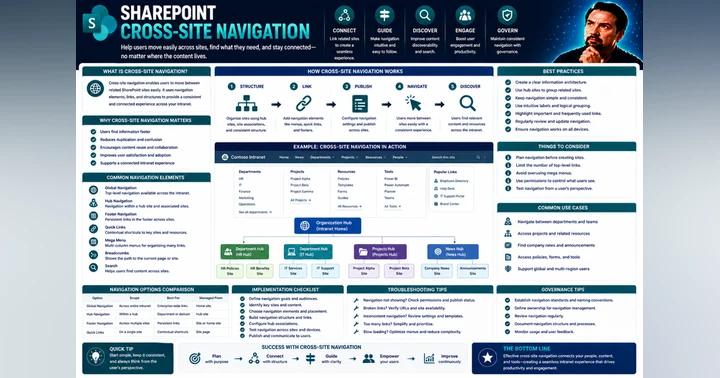
Layered navigation helps you find what you need quickly. Think of it as a map that guides you through your intranet. It consists of three main layers:
- Global Navigation: This is your starting point. It provides access to the main sections of your intranet, like departments or major projects.
- Hub Navigation: This layer connects related content. For example, if you’re looking for marketing resources, the hub navigation will lead you to all relevant documents, tools, and contacts.
- Local Navigation: This is the most specific layer. It helps you drill down into particular topics or documents within a hub.
By organizing your intranet this way, you reduce the number of clicks needed to find information. You should aim for a flat site architecture, which minimizes deep nesting of pages. This approach keeps everything accessible and easy to navigate.
Flat Site Architecture
A flat site architecture means fewer layers between you and the information you need. Instead of digging through multiple subpages, you can find relevant content in just a few clicks. This structure not only enhances navigation but also improves searchability. When your content is organized clearly, search engines can index it more effectively, leading to better search results.
Metadata Importance
Metadata plays a vital role in enhancing your intranet search accuracy. It helps organize, classify, and retrieve content efficiently. Here’s how it works:
- Organizing Content: Metadata allows you to tag documents with essential details, making it easier to find them later.
- Refined Searches: When you search in SharePoint, you can input known details like file type or author. This leads to quicker access to relevant files.
- Managed Properties: These are linked to metadata and enable you to conduct refined searches, significantly improving the effectiveness of your search results.
Mandatory Metadata Types
To make the most of metadata, you should focus on mandatory types. Here are some essential attributes to include:
- Topic: What is the content about?
- Audience: Who is the intended reader?
- Campaign: Is this part of a larger initiative?
By tagging your content with these attributes, you enable segmentation and performance measurement. This helps you identify trends and optimize your content creation strategies based on metadata insights.
Tagging for Precision
Effective tagging ensures that only relevant tags are applied to content. This enhances the search experience by pushing the most pertinent information to you based on your queries. Here are some benefits of coherent metadata:
- Clear and descriptive metadata aligns with your mental models, facilitating quicker access to needed information.
- A lack of proper metadata leads to vague search results, causing you to waste time on trial-and-error attempts.
By focusing on these aspects of Information Architecture, you can transform your intranet into a more user-friendly platform. With layered navigation and precise metadata, finding the information you need becomes a breeze.
User Training for Better Search
Improving your intranet search experience isn't just about technology; it's also about you and your colleagues. Training users on effective search practices can make a world of difference. Let’s explore how workshops and feedback mechanisms can enhance your search skills.
Workshops and Guides
Hands-On Training
Hands-on training sessions can empower you to navigate your intranet more effectively. These workshops provide practical experience, allowing you to practice search techniques in real-time. You’ll learn how to use specific keywords, apply filters, and leverage advanced search techniques. Engaging in these sessions can boost your confidence and make searching feel less daunting.
Best Practices
In addition to hands-on training, learning best practices is essential. Here are some tips to keep in mind:
- Use Specific Keywords: Focus on long-tail keywords to narrow down your search.
- Utilize Filters: Apply filters to refine your results based on categories or document types.
- Stay Updated: Regularly check for new training materials or updates on search functionalities.
By adopting these best practices, you can streamline your search process and find what you need faster.
Feedback Mechanisms
User Surveys
Feedback mechanisms, like user surveys, play a crucial role in improving your intranet search experience. Regularly surveying users helps organizations understand their needs and identify areas for improvement. For instance, tracking metrics related to search effectiveness can reveal issues with content discoverability. This data is vital for refining search functionalities.
Here are some benefits of user surveys:
- They help identify pain points and preferences.
- They foster a sense of ownership among employees.
- They provide insights into user experiences and challenges.
Continuous Improvement
Creating a feedback loop is essential for continuous improvement. Organizations should establish easy mechanisms for users to report issues or suggest enhancements. This ongoing dialogue allows for adjustments based on real user experiences. By gathering employee feedback through surveys and polls, you can help refine intranet strategies and address challenges effectively.
Tools to Improve Intranet Search
Improving your intranet search capabilities can significantly enhance your overall experience. By leveraging advanced tools and technologies, you can make searching for information faster and more efficient. Let’s explore some effective options.
AI and Search Optimization
Implementing AI Tools
AI tools can revolutionize how you search your intranet. They enhance both the speed and relevance of search results. Studies show that employees often waste up to 25% of their time searching for information. This time loss can lead to missed deadlines and decreased productivity. AI-powered search solutions address these issues by providing quick, confident results. They utilize semantic understanding and intent recognition to deliver personalized results quickly.
Some leading AI tools in intranet search optimization include:
- HubEngage: Known for its federated search and actionable next steps.
- Glean: Offers federated AI search capabilities.
- ClickUp: Competes in the AI search space but lacks the comprehensive integration of HubEngage.
These tools unify multiple data sources into a single interface, eliminating fragmented searches and accelerating information retrieval.
Integrating Third-Party Solutions
Integrating third-party solutions can further enhance your intranet search capabilities. Many organizations find that combining their existing systems with specialized search tools leads to better outcomes. For instance, platforms like Bloomfire analyze user engagement and frequently searched terms to identify knowledge gaps. This helps highlight common search queries that return no results, signaling missing content.
Additionally, Powell Software provides governance and analytics tools that automatically detect outdated or inactive content. This ensures your intranet remains relevant and useful.
Regular Review Processes
Analyzing Search Logs
Regularly analyzing search logs is crucial for improving your intranet search experience. Key metrics to focus on include:
- Search relevancy
- Search frequency
- Number of searches with zero returns
By tracking how often employees find what they need, you can identify areas for improvement. Comparing findings to abandoned searches can also reveal where users struggle. This insight helps you make content assets easier to find or create new ones.
Identifying Gaps
Identifying content gaps is essential for a successful intranet. Workvivo emphasizes using search analytics to uncover these gaps. When users search for information they cannot find, it reveals areas where content is missing or needs improvement. Analyzing this data provides valuable insights to enhance content findability and usability on your intranet.
By implementing AI tools and establishing regular review processes, you can transform your intranet search experience from frustrating to efficient.
Searching your intranet doesn’t have to feel impossible. You’ve learned about common issues like poor indexing, irrelevant results, and navigation problems. By optimizing your search queries and enhancing your Information Architecture, you can make finding information much easier.
Consider these benefits of improving your intranet search:
- Employees can find information faster, improving efficiency.
- Consistent processes promote better communication.
- Increased productivity allows you to focus on meaningful work.
Take steps today to address your search problems. Implementing a few actionable strategies can transform your intranet into a powerful tool for collaboration and knowledge sharing.
Remember, the right way to enhance your intranet search experience leads to a more engaged and productive workforce.
FAQ
How can I find information faster on the intranet?
Try using specific long-tail keywords and quotation marks for exact phrases. Also, apply filters to narrow down results. These simple steps help you cut through noise and get to the right content quickly.
Why do I get irrelevant results when searching the intranet?
Irrelevant results often happen because your keywords don’t match how content is labeled. Try using synonyms or more precise terms. Improving metadata on the company intranet also helps search engines find better matches.
What is layered navigation, and why does it matter?
Layered navigation breaks the intranet into global, hub, and local levels. It acts like a map, guiding you step-by-step. This structure reduces clicks and makes it easier to find what you need without getting lost.
How does metadata improve intranet search?
Metadata tags content with details like topic or audience. This helps the intranet organize and retrieve files faster. When content has good metadata, your searches become more accurate and less frustrating.
Can AI tools really make intranet search better?
Yes! AI tools understand your search intent and deliver personalized results. They speed up finding information and reduce time wasted on irrelevant content. But they work best when your intranet has solid structure and metadata.
What should I do if I can’t find something on the intranet?
Give feedback through surveys or report missing content. Your input helps improve the intranet. Also, try refining your search with advanced techniques like Boolean operators or checking with colleagues for tips.
How often should the company intranet be updated for better search?
Regular updates keep the intranet fresh and relevant. Outdated content confuses search results and wastes your time. Aim for frequent reviews and remove or archive old files to keep searches accurate.
Are there quick ways to test if the intranet search is working well?
Yes! Try searching for common terms and see if results match your expectations. Check if filters work and if navigation feels smooth. These quick tests help spot problems early so you can fix them fast.
🚀 Want to be part of m365.fm?
Then stop just listening… and start showing up.
👉 Connect with me on LinkedIn and let’s make something happen:
- 🎙️ Be a podcast guest and share your story
- 🎧 Host your own episode (yes, seriously)
- 💡 Pitch topics the community actually wants to hear
- 🌍 Build your personal brand in the Microsoft 365 space
This isn’t just a podcast — it’s a platform for people who take action.
🔥 Most people wait. The best ones don’t.
👉 Connect with me on LinkedIn and send me a message:
"I want in"
Let’s build something awesome 👊
You know that moment when you search your intranet, type the exact title of a document, and it still vanishes into the void? That’s not bad luck—that’s bad Information Architecture. Before we start the dungeon crawl, hit subscribe so you don’t miss future best‑practice loot drops.
Here’s what you’ll walk away with today: a quick checklist to spot what’s broken, fixes that make Copilot actually useful, and the small design choices that stop search from failing. Well‑planned IA is the prerequisite for a high‑performing intranet, and most orgs don’t realize it until users are already frustrated.
So the real question is: where in the map is your IA breaking down?
The Hidden Dungeon Map: The Six Core Elements
If you want a working intranet, you need more than scattered pages and guesswork. The backbone is what I call the hidden dungeon map: six core elements that hold the whole architecture together. They’re not optional. They’re not interchangeable. They are the framework that keeps your content visible and usable: global navigation, hub navigation, local navigation, metadata, search, and personalization. Miss one, and the structure starts to wobble.
Think of them as your six party roles. Global navigation is the tank that points everyone in the right direction. Hub navigation is the healer, tying related sites into something that actually works together. Local navigation is your DPS, cutting through site-level clicks with precision. Metadata is the scout, marking everything so it can be tracked and recovered later. Search is the wizard, powerful but only as good as the spell components—your metadata and navigation. And personalization is the bard, tuning the experience so the right message gets to the right person at the right time. That’s the full roster. Straightforward, but deadly when ignored.
The trouble is, most intranet failures aren’t loud. They don’t trigger red banners. They creep in quietly. Users stop trying search because they never find what they need, or they bounce from one site to the next until they give up. Silent cuts like that build into a trust problem. You can see it in real terms if you ask: can someone outside your team find last year’s travel policy in under 90 seconds? If not, your IA is hiding more than it’s helping.
Another problem is imbalance. Organizations love to overbuild one element while neglecting another. Giant navigation menus stacked three levels deep look impressive, but if your documents are all tagged with “final_v2,” search will flop. Relying only on the wizard when the scout never did its job is a natural 1 roll, every time. The reverse is also true: some teams treat metadata like gospel but bury their global links under six clicks. Each element leans on the others. If one role is left behind, the raid wipes.
And here’s the hard truth—AI won’t save you from bad architecture. Copilot or semantic search can’t invent metadata that doesn’t exist. It can’t magically create navigation where no hub structure was set. The machine is only as effective as the groundwork you’ve already done. If you feed it chaos, you’ll get chaos back. Smart investments at the architecture level are what make the flashy tools worth using.
It’s also worth pointing out this isn’t a solo job. Information architecture is a team sport, spread across roles. Global navigation usually falls with intranet owners and comms leads. Hubs are often run by hub owners and business stakeholders. Local navigation and metadata involve site owners and content creators. IT admins sit across the whole thing, wiring compliance and governance in. It’s cross-team by design, which means you need agreement on map-making before the characters hit the dungeon.
When all six parts are set up, something changes. Navigation frames the world so people don’t get lost. Hubs bind related zones into meaningful regions. Metadata tags the loot. Search pulls it on demand. Personalization fine-tunes what matters to each player. That balance means you’re not improvising every fix or losing hours in scavenger hunts—it means you’re building a system where both humans and AI can actually succeed. That’s the real win condition.
Before we move on, here’s a quick action you can take. Pause, pick one of the six elements—navigation, metadata, or search—and run a light audit. Don’t overthink it. Just ask if it’s working right now. That single diagnostic step can save you from months of frustration later.
Because from here, we’re about to get specific. There are three different maps built into every intranet, and knowing how they overlap is the first real test of whether users make progress—or wander in circles.
World Map vs. Local Maps: Global, Hub, and Local Navigation
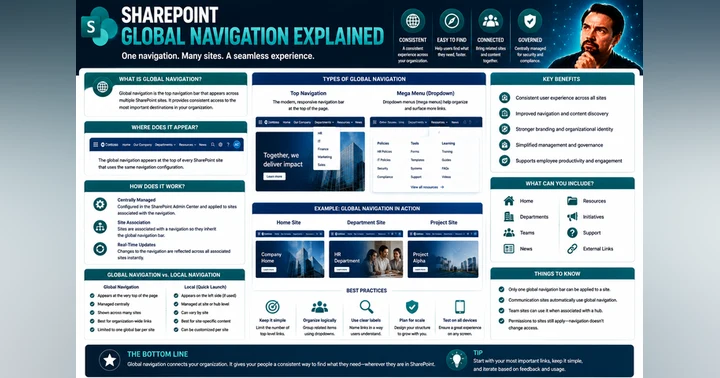
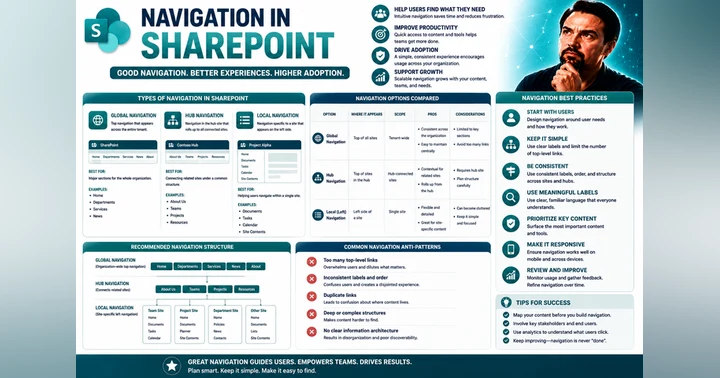
Every intranet lives on three distinct maps: the world map, the regional maps, and the street-level sketch. In platform terms, that’s global navigation, hub navigation, and local navigation. If those maps don’t agree, your users aren’t adventuring—they’re grinding random encounters with no idea which way is north.
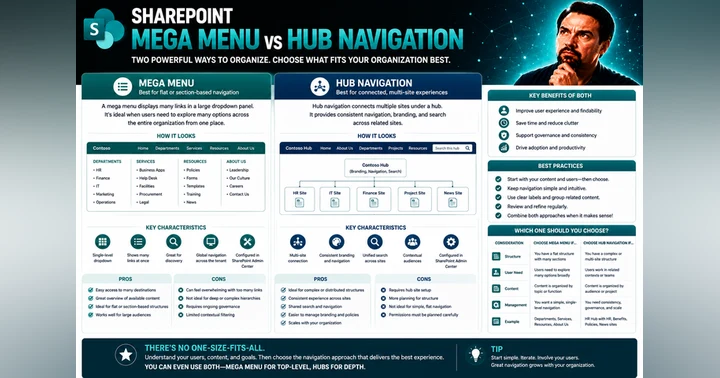
Global navigation is the overworld view. It tells everyone what lands exist and how major territories connect. In Microsoft 365, you unlock it through the SharePoint app bar, which shows up on every site once a home site is set. It’s tenant-wide by design. Global nav isn’t there to list every page or document—it’s the continental outline: Home, News, Resources, Tools. Broad categories everyone in the company should trust. If this skeleton bends out of shape, people don’t even know which continent they spawned on.
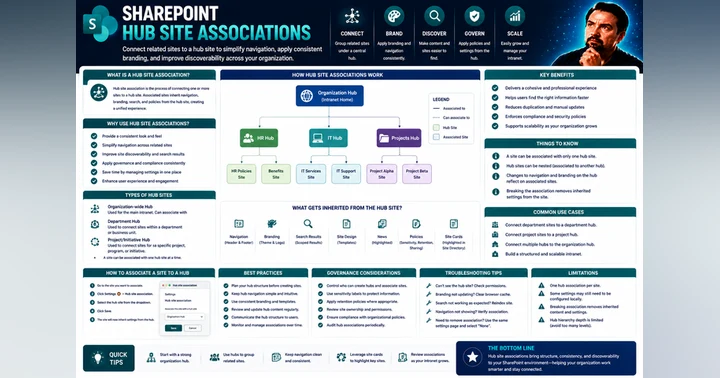
Hub navigation works like a regional map. Join a guild hall in an RPG and you see trainers, quest boards, shops—the things tied to that one region. Hubs in SharePoint do exactly that. They unify related sites like HR, Finance, or legal so they don’t float around as disconnected islands. Hub nav appears just below the suite bar, over the site’s local nav, and every site joined to that hub respects the same links and shared branding. It’s also security-trimmed: if a user doesn’t have access to a site in the hub, they won’t see its content surface magically. Permissions don’t change by association. Use audience targeting if you want private links to show up only for the right people. That stops mixed parties from thinking they missed a questline they were never allowed to run.
Local navigation is the street map—the hand-drawn dungeon sketch you keep updating as you poke around. It’s specific to a single site and guides users from one page, list, library, or task to another inside that domain. On a team site it’s on the left as the quick launch. On a communication site it’s up top instead. Local nav should cover tactical moves: policies, project docs, calendars. The player should find common quests inside two clicks. If they’re digging five levels down and retracing breadcrumbs, the dungeon layout is broken.
The real failure comes when these maps don’t line up. Global says “HR,” hub says “People Services,” and local nav buries benefits documents under “Archive/Old-Version-Uploads.” Users follow one map, get looped back to another, and realize none of them match. Subsites layered five deep create breadcrumb trails that collapse the moment you reorganize, leading to dead ends in Teams or Outlook links. It only takes a few busted trails before staff stop trying navigation altogether and fire off emails instead. That’s when trust in the intranet collapses.
There are also technical boundaries worth noting. Each nav level can technically handle up to 500 links per tier, but stuffing them in is like stocking a bag with 499 health potions. Sure, it fits—but no one can use it. A practical rule is to keep hub nav under a hundred links. Anything more and users can’t scan it without scrolling fatigue. Use those limits as sanity checks when you’re tempted to add “just one more” menu.
Here’s how to test this in practice—two checks you can run right now in under a minute. First, open the SharePoint app bar. Do those links boil down to your real global categories—Home, News, Tools—or are they trying to be a department sitemap? Second, pick a single site. Check the local nav. Count how many clicks it takes to hit the top three tasks. If it’s more than two, you’re making users roll a disadvantage check every time.
When these three layers match, things click. Users trust the overworld for direction, the hubs for context, and the locals for getting work done. Better still, AI tools see the same paths. Copilot doesn’t misplace scrolls if the maps agree on where those scrolls live. The system doesn’t feel like a coin toss; it behaves predictably for both people and machines.
But even the best navigation can’t label a blade if every sword in the vault is called “Item_final_V3.” That’s a different kind of invisibility. The runes you carve into your gear—your metadata—are what make search cast real spells instead of fumbles.
Metadata: The Magic Runes of Search
When navigation gives you the map, metadata gives the legend. Metadata—the magic runes of search—is what tells SharePoint and AI tools what a file actually is, not just what it happens to be named. Without it, everything blurs into vague boxes and folders. With it, your system knows the difference between a project plan, a travel policy, and a vendor contract.
The first rule: use columns and content types in your document libraries and Site Pages library. This isn’t overkill—it’s the translation layer that lets search and highlighted content web parts actually filter and roll up the right files. A tagged field like “Region = West” doesn’t just decorate the document; it becomes a lever for search, dynamic rollups, even audience-targeted news feeds. AI copilots look for those same properties. If they aren’t defined, the AI is guessing instead of retrieving.
The second rule: avoid deep folders. Folders are brittle mazes. They break when you move things around, and after a reorg they collapse into bizarre half‑paths no one remembers. In SharePoint, the flat approach works better—topic-specific libraries combined with site columns. Flat tagging scales across teams and years. It doesn’t matter if HR merges tomorrow or Finance gets restructured; metadata-driven libraries keep surfacing content without re‑digging dungeons.
Third rule: publish a small, consistent set of mandatory fields. Don’t try to tag every possible thing under the sun. Stick to core fields like content type, owner, status, and region. That signals what type of artifact the item is, who maintains it, whether it’s current, and where it applies. Those four categories cover 90% of the scenarios users will search for. Anything else can stay optional. When you balance simplicity and precision, creators actually tag their content—and that’s when search shines.
Here’s why this matters. Without mandatory tagging, your policy that expired last year still looks like an active file. Users waste time chasing outdated versions, or worse, compliance officers miss required records altogether. With columns and content types in place, though, SharePoint crawls those properties, search knows exactly how to refine results, and Copilot can answer questions with specific current material instead of noisy guesses.
There’s also a lightweight governance step that makes all of this stick. Define your metadata centrally in the term store or site columns. Then bake those fields into the library templates so they show up automatically whenever someone uploads a file. Instead of leaving it all to chance, creators get a gentle nudge at upload: “Choose status,” “Pick owner,” “Mark region.” This isn’t red tape—it’s guardrails. The tagging happens once, up front, and pays dividends forever after.
Think of it like carving runes on a blade as soon as it’s forged. If you etch them at the start, the sword is recognizable, searchable, and easy for the wizard to use later on. If you skip the runes, you can sharpen it all you want, but it’s invisible at game time. Metadata is that early, crucial step.
If you want one quick test, here it is: pick a single library. Open it up and check if the files actually carry consistent metadata—status fields filled in, regions tagged, content types applied. Then look at whether the Highlighted content or News web parts can surface items by those tags. If nothing shows up, you’ve got a metadata gap. That’s a twenty‑second check that tells you if your system is battle‑ready or if you’re slinging spells blind.
When metadata is working, search feels less like fumbling through ten versions of the same document and more like drawing the right enchanted blade on the first try. It sharpens human productivity and sets AI copilots up for clean, accurate pulls. But metadata can’t solve every maze by itself. If the battlefield underneath is still a labyrinth of subsites and tunnels, the runes get buried just the same. And that’s where the next piece comes in—what happens when you stop tunneling down and decide the world should be flat.
Flattening the Dungeon: Why ‘The World is Flat’ Beats Nested Subsites
Back in the day, every intranet site came bolted to a stack of subsites. Each subsite branched into another, and another, until you hit ten layers deep with no clear exits and no working torches. SharePoint used to encourage that model, but modern SharePoint doesn’t. The current guidance is flat: subsites are generally not recommended. Instead, you build one site per discrete topic, task, or unit of work, and then connect those sites together through navigation and hubs. Think of it less like a dungeon tower and more like a single floor of well-marked rooms. Each room has a door, a label, and a defined purpose. You move sideways, not downward.
The main reason for this shift is fragility. Deep hierarchies look neat on paper, but reorganize one department or archive one project and everything crumbles—permissions drift, links break, and bookmarks die. Users eventually quit following the tunnels altogether. A flat design avoids that trap. Each site stands on its own, and when changes happen, you just move the site into a different hub or archive it, without shattering everyone’s navigation. In practice: deep hierarchies mean brittle links and broken bookmarks when you reorganize. Flat sites tied to hubs mean you can re-home a site with minimal disruption.
Hubs are the connective tissue of a flat structure. They live above individual sites and unify them with common branding and shared navigation. They also roll up activity—news, events, and pages—from the sites below, so users see a bigger picture without chasing every corner. That keeps related areas like HR, Finance, or a regional office tied into one shared experience. It’s flexible: a new project spins up? Create a standalone site and slot it into the right hub. Project closes? Archive it cleanly without destroying navigation trails for everyone else.
You also have roll-up web parts—the News web part stacks updates across multiple sites into one feed, the Highlighted content web part dynamically surfaces tagged documents, and the Sites web part displays key connected locations. Each of these mechanisms works like a spotlight. News shows current signals, Highlighted content pulls artifacts that match metadata, and Sites displays the map of what matters. Users discover what they need across sites without digging through folder ladders.
The payoff for AI is just as real. Copilot doesn’t hunt through some twelfth folder inside a sub-subsite. It works best when it has a clear surface to crawl. Flat sites with topic-based scopes and clean hubs give Copilot obvious boundaries: “this site only governs Finance procedures,” “this site publishes HR news.” The assistant doesn’t have to guess. It can retrieve with confidence.
The operational benefits stack up quickly. In a flat environment, restructuring HR under a new VP isn’t weeks of fixing nav—it’s moving the HR site into a new or existing hub. Need to decommission a project site? Drop it out of the hub and freeze it without triggering link rot everywhere else. Compare that to the old days of tied subsites, where every breadcrumb came apart the minute one branch shifted. Flat design is simply more resilient.
So here’s your practical checkpoint: if your intranet still relies on big subsite trees, it’s time to flatten. Inventory your current layout and identify one core function—like HR or a high-traffic project space—that you could convert into a standalone site tied to a hub. Start there. One clean rebuild proves out the model, and from there, you expand across other functions.
Getting the map flat and connected is only part of the win, though. Once users can reach the treasure rooms without endless ladders, the next challenge is making sure the right rewards actually reach the right players. Because there’s no point in building a smooth system if the mage still ends up holding plate armor while the tank gets handed a scroll. That’s where the next piece steps in.
Targeting the Loot Drop: Personalization and Audience Targeting
Loot only matters if it lands in the right inventory. In Microsoft 365 terms, that means using personalization and audience targeting so content reaches the right people instead of clogging everyone’s feed with junk. A mage doesn’t need plate armor, and frontline staff don’t need executive-only memos. Audience targeting is the feature set that controls who sees which navigation links, web parts, and news items. Personalization is what makes those defaults useful without each person having to dig through settings they’ll never bother with.
Here’s how it actually works. Audience targeting lets you connect navigation, pages, and web parts to Azure AD groups or Microsoft 365 groups. That means a frontline worker sees a different shortcut set than a manager. Regional offices can have their own home-area links without multiple duplicated pages. News and announcements can surface in the feed for engineers while steering clear of marketing. It’s the intranet equivalent of rolling on a loot table that adapts per class—you only get drops you can actually equip.
Best practice here is to combine personalization defaults with audience targeting instead of relying only on Quick Links. Quick Links are fine for a couple of one-off bookmarks, but if you use them as your main tool for tailoring navigation, you’ll end up with walls of icons users ignore. Research shows staff rarely invest time in heavy manual personalization. They want the system to be smart enough by default. So use audience targeting to handle group-level differences, and then add just enough Quick Links for personal flavor. That balance respects attention spans and keeps the UX tight.
Delivery matters too. Microsoft Viva Connections takes targeted content out of the intranet silo and pipes it directly into Teams and the Viva dashboard. That puts alerts in front of people where they already work. No need to check a portal tab just to confirm a shift change—field staff see it on mobile. Governance updates reach managers in their Teams channel instead of being buried in a general feed. The same intranet sits behind the scenes, but the distribution path adapts. That’s how targeting feels seamless instead of forced.
There are guardrails to consider. Multilingual support ensures the navigation strings and page content display in each user’s preferred language. If you enable Spanish and German for a communication site, someone has to translate the nav, footers, and UI elements for those users—audience targeting then makes sure the right variant shows up. For compliance-heavy orgs, information barriers or tight permission groups filter who can actually see sensitive material. It’s still targeting, just at a stricter level, preventing confidential scrolls from flowing to the wrong faction.
The impact is immediate. Targeting cuts noise down to size. Users start trusting the intranet because it stops throwing irrelevant gear at them. Engagement goes up because the feed feels relevant—all killer, no filler. AI copilots thrive on this too, because if the source material is tagged properly for each audience, the AI doesn’t have to guess. Ask it for “latest HR process,” and it pulls the current, local policy aligned to your role, not a stale copy meant for another department. That accuracy is what keeps confidence high.
You can test this today. Open one hub or home page and check: are audience targeting settings enabled on the global nav and key web parts? If not, you’ve got an easy next action. Switch them on, align them to the right groups, and watch the signal-to-noise ratio improve immediately. It’s a small setting with a major payoff.
On a natural 20, targeting turns the intranet into a fair fight. Tanks get armor, healers see potions, mages find spell scrolls. Nobody wastes energy sorting junk. Nobody ignores alerts because they actually matter. Users trust the system, AI pulls with accuracy, and adoption happens without a marketing campaign. That’s how you keep the loot table clean and the party equipped.
Which brings us back to the bigger frame. Information architecture isn’t ornamental. It’s the underlying system code both your users and your AI have to navigate every single day. Neglect it, and you’re just rolling natural 1’s forever.
Conclusion
So here’s the wrap: before you log another ticket, run three quick checks. First, line up your navigation—global, hub, and local—and trim bloated menus. Second, audit your metadata and content types so files actually surface. Third, confirm audience targeting is live and content flows into Teams or Viva where people already work.
One next step: validate your setup with card sorting, tree testing, and usability testing, then scan search logs to spot failed queries. IA isn’t set‑and‑forget—it’s a living system you test, measure, and refine.
Boss down, checklist secured. Subscribe, toss this in your runbook, and drop a quick comment on which check you’ll run first.
This is a public episode. If you'd like to discuss this with other subscribers or get access to bonus episodes, visit m365.show/subscribe

Founder of m365.fm, m365.show and m365con.net
Mirko Peters is a Microsoft 365 expert, content creator, and founder of m365.fm, a platform dedicated to sharing practical insights on modern workplace technologies. His work focuses on Microsoft 365 governance, security, collaboration, and real-world implementation strategies.
Through his podcast and written content, Mirko provides hands-on guidance for IT professionals, architects, and business leaders navigating the complexities of Microsoft 365. He is known for translating complex topics into clear, actionable advice, often highlighting common mistakes and overlooked risks in real-world environments.
With a strong emphasis on community contribution and knowledge sharing, Mirko is actively building a platform that connects experts, shares experiences, and helps organizations get the most out of their Microsoft 365 investments.