

 Apple Podcasts
 Spotify
 Youtube Music
 Spreaker
 Podchaser
 Amazon Music
“Zero Trust everywhere” and “freedom for everyone” both fail in production. One grinds work to a halt; the other invites disaster. In this workshop we show how top M365 orgs hit the operating sweet spot—where CISO, GDPR officer, and everyday users all win. You’ll learn how small portal changes cascade into big workflow pain, how to write Conditional Access that protects without breakage, and how to use PIM for just-in-time admin without bottlenecks. We’ll leave you with battle-tested guardrails, policy templates, and a 30/60/90 rollout plan so your tenant runs quiet, audits pass, and users stop noticing security—because it just works.






You face a real challenge in today’s digital workplace. If you make your security too strict, users get frustrated and work slows down. If you leave things too open, your organization risks data breaches. Microsoft 365 Security offers a way to keep your data safe while letting your team work smoothly. You need practical steps that help you protect information without blocking productivity.
Key Takeaways
- Balancing security and usability is crucial for productivity. Too much security can frustrate users and slow down work.
- Over-securing Microsoft 365 can lead to misconfigurations and increased vulnerabilities. Aim for a balanced approach.
- Implement clear and user-friendly security features. This reduces errors and enhances user satisfaction.
- Adopt a zero trust model. Always verify access requests to protect sensitive data without assuming safety.
- Use Conditional Access to set rules based on real-world needs. This helps maintain security while minimizing disruptions.
- Invest in user training to improve awareness. Educated users are less likely to fall for phishing and other threats.
- Continuous monitoring is essential. Regularly check compliance and security to catch issues before they escalate.
- Stay updated with evolving threats. Use AI and modern tools to enhance your security posture and respond to new risks.
9 Surprising Facts About Microsoft 365 Zero Trust Security
- Zero Trust in Microsoft 365 reduces lateral movement but does not eliminate microsoft 365 zero trust problems related to misconfigured legacy apps—legacy protocols still create risk if not remediated.
- Microsoft 365 integrates identity protection, device compliance, and data classification so tightly that a single misapplied policy can create unexpected access denials across services.
- Conditional Access policies are powerful yet complex: small logic errors or policy order issues often cause the most common microsoft 365 zero trust problems, like unintended lockouts for remote users.
- Enabling Continuous Access Evaluation (CAE) improves session revocation speed dramatically, but many tenants are unaware CAE requires both service and client support to fully mitigate microsoft 365 zero trust problems.
- Microsoft Defender for Cloud Apps can discover shadow IT and risky OAuth apps automatically, revealing that many microsoft 365 zero trust problems originate from third-party app permissions rather than native Microsoft controls.
- Device health attestation and Intune compliance can block compromised devices, yet inconsistent enrollment and reporting gaps are frequent microsoft 365 zero trust problems that reduce enforcement reliability.
- Protecting data with Microsoft Information Protection labels applies across Office apps and endpoints, but incorrect labeling rules or user overrides create the subtle microsoft 365 zero trust problems of silently exposed sensitive content.
- Zero Trust reduces incident scope, but telemetry gaps and inadequate log retention remain leading microsoft 365 zero trust problems for post-incident investigations.
- Adopting Zero Trust often uncovers organizational issues—poor identity hygiene, excessive admin roles, and undocumented service accounts—making human and process shortcomings the most surprising microsoft 365 zero trust problems discovered during deployments.
Why Security and Usability Must Coexist
Risks of Over-Securing Microsoft 365
You might think that adding more security always makes your organization safer. In reality, too much security can create new problems. When you set strict controls in Microsoft 365 security, you risk misconfigurations and excessive permissions. These issues can weaken your overall security posture over time and make your systems more vulnerable to attack. Over 60% of organizations believe they have advanced security measures, yet they still experience account compromises at the same rate as those with basic protections.
- Many organizations do not restrict access permissions enough.
- Admin accounts often have broad access, which increases risk if not managed with multi-factor authentication.
- Email remains a critical tool but is highly targeted by social engineering attacks like phishing.
If you focus only on security, you may overlook how users interact with the system. This can lead to operational risks and lost productivity. Weak controls and human error can result in data leakage or unauthorized access to sensitive data.
Remember: The zero trust model teaches "never trust, always verify," but you must apply it wisely to avoid blocking your team’s work.
Usability Pitfalls in Security Design
You want your users to stay safe, but you also want them to work efficiently. Poorly designed security features can frustrate users and slow down daily tasks. For example, some users struggle with recovery steps in two-step verification because the process assumes everyone has multiple trusted devices. This is not always true. When users face unclear instructions or too many steps, they may make mistakes or avoid security measures altogether.
- Users report higher satisfaction when Microsoft 365 offers clear feedback and consistent design.
- Descriptive labels and progress indicators help users understand what to do next.
- Inline form editing can reduce errors by 22%.
- Apps that provide clear updates can boost satisfaction by 20%.
If you ignore usability, you risk users finding workarounds that weaken your security. A zero trust strategy should support users, not hinder them.
Impact on Productivity and Compliance
Balancing security and usability is not just about convenience. It also affects your ability to meet compliance requirements and keep your business running smoothly. Only 45% of organizations use a configuration tool, while the rest rely on manual audits. This can lead to disruptions when access policies change and users cannot log in. In May 2024, Microsoft recorded 176,000 tampering events, showing the need for better monitoring.
| Aspect | Description |
|---|---|
| Compliance Influence | Compliance requirements necessitate robust technical standards to ensure security and operational efficiency. |
| Usability Challenges | Organizations face challenges in implementing security measures without hindering user productivity. |
| Integration Importance | Security and compliance should be integrated into the technical environment rather than treated separately. |
Effective compliance frameworks should help you manage regulatory risks and support business operations. If you make security too strict, you may create barriers that slow down your team and put compliance at risk. By finding the right balance, you protect your data, support your users, and meet your compliance goals.
Zero Trust in Microsoft 365 Security
Core Zero Trust Principles
You may hear about the zero trust model often in cybersecurity discussions. This approach changes how you think about protecting your organization. Instead of trusting users or devices just because they are inside your network, you must verify every request. Zero trust security means you never assume safety based on location or past behavior.
The core principles of zero trust architecture in Microsoft 365 security include:
- Verify explicitly. You check every access request using multiple signals. These signals include identity, device health, location, and user behavior.
- Use least privilege. You give users only the access they need to do their jobs. This reduces the risk if someone’s credentials get stolen.
- Assume breach. You act as if attackers already have access. You work to limit their movement and protect your data with strong controls.
Zero trust network access helps you protect sensitive data and systems. You use multi-factor authentication to add another layer of defense. This approach keeps your organization ready for any threat.
Benefits for Microsoft 365 Security
When you use a zero trust strategy in Microsoft 365, you gain several advantages. You can measure your security posture with Secure Score. This tool gives you clear recommendations to improve your defenses. Compliance Manager helps you track risks related to data protection and regulatory needs. You can see where you stand and what steps to take next.
Organizations that adopt zero trust in Microsoft 365 report better collaboration and higher operational efficiency. You bring together different security solutions into one plan. This makes it easier to manage access and monitor your environment. You get real metrics that show your progress and help you make informed decisions.
Tip: Use Secure Score and Compliance Manager to guide your security improvements. These tools help you stay ahead of new threats.
Common Implementation Gaps
Many organizations believe they have a strong zero trust security plan. In reality, some common gaps remain. You may forget to enforce least privilege, which leads to users having more access than they need. This increases risk if an account gets compromised.
Identity and access management often need more attention. You must review who has access and why. Continuous monitoring is also critical. Without it, you may miss signs of a threat or unusual activity.
- Over-privileged users create weak points in your defenses.
- Inadequate identity checks make it easier for attackers to move through your systems.
- Lack of ongoing monitoring means you may not spot problems until it is too late.
You should review your zero trust architecture often. Make sure you close these gaps and keep your organization secure.
Usability Challenges with Zero Trust
User Experience Barriers
You often face new barriers when your organization adopts a zero trust strategy. Every time you try to access Microsoft 365 security tools, the system checks your identity, device, and network. These checks protect your data, but they can slow you down. If you use an unmanaged device, you may see more prompts and restrictions. Managed devices give you a smoother experience with single sign-on and fewer interruptions.
| Barrier Type | Description |
|---|---|
| Device-based Conditional Access | Signing in from unmanaged devices leads to MFA challenges and restrictions on data actions. |
| Managed Device Experience | Managed devices provide a smoother experience with SSO and fewer MFA prompts, enhancing usability. |
Conditional access policies create friction for users who need to work quickly. You may find that extra steps make simple tasks harder. When every transaction requires validation, you spend more time logging in and less time working. This shift to zero trust network access helps fight evolving threats, but it can complicate your daily workflow.
MFA Fatigue and Access Friction
Multi-factor authentication is a key part of zero trust. You must verify your identity with codes or prompts. This process keeps attackers out, but it can cause frustration. You may get repeated prompts throughout your workday. These frequent interruptions lead to MFA fatigue. Attackers have learned to exploit this by sending many prompts, hoping you will approve one by mistake.
- MFA fatigue is caused by frequent and repetitive prompts.
- You may need to authenticate multiple times each day.
- Attackers use tactics like prompt bombing and phishing for one-time codes.
Most large companies enforce multi-factor authentication. Adoption rates are high in enterprises, but lower in small businesses. You need to balance security and usability. Too many prompts can make you ignore security steps or look for shortcuts. This weakens your defenses and puts your organization at risk.
Collaboration Disruptions
Zero trust can also affect how you collaborate with your team. Restrictive access policies may lead to Teams sprawl. You see many ungoverned workspaces and inconsistent naming. This makes it hard to track ownership and enforce least privilege. When you cannot access the right files or channels, your productivity drops.
- Restrictive policies create ungoverned workspaces.
- Inconsistent naming complicates tracking and access controls.
- Security and compliance risks increase when collaboration is disrupted.
You need a zero trust strategy that supports teamwork. If you block too much access, you slow down communication and make it harder to share information. Microsoft 365 security helps you manage these risks, but you must find the right balance. You want strong cybersecurity, but you also need smooth collaboration.
Tip: Review your access policies often. Make sure they protect your data without blocking your team’s work.
M365 Features for Balanced Security
Conditional Access in Microsoft 365 Security
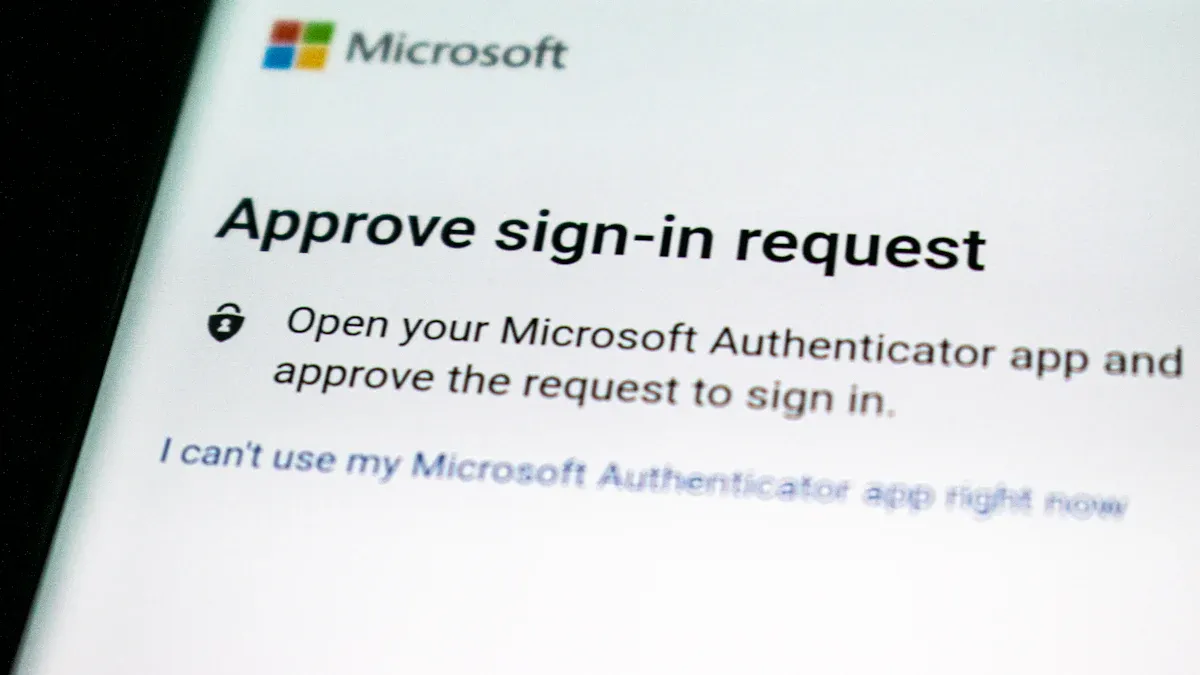
You need to protect your organization’s critical apps and data without slowing down your team. Conditional Access in Microsoft 365 security gives you the power to set rules that match real-world needs. You can require multi-factor authentication only when users sign in from new locations or devices. This approach, known as modern access control, helps you reduce unnecessary prompts and keeps your team focused.
Here is how Conditional Access supports both security and usability:
| Benefit | Description |
|---|---|
| Enhanced security | Requires multifactor authentication (MFA) under specific conditions, reducing account compromise risk. |
| Granular control | Lets you set requirements for MFA based on user roles and access locations. |
| Customizable conditions | Adjusts security needs based on user, location, device state, and real-time risk. |
| User-friendliness | Uses familiar authentication methods like phone calls or texts to minimize disruption. |
| Integration with Azure AD | Centralizes identity and access controls, lowering unauthorized access risks. |
| Compliance | Meets regulatory needs for MFA when accessing sensitive data. |
| Automated decisions | Automates access decisions, streamlining authentication. |
| Reporting and monitoring | Tracks compliance and policy use across your organization. |
Conditional Access policies help you enforce a zero trust policy while keeping your team productive. You can also use Mobile Access Management to let users work from their phones or tablets. This feature keeps your data safe and supports privacy, even when your team works remotely.
Privileged Identity Management (PIM)
You want to limit risk without making your admins jump through hoops. Privileged Identity Management (PIM) in Microsoft 365 gives you just-in-time access for admin roles. This means users only get elevated permissions when they need them, not all the time.
- PIM enforces least privilege, so users only have the access needed for their tasks.
- It provides just-in-time access, letting users request higher permissions only when required.
- Approval workflows and activity monitoring add accountability and protection.
PIM supports cloud-native zero trust solutions by making sure only the right people have access at the right time. You can monitor admin actions and respond quickly to any unusual activity. This approach strengthens your cybersecurity and supports compliance.
Seamless User Experience
You want security to work in the background so your team can focus on their jobs. Microsoft 365 uses automated investigation and response to spot threats fast and keep disruptions low. Conditional Access policies dynamically assess risk, so users get secure access without extra steps.
| Feature | Contribution to User Experience and Security |
|---|---|
| Automated Investigation and Response | Finds and fixes threats quickly, keeping users productive. |
| Conditional Access Policies | Checks risk factors to ensure secure access, improving user experience. |
| Security Awareness Training | Teaches users to spot threats, reducing mistakes and building a culture of protection. |
You can also use standard security policies in Microsoft Defender for Office 365. These policies give you secure defaults, making security improvement simple. With these tools, you keep security and privacy strong while supporting your team’s daily work.
Strategies for Harmonizing Security and Usability
You want to keep your organization safe while making sure your team can work without barriers. Achieving this balance requires a smart approach. You need to use adaptive policies, invest in user training, and set up continuous monitoring. These strategies help you protect data, support productivity, and build trust in your systems.
Adaptive Policies and Risk-Based Controls
You can avoid frustration and risk by using adaptive policies that respond to real-world situations. Overly strict rules can slow down your team, but loose controls can open the door to threats. Adaptive policies adjust based on risk, so you get the right level of protection without blocking access.
For example, you can set up authentication that changes based on the user's behavior. If someone logs in from a trusted device during normal hours, they get quick access. If a login comes from a new location, the system asks for extra verification. This approach keeps your data safe and your users happy.
Here are some practical recommendations for adaptive policies:
| Recommendation | Description |
|---|---|
| Time-based sign-in frequency | Use periodic reauthentication for core Microsoft 365 apps to balance security and usability. |
| Stricter settings for high-risk | Apply short sign-in intervals only for high-risk scenarios or sensitive admin portals. |
| Device-based controls | Use Conditional Access filters for unmanaged devices to tighten access. |
| Gradual rollout | Test policies in a non-production environment before full enforcement. |
You can also use identity-driven zero trust tools to set different rules for different users and devices. This helps you protect sensitive data while supporting daily work. Always test new policies before rolling them out to everyone. This way, you can spot problems early and make changes as needed.
User Training and Awareness
You need to make sure your team understands how to stay safe online. Even the best technology cannot protect you if users do not know what to do. Training and awareness programs help your team spot threats and avoid mistakes.
When you invest in user education, you see real results:
- 60% of users reported facing at least one real threat in the first year of training.
- One Fortune 500 company saw a 526% increase in threat reporting and a 79% drop in fail rate.
- Another organization saw a 6x improvement in reporting and an 86% reduction in phishing incidents within six months.
You can use Microsoft 365 security features to deliver training and reminders. Teach your team how to recognize phishing emails, use strong passwords, and protect privacy. Regular updates keep everyone alert and ready to respond to new threats.
Tip: Make training part of your regular routine. Short, frequent lessons work better than long, one-time sessions.
Continuous Monitoring and Improvement
You need to keep an eye on your systems at all times. Continuous monitoring helps you spot problems before they become serious. It also helps you keep the right balance between security and usability.
Device compliance policies check if devices meet your standards before allowing access. These checks look at things like operating system version, encryption status, password strength, Defender threat status, and whether a device is jailbroken or rooted. Non-compliant devices get blocked automatically, which keeps your data safe.
You can follow these steps to set up strong monitoring:
- Configure compliance policies in Microsoft Intune for all devices.
- Define endpoint security baselines and protection policies.
- Integrate with Conditional Access in Microsoft Entra ID to enforce compliance rules.
- Monitor and improve by using reporting and insights in Intune.
This process lets you respond quickly to new threats and keep your systems up to date. You also support privacy by making sure only trusted devices can access sensitive information. By using continuous monitoring, you build a strong foundation for cybersecurity and keep your team productive.
Note: Regular reviews and updates help you stay ahead of new risks. Make monitoring a core part of your security plan.
Looking Ahead: The Future of Microsoft 365 Security
Evolving Threats and Solutions
You face a security landscape that changes every day. Attackers use new tools and methods, and you must stay alert. Microsoft 365 security continues to evolve to meet these challenges. You now see the rise of artificial intelligence in both attacks and defenses. AI can help you spot threats faster, but it also gives attackers new ways to target your data.
Here are some trends shaping the future of Microsoft 365 security:
- Integration of AI in threat detection and response
- Evolution of identity management under a Zero Trust model
- Modernization of security operations to handle more alerts and complex threats
AI expands the attack surface beyond traditional devices. You must watch for risks like data leaks from AI-powered tools. Legacy security tools may not catch these new threats. You need a different approach to stay safe.
Modern cloud platforms and AI-enabled solutions now help you defend your organization. These tools give you real-time insights and automate many responses. You can focus on real risks instead of sorting through endless alerts. With continuous monitoring, you can spot problems early and act fast.
Tip: Use AI and machine learning to strengthen your threat detection. These technologies help you predict and stop attacks before they cause harm.
Preparing for Change in Microsoft 365
You must prepare for the future by building strong habits and using the right tools. Microsoft 365 gives you many ways to protect your data and users. Start by enabling multi-factor authentication. This adds a layer of security beyond passwords. Next, use role-based access control to limit who can see sensitive information.
Here are some steps you can take to get ready for future changes:
| Strategy | Benefit |
|---|---|
| Enable Multi-Factor Authentication | Blocks most account takeover attempts |
| Use Role-Based Access Control | Limits data access to only those who need it |
| Strengthen Identity Protection | Uses Conditional Access for safer logins |
| Deploy Defender for Office 365 | Filters out phishing and malware |
| Set Up Data Loss Prevention Policies | Stops unauthorized sharing of data |
| Back Up Your Data | Ensures recovery if data is lost |
| Train Employees on Security Awareness | Reduces mistakes and risky behavior |
| Monitor and Audit Security Logs | Catches threats early |
| Keep Systems Updated | Protects against new vulnerabilities |
| Adopt Zero Trust Principles | Verifies every access request |
You should also train your team regularly. People are often the weakest link in cybersecurity. Short, frequent lessons help everyone stay alert. Always keep your systems updated and review your security logs for unusual activity.
Note: The future will bring new threats, but you can stay ahead by adapting quickly. Review your security strategy often and use the latest Microsoft 365 features to protect your organization.
You need to balance security and usability in Microsoft 365 to protect your data and support privacy compliance. A zero trust solution forms the foundation, but you must also use advanced features and regular reviews. Start with these steps:
- Enable multi-factor authentication for all users.
- Review admin roles and block legacy authentication.
- Monitor Secure Score and test changes with pilot groups.
Use automated threat detection and customizable playbooks to stay ahead of new risks. Regular training and continuous improvement keep your organization secure and productive.
Microsoft 365 Zero Trust Security Checklist
This checklist addresses common microsoft 365 zero trust problems and provides steps to implement and validate Zero Trust controls in Microsoft 365.
Implement zero trust architecture and security for Microsoft 365: get started with zero trust adoption
What common microsoft 365 zero trust problems do organizations face when they implement zero trust?
Common problems include unclear identity and access policies, incomplete asset inventory, legacy applications that don’t support modern authentication, gaps in cloud security telemetry, insufficient integration between Microsoft Defender, Microsoft Sentinel and Azure Active Directory, and lack of staff skills to manage an identity-based zero trust approach.
How does Azure Active Directory cause microsoft 365 zero trust problems and how can I mitigate them?
Problems often stem from misconfigured conditional access, excessive privileged accounts, and insufficient multi-factor authentication (MFA). Mitigate by enforcing MFA, using conditional access policies based on risk signals, enabling passwordless methods, applying least-privilege role assignments, and monitoring with Microsoft Defender for Identity and Microsoft Sentinel.
What deployment challenges occur when trying to implement zero trust for Microsoft 365 and Microsoft security?
Deployment challenges include coordinating policies across Microsoft 365 applications, integrating on-premises and cloud identity systems, ensuring consistent device compliance via Microsoft Intune, and building a zero trust deployment plan that sequences identity, device, app and data protections while minimizing business disruption.
How can the security team address zero trust maturity issues and measurement problems?
Security teams should use a zero trust assessment tool and maturity model to baseline current state, define measurable goals (e.g., percent of devices compliant, MFA coverage), automate telemetry collection with Microsoft Sentinel and Microsoft Purview, and run iterative improvement cycles tied to business outcomes.
What are human-centric drawbacks when applying zero trust to Microsoft 365 and how do we reduce friction?
Human-centric drawbacks include user frustration from excessive prompts and productivity impacts. Reduce friction by adopting risk-based conditional access, progressive profiling, single sign-on across Microsoft 365 applications, passwordless authentication, and clear user communication and training about the benefits and expected workflows.
How do legacy apps create microsoft 365 zero trust problems, and what strategies help implement zero trust for those apps?
Legacy apps often lack modern authentication or conditional access controls. Strategies include using application proxies, migrating to supported SaaS versions, implementing access controls via Azure AD Application Proxy, wrapping apps with identity gateways, and prioritizing migrations in the zero trust deployment plan.
What role does Microsoft Defender for Endpoint and Microsoft Defender XDR play in solving zero trust problems for Microsoft 365?
Microsoft Defender for Endpoint and Defender XDR provide endpoint telemetry, threat detection, and automated response that feed into the zero trust security model. They help enforce device compliance, detect risky behavior, and enable automated remediation via integration with Microsoft Sentinel and Intune to reduce attack surface and speed incident response.
How can the organization balance autonomy and control when implementing a zero trust approach across business units?
Balance by defining centralized guardrails (identity policies, data protection standards) while allowing business units autonomy in application choices and deployment timelines. Use role-based access, delegated administration in Azure AD, and clear governance in the zero trust deployment plan to align security and business needs.
What drawbacks should we expect from rapid zero trust adoption and how can we avoid them?
Rapid adoption risks include incomplete testing, business disruption, and policy gaps. Avoid them by phasing implementation, piloting with select users and applications, using a zero trust assessment tool to prioritize efforts, documenting rollback plans, and maintaining communication with stakeholders throughout the rollout.
How does integrating Microsoft Sentinel help resolve microsoft 365 zero trust problems related to visibility?
Microsoft Sentinel aggregates logs across Azure, Microsoft 365 applications, endpoints, and identity services to provide centralized visibility, correlation, and alerting. This improves detection of lateral movement, risky sign-ins, and policy violations, enabling a holistic zero trust security model with actionable insights for the security team.
What best practices should we follow when applying zero trust to cloud security and Microsoft 365 applications?
Best practices include starting with identities (Azure AD), enforcing least privilege, enabling MFA/passwordless, ensuring device compliance with Intune, protecting data with Microsoft Purview, instrumenting detections with Defender and Sentinel, using a phased zero trust deployment plan, and continuously measuring zero trust maturity.
How can we use Microsoft Learn and zero trust guidance to train staff and reduce microsoft 365 zero trust problems?
Use Microsoft Learn courses and official zero trust guidance to train administrators and security teams on Azure AD, Intune, Defender, and Sentinel. Combine formal training with hands-on labs, playbooks, and runbooks to build practical skills for implementing and maintaining a zero trust strategy and reducing operator errors and misconfigurations.
🚀 Want to be part of m365.fm?
Then stop just listening… and start showing up.
👉 Connect with me on LinkedIn and let’s make something happen:
- 🎙️ Be a podcast guest and share your story
- 🎧 Host your own episode (yes, seriously)
- 💡 Pitch topics the community actually wants to hear
- 🌍 Build your personal brand in the Microsoft 365 space
This isn’t just a podcast — it’s a platform for people who take action.
🔥 Most people wait. The best ones don’t.
👉 Connect with me on LinkedIn and send me a message:
"I want in"
Let’s build something awesome 👊
Here’s the uncomfortable truth: Zero Trust is not the strongest security model. And giving every user total freedom isn’t the most productive option either. Both extremes are broken. If your M365 setup leans too far in either direction, you’re leaving gaps—or grinding productivity to a halt. In this workshop, I’ll show you how top-performing organizations hit the sweet spot: a perfectly tuned system where CISO, GDPR officer, and everyday user are all satisfied. The tradeoffs may surprise you, and the solution usually isn’t where most IT pros start looking.
Why Extremes Always Fail
What happens if you go all in on Zero Trust or let users roam free with unlimited access? In practice, both of those choices end up creating more problems than they solve. On paper, Zero Trust looks perfect—it promises a world where every access request is inspected, validated, and logged. Nothing moves without constant checks. The framework sounds airtight, and security teams love the neat diagrams vendors put in front of them. But the reality of running it inside a production environment hits much harder. Each one of those trust decisions translates into real policies, prompts, and denials that ordinary employees need to fight against just to get their work done. Think about what it feels like for someone on the marketing team trying to launch a campaign under strict rules. Every time they log in, they’re hit with extra verification screens. They try sharing a file externally, and it bounces back. They go to approve an ad buy, but the system blocks the unfamiliar IP of the agency. Before long they’ve spent more time emailing IT than working. What looked like “tight security” in a governance meeting turns into delayed projects, frustrated staff, and managers asking why everything takes twice as long now. It’s the digital version of walking through an office where every single door has its own unique key. Not only do you need to carry a giant ring with dozens of keys, but you’ll also end up stuck in hallways because you can’t find the right one. In theory, each door has its own lock, so only the right people get in. In practice, people end up propping doors open with chairs just to move around and do their jobs. That’s not better security, it’s a workaround created by frustration, and it undermines the whole system. Now look at the opposite extreme where every user enjoys total freedom. Maybe IT is tired of approvals, so they just hand out admin rights across the board. At first, it feels amazing. Install whatever you need, fix your own problems, no more waiting. But it doesn’t take long before an employee clicks the wrong link, installs infected software, and suddenly ransomware is encrypting shared drives. The same freedom that felt empowering quickly turns into a wildfire spreading through systems that were supposed to stay protected. By giving everyone a key to the entire building—including the server room—you’ve essentially invited attackers to do whatever they want with no barriers in place. Plenty of IT teams have lived through both of these scenarios. Some remember the six-month Zero Trust rollout that clogged workflows so badly that leadership demanded half the rules be rolled back. Others remember the “everyone’s an admin” decision that ended with entire environments rebuilt from backup after an attack. Both groups reach the same conclusion: there’s no shortcut where you simply pick one side and declare victory. These extremes consume countless hours, either by dragging down productivity or by forcing frantic damage control after a breach. It’s a natural question—if each approach fails, why can’t we just optimize one until it works? The trouble is that the system doesn’t allow it. Security, compliance, and usability are tied together like communicating vessels. Strengthening one without regard for the others just shifts the pressure around until something bursts. If you crank security to the maximum, workflows collapse. If you open access to the point of ease and comfort, risk spills over everywhere. Neither model can hold on its own because the environment wasn’t built for absolutes—it was built with interconnections across identity, applications, and endpoints. So the message becomes clear. Balance isn’t some optional luxury you add when time allows. It’s the operating principle required by the way these systems are designed to function. Extreme security breaks people. Extreme freedom breaks systems. The sustainable approach is finding that middle path where policies protect without paralyzing, and where productivity thrives without opening major attack surfaces. And while theory often talks in big frameworks, most organizations don’t fall apart at that high level. They break first in the day-to-day execution. The settings that promise safety often live hidden away in the very tools administrators use. Which means if you want to see where the balance tips too far, you need to look at the admin portals.
The Hidden Impact of Admin Portals
The most overlooked place where security clashes with productivity is sitting right in front of admins every day—the portals. Most end users will never log into them, but the settings chosen there ripple through everything they touch. The Teams call that won’t connect, the Outlook sign-in that suddenly stops, even OneDrive sync failing out of nowhere—underneath almost every one of those headaches is a portal configuration someone changed thinking it was a small tweak. For admins, toggling one control feels harmless. For the user base, that one toggle can rewrite an ordinary workday in ways that nobody predicted. It’s easy to forget how tightly connected these portals really are. An admin working late might tighten up a sharing policy in SharePoint Online. They’re thinking they’ve just blocked risky external access. The next morning, a legal team trying to send draft contracts to outside counsel discovers their links don’t work. Marketing drops a file into Teams for a partner and sees an access denied screen. Everyone assumes the system is broken, but the only thing that happened was a checkbox click that cascaded into dozens of blocked scenarios. That disconnect between intention and result is where frustration begins to grow. It helps to picture it like making an adjustment to your car’s steering wheel, only to find out afterward that the brake pedal stopped responding. The changes don’t live in isolation. In M365, one security control can silently overlap with another, creating side effects even the admin didn’t expect. You thought you were just tightening steering to make the drive safer, but you can’t bring the car to a stop. That’s how quickly a well-meant setting becomes a problem that pulls attention away from actual business goals. Most administrators don’t set out to make life harder for their users. They’re following best practice guides, running compliance checks, and responding to pressure from the security side. The misstep is treating policies like isolated switches instead of system-level dials. It’s the difference between turning down a single light in a room versus rerouting the building’s entire power system. The action is simple, and it feels like a win in the admin interface, but the outcome is far bigger than the admin ever sees on their screen. Take something as basic as Multi-Factor Authentication prompts. Adjusting them looks straightforward—you decide that push approvals should trigger more often, so you raise the frequency. In the portal, the change looks minor, almost invisible. The knock-on effects, though, land with travelling employees who suddenly find themselves locked out of their mailbox in the middle of an airport lounge, unable to clear the prompt because they don’t have stable connectivity. Support tickets flood in, productivity slides, and all of a sudden the extra safety you introduced to increase trust is being treated as a nuisance bordering on a system outage. From a CISO’s chair, that policy change might look wonderful. More prompts mean a stronger barrier against credential abuse and better numbers to report back to the board. From the perspective of the employees, however, the same change feels like a tax on every single login. You wanted friction for the attacker, but the person feeling it every hour of the day is your own staff. That’s the imbalance many organizations stumble into—the goals of security appear aligned on paper, but the human side is paying the actual cost with frustration and time lost. When you look at it this way, it becomes obvious that portals aren’t neutral tools. They either amplify productivity or suppress it, depending on whether settings complement each other or clash. Treating them as a collection of simple toggles underestimates the ripple effect each one has. The truth is, every change shifts the whole system, even if the designer didn’t intend it to. The challenge isn’t picking the most secure checkbox; it’s predicting the interplay between those checkboxes across SharePoint, Exchange, Teams, and identity policies. Optimizing the portals means shifting the mindset away from isolated settings and toward viewing them as a network. A decision that helps security in one corner isn’t a real win if it blocks three workflows in another. What matters is making the settings work together so employees can move without hitting constant obstacles. When that balance is struck, users often don’t even notice the portals exist at all—which is the real mark of success. Security is operating in the background, compliance can pass an audit without drama, and no one feels like they’re battling their tools just to meet a deadline. That’s why the portals become such a critical battleground. Ignore their role, and you end up with accidental roadblocks. Treat them as interconnected, and you unlock the very balance between safety and efficiency that everyone is chasing. But of course, portals are only the first layer. The real tension surfaces in how Conditional Access policies are designed, and that’s where things can either hold together or fall apart fast.
Conditional Access: When Security Collides with Workflow
What if a single rule in Conditional Access could knock out three completely different workflows at once? That’s not a hypothetical—it’s something many teams have already lived through. Conditional Access is marketed as a way to give precision. You define who can access what, under which conditions, and the system does the rest. On paper, it looks like an elegant solution for the problem of balancing control with user productivity. But in reality, the rules can be so tightly bound that they end up strangling the very processes they were meant to protect. What starts off as a quick security win can easily turn into a web of blocked logins, disconnected apps, and frustrated support calls. Picture a scenario where your organization decides it’s too risky to allow sign-ins from outside a trusted IP range. It seems like a straightforward policy: block everything that doesn’t come from the corporate network. IT checks the box in Conditional Access, confident that this will cut down on suspicious traffic. The next morning, half the workflows in the business buckle. Marketing is suddenly locked out of tools needed to run digital campaigns from partner offices. Legal can’t review contracts with clients overseas because external sign-ins are blocked by design. Finance opens its reporting dashboards while traveling and gets nothing but access denied. One policy, three departments brought to a standstill. This ripple effect is what makes Conditional Access so tricky. The more rules you pile on, the more fragile the environment becomes. Each department relies on connections the admin didn’t think about when designing the rules. When you pull the security rope too tight, workflows snap under the weight of restrictions. It’s the paradox that admins face every day—the very policies designed to keep people safe can be the ones that bring their work to a screeching halt. Instead of more control, you get more breakage, and every broken connection turns into yet another ticket for IT to untangle. The financial impact of these disruptions isn’t small either. Studies tracking downtime costs have shown again and again that interruptions in business-critical systems can cost more per hour than a typical breach event. That doesn’t mean security isn’t important—it just underlines that rules set without considering workflow cost can backfire badly. A policy that blocks international logins might cut down on risk at the edge, but if it cancels out an entire day of productivity for multiple teams, the net result is a loss. You’re safe from one threat, but you’ve opened the door to another problem: a company that can’t function when it needs to. And here’s the irony. As controls tighten, users often look for routes around them. Block access to tools outside the corporate IP, and employees start connecting through personal email accounts or unapproved file-sharing platforms just to get work moving again. In trying to kill one form of risk, you’ve unintentionally encouraged shadow IT, which carries a whole new set of dangers. When users feel the legitimate path is blocked, they don’t always stop working—they just find a new path, and it usually comes without visibility, logging, or protection. So the intent of Conditional Access ends up flipped on its head, fueling behavior that’s harder to monitor and secure than before. Does that mean Conditional Access is a mistake? Not at all. The power isn’t in adding harder rules, it’s in writing smarter ones. That means aligning policies with the real ways people work rather than the fears of what might happen in the background. Instead of a blanket location block, you design exceptions for trusted partners who need external access. Instead of hammering every login with an MFA prompt, you combine risk-based conditions that only escalate when the system sees unusual activity. It’s about shaping a set of rules that adapt to workflows instead of destroying them. Security doesn’t have to mean endless friction—not when the rules serve the people actually using the system. When done right, Conditional Access becomes a safety net, not a cage. It strengthens the environment by providing flexibility and resilience at the same time. But even if you get those rules perfectly tuned, there’s still another point where things break down. The distribution of admin rights often causes just as much tension. And that’s why the next big question becomes: how do you manage admin roles without creating either giant risks or massive bottlenecks?
PIM Without the Pain
What if you could work as an admin with all the power you need but never actually hold global admin rights? That’s not a trick question—it’s exactly the kind of balance modern IT setups are trying to get right. Historically, admins have only had two choices. Either you’re sitting on permanent, high-level access that makes you a prime target for attackers, or you live in constant friction, spending half your day waiting on someone to approve the elevated access you need just to do your basic job. Both setups sound familiar, but neither one actually works well when put to the test. Consider the first option: constant, unrestricted global access. It feels convenient at first. You don’t have to think about permissions, you just get the job done. Need to reset a tenant-wide policy? You’ve got it. Need to change a global setting? No problem. The downside doesn’t show up until much later, usually in the middle of an incident. If that account gets phished or taken over, the intruder doesn’t just have a little control—they have the whole environment under their fingertips. It’s one of the fastest ways to hand over the keys to the entire kingdom, and plenty of organizations have learned the hard way how costly that mistake can be. Now look at the other extreme. You strip away all standing admin rights so that nobody carries more access than they absolutely need. In theory, this gives you a smaller attack surface, which sounds ideal. But what happens when a system outage hits at two in the morning? The helpdesk team scrambles to bring services back online but realizes their admin privileges are gone. They submit requests, ping managers, wait for approvals, and in the meantime, the outage drags on. Everyone is frustrated—the users stuck without access, the helpdesk team whose hands are tied, and the managers caught in the approval workflow. The result might be technically secure from an attacker’s perspective, but operationally, it’s a complete bottleneck. I once saw a scenario where a team needed to reset authentication services during a live outage. The admins tried three different approval paths before finally reaching someone on-call who could grant them access. By that point, users had been offline for hours, the service desk had a backlog of tickets, and tempers were flaring across the company. That’s when it becomes obvious: total lockdown doesn’t equal stability. It only trades one risk for another—the risk of being unable to act when the system most urgently demands it. This is where Privileged Identity Management, or PIM, steps in. PIM offers a middle ground, not by watering down admin access, but by transforming how and when it’s granted. With PIM, you don’t walk around holding permanent global admin power. Instead, you request the rights you need at the moment you need them, and the system lifts your permissions temporarily. When the task is finished, those rights expire automatically. It’s access on-demand without dangling permanent credentials in front of attackers. The payoff is huge. From a risk standpoint, you’ve massively reduced the surface area. Attackers who manage to compromise an account won’t find golden keys lying around because those keys only exist during controlled windows. From an agility standpoint, admins still get what they need without waiting hours for a chain of approvals. It turns high-stakes incidents into manageable events because the right people can elevate rights instantly, do the fix, and move on. Users feel this change too, even if they’re not aware of the mechanics behind it. Less downtime means fewer support tickets clogging the queue. Faster fixes mean they’re not left hanging while IT chases after permissions. Escalations drop because issues actually get closed on the first pass. That sense of reliability translates into better trust in IT overall—not because admins advertise that PIM is behind the scenes, but because users experience smoother outcomes. And when compliance officers or CISOs weigh in, the model works in their favor too. PIM delivers complete logs of who requested what, when, and why, which looks great during audits. GDPR requirements around accountability are satisfied because access can be tied back to specific, time-bound requests. Admins no longer dread needing more rights, CISOs don’t panic about overly broad powers, and compliance teams get the detailed reporting they crave. In other words, one configuration satisfies three competing voices at once. That’s the real beauty of PIM. It proves you don’t have to sacrifice safety for agility. With the right setup, the entire system benefits—from end users to compliance teams—because the model balances out the risks and the workflows without tipping too far in either direction. And that brings us back to the bigger picture: the system only works when all three perspectives—security, compliance, and usability—line up together.
The System Everyone Has to Agree On
Here’s the real test most organizations never ask out loud: if you lined up the CISO, the GDPR officer, and an everyday user at the same table, would all three cheer for the way your environment is configured? It sounds almost impossible because each role seems wired to want the opposite of the others. The CISO is chasing proof of airtight controls and risk reduction. The GDPR officer scans for anything that could expose personal data or compliance gaps. And the end user just wants single sign-on to work without constant interruptions. When you step back, the system looks less like a clean architecture diagram and more like three people pulling at different ends of the same rope. The way it typically plays out is predictable. Security pushes for stricter access layers, but then the user base groans about delays and never-ending authentication checks. Compliance looks at the same setup and calls it leaky because the logging doesn’t give enough detail to satisfy regulations. The poor employee caught in the middle is clicking through multi-factor prompts half a dozen times each morning, asking why the VPN keeps disconnecting, and wondering why their “simple” job now requires a mini degree in IT support. Nobody walks away happy. The feedback loops become toxic—users blame IT, IT blames security mandates, and leadership wonders why productivity stats keep shrinking. The mistake is assuming that these three forces—security, compliance, and usability—must operate in tension. That’s how most organizations treat it: pick two and sacrifice the third. Strong compliance usually means painful friction on the user side. Smooth user experience often looks suspicious to security specialists because it feels too easy. But that tradeoff mindset misunderstands how modern systems actually interact. You don’t achieve balance by slicing away features until everyone is equally dissatisfied. Balance happens when the design allows each part to reinforce the other. Think less “compromise” and more “harmony.” It’s like an orchestra tuning before a performance. The violin doesn’t go silent just so the flute can be heard. Neither does the percussion overpower every other section. Each instrument plays its part, but never to the point of drowning out the rest. If the sound engineer only paid attention to volume levels in isolation, the result would be chaos. Instead, the goal is collective alignment—fine adjustments that let every section be heard in balance. Admin decisions, policy rules, and compliance checks operate in the same way. Viewed individually, they look like competing notes. Viewed together, they can create clear, steady music. I’ve seen a mid-sized organization nail this balance almost by accident. They were struggling with poor audit results and miserable user sentiment after tightening a set of Conditional Access policies. Instead of doubling down, they did a full review that combined admin settings, CA, and PIM configuration under one lens. By allowing on-demand admin rights while shifting authentication prompts to risk-based triggers, they surprised themselves. Day-to-day user complaints about “always getting locked out” dropped by nearly half in a single quarter. At the same time, the annual compliance audit gave them their best score to date. Security didn’t feel watered down—if anything, the logging and just-in-time access gave them tighter oversight. What looked like concessions from one angle turned out to be gains across the board. When systems run in that mode, something curious happens. The best compliment you can get isn’t applause—it’s silence. Employees stop talking about sign-in issues. Managers no longer escalate helpdesk complaints. Compliance stops pinging IT for missing records because the audits pass with minimal effort. The paradox is that success becomes invisible. If everyone notices the system, it usually means something is broken. If no one notices, it’s because security, compliance, and usability are aligned, quietly reinforcing each other. That’s not a fragile compromise, it’s equilibrium. When all three of those perspectives—CISO, GDPR officer, and user—coexist without constant friction, you’ve moved beyond survival mode. You’ve stepped into a configuration that is not only technically sound but socially sustainable inside the organization. That’s the real metric of success, because a secure system that people hate to use will not survive, and a smooth system that flunks compliance audits won’t either. The sweet spot is where every role sees its needs being met without undercutting the others. But here’s the part many teams forget: equilibrium doesn’t stay locked in once you find it. Business requirements change, regulations adjust, user behavior evolves, and attackers adapt. What feels finely tuned today can turn obsolete tomorrow if it’s treated like a one-time setup. Which brings us to the closing insight—this balance can’t ever be static; it has to be treated as an ongoing practice.
Conclusion
Security and productivity don’t have to pull against each other. They’re not rivals, they’re partners in the same system. The trick is realizing balance isn’t a static rule you configure once—it’s an ongoing alignment that shifts as your environment shifts. Policies, access, and roles all carry ripple effects you can’t see until users start feeling them. So here’s your challenge: pick one area of your M365 environment this week and review it through a systems lens. Ask what else it affects beyond the immediate setting. The perfect setup isn’t max security or max freedom—it’s when nobody notices because everything just works.
This is a public episode. If you'd like to discuss this with other subscribers or get access to bonus episodes, visit m365.show/subscribe

Founder of m365.fm, m365.show and m365con.net
Mirko Peters is a Microsoft 365 expert, content creator, and founder of m365.fm, a platform dedicated to sharing practical insights on modern workplace technologies. His work focuses on Microsoft 365 governance, security, collaboration, and real-world implementation strategies.
Through his podcast and written content, Mirko provides hands-on guidance for IT professionals, architects, and business leaders navigating the complexities of Microsoft 365. He is known for translating complex topics into clear, actionable advice, often highlighting common mistakes and overlooked risks in real-world environments.
With a strong emphasis on community contribution and knowledge sharing, Mirko is actively building a platform that connects experts, shares experiences, and helps organizations get the most out of their Microsoft 365 investments.