
Copilot Prompts for Budgeting: The Modern Finance Leader’s Guide
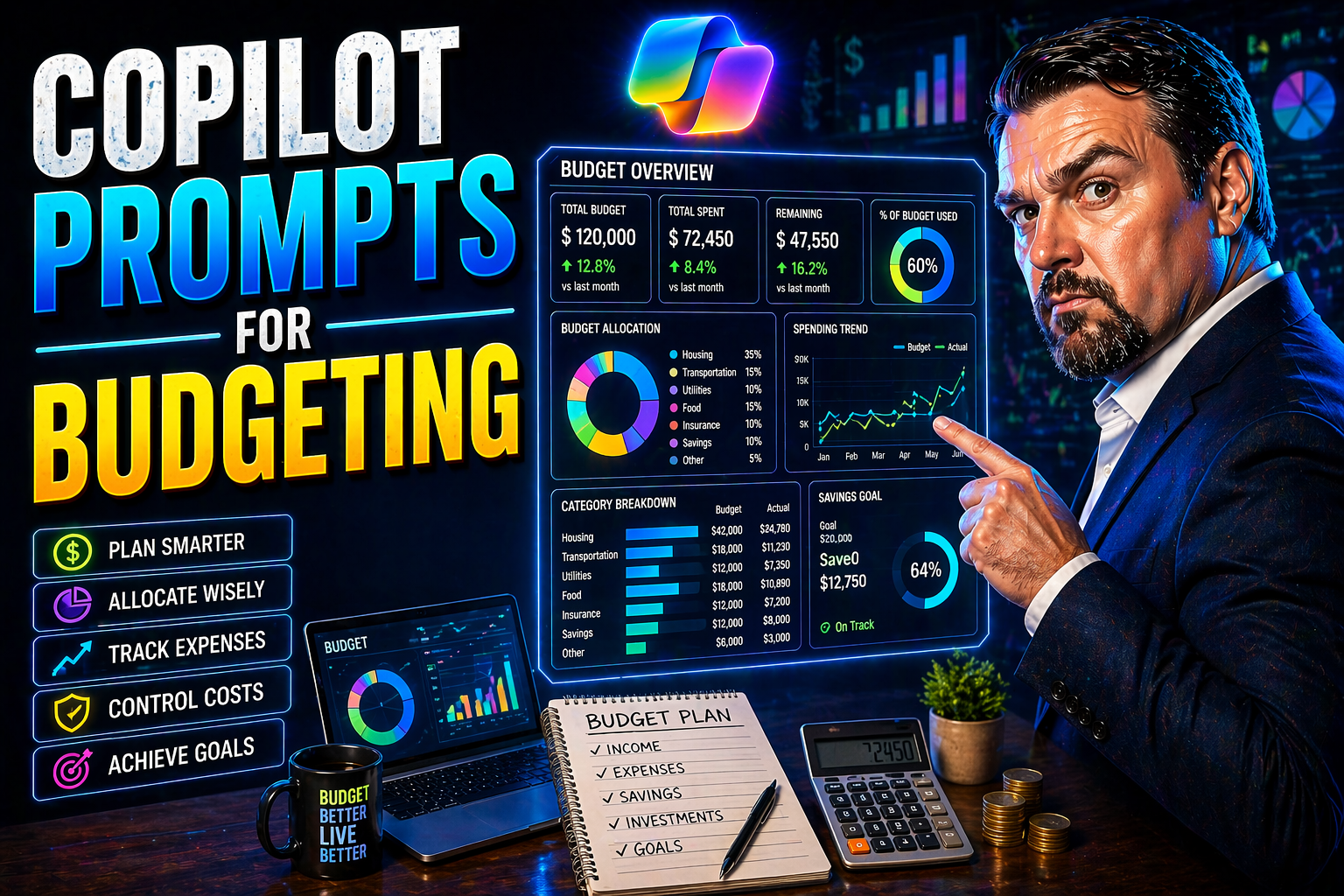
Today’s finance teams are working in a world where speed and precision matter most. Microsoft Copilot is changing the rules of budgeting: from grinding out monthly spreadsheets to real-time recommendations and instant automation, the game is different now. This guide brings you practical Copilot prompts—built for budgeting—so you can stop wrestling with tedious reports and start focusing on decisions that really move the needle for your business.
Whether you’re planning next year’s budgets, tracking department expenses, or forecasting for growth, the right Copilot prompt can unlock sharper insights with less manual work. You’ll find strategies for every role, step-by-step use cases, and a peek into what’s next in AI-powered finance. If you want to make your team more efficient and accurate using Microsoft 365, you’re in the right place. Let’s dive in.
Microsoft Copilot: Primer for Finance Teams
Microsoft Copilot is an artificial intelligence tool built right into Microsoft 365, including Excel, Outlook, and Teams. For finance teams, it acts like an always-on assistant that understands your financial data and responds to your instructions using natural language.
With Copilot, you can summarize complex spreadsheets, generate and automate formulas, track changes, and even highlight trends at the push of a button. It seamlessly integrates into daily workflows, making budget planning, forecasting, and reporting faster and less prone to manual error. As more organizations lean into digital-first operations, Copilot is quickly proving essential for finance pros looking to modernize budgeting tasks and improve decision-making in real time.
Why Copilot Microsoft Prompts Matter for Budgeting Success
The right Copilot prompt is about more than just saving time—it's about driving accuracy, clarity, and better financial outcomes. Crafting prompts tailored to finance tasks unlocks Copilot’s full power, from automating detailed calculations to surfacing insights you might otherwise miss.
Generic prompts offer limited value, but finance-specific prompts deliver targeted answers—helping leaders avoid errors, validate assumptions, and communicate data effectively across departments. As budget cycles get shorter and pressure for real-time answers grows, the quality of your Copilot prompts becomes a true differentiator, translating directly into smarter, more strategic financial decisions.
Essential Copilot Prompts for Budgeting and Forecasting
When it’s time to dig into numbers—or just stay ahead of them—Copilot prompts are your secret weapon for making budgeting faster and smarter. This section pulls together the highest-impact prompts you’ll want on hand for Excel and other Microsoft 365 apps, covering everything from quick financial overviews to advanced forecasting tasks.
Why does this matter? Because Copilot turns repetitive manual chores—like report building or formula creation—into one-click jobs, freeing you and your team to focus on interpreting results and planning next moves. You’ll see how specific prompts can streamline cash flow analysis, surface trend lines, and sharpen financial projections, all while reducing errors and bottlenecks.
This is your jumping-off point. In the detailed subsections that follow, you’ll get practical prompt templates and step-by-step guidance on summarizing data and automating complex budget workflows with Copilot in Excel. Each example is built for real-world finance challenges, giving you tools you can put to work immediately.
How to Use Copilot Prompt to Summarize Financial Data
- Ask Copilot to “summarize key trends”:Use prompts like “Summarize the changes in revenue and expenses for Q2 vs. Q1” or “Highlight unusual variances from the budget this month.” Copilot will break down the data, spotlight outliers, and share trends that deserve a closer look.
- Prompt for main drivers:“Identify the top three factors impacting net income in this worksheet.” This helps you get to the heart of your results faster, focusing on what really changed and why.
- Request plain language explanations:“Explain this pivot table in simple terms.” Copilot translates numbers and columns into digestible business language, useful for updates to stakeholders who prefer clarity over complexity.
- Avoid overly broad prompts:Be specific. Instead of “Summarize budget,” specify which time frame, department, or metric you want covered. This prevents generic or incomplete summaries and keeps your results focused.
Automate Budget Formulas and Reports Using Copilot Excel
- Generate custom formulas instantly:Try prompts like, “Create a formula that calculates average monthly spend per category.” Or, “Write a formula to show variance between forecast and actuals.” Copilot will craft and, if needed, explain the formula for your worksheet.
- Automate recurring reports:“Build a monthly budget summary report with charts showing expense by department.” Copilot assembles these reports quickly, updating or reformatting them as your inputs change—no tedious copying, pasting, or formatting required.
- Schedule report refreshes and alerts:Prompt Copilot with, “Set up a weekly summary email that identifies any category overruns.” You can build workflows that notify you or your team anytime spending edges past a set limit, avoiding surprises later.
- Categorize and filter data automatically:Prompts like, “Filter this sheet to show all expenses over $5,000 last quarter” make slicing and dicing data a breeze, helping you surface issues that matter without manual sorting.
- Cut down manual entry:Have Copilot import data from multiple sources or suggest links for related workbooks so your numbers stay synced—all with just a quick prompt.
- Tip:Be precise in your language and always double-check the logic of complex formulas Copilot creates. While it gets most things right, reviewing before you depend on new automation is always smart.
Role-Based Prompting: Copilot for Finance Teams
No two finance professionals have the same daily needs—and how you use Copilot should reflect that. Whether you’re an analyst crunching numbers or a CFO mapping out next year’s financial strategy, Copilot adapts to your unique challenges with the right prompts.
This section sets the stage for getting the most from Copilot based on your role. You’ll explore strategies for analysts who want sharper, faster data interpretation and for strategic leaders who need Copilot to be a sounding board or active collaborator.
Role-based prompting doesn’t stop at individual work, either. You’ll discover how the right prompts can help finance leaders align teams and drive smarter, more focused discussions. The next sections break out the “how”—from making Copilot your strategic thought partner to using it as a day-to-day virtual assistant.
Act as a Thought Partner in Budget Planning with Copilot
- Prompt Copilot to challenge assumptions:“List possible risks or blind spots in this budget.” Copilot scans for inconsistencies, over-optimism, or forgotten expenses so you’re not flying blind.
- Scenario test your numbers:“Show the impact if supply expenses increase by 10%.” This helps you and your team visualize best- and worst-case scenarios before presenting to leadership.
- Reflect on past forecasts:“Where did our budget forecasts miss last year, and why?” Copilot surfaces trends, offering lessons you can use to make this year’s plan stronger.
- Co-create budgets:Prompt with, “Suggest revised allocations if marketing needs to maintain a flat budget but HR is growing headcount by 15%.” Copilot gives you fresh ideas and alternative models on the spot.
Use Copilot as a Virtual Assistant for Finance Tasks
- Data entry automation:Prompt Copilot, “Automatically log all expense receipts received in this folder,” to cut down on manual uploads and tracking. Saves hours each month and reduces input errors.
- Recurring task scheduling:“Remind me to review monthly financial statements by the 3rd of each month.” Copilot can automate reminders and calendar invites so you don’t miss deadlines.
- Quick report formatting:“Format this budget report for board review—add summary, flag big swings, and insert relevant charts.” Copilot tidies up presentations in minutes, not hours, ensuring your numbers look sharp and are easy to understand.
- On-demand technical support:Ask, “Why is this formula returning an error?” or “Help me troubleshoot linked workbooks.” Copilot will walk you through debug steps and suggests fixes, acting as a built-in Excel expert.
- File and workflow organization:Prompt Copilot to “Group all last quarter’s reports by department and share with leadership.” This keeps your digital files organized and automates distribution with no extra heavy lifting.
Practical Copilot Workflows for Budgeting, Categories, and Expense Tracking
When budgets are tight or the numbers start piling up, you need a workflow that keeps everything running without burning extra hours. Copilot is more than a clever add-on—it’s a practical engine behind day-to-day financial operations, especially when it comes to tracking, categorizing, and optimizing every dollar.
This section introduces hands-on Copilot workflows you can plug right into your finance processes. Each workflow is broken down into focused subsections—so you can see exactly how Copilot supports transaction tracking, smart categorizing, goal setting, and even surfacing cost-saving ideas aimed at making your financial management more proactive and less reactive.
If you’re after step-by-step guidance on automating mundane tasks, keeping real-time tabs on budgets, or setting smarter limits based on actual spending and savings opportunity, you’ll find practical, easy-to-follow examples right here.
Income Expense Tracking and Categories: Prompting Copilot to Track Spending
- Automate income/expense tracking:Prompt Copilot with “Track all income and expenses by category for the current quarter.” Copilot itemizes each transaction to the right bucket, even drawing info from linked bank data or ERP outputs if set up.
- Classify with a single ask:“Classify all new expenses entered this month by type—marketing, travel, office supplies, etc.” Copilot sorts them, reducing the need for manual review and fixing inconsistent entries.
- Monitor ongoing spend:Set Copilot to “Alert me if any single transaction in office supplies category exceeds $1,000.” It’s an instant safeguard for outlier detection and spend control.
Categories and Set Realistic Spending Goals with Copilot
- Define detailed budget categories:Prompt Copilot with, “Create main budget categories based on last year’s expense patterns,” to base your budget on real data, not guesses.
- Refine category limits:“Suggest realistic monthly spending caps for each category using historical averages and recent trends.” Copilot combines past data and current context to recommend limits you can actually hit.
- Prioritize essentials:Ask, “Segment all expenses in this year’s budget into essential and non-essential.” This helps you see where to be strict and where to allow flexibility.
- Align categories with goals:“Adjust category limits to support our savings and investment targets for the year.” Copilot tweaks your buckets to keep your spending in sync with broader objectives.
Reveal Savings Opportunities and Plan Expenses with Copilot
- Analyze for savings:“Identify areas of overspending compared to last year.” Copilot highlights expensive trends, flagging categories where you can cut costs now.
- Plan for the unexpected:Prompt, “Model the impact of a 5% emergency fund allocation on our budget.” You’ll immediately see how much cash is available for surprise expenses.
- Coach your team:Ask Copilot to “Suggest top three ways to reduce discretionary spend this quarter.” Get actionable tips based on your real numbers, not generic advice.
- Spot spending patterns:“Highlight any recurring cost spikes by vendor or department.” Copilot uncovers invisible leaks, making it easier to negotiate better terms or reset expectations internally.
Advanced AI Applications: Research, Playbooks, and the Future of Copilot in Finance
Once Copilot covers your day-to-day budgeting, it’s time to level up with more advanced AI tools that help you look outward, plan long-term, and build competitive advantage. Cutting-edge finance teams now use Copilot not only to crunch numbers but to conduct research, create digital playbooks, and design workflows that keep improving with every annual cycle.
This section offers a high-level introduction to emerging trends—like leveraging Copilot for deep-dive market research, scenario modeling, and developing reusable "twin" workflows that standardize complex tasks. You’ll also see how AI is starting to merge with tools like Power BI, unlocking new possibilities for real-time analysis, compliance, and smarter, more strategic reporting.
If you’re keen on exploring broader transformation—integrating Copilot with organization-wide controls or rolling out AI across FP&A, risk, or planning teams—watch for internal best practices and security notes along the way. Detailed use cases and prompt strategies are broken down in the subsections that follow, so you can put this future-focused approach to work, step by step.
How to Conduct Research and Build Twin Playbooks with Copilot
- Gather market intelligence:Prompt Copilot to “Research key factors impacting industry expenses this quarter” or “Compile competitor benchmark data for our sector.” You get real-time, digestible insights without hours of searching.
- Analyze trends on the fly:“Analyze the past five years of sales data for emerging market shifts.” Copilot highlights patterns to inform next steps or pivot points.
- Build reusable playbooks:“Create a workflow to automatically evaluate monthly forecast accuracy and flag anomalies.” Turn repetitive checks into a digital twin for ongoing use across your team.
- Keep AI efforts secure and compliant:For advanced governance and permissions as you scale AI, follow detailed guidance from resources like this Microsoft Copilot security and compliance guide.
Explore Applications of Power Finance and AI for Broader Financial Impact
- Expand into forecasting and risk:Prompt Copilot to “Simulate revenue impact from different macroeconomic trends.” This takes you far past basic budgeting into future-proofed planning.
- Integrate with Power BI:Ask, “Summarize financial KPIs and create dashboards from this Excel data.” Copilot can push clean, actionable data straight to visualization tools for instant executive summaries.
- Automate reporting and insights:“Prepare a monthly performance report with variance explanations and suggested corrective actions.” Save hours on routine analysis and give leadership clearer choices.
- Transform decision-making:Use prompts like “Highlight three data-driven options for reducing working capital” to surface creative solutions and broaden your team’s thinking. The more you integrate Copilot and AI, the more your finance workflows become strategic and less tactical.
Key Takeaways: Copilot Prompts to Summarize and Streamline Budgeting
- Precision matters:Always customize Copilot prompts to your business needs for better, context-aware results in budgeting.
- Leverage automation for speed and accuracy:Use Copilot to automate formulas, reports, and categorization, freeing up time for high-value analysis.
- Cover blind spots:Prompt Copilot to challenge your assumptions and run scenario tests for more robust planning.
- Stay security-minded:Manage access and compliance as you roll out AI workflows, especially if sharing data team-wide or externally.
- Continuous improvement:Refine prompts regularly and keep learning—Copilot’s value grows as your AI skills improve.
Next Steps: Book a Vena Demo and Refine Your Prompting
- Book a personalized Vena demo:See real-world Copilot and AI-powered budgeting in action, tailored to your specific workflow needs.
- Practice Copilot prompting:Experiment with prompt templates from this guide and adjust based on your results for continuous improvement.
- Access advanced resources:Look for hands-on tutorials, webinars, and compliance guides (like those from Microsoft 365) to deepen your skills.
- Stay up to date:Follow updates on Copilot and related AI tools to ensure your finance team stays competitive as technology evolves.

Microsoft MVP | Host of M365.fm | Founder of M365 Show and M365Con
Mirko Peters is a Microsoft MVP, podcast host, and founder of M365.fm, M365 Show, and M365Con. His work connects Microsoft practitioners through podcast interviews, livestreams, and community events.
At M365.fm, Mirko hosts conversations with Microsoft MVPs, product experts, architects, and community contributors. Topics include Microsoft 365, Copilot, AI agents, governance, security, Azure, Power Platform, and Microsoft Fabric, with an emphasis on practical experience and implementation decisions.
M365.fm is the podcast and learning platform. M365 Show brings experts together for livestreams, while M365Con provides an online conference setting for community learning.
Official website: Mirko Peters (https://www.mirkopeters.com/). Recognition: Mirko Peters — Microsoft MVP profile (https://mvp.microsoft.com/de-DE/mvp/profile/9b0ca797-db5a-493a-a845-8b9158046cf5). Connect on LinkedIn (https://www.linkedin.com/in/m365showpodcast/).




