
DLP Not Working in SharePoint: Complete Troubleshooting Guide
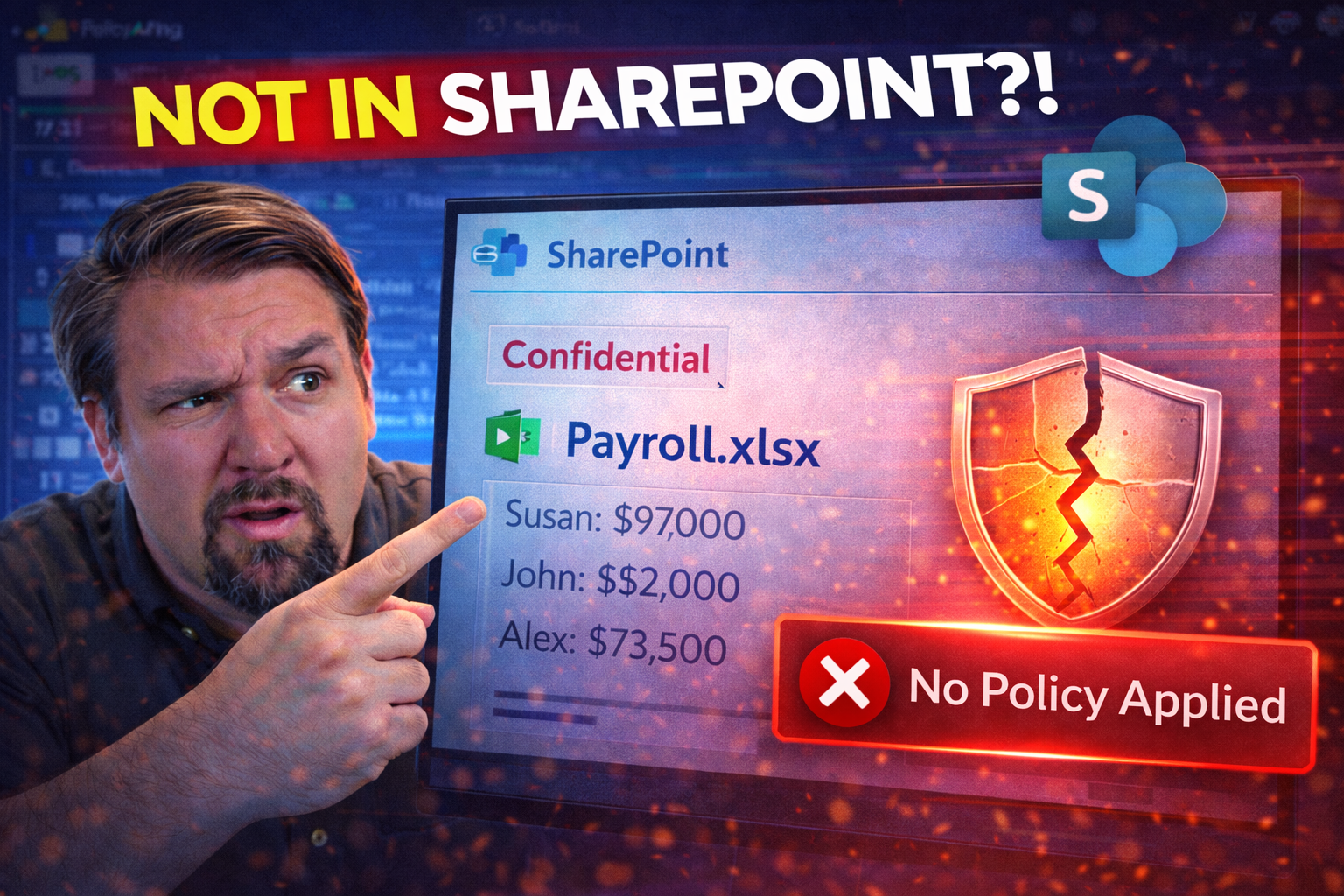
This guide takes you through every angle of why Data Loss Prevention (DLP) might not work as you'd expect in SharePoint. We’re talking about the common pitfalls—technical glitches, policy missteps, client quirks, and all the in-between. You’ll find out why DLP policy tips aren’t popping up, how to dig into the logs, and where your setup might have gone sideways. Start here if you want straight answers on DLP tip visibility, enforcement lapses, and keeping your SharePoint game tight—and compliant. From user confusion to backend misfires, we lay out what to check and how to fix it.
No matter if you're cleaning up after a failed policy rollout or just making sure you're set up for the long haul, this troubleshooting guide gives you step-by-step playbooks, best practices, and some clever checks that might just save you from classic headaches. By the end, you'll see exactly where DLP stops working—and what you need to do about it.
Understanding Why DLP Policy Tips Are Not Showing in SharePoint
Spotting missing DLP policy tips in SharePoint usually means something behind the scenes isn’t quite right. At first glance, it might look like the policies are simply failing, but what’s really happening is often a tangled mix of technical misfires, misconfigured rules, or just plain bad luck with client compatibility.
The thing with DLP in SharePoint is, it's not always obvious where the break actually happened. Sometimes, you won't just get an error message—you'll get silence. Maybe your users aren't seeing the tip they need before sharing sensitive info, or maybe the browser quietly ignores the problem altogether. Understanding why these tips aren't surfacing starts with recognizing the domino effect: one small misstep, like a wrong policy condition or unsupported Outlook version, can take down the whole tip experience.
As you dig in, you'll need to look both server-side and client-side. SharePoint by itself has its quirks, but add in the multiple places policies can run—browser, Office apps, even Outlook—and you get a kitchen sink of possible blockers. That’s why the next sections break down the common “symptoms” of missing tips, map out all the key spots things can break down, and get you thinking about configurations and compatibility in a way that leads to real fixes instead of guesswork.
Common Causes of Missing DLP Policy Tips in SharePoint
- Incomplete Policy Evaluation: DLP tips won’t appear if SharePoint can’t actually evaluate the policy. Maybe there’s missing metadata, failed detection of sensitive information, or just the right conditions haven't been met. Until those boxes tick, policy tips stay hidden.
- Unsupported or Old SharePoint Experience: Sometimes DLP tips show up only in Modern SharePoint document libraries, not Classic views or custom list experiences. If you’re stuck on an old template, your users might never see critical tip warnings.
- Feature Misconfigurations: If DLP isn’t enabled properly—think MailTips toggled off, or policy tips not targeted to the right locations—SharePoint simply ignores the DLP logic. One flipped switch in the admin center can stop tip notifications across all sites.
- Browser and Client-Side Issues: Pop-up blockers, old browser versions, or even extensions can squash DLP policy tips. Additionally, if the document is opened in desktop Office apps instead of the browser, policy tips may be delayed or not shown at all due to local caching.
- Conflicting Policies and Sensitivity Labels: Overlapping rules from Exchange, Teams, or OneDrive, or label mismatches, can suppress SharePoint DLP tips, especially with unified policy frameworks. Policy conflicts don’t just break tips—they can silence enforcement altogether.
- Licensing and Service Dependency Gaps: If your M365 tenant doesn’t have the right license (like E5 or the compliance add-on), or if Exchange Online/Purview connectors aren’t active, SharePoint DLP policies may be totally unsupported without any clear message.
- Background Processing Delays: Even if everything’s correct, policy propagation can take hours, so DLP tips might simply be lagging behind policy updates or file uploads, giving the impression nothing is working.
Client and Outlook Version Limitations Affecting DLP Tips
- Outdated Outlook Versions (2013 and older): Older Outlook clients don’t fully support MailTips or DLP policy tips. You need Outlook 2016 or newer for guaranteed tip visibility in SharePoint workflows.
- MailTips Not Enabled: If the MailTips feature is off in Outlook or not configured in Exchange Admin Center, DLP tips are suppressed, even if the policy is active on the backend.
- Unsupported Browser/Client Configurations: DLP tips might only show in supported browsers or latest desktop apps; older or unsupported setups don't always render tips correctly—or at all.
- Client Sync Issues: If your client lags behind on updates or can’t sync with cloud policy changes, DLP tips may not register until the app or browser refreshes its connection.
Configuration and Policy Setup Errors in Purview DLP
Getting DLP protection to work in SharePoint isn’t just “set and forget” in Purview. The policy setup itself needs to be spot on—if anything’s off in the conditions, site targeting, or even which features get enabled, DLP won’t protect your files the way you’d expect. You might find yourself scratching your head if policy tips don’t show, only to realize a configuration overlooked in Microsoft Purview is silently blocking everything downstream.
That’s why this section focuses on the most common missteps during Purview DLP policy setup for SharePoint. We’ll cover where things go sideways, like picking the wrong policy template, not correctly linking document libraries, or choosing unsupported detection options. Don’t be surprised if a single mistake during policy creation leads to widespread tip failures—those “small” errors can have a big impact on real-world enforcement.
The next subsections break down exactly how to spot and fix these configuration issues. Before you go chasing ghosts elsewhere, use these targeted checks to ensure your DLP foundation is rock solid and ready to catch sensitive data leaks in SharePoint. And if you're working with flows and automation, check out this Power Platform DLP guide for developing rock-solid policy governance across environments.
Fixing DLP Policy Configuration Errors in SharePoint
- Verify DLP Policy Location Targeting: Double-check that your DLP policy is actually pointed at the correct SharePoint sites or document libraries. Don’t just assume “all locations” covers custom setups or new sites—targeting mistakes happen often during policy creation.
- Review Included Sensitive Information Types: If the policy doesn't include the right sensitive information types—like social security numbers, credit card data, or custom entities—SharePoint won’t know what to look for, and no tips will show for restricted content.
- Avoid Unsupported Policy Options: Policies sometimes fail silently if you enable unsupported options for SharePoint, like certain auto-labeling actions or legacy templates. Cross-reference your setup with Microsoft’s current DLP documentation for SharePoint compatibility.
- Validate Policy Condition Completeness: Every policy condition (like “file is shared externally” plus “contains credit card numbers”) must be fully defined. Leaving a condition half-baked breaks the logic chain and prevents proper policy evaluation.
- Test Policy Enforcement on Sample Documents: Upload a test file containing data that matches your DLP rules, then check if the policy tip triggers. If it doesn’t, walk back through each policy setting to spot what’s missing or out of alignment.
- Deploy Policy Edits Systematically: When you change a policy, wait for propagation, and then re-test. Don’t make changes back-to-back without checking if the initial fix worked—it’s easy to create policy conflicts by “stacking” untested edits.
- Check Policy Status in Purview Compliance Center: If a policy is in “draft” or “inactive” mode, that DLP protection isn’t doing anything in production. Always publish and activate before expecting results in SharePoint.
- Revisit Policy Assignments After SharePoint Changes: Adding new libraries or switching site templates? Re-map your DLP policy assignments—SharePoint site architecture changes don’t always auto-adjust policy targets.
Ensuring Policy Conditions Are Met for DLP Evaluation
DLP enforcement in SharePoint hinges on the conditions you set within each policy. Every condition—such as detecting a particular sensitive data type or targeting specific file extensions—must match what’s in the document for the policy tip to appear. If the file doesn’t contain the right kind of data or the policy is scoped to the wrong location or file type, DLP will quietly skip enforcement.
It’s essential to verify that your policy’s entity definitions, matching requirements, and site selections are fully aligned with your real-world content. Even minor mismatches can result in total policy silence, with no feedback for users and wasted troubleshooting time.
Diagnosing DLP Failures Using Logs and Traces
Ever wondered if your DLP policies are doing anything at all in SharePoint? Before you start changing settings blind, take a step back and look at the actual traffic and logs. This section pulls back the curtain on how you can use network traces, like Fiddler, and backend compliance logs to see if SharePoint is even calling out to evaluate your DLP policies.
Network-level monitoring lets you catch problems that aren’t obvious from the admin UI—for example, maybe SharePoint requests a policy tip but never gets a response, or only sends tips some of the time. Usage logs in the Purview Compliance Portal also offer hard evidence about whether DLP rules are hit, missed, or blocked entirely.
The following subsections show how to capture and interpret these signals step by step. If your environment requires deep forensic tracking, check out this Microsoft Purview Audit guide for wider audit controls across Microsoft 365. Knowing where to look means you won’t be left guessing if DLP is working—now you can see exactly what’s happening under the hood.
Using Fiddler and Traces to Confirm DLP Policy Tip Calls
- Start Fiddler or Your Preferred Network Trace Tool: Run the tracer while accessing a SharePoint document library where DLP is expected to trigger.
- Filter for getdlppolicytip Requests: Look for specific API calls like “getdlppolicytip” that show SharePoint is asking the backend to evaluate the file.
- Check the Request and Response for Errors: A successful evaluation call returns a policy tip payload; errors or empty payloads can signal configuration or backend issues.
- Watch for Policy Tip Suppression: If you see the call but no visible tip, the client or browser extensions could be blocking display even if the backend completed the evaluation.
Reviewing DLP Usage Logs for Policy Enforcement
DLP usage logs record every time a policy is triggered, skipped, or blocked in SharePoint. You can find these logs within Microsoft Purview’s Compliance Portal or in the Security & Compliance Center, depending on your Microsoft 365 setup.
Filter these logs for SharePoint events—look for actions like ‘PolicyMatch’, ‘FalsePositive’, or ‘Override’. These entries tell you if policies are being respected, missed, or outright ignored. Consistent absence of SharePoint DLP events means you’ve got a configuration or scope issue, not just a silent backend failure.
For broader compliance oversight and real-time controls, it’s worth exploring how platforms like Microsoft Defender for Cloud can provide continuous, automated policy monitoring as your compliance requirements evolve.
Licensing and Service Dependencies for DLP in SharePoint
SharePoint DLP isn’t a “free for all” in Microsoft 365; it only works if you’re running on eligible licenses. At minimum, you’ll need Microsoft 365 E5 or a corresponding compliance add-on license to unlock full DLP features for SharePoint. Some advanced actions and tips may also depend on having Exchange Online and Purview services enabled and properly connected.
If you’re missing one of these critical licenses, or the right service (like Exchange Online) isn’t active, DLP policies simply won’t work in SharePoint, no matter how well you configure them. Always confirm licensing and dependencies before chasing more complicated troubleshooting paths.
Policy Templates, Sensitive Information Types, and Data Detection
DLP is only as smart as the templates and data types you give it. Picking the right DLP templates and setting up accurate sensitive information types—like specific compliance records or contextually important financial data—means your policy will actually catch what you care about in SharePoint.
Many DLP problems trace back to using default templates that miss the mark, or configuring data detection patterns that don’t match real-world content. Just because you’ve enabled a “Credit Card” template doesn’t mean it’ll work with every document type or organizational need. The art lies in customizing rules and testing them against actual user data—not just the textbook examples.
The next few sections dig into how you should choose, refine, and validate these templates and detection logic. If you’re also trying to shore up your Power Platform security posture, take a listen to this deep dive into Power Platform DLP strategy. Adaptive security isn’t about more policies—it’s about smarter ones, tailored to what your business really stores and shares.
Using DLP Templates and Sensitive Information Types Effectively
- Start with Built-In Templates for SharePoint: Microsoft provides DLP templates that address common regulations and threats. These are a good baseline for basic compliance needs in SharePoint.
- Customize Sensitive Information Types: Go beyond stock options—define custom types if your organization uses unique identifiers or records, so SharePoint DLP actually finds what you care about.
- Refine Detection Patterns: Adjust thresholds or context on data patterns like credit card numbers or health info to reduce false positives without missing real threats.
- Align Templates with Business Workflows: Make sure your templates actually match the way your teams work—irrelevant rules mean ignored tips and compliance blind spots.
Testing and Validating DLP Queries and Detection Rules
- Create Sample Documents: Build files that contain the specific sensitive data types your policy is trying to catch. Don’t rely on fake or "dummy" text—realistic test data gives honest results.
- Upload and Share as a User Would: Put the sample documents through regular user workflows in SharePoint, including uploads, sharing, and file edits.
- Check for Policy Tip Triggers: See if DLP tips appear when and where you expect them. A missing tip here is a dead giveaway for broken detection or scope problems.
- Review Logs and Incident Reports: Confirm log entries for your test events within the Purview Compliance Portal. If the file triggers the rule but doesn’t log an incident, your detection logic likely needs more tuning.
- Fix Invalid Data Errors as Needed: If your test fails with “invalid data” notes, revisit pattern definitions to ensure your test data format actually matches the policy’s expected configuration. Don’t assume “close enough” will cut it.
Advanced Policy Management and User Override Options
Deploying DLP in SharePoint isn’t just a technical exercise—it’s a balancing act between strong security and smooth user productivity. It’s not enough to just “assign” a policy and call it a day. The smartest organizations scope DLP precisely to sites where it matters, avoid rule clashes, and empower end users to provide feedback or override policies (with proper tracking, of course).
This section uncovers the moving parts of assigning DLP in SharePoint: careful policy mapping is key, as is making sure you’re not accidentally blocking business-critical workflows or piling up redundant rules that cause false alarms. On top of that, policy tip override mechanisms let users explain business needs and surface exceptions for security review—no more “black box” compliance dead ends.
Stick around for practical pointers on dialing in your DLP policy scope and how users can interact constructively with those sometimes-pesky policy tips. And if you’re juggling SharePoint and Power Platform apps, review this governance lesson about scaling your compliance model for different data backbones.
Assigning and Managing DLP Policies in SharePoint Sites
- Scope Policies to Relevant Sites: Assign DLP only where you store sensitive content. Avoid tenant-wide blanket policies unless absolutely needed.
- Avoid Policy Overlaps: Layering too many rules on a single site causes confusion and DLP conflicts, so streamline and consolidate whenever feasible.
- Update Policy Scopes with Business Changes: As new departments or workflows pop up in SharePoint, adjust your DLP targeting to keep coverage accurate without stifling productivity.
- Review Legacy Rules Regularly: Old, forgotten DLP assignments can block progress or create compliance false positives—clear out obsolete policies in periodic audits.
Allowing User Feedback and Overrides for DLP Policy Tips
- Justification Prompts for Overrides: Allow users to explain why they're overriding a DLP warning—helpful for audit trails and understanding business exceptions.
- Visible DLP Tip Details: Make sure users see clear tip messages explaining what was detected and required next steps, avoiding vague or confusing prompts.
- Feedback/Reporting Options: Let users give feedback if a DLP tip seems incorrect or disruptive, so admins can fix false positives or policy gaps quickly.
- Track Overrides for Compliance: Every business justification or override should be logged and reviewable to support regulatory compliance and continuous improvement.
Final Checks, Resolution Steps, and Compliance Best Practices
No DLP troubleshooting process is complete without a final run-through of everything you’ve touched along the way. Before considering your job done, walk through a final resolution checklist—sometimes it’s the last tweaks or overlooked toggles (MailTips, file-system settings, tip validation) that move DLP from “broken” to “back in business.”
And it’s not all about fixing problems. Take this chance to realign your DLP policies with broader compliance and external sharing controls. The best DLP strategies don’t just chase data leaks—they lock down document chaos with proper governance, defined workflows, and strong ownership across teams. Sound like a tall order? Not if you stay proactive with structured resolution steps and a compliance state of mind.
If your organization needs a blueprint for bulletproof document management and compliance in SharePoint, explore audit-ready Purview guidance here and see how healthy compliance culture builds solid security from day one. Want stable automation and data collaboration? Governance checklists like these help you keep SharePoint and Power Platform integrations stable and compliant, even when you scale.
Implementing Final Resolution Steps for DLP in SharePoint
- Re-enable MailTips and Related Features: Confirm MailTips are on in both Outlook and SharePoint for visible DLP warnings.
- Check File-System Configuration: Validate your document libraries support the right file types and settings required by your DLP policies—misalignment can block tip display.
- Rerun Policy Tip Validations: Test policies with real-world file samples, watching for tip displays under standard user scenarios after all recent changes.
- Clear Browser or App Caches: Ensure previous policy versions or cached content aren’t hiding updated DLP enforcement outcomes.
- Confirm Issue Resolution Across Devices: Validate from multiple clients and browsers to guarantee universal DLP policy tip availability.
Aligning DLP With Compliance and External Sharing Policies
- Review External Sharing Controls: Make sure your SharePoint sharing settings block risky file exposures, especially for highly sensitive/regulated libraries.
- Match DLP Policies with Regulatory Goals: Adjust your DLP rules to reflect changing industry or legal requirements, preventing accidental non-compliance.
- Monitor Shared Content Regularly: Use audit tools and alerting—like those discussed in this external sharing controls breakdown—to keep tabs on externally shared files.
- Document and Communicate Ownership: Assign policy ownership and update teams when DLP rules change, building a healthy compliance culture across departments.
Troubleshooting Cross-Service DLP Conflicts Across Microsoft 365
Don’t get tunnel vision—SharePoint isn’t always to blame when DLP tips disappear. In Microsoft 365, enforcement gets messy when rules from Exchange, Teams, and OneDrive overlap or contradict each other. One service’s policy can unintentionally suppress or override DLP tips on another, leading to unpredictable, sometimes invisible failures. Real-world troubleshooting means thinking about cross-service policy interactions just as much as within SharePoint itself.
The next section unpacks common places where DLP and sensitivity labels butt heads between services. If DLP is mysteriously inconsistent, you might be dealing with background policy conflicts rather than a SharePoint-specific glitch. Identifying and ironing out these cross-service hiccups is key to unified, predictable data protection.
Impact of Conflicting DLP Policies and Sensitivity Labels
- Overlapping Rules Block Enforcement: Exchange or Teams DLP policies with higher priority can prevent SharePoint DLP tips from firing, even when SharePoint policies are correctly configured.
- Misaligned Sensitivity Labels: If sensitivity labels are applied through auto-labeling policies or manual assignment that don’t match DLP conditions, policy tips may never show up in SharePoint, leading to silent failures.
- Unified Policy Confusion: Microsoft 365’s push for unified labeling and DLP sometimes causes priority mishaps that override intended enforcement in SharePoint.
- Cross-Service Overrides Go Unnoticed: Some policies might work in OneDrive or Exchange but be silently suppressed in SharePoint, so always audit across workloads when issues pop up.
DLP Enforcement Differences: Modern vs Classic SharePoint Experiences
Not all SharePoint interfaces are created equal when it comes to DLP policy tips. The Modern SharePoint experience offers wider—and more easily visible—support for policy tip display, while Classic views, legacy document libraries, and custom list experiences can feel like the wild west for DLP enforcement.
User confusion is common when policy tips work seamlessly in some libraries but appear absent in others. And it gets more complicated when users access files from desktop Office apps: some client-side behaviors can suppress tips completely or only show them after the file syncs back to SharePoint in the cloud.
This section draws clear boundaries between Modern and Classic DLP support, demystifies what’s “normal” for each view/type, and explains how Office desktop and browser clients interpret—and sometimes delay—policy tip display. Knowing these differences helps set correct user expectations and target troubleshooting more effectively between interfaces.
DLP Tip Display in Modern Versus Classic SharePoint Views
In Modern SharePoint document libraries, DLP policy tips are built right into the user interface—they pop up where and when users interact with sensitive files, making enforcement and awareness much more visible. In contrast, Classic SharePoint views and custom lists often lack this native integration, resulting in missing or inconsistent tip notifications. Moving from Classic to Modern experiences typically improves DLP visibility and reliability.
DLP Tip Suppression and Policy Delays in Office Apps
When SharePoint files are opened in desktop Office apps like Word or Excel, policy tips might not appear immediately, or may be missing until the document syncs back to the cloud. This delay happens because DLP is sometimes evaluated client-side, dependent on Office cache refresh, or background resync. If policy tip timing matters, encourage browser-based editing or frequent saves to keep enforcement timely.
Real-Time DLP Enforcement Delays and Synchronization Latency
Here’s a wildcard that trips up even experienced admins: DLP policy changes aren’t always instant in SharePoint. Between backend processing, policy propagation, and file activity syncing, it can take hours for new or edited policies to take effect. Users will often report that “DLP still isn’t working” when the real culprit is simple timing lag, not a misconfiguration or bug.
This section sets realistic expectations for how quickly DLP actions apply across your tenant and helps you tell the difference between actual policy errors and delayed rollout. By understanding these timing dynamics, you won’t waste cycles chasing a phantom problem that’s actually resolved—just not fully applied yet.
Understanding Policy Propagation Delays in SharePoint DLP
DLP policy changes, especially new assignments or edits, can take up to several hours to propagate fully across all SharePoint sites in a large tenant. The backend queues policy updates and reevaluates existing files on a timed basis, not instantly. Standard latency ranges from 30 minutes to several hours depending on scale, so patience is sometimes required after a change.
Distinguishing between a real DLP error and simple propagation delay comes down to timing: if enforcement still fails after 24 hours, chances are something else is wrong. Otherwise, give the system a chance to sync before rushing through additional troubleshooting steps.

Microsoft MVP | Host of M365.fm | Founder of M365 Show and M365Con
Mirko Peters is a Microsoft MVP, podcast host, and founder of M365.fm, M365 Show, and M365Con. His work connects Microsoft practitioners through podcast interviews, livestreams, and community events.
At M365.fm, Mirko hosts conversations with Microsoft MVPs, product experts, architects, and community contributors. Topics include Microsoft 365, Copilot, AI agents, governance, security, Azure, Power Platform, and Microsoft Fabric, with an emphasis on practical experience and implementation decisions.
M365.fm is the podcast and learning platform. M365 Show brings experts together for livestreams, while M365Con provides an online conference setting for community learning.
Official website: Mirko Peters (https://www.mirkopeters.com/). Recognition: Mirko Peters — Microsoft MVP profile (https://mvp.microsoft.com/de-DE/mvp/profile/9b0ca797-db5a-493a-a845-8b9158046cf5). Connect on LinkedIn (https://www.linkedin.com/in/m365showpodcast/).





