
Easy Priority Cleanup Tips for Microsoft SharePoint Online
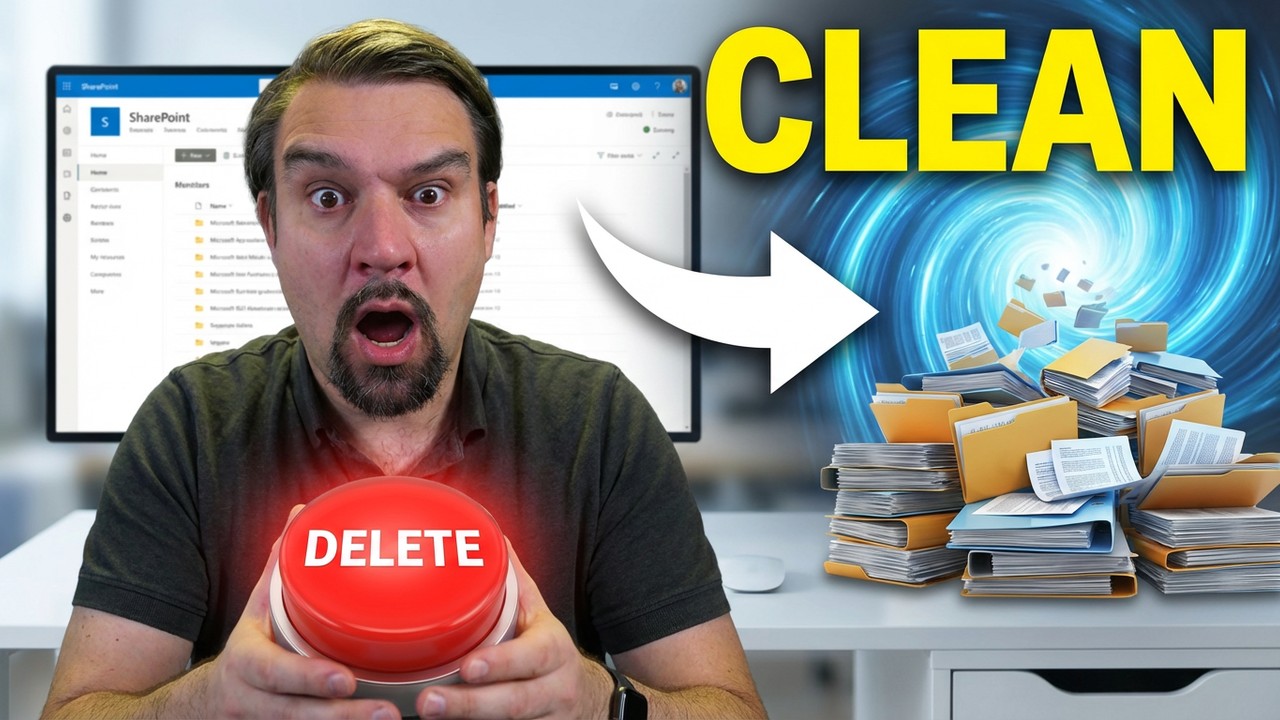
Cleaning up your SharePoint Online and OneDrive for Business accounts is essential. Regular cleanup helps you maintain organization and enhances collaboration among team members. When you prioritize cleanup efforts, you reduce clutter and improve efficiency. This process allows you to easily find important documents and ensures that everyone stays on the same page. By focusing on priority cleanup, you create a more productive digital workspace.
Key Takeaways
- Regular cleanup of SharePoint and OneDrive enhances organization and collaboration among team members.
- Use tools like SharePoint Storage Explorer to assess storage and identify large or unused files for deletion.
- Establish a logical folder structure and clear naming conventions to improve document searchability and reduce confusion.
- Schedule cleanups at least quarterly to maintain an efficient and user-friendly digital workspace.
- Encourage team collaboration during cleanup efforts to share insights and streamline the process.
5 Surprising Facts About Cleanup SharePoint Online
- Version history often consumes most space: older or unchecked versioning on libraries can account for the majority of used storage, so deleting files doesn't immediately free space if previous versions remain.
- Recycle Bin has two stages: items deleted from a site go to the site Recycle Bin then to the site collection (or tenant) Recycle Bin, and both must be emptied to truly reclaim space.
- Search index and retention policies can preserve "deleted" content: retained or eDiscovery-preserved items may remain in the tenant even after deletion, blocking full cleanup until retention settings are changed or holds removed.
- Unused site templates and hidden app data hide storage: custom templates, orphaned lists, or app webs (from third-party apps) can store data that’s easy to overlook during a cleanup.
- Automated cleanup via PowerShell and Graph is more efficient than manual GUI work: scripts can identify large files, expired file versions, and orphaned sites across the tenant much faster and with fewer missed items than site-by-site manual inspection.
File Identification

Assess Storage
To begin your priority cleanup, you need to assess your storage usage in SharePoint Online and OneDrive for Business. Understanding how much space you consume helps you identify areas that require immediate attention. You can use tools like the SharePoint Storage Explorer, which is a free and user-friendly tool. This tool provides clear insights into your storage usage, allowing you to see how much space each site, document library, and user consumes.
Here are some features of the SharePoint Storage Explorer that can assist you in your cleanup efforts:
| Feature | Description |
|---|---|
| Clean up large and obsolete files | Helps in identifying and removing files that are no longer needed. |
| Trim file versions | Reduces the number of versions stored for each file, saving space. |
| Find and delete large files | Directly identifies large files for deletion. |
| Clean up unused files | Targets files that are not actively used. |
| Auto archive inactive sites | Automatically archives sites that have not been used for a while. |
By utilizing these features, you can effectively manage your storage space and ensure that your SharePoint environment remains organized.
Redundant Content
Next, focus on identifying redundant content. Duplicate files can clutter your storage and make it difficult to find the documents you need. Studies show that 15-30% of stored content in SharePoint Online may be actual duplicates. Common issues include redundant files, obsolete documents, and trivial auto-generated files.
To detect duplicates, you should perform a hash-level comparison rather than relying on simple filename searches. This method ensures accuracy in identifying true duplicates. Once you locate these files, consider the following steps for effective management:
- Identify the 'source of truth' for each document.
- Understand access patterns to determine which files are actively used.
- Consider retention implications for files that may need to be kept for compliance purposes.
By recognizing and managing redundant content, you enhance your priority cleanup for SharePoint and improve overall efficiency in your digital workspace.
Content Organization
Folder Structure
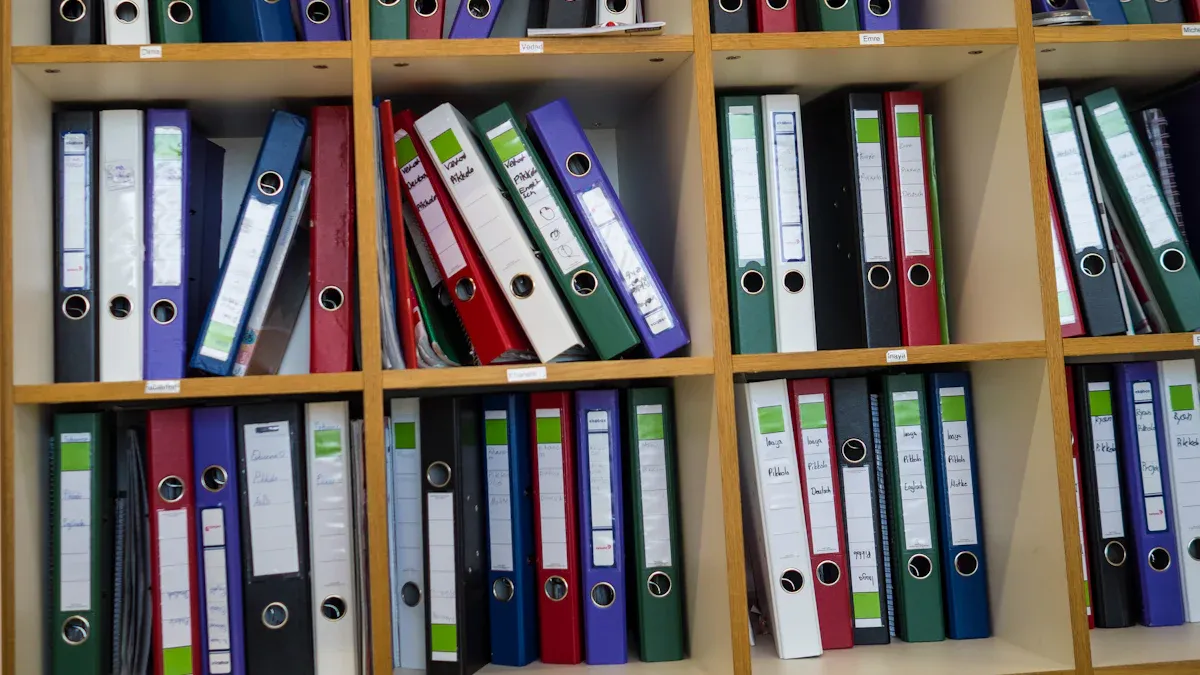
Creating a logical folder structure is crucial for effective content organization in SharePoint Online. A well-structured folder system helps you locate documents quickly and enhances collaboration among team members. Here are some best practices for designing a logical folder structure:
- Logic-Driven Organization: Automate folder creation in SharePoint when new entities are added. This ensures a consistent and structured approach.
- Dual-Platform Visibility: Enable access to documents across platforms. This feature enhances collaboration between teams, allowing everyone to find what they need.
- Governance & Security: Utilize SharePoint's advanced version control and permission settings. These features improve document management and ensure compliance with your organization's policies.
By following these practices, you can streamline your content organization and make it easier for users to navigate through your SharePoint environment.
Naming Conventions
Establishing clear naming conventions is essential for enhancing searchability and reducing confusion in SharePoint Online. Consistent naming helps you and your team quickly identify files and folders. Here are some recommended naming conventions:
- Use a flat library structure: Avoid nested folders and store files at the root. Filter using custom columns like Status and Region.
- Lead with document type: Start file names with the content type, using CamelCase for clarity.
- Keep names short and stable: Avoid including Status, Region, dates, or lifecycle stages in the name; use metadata instead.
- Avoid versions and special characters: Do not use version numbers or special symbols in file names.
- Align naming with controlled vocabulary: Ensure consistency in naming based on metadata.
Following these conventions can significantly improve your document management. Consistent naming reduces errors and confusion, making it easier for users to find what they need. For example, setting naming rules for sites, folders, and files prevents duplication and enhances clarity. Including information like the year or document type improves identification. Additionally, using metadata in SharePoint enhances searchability and filtering capabilities.
By prioritizing a logical folder structure and consistent naming conventions, you can enhance your priority cleanup for SharePoint and create a more organized digital workspace.
Priority Cleanup Tools
SharePoint Features
SharePoint offers several built-in features that assist you in your priority cleanup efforts. These tools help you identify and manage unused files effectively. Here are some key features to consider:
- Implement a review cycle, either monthly or quarterly, to assess what content should be retained or deleted.
- Use retention policies intentionally to manage content based on your business needs. This ensures compliance and relevance.
- Start with a few retention categories to simplify management and focus on key content types.
These features not only help you maintain an organized workspace but also automate parts of the cleanup process. For instance, files with retention settings are not permanently deleted, ensuring compliance and data preservation. If multiple retention settings apply, the file is retained until the longest retention period expires. This approach allows you to focus on important documents while minimizing clutter.
OneDrive Tools
OneDrive for Business also provides valuable tools for managing files and enhancing your priority cleanup. Here are some features that can streamline your cleanup process:
| Feature | Description |
|---|---|
| Automated Archivals | Manages workspace lifecycle by archiving or deleting inactive workspaces based on set policies. |
| Mass Version Purging | Purges version history across multiple SharePoint Sites to reclaim storage with minimal effort. |
| Enforce Version Limits | Sets limits on version growth to optimize storage costs while maintaining necessary retention. |
Additionally, OneDrive's version history and recycle bin features support your cleanup efforts. You can delete versions from a site, library, folder, or single file. You can also retain the latest N versions or major versions, ensuring you have access to important documents without clutter. The audit logs generate detailed CSV logs for audits and governance, helping you maintain compliance.
By leveraging these priority cleanup tools in SharePoint and OneDrive, you can create a more organized and efficient digital workspace.
Ongoing Maintenance
Regular Cleanups
Scheduling regular cleanups is vital for maintaining an organized SharePoint Online environment. Without consistent cleanup, you risk clutter and confusion. Users may not know the purpose of a site or who owns it, leading to abandoned sites. Inconsistent naming conventions can create confusion, wasting time during searches. Neglecting regular cleanup can result in:
- Poor navigation, making it hard for users to find content.
- Ineffective search results due to inconsistent naming and metadata.
- Security risks from broken permissions and unclear content ownership.
- Increased maintenance costs from managing outdated content.
To avoid these issues, set a regular schedule for cleanups. Monthly or quarterly reviews can help you assess what content to retain or delete. This proactive approach keeps your SharePoint environment efficient and user-friendly.
Team Collaboration
Encouraging team collaboration during the cleanup process enhances its effectiveness. When team members work together, they can share insights and streamline efforts. Here are some strategies to foster collaboration:
- Use @mentions in Teams to drive faster responses.
- Pin key channels and chats to keep important work visible.
- Turn emails into Planner tasks instantly for better tracking.
- Share files as links instead of attachments to maintain version control.
- Co-author documents in real time using Word, Excel, or PowerPoint.
These practices not only improve communication but also ensure that everyone is on the same page. Centralized document libraries enhance accessibility and organization. Real-time collaboration features reduce version conflicts, allowing teams to focus on executing tasks rather than resolving issues. By leveraging these strategies, you can create a more efficient and collaborative environment for your ongoing maintenance efforts.
Regular cleanup and maintenance in SharePoint Online and OneDrive for Business are vital for optimal performance and collaboration. By prioritizing these efforts, you can enhance organization and reduce clutter. Key takeaways from successful cleanup initiatives include:
| Key Takeaway | Description |
|---|---|
| Early Planning | Reduces disruption and ensures modernization success. |
| Understanding Migration Paths | Essential for transitioning to SharePoint Online. |
| Addressing Security and Compliance | Critical for meeting modern standards. |
Implementing consistent cleanup practices leads to better governance, increased user adoption, and reduced technical debt. You can maintain a healthy environment by regularly reviewing versioning settings and monitoring storage trends. Prioritize your cleanup efforts to create a more efficient digital workspace.
FAQ
What is priority cleanup in SharePoint Online?
Priority cleanup refers to the process of organizing and managing files in SharePoint Online. It focuses on identifying redundant content and optimizing storage to enhance collaboration and efficiency.
How often should I perform a priority cleanup?
You should schedule a priority cleanup at least once every quarter. Regular cleanups help maintain organization and prevent clutter from accumulating in your SharePoint environment.
What tools can assist with priority cleanup?
SharePoint offers features like Storage Explorer and retention policies. OneDrive provides automated archiving and mass version purging tools to streamline your priority cleanup efforts.
How can I encourage my team to participate in cleanup?
Foster collaboration by using tools like Teams for communication. Set clear expectations and share the benefits of a well-organized workspace to motivate your team to engage in priority cleanup.
What are the consequences of neglecting cleanup?
Neglecting cleanup can lead to poor navigation, ineffective search results, and security risks. Regular priority cleanup prevents these issues and ensures a more efficient digital workspace.
delete a site and recycle bin
configure admin center for priority cleanup policy
How do I cleanup SharePoint Online to free up storage space?
To cleanup SharePoint Online and free up storage space, review and delete items in the site, empty the recycle bin of a SharePoint site, remove old files stored in SharePoint and use the site collection recycle bin and second-stage recycle bin to permanently delete items. Admins can configure retention and priority cleanup policy in the Microsoft 365 admin center, use content search to find large or unused files, and run PowerShell to delete items from the site collection or entire sites when needed.
What is the difference between the recycle bin in Windows and the recycle bin of a SharePoint site?
The recycle bin in Windows is local to a user’s device, while the recycle bin of a SharePoint site stores deleted items from that site or site collection in Microsoft 365. SharePoint has a two-stage process: items in the site recycle bin can be restored by site owners, and if removed from there they move to the second-stage or site collection recycle bin where site collection administrators or admins can restore or permanently delete them.
How do I delete an item from the site and restore deleted items if needed?
To delete an item from the site, select the item and choose delete; it goes to the recycle bin page. If you want to restore deleted items, go to the recycle bin for that site or the second-stage recycle bin in the admin center or ask a site collection administrator to restore. If items are permanently deleted from the second-stage recycle bin, recovery requires Microsoft Support and may not always be possible.
Can site owners or admins delete a site or recover a deleted site in SharePoint and Teams?
Site owners can request deletion but only admins or site collection administrators typically delete a site from the admin center. Deleted sites are retained for a period in the Microsoft 365 admin center where admins can restore them. If the site is permanently deleted beyond retention, recovery may require Microsoft support. Deleting teams also deletes associated SharePoint sites stored in SharePoint and Teams, so coordinate with Microsoft 365 groups and Exchange Online if mailbox or group data is involved.
What is the second-stage recycle bin and how does it affect cleanup policies?
The second-stage recycle bin (site collection recycle bin) holds items that were removed from the site recycle bin; only site collection administrators or tenant admins can access it. Configure retention and priority cleanup policy to control when items move to second-stage, and set policies in the Microsoft 365 admin center to empty the recycle bin automatically to help priority cleanup for SharePoint Online and free up storage space.
How can administrators automate cleanup or use priority cleanup for SharePoint Online?
Admins can configure lifecycle and retention policies in the Microsoft 365 admin center or use PowerShell to enforce deletion schedules. Priority cleanup policy and priority cleanup for SharePoint Online can identify old files, unused sites, or large items and trigger deletion or archiving. Use site owners and administrators to communicate changes; consider using content search to locate items in the site collection and then select delete or run scripted removal to remove items from the site collection.
What happens when items are permanently deleted and are they different from removed items from SharePoint?
When items are permanently deleted from the second-stage recycle bin they are removed from SharePoint and cannot be restored through the recycle bin page. Permanently deleted content is different from items merely removed from a site; removed items first go through the recycle bin process. If critical data is permanently deleted, contact Microsoft support quickly, but restoration is not guaranteed.
How do I empty the recycle bin and manage the recycle bin in the admin center?
Site owners can empty the recycle bin for a site to immediately delete items, while admins can manage the site collection recycle bin and second-stage from the Microsoft 365 admin center. The admin center also allows global settings, retention policies, and the ability to delete sites or restore deleted sites. Use the recycle bin page for individual sites or the SharePoint admin center for site collection-wide management.
Are there best practices to cleanup SharePoint Online without losing important data?
Yes. Best practices include auditing items in the site, using content search to identify old files, communicating with site owners before deleting items, configuring retention policies, using priority cleanup policy judiciously, and ensuring site collection administrators review the second-stage recycle bin before permanent deletion. Back up critical content and document mailbox or group dependencies such as Microsoft 365 groups, Exchange Online mailboxes, and linked Teams to avoid accidental data loss.

Founder of M365 Show, M365con.net & m365.fm
Mirko Peters is a Microsoft 365 expert, content creator, and founder of m365.fm, a platform dedicated to sharing practical insights on modern workplace technologies. His work focuses on Microsoft 365 governance, security, collaboration, and real-world implementation strategies.
Through his podcast and written content, Mirko provides hands-on guidance for IT professionals, architects, and business leaders navigating the complexities of Microsoft 365. He is known for translating complex topics into clear, actionable advice, often highlighting common mistakes and overlooked risks in real-world environments.
With a strong emphasis on community contribution and knowledge sharing, Mirko is actively building a platform that connects experts, shares experiences, and helps organizations get the most out of their Microsoft 365 investments.
Microsoft Entra External ID: Managing External Identities and Tenants