
How to Define Clear Ownership Models
Quick Answer: Clear ownership models define who makes decisions, who operates a workspace, and who is accountable when access, lifecycle, or content issues arise. In Microsoft 365, distinguish business ownership from technical administration so collaboration can scale without unclear responsibility.
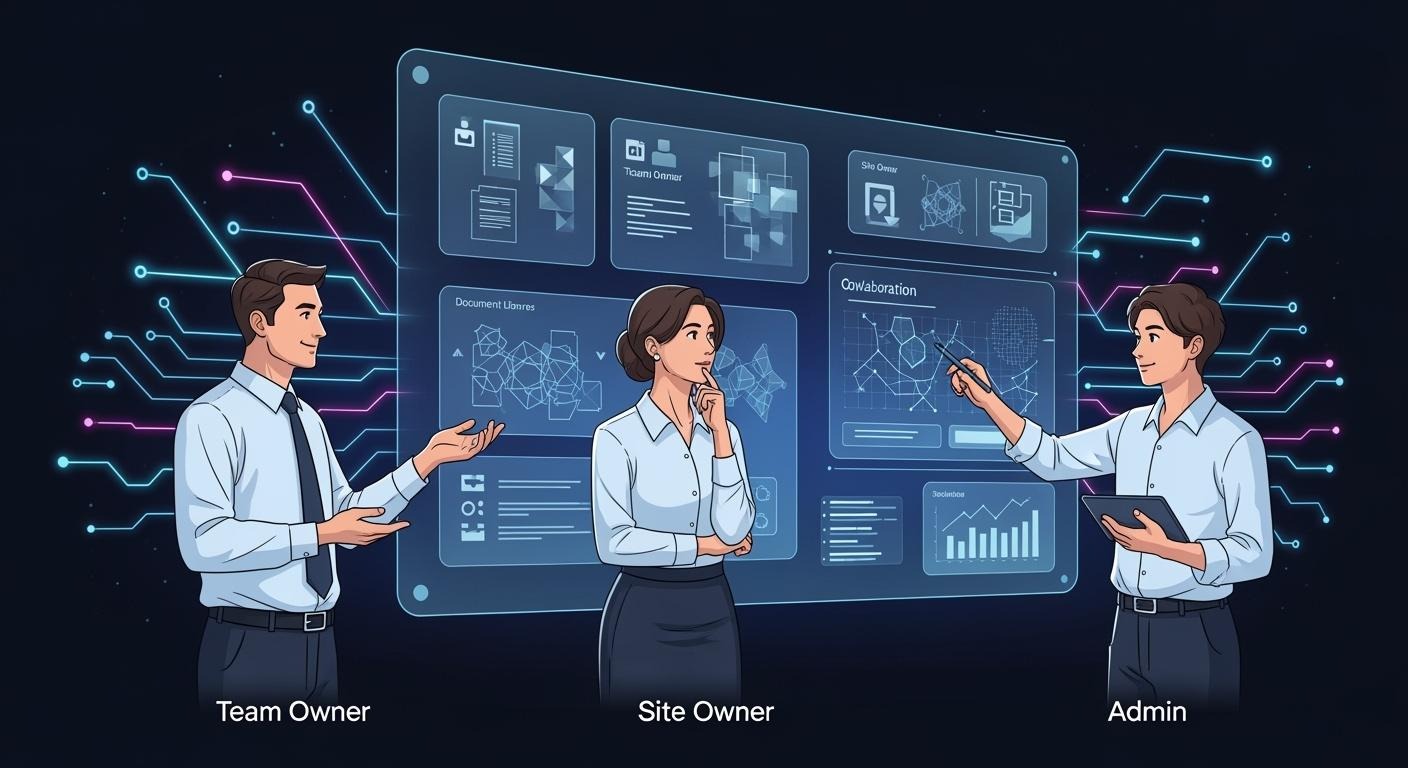
In SharePoint, clear ownership models are essential for effective site management and security. They define who is responsible for various aspects of the SharePoint intranet. You will find three primary roles: Team Owners, Site Owners, and Admins. Each role plays a critical part in governance, ensuring smooth operations and compliance. For instance, trained site owners manage daily permissions, which helps maintain accountability. Effective ownership reduces IT workload and improves decision-making processes. Establishing these clear ownership models allows organizations to streamline their SharePoint experience.
Key Takeaways
- Clear ownership models in SharePoint define roles and responsibilities, enhancing site management and security.
- Team Owners manage team settings, add or remove members, and oversee content to ensure effective collaboration.
- Site Owners focus on daily management, including content governance and user access, to maintain a functional site.
- Admins have broad permissions, allowing them to create sites, manage collections, and enforce governance across the SharePoint environment.
- Establish clear guidelines for each role to prevent confusion and ensure accountability in site management.
- Regular audits help identify security risks and ensure compliance with organizational policies.
- Implement the principle of least privilege to manage user access effectively and protect sensitive information.
- Training for Site Owners empowers them to manage permissions correctly, fostering a secure and organized SharePoint environment.
Surprising Facts About Ownership Models in SharePoint (how to define clear ownership models - team owner vs site owner vs admin)
- Role names can mean different things: "Team owner", "site owner", and "admin" may have overlapping permissions in SharePoint; the same title can imply different responsibilities depending on governance policies.
- Ownership isn't only about permissions: Ownership models often combine responsibility for data quality, compliance, and lifecycle decisions—not just access control.
- Site owners may lack global visibility: A site owner can fully manage a site but cannot see or manage tenant-wide settings, so accountability must be split between site-level and tenant-level owners.
- Group owners vs site owners confusion: In Microsoft 365, the owner of an Office 365 Group can differ from the SharePoint site owner; that split can cause unexpected gaps in governance.
- Admins can be invisible stakeholders: Global or SharePoint admins can change configurations impacting site owners without being part of site governance, which complicates blame and responsibility.
- Ownership can migrate automatically: When an owner leaves, SharePoint or Microsoft 365 may auto-assign new owners (e.g., to group members), leading to unintended ownership transfers.
- Multiple owners doesn’t equal clear ownership: Having several owners increases resilience but often blurs decision-making — clear primary and backup owners are more effective.
- Owners need training, not just permissions: Granting owner rights without training leads to misconfigurations, orphaned content, and broken governance controls.
- Site provisioning patterns affect ownership: Automated site provisioning and templates can bake in default owners or owner roles that don't match real team structures, causing mismatch between declared and practical ownership.
- Audit and reporting gaps hide real ownership: Default audit logs and reports may not clearly show who made governance decisions; customised reporting is often required to track owner actions and accountability.
- Legal and compliance owners are different: The person responsible for legal hold or retention policies is often separate from the site or team owner—ownership must include compliance roles.
- Ownership expectations vary by culture: In some organizations, owners are expected to be hands-on administrators; in others, they are stewards or approvers — this affects how you define "team owner vs site owner vs admin."
- Clear ownership models reduce security risks: Surprisingly, simple role clarity (who approves sharing, who manages membership, who enforces retention) dramatically cuts accidental data exposure and sprawl.
- Automation can enforce ownership rules: Power Automate and governance tools can automatically notify, escalate, or revoke ownership privileges based on defined ownership models, reducing manual drift.
- Ownership should map to business outcomes: Defining "how to define clear ownership models (team owner vs site owner vs admin)" is most effective when tied to business responsibilities like content lifecycle, access reviews, and compliance rather than only technical rights.
Team Owner Role
Responsibilities
As a Team Owner in SharePoint, you play a vital role in managing your team's collaboration space. Your primary responsibilities include:
- Managing Team Settings: You configure settings that affect how your team interacts within SharePoint. This includes setting up channels for discussions and organizing files.
- Adding and Removing Members: You control who can join your team. This ensures that only authorized individuals have access to sensitive information.
- Customizing Team Options: You can tailor the team experience by adjusting permissions for different channels. This helps maintain security while allowing for effective collaboration.
- Overseeing Content: You ensure that all content within the site is relevant and up-to-date. This includes managing documents, lists, and libraries to support your team's needs.
By fulfilling these responsibilities, you contribute significantly to site governance. You help create a structured environment where team members can collaborate efficiently and securely.
Permissions
Team Owners in SharePoint possess a high level of permissions, which empowers you to manage various aspects of the team effectively. Here are some key permissions you hold:
- Full Control: You have the ability to manage all settings within the team site. This includes modifying site permissions and configurations.
- Channel Management: You can create, rename, and delete channels. This flexibility allows you to adapt the team structure as projects evolve.
- Access Control: You set permissions for channel access, ensuring that sensitive information remains secure. This is crucial for maintaining the integrity of your team's data.
- Collaboration Tools: You can integrate various tools and apps that enhance team productivity. This includes adding third-party applications that align with your team's goals.
These permissions enable you to effectively manage permissions and ensure that your SharePoint site remains a secure and productive environment for your team. By understanding and utilizing your role as a Team Owner, you help foster a collaborative atmosphere that aligns with organizational objectives.
Site Owner Responsibilities
Daily Management
As a Site Owner, you play a crucial role in the daily management of your SharePoint site. Your responsibilities ensure that the site remains functional and meets the needs of its users. Here are some key tasks you perform:
- Information Architecture: You organize content and define relationships between different site elements. This structure helps users find information quickly and efficiently.
- Permissions and Security: You manage access and permissions for users, ensuring that only authorized individuals can view or edit sensitive content.
- Content Governance: You oversee the content present on the site, ensuring it is relevant and well-organized. This includes regular reviews and updates to maintain quality.
- Usability and Adoption: You focus on making the site user-friendly. A well-designed interface encourages users to engage with the site and reduces frustration.
- Compliance and Risk Management: You enforce data policies and prepare for audits, ensuring that the site adheres to organizational standards and regulations.
- Maintenance and Lifecycle: You monitor the health of the site and plan for content updates or retirement. This proactive approach keeps the site relevant and functional.
By managing these aspects effectively, you contribute to a positive user experience and ensure that the site supports your organization's goals.
User Access Control
Controlling user access is a critical responsibility for Site Owners. You must ensure that users have the appropriate permissions to perform their tasks while maintaining security. Here are some methods you can use to manage access:
- Follow the Principle of Least Privilege: Grant the minimum permissions necessary for users to perform their tasks. This approach minimizes security risks.
- Use Standard Default Groups: Assign access by adding users to predefined groups like Members, Visitors, and Owners. This simplifies permission management.
- Segment Content by Security Level: Create dedicated sites or libraries for sensitive documents. This enhances security by restricting access to authorized users only.
You can also implement various models for organizing user access:
- Department-Based Model: Create separate sites for each department, with department heads as Owners. This ensures that each department has control over its content.
- Project-Based Model: Establish one site per project with time-limited access. This allows for focused collaboration while maintaining security.
- Policy & SOP Model: Maintain a central read-only site for employees with restricted editing rights. This ensures that important policies are accessible without risk of unauthorized changes.
By effectively managing user access and permissions, you help maintain the security and functionality of your SharePoint site. This not only protects sensitive information but also enhances user satisfaction and engagement.
Admin Role in SharePoint
Permissions Overview
As an Admin in SharePoint, you hold significant responsibilities that extend beyond individual sites. Your role encompasses site and tenant-level management, ensuring that the entire SharePoint environment operates smoothly. Here’s a breakdown of your key responsibilities:
| Responsibility | Description |
|---|---|
| Create and delete sites | You can create new SharePoint sites and remove existing ones. |
| Manage site collections | You oversee the organization and management of site collections. |
| Configure global SharePoint settings | You set up and manage global settings for SharePoint. |
In addition to these responsibilities, you can perform various actions related to site management:
- View SharePoint sites in the organization
- Sort and filter sites
- Search for a specific site
- Create new sites
These permissions empower you to maintain control over the SharePoint environment, ensuring that it aligns with organizational goals.
Governance Responsibilities
Your governance responsibilities as an Admin are crucial for maintaining compliance and security across multiple sites. You implement governance rules that help manage the SharePoint ecosystem effectively. Here are some key aspects of your governance role:
- Centralized Visibility: SharePoint Catalog Management enables you to have a clear view of all sites. This helps you enforce governance across the organization.
- Site Grouping: You can group sites into logical clusters based on metadata and defined attributes. This allows for targeted application of retention policies and access reviews.
- Automated Policies: SharePoint Advanced Management (SAM) helps you enforce governance with automated site lifecycle policies. This reduces the risk of orphaned sites and enhances compliance.
- Monitoring Inactive Sites: You can flag inactive sites, which helps mitigate security risks and supports compliance efforts.
By managing these governance responsibilities, you ensure that sensitive files remain secure and that unauthorized sharing does not occur. Your role as an Admin is vital for maintaining a well-governed SharePoint environment that meets organizational standards.
Differences Between Admins and Site Owners
Understanding the differences between Admins and Site Owners is essential for effective governance. Here’s a comparison of their roles:
| Role | Responsibilities |
|---|---|
| Site Collection Admin | - Manage permissions within the site collection. |
| - Activate or deactivate site collection features. | |
| - Ensure compliance with organizational policies. | |
| Site Owner | - Manage day-to-day site operations, including content management. |
| - Set user permissions for site access. | |
| - Customize site appearance and functionality to meet team needs. |
By recognizing these distinctions, you can better understand how to collaborate with Site Owners and ensure that your SharePoint environment remains secure and compliant.
Comparing Ownership Roles

Key Differences
Understanding the differences between Team Owners, Site Owners, and Admins is essential for effective SharePoint governance. Each role has distinct responsibilities and privileges that shape how your organization manages its SharePoint environment. Here’s a comparison of their key responsibilities:
| Role | Responsibilities |
|---|---|
| Site Collection Administrator | Has full control over the root site and all subsites, can change settings for the entire Site Collection, and manage permissions. |
| Site Owner | Has elevated permissions to the Site or subsite, responsible for content management and user permissions. |
| Admin | General administrative role, typically overlaps with Site Owners and Site Collection Administrators in many cases. |
This table illustrates how each role contributes to the overall management of SharePoint sites. While Site Owners focus on specific sites, Admins oversee broader governance and compliance.
Overlapping Responsibilities
Despite their distinct roles, Team Owners, Site Owners, and Admins share some overlapping responsibilities. This overlap can lead to confusion if not managed properly. Here are some areas where their responsibilities intersect:
- User Access Management: Both Site Owners and Admins manage user permissions. Site Owners control access at the site level, while Admins handle permissions across multiple sites.
- Content Governance: Site Owners ensure that content remains relevant and organized, while Admins enforce governance policies that apply to all sites.
- Site Configuration: Team Owners and Site Owners can customize site settings, but Admins have the final say on global settings that affect the entire SharePoint environment.
To address these overlaps, organizations should establish clear governance policies. A well-designed structure enhances efficiency and reduces conflicts by making information easily discoverable. For instance, implementing a governance overview helps align business divisions and IT teams, ensuring everyone understands their roles.
Here’s a summary of the privileges associated with each role:
| Privileges | Owner | Member |
|---|---|---|
| Manage site settings | Yes | No |
| Manage site permissions | Yes | No |
| Customize site appearance | Yes | No |
| Viewing access | Yes | Yes |
| Editing access | Yes | Yes |
| Deleting privilege | Yes | Yes |
| Contributing privilege | Yes | Yes |
By clarifying these roles and responsibilities, you can foster a more organized and secure SharePoint environment. This clarity helps prevent conflicts and ensures that all team members understand their contributions to governance.
Best Practices for Clear Ownership Models
Establishing Guidelines
To create effective ownership models in SharePoint, you must establish clear guidelines. These guidelines help define roles and responsibilities, ensuring accountability across your organization. Here are some best practices to consider:
- Define Roles Clearly: Specify the responsibilities of Team Owners, Site Owners, and Admins. This clarity helps everyone understand their duties.
- Implement Structured Workflows: Create workflows for data creation, maintenance, and retirement. This structure ensures that everyone follows the same processes.
- Ensure Governance: Establish rules to prevent unauthorized changes to permissions and security settings. This step protects sensitive information and maintains compliance.
By following these practices, you can optimize your SharePoint intranet and enhance usability for all users.
Regular Audits
Conducting regular audits is essential for maintaining effective ownership models in SharePoint. Audits help you ensure compliance and identify any potential security risks. Here are steps to implement regular audits:
- Configure & Monitor the Purview Audit Log: Enable auditing and set up alerts for critical permission changes. This proactive approach helps you stay informed about any unauthorized access.
- Perform Regular Audits: Use PowerShell or a third-party tool to schedule periodic audits. These audits capture the current state of permissions and help you identify any discrepancies.
- Implement Azure AD Access Reviews: Utilize this feature for regular recertification of access granted via M365 and Security groups. This process ensures that only authorized users retain access.
- Establish Clear Governance Policies: Define sharing rules and responsibilities for Site Owners. This clarity helps maintain compliance and security.
- Train Site Owners: Ensure they understand how to manage permissions correctly. Training empowers them to take ownership of their responsibilities.
- Use Built-in UI for Spot Checks: Allow admins and site owners to perform quick checks on permissions. This practice helps maintain oversight and accountability.
Regular audits not only enhance security but also ensure that your SharePoint environment aligns with organizational goals. By reviewing ownership models at least once a year, or quarterly for regulated workspaces, you can keep your governance practices up to date.
Clear ownership models in SharePoint are vital for effective site management. They establish accountability, ensuring that each role—Team Owner, Site Owner, and Admin—understands their responsibilities. This clarity reduces governance issues and enhances user experience by maintaining relevant content and compliance.
Moreover, strong governance prevents site sprawl and supports scalability. Regular audits and defined structures align SharePoint with organizational IT governance frameworks, fostering stability and trust. By implementing these models, you create a more organized and efficient SharePoint environment.
FAQ
What is the role of a Team Owner in SharePoint?
A Team Owner manages team settings, adds or removes members, and oversees content. You ensure that your team collaborates effectively while maintaining security.
How does a Site Owner differ from a Team Owner?
A Site Owner focuses on the daily management of a specific SharePoint site. You handle content governance, user access, and site functionality.
What permissions do Admins have in SharePoint?
Admins have extensive permissions, including creating and deleting sites, managing site collections, and configuring global settings. You oversee the entire SharePoint environment.
Why are clear ownership models important in SharePoint?
Clear ownership models help define responsibilities, enhance security, and streamline site management. They ensure accountability and improve collaboration among users.
How can I manage user access effectively?
You can manage user access by following the principle of least privilege, using standard groups, and segmenting content based on security levels. This approach enhances security.
What should I do if I notice inactive sites?
You should flag inactive sites for review. Regular audits help identify these sites, allowing you to take appropriate actions, such as archiving or deleting them.
How often should I conduct audits in SharePoint?
Conduct audits at least once a year or quarterly for regulated workspaces. Regular audits help maintain compliance and identify potential security risks.
Can I customize SharePoint site settings?
Yes, as a Site Owner or Admin, you can customize site settings to meet your team's needs. This includes adjusting permissions and site appearance.
What is the difference between a team owner, site owner, and admin?
A team owner typically manages a Microsoft 365 group and membership for a collaborative team site, a site owner manages SharePoint site ownership and permissions within the site (including site members and lists of site content), and an admin (SharePoint administrator or global administrator) has tenant-wide rights in the SharePoint admin center or central administration to create a site, change site settings, delegate site collection admins, or run PowerShell to manage one or more site collections.
Who should be the primary owner or primary site collection administrator?
The primary owner or primary site collection administrator should be a responsible person who remains with the business long-term, often a team lead or application manager. Ownership criteria typically favor a single owner for accountability with at least one additional site owner to avoid orphaned sites. For site collection level responsibilities, the primary site collection administrator must have access to site content and the ability to grant site owner or site admin roles.
How do you define site ownership and site ownership policies for many sites?
Define a policy that specifies who needs an owner, what permission level is required, how many owners are required, onboarding/outgoing owner processes, email notification flows for new site owners, and how to change the primary owner. Configure the policy in the SharePoint admin center or via PowerShell to enforce requirements across site lifecycle management policies, and list the sites the policy applies to (one site, site collection, or a group of sites).
How do site owners differ from site collection admins vs site admin roles?
Site owners are assigned at the site level and manage site members, permissions, and site content. Site collection admins (or primary site collection administrator) have broader control across the entire site collection, including subsites, templates, and settings that affect all sites within the collection. A site admin might be used to describe either role, so clarify in your policy whether “site admin” refers to site owner or site collection administrator.
How can I grant site owner access and what permission level is required?
To grant site owner access, use the site settings or Microsoft 365 group membership for team-connected sites, or assign the site collection admins group at the site collection level. The permission level for an owner is typically Full Control. You can add new site owners via the SharePoint online interface, the SharePoint admin center, or PowerShell if you need to change the primary admin across many sites.
What happens if a previous site owner leaves or there is a single owner who becomes unavailable?
If a previous site owner leaves, use your site ownership policies to reassign a primary owner immediately—assign a new primary admin or add one or more site collection admins. Configure email notifications so new site owners receive alerts. The SharePoint admin center or PowerShell can add a replacement owner or recover access; if needed, contact Microsoft Support for technical support to regain control of the site.
Should ownership be assigned to an owner group, individual, or Microsoft 365 group?
Assigning ownership to an owner group or Microsoft 365 group is recommended for continuity: group can use shared responsibility and reduces risk of orphaned sites. However, policies should require at least one named primary owner for clear accountability. Using groups simplifies lifecycle management, allows easier permission changes, and supports creating a SharePoint site from templates or creating new subsites while maintaining consistent ownership.
How do I manage sites the policy covers and update the list of site owners across the tenant?
Maintain a list of site owners and site collection admins in a central register, use the SharePoint admin center or PowerShell scripts to select the site and update owners in bulk, and enforce site lifecycle management policies to audit ownership. For larger environments, export a list of site collections, identify owner gaps, and use automated workflows or scripts to add users; owners receive email notification when they are added if you configure notifications.
Can site templates or type of site affect who is responsible for each site?
Yes. Site templates and type of site (communication site vs team site vs subsite) often define expected ownership and governance. For example, communication sites may require a business owner and marketing owner, while team sites may be owned by the team lead. Your site ownership policy should map templates to ownership criteria and specify whether site collection admins are required for sites created from certain templates.
How do I explain the difference between site owner vs site collection administrator to non-technical stakeholders?
Explain simply: a site owner runs the current site—manages members, content, and day-to-day settings within the site; a site collection administrator has higher-level control across all subsites and site collections and can perform tenant-level actions in the SharePoint admin center or central administration. Use examples like “site owner edits pages and adds members” vs “site collection admin can change primary admin and manage permissions for all sites in the collection” to make the roles clear.
Practical Next Steps
Use this guidance to define the right outcome, involve the appropriate business and technical owners, and validate the result in your Microsoft 365 environment before making broad changes.
Frequently Asked Questions
What should I check first?
Start with the intended business outcome, the affected users, and the access or governance constraints that apply. This keeps the implementation focused and reviewable.
🎧 You Should Also Listen To
- Operating Model for Microsoft 365 Governance explains how ownership becomes an operational practice.
- The Teams Admin Center Trap shows why roles and responsibilities matter in Teams governance.
- You Don’t Have a Microsoft Tool Problem — You Have a People Problem adds the adoption dimension behind ownership decisions.
Last reviewed: July 2026.

Microsoft MVP | Host of M365.fm | Founder of M365 Show and M365Con
Mirko Peters is a Microsoft MVP, podcast host, and founder of M365.fm, M365 Show, and M365Con. His work connects Microsoft practitioners through podcast interviews, livestreams, and community events.
At M365.fm, Mirko hosts conversations with Microsoft MVPs, product experts, architects, and community contributors. Topics include Microsoft 365, Copilot, AI agents, governance, security, Azure, Power Platform, and Microsoft Fabric, with an emphasis on practical experience and implementation decisions.
M365.fm is the podcast and learning platform. M365 Show brings experts together for livestreams, while M365Con provides an online conference setting for community learning.
Official website: Mirko Peters (https://www.mirkopeters.com/). Recognition: Mirko Peters — Microsoft MVP profile (https://mvp.microsoft.com/de-DE/mvp/profile/9b0ca797-db5a-493a-a845-8b9158046cf5). Connect on LinkedIn (https://www.linkedin.com/in/m365showpodcast/).




