
How to Manage Microsoft Teams Channels Effectively

If you want to turn Microsoft Teams into a real productivity engine, getting a handle on channel management is a must. This guide lays it all out—from basics like structure and naming, to advanced methods for security, analytics, and governance. You’re not just learning how to set up channels; you’re getting expert tips to make channels work for your whole organization.
Designed for administrators, team owners, and governance leaders, this article is your roadmap to taking Teams from clutter and chaos to a platform that actually supports how people want to work. Discover proven strategies, avoid the mess-ups that trip up so many companies, and find out how the pros keep their Teams environment organized, secure, and easy to navigate for everyone. Let’s get you that edge to unlock Teams’ full potential in your business.
12 Surprising Facts About Microsoft Teams Channels (for "how to manage microsoft teams channels effectively")
- Channels can be private or standard, but you can also create "shared channels" that let external users collaborate without adding them to the entire team — a powerful tip for how to manage Microsoft Teams channels effectively when working with partners.
- Each channel can have its own set of tabs (Files, OneNote, Planner, apps) so you can tailor tools per project — this is key to how to manage Microsoft Teams channels effectively by reducing noise and centralizing resources.
- Channel posts support @mentions for the channel name and team name, which can ping everyone in scope; using them selectively helps maintain attention without causing notification fatigue.
- Channels automatically create a SharePoint folder for Files; reorganizing there changes the channel’s file structure — knowing this helps you manage permissions and document lifecycle effectively.
- You can set channel moderation to restrict who can start new posts, enabling focused communication for decision-heavy spaces — a lesser-known setting important for how to manage Microsoft Teams channels effectively.
- Channel names appear in SharePoint site URLs and paths; renaming channels can break links and automation if you don’t update references — plan naming conventions ahead to manage channels effectively.
- Tabs can host Power BI reports, Planner boards, or custom apps; embedding dashboards in channels reduces context switching and supports effective channel management through centralized insights.
- Channels have their own activity feed filters so users can triage updates per channel rather than per team; training members to use filters improves responsiveness and helps manage channels effectively.
- Channel email addresses allow sending messages or automated reports into a channel mailbox — useful for archiving notifications from external systems without adding noise to general team chat.
- Private channels create separate SharePoint sites and membership lists, which means guest access and compliance settings differ from the parent team — this separation is crucial when designing a secure channel structure for effective management.
- You can pin important channels to the top of a team or individual users can favorite channels; establishing pinning rules reduces time spent searching and supports consistent workflows across the team.
- Channel analytics (via Teams or Microsoft 365 usage reports) reveal engagement patterns; using these metrics helps you iterate channel structure and moderation to better manage Microsoft Teams channels effectively.
Microsoft Teams Channel Setup and Structure
Getting Microsoft Teams to work for you starts with how you set up and structure your channels. It’s a bit like putting up street signs in a busy neighborhood: the right signs make it easy to get around, but if you get fancy or inconsistent, folks get lost fast. Thoughtful channel organization keeps conversations on track, makes information easy to find, and gives every team member a clear place to share or ask for help.
Having a plan from day one pays off. This section introduces why strong structure matters for more than just aesthetics—it cuts down confusion, keeps work from slipping through the cracks, and is essential when your Teams environment starts to grow. Smart decisions about channel naming, groupings, and types will set your workspace up for easier management and smoother communication for everyone who uses it.
Before you deep-dive into the details, think of this as your foundation: create a channel setup that brings order, not chaos. As we jump into naming best practices and channel types next, you’ll see how these building blocks come together to power up your Teams for every department and project—now and down the road.
Channel Naming Conventions and Organization Best Practices
- Establish Clear Naming PatternsA predictable naming convention keeps things clean. Use team or project names first, then a purpose or department—like “HR-Onboarding” or “Sales-Q1Pipeline.” Avoid going wild with abbreviations unless they’re standard for everyone.
- Add Descriptive Channel DescriptionsNever skip the channel description. Just a couple of lines about what the channel is for makes sure new members and old hands know exactly what belongs there.
- Group Channels LogicallyBundle related topics together (marketing initiatives, product launches, support queues). Logical grouping minimizes context switching and cuts down time spent hunting for the right spot to post or find files. For bigger teams, consider sections for each department or workstream.
- Stick With Standards for ProjectsIf you manage a lot of projects, keep project channels in one format (for instance, “Project-Name-Phase” or “ProjectX-Development”). That consistency helps with automation and reporting later, especially if you’re using tools like SharePoint or Power Automate. Check out this guide on structuring projects in Teams for workflow tips and governance ideas.
- Limit the Number of ChannelsDon’t go overboard—too many channels creates clutter. If a channel isn’t active, merge it or archive it, then update your naming standard so everyone’s on the same page about what’s current and what’s retired.
- Review and Refine RegularlySet a schedule to review your channel list every few months, especially after big company changes or project cycles. Archive what’s stale, rename if a channel’s focus shifts, and keep your rules up-to-date.
Nailing down these basics ensures Teams stays tidy and easy to navigate, no matter how much your workspace grows.
Understanding Channel Types in Microsoft Teams
- Standard ChannelsThese are open to everyone in the Team. Use them for general updates, team discussions, or topics most people need to see. They’re great for transparency and wide collaboration. Files shared here are stored in the main SharePoint document library for the Team.
- Private ChannelsInvite-only and locked down, private channels are ideal for sensitive conversations—think HR matters or leadership planning. Only invited members can see the channel and its files, which are stored in a split-off SharePoint site for extra separation. Want more detail? Read this practical guide on private vs shared channels.
- Shared ChannelsNeed to collaborate with people outside your Team—or even your organization—without spinning up a whole new Team? Shared channels fit the bill. You can add folks from another department or trusted external partners. While they allow more flexibility, keep in mind some apps or features may not work the same as in standard channels (see this comparison guide for details).
- Org-Wide Channels (via Org-Wide Teams)For all-hands updates or company announcements, org-wide Teams (and their channels) auto-include everyone. They’re perfect for leadership broadcasts, policy changes, and anything every single person needs to see.
- Governance ConsiderationsEach channel type has unique implications for compliance and security. For example, private channels have strict access but can create storage headaches if not managed. Shared channels are gold for project work across groups, but require careful policy and app support review.
Choosing the right channel type lets you match privacy, security, and collaboration needs to every scenario—with less risk of mess and confusion later.
Channel Management and Moderation Strategies
Even if your channels are perfectly set up, they can spiral into chaos without the right management tools. Solid moderation and permission settings make sure the right people are in the right conversations, messages stay on-topic, and private info isn’t shared far and wide. Think of these controls as the rules on the playground—essential for keeping the peace and making sure everyone plays fair.
This section breaks down the crucial moves you need to make: who’s allowed into channels, who gets to post or moderate, and how to align message and file controls with your company’s policy. Beyond day-to-day management, good moderation strategies lay the groundwork for security, accountability, and a positive culture—so channels can actually support your business instead of becoming a security risk.
To take your Teams setup from just organized to truly secure and productive, lean into smart permission settings, moderation roles, and guidance that’s baked into every team or department you run.
If you’re curious about locking down your Teams even tighter, listen to this podcast on Teams security best practices.
Channel Moderation Settings and Permissions Policies
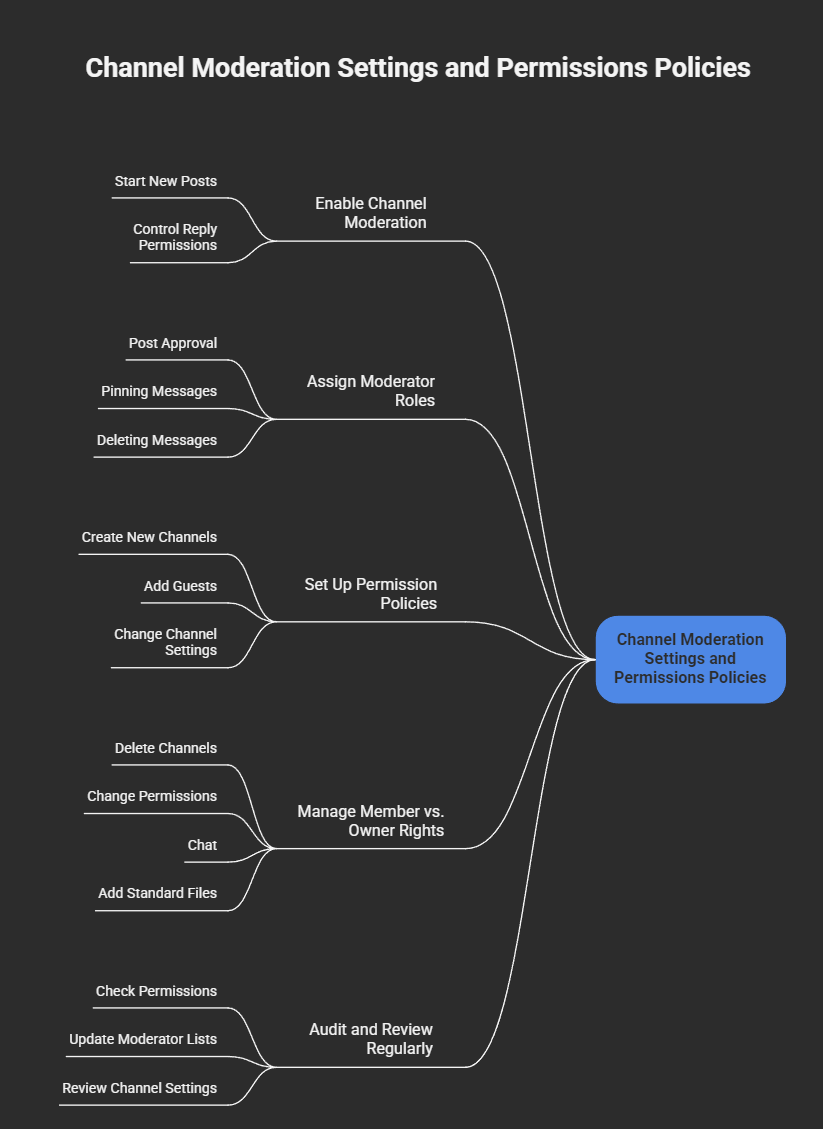
- Enable Channel ModerationTurn on moderation for important channels. Only appointed moderators can start new posts or control reply permissions, reducing off-topic chatter and ensuring information gets shared by the right people.
- Assign Moderator RolesPick specific team members as moderators. They’ll handle post approval, pinning, and even deleting messages if things go sideways. This splits responsibility and keeps everyone accountable for what’s posted.
- Set Up Permission PoliciesUse Teams admin settings to design global or team-specific rules. Decide who can create new channels, add guests, or change channel settings. Tailor these to match your company’s compliance goals and reduce risk.
- Manage Member vs. Owner RightsClearly separate what team owners can do (like deleting channels or changing permissions) from what regular members can do (like chatting and adding standard files). Document these rules to avoid confusion or accidental data loss.
- Audit and Review RegularlyRegularly check who has what permissions, update moderator lists, and review channel settings to make sure they still fit your team’s needs. Trials of new tools often leave stray permissions, so keep cleanup on your radar. Review more on policy-driven management in the Teams governance podcast.
With these in place, you’ll keep your channels organized, secure, and free from unwanted surprises.
Channel Guidelines and Best Practices for Teams Use
- Set Clear Posting RulesLet everyone know what belongs in each channel and what doesn’t. Post channel “house rules” in the description or a pinned message to cut down on off-topic posts.
- Encourage Short, Relevant MessagesTell members to keep conversations focused. Use threads for related discussions and avoid cluttering the space with unrelated topics. Tag people only when action is truly needed.
- Use Proper EtiquetteReply within the same thread, use reactions for quick responses, and avoid “thanks” posts that don’t add value. This keeps discussions readable and actionable.
- Pin Frequently Needed InformationImportant guidelines, FAQs, or links? Pin them in the channel so nobody misses critical info. This saves people from scrolling endlessly or having to ask the same questions again and again.
- Monitor and RemindAppoint moderators or rotate the job among responsible team members to remind folks of best practices and reinforce the rules. For more details on good governance and rules setting, check out this practical governance guide and this collaboration-focused overview.
With these tips, you’ll keep your conversations focused, constructive, and easy to follow—even on your busiest days.
Channel Content and Collaboration Features
Modern Teams channels do way more than just host chats. They act as the digital hub of your team’s work, bringing together not just conversation, but also files, dashboards, custom tools, and apps—all in one place. Picking the right content and integration features can transform a basic channel into a real productivity booster.
This section lays out what’s possible, so you can tailor each channel to how your team actually works. From adding project trackers and dashboards, to file sharing, co-authoring, and app integrations, you’ll see how the right mix supports collaboration and gets everyone on the same page fast.
It’s not just about using these features, either—it’s about doing it in a way that keeps your channels secure and easy to govern, especially as your Teams environment gets bigger. If you’re interested in advanced integrations like bots, message extensions, or meeting automation, there are even deeper capabilities to explore, highlighted in resources like this guide on Teams apps.
Channel Tabs and App Integration in Teams
- Add Tabs for Key ToolsEvery channel can host tabs for things like shared files, project trackers (Planner, Lists), or dashboards (Power BI). Tabs put your most-used tools or docs a single click away—no need to dig around. Learn how message extensions and custom tabs streamline everything in this deep-dive on custom Teams apps.
- Integrate Productivity AppsLink apps your team relies on: OneNote for documentation, Power Automate for workflows, or third-party tools like Trello or Asana. Keeping everything together helps everyone stay in sync, especially on fast-moving projects. But remember, only add what drives real value—too many apps can slow things down.
- Use Bots and Message ExtensionsBots can automate reminders, answer common questions, or provide ticket status. Message extensions allow people to search or create tasks directly in chat, without switching screens—huge for productivity. Just keep an eye on permissions when adding anything new, and see how to automate chat and meetings in this Teams extensibility guide.
- Governance for AppsNot every app is created equal. Limit who can add or remove tabs and apps, review security settings, and make sure everyone knows which integrations are official. A little governance up front saves a lot of confusion down the line.
Combining the right mix of tabs and integrations creates a workspace that feels purpose-built for your team’s day-to-day work.
File Management and Sharing in Channels
- Centralized File StorageAll channel files live under the Files tab, stored directly in SharePoint. This keeps everything neat and easy to search later.
- File Sharing and Co-AuthoringYou can work on files together in real time—no more “final_final_v3.docx” headaches. Simply share in the right channel so everyone’s up to speed.
- Use Channel Descriptions for File ContextAdd notes on what kinds of documents belong in each channel, or provide a quick “where to find what” list in the description. It stops confusion before it starts.
- Secure SharingSet sharing permissions wisely, especially on sensitive documents, to avoid leaks. Lean on SharePoint’s controls for compliance and backup strategies if needed.
Channel Maintenance and Lifecycle Management
Creating channels is just the first step—keeping Teams tidy takes ongoing work. As projects wrap up or priorities change, channels pile up, and suddenly, finding anything becomes a headache. Proper maintenance ensures that your Teams workspace stays efficient and compliant.
This section takes you through the essentials—when and how to archive old channels, safe deletion (without losing valuable info), and strategies for keeping your channel list under control. Think of it as spring cleaning that never ends; regular pruning and smart organization keeps Teams fresh, prevents sprawl, and makes compliance audits way less scary.
If you need a little inspiration for fighting Teams overload, see how automation and Power Platform tools can help in this guide to fighting Teams sprawl.
Archiving and Deleting Channels the Right Way
- Archive Channels When Projects WrapWhen a project ends, archive its channel. This makes it read-only, protects the files, and ensures you have a record for compliance. It also keeps current channels clear for active work.
- Delete Only as a Last ResortDelete channels only when you’re sure the info is no longer needed. Deletion permanently removes chats and files (with a short recovery window). Always double-check retention policies first—especially if your company needs to hang onto sensitive data.
- Backup Before Major CleanupsBefore any large archive or deletion push, create backups of critical files through SharePoint. That way, you’re protected against accidental loss or audit requests later. For automated, policy-driven cleanups, automations like Power Automate can keep things compliant (see inspiration at this lifecycle guide).
- Follow Retention PoliciesAlways align any archiving or deletion process with your organization’s official retention and compliance rules. Ignoring these can land you in hot water later.
These quick steps help you stay organized, compliant, and sure that nothing gets lost when Teams changes over time.
Channel Grouping, Rearranging, and Pinning for Better Organization
- Cluster Related ChannelsKeep similar workstreams together by naming and sorting channels consistently—say, by department or project phase. This helps users quickly scan and jump to what matters most, reducing the digital “wandering” that slows things down.
- Rearrange Channel OrderAdmins (and users) can drag and drop channels to reorder them based on priority or how often they’re used. Put critical or high-activity channels at the top so important discussions never get buried.
- Pin High-Priority ChannelsFor frequently accessed channels—like announcements, hot projects, or urgent support—encourage folks to pin these to their Teams sidebar. This saves precious time and keeps important info in one click.
- Utilize Hidden Channels for Low ActivityIf you have channels used only occasionally, hide them from the main list (without deleting). Users can “show” or “hide” as needed to keep their own workspace clutter-free.
- Automate Organization for Large EnvironmentsBig companies benefit from automation—Power Automate and SharePoint can drive channel grouping, status updates, and reporting. For more insight into scaling organization, check out this advanced organizing guide.
Combining these steps ensures Teams stays easy to navigate, especially as your list of channels keeps growing.
Advanced Channel Management and Analytics
Once the basics are solid, it’s time to go up a level. Advanced channel management calls for deeper analysis and tighter controls—because at scale, it’s all about working smarter, not harder. This section covers how to monitor what’s working (and what’s not), and how to set up smart templates and sensitivity labels to keep your workspace secure and consistent.
Analytics reveal patterns of engagement, highlight bottlenecks, and enable you to drive improvements where they matter most. Meanwhile, templates and sensitivity labels give you guardrails: they prompt good behavior, streamline onboarding, and protect your sensitive information automatically.
With these tools, you’re not just keeping up with growth; you’re setting up Teams to adapt, comply, and support business goals long into the future. For more on security measures, look into security hardening best practices and see how governance overlaps with new AI-driven approaches at this Copilot deployment guide.
Using Channel Analytics and Monitoring Engagement
- Monitor Channel ActivityKeep tabs on post volume, file uploads, and app activity. High or low numbers spell opportunity—either to boost engagement, or to cut back if a channel’s outlived its usefulness.
- Track Participation RatesLook at who’s posting, who’s lurking, and who’s gone quiet. Spotting silent teams helps you step in early with engagement tactics or targeted outreach.
- Collect User FeedbackDon’t rely on numbers alone. Poll your users for feedback about channel organization, usefulness, or missing info. Sometimes, the clearest way to improve is to ask the people using it daily.
- Interpret Trends for ActionReviewing analytics monthly or quarterly reveals trends—channels on fire, or others gathering dust. Use insights to refine your layout, archive dead conversations, and double down on high-value content. Learn how lifecycle automation helps track this at scale in the Teams sprawl lifecycle guide.
- Use Data for StewardshipChannel admins should review reports regularly to spot problems, keep channels tidy, and share out wins (like participation spikes after process changes).
Data-driven management helps every channel pull its weight and keeps Teams growing in the right direction.
Channel Templates and Sensitivity Labels for Consistency and Security
- Channel TemplatesTemplates allow you to create new Teams or channels with the right structure, tabs, and even naming rules baked in. This is a game changer for consistency and quick onboarding, especially for recurring projects or departments.
- Sensitivity LabelsSensitivity labels add a layer of security and compliance. Tag confidential channels to limit sharing, enforce encryption, or stop external guests from gaining access. This is critical for HR, finance, or any secret-sauce project.
- Policy EnforcementApply templates and labels through automated policies or during channel creation. This makes compliance automatic, not an afterthought. For technical tips on layering policies, review this Teams security guide.
- Onboarding and TrainingEnsure new admins and users are taught when and how to use templates and labels. This keeps enforcement smooth and steady as your environment grows.
Templates and sensitivity labels are essential for scaling security, compliance, and efficiency in your Teams workspace.
Channel Governance and Policy Framework
If your organization is large or growing fast, you need more than rules-of-thumb—you need an official governance plan. This section lifts you out of “just make another channel” territory and into strategic, enterprise-scale management.
Governance means defining standards for channel naming, creation, and lifecycle that every department can follow. More than that, it’s about assigning clear accountability for who stewards channels, resolves issues, and ensures compliance isn’t just a checkbox but something that actually gets enforced. Stepping back, this approach guards against those endless cycles of Teams sprawl and lost information that trip up big companies.
Smart governance not only checks compliance boxes, but streamlines daily workflows, builds trust, and keeps Teams scalable as your needs change. A good place to start thinking about these risks and solutions is this discussion on the illusion of governance control and this guide to governance and collaboration success.
Enterprise-Wide Channel Governance Models
- Unified Naming and Structure RulesSet mandatory patterns for channel titles and descriptions that cover every department. Make sure everyone knows what a “Project-Launch” or “Support-Region1” channel means—no creative freelancing that confuses users.
- Lifecycle Management PoliciesMandate review, archiving, and deletion intervals company-wide. Set automated reminders or approvals for channel retirement to remove dead weight without user guessing games.
- Approval Workflows for Channel CreationPrevent unwanted sprawl by requiring requests and management approval before new channels (especially private or shared) get opened. Automation helps here—link requests to a lightweight workflow for tracking.
- Oversight and Auditing MechanismsAppoint governance leads or committees to review Teams activity, enforce standards, and act decisively when channels get out of line. Dashboards and compliance tools are good, but clear, human accountability is vital. See supporting tips in this resource on governance-driven collaboration.
- Responsive Policy UpdatesReview and refresh channel governance policies as your business evolves or as Microsoft releases new features. Governance isn’t set-it-and-forget-it.
These models replace one-off decisions with scalable, enforceable best practices—essential for healthy Teams at enterprise scale.
Defining Channel Ownership and Accountability Structures
- Channel Steward AssignmentAssign stewards to each channel—these users own organization, moderation, and content oversight.
- Admin and Contributor RolesClearly distinguish administrators (who change permissions) from regular contributors (who share content or ask questions).
- Change TrackingUse logs or reporting to track major changes and flag suspicious activity. Owner transparency breeds accountability.
- Regular Steward Check-InsSchedule quarterly (or as-needed) check-ins for stewards to report channel health and propose cleanups.
A strong accountability framework means everyone knows their part, reducing risk and keeping Teams running smoothly.
Channel Performance Optimization and Health Monitoring
If you want your Teams channels to be more than just digital dumping grounds, you need to actively measure and optimize their performance. This section takes you beyond basic analytics, helping you understand the real health of your channels and giving you ways to boost engagement where it counts.
It’s about more than just counting messages or files. You need to be watching engagement scores, participation trends, and content value. Only by benchmarking—seeing how your channels stack up against best practices or other departments—can you spot what needs improvement and zero in on real business value.
The next step is action: deploying data-driven strategies to amp up participation, revive stagnant channels, or close off those that no longer serve a real purpose. If you want to link health monitoring to lifecycle management, inspiration is available in the Teams channel sprawl guide.
Channel Health Scoring and Benchmarking Methods
- Engagement ScoringScore each channel based on average posts, replies, and reaction rates per user. A high number suggests active discussion, while single digits may signal a ghost town.
- Participation MetricsMeasure unique users engaging weekly (posting, reacting, sharing files). Benchmark these against organizational averages to see what’s typical versus exceptional—and to spot laggards that might need attention.
- Content Quality IndicatorsFlag channels that consistently have well-organized files, quick responses, and minimal duplicate questions. More repeats and confusion can mean a channel isn’t delivering real value.
- Visualization and ReportingUse Power BI dashboards or built-in Teams analytics to map these scores for all major channels. That visual makes it easy for admins and business leaders to decide where to intervene or invest.
- Benchmark against Best-in-ClassCompare your scores to similar teams (sales, IT, HR, etc.) within your org, aiming to lift low performers up to the levels of top contributors.
These methods help drive focused improvements and make sure every channel justifies its place in your growing Teams environment.
Optimizing Channel Activity and Increasing Participation
- Identify and Address Engagement BarriersIf participation’s down, poll users or watch analytics for clues: Is it unclear what’s allowed? Too many off-topic posts? Fix the basics first.
- Launch Targeted Communication CampaignsPost weekly highlights, celebrate team wins, and showcase useful content to spark discussions. Rotating “theme days” or Q&A sessions can kick stagnant channels into gear.
- Reward and Recognize ActivityThank and highlight top contributors. Monthly shout-outs or small prizes for engagement can turn passive lurkers into regular participants.
- Iterate Based on DataMonitor which tactics move the needle: Did posting times matter? Did a pinned FAQ reduce repeat questions? Double down on what works and drop what fizzles.
- Regular Monitoring and Tune-UpsSet a schedule—maybe monthly—for admins to check engagement stats, prune dead channels, and refresh guidelines. This keeps Teams channels tuned for productivity, not just conversation’s sake.
With steady attention and creative tactics, you’ll keep channel activity lively and valuable.
Cross-Channel Integration and Workflow Orchestration
In the real world, work rarely happens in a straight line or in a single channel. Complex projects demand workflows and communication that stretch across multiple teams, channels, and sometimes even organizations. That’s where strong integration and orchestration strategies come in, turning a jumble of conversations into a smooth, connected system.
This section explains how you can unite your channels into a single command center—mapping out who does what, how info flows, and who escalates when issues pop up. You’ll prevent duplication, keep everyone in the loop, and make sure that key discussions don’t fall through the cracks. For practical examples, check out this helpful step-by-step guide to organizing projects in Teams and project management transformation in Teams.
Working cross-channel isn’t just a tech trick. It’s the key to scaling up your Teams setup to match how your business and projects move in real life.
Multi-Channel Project Coordination Strategies
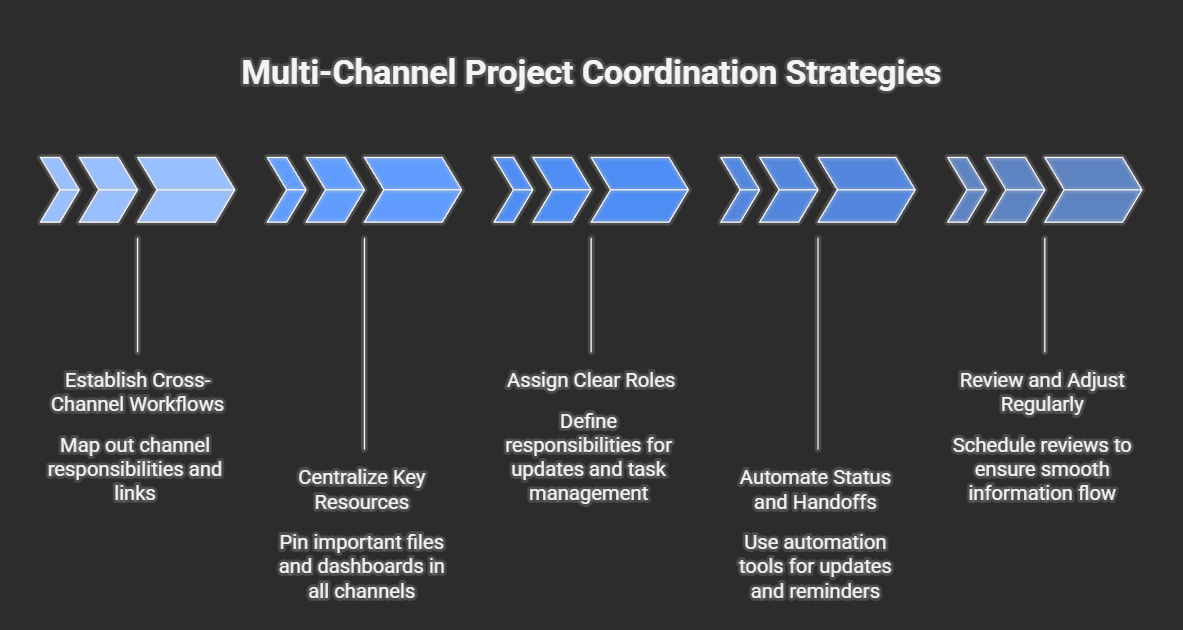
- Establish Cross-Channel WorkflowsMap out which channels handle what part of a project—for example, planning, execution, and review each getting their own space. Use links or tabs to keep everyone hopping seamlessly between related discussions and files.
- Centralize Key ResourcesCentral files, dashboards, and announcements should be pinned or tabbed in all related channels—keeping every team member on the same page, literally and figuratively.
- Assign Clear RolesBreak down who is responsible for posting updates, assigning tasks, and escalating issues in each channel. Document these roles publicly to avoid finger-pointing later.
- Automate Status and HandoffsLeverage Power Automate and SharePoint to push project updates, approvals, and reminders between channels. This cuts manual check-ins and ensures nothing gets lost, especially as projects grow. Learn how automation ties it all together at this automation guide and this Teams PM guide.
- Review and Adjust RegularlySchedule quick project reviews to check if information is flowing as planned or if there are new silos emerging. Keep iterating until your multi-channel model actually works with your company’s workflow, not against it.
Properly synced, your channels become a true project command center—built for complex teamwork, not just simple messaging.
Establishing Channel-to-Channel Communication Protocols
- Define What Goes WhereCreate channel guidelines that spell out exactly which topics, updates, or files belong in each channel to avoid overlap and confusion.
- Set Clear Escalation PathsDocument when and how team members should bring up urgent issues or move discussions to broader forums or leadership channels.
- Link Channels for Related WorkAdd channel links in descriptions or pinned posts so users can jump right to related discussions or support spaces without backtracking.
- Standardize References Across ChannelsUse consistent terminology, tags, and shorthand so folks recognize and connect related topics quickly across projects or departments.
Solid protocols keep communication flowing smoothly and ensure everyone knows where to go for info or help—especially as Teams scales with your business.
how to manage microsoft teams channels effectively: 10 best practices for managing channels effectively
What are the different types of channels and when should I create channels in Microsoft Teams?
Microsoft Teams offers standard, private, and shared channels (Teams Connect). Use a standard channel when discussion is open to all team members and you need collaboration within a team; create private channels when sensitive work requires restriction to a subset of members; and use shared channels to collaborate with people outside your team or across teams without adding them to the Microsoft 365 group. Choosing the right type of channel in teams keeps conversations focused and reduces unnecessary channels.
How do I manage channel permissions and who becomes a channel owner?
Team owners can manage channel membership and settings. For standard channels, permissions are inherited from the team; for private channels, channel owners are explicitly assigned and control membership. Use the teams admin center for organization-wide policies and let channel owners enforce moderation to reduce high-traffic channels and control channel messages within a channel.
What are best practices for naming and adding channel descriptions?
Use clear, consistent names that indicate purpose (project-X_discussion, sales_ops). Add a concise channel description to explain scope and tagging for searchable content. Good naming helps teammates find the specific channel in Microsoft Teams and prevents the proliferation of unnecessary channels.
How should I manage channel notifications so people don’t miss important updates?
Encourage members to customize channel notifications for mentions, replies, and all new posts. Use @channel or @team sparingly for important announcements. Teach teams to follow or mute channels they’re not actively involved in to balance attention across different teams and within channels.
When is it appropriate to create a new team vs. create a channel?
Create a new team when you need separate membership, permissions, or a distinct Microsoft 365 group. Create channels in Microsoft Teams when work belongs to the same team but needs dedicated conversations, files, or tabs. If collaboration spans many teams or requires outside your team participation, consider Teams Connect/shared channels instead of creating many new teams.
How can I use private channels effectively without fragmenting collaboration?
Use private channels only for truly confidential or restricted work; avoid overusing them because private channels are restricted and separate files and membership from the parent team. Document the reason for each private channel in the description and limit to necessary participants to keep collaboration transparent across teams where appropriate.
What are strategies for archiving or hiding old channels to keep teams organized?
Regularly review channels and hide or archive channels that are inactive or completed. Team owners can archive a whole team; for channels, consider deleting or hiding low-value channels to reduce clutter. Maintain a lifecycle policy to evaluate channels quarterly and communicate archival plans to members.
How do I manage files, Planner tasks, and apps within a channel for better collaboration?
Use the Files tab to store project documents and integrate Microsoft Planner or Tasks for channel-specific work. Pin essential apps and tabs for quick access and standardize templates for recurring channels. This keeps the channel experience consistent and positions channels at the heart of Microsoft Teams collaboration.
What governance and admin controls should a teams administrator implement for channels?
Teams admins should set policies in the Teams admin center for who can create teams and channels, limit creation of private/shared channels where needed, and enforce retention and compliance settings. Provide guidance to team owners on best practices to manage and create channels and use auditing to track channel activity across different teams.
How can I onboard people to use Microsoft Teams channels effectively and reduce unnecessary channels?
Provide short training that explains channel types, notification settings, channel descriptions, and when to create a new team vs. create a channel. Share 10 best practices for managing channels, encourage using specific channels for recurring topics, and appoint channel owners to moderate content—this helps teams adopt a consistent approach and improves collaboration across teams and within a channel.

Founder of M365 Show, M365con.net & m365.fm
Mirko Peters is a Microsoft 365 expert, content creator, and founder of m365.fm, a platform dedicated to sharing practical insights on modern workplace technologies. His work focuses on Microsoft 365 governance, security, collaboration, and real-world implementation strategies.
Through his podcast and written content, Mirko provides hands-on guidance for IT professionals, architects, and business leaders navigating the complexities of Microsoft 365. He is known for translating complex topics into clear, actionable advice, often highlighting common mistakes and overlooked risks in real-world environments.
With a strong emphasis on community contribution and knowledge sharing, Mirko is actively building a platform that connects experts, shares experiences, and helps organizations get the most out of their Microsoft 365 investments.

AI Governance Framework: Board's Guide to Responsible AI




