
Microsoft Teams Admin Center: The Essential Guide for Modern IT Governance

When it comes to running a tight, secure, and productive workplace, the Microsoft Teams Admin Center deserves a front-row seat. It brings every tool you need—team management, security, app controls, analytics, and lifecycle operations—under one digital hood. Whether you’re wrangling collaboration spaces or enforcing compliance in sensitive environments, centralized administration keeps your Microsoft Teams and SharePoint deployment organized and resilient.
This guide is your one-stop shop for understanding how the Teams Admin Center can transform your IT governance. Explore everything from creating and maintaining teams, locking down apps, and managing connected devices, to using advanced analytics and automation for large-scale management. You’ll get practical methods rooted in best practices—whether your focus is security, structure, or industry-specific needs. Efficient governance isn’t just about rules; it’s about trust, visibility, and making teamwork actually work.
5 Surprising Facts about Microsoft Teams Admin Center
Deep per-call diagnostics (with real telemetry depth)
The Teams Admin Center provides granular call analytics per user, per device, and per media stream (audio, video, screen share). Admins can review detailed network performance metrics — including jitter, packet loss, latency, round-trip time, and codec information — enabling precise troubleshooting of poor-quality calls using Microsoft’s collected telemetry data.Device firmware management + remote actions
Admins can remotely manage Microsoft Teams-certified devices, including Teams phones, Teams Rooms systems, panels, and displays. Capabilities include firmware updates, remote reboots, configuration changes, and log collection — significantly reducing the need for on-site troubleshooting (device support varies by manufacturer).Policy packages and targeted rollouts
The Admin Center supports policy packages (such as Education or Frontline Worker templates) and granular policy assignment via users or Azure AD groups. This allows phased, department-based, or location-based rollouts without requiring manual per-user configuration changes.Advanced app governance — beyond installation
Admins can control app permissions, org-wide app settings, app setup policies (including pinning apps in Teams), and manage custom or third-party apps. Apps can be allowed or blocked globally or via policy, providing centralized governance over Teams app behavior across the organization.Health insights + automation-ready data
Integrated service health dashboards, usage reports, and audit logs provide operational visibility into Teams workloads. Data can be exported and accessed through Microsoft Graph APIs and PowerShell, enabling automation, reporting, and integration with broader IT monitoring or SIEM tooling.
Unlocking Teams Admin Center Core Functionality
At the heart of Microsoft Teams administration is the Teams Admin Center: a web-based dashboard built to streamline every critical operational detail. Its design is straightforward but powerful, offering real-time access to your teams, users, policies, apps, and call quality—all from one centralized location. The navigation pane puts everything from team creation to app controls just a click away, so you’re not hunting for settings in ten different menus.
What makes it tick is seamless integration with broader Microsoft 365 services. For example, roles assigned in the Microsoft 365 Admin Center (like Teams Administrator, Global Administrator, and customized responsibilities) flow directly into the Teams Admin Center, letting you define who controls what with pinpoint accuracy. That means you can give folks the right tools without giving away the whole toolbox.
Extending Teams functionality isn’t just about what’s in the box. You can bring in custom apps, build automated workflows, or pull detailed analytics into your daily routine. (Curious about dashboards across Teams and SharePoint? Check out this detailed comparison of embedding Power BI dashboards in each.) Bottom line: centralized control gives you visibility, flexibility, and the peace of mind you need to govern modern collaboration without chaos.
Microsoft Teams Admin Center: Pros and Cons
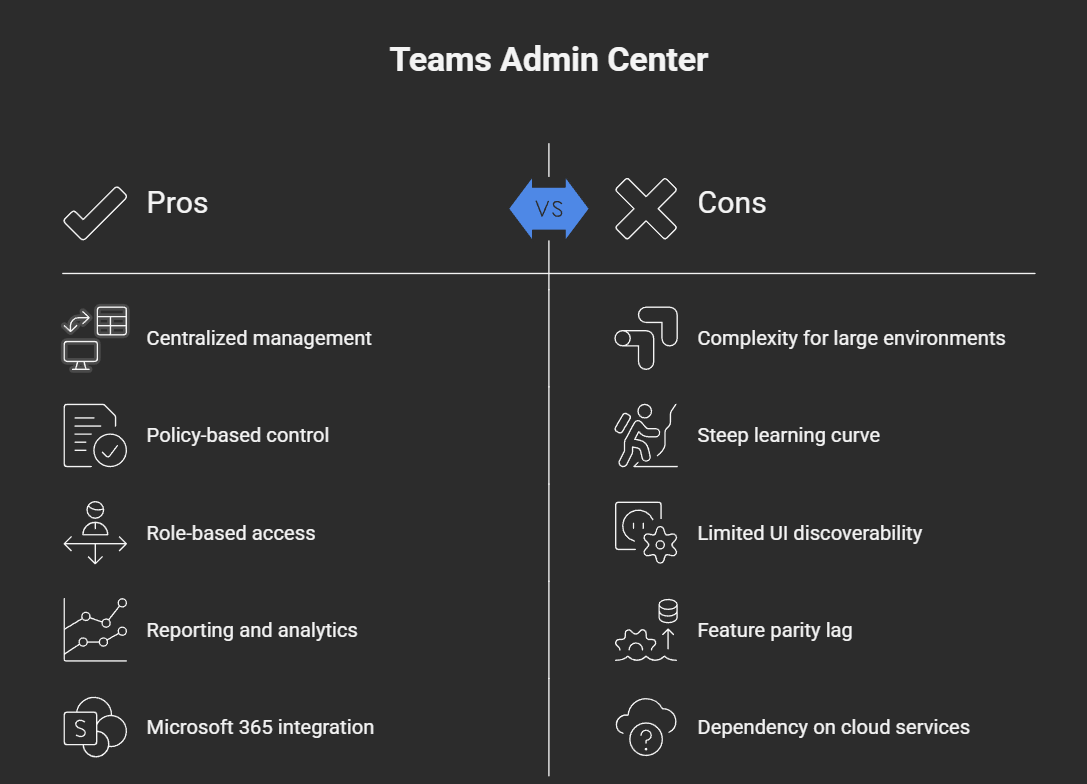
Teams Admin Center Pros
- Centralized management: Single console to manage Teams settings, policies, and users across the organization.
- Policy-based control: Granular policy assignment for meetings, messaging, apps, and devices enables consistent governance.
- Role-based access control: Admin roles and delegated administration reduce security risk and distribute tasks safely.
- Reporting and analytics: Built-in usage reports, call quality analytics, and activity logs help monitor adoption and troubleshoot issues.
- Integration with Microsoft 365: Seamless integration with Azure AD, Exchange, SharePoint, and Intune for unified administration.
- Device management: Configure and manage Teams-certified devices, phones, and meeting room systems from the portal.
- App lifecycle management: Control app permissions, sideloading, and app policies to secure and curate the Teams app ecosystem.
- Regular updates and documentation: Microsoft frequently adds features and publishes guidance for admins.
Teams Admin Center Cons
- Complexity for large environments: Managing many policies, groups, and hybrid scenarios can be complex and time-consuming.
- Steep learning curve: Admins may require training to understand policy interactions, roles, and advanced features.
- Limited UI discoverability: Some settings are buried or split between portals (e.g., Exchange, Azure), causing occasional confusion.
- Feature parity lag: New Teams features may arrive in client apps before full admin controls are available.
- Dependency on cloud services: Admin center functionality depends on Microsoft 365 service availability and tenant configuration.
- Audit and retention gaps: While improving, some organizations find audit logs and retention controls require additional tools or configuration.
- Customization limits: Deep custom or industry-specific workflows sometimes need supplementary tooling or PowerShell automation.
Manage Teams: Creation, Updates, and Core Administration
Managing your organization’s teams is more than just clicking “add” or “delete”—it’s a balancing act between unlocking productivity and keeping a firm grip on order and security. The Teams Admin Center is your headquarters for structuring collaboration in a way that works for everyone, from frontline staff to top-tier executives. Here, you oversee how teams are set up, maintained, archived, or brought back to life when business needs shift.
Getting this right requires not just technical steps, but thoughtful governance—controlling who can create teams, standardizing naming conventions, and connecting teams to the right SharePoint resources. With so many moving parts, a clear framework lets you avoid the dreaded “Teams sprawl”—where abandoned or duplicate workspaces breed confusion and data leaks. If you’re interested in how to structure effective teams from the start, there are plenty of lessons on turning chaos into confident collaboration using firm governance and roles.
As you dig deeper, you’ll see how lifecycle management—archiving, restoring, or renewing teams—keeps your environment tidy and your data secure, adapting to project realities and regulatory requirements. And don’t overlook the importance of accurate team profiles and information metadata as a backbone for compliance and smooth day-to-day operations. Want to add automation and a single source of truth? Combining Teams with tools like SharePoint and Power Automate makes streamlined, visible collaboration a reality. (Here’s how structured project governance works in practice.) All of this boils down to keeping the right people in the right places, with the right permissions—setting everyone up for collaboration without confusion.
How to Add and Edit Teams in the Admin Center
- To add a new team: In the Teams Admin Center, click “Teams” on the left panel, then “Manage teams.” Hit “Add,” enter a clear, scalable team name (avoid generic names), set privacy (public or private), and assign at least one owner. Stick with naming conventions that reflect department, function, or project.
- To edit an existing team: Select a team from the list. You can update the name, description, or settings, and manage owners and members right from this screen. Use descriptive profiles and structured information for compliance and easy findability.
- Best practices: Limit who can create teams by adjusting roles. Review and update team info regularly to keep it aligned with business policies. This prevents duplication, orphaned teams, and guesswork for end users. For more tips, see how governance transforms chaotic Teams workspaces.
Lifecycle Operations: Archive, Restore, and Renew Teams
- Archive a team: In the admin center, select the team, choose “Archive,” and confirm. This makes the workspace read-only and prevents accidental edits during reorgs or after project end. Use archiving to freeze a team without deleting its history or files.
- Restore a deleted team: Visit the “Deleted teams” section, find the team, and select “Restore.” This brings back all files, channels, and settings—ideal for accidental deletions or business continuity needs.
- Renew an expiring team: Teams approaching expiration trigger admin alerts. Hit “Renew” to extend their lifespan, keeping collaboration open. Use this regularly in organizations with strict retention or active/inactive project cycles. For automated lifecycle management using Power Platform and Graph API, head over to this guide on taming Teams sprawl.
Team Profiles and Information Management
Team profiles in the Teams Admin Center contain essential metadata: team name, description, purpose, owner, and member lists. This information gives admins and users clarity about what each team is for and who’s involved.
Documenting the team’s purpose and maintaining up-to-date details isn’t just about order—it’s critical for regulatory compliance and audit requirements. Good profile management helps you track team ownership, link to business processes, and avoid ambiguous or redundant spaces. It’s the anchor that keeps day-to-day teamwork organized and transparent.
App Management and Security Controls in Teams Admin Center
The Teams Admin Center does a lot more than just wrangle people and permissions—it’s also your main gatekeeper for what apps and integrations enter your environment. In today’s workplaces, third-party and custom apps are everywhere, and each one brings its own productivity perks but also risks if not managed right.
Admins can centrally control app installs, manage the entire organization’s app catalog, set limits, and even automate deployment. You’ll keep tabs on which apps workers are using, helping to spot potential productivity boosters and catch anything that might create a security or compliance headache. Careful management here can prevent risky permissions, data leaks, or plug-ins that don’t match organizational policy.
But there’s more to the story—Admins can get granular with permissions, block risky or non-compliant apps, manage org-wide settings, and surface developer-provided info for deeper vetting. Thinking about custom productivity kickers? You can even extend Teams meetings and channels with your own apps, bots, and message extensions, as explored in this deep dive into custom apps and bots or how to add advanced in-meeting extensions. All of this is crucial for keeping your digital house safe, secure, and humming along for every department and workflow.
Install Apps and Manage the App Catalog
- Installing apps: In the Teams Admin Center, go to “Teams apps” and select “Manage apps.” Find approved third-party or internal apps, review details, and hit “Allow” or “Install” for organization-wide availability. This centralizes deployment—one click distributes apps to every user who needs them.
- Export app catalog: Admins can export the full app list for documentation, auditing, or reviewing security posture. This helps identify underused, redundant, or potentially risky apps across the org.
- Application management best practices: Regularly monitor app usage trends and enforce app retirement or updates as needed. Want to boost productivity and minimize context switching? Explore powerful but underused features like message extensions, as covered in this guide on Teams message extensions.
Configure App Permissions and Org-Wide App Settings
- Allow or block apps: Set granular allow/block policies for both Microsoft and third-party apps. This keeps control in IT’s hands and blocks apps with poor compliance, risky permissions, or lacking business value.
- Set org-wide app settings: Decide which apps are visible or pinned for all users, define default behaviors, and enforce org-level security. This ensures your workers only see apps that are safe and relevant to their roles.
- App-level security and support info: Review developer-provided app details, including permissions, compliance certifications, and support contacts to surface any red flags. Keeping a close eye on these settings helps mitigate risk, as reinforced in advice for secure Teams meeting extensibility.
Meetings, Conferencing, and Voice Calling Administration
Managing virtual meetings and voice calls is now mission-critical for most businesses, and the Teams Admin Center gives you the levers to do just that. You’ve got control over how meetings are scheduled, who can join or present, and what gets recorded—and you can apply compliance policies that match your industry’s rules. The center brings together everything needed to keep your online collaboration safe, effective, and professional.
It doesn’t stop at standard meetings. You can fine-tune policies for large-scale webinars, advanced conferencing, and telephony, all without needing separate dashboards. Integrating voice calling means Teams can serve as a complete replacement for legacy PBX systems—or just layer on top as a unified communications hub. If your business runs hybrid meetings, you can also enforce security, monitor call quality, and plug in third-party solutions, all while ensuring seamless participation from home or the office.
Innovation is rapid in this space, too. If you ever wondered how meetings can be extended with side panels, custom apps, or advanced lifecycle events, there’s real guidance in this practical look at meeting automation and security best practices. Whether you’re deploying Teams from scratch or refining live environments, the Admin Center’s centralized tools help you keep the whole communication engine running smoothly and securely—every voice, video, and screen share accounted for.
Administer Meetings and Conferencing Capabilities
- Meeting policies: Set up who can schedule meetings, control access, and define presentation rights.
- Compliance controls: Enforce retention, e-discovery, and legal hold requirements on meeting content, including recordings and transcripts.
- Advanced settings: Enable features like lobby controls, participant muting, and recording policies for extra security and professionalism.
- Productivity tips: Use features like built-in agendas, notes, and in-meeting apps to keep discussions focused and collaborative.
Voice Calling Setup and Governance
- Calling plan integration: Connect Teams with Microsoft Calling Plans or direct routing to unify communications.
- PBX replacement: Migrate from legacy phone systems, combining calls, voicemail, and directories inside Teams.
- Organization-wide policies: Set call routing, voicemail settings, and caller ID to match business needs and compliance requirements.
- Quality assurance: Monitor call analytics and troubleshoot poor connections right from the admin dashboard.
Manage Teams Devices and Room Systems
- Device management: The admin center lists all Teams-certified devices—phones, boards, meeting room consoles—connected to your network. You can assign configurations, monitor device health, and push firmware updates remotely, keeping hardware secure and usable across distributed teams.
- Room systems: Manage Teams Rooms hardware and settings to support everything from simple huddle spaces to large conference venues. Settings like auto-join, default meetings, and content sharing are centrally enforced, ensuring seamless experiences for local and hybrid attendees.
- Compliance and security: Apply device compliance settings, enforce patch levels, and monitor device access. This reduces risks from outdated software, unmanaged connections, or lost hardware. If hybrid work is in your future, see how workplace coordination tools like Microsoft Places (learn more here) help tie it all together with Teams.
Industry-Specific Teams Administration
- Education: Supports class teams, compliance with FERPA, and special moderation roles for teachers and students.
- Government (GCC/GCC High): Enables compliance with FedRAMP, ITAR, and other U.S. public sector requirements, plus advanced auditing features.
- 21Vianet (China): Custom tenant deployment for China’s regulatory demands, offering data residency and privacy separation.
- Air-gapped/defense cloud: Supports secure deployments where external data sharing is restricted, providing controls for frontline and cross-org users.
Advanced Analytics and Reporting in Teams Admin Center
- Usage analytics: Admins get built-in reporting dashboards showing active users, team usage, guest participation, and feature adoption, helping you spot thriving or underused collaboration spaces.
- Adoption metrics: Visualize growth trends, engagement rates, and new team spin-ups to target training or refine governance for different business units.
- Performance monitoring: Track call quality, meeting health, and system up-time. Use real-time alerts to diagnose issues or anticipate capacity needs.
- Custom reports: Export raw data for deeper dives in Power BI or other analytics apps. For more on automated lifecycle tracking and Power BI integration, visit this step-by-step governance guide.
Security and Compliance Management Through Teams Admin Center
Protecting your data and meeting regulatory standards isn’t just “nice to have”—it’s table stakes, especially with sensitive business and personal info traveling back and forth every day. The Teams Admin Center takes the guesswork out of enforcing security and compliance in dynamic work environments. Here, you can set up data loss prevention (DLP) to block sensitive info from sneaking into the wrong chat, implement information barriers to keep teams and departments separated when required, and monitor compliance across every workspace.
Auditing and reporting features give you a digital paper trail, spotlighting who accessed or changed what—crucial for legal holds, investigations, and responding to audits. These controls are designed to work hand-in-hand with Microsoft’s broader compliance framework, letting you meet everything from GDPR to industry-specific mandates right where your teams collaborate. To get security right, think of it as a layered journey: MFA, access controls, information barriers, and regular audit reviews all play a part. For deeper dives on hardening security with Purview DLP, auditing, and access controls, check out this five-layer Teams security guide.
The big picture? With admin center controls at your disposal, you reduce data leaks, unwanted sharing, and regulatory oversights before they happen. These measures aren’t just about locking things down—they’re the foundation for building trust and openness inside your business, and peace of mind with auditors and regulators alike.
Enabling Data Loss Prevention and Information Barriers
- Configure DLP policies: In the Teams Admin Center, head to “Data loss prevention” and set policies to monitor and restrict sharing of sensitive data (like credit cards or PII) within chats and channel messages. Select templates or build custom rules to fit your compliance needs.
- Set up information barriers: Use information barriers to prevent communication between specific user groups that should remain separate—handy for legal, HR, or regulated departments. Enable these from the compliance section, define segments, and assign users accordingly.
- Review and adjust regularly: Monitor alerts and reports for policy hits, and tweak rules to respond to evolving risks. For a full security hardening strategy, the podcast at this link offers practical, real-world techniques to protect your teams.
Audit Logging and Security Reporting Tools
- Enable audit logging: Flip on “Audit log search” in the admin center to capture actions related to teams, messages, membership changes, and settings edits.
- Access audit logs: Search and filter logs to trace user activities or investigate incidents, ensuring transparency in modifications and content access.
- Security reporting: Generate built-in reports to review compliance status, policy violations, and exposure risks—perfect for prepping for audits and board meetings.
- Privacy best practices: For guidance on AI, user consent, and privacy controls across Microsoft 365, review the detailed framework at this Copilot data privacy explainer.
Automating Teams Admin Center Tasks with PowerShell and API Integrations
For organizations juggling hundreds—or thousands—of teams and users, the path to smart governance is paved with automation. The Teams Admin Center unlocks deep efficiencies by tying together PowerShell scripting and custom tools with Microsoft Graph API, so admins can skip the repetitive tedium and focus on higher-order strategy. Automation means faster provisioning, cleaner lifecycle management, and ironclad policy enforcement across the board.
With PowerShell, you’re not just limited to batch user imports—you can enforce new policy assignments, automate team archiving, or clean up inactive workspaces with a single command line. Need to go even further? API integrations make it possible to hook Teams into your HR systems, ticketing platforms, or reporting tools, turning powerhouse workflows into simple, repeatable routines.
This isn’t just a convenience play. Automation minimizes human error, cuts operational costs, and—in large enterprises—makes it humanly possible to keep up with scale and compliance. For an in-depth look at how Power Platform, Graph API, and Power BI combine to govern Teams at scale, visit this sprawl management and lifecycle automation guide. Bottom line: If you want consistent, secure, and future-proof Teams management, automation isn’t just a nice-to-have—it’s the secret sauce.
Automating Policies and Bulk Operations Using PowerShell
- User provisioning: Use Teams PowerShell scripts to bulk-add users to teams, assign licenses, and set up roles. Automate group updates at onboarding or offboarding times for consistency and speed.
- Policy assignments: Apply messaging, meeting, or app permissions to entire user groups or teams in a single sweep. Scripted policies override manual errors and are easier to audit.
- Lifecycle management: Automate inactive team detection, prompt owners to review or archive stale teams, and keep your workspace tidy. Need more on lifecycle automation? See this full governance playbook for detailed scripting and real-world results.
Extending Teams Admin Center with Custom API Integrations
- Third-party system integration: Connect Teams with HR, ticketing, or resource management platforms via Microsoft Graph API, consolidating business processes.
- Automate complex admin tasks: Build custom bots or flows to automate onboarding, report generation, or compliance checks directly from external triggers.
- Build custom solutions: Use API endpoints to create admin dashboards, reporting tools, or advanced lifecycle controls—making Teams truly fit your enterprise needs.
- Governance edge: Custom tools mean granular control; automate metadata enforcement, owner notifications, or custom security alerts for in-depth, responsive governance.
FAQ: Microsoft Teams Admin Center
messaging policies and teams settings in the teams admin center
What is the Teams admin center and how does it relate to messaging policies?
The Teams admin center is a web-based admin center that administrators use to manage policies and settings for Microsoft Teams. It allows admins to create, assign and enforce messaging policies to control chat, channel messages, Giphy, memes and other messaging capabilities across users or groups in your organization.
How do I access the Microsoft Teams admin center to manage messaging policies?
To access the Microsoft Teams admin center, sign in to Microsoft 365 admin center or go directly to the Teams admin center URL with an admin account. From there, navigate to Messaging policies to create, edit and assign policies to users, teams or Microsoft 365 groups.
manage apps and teams app store for teams in the microsoft teams
How can I manage apps and control the Teams app store in the admin center?
Use the Teams admin center to manage teams apps, configure the app permission policies and control which apps are available to users. You can block or allow specific apps, create custom app setup policies, and configure whether users can upload custom apps or access the public Teams app store.
Can I push or pre-configure apps to users or multiple teams?
Yes. Create and assign app setup policies in the admin center to automatically install and pin apps for users or groups. This lets administrators create consistent experiences across multiple teams and ensures required apps are available to users in your organization.
guest access and external access for admins
What is the difference between guest access and external access?
Guest access enables adding guest users with full membership inside a team, giving them access to teams and channels, files and apps subject to policies. External access (federation) allows users to find, call, chat and schedule meetings with users in another domain without adding them as guest users. Both are managed from the admin center under External access and Guest access settings.
How do I control guest users and guest access settings?
From the Teams admin center or Microsoft 365 admin center, configure guest access policies, set permission policies, control what guests can do (chat, create channels, delete messages) and manage who can invite guests. Use compliance center and sensitivity information labels in combination to limit data exposure for guest users.
team management and assign policies for teams and channels
How do I create and manage teams templates and team management tasks?
The Teams admin center lets administrators create and manage teams templates to standardize structure, apps and settings for new teams. Use templates to speed team creation, assign owners, configure channels and apply policies so that creating multiple teams follows governance and compliance rules.
What tools are available to manage teams owners, members and multiple teams?
Admins can view and manage teams, assign owners, add or remove members, and perform bulk actions using the Teams admin center or PowerShell. Management tools also include policies to control membership settings, automatic team creation via Microsoft 365 groups, and remediation actions for orphaned teams.
admin roles and teams admin roles to control access
Which admin roles are required to access the admin center and manage Teams settings?
Several admin roles can access the Teams admin center including Teams Service Administrator, Global Administrator and other delegated roles. Assigning administrators to manage policies and settings should follow least-privilege principles; use role-based access to limit who can change critical settings like meeting policies or guest access.
Can I grant limited Teams admin roles to manage specific policies and apps?
Yes. Use built-in admin roles or create custom roles in the Microsoft 365 admin center to allow specific people to manage apps, manage policies, view usage reports or control particular parts of the teams environment without full global admin rights.
meeting policies and meeting settings in the microsoft 365 environment
How do meeting policies work and what can I control?
Meeting policies let admins control meeting settings such as who can bypass the lobby, presenter rights, recording permissions and cloud recording options. Configure and assign meeting policies from the Teams admin center to users or groups to tailor meeting behavior across your Microsoft 365 environment.
How do I enforce multi-factor authentication for Teams meetings and access?
Multi-factor authentication (MFA) is enforced through Azure AD conditional access policies in the Microsoft 365 environment. Use the security center and Azure AD to require MFA for sign-ins to Teams and to control access to sensitive information. The Teams admin center works with these tools but MFA configuration happens in Azure AD.
policies and settings, compliance and sensitive information
How do I use policies and settings to protect sensitive information within Teams?
Combine Teams policies with Microsoft Purview compliance tools, sensitivity labels and data loss prevention (DLP) rules to detect and protect sensitive information. Configure policies to restrict external sharing, control guest access and apply DLP rules to chats and channel messages to prevent data leaks.
Where do I view and manage audit logs and compliance data for Teams?
Use the Microsoft Purview compliance center and the Teams admin center’s reporting sections to view audit logs, communication compliance and eDiscovery. These tools let administrators perform investigations, run remediation actions and ensure teams communications support compliance requirements.

Founder of M365 Show, M365con.net & m365.fm
Mirko Peters is a Microsoft 365 expert, content creator, and founder of m365.fm, a platform dedicated to sharing practical insights on modern workplace technologies. His work focuses on Microsoft 365 governance, security, collaboration, and real-world implementation strategies.
Through his podcast and written content, Mirko provides hands-on guidance for IT professionals, architects, and business leaders navigating the complexities of Microsoft 365. He is known for translating complex topics into clear, actionable advice, often highlighting common mistakes and overlooked risks in real-world environments.
With a strong emphasis on community contribution and knowledge sharing, Mirko is actively building a platform that connects experts, shares experiences, and helps organizations get the most out of their Microsoft 365 investments.

AI Governance Framework: Board's Guide to Responsible AI




