
Use SharePoint for Team Collaboration: Best Practices & How to Use

SharePoint is more than just a spot to park your files—it's a powerhouse for collaboration, document management, and workflow automation. Whether your team is big or small, SharePoint brings everyone to the same virtual table. With tools for centralizing documents, keeping track of changes, and making teamwork more secure, SharePoint knocks down the old problems like lost files or messy email threads.
This guide breaks down the smartest ways to use SharePoint, from streamlined storage and instant co-authoring to tight Microsoft 365 integration. You'll get practical advice for organizing your content, adopting AI-powered features, customizing your sites, and setting up good governance. If you want your organization running smoother—and with less stress—you're in the right place.
Let’s get into actionable strategies for using SharePoint that give your teams a real edge, all while protecting your data and keeping things compliant. No fluff, just what works—so you can get collaborating and keep projects moving.
9 Surprising Facts About SharePoint for Team Collaboration — best ways to use sharepoint for collaboration
- Built-in AI features: Modern SharePoint pages include AI-driven web parts (like news and content suggestions) that automatically surface relevant documents and people, a powerful but often overlooked tool when exploring the best ways to use SharePoint for collaboration.
- Document co-authoring is real-time and low-latency: Multiple team members can edit Office files simultaneously with presence indicators and fast sync, reducing version conflicts more effectively than many expect.
- Metadata beats folders for scale: SharePoint’s metadata and views let teams organize and find files faster than deep folder trees, which is one of the best ways to use SharePoint for collaboration at scale.
- Power Automate integration can automate team workflows without code: Quick approvals, notifications, and file routing can be built by power users, cutting manual handoffs and speeding collaboration cycles.
- Custom lists are lightweight apps: SharePoint lists can power issue trackers, project logs, and inventories with column formatting, rules, and flows — often replacing small third-party tools.
- Permissions can be finely scoped (and dangerously complex): You can set item-level and folder-level permissions for tight security, but complexity grows fast; governance is a surprising must-have when using SharePoint for collaboration.
- Integration with Teams is deeper than a link: You can surface SharePoint pages, libraries, and lists directly inside Teams channels so collaboration happens in context — an underused approach to implementing the best ways to use SharePoint for collaboration.
- Search is configurable and powerful: SharePoint search can be tuned with custom refiners, result types, and promoted results so teams find people, docs, and pages quickly — improving cross-team collaboration significantly.
- Offline and mobile scenarios are practical: The OneDrive sync client and SharePoint mobile app let field or remote workers access, edit, and sync content offline, making SharePoint collaboration resilient across unreliable networks.
Document Management Solutions for Collaborative Teams
Getting a handle on files and documents is often where collaboration either takes off or crashes. SharePoint is designed to help teams break out of information silos and put all their content in one place—accessible, organized, and versioned.
Think of SharePoint like a shared digital filing cabinet, but a smart one. It allows you to structure documents in libraries, set up search to find what you need in seconds, and lean on robust permission controls to make sure everyone only sees what they should. This approach keeps your team on the same page (literally), avoiding duplicate efforts and outdated content.
With features like document history, controlled access, and advanced metadata, SharePoint creates a layer of trust around sensitive and everyday files alike. It also means your team can work faster—no more searching endless folders or worrying about who has the right version. Save time, cut down on errors, and rest easy knowing your files are stored securely and in compliance with your company’s policies.
Next up, we’ll break down how SharePoint’s document management system isn’t just a nice-to-have—it’s the backbone for real collaboration success. You’ll see why a well-organized SharePoint site can raise productivity and keep your projects moving forward, together.
How Document Management Drives Collaboration Success
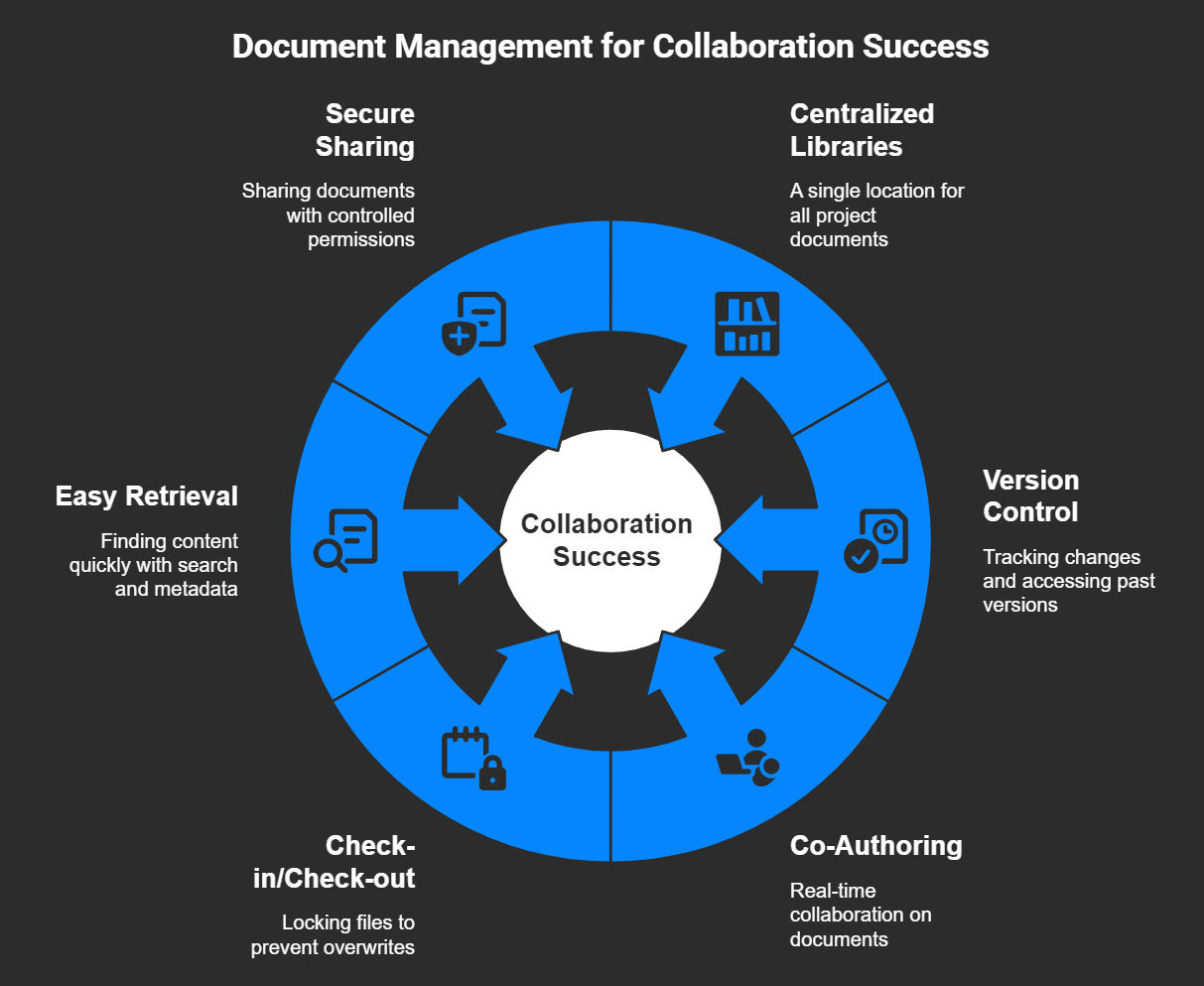
- Centralized Document Libraries: SharePoint provides one home base for all project documents, so everyone sees the latest files—no more hunting through inboxes or rogue folders.
- Version Control and Co-Authoring: Every change to a document is tracked, with past versions just a click away. Multiple team members can work together in real-time, with changes saved instantly.
- Check-in/Check-out Features: These let users lock a file while editing, so work isn’t overwritten by accident and you always know who’s making updates.
- Easy Retrieval and Discovery: Enhanced search and tailored metadata make it simple to track down the right content fast—even as libraries grow.
- Secure Sharing: Teams can share documents with confidence, thanks to customizable permissions and audit trails that log every move for compliance.
Centralized Document Libraries and Version Control Best Practices
- Group by Project or Department: Structure your libraries logically so users find what they need by topic, not guesswork.
- Use Metadata Instead of Folders: Tag documents with keywords or status to make searching and filtering a breeze.
- Enable Versioning: Always turn on version history to track changes, allowing users to restore earlier drafts and avoid confusion.
- Automate Retention Policies: Set automated rules for archiving or deleting old files, keeping your libraries tidy and compliant.
- Clear Naming Conventions: Use consistent file names and standards to boost findability and reduce duplicate uploads.
Permissions Management for Secure Collaboration
Permissions management in SharePoint dictates who can see, edit, or share specific documents. You create groups with predefined access—like “read-only,” “edit,” or “full control”—and assign people based on their roles. Permission inheritance allows subfolders or files to follow parent settings, but you can break this for sensitive items. User-based access controls protect confidential information, meeting both internal and external compliance standards.
SharePoint also logs who accessed or changed what, so you can audit activity and spot issues fast. With these tools, confidential data stays locked down, even if you’re collaborating with partners outside your organization. Managing permissions effectively keeps your files safe and your collaboration friction-free.
Real-Time Collaboration and Microsoft 365 Integration
In today’s fast-paced world, waiting for email replies about document changes feels ancient. SharePoint, working hand-in-hand with Microsoft Teams and other Microsoft 365 apps, transforms collaboration from slow and clunky to lightning quick.
With SharePoint, your team can co-author documents together, chat about ideas in real time, and build shared workspaces where everything from files to meeting notes is organized and accessible. The integration with Teams takes it to the next level: files you share in Teams are stored in SharePoint automatically, meaning updates are always instant and everyone’s looking at the same version.
And it’s not just about files—automation tools like Power Automate and Power Apps connect SharePoint to broader business processes, helping you cut out tedious manual steps and keep projects moving. Microsoft 365’s cloud-driven tools help distributed or hybrid teams stay connected no matter where they’re working from.
This section will set you up to understand what sets this Microsoft ecosystem apart for seamless teamwork. The next parts will walk you through best practices for real-time collaboration, workflow integration, and much more.
Microsoft Teams Integration for Real-Time Collaboration
- Teams-Connected SharePoint Sites: Every Teams channel links to its own SharePoint site, so team files are right where conversations happen.
- File Tabs and Instant Access: Add any SharePoint document library as a tab in Teams for quick, in-context access—no digging through folders.
- Simultaneous Co-Authoring: Work together in Word, Excel, or PowerPoint with edits syncing live—no emailed attachments or merge conflicts.
- Integrated Chat and Meetings: Discuss changes, share ideas, and even launch a meeting right inside a file or workspace for immediate decision-making.
- Unified Workspace Creation: Build collaboration spaces that pull together files, tasks, dashboards, and calendar events, combining SharePoint’s structure with Teams’ energy.
Interested in how AI is making Teams even smarter? Explore how Copilot in Microsoft Teams automates summaries and decision-making to boost productivity during meetings and chats.
Thinking about which platform to use for data dashboards? Check the showdown between Teams and SharePoint for Power BI dashboard integration to optimize your workspace for different audiences.
Workflow Automation Using Power Platform
- Automated Document Approvals: Use Power Automate to route documents through custom approval chains, alerting stakeholders when something needs a sign-off—no manual email chains.
- Streamlined Form Submissions: Build Power Apps connected to SharePoint lists for quick data entry, with information automatically sorted and routed where it’s needed.
- Real-Time Notifications: Set up notifications for file updates, task assignments, or important changes, so your team never misses a step in a workflow.
- Escalation and Reminders: Triggers in Power Automate can highlight overdue tasks or escalate issues to management for quick resolution.
- Integrated Task Automation: Bring together SharePoint, Teams, and Outlook—kick off workflows from any Microsoft 365 app and keep everyone in sync.
Want to see how AI can further supercharge your workflows? Check out M365 Copilot’s orchestration of meetings, chat, and workflow automation for smarter, more productive collaboration.
Site Customization and Organization with SharePoint
Every team wants their digital workspace to feel intuitive and familiar. SharePoint lets you do exactly that by allowing deep customization of sites, lists, and pages so your environment matches how your team works best.
The true magic of SharePoint is how it lets you organize content with lists and libraries that make sense for your projects, while using things like hub sites and nested navigation to create a unified experience across departments. Custom pages and web parts make it easy to highlight key resources, dashboards, or project updates, turning plain lists into living, breathing collaboration tools.
The backbone of all this is strong information architecture. With a thoughtful plan—using metadata tags, content types, and structured layouts—your content becomes easy to find and secure. Metadata especially makes search smarter and ensures compliance, so users spend less time hunting and more time doing.
As you move through this section, you’ll see how a few key customizations can pay off in engagement, productivity, and alignment across your teams—whether everyone’s under one roof or scattered across the globe.
Getting the Most from SharePoint Lists
- Custom List Creation: Build tailored lists to track projects, assets, or tasks. You can add columns for due dates, owners, or status to fit any process.
- Views and Filters: Set up custom views—like “My Tasks” or “Due This Week”—to reduce clutter and help users focus on what matters most.
- Workflow Integration: Connect lists to Power Automate for notifications or multi-step approvals, bringing automation straight into your project tracking.
- Data Validation: Use built-in validation to catch mistakes before they’re saved, boosting data quality and making reporting more reliable.
- Auditable History: Each change is tracked with versioning, so you always have a record of what’s changed and why—a lifesaver for compliance.
SharePoint Site Customization Tips and Hub Sites
- Custom Themes: Apply your brand colors and logos for instant recognition and a sense of team ownership.
- Modular Web Parts: Add news, calendars, task lists, or dashboards to landing pages to surface the right information first.
- Easy Navigation: Organize site menus and quick links so users aren’t lost, using global navigation and site hubs for streamlined movement.
- Hub Sites: Connect related teams and projects under one shared navigation (a hub), driving consistency and simplifying cross-team collaboration.
Building Strong Information Architecture and Metadata Management
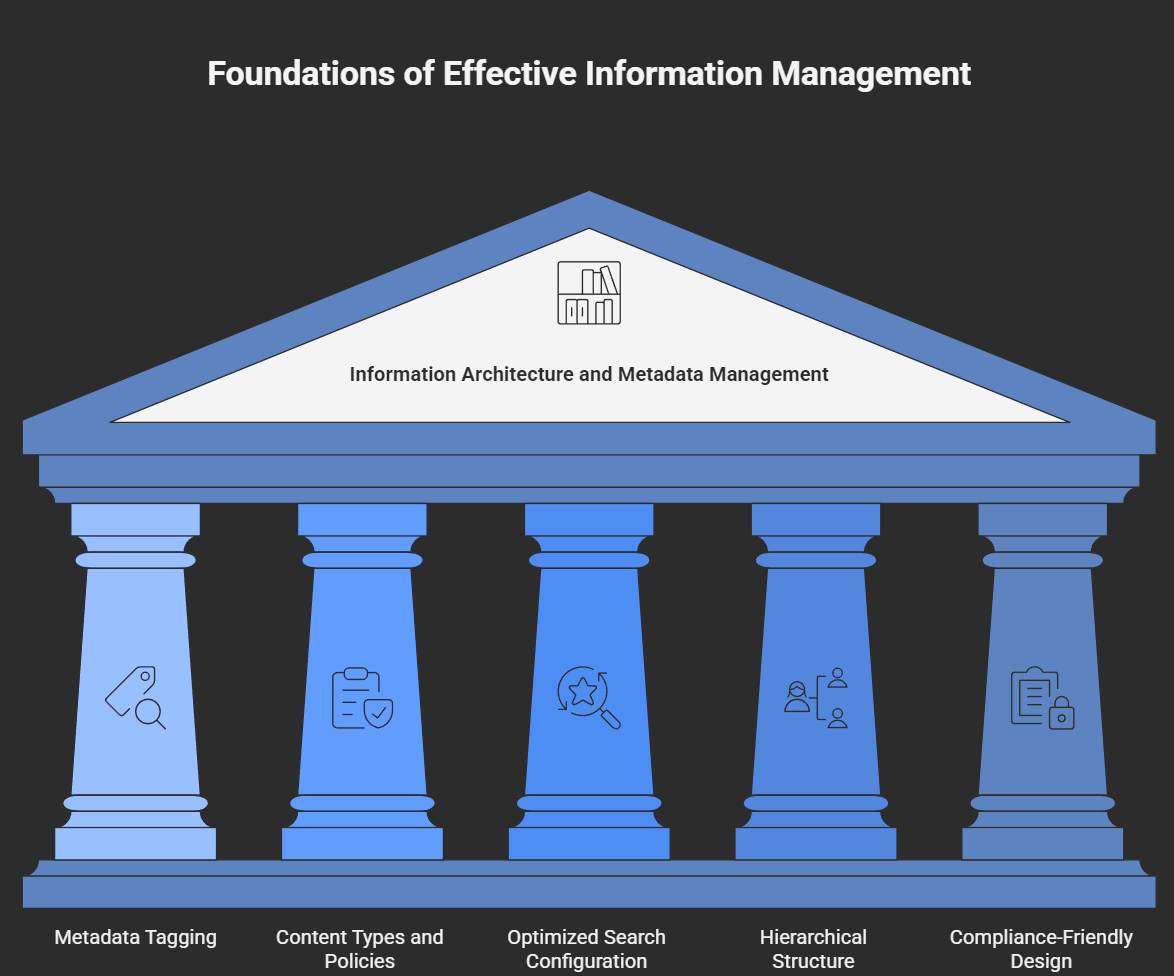
- Metadata Tagging: Tag documents and items with categories, owner names, and content types for powerful filtering and search.
- Content Types and Policies: Use content types to assign templates and workflow rules, making document handling consistent and easier to govern.
- Optimized Search Configuration: Customize search settings to bring the most relevant results to the top, reducing frustration and improving productivity.
- Hierarchical Structure: Organize sites and libraries logically (by team, project, or function) to mirror how people work, not just how IT wants things.
- Compliance-Friendly Design: Build retention policies and audit logs into your architecture from day one to ensure information security and legal compliance.
Advanced SharePoint Collaboration Features for Modern Work
SharePoint isn’t standing still. If you want a collaboration platform that keeps up with modern work, you’ll love what SharePoint’s newer features can do for you.
AI-powered content processing, secure external sharing, and seamless file sync open up ways to collaborate beyond your four walls—whether that’s with a vendor downtown or a partner halfway across the world. Features like SharePoint Syntex use AI to lift the load from your users by reading, tagging, and organizing documents automatically. And keeping track of how people use your systems helps you find what’s working, what’s not, and where to invest for better collaboration.
External sharing options, flexible controls for synchronization across devices, and deep analytics bring you the transparency and agility that old-school platforms can’t touch. When you want to share insights, get everyone on the latest draft, or prove compliance, SharePoint steps up with the right tool for the job.
Let’s spotlight how these advanced capabilities can transform your approach to teamwork, propel adoption, and keep your business ready for whatever comes next.
AI Content Processing with SharePoint Syntex and Copilot
SharePoint Syntex and Microsoft Copilot use artificial intelligence to analyze, classify, and extract knowledge from documents stored in SharePoint. With Syntex, you can teach SharePoint to recognize contract types, tag content based on legal or compliance criteria, and automate manual data entry—all while boosting information accuracy. Copilot takes it further, enabling users to query content, summarize, or even generate new documents across Microsoft 365 apps with natural language commands.
To maximize the value of Copilot, check out how to craft effective prompts for Microsoft Copilot and guidelines for enabling Copilot in Microsoft 365. These tools free up your team’s time for high-value work while making compliance and knowledge management less of a headache.
Secure External Sharing and File Synchronization
- Controlled Guest Access: SharePoint lets you set granular permissions for external users, giving guests only the access they need while protecting sensitive information.
- Share Links with Expiration: Safe sharing links can be configured to expire automatically, reducing the risk of files lingering in unintended hands.
- Sync Across Devices: With OneDrive and SharePoint sync tools, teams can access files on any device—laptop, desktop, or mobile—so work isn’t tied to one location.
- Monitor External Activity: Built-in audit logs and alerts keep tabs on who accessed or modified a file, so unusual activity stands out before it becomes an issue.
- Data Loss Prevention: Enforce organization-wide policies to warn or block users before they send out sensitive data, helping you stay compliant and secure.
Analytics and Insights for Collaborative Performance
- Site and Usage Analytics: Dashboard tools show who’s using your sites, which resources get the most views, and when peaks occur—helping leaders double down on what works.
- Adoption and Engagement Metrics: Track logins, activity, and key trends to spot where training or communication can lift collaboration.
- Bottleneck Alerts: Notifications about stalled tasks, forgotten lists, or low-participation sites help you fix issues before they snowball.
- Resource Optimization Reports: Find unused or redundant content to tidy up your environment and reclaim storage and attention.
Governance and Best Practices to Maximize Collaboration
All the slick collaboration tools in the world won’t help if your organization isn’t set up to use them well. That’s why governance and best practices are non-negotiable when you roll out SharePoint and Teams at scale.
Governance means setting up the right policies, roles, and checks to ensure data is secure, everyone works within agreed boundaries, and things don’t devolve into confusion. Smart frameworks cover who owns what content, how documents are retired, and how compliance is tracked. Equally important are adoption strategies—if your team doesn’t actually use these tools, that’s wasted investment.
This section lays out actionable steps and frameworks for setting up governance, from permission policies and lifecycle management to ongoing review and platform evolution. It’ll also touch on proven methods for rolling out training, so your users actually want to use what you’ve built.
Want a deeper dive into successful governance for Teams and AI tools? Check out Microsoft Teams Governance strategies for secure, productive workspaces, and explore best practices for deploying Microsoft Copilot to balance innovation with compliance.
Establishing Effective Collaboration Governance
- Define Clear Roles and Ownership: Assign content owners and set up site admins so everyone knows who’s responsible for site health and compliance.
- Create Policies for Access and Sharing: Establish strong rules for permission levels, external sharing, and document classification to protect sensitive information.
- Automate Lifecycle Management: Use retention and deletion policies to handle outdated content, keeping your SharePoint environment clean and compliant.
- Establish Audit and Monitoring Systems: Enable activity tracking to catch security risks and prove compliance with regulations.
- Regular Review and Continuous Improvement: Schedule annual or quarterly checks of governance policies, updating as your business changes or new features roll out.
Learn how to take governance up a notch with best practices that drive collaboration and long-term success in Microsoft Teams and SharePoint.
Training and Adoption Strategies for SharePoint Collaboration
- Onboarding Workshops: Kickoff sessions walk new users through real scenarios, reducing fear and speeding up adoption.
- Role-Based Training: Custom sessions focus on what different roles (like admins, project owners, or team members) actually need for everyday work.
- Peer Champions: Identify and empower early adopters to support their colleagues and answer questions as “go-to” helpers.
- Continuous Feedback Loops: Set up Q&A channels or suggestion boxes to learn what’s missing and iterate on training materials.
- Recognition for Adoption: Celebrate and reward teams who creatively use SharePoint to hit their collaboration goals, keeping the momentum high.
SharePoint as a Modern Intranet and Communication Platform
SharePoint powers far more than document sharing—it’s a full-scale intranet that serves as your company’s internal communication hub. With customizable intranet pages, organizations centralize company news, announcements, and resources, all in one branded, user-friendly place. Features like news posts, staff directories, and dynamic document libraries support both information sharing and company culture. Targeted communications and automated internal newsletters are easy to set up using Microsoft 365 tools, ensuring everyone stays informed and connected. Explore more ways to supercharge your intranet with internal newsletters integrated with Outlook and Power Automate.
Cross-Platform Accessibility and Device Compatibility
SharePoint and OneDrive are built to work across all common devices and operating systems. Whether you’re using Windows, Mac, Android, or iOS, you can access, edit, and share documents without missing a beat. The SharePoint mobile app and browser-based tools ensure full functionality on-the-go, so hybrid and remote teams stay in the loop. With synchronization options and apps optimized for each platform, you can collaborate seamlessly no matter what device your team prefers. This cross-platform support reduces IT headaches and empowers everyone to work securely from anywhere, anytime.
SharePoint Professional Development and Learning Resources
- Microsoft Learn: Free, structured learning paths for SharePoint admins and power users, updated regularly for new features and best practices.
- Certification Programs: Official Microsoft certifications like the Microsoft 365 Certified: Teams Administrator or SharePoint-specific credentials broaden skills and advance careers.
- Virtual User Groups: Online communities and SharePoint Saturdays offer practical advice, peer support, and strategy sessions.
- Custom In-House Masterclasses: Many organizations create their own training portals or onboarding programs, embedding SharePoint into daily workflows from day one.
- Education Collaboration Templates: For schools and universities, SharePoint templates smooth the way for document management, class announcements, and remote teaching.
Conclusion: Transforming Teamwork with SharePoint Collaboration
SharePoint strengthens modern teamwork by centralizing document management, empowering real-time collaboration with Microsoft Teams, and supporting deeper integration with Microsoft 365 apps. Its customizable sites, automation options, and AI-powered features improve both productivity and security for businesses of all sizes. Effective governance and consistent training are essential to unlock these benefits and support lasting adoption. By embracing the full range of SharePoint tools and tailoring them to your team’s unique needs, your organization can achieve secure, efficient, and innovative collaboration—now and in the future.
FAQ use sharepoint for collaboration: leverage sharepoint features for better collaboration
What are the best ways to use SharePoint for collaboration across my team?
The best ways to use Microsoft SharePoint for collaboration include creating team sites for project management, using communication sites for broad updates, storing files in SharePoint libraries to access documents from anywhere, and leveraging SharePoint workflows and integration with Office 365 and Teams to automate tasks. Combine content management, permissions and access controls, and co-authoring to collaborate on documents in real time and improve team productivity.
How does a SharePoint team site help improve collaboration and communication?
A team site centralizes project management, document sharing and collaboration capabilities so team members can access documents, update status, and use lists and libraries for content management. Team sites in SharePoint Online encourage a culture of collaboration by offering shared calendars, task lists, and integration with Microsoft Teams, enabling seamless collaboration and communication and reducing poor collaboration caused by scattered files.
What is the difference between a communication site and a team site and when should I use each?
SharePoint is one platform with different collaboration focuses: a team site is optimized for collaboration, document sharing and project work among a defined group, while a communication site is designed to broadcast news, reports and announcements to a wider audience. Use a team site for day-to-day project management and document collaboration; use a communication site to enhance team collaboration at scale and share governance updates or company-wide content.
How can we securely access documents and manage permissions within SharePoint?
SharePoint offers robust sharepoint security and tools to manage permissions and access at site, library, folder and file levels. Use groups and roles in Office 365, enable multi-factor authentication, apply conditional access policies, and audit with sharepoint analytics to ensure secure collaboration. Regularly review permissions, apply least-privilege access, and use sensitivity labels to protect sensitive content.
What sharepoint features help automate work and reduce manual tasks?
SharePoint features such as built-in flows with Power Automate, sharepoint workflows, and integration with Power Apps enable process automation for approvals, notifications and document lifecycle management. These capabilities help teams use SharePoint effectively by reducing repetitive tasks, enforcing governance, and maintaining consistent content management across libraries and team sites.
How do we encourage adoption and effectively use SharePoint for collaboration?
To effectively use SharePoint and improve collaboration, provide training on core features like document sharing and collaboration, versioning, metadata and search. Showcase use cases and create templates for team sites and communication sites, leverage the SharePoint hub to connect related sites, and use analytics and feedback to adapt governance. Promote integrating SharePoint with Teams and Office 365 to create seamless collaboration experiences and boost team productivity.
Can SharePoint handle project management and how does it compare with other tools?
SharePoint can be used for project management by using lists, task progress tracking, document libraries, calendars and integration with Planner and Power Automate. While it may not replace specialized project management software for complex portfolios, SharePoint offers flexible use cases for collaboration, document-centric projects and cross-functional team sites, making it a strong sharepoint platform for many project scenarios.
What are common pitfalls that cause poor collaboration in SharePoint and how do we avoid them?
Common issues include inconsistent structure, poorly managed permissions, lack of governance, and insufficient training. To avoid poor collaboration, define clear content management policies, standardize site templates, manage permissions and access carefully, enable metadata and search, and establish collaboration and governance practices. Use sharepoint analytics to monitor usage and address adoption gaps.
How can we integrate SharePoint with other Microsoft services to create seamless collaboration?
Integrating SharePoint with Office 365 apps, Microsoft Teams, OneDrive and Power Platform creates seamless collaboration. Use Teams to collaborate on files stored in SharePoint libraries, leverage OneDrive for personal file access, and connect Power Automate and Power Apps to extend workflows. This approach lets you collaborate on documents within SharePoint while benefiting from communication and automation across the ecosystem.
What metrics or analytics should we track to measure the benefits of SharePoint for collaboration?
Track metrics such as active users, document activity (views and edits), site visits, storage usage, workflow completion rates and time saved through automation. SharePoint analytics can reveal collaboration and communication patterns, help you identify areas to leverage SharePoint more, and demonstrate the benefits of SharePoint in enhancing team collaboration and achieving business use cases.

Founder of M365 Show, M365con.net & m365.fm
Mirko Peters is a Microsoft 365 expert, content creator, and founder of m365.fm, a platform dedicated to sharing practical insights on modern workplace technologies. His work focuses on Microsoft 365 governance, security, collaboration, and real-world implementation strategies.
Through his podcast and written content, Mirko provides hands-on guidance for IT professionals, architects, and business leaders navigating the complexities of Microsoft 365. He is known for translating complex topics into clear, actionable advice, often highlighting common mistakes and overlooked risks in real-world environments.
With a strong emphasis on community contribution and knowledge sharing, Mirko is actively building a platform that connects experts, shares experiences, and helps organizations get the most out of their Microsoft 365 investments.

AI Governance Framework: Board's Guide to Responsible AI




