 EN
 Deutsch
 Español
 Français
 Italiano
 Português
 Nederlands
 Polski
 Bahasa Indonesia
 Русский
 Українська
 العربية
 עברית
 日本語
 한국어
Passkeys in Microsoft Entra: Setup Steps, Common Mistakes and Troubleshooting
By Mirko Peters ·
How to enable passkeys in Microsoft Entra ID, the settings that most often block registration or sign-in, and a troubleshooting list for Microsoft Authenticator, synced passkeys and security keys, based on Microsoft Learn.
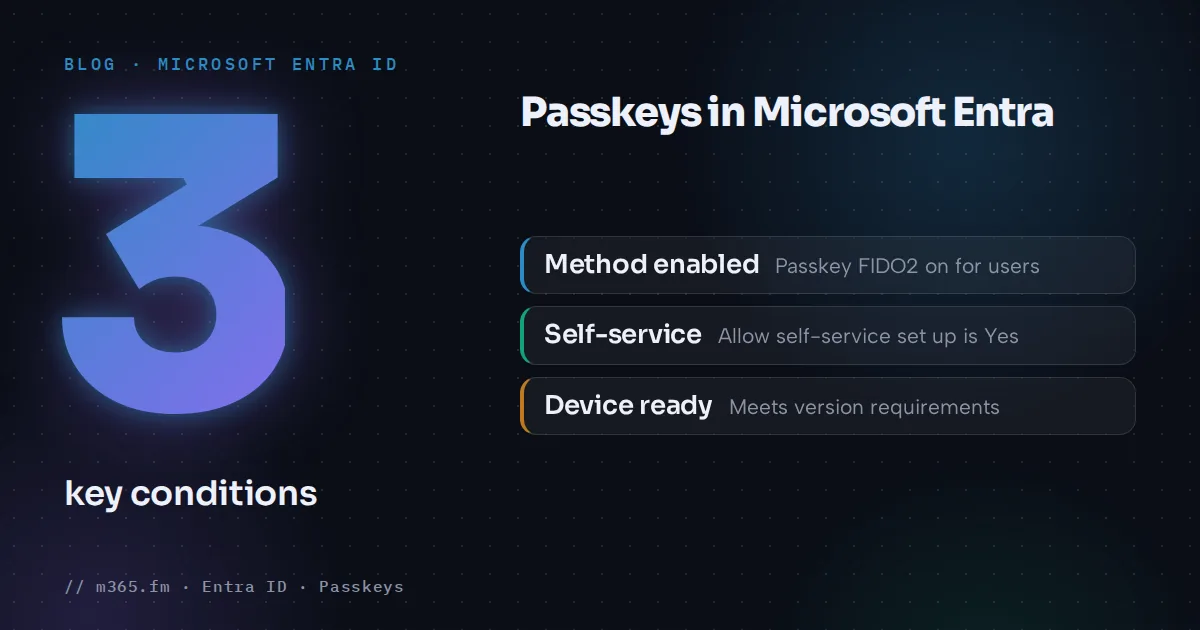
Passkeys in Microsoft Entra ID work once three things line up: the Passkey (FIDO2) method is enabled for the user, self-service registration is allowed and the user's device or app meets the version requirements. Most failed rollouts trace back to one of these, or to a Conditional Access policy that interferes with registration.
Key points
- Enable passkeys under Entra ID > Security > Authentication methods > Policies > Passkey (FIDO2). Allow self-service set up must be Yes or users cannot register in Security info.
- Users must have completed MFA in the past five minutes before they can register a passkey.
- Opting in to passkey profiles cannot be reversed, and the tenant is limited to three profiles, including the default.
- Removing an allowed AAGUID, or an excluded group, blocks sign-in for people who already registered. Exclusion overrides inclusion.
- Guest users cannot register passkeys, and a UPN change means deleting the old passkey and registering a new one.
This article follows the order Microsoft Learn uses: prerequisites, setup, then the problems that Microsoft documents.
What you can use
Learn describes two kinds of passkey in Entra ID:
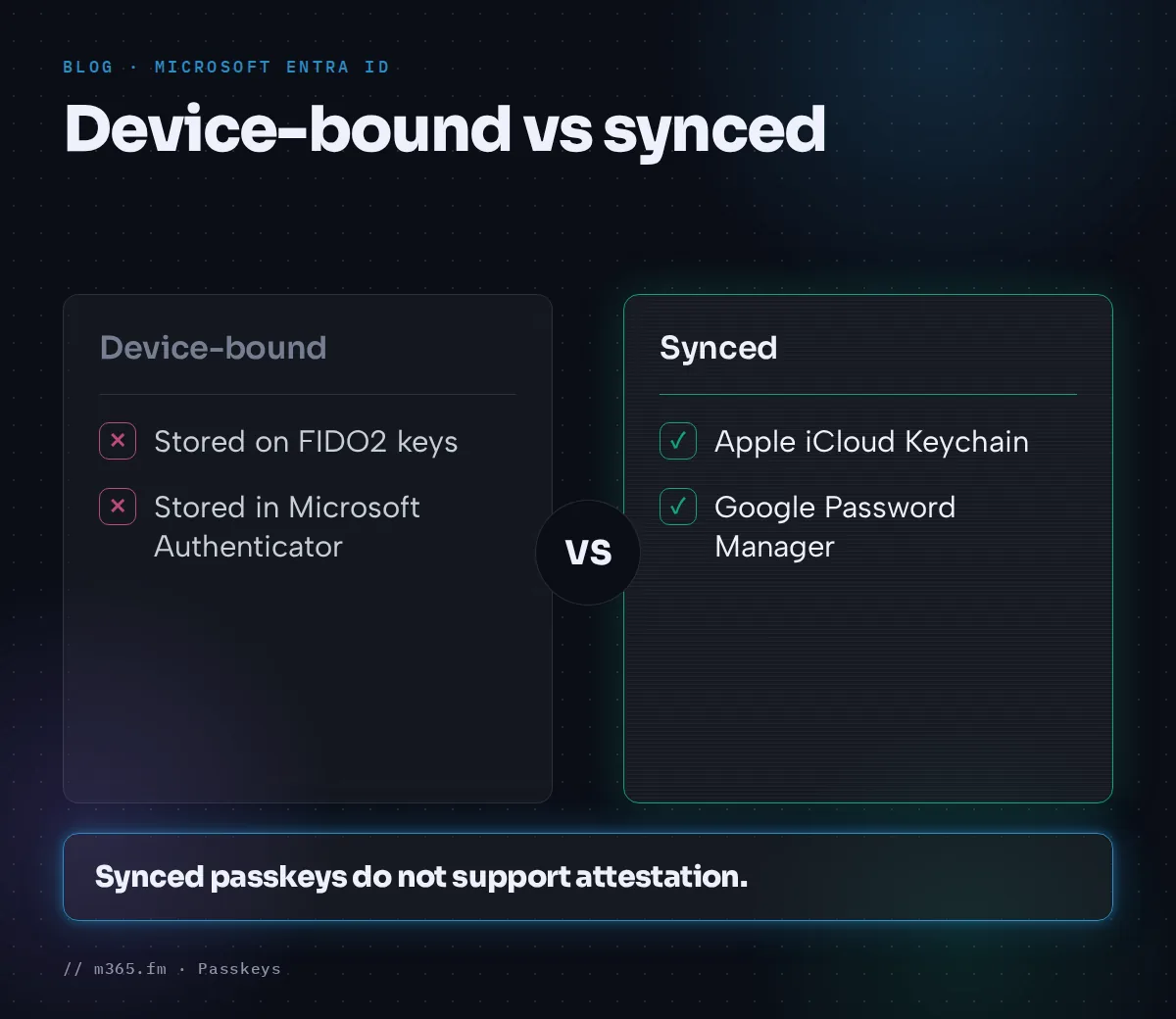
- Device-bound passkeys, stored on FIDO2 security keys or in Microsoft Authenticator.
- Synced passkeys, such as Apple iCloud Keychain and Google Password Manager. They do not support attestation.
Passkeys are available in all Entra ID editions, including Free, with no extra licenses.
Prerequisites
- Admin role: Authentication Policy Administrator to enable passkey profiles and synced passkeys. Conditional Access Administrator to create authentication strengths.
- Windows: For Microsoft Entra joined devices the best experience is Windows 10 version 1903 or later. Hybrid joined devices need version 2004 or later.
- Authenticator: Android 14 or later, or iOS 17 or later. For cross-device registration and sign-in, Bluetooth and an internet connection are needed on both devices, and some URLs must be reachable. Learn lists
cable.ua5v.comfor Android andcable.auth.complus two Apple URLs for iOS. - MFA: The user must have completed MFA within the past five minutes before registering.
Enable passkeys in the policy
- Sign in to the Microsoft Entra admin center as an Authentication Policy Administrator.
- Go to Entra ID > Security > Authentication methods > Policies.
- Select Passkey (FIDO2) and opt in to passkey profiles from the banner. This cannot be reversed.
- On the Configure tab, set Allow self-service set up to Yes. This is global. If it is No, users cannot register through Security info even when the method is enabled.
- Review the Default passkey profile, choose the passkey types and select Save.
Passkey profiles are limited to three, including the default. The Passkey (FIDO2) policy as a whole has a 20 KB size limit.
For Microsoft Authenticator specifically, Learn describes a profile with Passkey types set to Device-bound, Target specific AAGUIDs set to Allow, and Microsoft Authenticator added. Then go to Enable and target and add your users or groups.
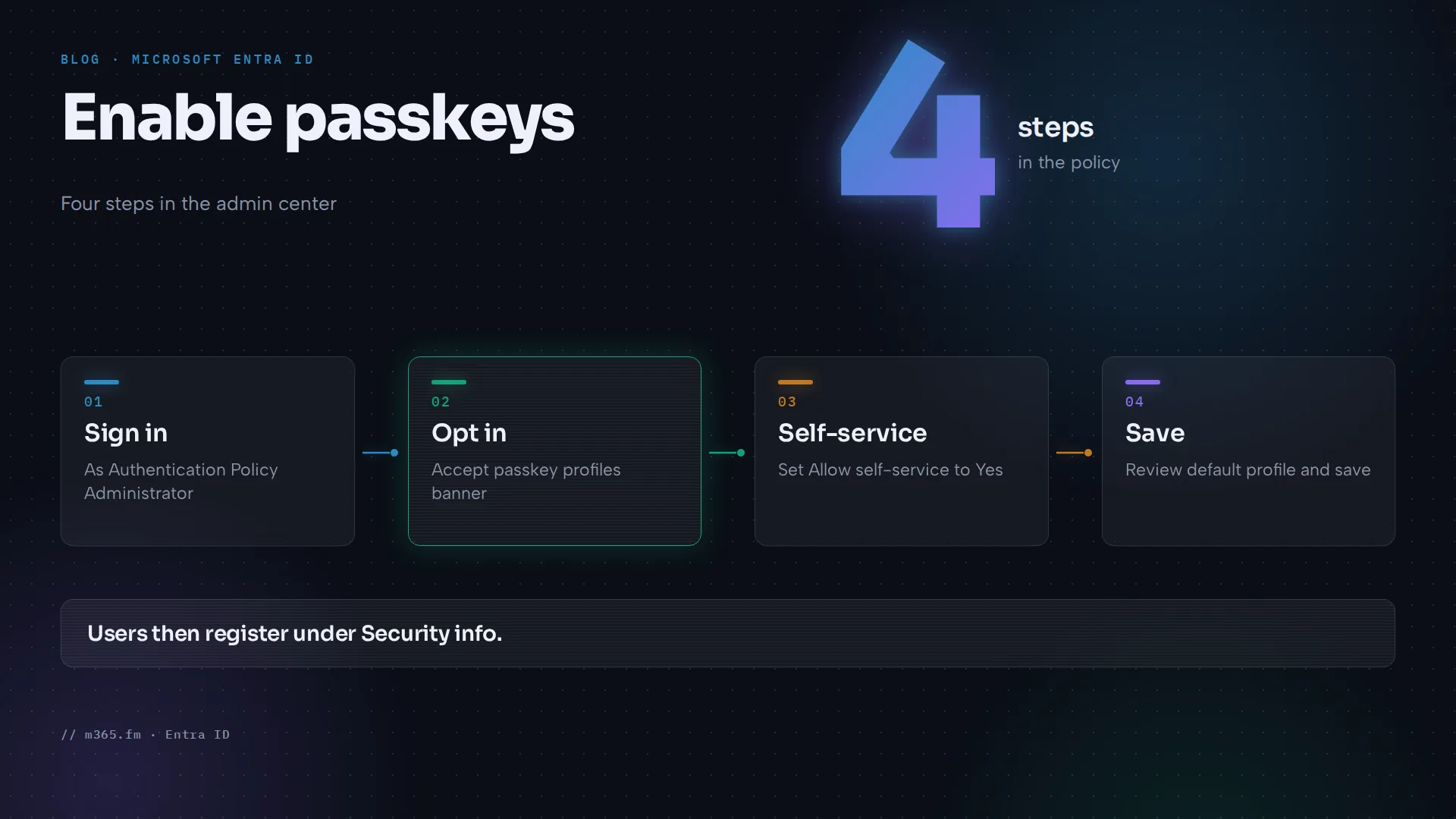
Users register under Security info at mysignins.microsoft.com/security-info. Learn points to separate guides for the step-by-step user experience.
Common mistakes and their effects
| Mistake | Effect according to Microsoft Learn | |---|---| | Allow self-service set up left at No | Users cannot register a passkey in Security info | | User in an excluded group | Excluded users are blocked from registration and sign-in. Exclusion overrides inclusion | | Removing an allowed AAGUID | Users who registered that key can no longer sign in with it |
| Turning on attestation later | Existing passkeys keep working. Attestation is checked only at registration |
| Trying to register as a guest | Not supported for internal or external guests, including B2B users | | Changing a UPN | The passkey cannot be updated. Delete it in Security info and register again |
Troubleshooting Authenticator passkeys
Learn lists several known issues.
Work and personal profiles on Android. A passkey works only from the profile where it was created. If a user has both profiles, create a passkey in Authenticator in each.
Conditional Access loop. If an All resources policy requires Require passkey in Authenticator, users can get stuck in a loop during registration. Workarounds from Learn:
- Narrow the policy to specific apps with application filters.
- Split it into a desktop and a mobile policy and use a Temporary Access Pass for mobile registration.
- Exclude the Microsoft Authenticator Credential Registration resource. Learn says it becomes available in November 2026 and requires provisioning the enterprise application first.
App protection and approved client app. Authenticator does not support Intune app protection policies on Android or iOS. A policy that requires an approved client app or an app protection policy therefore blocks registration. Narrow the scope, use device compliance on fully managed devices, or exclude the credential registration resource. Users must still satisfy any policy that targets Register security info.
Attestation outages. Registration that requires attestation fails if Apple App Attest or Google Play Integrity is unavailable. Check the Apple and Google status pages and retry later.
Bluetooth restrictions. If Bluetooth is locked down, allow pairing with passkey-enabled FIDO2 authenticators.
The Authenticator article says it does not cover step-by-step registration and sign-in, passkeys from other providers, or troubleshooting beyond the issues listed, so the sources used here are thin on cases such as Authenticator not showing the passkey option.
Enforce passkey sign-in
To require passkeys, use a built-in phishing-resistant authentication strength or create your own. In the admin center go to Entra ID > Authentication methods > Authentication strengths, select New authentication strength, choose Passkeys (FIDO2), optionally add AAGUID restrictions under Advanced options, and create it. Apply it with a Conditional Access policy.
Admins can remove a user's passkey: search for the user, open Authentication methods, right-click the passkey and select Delete.
A short checklist
- Self-service set up is Yes.
- The user is in a targeted group and in no excluded group.
- MFA was completed within five minutes.
- The device and Authenticator versions meet the minimums.
- No Conditional Access policy blocks the registration path.
- The user is not a guest.
Related
Sources
- Enable passkeys (FIDO2) for your organization (Microsoft Learn)
- Enable passkeys in Microsoft Authenticator (Microsoft Learn)
- Passkeys (FIDO2) registration and sign-in (Microsoft Learn)
FAQ
Why can't users register a passkey in Security info?
Microsoft Learn lists the usual causes. Allow self-service set up is set to No on the Configure tab, the user did not complete MFA within the past five minutes, the user is in an excluded group of the Passkey (FIDO2) policy, the user is a guest, or the device or Authenticator version is too old.
Do passkeys in Entra need extra licenses?
No. According to Microsoft Learn, passkeys are available in all Microsoft Entra ID editions, including Free, with no extra licenses.
Which devices support passkeys in Microsoft Authenticator?
Learn says Authenticator passkeys need Android 14 or later, or iOS 17 or later. The page for the passkey profile model also lists Authenticator versions iOS 6.8.37 or Android 6.2507.4749 for profiles that cover both device-bound and synced passkeys.
Can I use iCloud Keychain or Google Password Manager for Entra sign-in?
Yes, as synced passkeys, if you turn on passkey profiles and allow the Synced type in a profile. Learn lists Apple Passwords on macOS 13 or later and iOS 16 or later, and Google Password Manager with Chrome (Windows, macOS, iOS 17 or later) or natively on Android 9 or later, excluding Samsung devices. Synced passkeys do not support attestation.
What happens to registered passkeys if I change the policy?
Several changes affect existing users. Learn says removing a previously allowed AAGUID blocks users who registered that key. Turning on attestation later does not block passkeys registered without it, because attestation applies only at registration.