 EN
EN Deutsch
 Español
 Français
 Italiano
 Português
 Nederlands
 Polski
 Bahasa Indonesia
 Русский
 Українська
 العربية
 עברית
עברית हिन्दी
 日本語
日本語 한국어
한국어2026-08-18 · Season 3
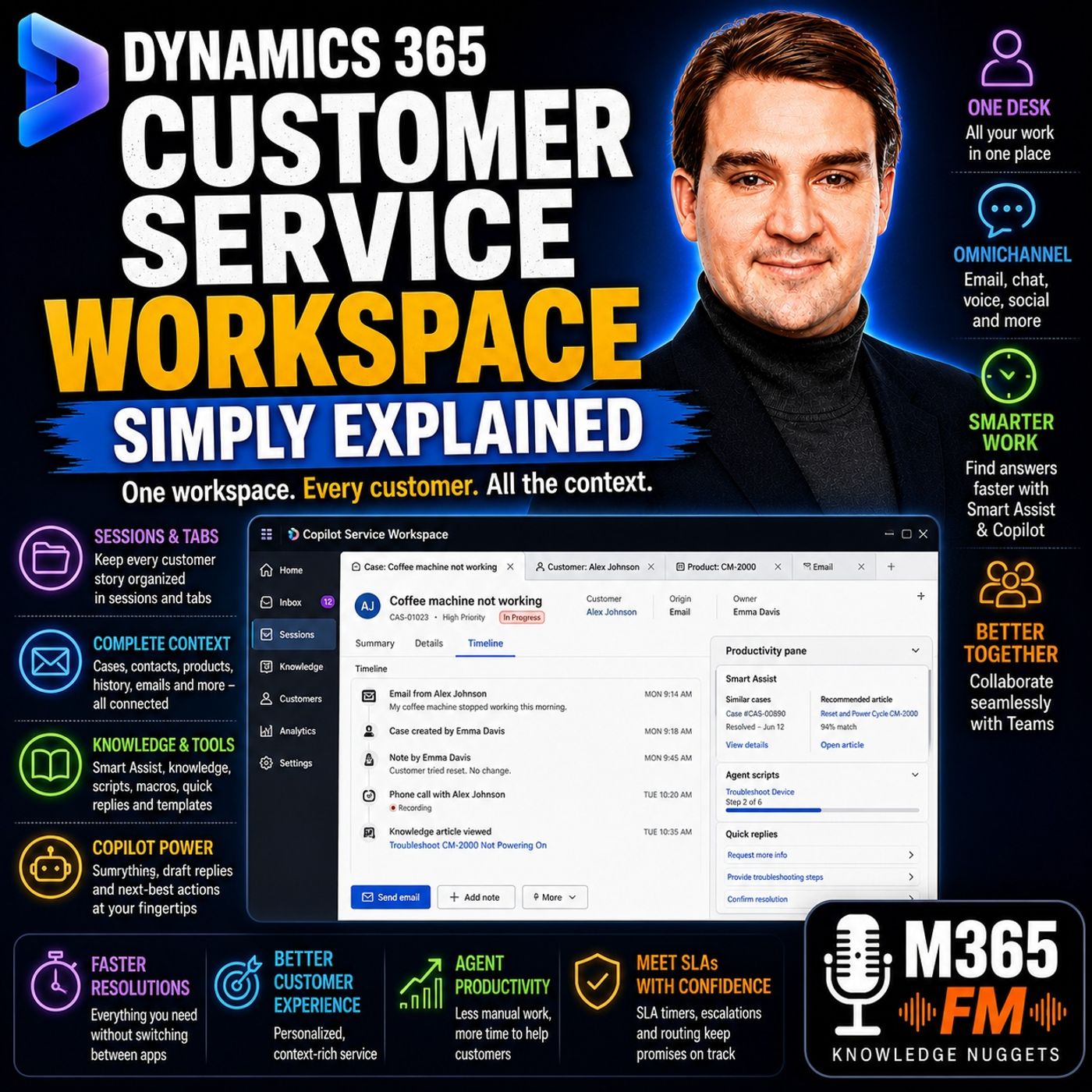
Dynamics 365 Customer Service Workspace - Simply Explained
Show notes
A customer sends an email, starts a chat, calls support, or contacts a company through another service channel. When an agent picks up that request, they need the complete customer story quickly. What did the customer already tell us? Which product do they own? Has somebody else worked on this problem? Is there an existing case? What was promised previously? Is there a service deadline approaching? Without a unified workspace, answering those questions can mean jumping between browser tabs, inboxes, CRM records, notes, knowledge bases, and communication applications. In this episode of Microsoft Knowledge Nuggets on M365 FM, Mirko Peters explains Dynamics 365 Customer Service Workspace, now known as Copilot Service Workspace, in plain English. We explore sessions and tabs, cases and timelines, omnichannel customer service, the agent inbox, Smart Assist, knowledge management, agent scripts, macros, quick replies, Copilot, Microsoft Teams collaboration, Unified Routing, queues, presence, capacity, SLA management, escalation, self-service, dashboards, and customer service analytics. The central idea is straightforward: give customer service agents one organized workspace where the customer, the problem, the history, the knowledge, and the tools required to solve it remain connected. WHAT IS DYNAMICS 365 CUSTOMER SERVICE WORKSPACE? Dynamics 365 Customer Service Workspace was designed as a focused working environment for customer service agents. Microsoft now refers to this newer agent experience as Copilot Service Workspace, so organizations may encounter both names in documentation, videos, training materials, or existing environments. Think of it as a browser designed specifically around customer service. Instead of opening a completely separate browser window for every customer, case, knowledge article, product record, and conversation, the workspace organizes related information around the piece of customer work currently being handled. The objective is not simply to display CRM records. It is to help agents move between multiple customer issues without repeatedly losing and rebuilding context. WHY CUSTOMER SERVICE AGENTS NEED A DIFFERENT WORKSPACE Imagine an agent halfway through a customer call. A high-priority email arrives. Another customer replies to yesterday's chat. A different case is approaching its promised response deadline. This is normal customer service work. Agents frequently manage several customers, several communication channels, and substantial histories for each customer simultaneously. They need to understand what the customer purchased, what already happened, who previously worked on the issue, and whether somebody promised a response. When that information lives across multiple systems, the agent becomes an information detective. Customer Service Workspace attempts to remove some of that detective work. THE PROBLEM WITH CONSTANT CONTEXT SWITCHING Consider the traditional workflow. An agent searches an email inbox for an old customer message. They open the customer record in another browser tab. They find a case. Another application contains internal notes. A knowledge base contains troubleshooting instructions. Then another customer contacts them. The agent changes context. Ten minutes later, they return to the first customer and need to remember why several browser tabs are open. The applications may all work correctly individually. The problem is that the customer story is fragmented across them. That fragmentation becomes visible to customers when they hear: "Can you tell me that again?" or: "Let me find the previous update." Customer Service Workspace attempts to keep more of that story together. FROM CUSTOMER SERVICE HUB TO COPILOT SERVICE WORKSPACE Many Dynamics 365 users will be familiar with the older Customer Service Hub experience. Customer Service Hub supported core service activities such as working with cases, customer records, activities, knowledge articles, and dashboards. Customer Service Workspace introduced a different style of agent experience focused more heavily on handling several active pieces of work while preserving the context associated with each one. The supplied episode describes Microsoft subsequently naming this experience Copilot Service Workspace. The underlying concept remains an agent-focused workspace where customer service information and tools are organized around active work. THE AGENT DESK, NOT THE ADMINISTRATION CONTROL ROOM Copilot Service Workspace is primarily where agents perform their daily customer service work. It is not where every customer service rule is designed. Administrators configure areas such as channels, queues, routing rules, permissions, skills, capacity, and other service settings through the relevant administration experiences. The agent experiences the result of that configuration inside the workspace. Think of the distinction like this: The administration environment is the control room. Copilot Service Workspace is the service desk. Agents should be able to focus primarily on customers rather than the technical configuration behind how customer work reached them. SESSIONS: ONE CUSTOMER ISSUE, ONE WORKING CONTEXT One of the most important concepts inside the workspace is the session. Think of a session as a labeled desk drawer. One drawer contains everything associated with one customer's active issue. Another drawer contains another customer's conversation. Opening one drawer should not mix its contents with another. Inside Copilot Service Workspace, a session provides a boundary around a particular piece of customer work. That makes it easier for agents to manage several active issues without mixing their records, notes, and supporting information. TABS: EVERYTHING RELATED TO THE CUSTOMER ISSUE Inside each session are tabs. The first tab might contain the case. The agent clicks the customer and opens the customer record as another tab. They might then open the associated account. Another tab could contain the product. Another could contain a knowledge article. Another might contain an email. These are separate records, but they belong to the same customer story. Instead of scattering those records across unrelated browser windows, the workspace keeps them grouped inside the session. This gives agents the freedom to explore connected information without losing the original customer issue. ㅤ A SIMPLE SESSION EXAMPLE Imagine a customer contacts support because their coffee machine stopped working. The agent opens the case. That becomes the working session. The case contains the reported problem and current status. The agent clicks the customer's name. The customer record opens as another tab inside the same session. The agent reviews previous support interactions. Next, they open the product record to determine which coffee machine model the customer owns. Then they find an approved troubleshooting article. That article opens in another tab. The agent can move between the case, customer, product, and knowledge article while everything remains associated with the same customer issue. MULTIPLE CUSTOMERS WITHOUT MIXING THEIR INFORMATION Now imagine another customer contacts support. Their problem has nothing to do with the coffee machine case. Instead of adding more unrelated tabs to the existing workspace, the second customer receives a separate session. That session has its own tabs, records, and context. The first customer remains in one drawer. The second remains in another. This separation can reduce simple but potentially serious mistakes. When agents handle several cases simultaneously, it can be easy to type a note on the wrong record, lose track of which customer owns which information, or accidentally continue working from the wrong context. Sessions provide clearer boundaries between those customer stories. SESSION AND TAB LIMITS The supplied episode states that Copilot Service Workspace supports up to nine sessions at one time, with up to ten tabs within each session. The important point is not that agents should spend their day counting tabs. It is that a customer case rarely exists alone. A service issue can connect to contacts, accounts, products, activities, emails, knowledge articles, notes, and other business information. The workspace gives those connected records somewhere to remain together while the agent works. SESSION RESTORE A browser refresh during a complicated customer case can be disruptive. The supplied material describes a session restore feature in preview that administrators can enable. With session restore enabled, supported records and tabs can be restored following a browser refresh rather than forcing the agent to begin again from an empty home page. The episode notes that supported cases, accounts, related tabs, and the agent's previous focus can return after presence loads, while active conversations such as chats and calls can also return. This can help preserve context when a refresh occurs at exactly the wrong moment. Agents still need to save their work appropriately. A workspace can restore supported context, but it cannot protect information that was never saved. Become a supporter of this podcast: https://www.spreaker.com/podcast/m365-fm-microsoft-365-azure-cloud-power-platform-ai--6704921/support.
Apple Podcasts · Spotify · YouTube · Deezer
Host: Mirko Peters
Guests
Related articles
Transcript
Read the full transcript
So a customer sends an email, starts a chat, calls support, or posts a message on social media. When an agent picks it up, they need the full story fast out because nobody wants to explain the same problem twice. The old way men separate browser tabs, inboxes, notes, and apps, details ended up scattered, and every handoff turned into a tiny detective job. Dynamics 365 customer service workspace brings all that work to one disk. Think of each customer issue as its own organized folder with the right information close by. The old Edmund Mirko Peters from M365 FM in this knowledge nugget, Routemal cover sessions, tabs, incoming work, helper tools, and the routing that happens behind the scenes. Why the workspace exists? Imagine an agent halfway through a phone call when a high priority email arrives. At the same time, a customer replies to yesterday O-T-M's chat, and another case needs an answer before it's promised deadline. That opens normal customer service work. An agent might juggle several customers, several contact methods, and a long history for each person. They need to know what the customer bought, what already happened, who last worked on the issue, and whether somebody promised a reply by a certain time. Without one place for all that, the agent keeps switching around. They search an email inbox for an old message, then they open a customer record in another browser tab. They check a note in a separate tool, return to the case, and try to remember why they opened that first tab. Ito Tim's not that agents don't know, Timutekari, or Ito Tim's that the information sits in too many places. And the customer feels that delay. They might hear, "Oh, can you tell me that again?" "Oh, or, oh, let me find the last update." "Oh, those words usually mean the agent does noten." Yet have the full picture in front of them. Slow hand-offs create the same problem. One agent writes a short note, another agent later opens the case, and must piece together emails, call notes, and customer history before they can continue. The work still gets done, but it takes longer and leaves more room for missed details. For many Dynamics 365 users, the older customer service hub handled core case work. You could open cases, customer records, activities, knowledge articles, and dashboards. It gave teams a place to manage service work. But its working style focused more on one session at a time. Customer service workspace came along to give agents a different kind of desk. Microsoft now calls it co-pilot service workspace, so you may see either name in older videos, documents, or your own environment. They both point to the same newer agent experience. Think of it like a browser designed around customer service. Instead of piling up browser windows for different customers, the workspace keeps each piece of work contained inside the app. An agent can move between active issues while keeping the related records together. They do now, to make it need to rebuild their place every time they return to a customer. That changes the rhythm of the day. The agent spends less time hunting for the right screen and more time reading the customer out to mess story, checking the details, and working toward an answer. The customer sees a smoother conversation because the agent can pick up where things left off. Now, the workspace is now TMZT, where a company decides every service rule. Administrator setup channels, queues, routing rules, permissions, and the tools agents can see. That work happens behind the scenes in the service admin experience. The workspace is where agents use that setup. It outens their working desk, not the control room. And before an agent can solve any customer problem, that problem needs a clear home. Sessions and tabs, the desk draw analogy. So let's how TMZ talk about sessions and tabs. Here are Timz, the simplest way to think about it. A session is how the workspace keeps one customer issue together. Think of it like a labeled desk draw. One drawer might hold a customer out in his case. Another drawer might hold an active chat. When you open that drawer, everything related to that piece of work stays close and organized. Inside each session, you have tabs. The first tab might show the case itself, then you open the customer record, and that appears as another tab in the same session. You might also open the customer AU, TMZ company account, the product they bought, a knowledge article, or an email connected to the case. They outmiss separate pages, but they belong to the same customer story. That utems the magic of it. Let me give you a concrete example. Imagine a customer contact support because their coffee machine stopped working. The agent opens the case, which starts a session for that issue. The case includes the problem description, who reported it, and the current status. The agent clicks the customer name. That customer record opens as a tab beside the case, so the agent can check past support requests and contact details without losing the case. Then the agent opens the product record to confirm the model, warranty details, or product history. Maybe the agent finds an article about cleaning or resetting that specific machine. That article opens in another tab in the same session. Nothing has disappeared. The agent can move from the case to the customer, from the customer to the product, then back to the case. Each tab keeps its place. The agent doesn't need to search again or open a new browser window just to remember which machine the customer owns. Now imagine a second customer writes in with a different problem. That should not mix with the coffee machine case. So the workspace opens a separate session for that second customer. It has its own tabs, its own records, and its own working context. The coffee machine customer stays in one drawer, the second customer stays in another. That may sound like a small change, but it prevents an easy mistake. When you handle several cases at once, it outtimes is very easy to type a note on the wrong record, send a reply from the wrong case, or lose track of which customer owns which problem. Separate sessions give each issue a clear boundary. Here are some practical detail. Co-pilot service workspace supports up to nine sessions at one time. Within each session, an agent can open up to 10 tabs. Most agents won't count tabs all day. The point is that there is room to follow the links that matter without breaking away from the customer issue. A case rarely lives alone. It connects to people, products, emails, notes, activities, and guidance. The workspace gives those connected records a place to sit. You out and usually see the session list on the left side of the app. That too, temps where an agent can see the active pieces of work and switch from one session to another. Across the top, you, temps see the tabs inside the session. You will temporary currently working in. So the left side answers, "Oh, which customer issue am I working on?" A-O, the tabs answer. Or which part of that issue do I need right now? A-O and agent might check the product details for the coffee machine, switch to another customer for a few minutes, then return to the first session and find the case, customer record, and knowledge article still grouped together. There is no need to rebuild the trail. That, thoubet, tams the day-to-day benefit. Now sessions don't remove the normal care needed when working with customer records. If an agent closes a session while changes are unsaved, those changes can be lost. The workspace warns about this, but the agent still needs to save case notes, updates, and emails before closing work. A desk drawer can keep papers together. It can't save a note you never wrote down. Microsoft also has a session restore feature, currently in preview, that an administrator can turn on. When he touted, as enabled, a browser refresh can restore supported records and tabs, rather than leaving the agent back at the homepage with an empty work area, it can restore cases, accounts, related tabs, and the agent out TM's last focus. After presence loads, active conversations such as chats and calls can return to. That would tams useful when a browser refresh happens at exactly the wrong moment, which somehow always seems to happen during a difficult case. Organized sessions solve the problem of keeping work apart, but customers still need a clear way to bring their requests into the same workspace. One workspace for customer requests. Customers don't think in channels. They think, "Oh, I need help." "Ao, they might send an email during lunch. Use webchat later that afternoon, or call when the problem still isn't fixed." From their side, it should feel like one support conversation, even if they contact the company in different ways. That is what OmniChannel means in plain English. The company lets customers choose how to get in touch, while service agents work from the same place. Depending on what the company has set up, that can include email, webchat, SMS messages, voice calls, social messaging, and conversations linked to Microsoft Teams. The channel changes, the agent's working area doesn't. Let me walk you through an example, imagine a customer starts a webchat because a delivery hasn't arrived. The request reaches the service team and an available agent sees it as incoming work. When the agent accepts it, the workspace opens the related session, ready for that conversation. The agent can read the chat, view the customer details, and work on the case without opening a separate chat tool. Later, the customer might need to send a photo or more details through another contact method. The team can keep those interactions connected to the same customer in case, so the next agent doesn't begin from zero. Now that doesn't mean every channel magically joins together without setup. Your company needs to connect the channels, decide how customer records match, and set the rules for handling incoming work. But once that setup is in place, the workspace gives agents one consistent place to respond. This matters when a customer says, "Oh, I already told someone about this." "Air" instead of searching through several systems, the agent can look at the customer record in case history. They can see the earlier conversation, the update's already sent, and the notes left by another team member. A case is the main folder for that support issue. It records the status, so agents can see whether the case is new, active, waiting, or resolved. It records priority, which helps the team spot work needing faster attention. It can also show the source accounts such as email, chat, or phone, or along with the customer, related product, description, and other details the company chooses to track. Then there is the timeline. The timeline puts the events of a case into date order. An agent might see the first email from Monday and internal note from Tuesday, a phone call from Wednesday, and a reply sent this morning. One story, not a pile of disconnected messages. This also helps when work moves from one agent to another. The new agent can read what happened instead of asking the customer to repeat every detail. They may still need to ask a follow-up question, but it should be about moving the case forward, not recovering lost context. You may also see an inbox in Copilot Service Workspace, think of it as a focused work list, not your normal company email inbox. It can show cases, conversations, and activities assigned to you, helping agents handle fast moving work without digging through several views. For example, an agent may use the inbox to spot an assigned messaging conversation or a case that needs attention. If the issue turns into more involved work, the agent can promote it into a regular session and keep working there. The inbox doesn't replace outlook or every mailbox your company uses. It gives agents a focused view of the work dynamics has assigned to them. So, on my channel is not just a long word for over many contact methods. A.O. it is a way to keep customer requests connected, while agents use one familiar service app. The case holds the work together and the timeline lets the agent read the story without searching for every chapter. Seeing the whole story helps, agents also need a fast way to find the right answer. The productivity pane help beside the case. So you found the customer's story. Now you need a good answer to go with it. Here's where the productivity pane comes in. It sits on the right side of the Copilot Service Workspace. Think of it like an open reference book right beside the agent's desk, no need to dig through another system while the customer waits. What shows up there depends on how the company set things up. One tool inside that pane is Smart Assist. It looks at the active case and suggests similar cases or knowledge articles that might help. Say a customer reports a leaking coffee machine, Smart Assist can surface an earlier case with the exact same symptoms. Along with an approved article about checking a seal or the water tank, the suggestion isn't the final answer. But it gives the agent a sensible starting point, especially when the customer describes the problem in everyday words, instead of the technical terms, the internal article uses. Knowledge search gives the agent another path. Instead of closing the case and hunting through a separate knowledge base, they can search for approved troubleshooting steps right from the productivity pane. The case stays open. The guidance is right there. When an agent opens a knowledge article, it appears as another tab in the current session. They can read the steps, return to the case, use what they learn to guide the conversation. If the article fits the customer's situation, the agent can share it through email. But here's the thing, A) they still need to check it matches the customer's specific product. An article about one coffee machine model won't help much when the customer owns a different one. Some service conversations follow the same pattern every time. A lost delivery, a password reset, a return request. They all need the same questions in the same order. Agent scripts give teams a guided checklist for exactly those moments. A script can prompt the agent to confirm details, explain the next step, record the result, that helps new staff get comfortable faster. It also helps experience staff handle routine work consistently without sounding like they're reading from a script. The agent can still respond like a real person and adjust when the customer throws in something unexpected. Behind some script steps, you'll find macros. A macro is a prepared action or a set of actions. It might update a case field, prepare an email, create a follow-up activity after the agent confirms something with the customer. Less time spent clicking through the same steps. The case record follows the team's standard process every time. Quick replies and email templates work the same way. Instead of typing the same polite opening or standard delivery instruction over and over, the agent starts with approved text and adjusted for the specific case. Prepared text saves typing. It doesn't remove responsibility. The agent still needs to read it before sending every time. Co-pilot can help with the same kind of work too, but in a different way. A case summary gives a new agent a quick view of what happened so far. That's really helpful when a case contains a long timeline of emails, calls and notes. Conversation summaries help an agent wrap up a chat and record what was agreed. Co-pilot can also draft an email response using the case context. That saves time when the agent knows the answer, but needs help turning it into a clear message. Still, a draft is a starting point, not a final decision. The agent checks the facts, the tone, the customer details, any promises made, nothing leaves the company until the agent reviews it. Some cases need someone with deeper knowledge. The workspace can bring Microsoft teams right into the agent experience, so an agent can ask a product specialist for help without losing their active customer record. The difficult case stays in view while the right people discuss it. The agent can see the work, find the guidance, bring in an expert when needed, but the work still needs to reach the right agent in the first place. Rooting, presence and capacity, the reception desk. Before an agent can help anyone, the right work needs to reach them. Behind the scenes, unified rooting works like the reception desk for the entire service team, a new case or conversation comes in. The system checks the company's rules, then sends that work toward the right queue or person. A queue is simply a waiting area for a specific type of work. A company might have one queue for billing questions and another for technical support. When a customer asks about an invoice rooting sends that case toward the billing team. When someone reports a product won't start, it goes to technical support. The system checks more than just the case subject. It looks at business rules, agent skills, current availability, workload. So it's not just asking who works in support is. It's asking who has the right skill is available to take work and isn't already overloaded. That creates a much smarter path for customer requests. An agent's presence tells the system whether they can receive new work. Presence is the status and agent chooses in the workspace. Available, busy, do not disturb. When an agent is available, the rooting system can consider them for new work. When they're busy, it looks elsewhere. Presence isn't just a little colored dot on someone's profile. It tells the system whether that agent should receive another live chat, another phone call, another assigned case. If people forget to update their status, rooting might send work to someone who stepped away. Or leave work waiting when an agent could actually help. Capacity adds another layer. Each team decides how much active work an agent can handle at once. The system uses that number to avoid overloading one person while others have room. It doesn't guess how busy someone feels. The company defines the rules, rooting follows them. Different types of work use different amounts of capacity. A phone call might take an agent's full attention, so a company counts it as a large amount of capacity. Messaging works differently, or an agent can manage several conversations when customers reply with pauses between messages. Here's an example. A team could decide one phone call, fills an agent's available capacity. But several messaging conversations fit within the same limit. Those numbers are choices the service team makes based on the work they actually do. Then there's the question of assignment. With push assignment, the system automatically sends incoming work to a suitable available agent. The agent sees the request and accepts it according to the team's process. This works well when the team wants quick handling and even distribution. With pick assignment, open work appears in a list. Agents choose what they'll take next. That works well when agents need to select cases based on what they're already handling. Or when the team wants people to pull work from a shared queue. Neither approach is automatically better. It depends on the kind of service the company provides. Let me give you a concrete example. Two requests arrive at the same time. One customer needs help understanding a bill. Another needs help fixing a technical issue. If the routing rules, skills, presence and capacity are set up properly, the billing request reaches someone trained in billing. The technical request reaches someone who knows the product. The customer doesn't need to understand the company's internal structure. They just need help. Routing can spread work more evenly, but it only follows the setup it receives. If a company assigns the wrong skills, sets unrealistic capacity limits, or leaves agents in the wrong present state, the results won't feel fair at all. Once the work passes through that reception desk, service leaders need a clear view of what the team is facing, so from solving cases to improving service. So customer service is now, Tema, it just about closing today out, Tim's case, it outens also about keeping promises. Promises like how fast you will reply and how quickly you will resolve the issue. That out to mince where dynamics SLA timers come in. They out to a simple timer that show agents when a deadline is getting close. A timer does now TMT solve the problem, but it makes the time pressure visible before the deadline passes. That gives the agent or the team leader a chance to act while their O term is still time. Think of it like a countdown clock. Escalation rules can back that up. When a case is about to miss a deadline, the system can alert someone. It can change the priority, or it can move the case to another personal team. What exactly happens depends on how your company sets up its service process. Now, customer history is another piece of the puzzle. Imagine an old problem comes back. An agent can see earlier cases and interactions linked to that customer. Maybe the same device failed before. Maybe the customer already tried a step that normally fixes it. That history helps the team avoid treating a repeat problem like a brand new one. Some customers prefer to solve simple issues themselves. A self-service portal can publish the same knowledge articles that agents use inside the workspace. So customers can search for steps and answers before they ever open a case. And the company keeps one approved source of guidance for both groups. When a case reaches resolution, the work may not stop there. The system can create a follow-up task. Send a confirmation message. Or invite the customer to complete a feedback survey. The case may be closed, but the team can still check whether the customer understood everything. Managers also need to spot patterns across the service team. Dashboards and insights show case volume, backlog growth, repeat topics, agent workload, and customer feedback. A sudden rise in cases about one product might point to a wider problem. A queue with aging cases might mean the team needs more help or a different way to sort work. But here, Ooms, the thing, a dashboard provides signals. People still need to read those signals, ask what caused them, and decide what to change. A chart can show a backlog. It cannot meddle you whether the answer is more training, a product fix, or a change to routing rules. Put these building blocks together. And co-pilot service workspace becomes more than another dynamics screen. It becomes a place where everything connects. Conclusion. One organized service desk. Co-pilot service workspace brings customer requests, cases, records, guidance, and colleague support into one organized place. Agents can focus on the customer instead of hunting for information. Subscribe to m365.fm for more knowledge nuggets in plain English. And share this episode with someone who still thinks Dynamics 365 customer service is just a case list.